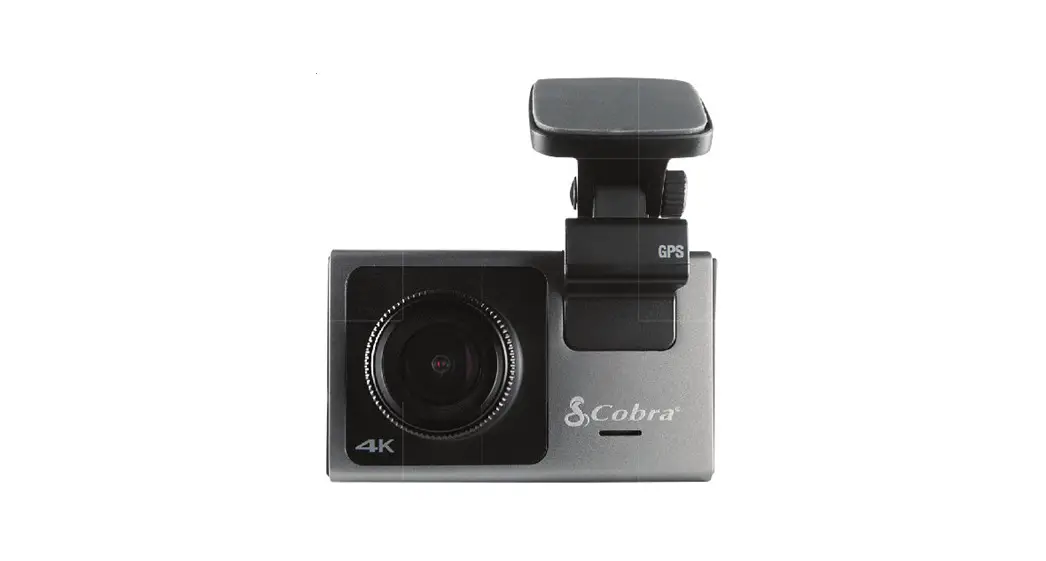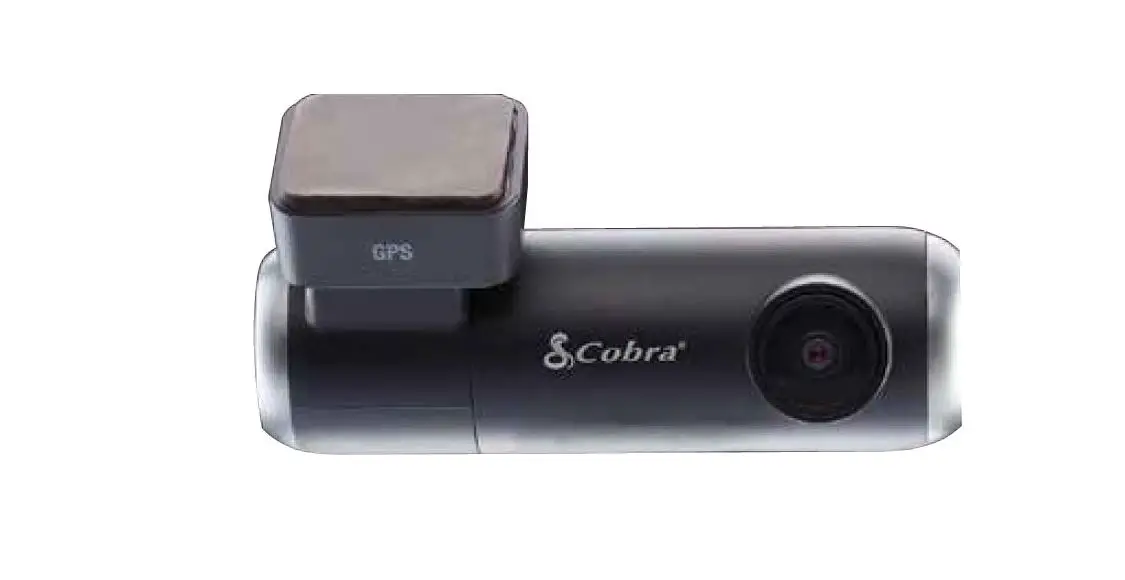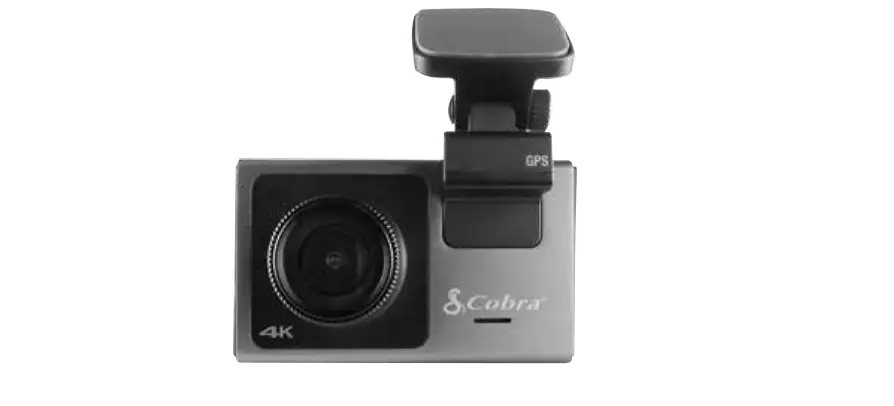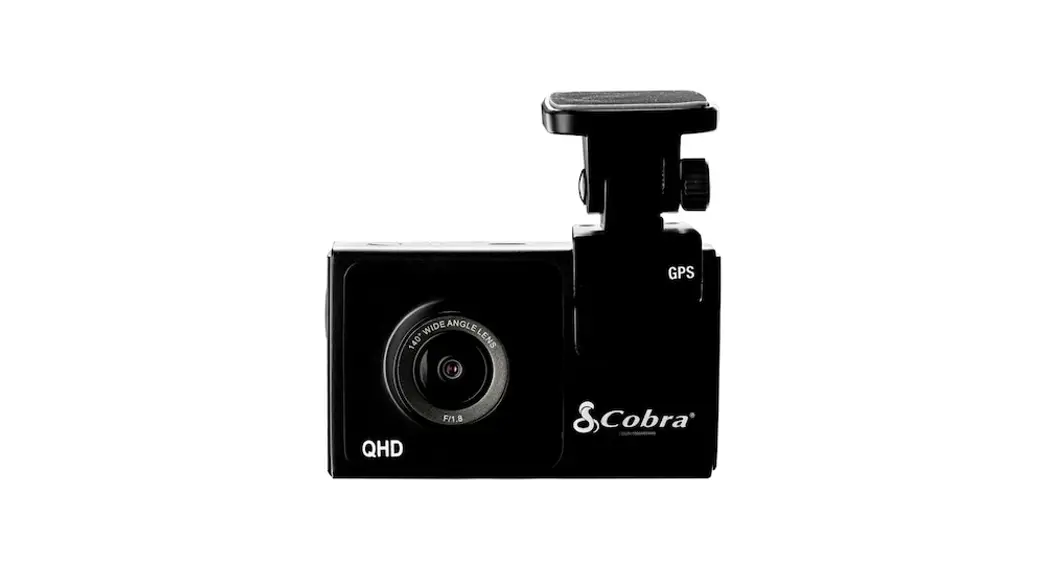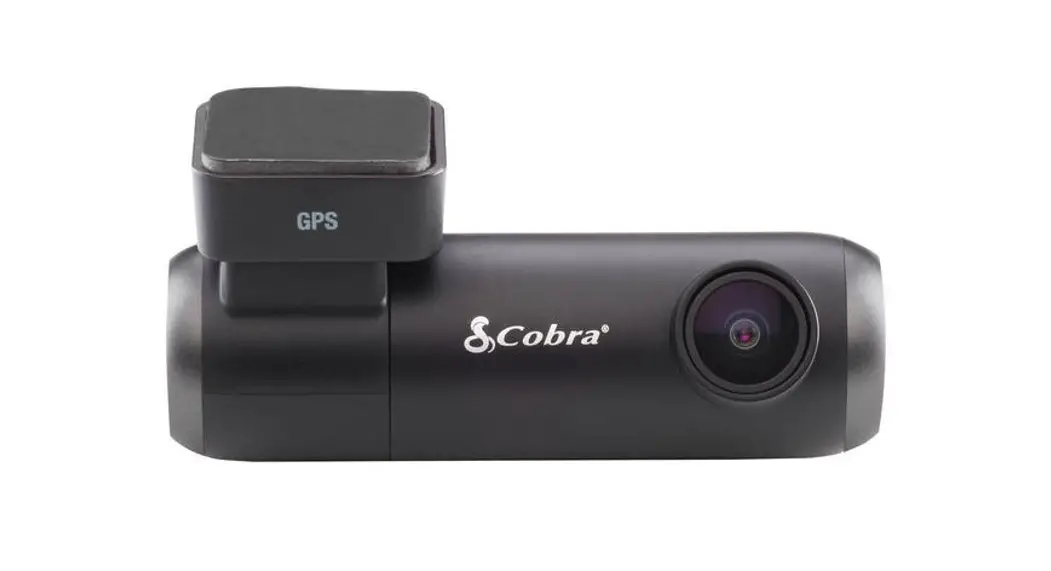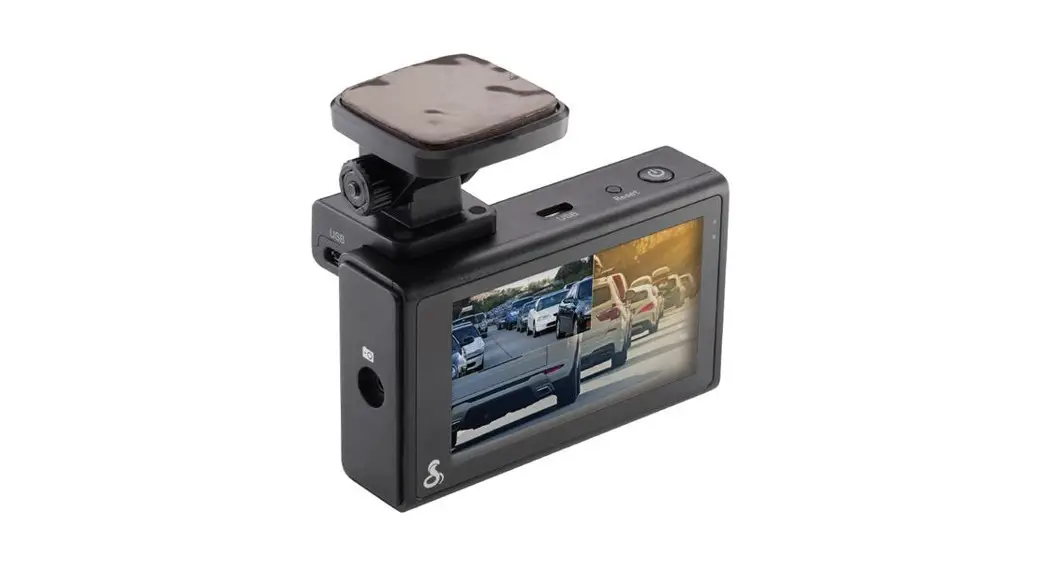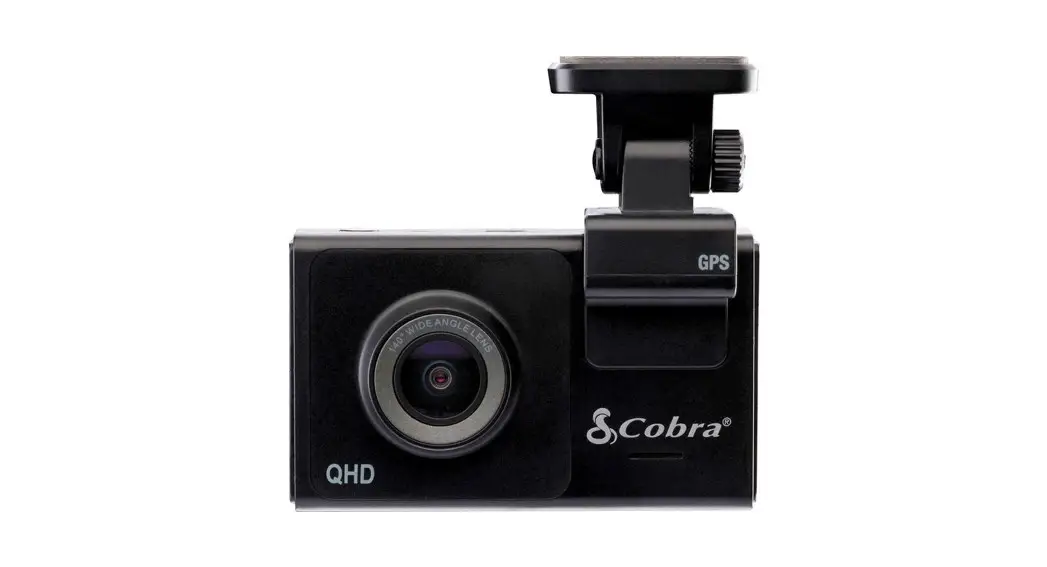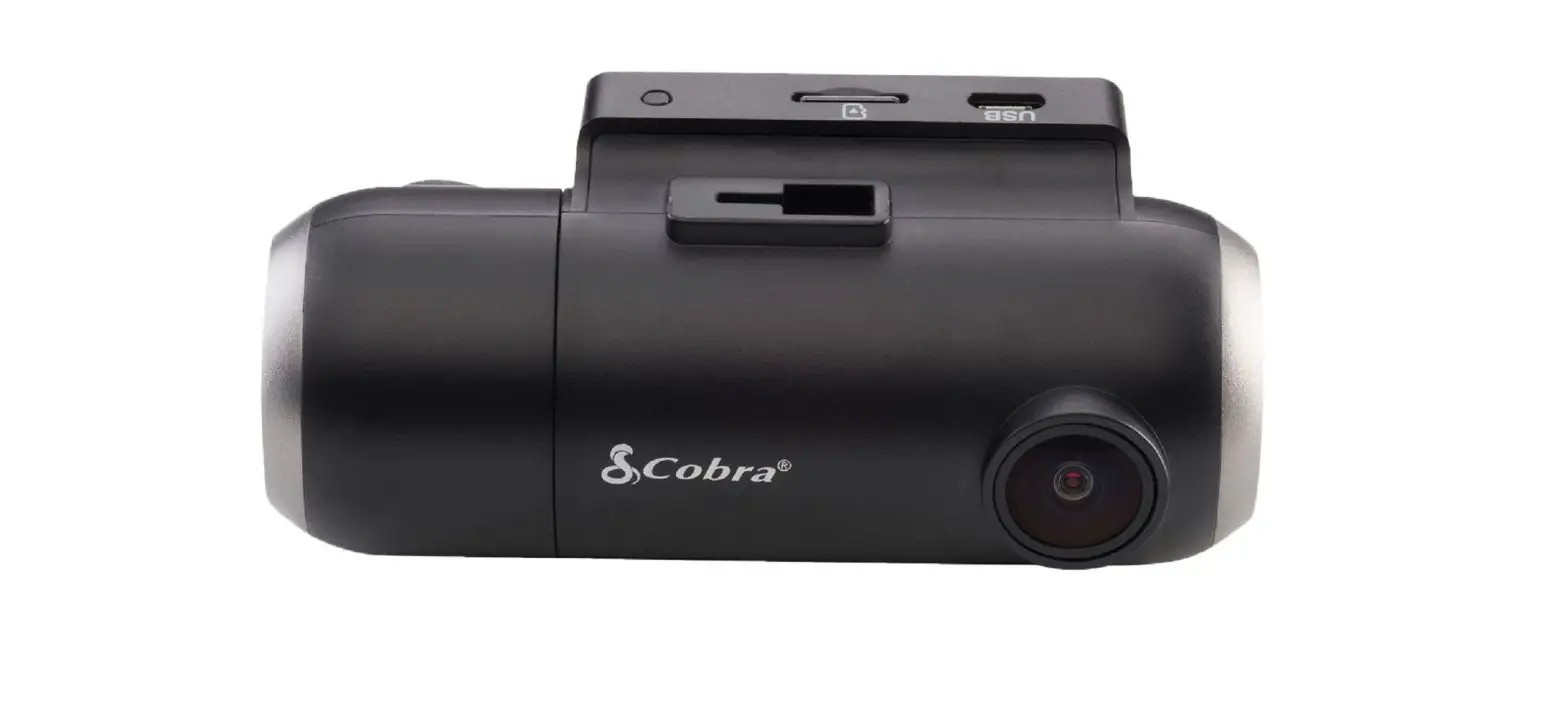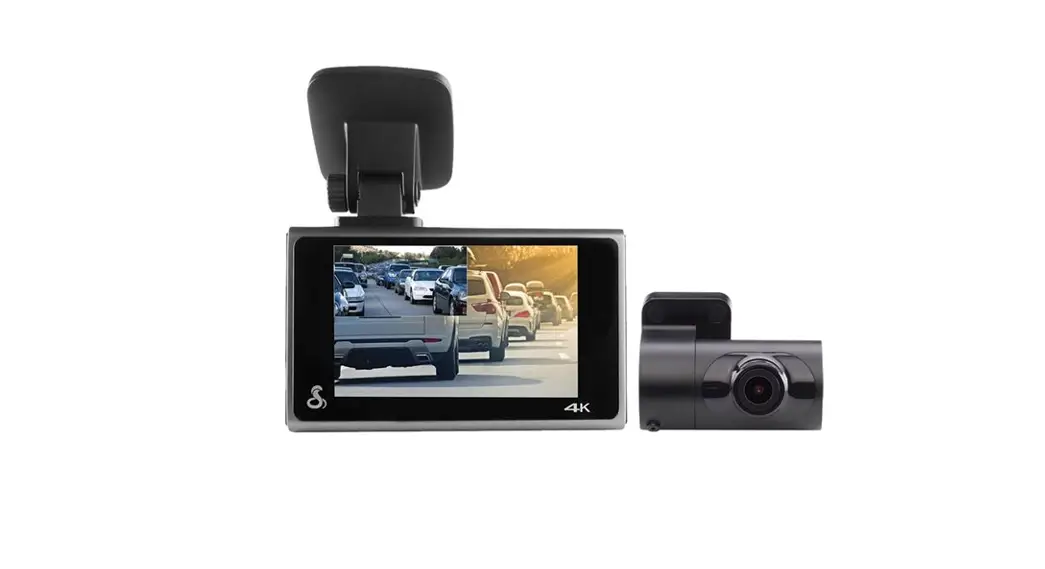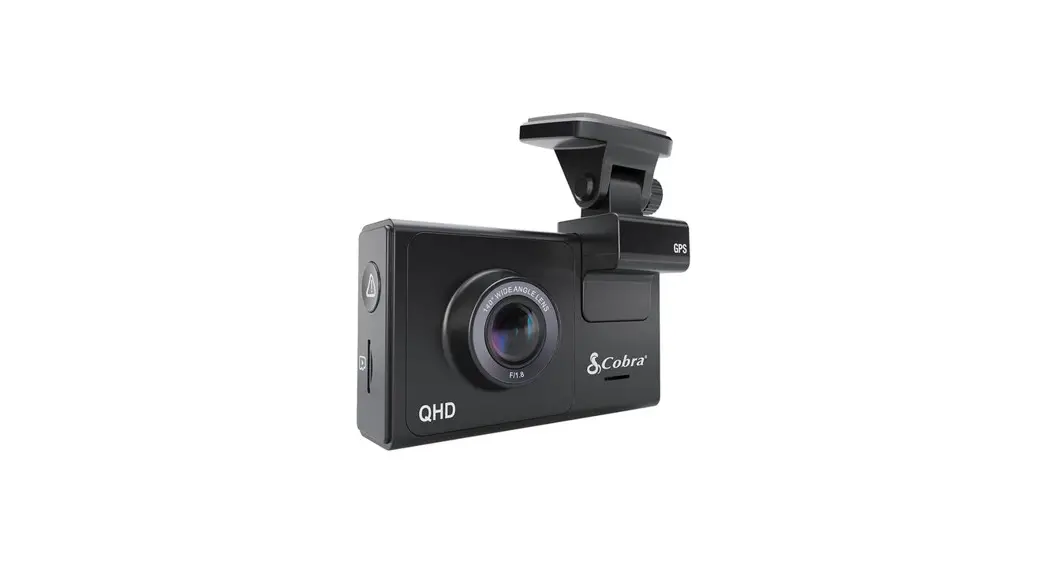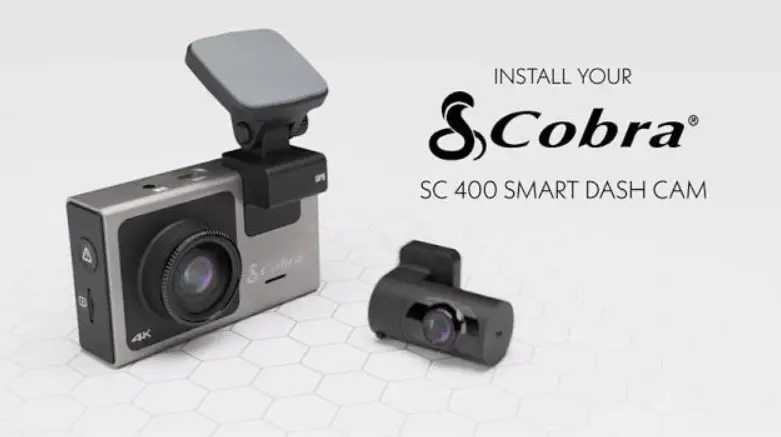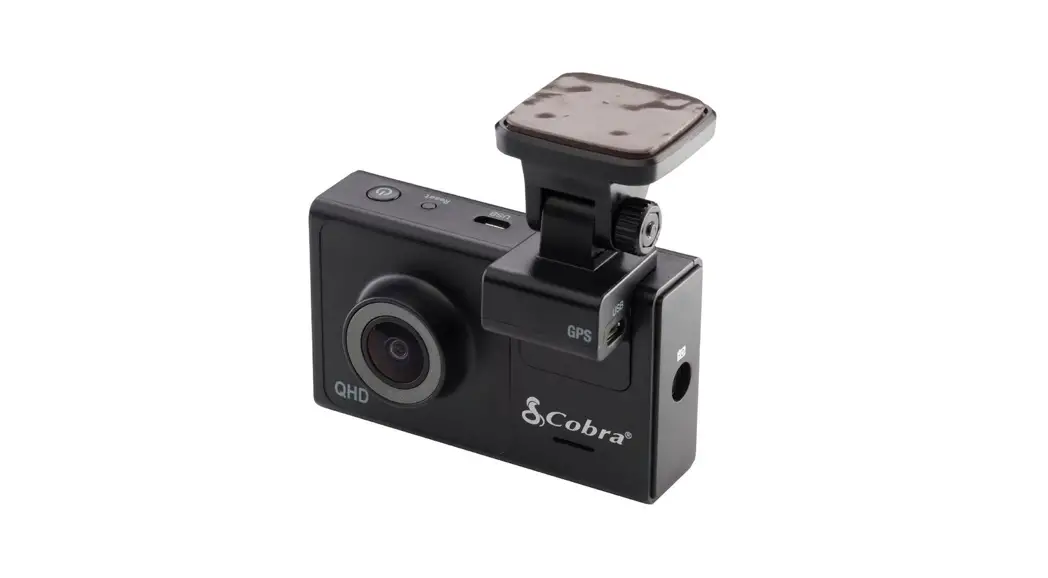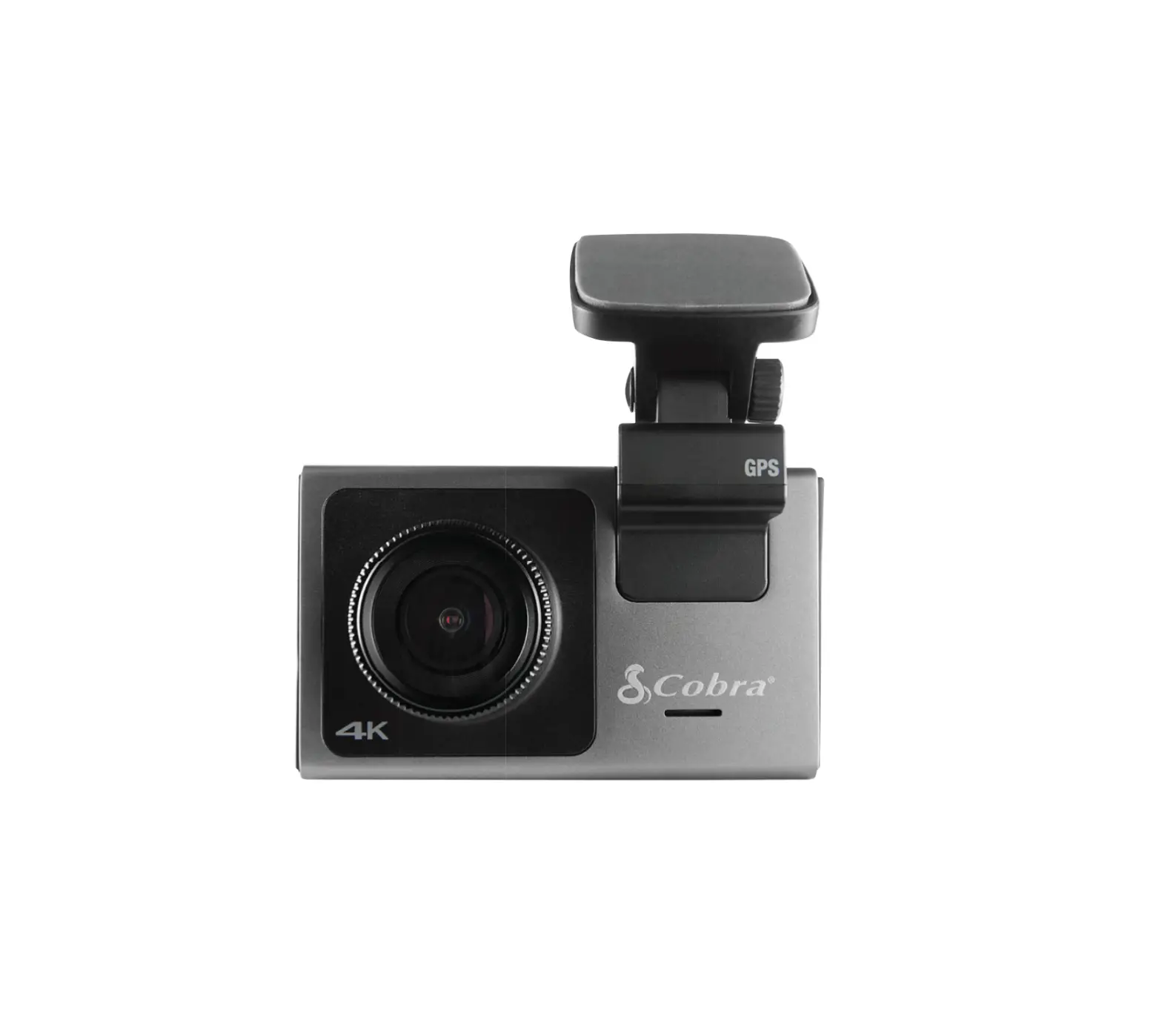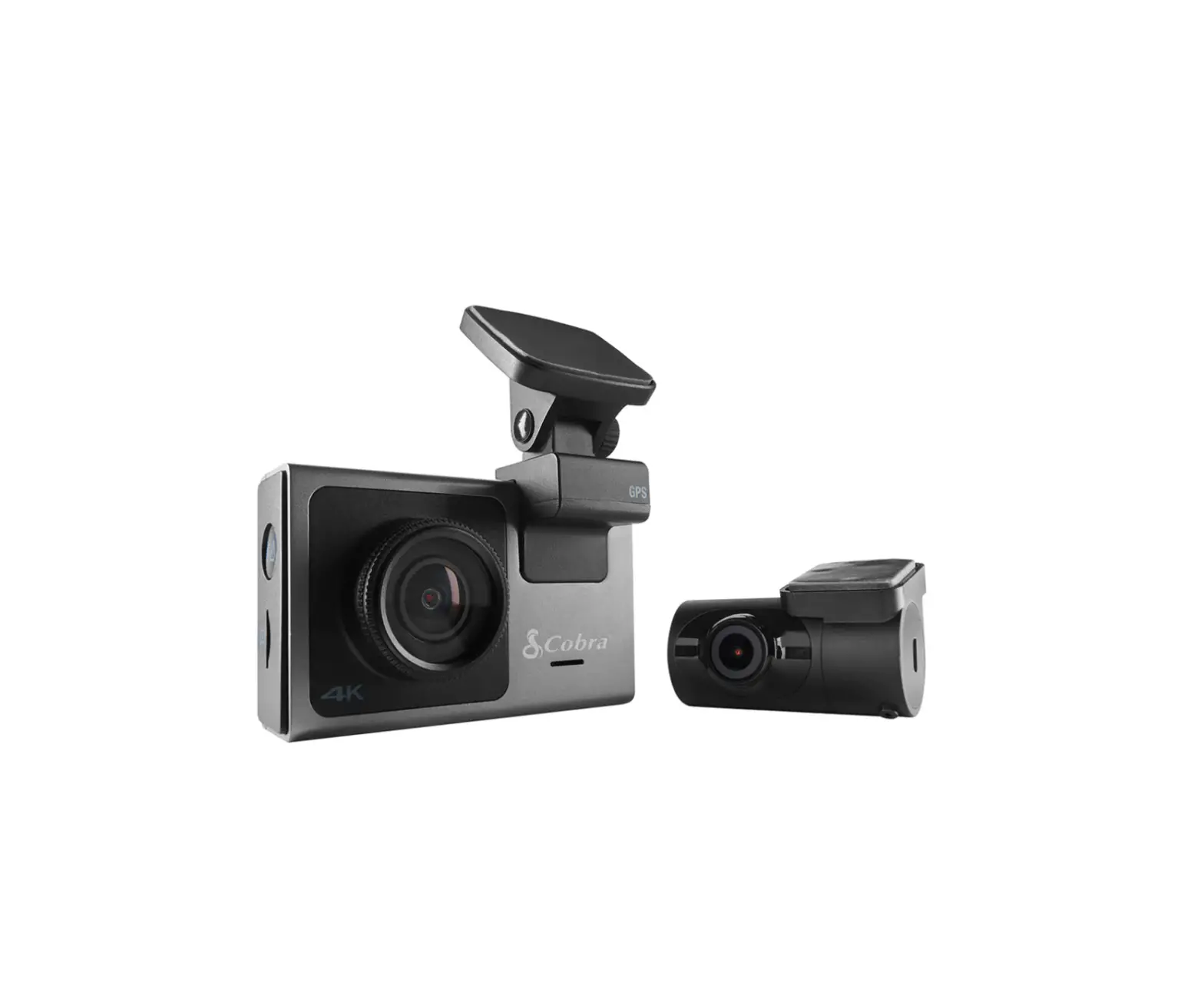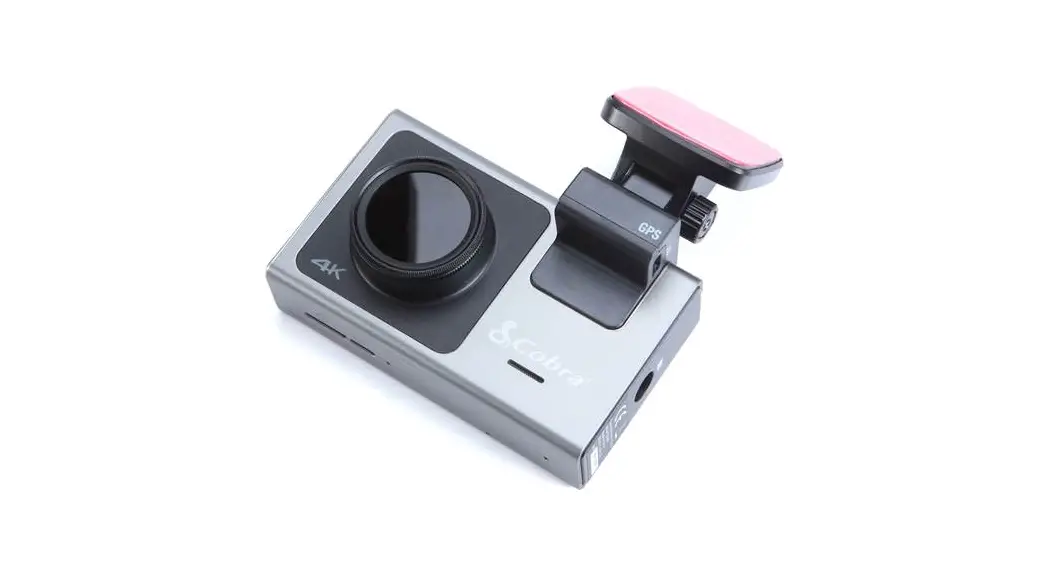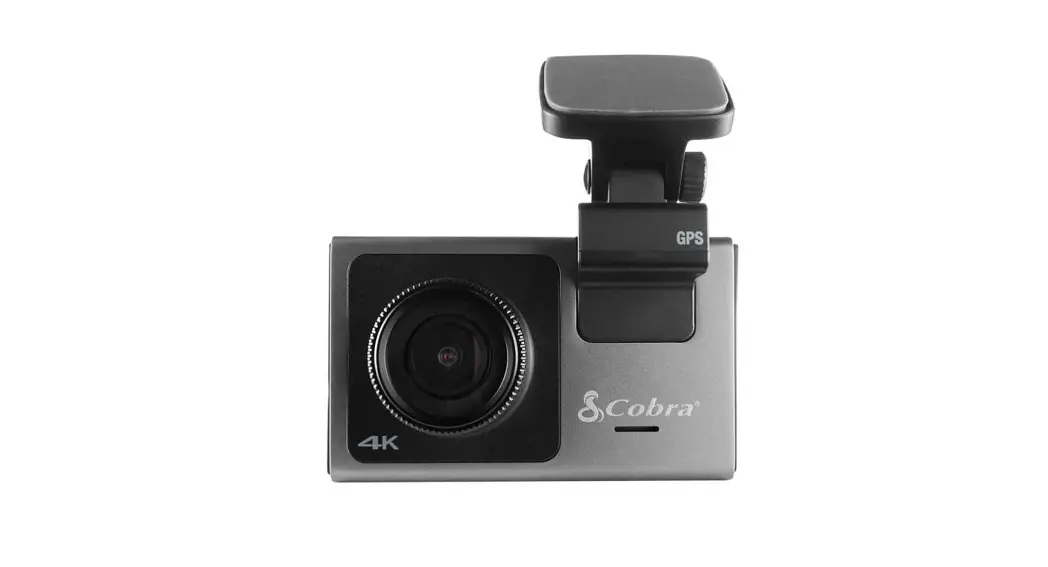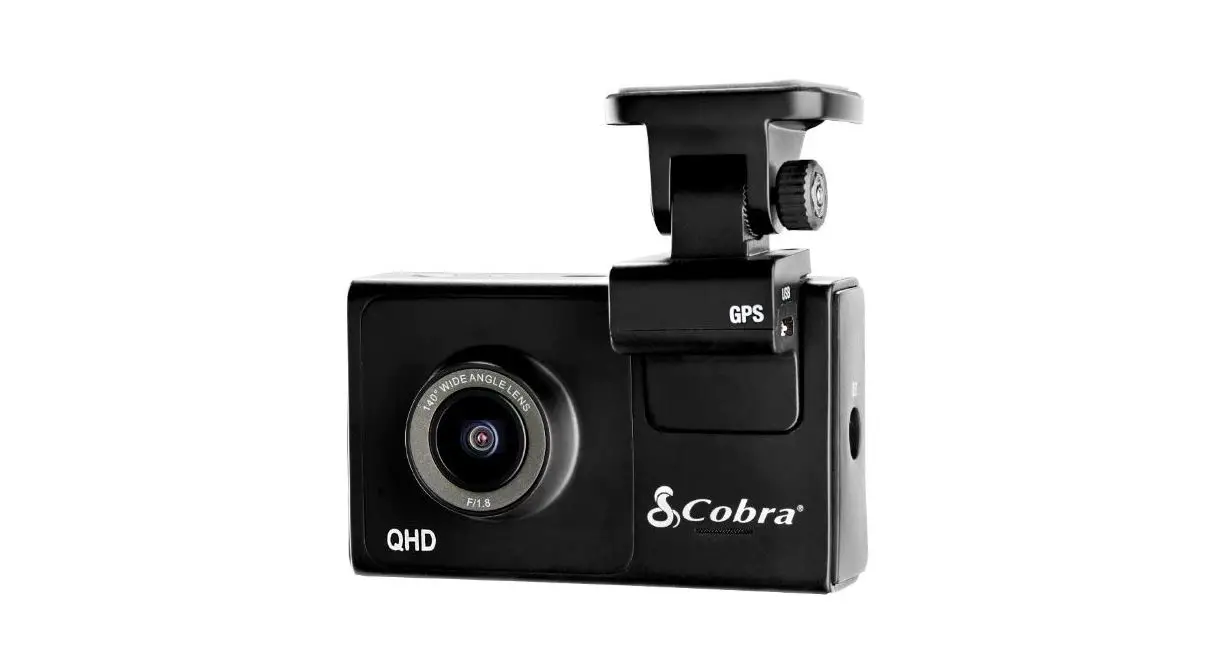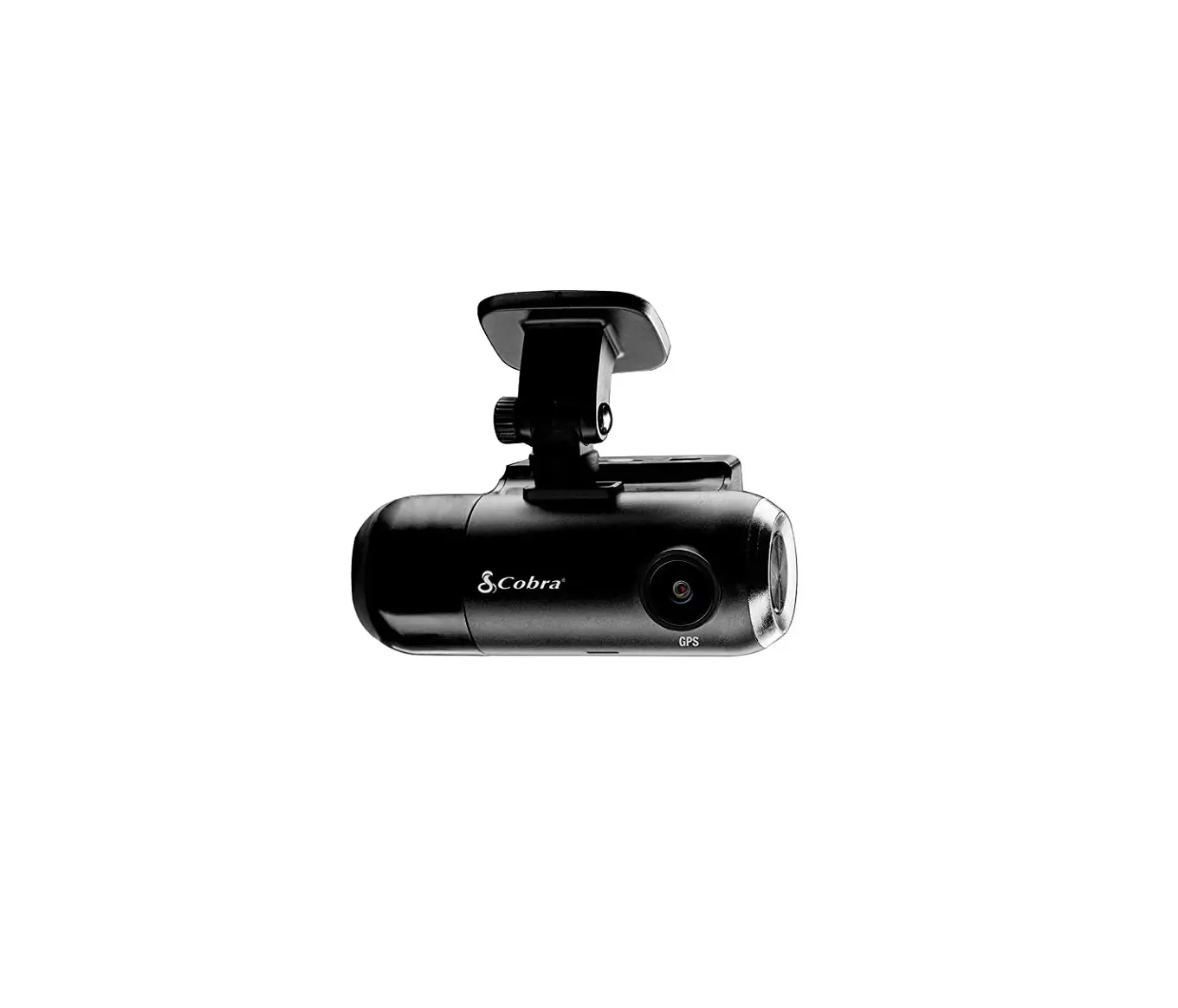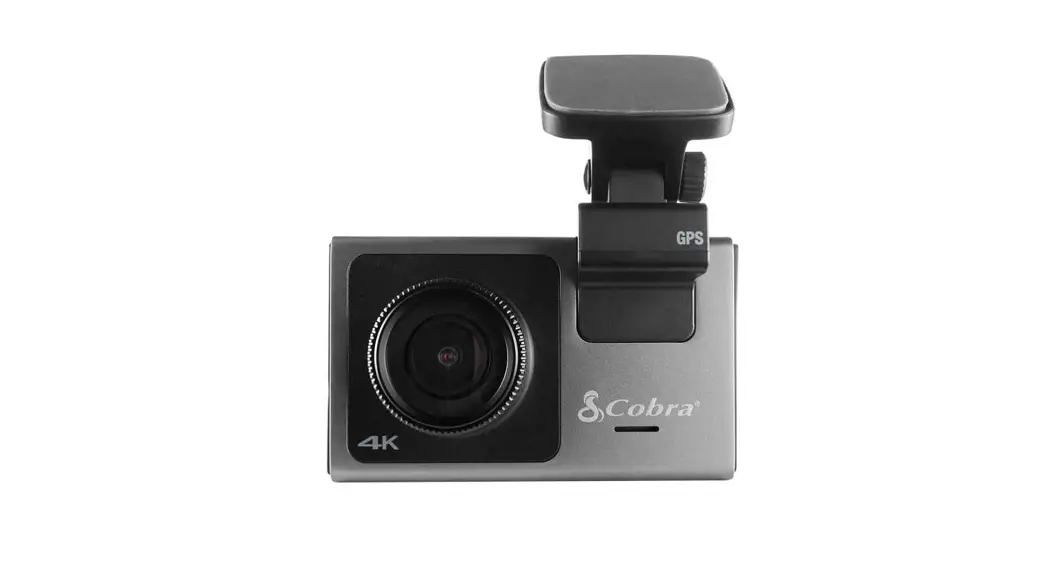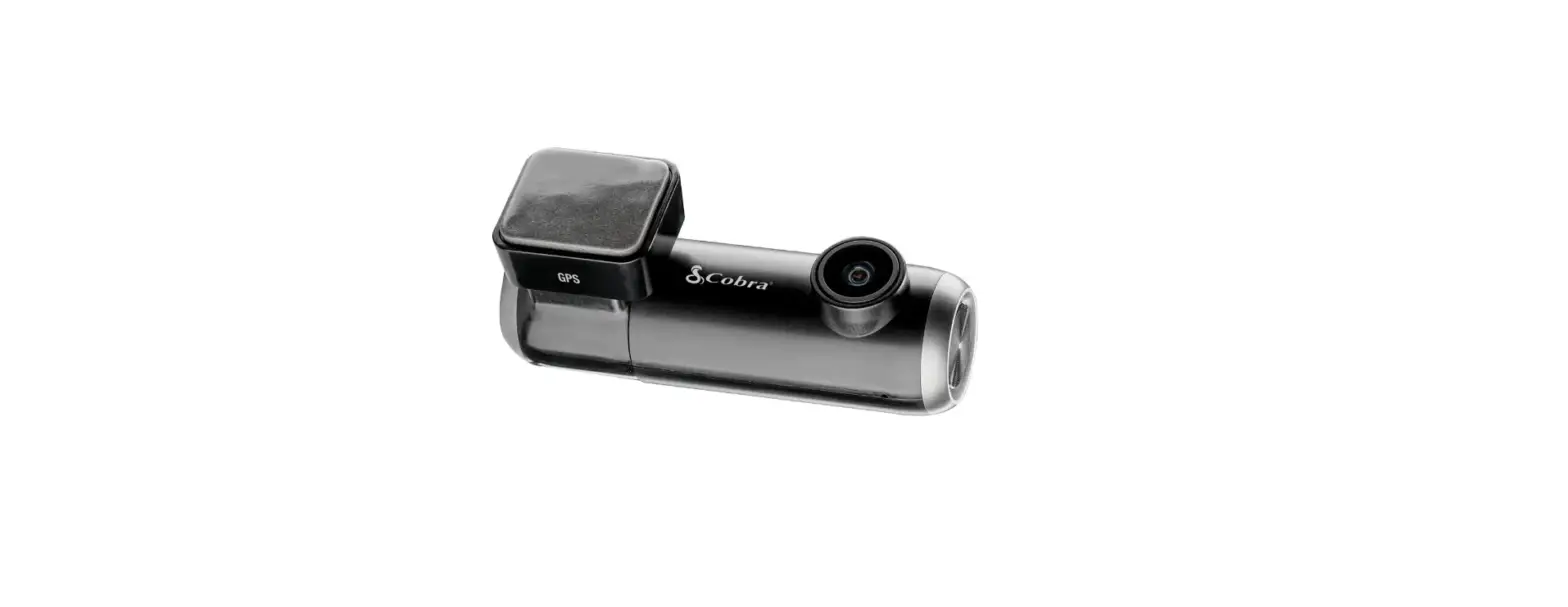

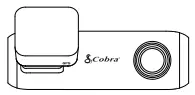
Cobra SC 100 Smart Dash Camera
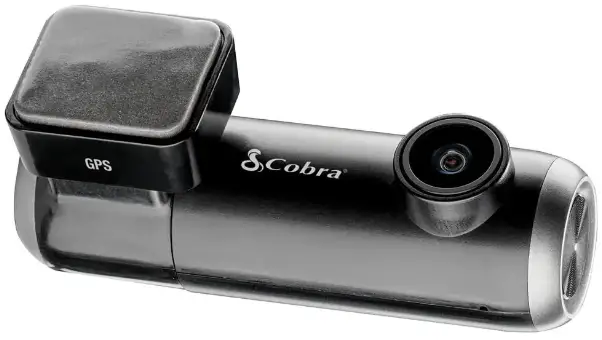
Thank you for purchasing the Cobra® SC 100
DRIVE SMARTER® APP FEATURES:
- Real-Time Driver Alerts
Radar, speed, and red light camera alerts - Cloud Video Management
Manage and share footage from your phone - Emergency Mayday Notification
Alert someone in case of an accident - Turn-by-Turn Navigation
Plan routes and easily view upcoming turns - Over-The-Air Updates
Update your camera with the latest firmware and features
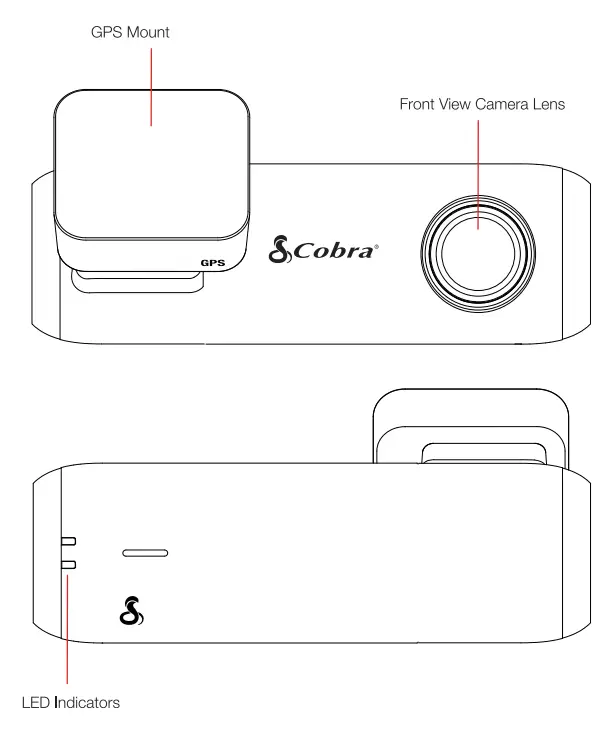
SC 1 00 Features

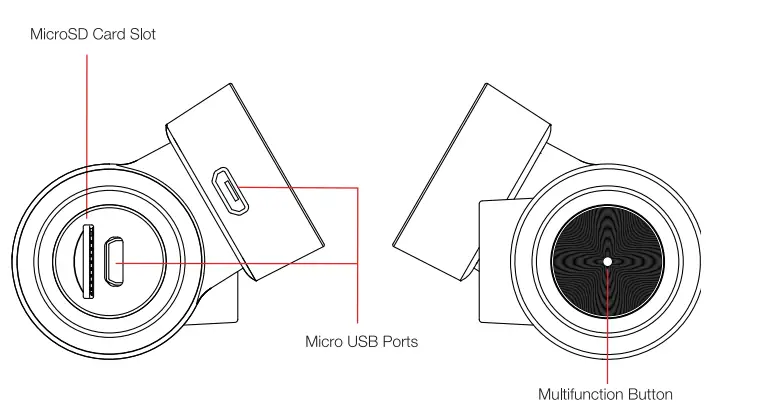
| Button Press | Camera Action |
| Press and Hold 3 seconds | Power on/off |
| Short Press (Not Recording) | Begin Recording |
| Short Press (During Recording) | Lock Video |
| 2x Short Press | Take Photo |
| Press and Hold 1 O seconds | Reset |
- 8GB MicroSD Card
- GPS Mount
- Vehicle Charger
- Micro USB Data Cable
- Quick Start Guide

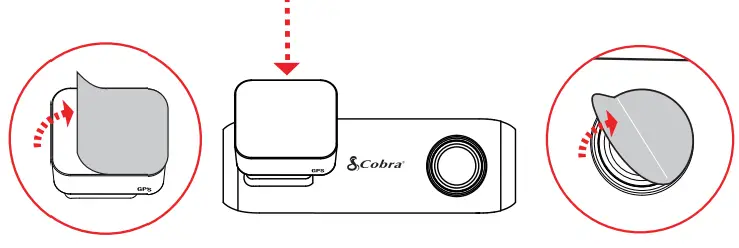
- Attach GPS Mount and remove the protective film from mount and camera lens

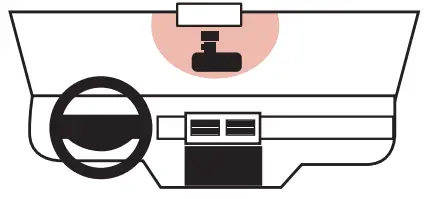
- Attach camera to windshield

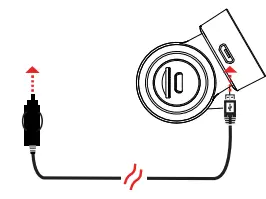
- Connect to GPS Mount To 12V Power Source :

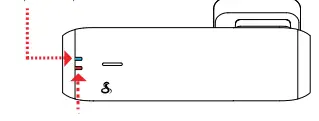
- Camera automatically turns on and begins recording Blue LED indicator lights when camera is powered up

Red Indicator blinks when camera is recording - View the camera’s videos and adjust settings using the Drive Smarte app

- Adjust Volume
- Change Language
- Change Resolution
- Format SD Card
- Update Firmware
Scan QR Code For Additional Languages: