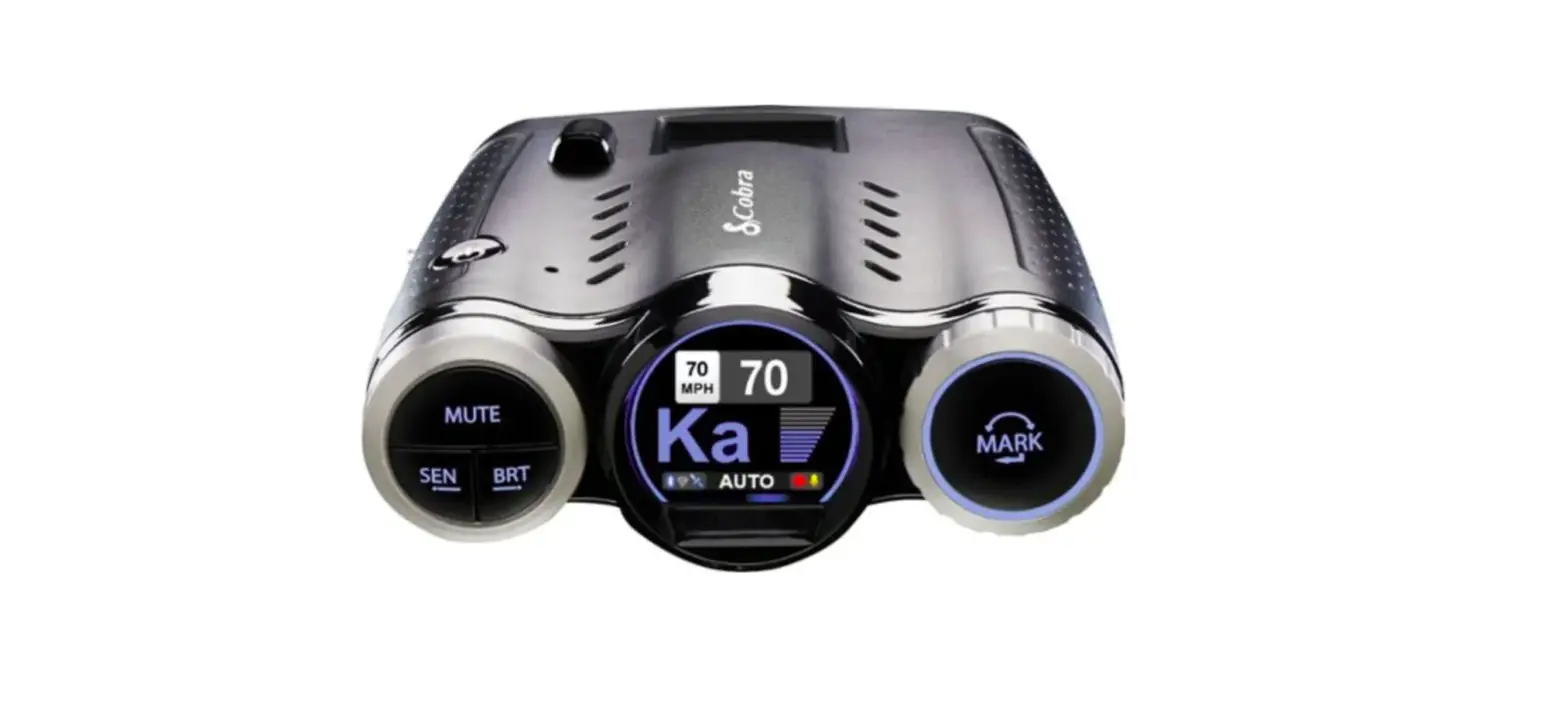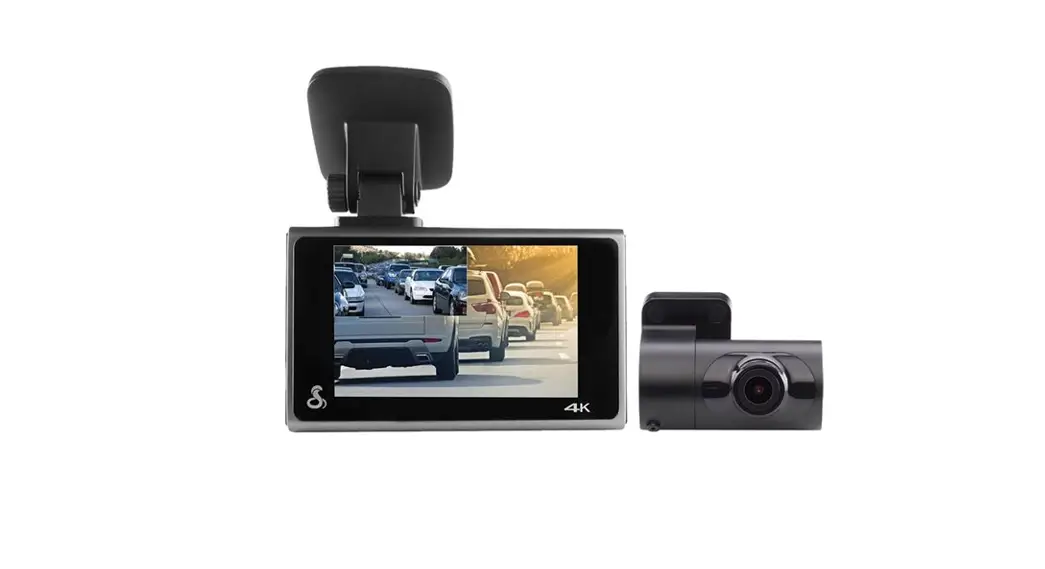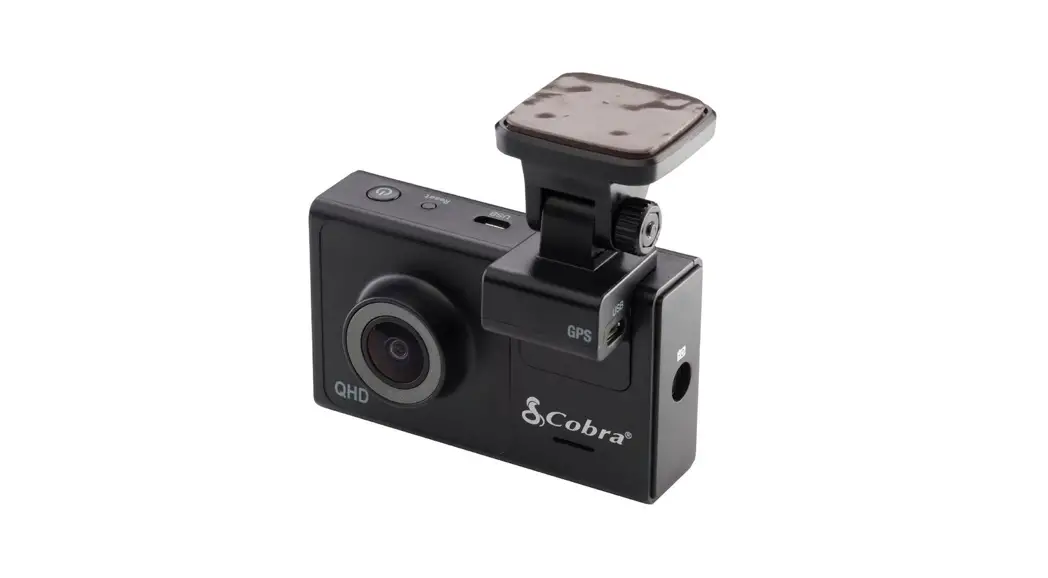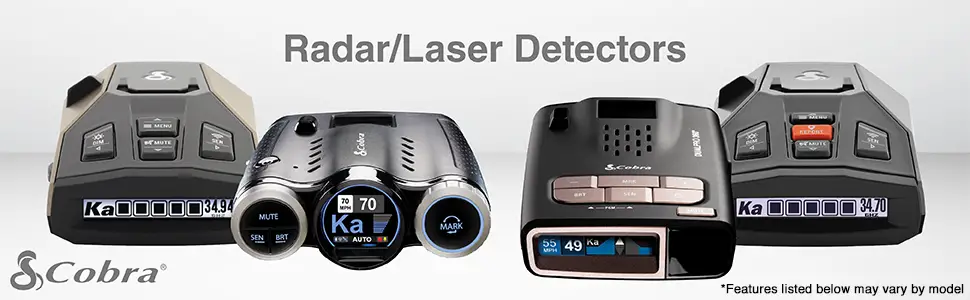

Cobra 0181000-0 Road Scout Dash Cam and Radar Detector
INTRODUCTION
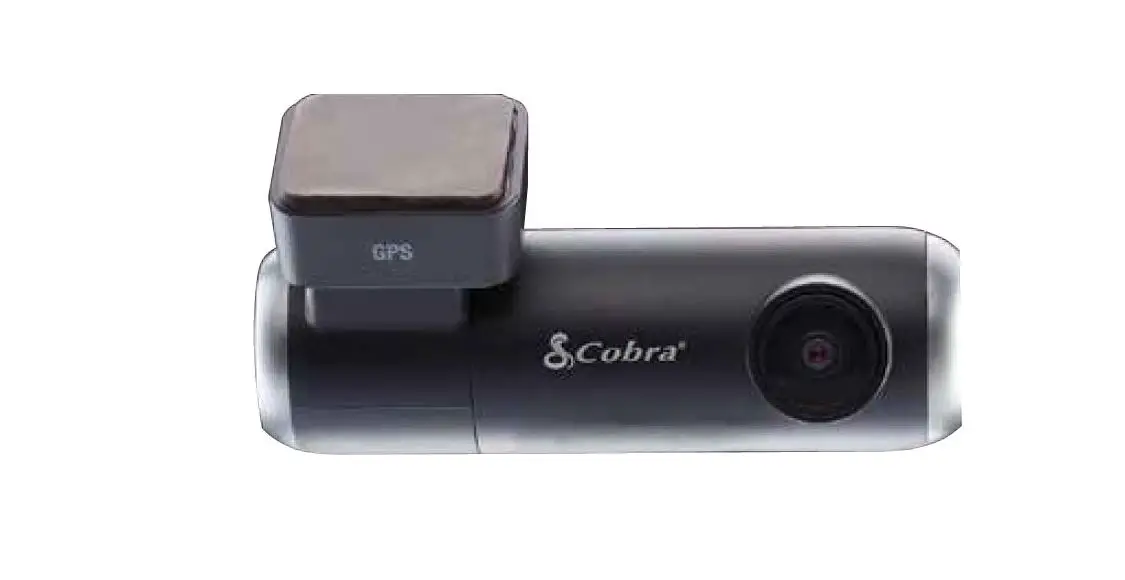
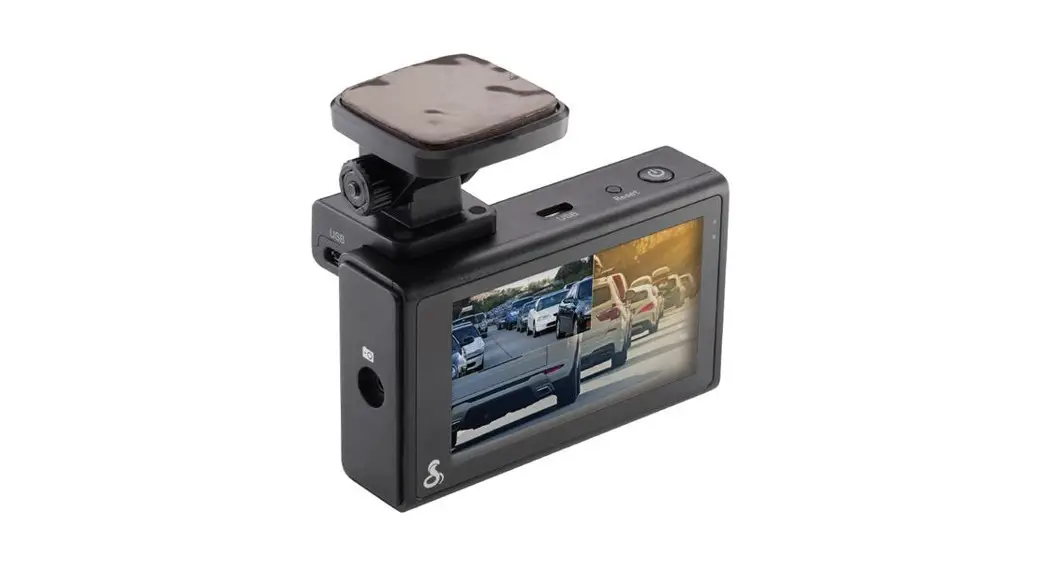
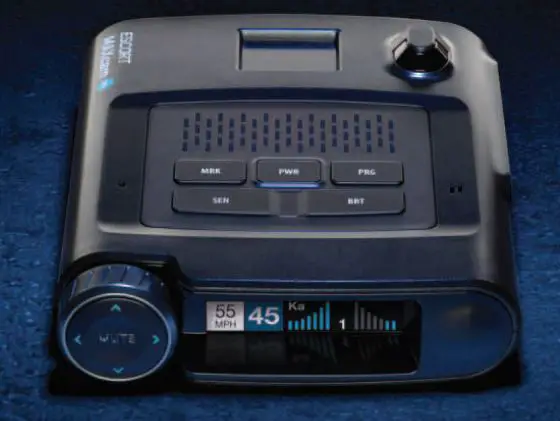
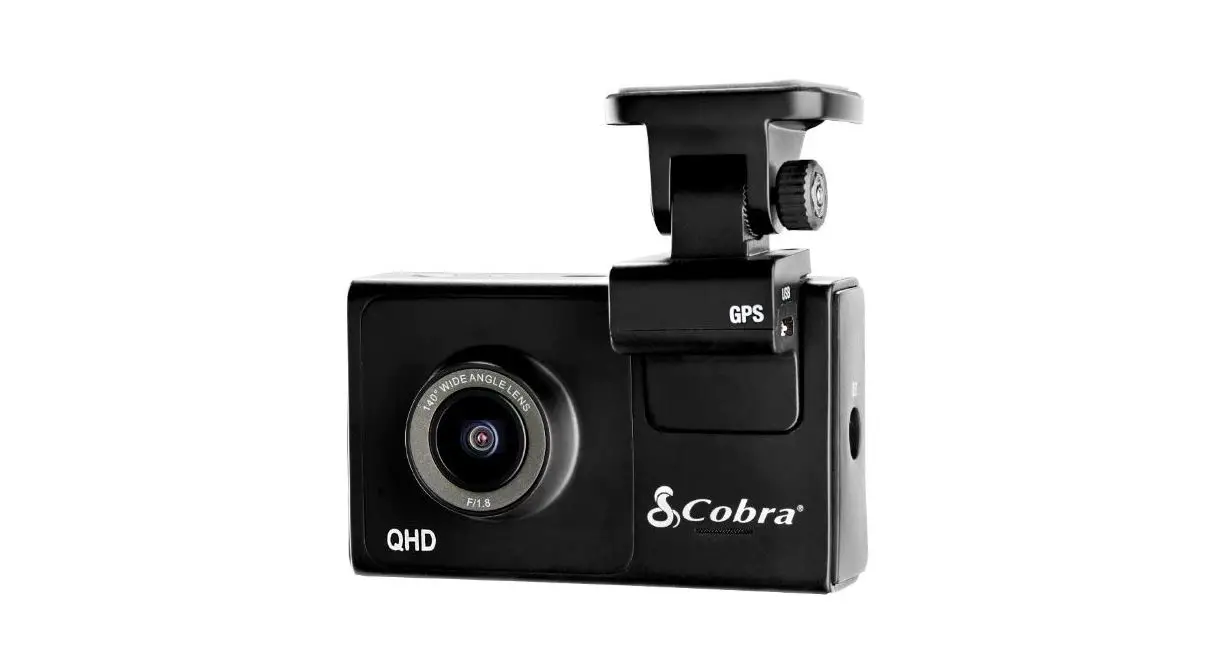
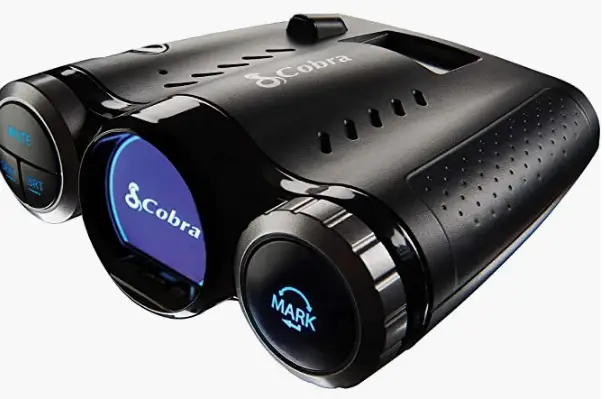
The Cobra Road Scout combines the peace of mind of a dash cam with the meaningful alerts of a radar/laser detector. Videos recorded store location, date and time to tell your side of the story. Automatic speed-based filtering intelligently reduces false alerts.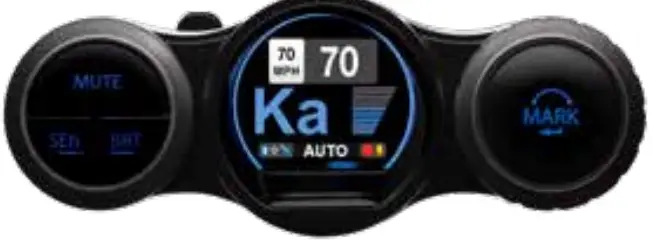
- Road Scout’s high performance accurately identifies real threats sooner than other detectors, and provides you with location information about these threats.
- Updatable IVT Filter™ automatically reduces false alerts from moving In-Vehicle Technology sources such as collision avoidance systems and adaptive cruise control.
- Road Scout features a customizable display that intuitively displays threat information and device status at a glance.
- Access to the DEFENDER Database, which warns you of verified speed traps, speed cameras, and red light cameras.
- Built in Bluetooth® technology gives you access to iRadar.
- This real-time ticket-protection network warns you of upcoming alerts received and reported by other users in the area, and gives you access to local speed limit data for over-speed alerts.
- Road Scout records the road ahead in 1080p Full HD and features loop recording and a G-Sensor to ensure you never miss a moment.

Installation
Your new Road Scout comes with our latest EZ Mag Mount™. Simply slide the Road Scout onto the mounting bracket fully and that’s it. To remove the Road Scout from the mount, simply pull the device off the mount
Mounting Tips:
- Center of windshield between driver and passenger.
- Ensure clear view of road ahead and sky above.
- Avoid windshield wipers and heavily tinted areas.
To mount the Road Scout in your vehicle:
- Remove backing from EZ Mag Mount.
- Firmly press EZ Mag Mount onto windshield and flip locking clamp to secure.
- Tilt the display end of the Road Scout slightly upward and engage with the mounting bracket.
- The EZ Mag Mount™ magnet holds the device firmly in place.
- To adjust view, loosen thumb wheel and adjust angle of mounting bracket. Tighten thumb wheel to secure.
- To remove the Road Scout, simply lift the display end of the detector upward. The device will release from the mount.
- To remove mount from windshield, release locking clamp and pull tab on top of EZ Mag Mount.
EZ Mag Mount Care Instructions:
To clean your EZ Mag Mount, simply rinse under warm water, gently wipe off any debris and allow to air dry.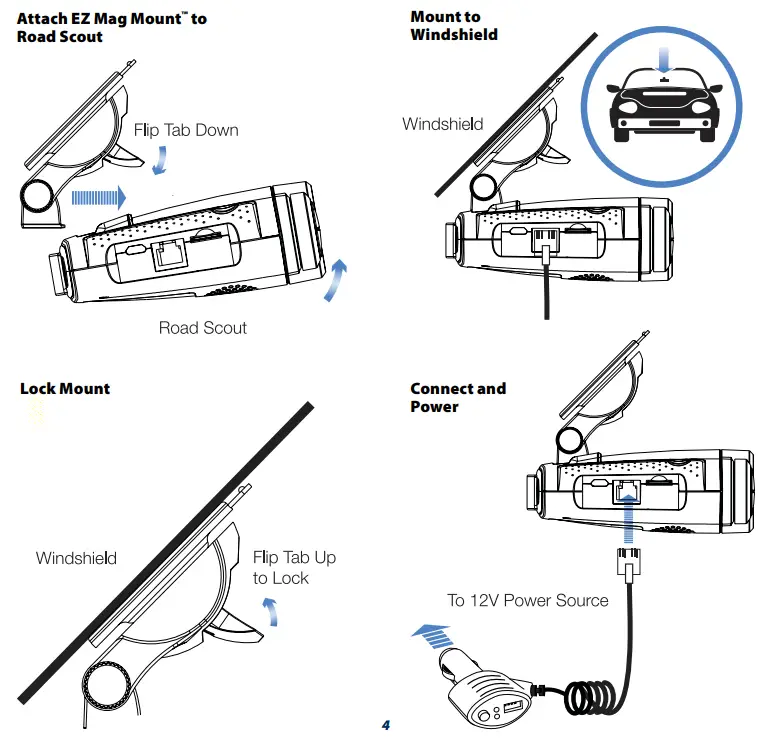
Connect detector to your smartphone via Bluetooth®
- Power on Road Scout.
- Install and run the Cobra iRadar app on your smartphone.

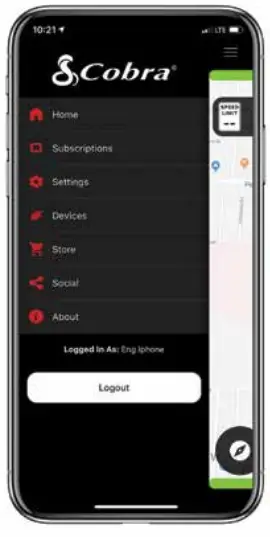
- In the iRadar app, press the Settings button then select “Devices”

- Select “Road Scout ” from the list.
- Road Scout will display “Connected” when it has paired. Press the Settings button then Home to return to the Map screen.


Controls & Features
Using Road Scout
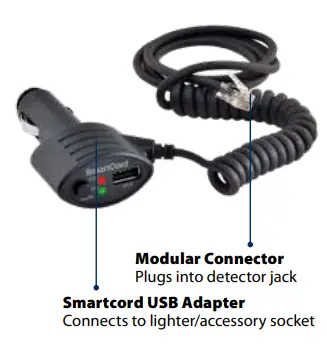
- Plug small end of SmartCord into modular jack on Road Scout and large end of SmartCord into your car’s lighter/accessory socket.
- Road Scout should power on automatically. If not, press the device’s power button.


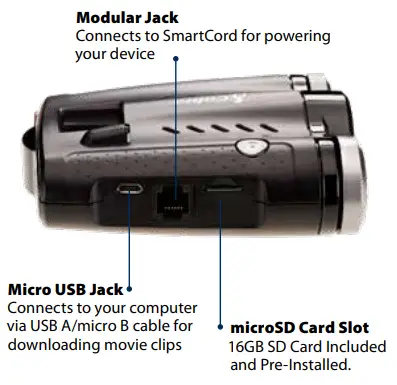
Using SmartCord USB
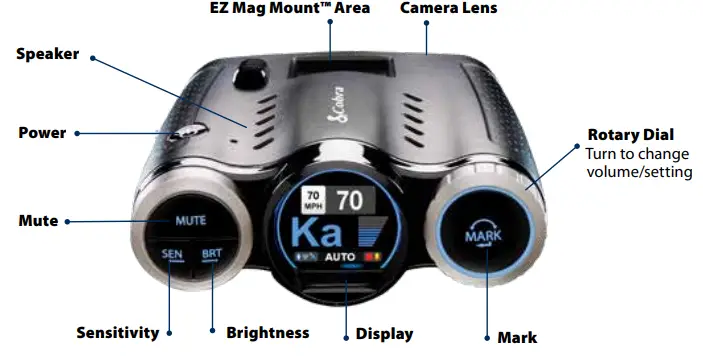
Mute Button
- Press to mute the audio for a specific alert.
- Press three times to lock out a false alert.
- Press twice while receiving a locked-out alert to unlock.
- When connected to iRadar press and hold the mute button on unit or cord to manually report to other users a verified X or K-band alert, or a police officer observing traffic.
- Alert Light: Blinks red when receiving a laser alert.
- Power Light: Lights green when device is powered on.
- USB Charging Port: Charge smartphones, tablets and other USB-charged devices.

Power
Press to power on. Hold for two seconds to power off.
SEN
Press SEN to adjust the X and K band radar detection sensitivity/range. Auto = speed adjusted. The slower you travel, the shorter the X and K band detection range. At 50 mph and above, X and K detection range is at maximum. Ka band detection range is always at maximum, regardless of the SEN setting.
MUTE
To silence an alert, press the MUTE button during the alert. Once the radar or laser encounter has passed, the mute will disengage, and the audio will return to your preset level. You can also silence an alert by pressing the SmartCord MUTE button.
BRT
Brightness. Press to adjust the display brightness
MARK
To mark a location for future alerts:
- Press MARK twice
- Rotate the Volume/Selector Ring to select the type of marker
- Press MARK again to confirm
- To unmark a location alert, press MARK twice while receiving a marker alert.
- To start an emergency recording, hold MARK until Road Scout states “Emergency Recording On”. The emergency recording will automatically return to normal loop recording once the emergency record loop is complete.
Rotary Dial
Rotate to adjust volume. When in the Menu or using MARK, rotate to change the setting.
Display
Display and Menu
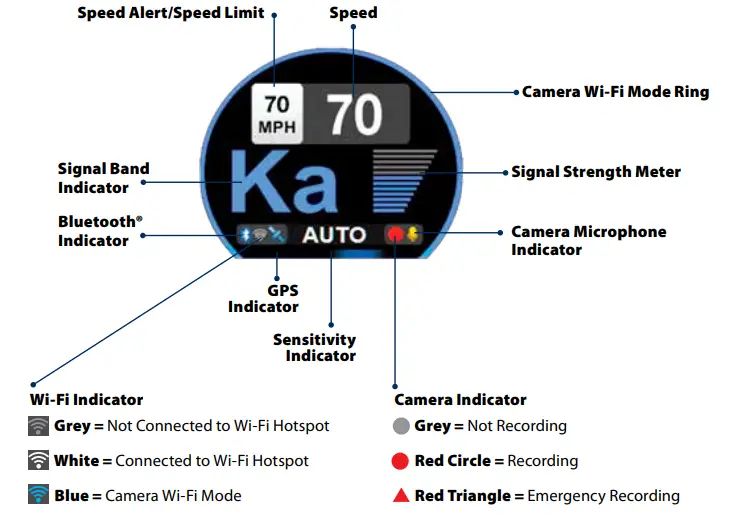
Signal Band Indicator
Displays the type alert:
- X Band (commonly false alerts)
- K band (used by police radar and false alerts)
- Ka band (almost always police radar)
- Laser (almost always police)
Signal Strength Meter
Displays the signal strength, or how close, the alert is. The more alert bars displayed, the stronger the signal strength.
Sensitivity Indicator
Displays the selected radar sensitivity mode (see Controls & Features for more information).
Bluetooth® Indicator
Bluetooth icon appears when Road Scout is connected to device via Bluetooth.
Wi-Fi Indicator
Displays Wi-Fi status.
GPS Indicator
Satellite icon appears when Road Scout is receiving GPS satellite data.
Speed Alert/Speed Limit
When area is black and OSP is displayed, alerts when the Speed Alert setting is exceeded. When the area is white and the MPH/KPH is displayed, indicates speed limit. “- -” indicates speed limit data is not available.
Speed
Displays current speed. When Speed Display is off, displays the vehicle voltage
Camera Wi-Fi Mode Ring
Displayed when Road Scout is in Camera Wi-Fi mode (default setting).
Camera Indicator
Displays status of the dash cam.
Camera Microphone Indicator
Microphone icon appears when audio recording is enabled.
Menu
The Menu is used to adjust settings. The menu is divided into Radar and CAM (Camera) categories.
To enter the Menu:
- Hold SEN and BRT buttons until MENU is displayed.
To navigate the Menu:
- The selected Menu item is displayed in white text.
- Rotate the Volume Ring to change the selected (white) Menu item.
- Press the MARK button to set the selected
Menu item.
- To restore factory default settings:
- Hold the Power, SEN and BRT buttons while powering on the Road Scout.
- Press MARK button when prompted.
User Mode
Standard
In this mode, you can access and customize all settings (factory default).
Simple
In this mode, you can access and customize Units (English or metric) and display color only. All other settings are set to the factory defaults.
Scanning Bar
Turn the scanning bar on the display off or on (factory default is on).
Display Color
The display graphics can be changed to blue, green, red or orange to match the instrument lighting of your vehicle (factory default is blue).
Alert Ring
Turn the Alert Ring around the MARK button off or on. The Alert Light glows during an alert (factory default is on).
Speed Display
Turn current speed display off or on (factory default is on). When Speed Display is off, the vehicle voltage is displayed.
Speed Mute
Select the Speed Mute speed. For all alerts received while traveling below the specified speed, the Road Scout will sound a simple double-beep alert (factory default is 20 mph).
Speed Alert
When you exceed the set speed, the background for your current speed will change to red and a voice prompt will announce “over speed” (factory default is 70 mph).
Over Speed Limit
Note: this setting only applies when Road Scout is connected to a Wi-Fi hotspot or to the Cobra iRadar app via Bluetooth®.
When the speed limit is exceeded by the set speed, the background for your current speed will change to red and a voice prompt will announce “over speed”. When the speed limit is not available Road Scout uses your Speed Alert setting (factory default is 70 mph).
Frequency Display
Displays the frequency of the currently displayed radar alert (factory default is Off).
AutoMute
Automatically reduces the volume of an alert several seconds after the beginning of the alert (factory default is on).
Units
Units for distance and speed (factory default is English).
Language
Language for voice and text (factory default is English).
Voice
Turn off and on voice announcements for alerts and settings (factory default is on).
GPS Filter
Toggles GPS off and on. GPS Filtering enables you to store and lock out, or ignore, fixed location false alerts in Road Scout’s memory. Common sources of fixed location false alerts are storefront automatic door openers and motion sensors. To store a false alert location, press MUTE three times during an alert. Subsequent alerts to this signal will be muted and displayed in grey (factory default is on). Note that GPS Filter will not lock out moving false alerts commonly caused by vehicle blind spot monitoring and collision avoidance systems.
Auto Power
Automatically turns off Road Scout after the set time period. This is especially useful if your vehicle has a constant-on lighter outlet (factory default is 4 Hours).
Band Settings
The band settings menu allows you to toggle off and on Radar bands, K and Ka narrow band segments, Laser, and TSR filtering. WARNING: Do not turn off any bands or narrow band segments unless you are absolutely certain there are no traffic radar guns using that specific band or narrow band in your area. To navigate Band Settings, select Modify, then repeatedly press MARK to cycle through all of the band settings. Use the Rotary Dial to turn off and on a band setting. To exit Band Settings, select Exit or simply wait a few seconds.
Disabling K band allows you to select K Narrow segments 1-4.
- K Narrow 1 23.950 – 24.050 GHz
- K Narrow 2 24.050 – 24.110 GHz
- K Narrow 3 24.110 – 24.176 GHz
- K Narrow 4 24.176 – 24.250 GHz
Disabling Ka band allows you to select Ka Narrow segments 1-7.
- Ka Narrow 1 33.400 – 33.700 GHz
- Ka Narrow 2 33.700 – 33.900 GHz
- Ka Narrow 3 33.900 – 34.600 GHz
- Ka Narrow 4 34.600 – 34.800 GHz
- Ka Narrow 5 34.800 – 35.400 GHz
- Ka Narrow 6 35.400 – 35.600 GHz
- Ka Narrow 7 35.600 – 36.000 GHz
Location Settings
The Location Settings menu allows you to toggle off and on each type of location based alert. To navigate Location Settings, select Modify, then repeatedly press MARK to cycle through the location settings. Use the Rotary Dial to turn off and on a location setting. To exit Location Settings, select Exit or simply wait a few seconds.
Bluetooth®
Turn off and on Bluetooth communication (factory default is on).
Wi-Fi
Turn off and on Wi-Fi communication (factory default is on).
Recording
Turns off and on recording (factory default is on).
Microphone
Turns off and on the microphone for audio recording (factory default is on).
Loop Clip Time
Sets the duration of movie clips. Clips can be set in 1, 3, or 5 minute lengths (factory default is 3 minutes).
G-Sensor
Road Scout includes a built in G-Sensor which allows the device to determine when the car has been in a collision. If a collision is detected, Road Scout automatically locks the recording being made at the time of the accident. You can use this setting to set the sensitivity of the G-Sensor from 1-3 or turn it off. Level 1 is the easiest to activate and may lock files due to smaller bumps causing the SD card to fill up quickly with protected files. Level 3 is the hardest to activate the G-sensor (factory default is Level 2).
Cobra Watermark
Turn off or on placing a Cobra watermark on saved movie clips (factory default is on).
Date/Time Stamp
Turn off and on placing a date and time stamp on movie clips (factory default is on).
Restore Camera Default
Press MARK to restore all Camera Menu settings to factory defaults.
Dash Cam Instructions
View and Edit Videos on Your Smartphone
- Once you have installed the Cobra Drive HD
 App, follow the steps below to connect the Road Scout to your smartphone:
 - Press and hold the BRT button until “CAMERA” appears on the display. If “iRADAR” appears, press and hold BRT again.
- On your smartphone: Go to the Wi-Fi menu in your smartphone’s settings and select network SSID: “Road Scout“; if a password is required, enter “12345678“.
- After your smartphone Wi-Fi is connected to the Road Scout, launch the Drive HD App.

 App, follow the steps below to connect the Road Scout to your smartphone:
View and Edit Videos on Your Computer
The Drive HD Dash Cam Player allows you to view, edit and share video clips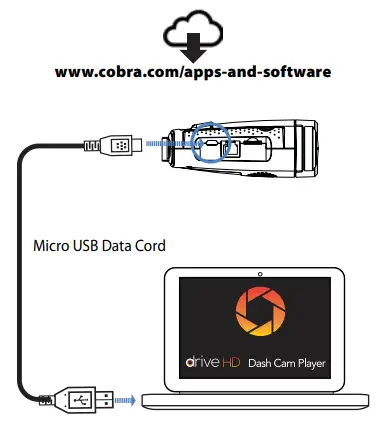
Radar Detector Advanced Connectivity Mode
Connected car users (vehicle Wi-Fi hotspot required)
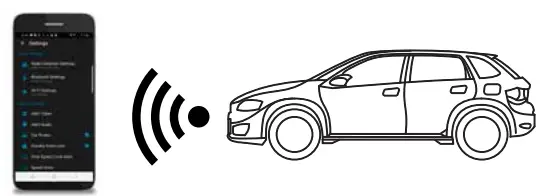
Road Scout can connect to your car’s Wi-Fi (if available) for quick in-car convenient software and database updates in real time that keeps your detector accurate and precise, minimizing false alerts and improving detection. You’ll also get exclusive iRadar Community alerts without having to launch the app on your smartphone.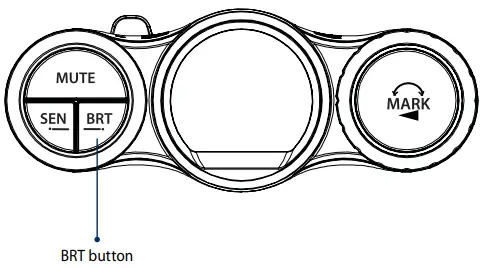
Connecting Road Scout to Wi-Fi
- Connect Road Scout to your smartphone via Bluetooth using the directions on page 5.
- Press and hold the BRT button until “iRADAR” appears on the display. If “CAMERA” appears, press and hold BRT again
- Connect your smartphone to your car’s Wi-Fi (or make sure it is connected), through the phone’s SETTINGS.

- In the iRadar app, go to Wi-Fi Settings > Connect to Wi-Fi > enter your car’s hotspot password and press JOIN

Troubleshooting
Road Scout does not seem to detect radar consistently at long ranges
If you are using AUTO sensitivity mode, be aware that AUTO mode changes Road Scout’s X and K radar detection range based on your speed. The slower you are traveling, the shorter the detection range of X and K radar. Select HIGH sensitivity mode to always detect radar at maximum distances. Because Ka radar is primarily used by police, Road Scout always detects Ka band radar at maximum range.
I cannot get my phone to find Road Scout’s Wi-Fi in camera mode
On Road Scout, make sure you have Camera Wi-Fi mode enabled. When in Camera Wi-Fi mode, a ring surrounds the display (see the Display illustration on page 9). If there is no ring around the display, hold the BRT button until “CAMERA” Wi-Fi Mode” is announced. You may also be in an area with alot of Wi-Fi interference. Try enabling Airplane mode on your phone then check the Wi-Fi menu on your phone again.
I am connected to my car’s Wi-Fi hotspot but I am not receiving speed limits or Live alerts
On Road Scout, make sure the Wi-Fi icon is white and there is not a ring around the display. This indicates Road Scout is in iRadar Wi-Fi mode, and you are connected to a hotspot (see Display illustration on page 9). Make sure your Wi-Fi hotspot has internet connectivity. Internet connectivity is required to receive speed limits, alerts and software updates. Make sure that you have an iRadar account. An account is included at no charge with your Road Scout. To check this, open the iRadar app on your smartphone then go to Menu>Subscriptions. The Subscriptions screen should show an expiration date in the future. If it does not, connect Road Scout to your smartphone via Bluetooth as described on page 5. After Road Scout is connected, go back to the Subscriptions screen and verify a future date is shown. If it is, then Road Scout should now receive speed limits and Live alerts. If you continue to not receive speed limits or Live alerts, please contact Cobra customer service at 1-800-964-3138.
Contact Us
- 800.964.3138
- Cobra.com
- Cobra Electronics Corporation 6500 W. Cortland St., Chicago, IL 60707
Warranty
Cobra One Year Limited Warranty
What this warranty covers: Cobra USA, Inc. (“Cobra”) warrants your Product against all defects in materials and workmanship. For how long: One (1) year from the date of original purchase from an authorized Cobra dealer. What we will do: If a breach of warranty occurs, Cobra, at its discretion, will either repair or replace your Product free of charge. What we will not do: Cobra will not pay shipping charges that you incur for sending your Product to us. What you must do to maintain this warranty: Show original proof of purchase or receipt from an authorized Cobra dealer. Warranty exclusions: This warranty does not apply to your product under any of the following conditions: 1. The serial number has been removed or modified. 2. Your product has been subjected to misuse or damage (including water damage, physical abuse, and/or improper installation). 3. Your product has been modified in any way. 4. Your receipt or proof-of-purchase is from a non-authorized dealer or internet auction site, including E-bay, U-bid, or other non-authorized resellers. 5. You are not the original purchaser of the Product from an authorized dealer or did not receive it as a gift from the original purchaser of the Product from an authorized dealer. To obtain service: 1. Contact Cobra (1-800-964-3138) to obtain a Return Authorization Number. 2. Properly pack your Product and include: your name, complete return address, written description of the problem with your Product, daytime telephone number, and a copy of the original proof of purchase or receipt. 3. Label the outside of the package clearly with your Return Authorization Number. Ship the Product pre-paid (insured, for your protection) to: Cobra Electronics Corp., 6500 W. Cortland St., Chicago, IL 60707. LIMITATION OF WARRANTY: The obligations set forth above are Cobra’ sole obligations and your exclusive remedy. Cobra makes no other express warranty. Any implied warranty of merchantability or fitness for a particular purpose that may be applicable to the Product is limited in duration to the duration of this warranty. Some States do not allow limitations on how long an implied warranty lasts, so the above limitation may not apply to you. Cobra SHALL NOT BE LIABLE FOR CONSEQUENTIAL, SPECIAL OR INCIDENTAL DAMAGES INCLUDING, WITHOUT LIMITATION, DAMAGES ARISING OUT OF THE USE, MISUSE OR MOUNTING OF THE PRODUCT. Some States do not allow the exclusion or limitation of incidental or consequential damages, so the above limitation or exclusion may not apply to you. Cobra is not responsible for products lost in shipment between the owner and our service center. Other legal rights: This warranty gives you specific legal rights, and you may also have other rights which vary from State to State. ©2019 Cobra®, iRadar®, and SmartShield® are trademarks of Cobra USA, Inc.. Manufactured in the Philippines. Features, specifications and prices subject to change without notice.
FCC
FCC NOTE: Modifications not expressly approved by the manufacturer could void the user’s FCC granted authority to operate the equipment.
Note: This equipment has been tested and found to comply with the limits for a Class B digital device, pursuant to part 15 of the FCC Rules. These limits are designed to provide reasonable protection against harmful interference in a residential installation. This equipment generates, uses and can radiate radio frequency energy and, if not installed and used in accordance with the instructions, may cause harmful interference to radio communications. However, there is no guarantee that interference will not occur in a particular installation. If this equipment does cause harmful interference to radio or television reception, which can be determined by turning the equipment off and on, the user is encouraged to try to correct the interference by one or more of the following measures:
- Reorient or relocate the receiving antenna.
- Increase the separation between the equipment and receiver.
- Connect the equipment into an outlet on a circuit different from that to which the receiver is connected.
- Consult the dealer or an experienced radio/TV technician for help.
This device complies with part 15 of the FCC rules. Operation is subject to the following two conditions:
- This device may not cause harmful interference, and
- this device must accept any interference received including interference that may cause undesired operation
FAQS
I bought a “blend mount” with a power cable that taps into the power on the back of the rear view mirror
I believe it used to be free with the purchase of the Road Scout. I think Cobra changed it to 3 months free now with purchase
You can leave in socket. I have 2015 Ford that stays on but I have 2000 Toyota that shuts off.
Connection to a Wi-Fi hotspot is not necessary. You can connect to the iRadar app via Bluetooth to receive alerts and speed limit data from the iRadar app running on your smartphone.
It must stay plugged in
It comes with a 16GB microSD installed. I have put a 128GB in mine, BUT it must be formatted Fat32 which I had to do on my computer first
If pressing the power button does not turn it on then it will require servicing. Road Scout includes a one year warranty. For further assistance
Road Scout does not have arrows. The Cobra Elite DualPro 360 has directional arrows which indicate the direction that radar is coming from.
The Road Scout is very good to alerting you about police. This is especially true when it is connected to WiFi in the Car or my phone through Bluetooth
The camera app is free, but the other app for the detector part does have an annual fee to keep up the database
It sounds like it requires servicing. For further assistance
Only when you get an alert does the iRadar app take over audio. Once the alert subsides your music player should take back over. You may be able to change this behavior by turning down the volume with iRadar in the foreground or changing notifications for iRadar in your smartphone’s settings
If you want to hardwire the power supply direct to an ignition power source, you’ll need to purchase the wiring kit
It is a camera and a radar/laser detector. If your locality doesn’t allow radar detectors you do not want this item.
No SIM card needed. Memory card is needed to record though