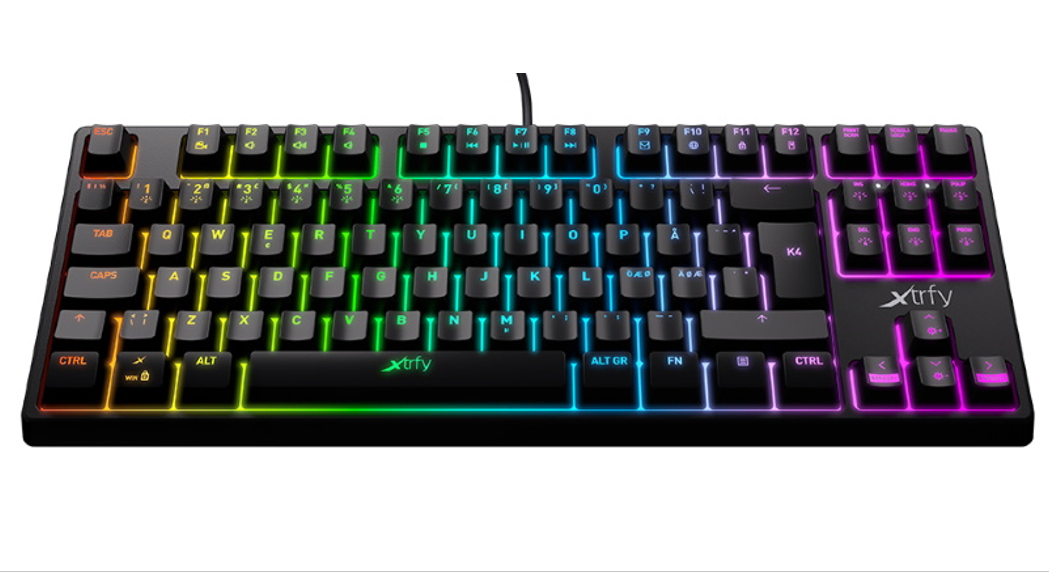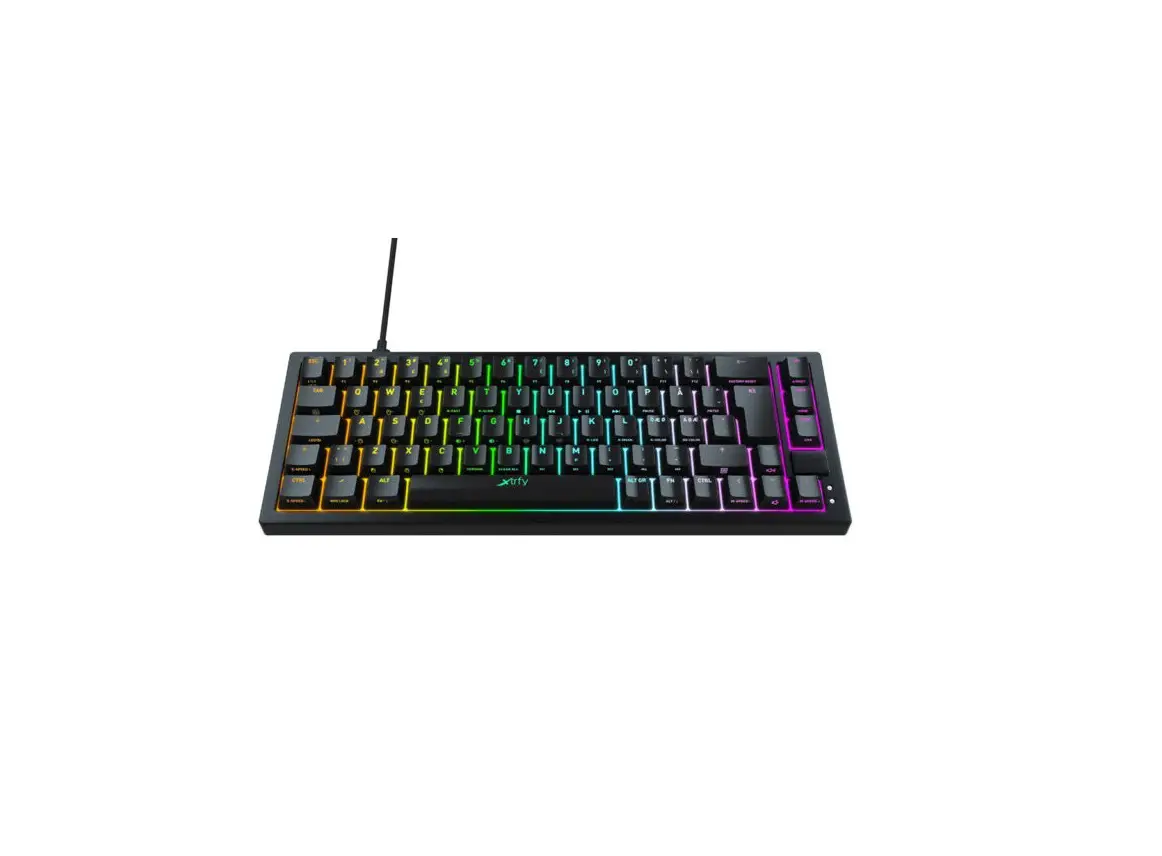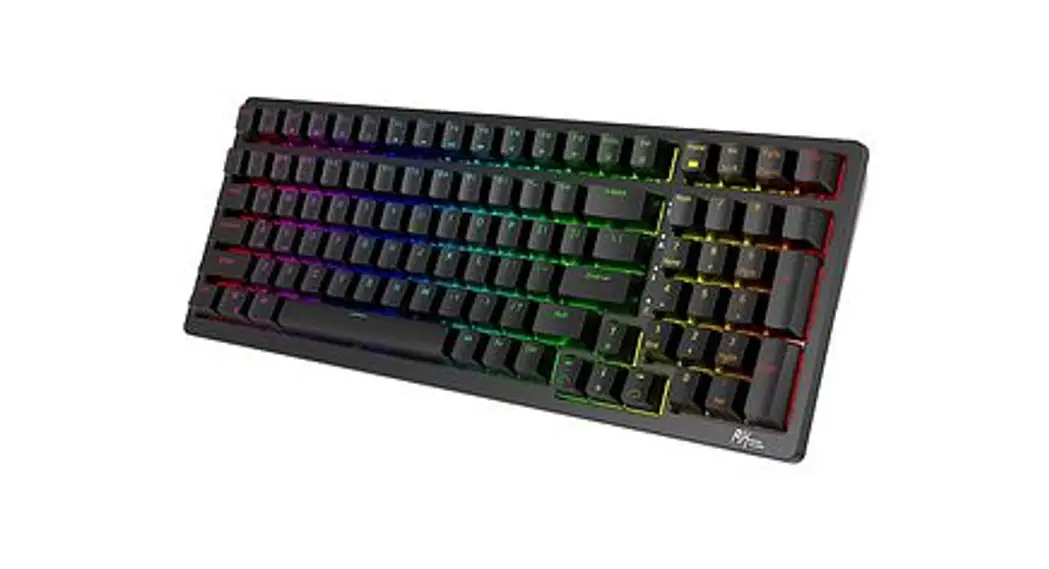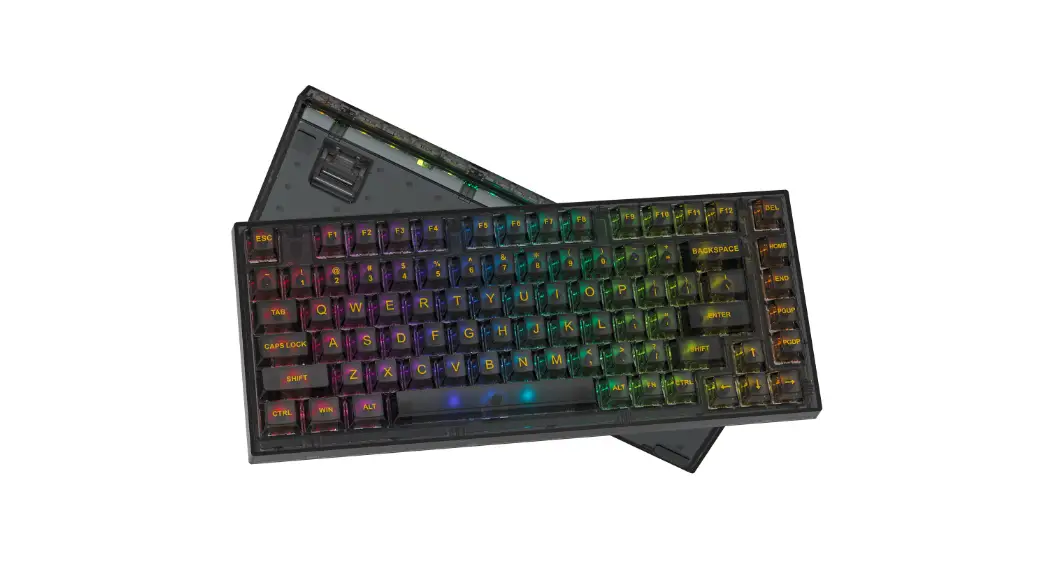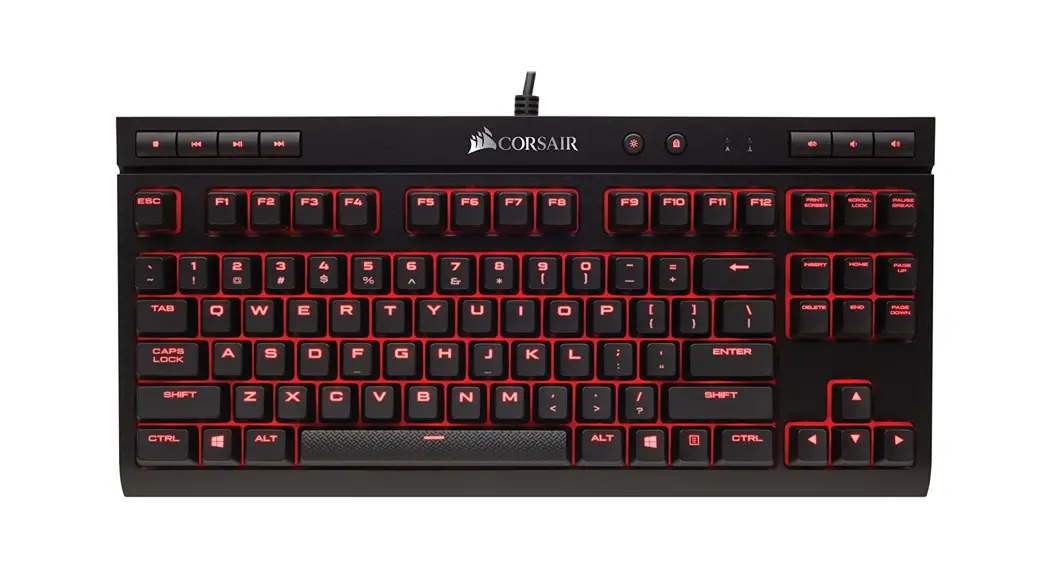
 K5 Compact 65% Mechanical Gaming Keyboard
User Manual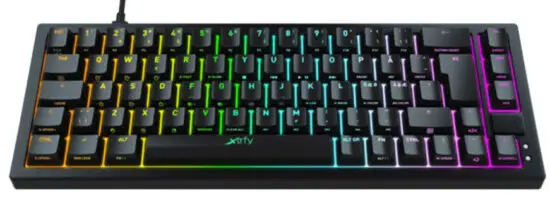
CONNECT THE KEYBOARD
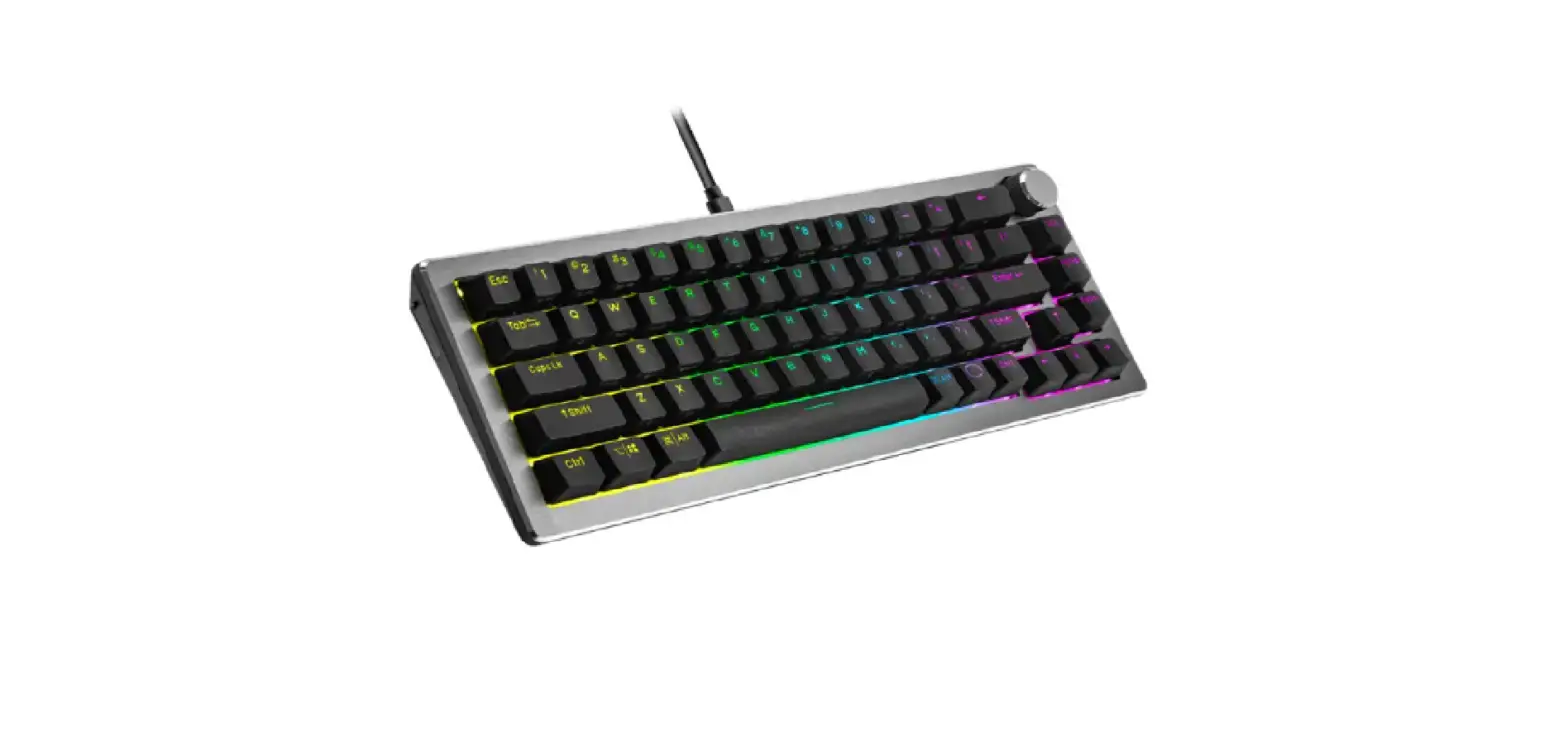
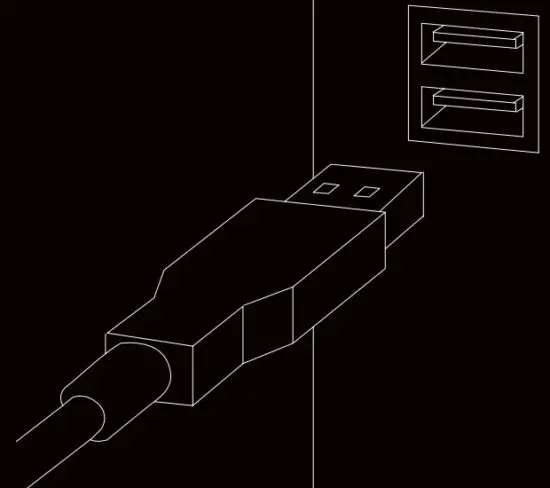
The K5 is a plug-and-play keyboard. Connect the cable to the USB-C port on the keyboard and plug the other end into a USB-A port on your computer. The driver will be installed automatically.
SETTINGS AND FUNCTIONS
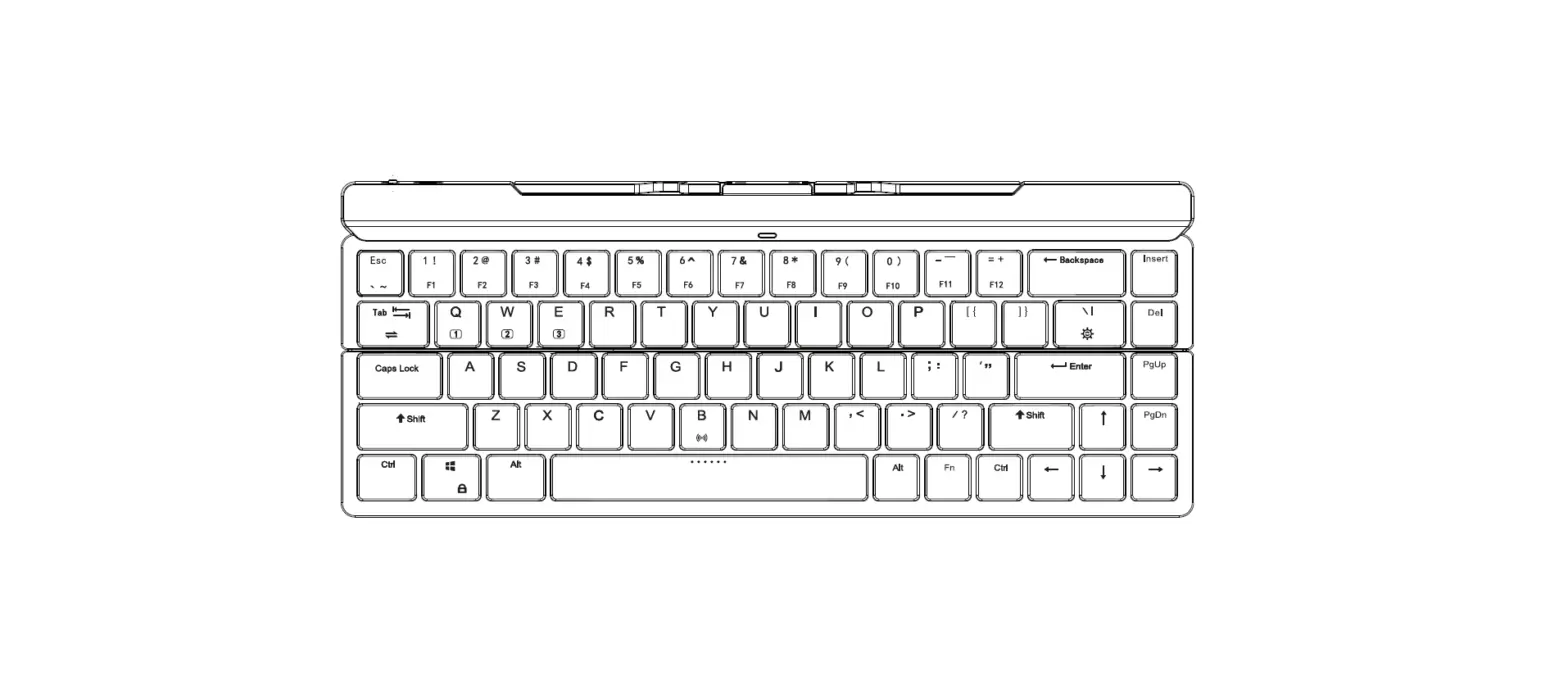
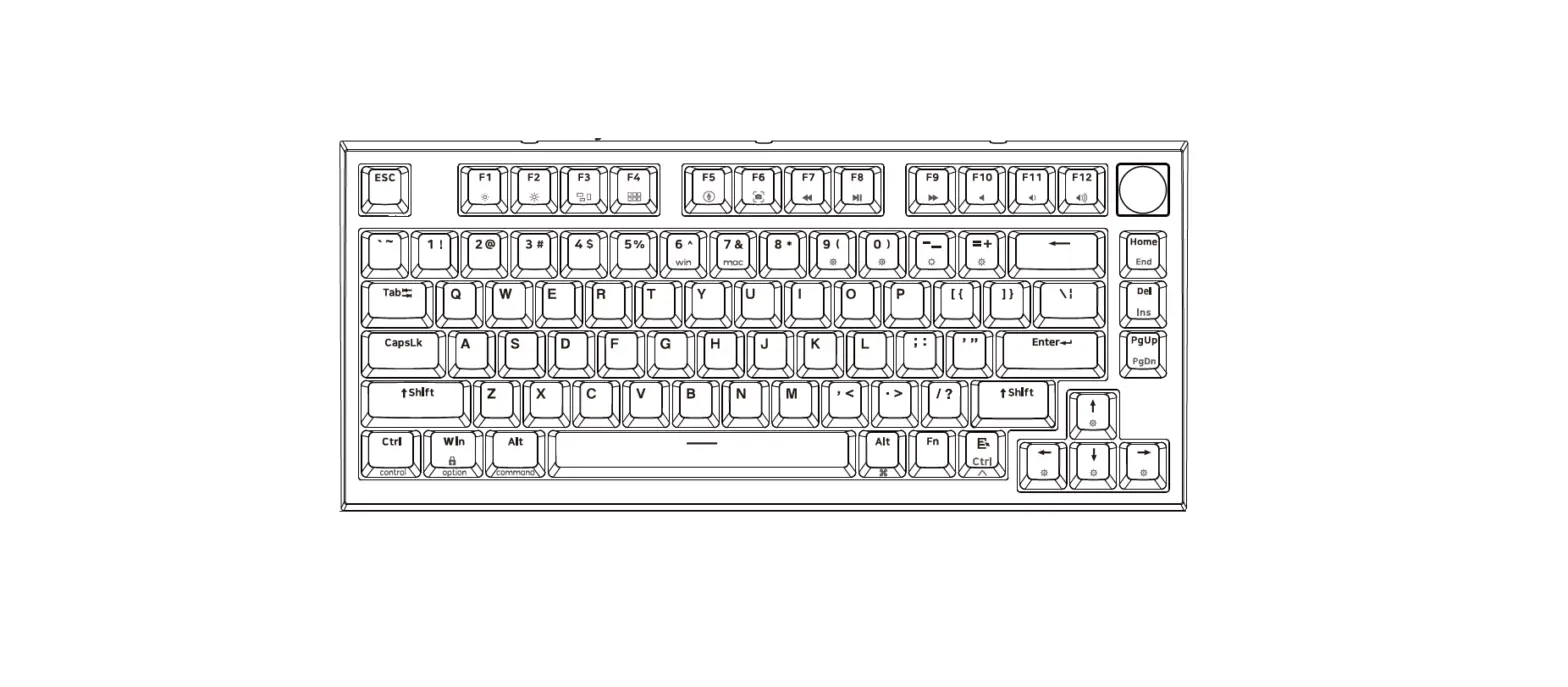
The K5 features a wide range of settings, with no need for software. All settings are made directly on the keyboard, by pressing the FN key + the key for each setting.
RGB LED SETTINGS
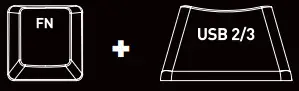 =SWITCH TO USB 3 MODE TO BOOST RGB
Out of the box, the keyboard is set to USB 2 mode. If you are plugging it into a USB 3 port, make sure to switch to USB 3 mode to maximize the brightness of the RGB illumination. Press and hold FN + the USB 2/3 key for 2 seconds.
 = SHOW CURRENT LED MODE
Hold FN to see which LED mode you are currently using. Tip: Your custom color settings are found in K-LED mode. For more information on how to set your own colors, see the “CHANGE INDIVIDUAL KEY COLORS” and “CHANGE BACKGROUND COLOR (ALL KEYS)” sections.
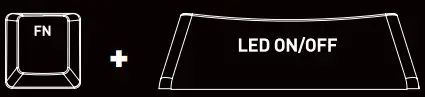 = LED ON/OFF
Press FN + LED/ON-OFF (Caps Lock) to turn the illumination on or off.
 = LED BRIGHTNESS UP/DOWN
Press FN + one of these keys repeatedly to increase or decrease the brightness of the LED illumination.
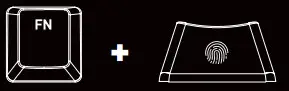 = LED TYPING EFFECTS
Press FN + this key repeatedly to switch between 6 different typing effects (visible when typing).
The 7th mode is typing effect = off. Tip: decrease the brightness of the regular LED illumination to make the typing effects more visible.
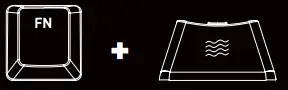 = LED WAVE EFFECTS
Press FN + this key repeatedly to switch between 7 different wave effects.
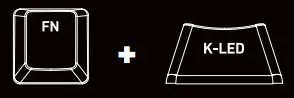 = YOUR LED SETTINGS
Press FN + K-LED to show your own LED settings, that you have made using the K-COLOR and BG COLOR keys.
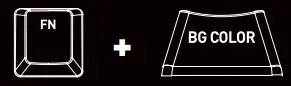 = CHANGE BACKGROUND COLOR (ALL KEYS)
To change the color of all keys, press FN + BG COLOR and select a color from the palette that appears on the keys. Press the spacebar for more color options. Whenever you want to use your selected color on the keyboard, press FN+ K-LED to show your own LED settings.
 = CHANGE INDIVIDUAL KEY COLORS
- Press FN + K-COLOR.
- When the FN key is blinking, press the keys that you would like to change the color of.
Then press the FN key again. - A color palette appears on the keys. Choose the color you want on your selected keys.
Tip: Press the spacebar repeatedly for more color options. - The keys that you selected are now in your chosen color. Whenever you want to use these colors on the keyboard, press FN+ K-LED to show your own LED settings.
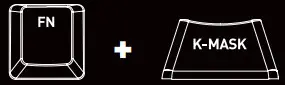 = KEY MASK
When pressing FN + K-MASK, only the keys which you have colored using the K-COLOR key will work. All other keys are disabled.
 = LED EFFECT SPEED UP/DOWN
Press FN + one of these keys repeatedly to increase or decrease the speed of the LED effects.
 = CLEAR YOUR LED SETTINGS
Press FN + CLEAR ALL to clear your LED settings, which are visible in K-LED mode. This key combination takes you to K-LED mode, with the settings cleared and a typing effect active.
MACROS

RECORD AND PLAY MACROS
To record a macro, press and hold FN + one of the M1/M2/M3/M4/M5 keys for 2 seconds. One of the lights in the right corner will start blinking, indicating that it is recording. Enter the sequence of keys that you want to record, and then press FN again. Your keystrokes are now saved to the selected macro button.
To play a macro, press FN + the M1/M2/M3/M4/M5 key on which your macro is saved.
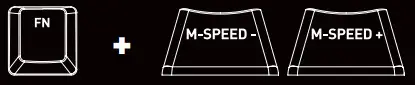 = MACRO SPEED UP/DOWN
Press FN + one of these keys repeatedly to increase or decrease the speed of the last played macro.
MEDIA CONTROLS
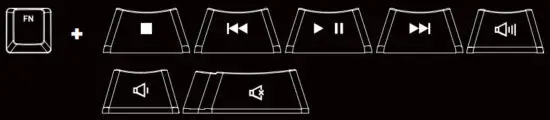
Press FN in combination with these keys for media controls such as stop, play, mute and volume control.
F1–F12

For F1–F12, press FN in combination with these keys.
CONTROL THE MOUSE CURSOR
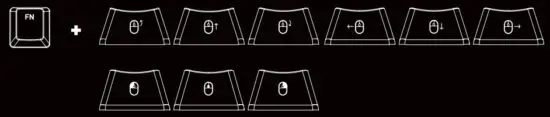
Press FN in combination with these keys to control the mouse cursor, scroll wheel as well as left and right-click.
FACTORY RESET
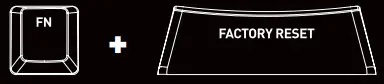 = FACTORY RESET
To reset the keyboard and clear all settings, press and hold FN + FACTORY RESET for 2 seconds.
OTHER SETTINGS
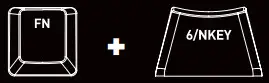 = SWITCH BETWEEN 6-KEY AND N-KEY ROLLOVER
Press FN + 6/NKEY to switch between N-Key Rollover and 6-Key Rollover. Standard and recommended for the keyboard is N-Key mode, which gives you full functionality and N-Key rollover (all keys can be pressed at the same time, without losing a single keystroke). 6-Key rollover allows the detection of 6 simultaneous keypresses and limits the functionality, but can be required to use the keyboard in BIOS, certain bank logins, and more.
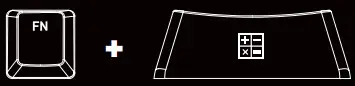 = OPEN CALCULATOR
FN + this key to open the calculator on your computer.
 = KEY RELEASE RESPONSE SPEED UP/DOWN
Press FN + one of these keys to increase or decrease the key release response speed. FAST is recommended for maximum typing speed, while SLOW can be used for stability and to avoid issues such as double typing/chattering.

The section of navigation keys traditionally located above the arrow keys on larger keyboards can be accessed by pressing FN in combination with these keys.
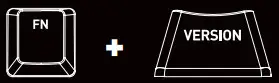 = CHECK FIRMWARE VERSION
Open a text document and press FN + VERSION to see which firmware version is installed on the keyboard. The keyboard will type the current version in the document.
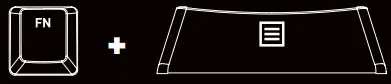 = OPEN MENU
Depending on compatibility, this key can be used to open the menu of the current application.
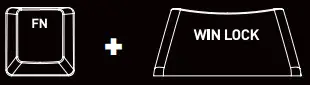 = LOCK WINDOWS KEY
Press FN + WIN LOCK to disable the Windows key and avoid unpleasant surprises while gaming.
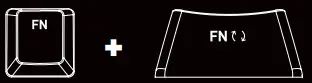 = MOVE FN KEY FUNCTION TO LEFT ALT
If you prefer using the left ALT key as FN instead (and the original FN key as ALT) press and hold FN + this key for 5 seconds.
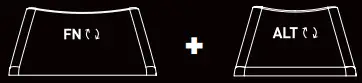 If you have moved the FN key function to the left ALT key and want to switch back to the original FN key, press and hold these keys for 5 seconds.
ASSEMBLE
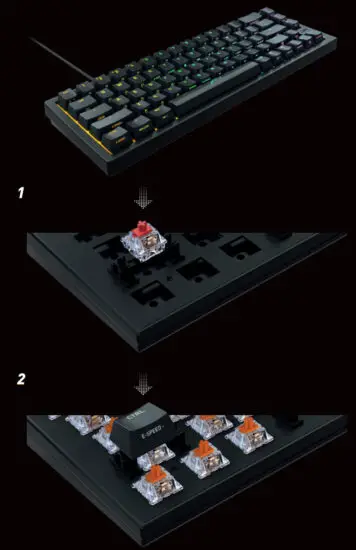 | 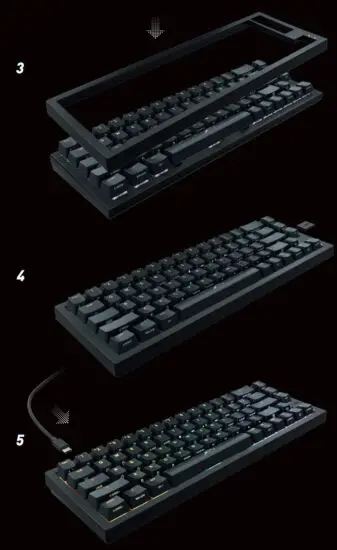 |
DISASSEMBLE
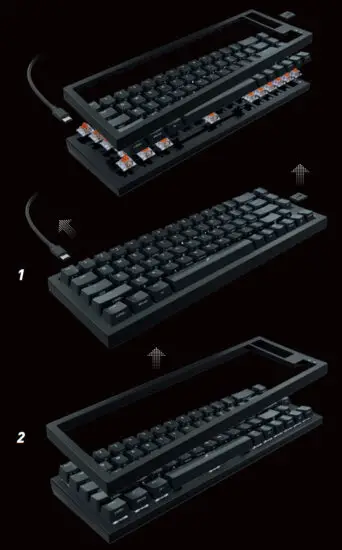 | 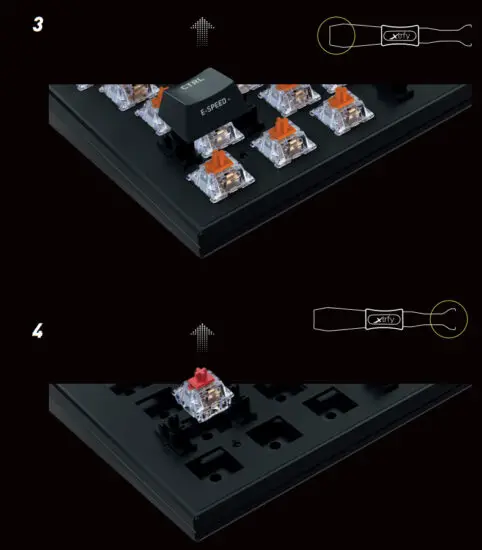 |
TROUBLESHOOTING
- Make sure that the cable is firmly attached to the keyboard as well as the USB port on your computer.
- Connect to another USB port on your computer.
- Connect to another computer.
- Factory reset the keyboard by pressing and holding the FN key + FACTORY RESET for 2 seconds.
NEED BACKUP?
If you have any questions, we’re never more than an email away. Contact us at [email protected]
CHECK OUT MORE XTRFY PRODUCTS AT XTRFY.COM
 Built On Experience – Xtrfy