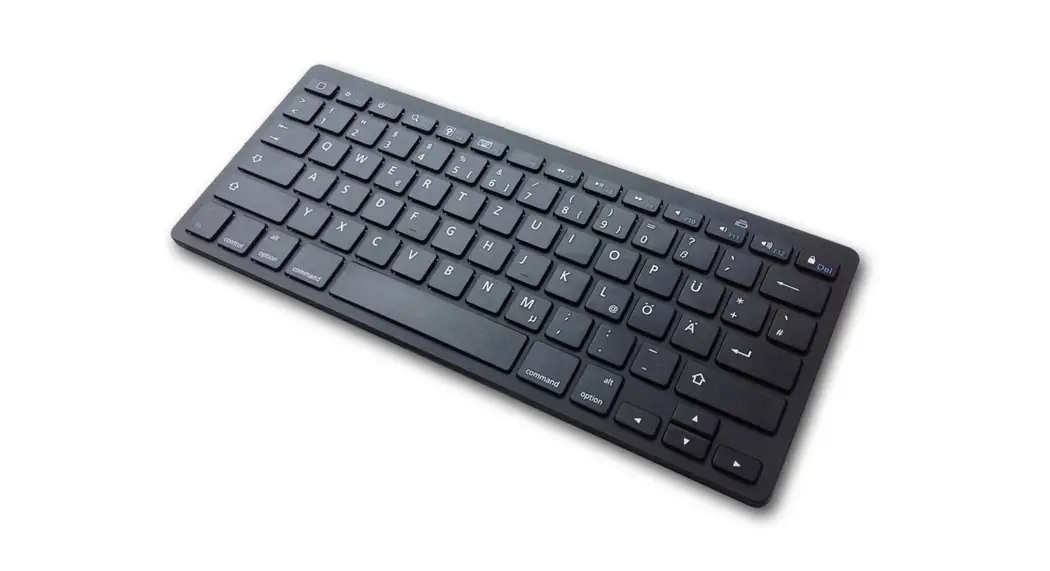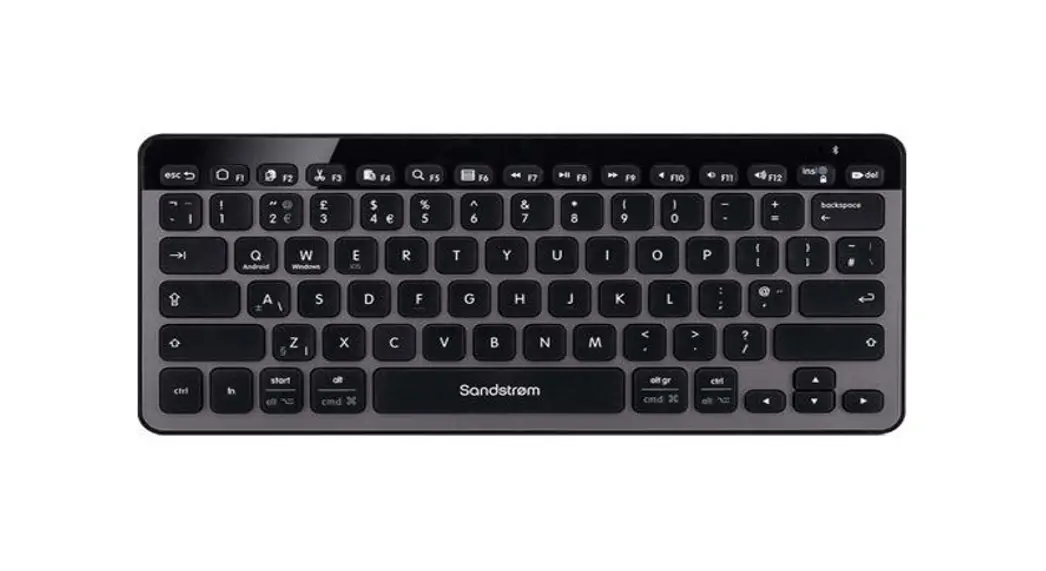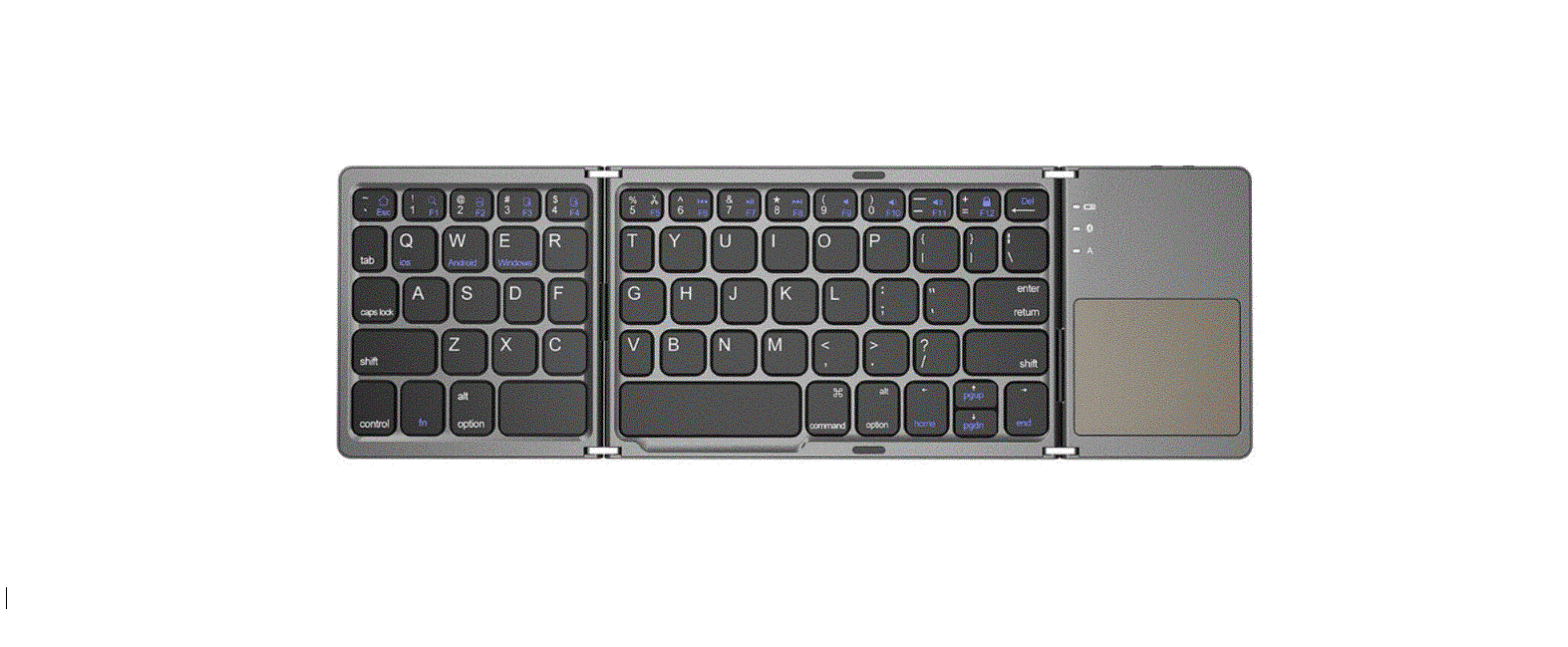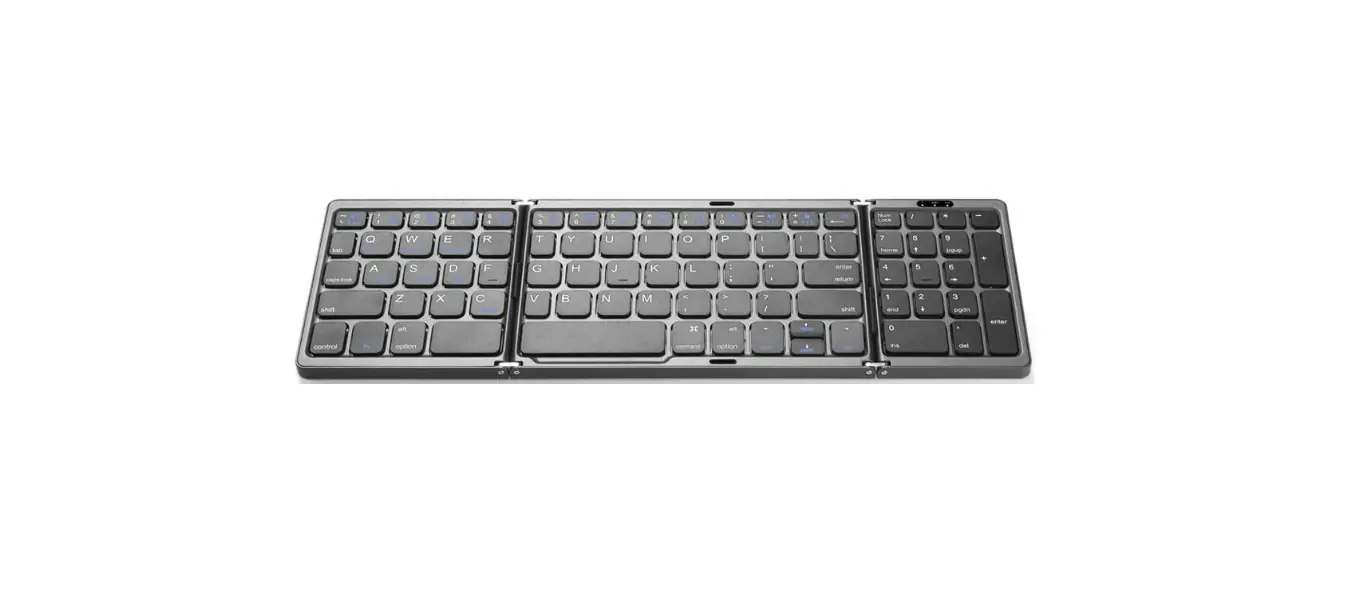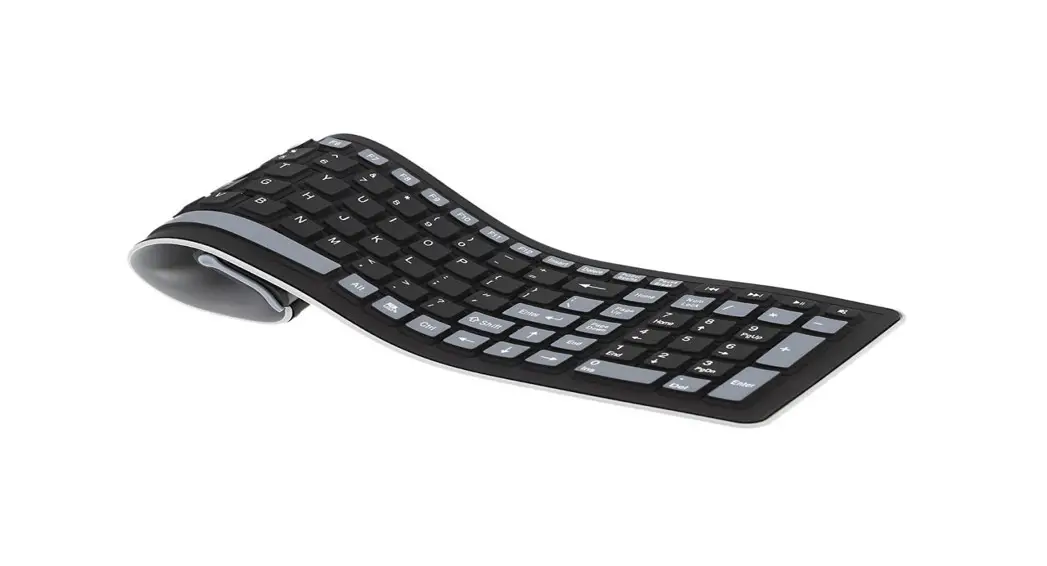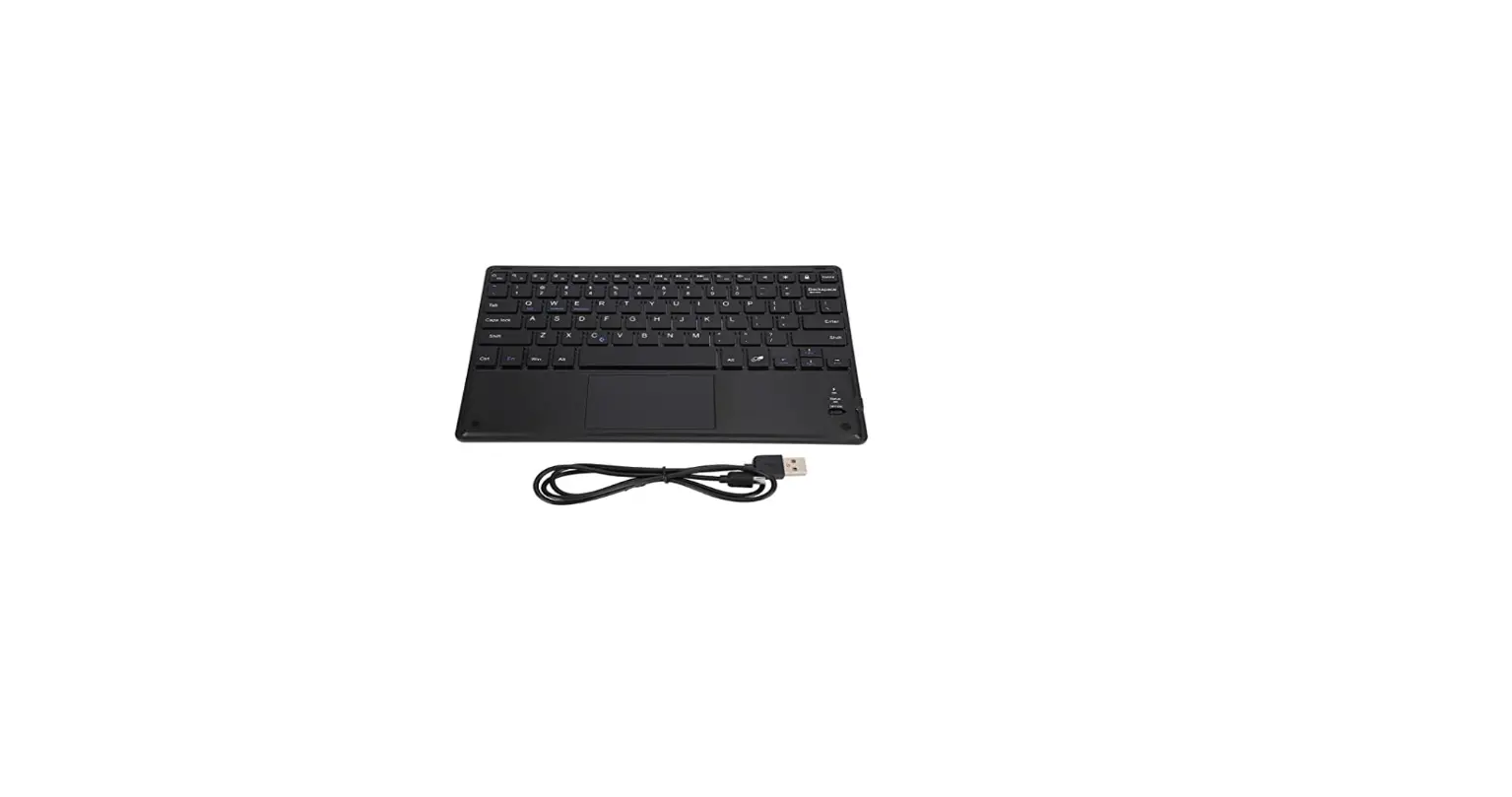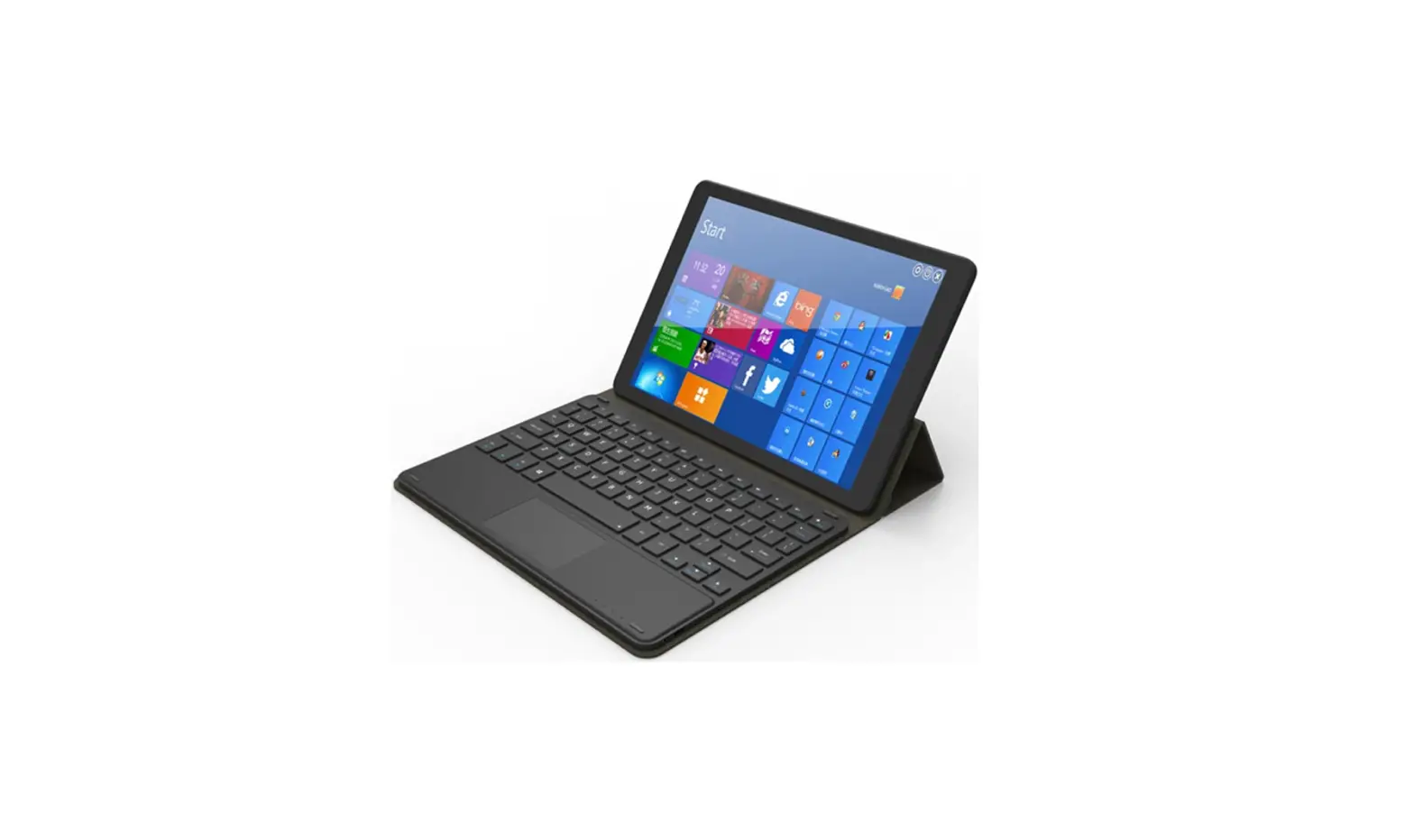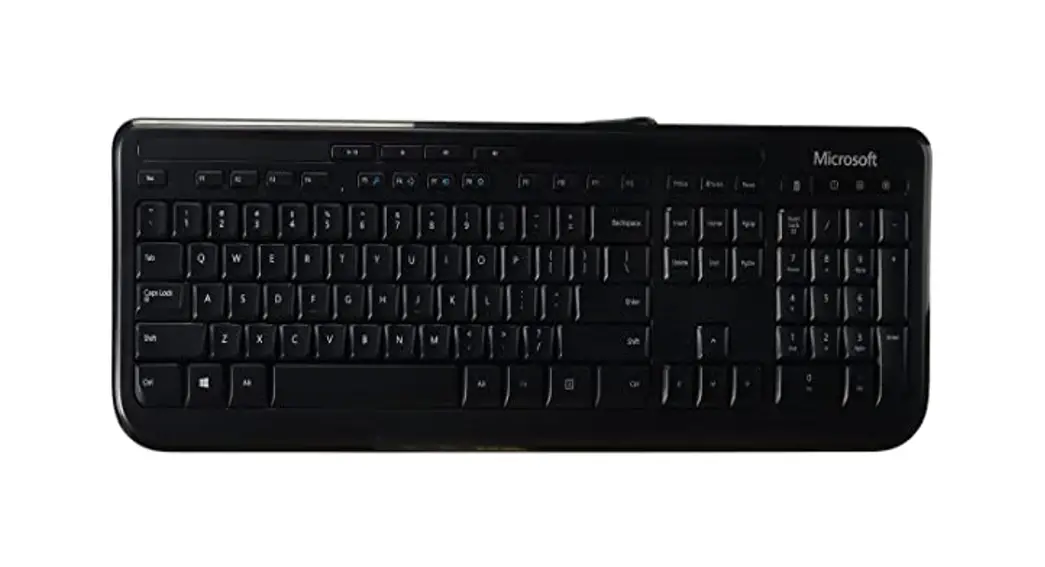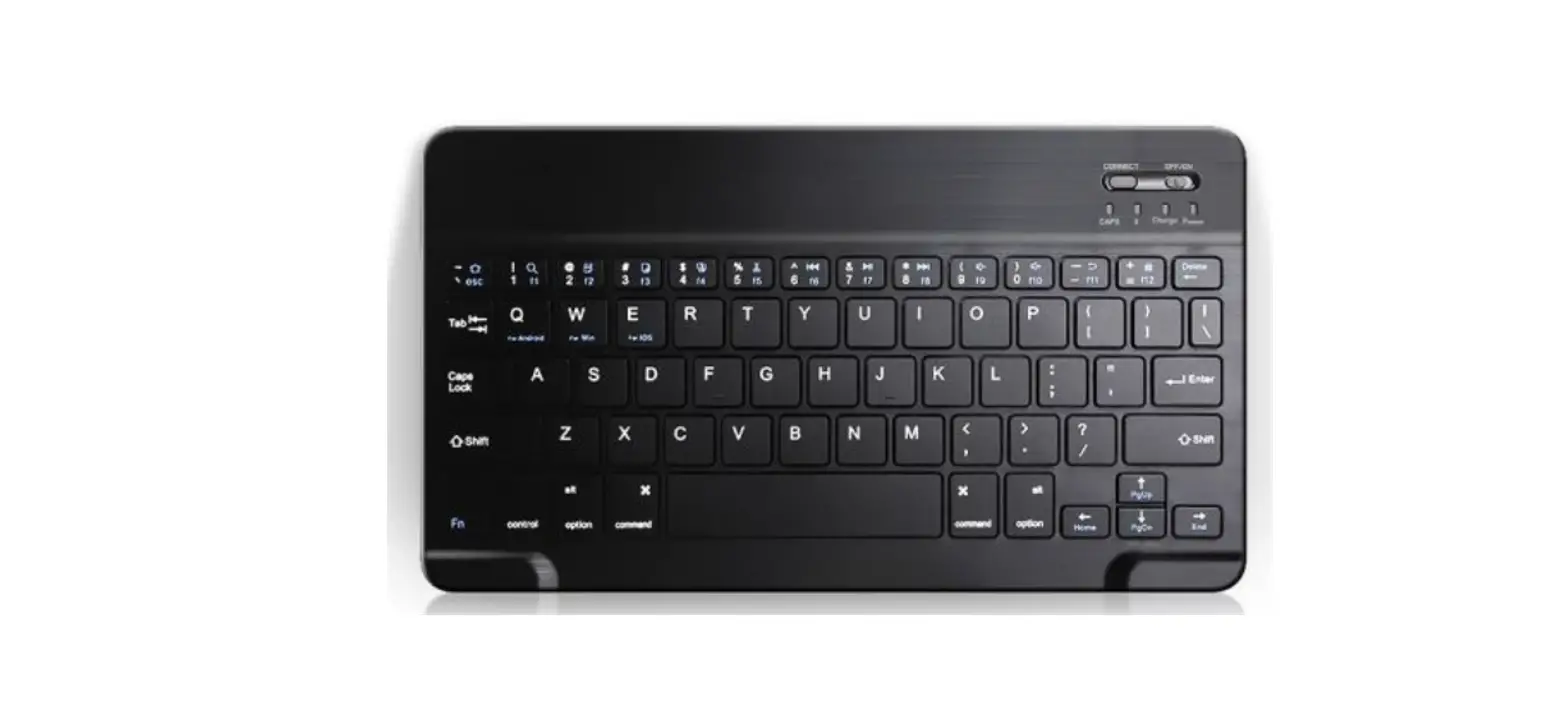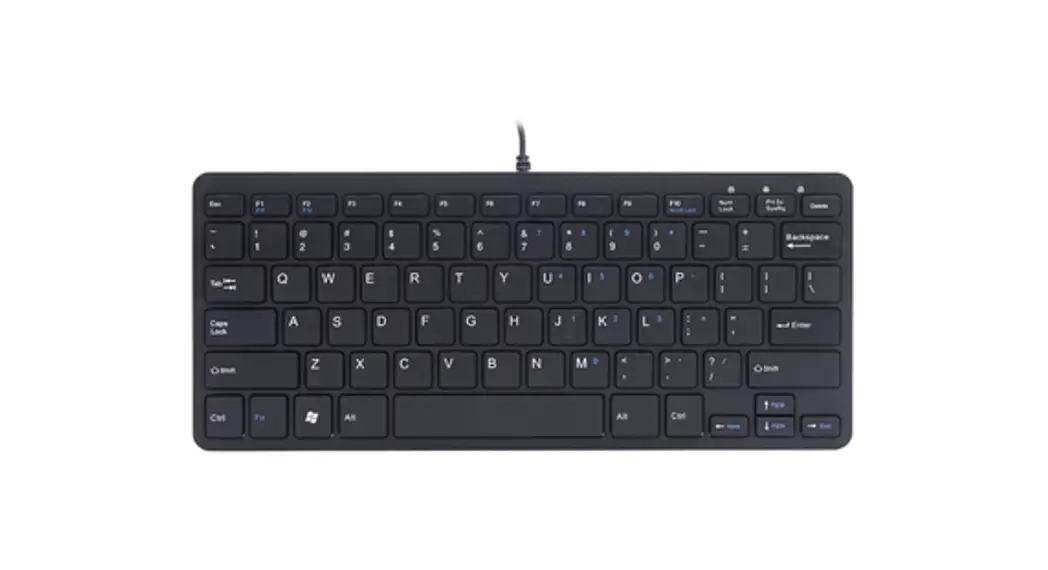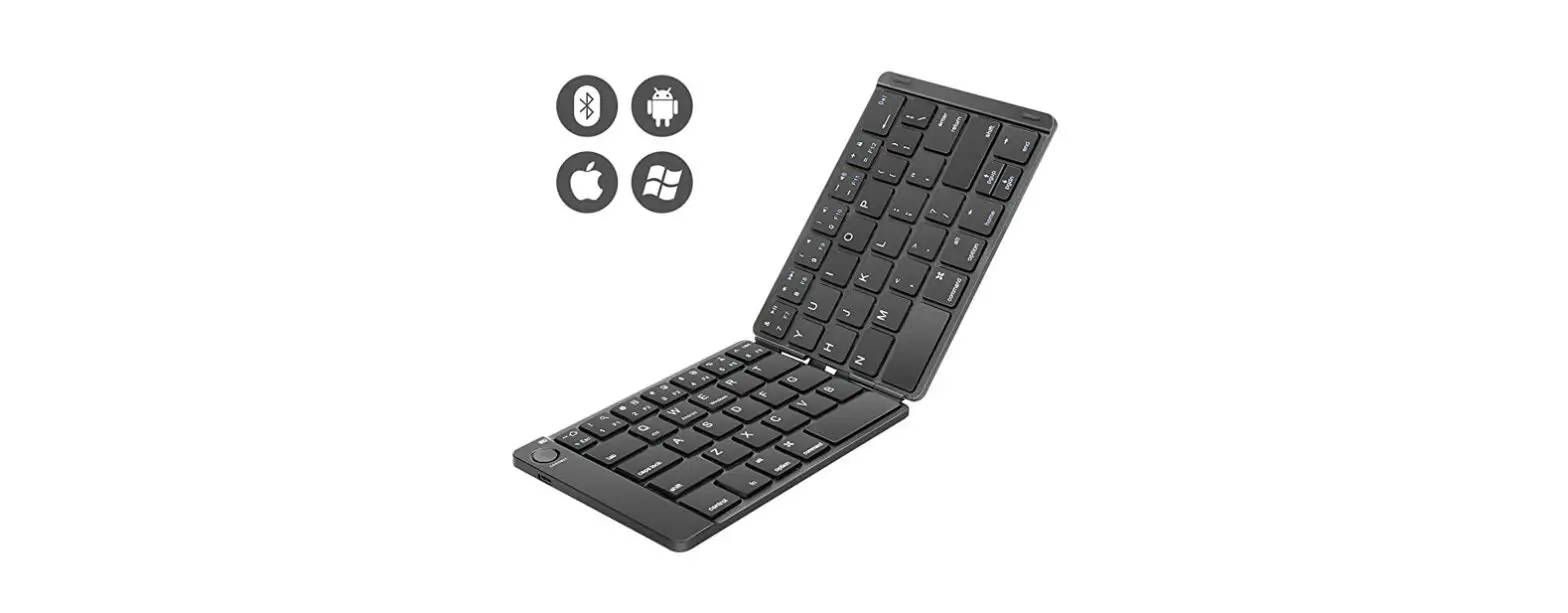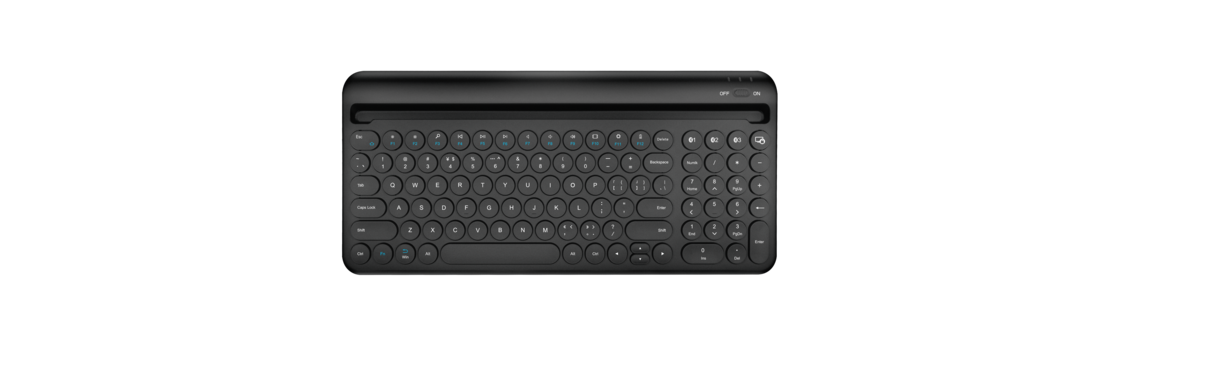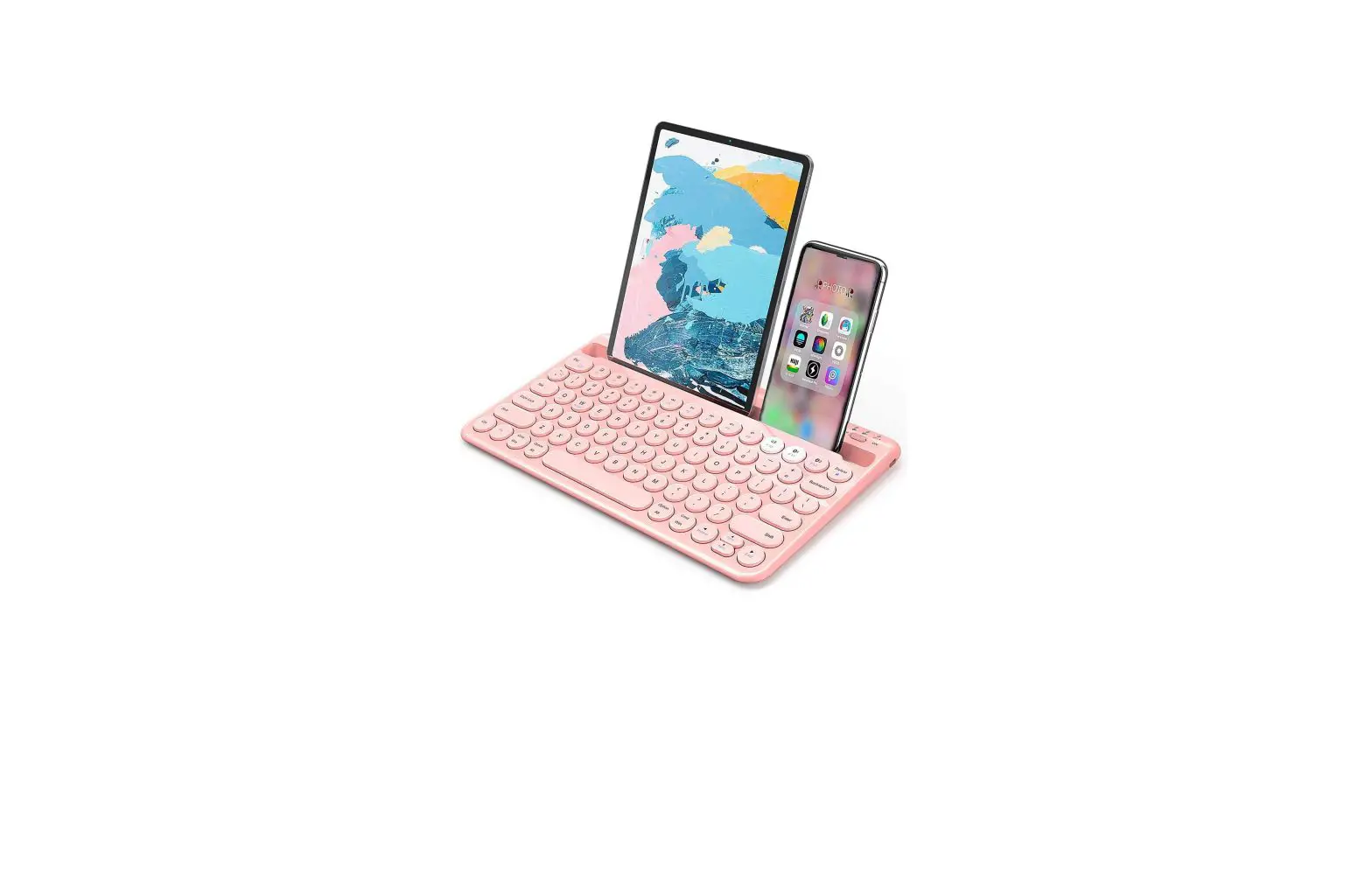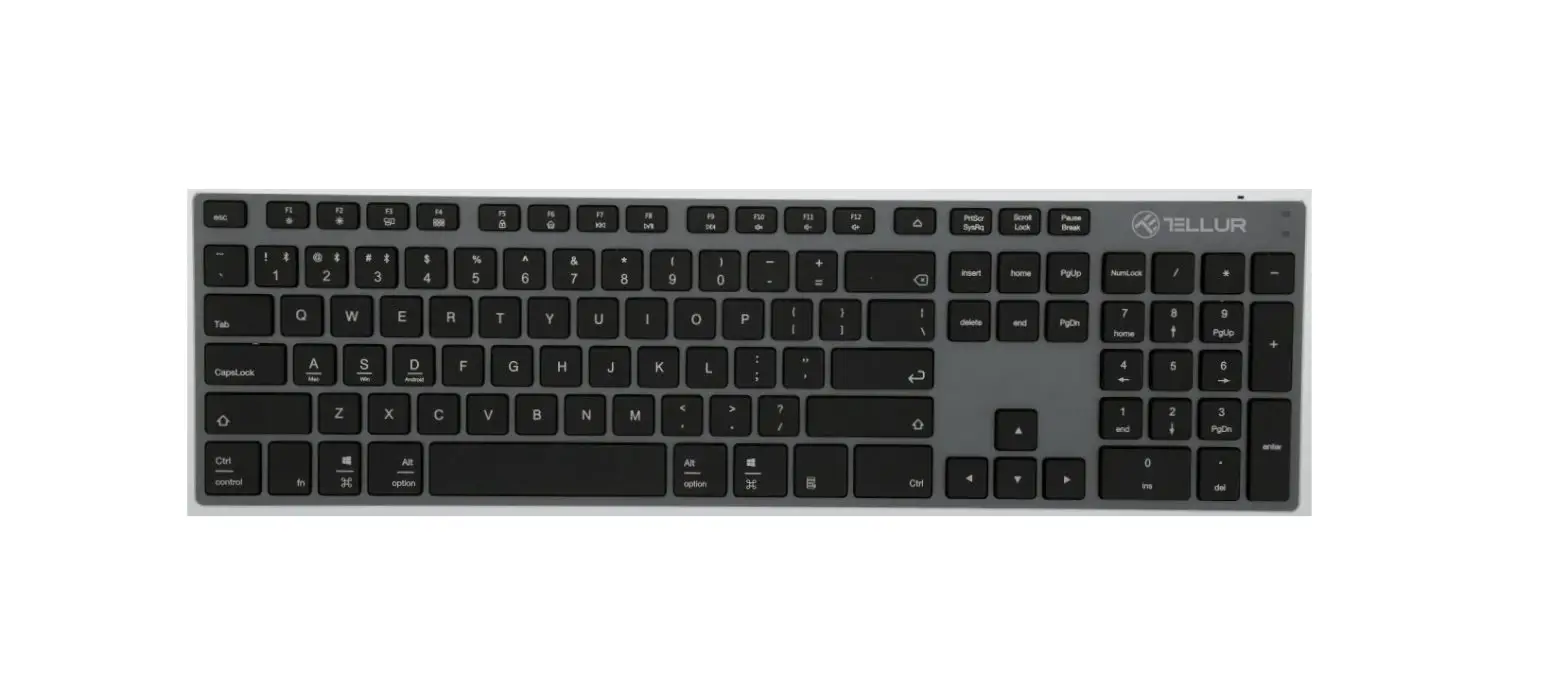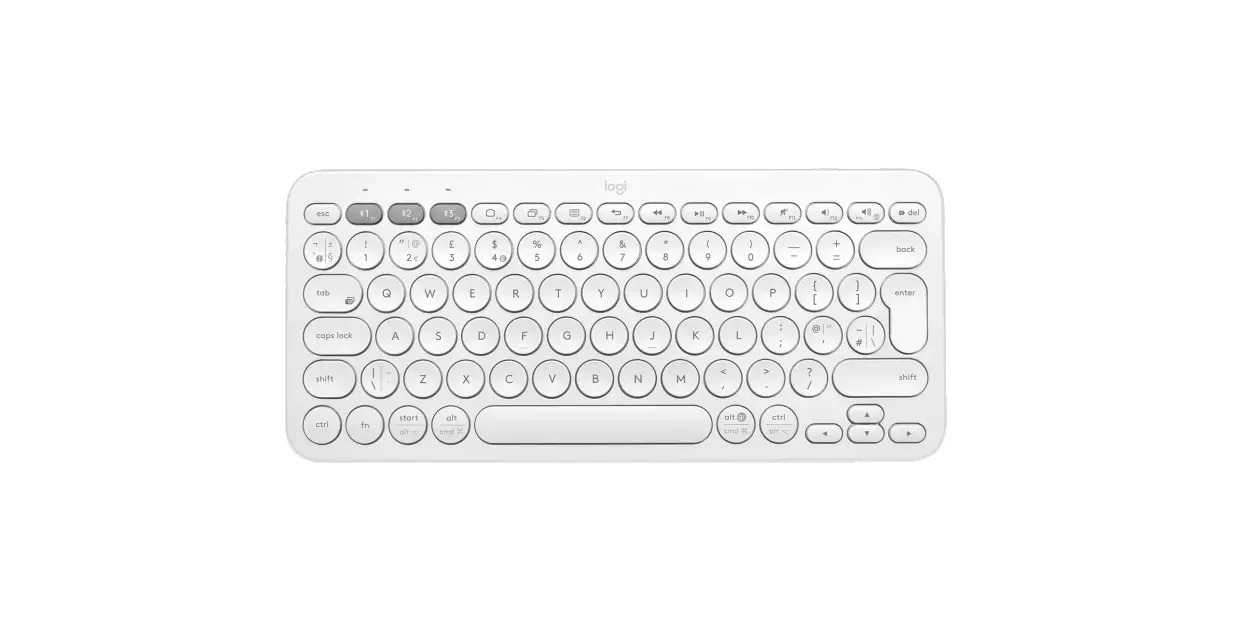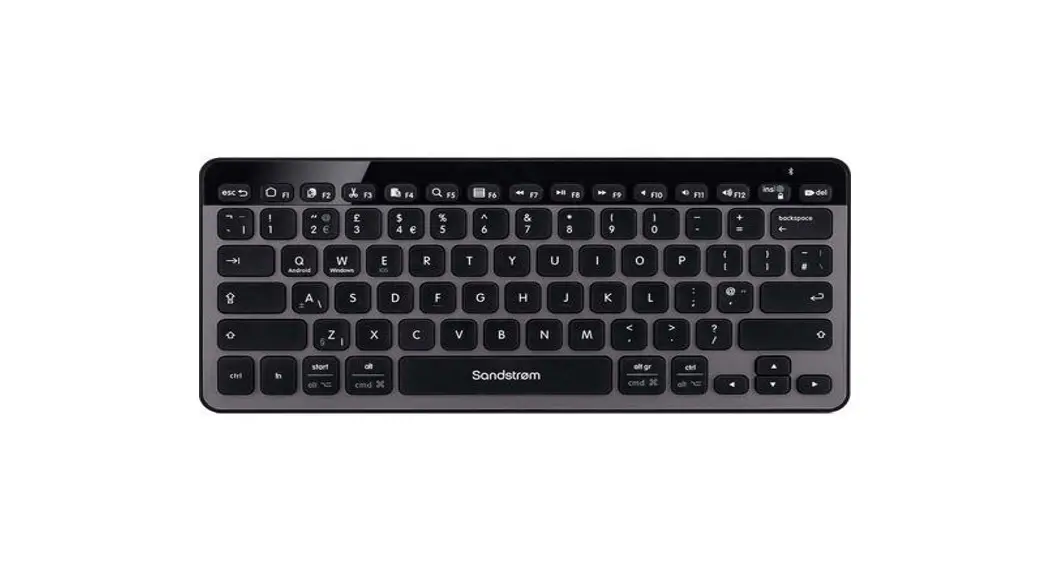
 Bluetooth 5.1 Keyboard
B089T
User’s Manual
Note: Please read the user manual carefully before you start using this product
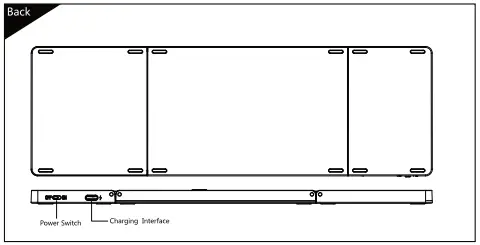
Compatible System
Win/iOS/Android
Product features
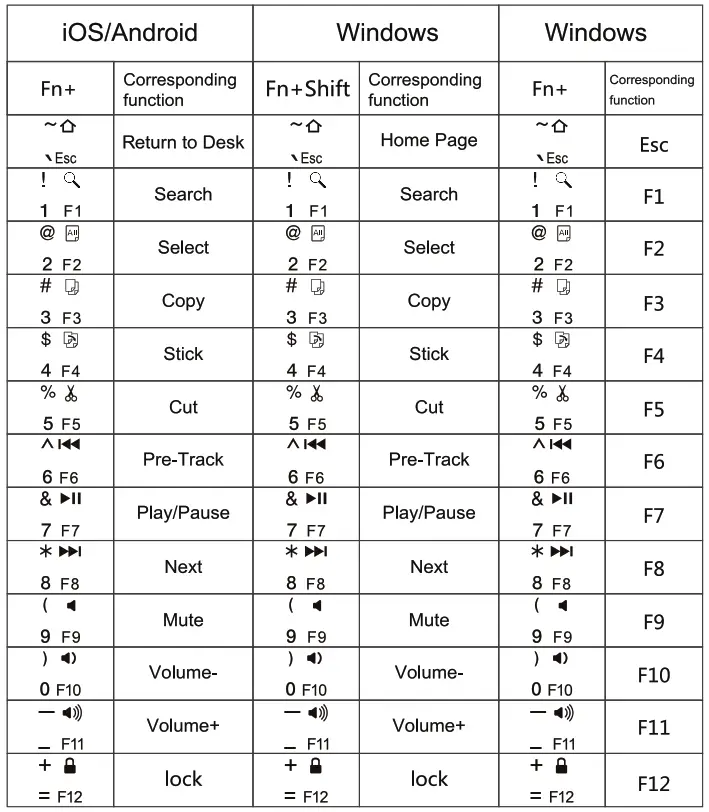
Three system input method switch
iOS: control+ Space key
Windows : control+ Shift
Android: control+ Shift
Android Connection Instructions:
- Please open the power switch, blue lights up. Select the channel. press the Fn+C to connect button and blue light twinkles.

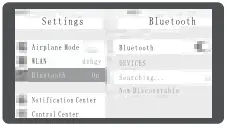
- Open “Settings’ and then click “Connect’

2 3 - Turn on Bluetooth to search for the pair name.
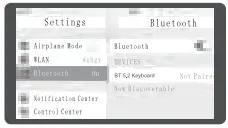
- Click the pair name TT 5.2 Keyboard’. pair request is displayed. Click OK.

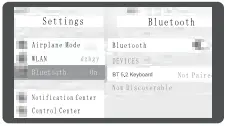
4 5 - There is a tip for connecting successfully .you can use your keyboard comfortably.
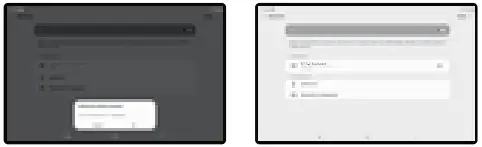
Remarks: After connecting successfully the next time you don’t need a match code. just open the Bluetooth keyboard power switch and the tablet PC “Bluetooth: The 13T keyboard will search the device and automatically connect.
Win10 Connection Instructions:
- Please open the power switch, and the red lights up. Select the channel. press the Fn+C connect button and blue light twinkles.
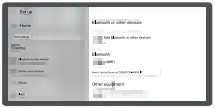
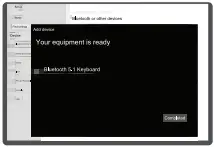
- Open Settings, and turn on Bluetooth. Click Add Bluetooth or other devices.

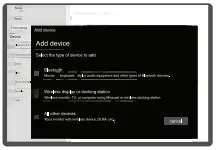
- Select -Bluetooth* in the Add Device to search.

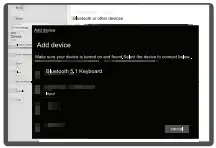
- You will find the “Bluetooth 5.1keyboard ‘ and then click the pairing name to connect.

- There is a tip for connecting successfully, you can use your keyboard comfortably.

iOS Connection Instructions:
- Please open the power switch and red light up. Select the channel. press the Fn+C connect button. blue light twinkles.
- Open the tablet PC setting Bluetooth” into searching and pairing status.

- You will find the ‘ST 5.2 Keyboard and then click on the next step.

- There is a tip for connecting successfully you can use your keyboard comfortably.

Warranty Card
User information
Company or personage full name……………………………………………….
Contact address …………………………………………………….
TEL……………………………………………
Zip……………………………………………….
The purchased product name and model NO…………………………………….
Purchased date………………………………………….
This reason is due to the product being broken and damage is not included in the warranty.
- accidents, misuse, improper operation, or any unauthorized maintenance, alteration, or disassembly;
- Improper operation or maintenance, violation of product instructions, or improper connection of power during use;
- Or use consumables (such as spare batteries) that are not provided by the company but applicable laws Except where such restrictions are prohibited.

Keyboard Maintenance
- Please keep the keyboard away from liquid or humid environments, saunas, swimming pools, and steam rooms, and don’t let the keyboard get wet in the rain.
- Please don’t expose the keyboard to too high or too low-temperature conditions.
- Please don’t put the keyboard under the sun for a long time.
- Please don’t put the keyboard close to the flame, such as on cooking stoves, candles, or fireplaces.
- Avoid sharp objects scratching products, timely recharge products to ensure the normal use.
FAQ
- The tablet PC can’t connect to the BT keyboard?
1) At first check the BT keyboard is in the match code state, then open the table PC Bluetooth searching.
2) Checking the BT keyboard Battery is enough, the battery is low also leads to can’t connect, you need to charge. - .The keyboard indication light always flashing when use?
Keyboard indication always flashing when used, it means the keyboard will be no power, please charge the power as soon as possible. - The tablet PC display BT keyboard is disconnected?
The Bluetooth keyboard is not used for a period of time, the device will automatically enter the sleep state in order to save power. Press any key on the keyboard to wake up, and the Bluetooth connection will be automatically restored
Multi-channel connection
- When connecting the first device, first press Fn+ BT1 and then press Fn+C to start the connection.
- Before connecting the second device, press Fn+ BT2 once, then press Fn+C to start the connection.
- Before connecting the third device, press Fn+ BT3 once, then press Fn+C to start the connection.
- To use multiple devices at the same time, press Fn + BT1 / BT2 / BT3 to switch to the connected devices freely.
Troubleshooting
Please contact the after-sales service.
Copyright
It is forbidden to reproduce any part of this manual without the permission of the seller.
Safety instructions
Do not open or repair this device, Do not use the device in a damp environment. Clean the device with a dry cloth.
Warranty
The device is provided with a one-year limited hardware warranty from the purchase day.
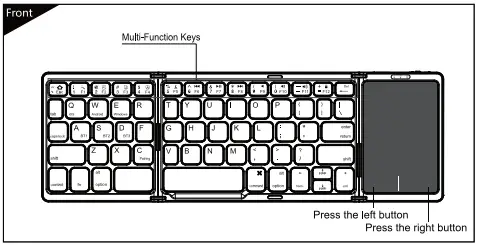
Touchpad function description (iOS 13.4.1 and above), must be switched to an iOS system
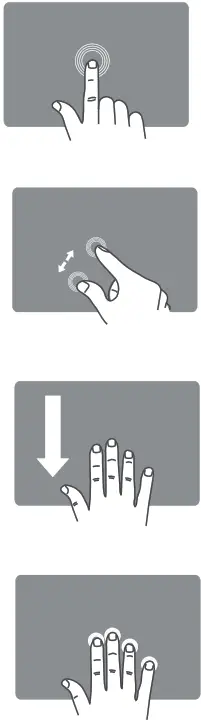 | Tap—Tap;user-defined) |
| Two-finger separation/collapse— Zoom in / out | |
| Three-finger slides down -Open all the active windows ( Click the Homepage button twice) | |
| Four finger tap -Regional screenshot (Cmd+shift+4) |
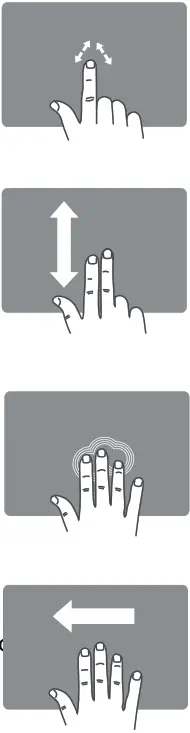 | Drag -Mouse cursor |
| Two-finger slides vertically — Mouse wheel | |
| Three-finger tap — Desktop (user-defined) | |
| Three-finger slides left —Active windows (Cmd+shilf+Tab) |
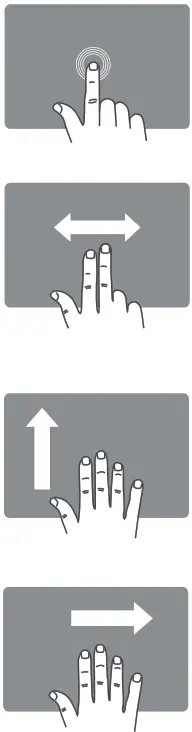 | Single finger double tap and then drop – Drag |
| Two-finger slides horizontally — Slide the desktop left and right | |
| Three-finger slides up— Open/hide the bottom of the application bar (Cmd+Alt+D) | |
| Three-finger slides right —Active windows (Cmcl+Tab) |
User-defined:
Settings- Auxiliary Functions- Touch – Auxiliary Touches- Device -Click the keyboard’s pairing name, and then customize the function of ‘single finger, Two-finger, Three-finger’.
Touchpad function description (Windows10), must be switched to the Windows system
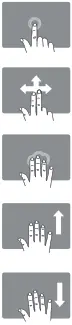 | Tap— The left of the mouse button |
| The two-finger separation I collapse — Zoom in / out | |
| Two-finger slides vertically / horizontally — Mouse wheel | |
| Three-finger slide to the left continuously —Switch the active window | |
| Three-finger tap — Search |
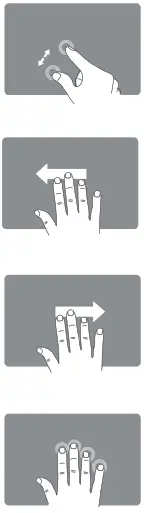 | Three-finger slide to the right continuously —Active window switch |
| Three-finger slides up — Open the browser window | |
| Four-finger tap —Open the (Action + Center) | |
| Three-finger slides down — Go Home ) |
Touchpad function description to Android system (Android), must be switched to the Windows system
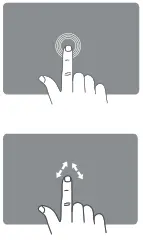 | Tap — The left of the mouse button |
| Two-finger slides vertically / horizontally —Mouse wheel | |
 | Drag — Mouse cursor |
Three system switching languages
ios: control+Space key switch language
Windows: Alt+Shift switch language
Android: Shift+Space key switch language
Technical Specifications
Keyboard size: 304.31 x 98.12 x 9.86 mm ( open ) 152 x 98.12 x 19.83 mm (folding)
Key working current: < 1 mA
Touchpad working current: <11 mA
Working distance: 10 m
Lithium battery capacity: 140 mAh
Working voltage: 3.7 V
Charger specifications: 5V=1A or 2A
Weight: 214 g
Standby current: < 0.7 mA
Sleep current: < 16 μA
Sleep time: Ten minutes
Awaken way: Press key
Status Display LED
- Connect: Open the power switch, red lights up, press the connect button, and blue light twinkles.
- Charging: The indicator light will be on the green, after fully charging, the light crush out.
- Low Voltage Indication: When the voltage is below 3.2 V, the red light twinkles.
FCC Statement
Changes or modifications not expressly approved by the party responsible for compliance could void the user’s authority to operate the equipment.
This equipment has been tested and found to comply with the limits for a Class B digital device, pursuant to Part 15 of the FCC Rules. These limits are designed to provide reasonable protection against harmful interference in a residential installation. This equipment generates uses and can radiate radio frequency energy and, if not installed and used in accordance with the instructions, may cause harmful interference to radio communications. However, there is no guarantee that interference will not occur in a particular installation. If this equipment does cause harmful interference to radio or television reception, which can be determined by turning the equipment off and on, the user is encouraged to try to correct the interference by one or more of the following measures:
— Reorient or relocate the receiving antenna.
— Increase the separation between the equipment and receiver.
— Connect the equipment into an outlet on a circuit different from that to which the receiver is connected.
— Consult the dealer or an experienced radio/TV technician for help
This device complies with part 15 of the FCC rules.
Operation is subject to the following two conditions (1)this device may not cause harmful interference, and (2) this device must accept any interference received, including interference that may cause undesired operation.
CE Statement
Herby, Shenzhen DZH Industrial Co., Ltd declares that this Bluetooth 5.1 Keyboard, B089T is in compliance with the essential requirements and other relevant provisions of Directive 2014/53/EU. In accordance with Article 10(2) and Article 10(10), this product is allowed to be used in all EU member states.
Use the Bluetooth 5.1 Keyboard in the environment with a temperature between 0 C and 40 C
Risk of explosion if the battery is replaced by an incorrect type. Dispose of used batteries according to the instructions.
The product shall only be connected to a USB interface of version USB2.0
Operation Frequency: 2402MHz-2480MHz
Max output power: 0.000098W
Manufacturer: Shenzhen DZH Industrial Co., Ltd
Address: 3rd Floor, YiTuo Mike Industrial A building,
Bu Yong Industrial D zone, Shajing,
Shenzhen, China
E-mail: [email protected]
DECLARATION OF CONFORMITY
I hereby declare that the product
Product: Bluetooth 5.1 Keyboard
Model No.: 8089T
Trade Mark: N/A
Hardware Version: VO1
Software Version: 01
Accessories. USB Cable Information:
Model: Type-C
Length: 500rnm
Manufacturer. Dongguan Shengxiang Electronic Technology Co..Ltd.
Battery information:
Model: TW 302030
Specification: 3.7V. 140mAh. 0.518Wh
Manufacturer. SHENZHEN TAIWOO BATTERY CO..LTD.
(Name of product, type or model, batch or serial number)
Satisfies all the technical regulations applicable to the product within the scope of Council Directives 2014/53/EU, 2014/35/EU and 2014130/EU: and declares that the same application has not been lodged with any other notified body.
EN IEC 62368-1:2020+A11:2020
ETSI EN 301 489-17 V3.2.4 (2020-09)
ETSI EN 301 489-1 V2.2.3 (2019-11)
ETSI EN 300 328 V2.2.2 (2019-07)
EN 50663:2017
EN 62479:2010
(Titles of regulations, standards, etc. )
All essential radio test suites have been carried out
NOTIFIED BODY: MiCOM Labs Inc
— Address:
575 BoulderCourt.
Pleasanton, California 94566,
USA
Identification Number. 2280
MANUFACTURER or AUTHORISED REPRESENTATIVE :
— Address:
Shenzhen DZH Industrial Co Ltd
3th Fbor, YiTuo Mkt hdustrial A buidng. Bu Yong Industrial D zone. Shajing. Shenzhen, China
This declaration is issued under the sole responsibility of the manufacturer. if applicable, his authorized representative.
Point of contact
Annie Li, 860755-29951078/860755-29951079
(Name, telephone, and fax number)
China 2022-04-21
(Place, date of issue) (Signature)
Annie Li. Manager
(Name and title in block letters)