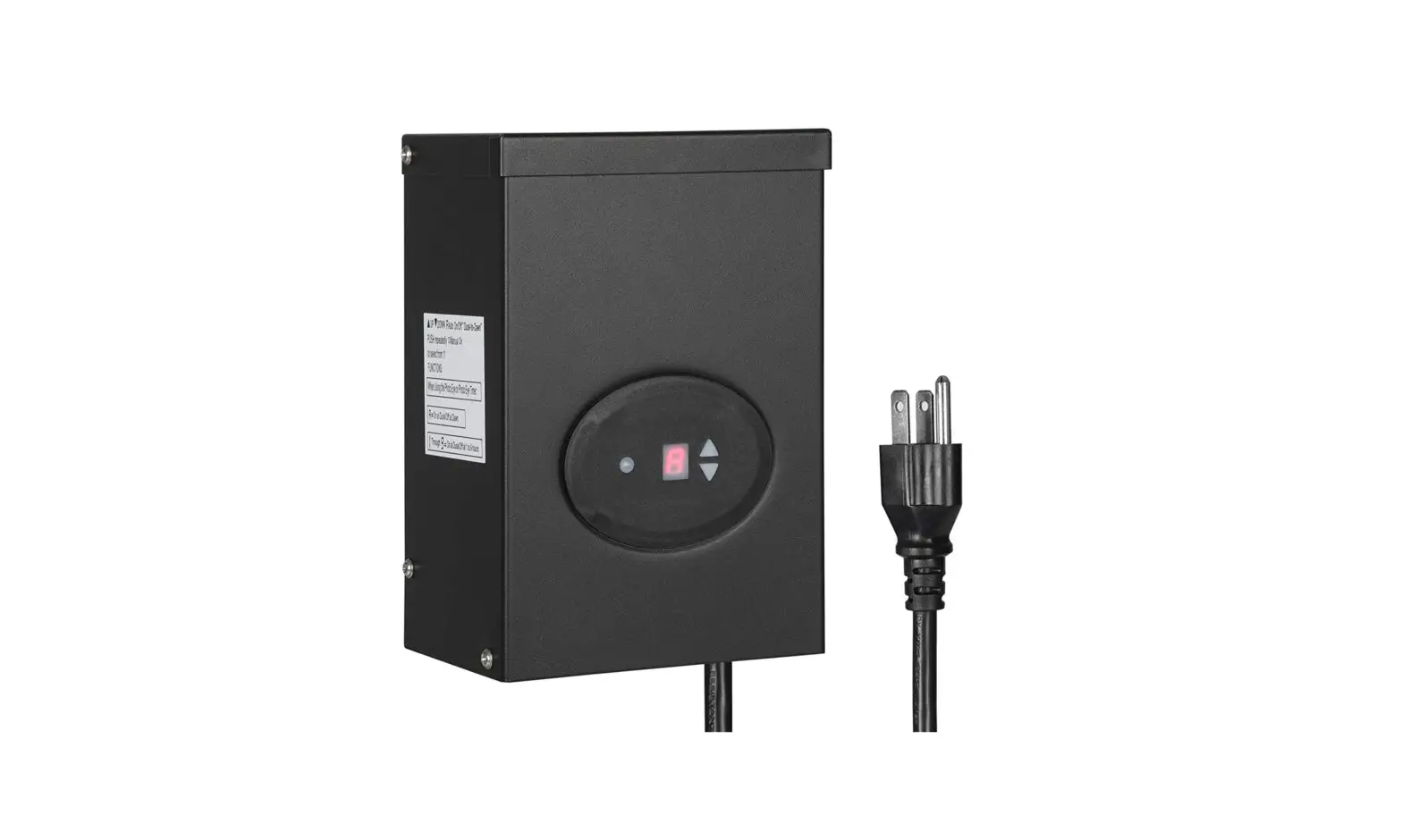
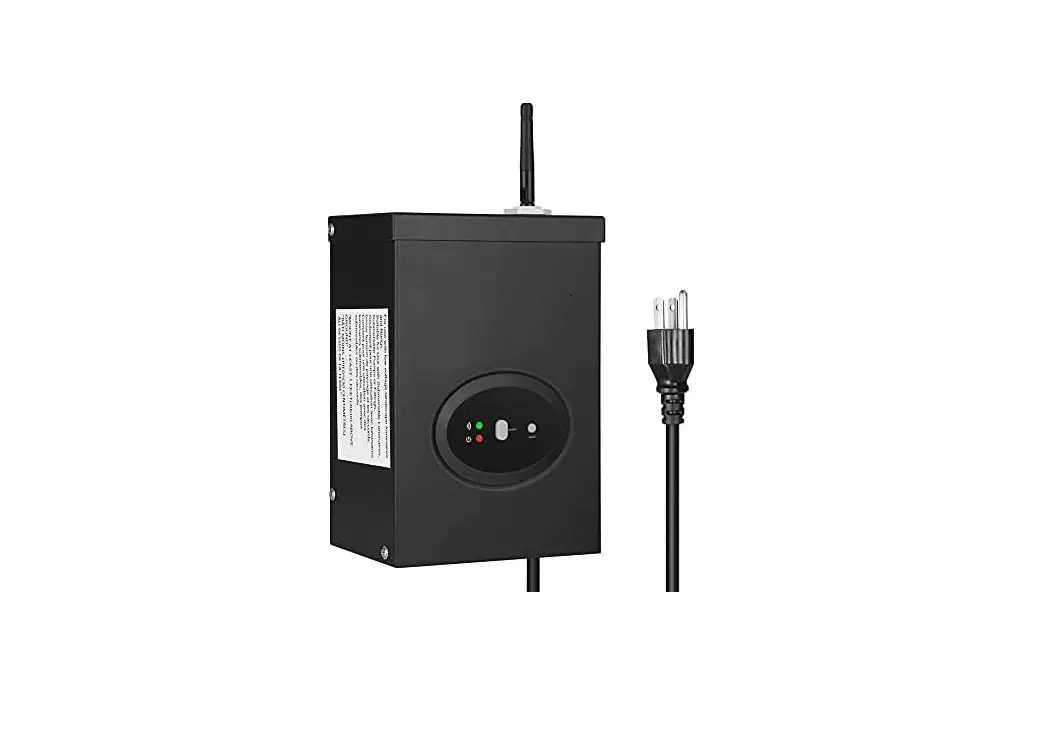
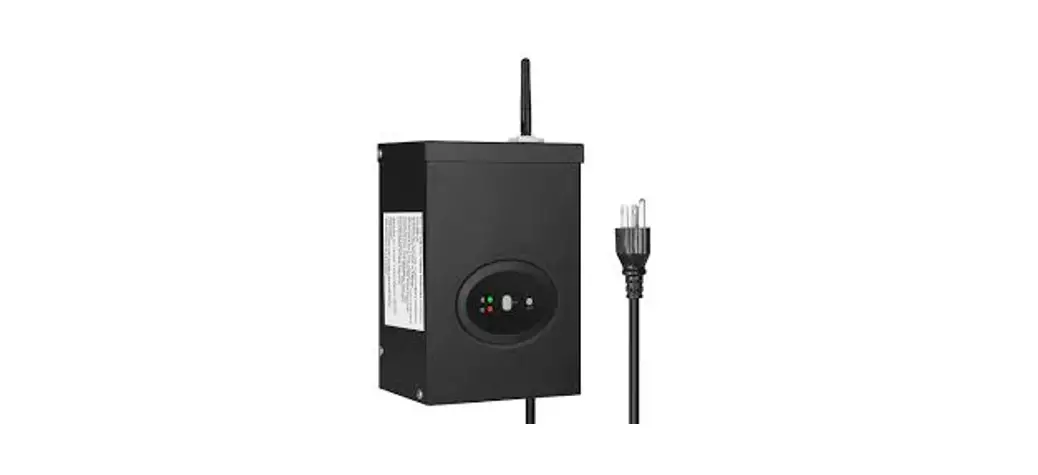
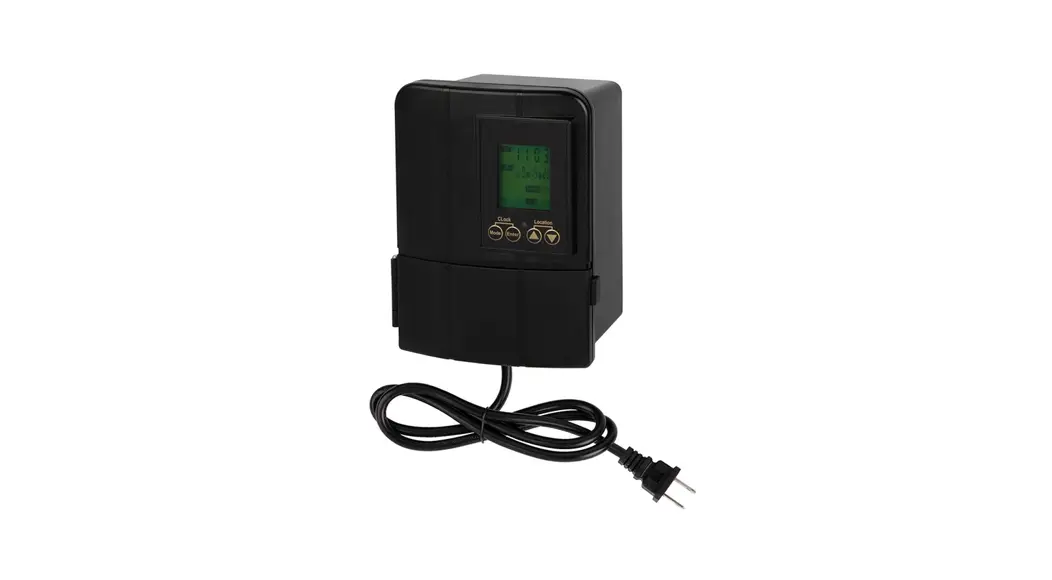
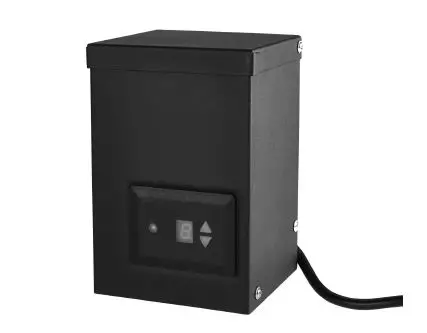
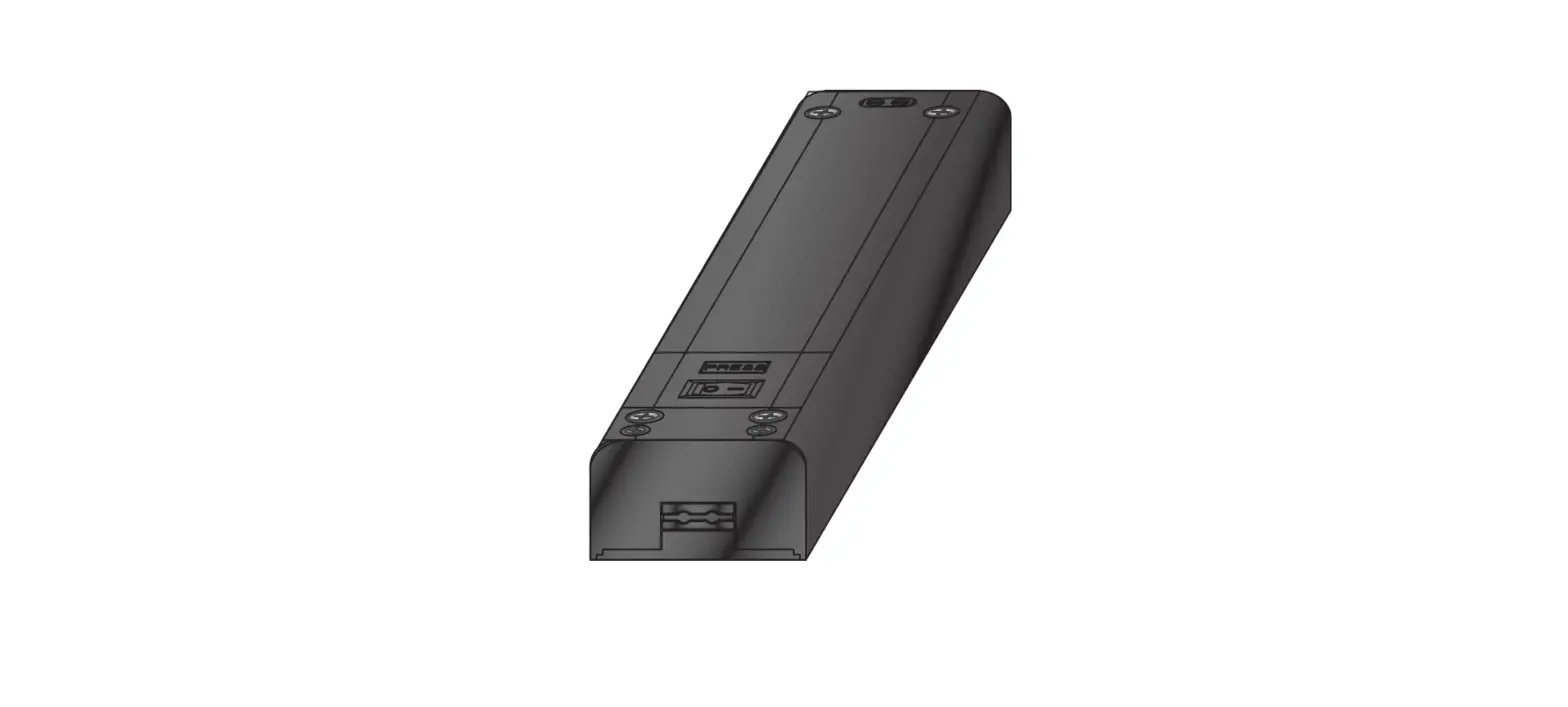
TD-120-12WF-1 WiFi Low Voltage Transformer
Product Information:
The Low Voltage Transformer is a landscape light system that
allows you to control your lights via a Wi-Fi connection. It comes
in three different models: TD-120-12WF-1 WiFi, TD-200-12WF-1 WiFi,
and TD-300-12WF-1 WiFi. The transformer must be installed in
accordance with all local codes and ordinances. If you encounter
any problems, it is recommended to contact a qualified
electrician.
Installation Instructions:
- Before proceeding with the Wi-Fi router connection, refer to
the installation instruction provided. - Install the Wi-Fi Low Voltage Transformer before connecting it
to the Wi-Fi router.
Product Usage Instructions:
- Prepare the Cable: Be careful when splitting
the landscape cable. Do NOT expose the copper cable. Remove 1/2
inch of insulation from both cables and twist the ends. - Connect the cable to the Transformer: Lay the
transformer on a flat, stable surface. Use a screwdriver to connect
the stripped ends of the cable under the terminal clamping plate.
Thread your cable through the white plastic loop to reduce its
gravity. Choose the appropriate terminal output end (12V/14V)
according to your lamp voltage. Gently pull on the landscape cable
to verify the connection strength. - Place Your Fixtures and Route the cable: Lay
your fixtures to your desired location, ensuring they do not exceed
the 200-watt rating of the transformer. Coil the rest of the cable
after connecting the last fixture. - Attach Your Fixtures: Turn the transformer on
and use cable connectors to attach your fixtures with the cable.
The fixtures will light up. - Mount the Transformer: Use a screw to mount
the transformer directly on a wall. It is suggested to mount it 12
inches to 48 inches (0.3 m to 1.2 m) high from the ground.
Software Installation Instructions:
- Step 1: Software Installation: Download the
dewenwils App by scanning the QR Code or searching “dewenwils” in
Google Play or the App Store. Note that the app interface may
differ from the pictures shown in the manual. - Step 2: Log in or Sign up: Each device can
only be connected to one account. If you want to allow others to
control it, you can share your device via the app. - Step 3: Add the Wi-Fi Low Voltage Transformer:
Make sure your Wi-Fi network is operating at 2.4GHz. Follow the
instructions in the app to add the transformer to your
network.
Note: The LED status indicators on the transformer provide
information about power status, Bluetooth provisioning network, and
successful internet connection. Automatic connection time may vary
depending on the strength of the Wi-Fi signal. If connection fails,
try reconnecting, switching to a stronger Wi-Fi signal, keeping
your phone closer to the device, or manually following the
instructions provided.
Low Voltage Transformer
TD-120-12WF-1 WiFi TD-200-12WF-1 WiFi TD-300-12WF-1 WiFi
ZONE1
ZONE2
ZONE3
Please pay attention to the warning signs Read the instructions with caution before operating
and keep it properly
V30423
WARNING: READ ALL INSTRUCTIONS before using the Wi-Fi Low Voltage Transformer. Compatible with 2.4 GHz Wi-Fi networks. If you have multiple routers in your home, especially under the same modem and using dynamic IP address mode, please notice the routers with same LAN IP address may cause IP address conflict and make the routers involved cannot access internet. Which makes Wi-Fi Low Voltage Transformer cannot be discovered and controlled via internet (like user’s cellular data service).Important safety information to reduce risk of fire injury. 1. Do not install within 10 feet (3 m) of a pool, spa or fountain. 2. No serviceable parts inside the power supply unit. DO NOT DISASSEMBLE. 3. Do not repair or tamper with cord or plug. 4. Do not submerge transformer in water. 5. Do not mount the transformer onto combustible material. 6. Do not connect two or more transformers in parallel. 7. Do not use the transformer with a dimmer switch. 8. Plug the power supply unit directly into a GFCI outlet in wet location. 9. For low voltage outdoor landscape lighting system use only
CAUTION:This landscape light system must be installed in accordance with all local codes and ordinances. If you encounter problems, contact a qualified electrician.
01
Installation Instructions:
IMPORTANT:Please refer to INSTALLATION INSTRUCTION before proceeding with Wi-Fi router connection. Wi-Fi Low Voltage Transformer must be installed before connecting to Wi-Fi router.
04 03
01
ZONE1
ZONE2
ZONE3
02
01 Wi-Fi connection button and Power Button for ZONE 1. 02 Power Button for ZONE 2 and ZONE 3. 03 Power Indicator 04 Status Indicator
BInking Llgh: Roady to connect to Wi-Fi router. Light continuously ON:Connection to W-Fi routar is complete and W-Fi Low Voltage Transformer is rsady for use via the app. Light OFF: Check your intenet cannection or review the app FAQ.
02
INSTRUCTIONS: 1.Prepare the Cable Be careful when splitting the landscape cable. Do NOT expose the copper cable. Remove 1/2 inch of insulation from both cables and twist the ends.
2.Connect the cable to the Transformer Lay the transformer on a flat, stable surface and use screwdriver to connect the stripped ends of the cable under the terminal clamping plate. Tips: Thread your cable through the white plastic loop to reduce its gravity.
As the following image shows, there are 3 group wiring ports(COM/12V/ 14V for each group), you can choose any group of them to connect your cable. For each group, there are 2 terminal output ends- 12V/14V, select the appropriate terminal according to your lamp voltage.
Note: Gently pull on the landscape cable to verify if the connection is strong.
03
3.Place Your Fixtures and Route the cable Lay your fixtures (not included) to your desired location. Be sure they do not exceed the 200-watt rating of the transformer. Coil the rest of the cable after connecting the last fixture.
4.Attach Your Fixtures Turn the transformer on. Use the cable connectors to attach your fixtures with the cable. Then it will light up. 5.Mount the Transformer Use the screw to mount the transformer directly on a wall. 12 inch to 48 inch (0.3 m to 1.2 m) high from the ground would be suggested.
041
INSTRUCTIONS: STEP 1: Software Installation Download the “dewenwils” App: Scan QR Code or search “dewenwils” in Google Play or the App Store to download and install the app. Note: All pictures shown are for illustration purpose only, the APP will be updated continuously, please refer to the latest APP interface to operate.
Free APP for android and IOS
STEP 2: Log in or Sign up
Note: Each device can only be connected to one account. If anyone else needs to control it, please share your device via the app.
05
STEP 3: Add the Wi-Fi Low Voltage transformer
Note:The Wi-Fi Low Voltage transformer only support 2.4GHz network.
LED Status
Function
Red LED is on
Power is on
Red LED is off
Power is off
Green LED is blinks rapidly
Bluetooth provisioning network
Green LED is on
Connect to the Internet successfully
· Please press and hold the power button until the WiFi signal indicator flashes, then release the buttons. Then add the device.
· The Wi-Fi Low Voltage transformer only work with 2.4GHz network. If your router broadcasts both 2.4GHz and 5GHz, please select the 2.4GHz network with the app. If connection still fails, we recommend you call your ISP and had them completely shut off the 5GHz network on the router. You are free to change the network to 5GHz again after connecting.
· Please try to make the Wi-Fi Low Voltage transformer and router as close as possible.
Auto Add Mode (Bluetooth Mode) · Turn on Bluetooth on the smartphone. · Open the “dewenwils” APP cFigure 1and click the “+” at the top right list,
it will find the Wi-Fi Low Voltage transformer automatically. cFigure 2Tap “Go to add”, the interface in Figure 3 will appear, click the button to switch to the appropriate WiFi signal source, then type in WiFi password and click “next” to enter the interface in Figure 4. At this time the device is connecting to your home WiFi automatically. The prompt in Figure 5 will appear after connecting successfully. · If the Wi-Fi Low Voltage transformer is not automatically discovered, select “Auto Scan” to automatically search for the Wi-Fi Low Voltage transformer. cFigure 6After clicking “next”, Figure 3 will appear, then type in correct password and click “next”, Figure 7 and Figure 8 will appear in sequence to remind you that the connection is successful.
06
Note: Automatic connection time of devices varies depending on the strength of WiFi signal, so please do not operate the phone. If the connection fails, please reconnect, or switch to other stronger WiFi signal sources, or keep your phone closer to the device, or connect it by following the Manually Mode below.
Figure 1
Figure 2
07
Figure 3
Figure 4
Figure 5
08
Figure 6
Figure 7
Figure 8
Add Manually Mode · Click the “+” icon at the right corner and then choose the ” Wi-Fi Low
Voltage transformer”. (Figure 9) · Please check the mode on the left side of at the top right corner, if it is
not “EZ Mode”, please switch to “EZ Mode”. In step ç, please press and hold the RESET button on the transformer for more than 5 seconds, and release the button when the indicator flashes. In stepè, click “Confirm the indicator is blinking rapidly”, and click “Next”). As shown in Figure 10 to 12. · Select 2.4GHz Wi-Fi Network and enter password, then click “NEXT”. Wait for the connection to complete. (Figure 13) · Wi-Fi Low Voltage transformer has been added successfully. (Figure 14)
09
Figure 9
Figure 10
Figure 11
Figure 12
10
Figure 13
Figure 14
Figure 15
11
STEP 4:Set the Function You Need 1.Interface Introduction
01
switch 1
switch 2
switch 3
02
01 Change Device Name
02 Power Statistics
03 ON/OFF button for each zone
04 ON/OFF button for all zone
03
05 Timer Setting Button
06 Countdown Button
07 Device Switch Records
05 07
04
06
2.Timer Function Introduction Tap “Timer Setting Button” and ” appear.(Figure 16&17)
” , the interface of Timer Schedule will
Figure 16
12
Figure 17
3.Schedule Tap “Schedule” to enter the interface as shown in Figure 17. You can set the Start/End time in a 7-day period with a 1 minute interval according to needs. Every program set before repeats weekly.(Figure 18, 19) Tap “Save” to return and review the overall schedule, (Figure 19)
Figure 18
Figure 19
Figure 20
13
You can also set the schedule for each zone individually. (Figure 21&22&23)
Figure 21
Figure 22
Figure 23
14
4.Circulate You can set the duration of each ON and OFF, Start and End time according to your needs. The ON/OFF schedule will repeat between the Start and End time. For example: Set a period from 9:00 AM to 3:00 PM on Monday through Friday, turn on your light for 1 hour , and off for 30 minutes. The outlet will repeat ON/OFF from 9:00 AM to 3:00 PM. (Figure 24, 25) You can also set the circulate schedule for each zone individually.
Figure 24
Figure 25
15
5.Random Either +/-30 minutes than setting ON/OFF time, randomly control device when you are away from home.
Figure 26
Figure 27
6.Countdown Tap “Countdown Button” then select any switch to set the hours and minutes. The zone which the low-voltage transformer is set will switch according to the setting, The Wi-Fi Low Voltage transformer will maintain the current state on or off until the end of the countdown. It will exit countdown mode automatically if you turn on/off manually. (Figure 28, 29)
16
Figure 28
Figure 29
7.Astronomical
The controlled device will turn on or off at (before or after) sunset or sunrise. (Figure 303132)
17
Figure 30
Figure 31
Figure 32
18
Work with Amazon Alexa
Link dewenwils account to Alexa 1. Open your Alexa app, tap “Skills” in the menu, and then search “Smart Life” , select “Smart Life ” and tap “Enable” to enable the Smart Life skills. 2. You will be directed to the account link page. Type in your “dewenwils “account and password, don’t forget to select your country/ region where your account belongs to. And then tap “Link Now” to link your dewenwils account.
Control your smart devices Discover devices: Echo needs to discover your smart devices before controlling them.You say “Alexa. discover devices” to Echo. Echo will discover devices that have already been added in “dewenwils “app.You can also tap “discover devices” to discover the smart devices. Discovered devices will be shown in the list. Note: Every time you change the device’s name on the dewenwils app, Echo must re-discover before you control them.
Work with Google Home
Preparation 1. Make sure the smart device has been added to the dewenwils App and the device is online. 2. Make sure the Google Home App is installed.
Start 1. Click Me in the bottom right corner, click Google Assistant, click Link with Google Assistant. 2. The App will pull up the Google Home App, click Link. 3. Click agree Link. 4. Wait for it to finish loading, your smart devices will be synced to Google Assistant or Google Home App that can control them. Next, you can assign rooms to your devices in the Google Home App.
19
Other Functions
Change the device name
Share the device with your family Enter family member’s “Smart Life”account to control the device.
Create Group Devices under the same group can be controlled simultaneously
20
21
FCC STATEMENT:
This device complies with Part 15 of the FCC rules. Operation is subject to the following two conditions: 1) this device may not cause harmful interference, and 2) this device must accept any interference received, including interference that may cause undesired operation. Changes or modifications not expressly approved by the party responsible for compliance could void your authority to operate the equipment. Note:This equipment has been tested and found to comply with the limits for a Class B digital device, pursuant to Part 15 of the FCC Rules. These limits are designed to provide reasonable protection against harmful interference in a residential installation. This equipment generates uses and can radiate radio frequency energy, if not installed and used in accordance with the instructions, may cause harmful interference to radio communications. However, there is no guarantee that interference will not occur in a particular installation. If this equipment does cause harmful interference to radio or television reception, which can be determined by turning the equipment off and on, the user is encouraged to try to correct the interference by one or more of the following measures: Reorient or relocate the receiving antenna. Increase the separation between the equipment and receiver. Connect the equipment into an outlet on a circuit different from that to which
the receiver is connected. Consult the dealer or an experienced radio/TV technician for help.
FCC Radiation Exposure Statement:
This equipment complies with FCC radiation exposure limits set forth for an uncontrolled environment. This equipment should be installed and operated with minimum distance 20cm between the radiator& your body.
One Year Limited Warranty
Supported by our professional R&D team and QC team, we provide One Year Warranty for materials and workmanship from the purchase date. Please note that the warranty does not cover damage caused by personal misuse or improper installation. Please attach your Order ID and Name so that our dedicated customer service team can help you better.
22