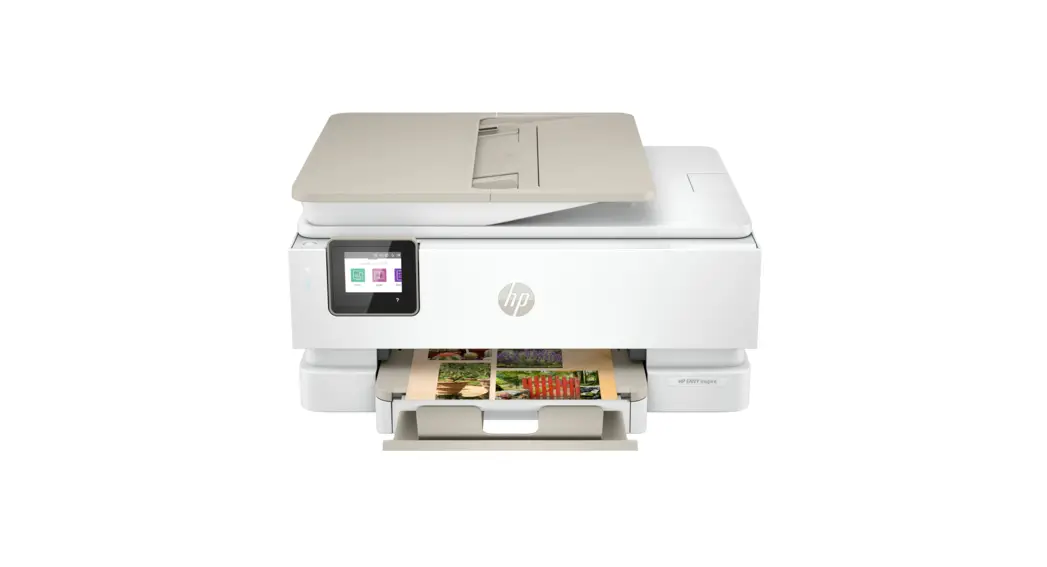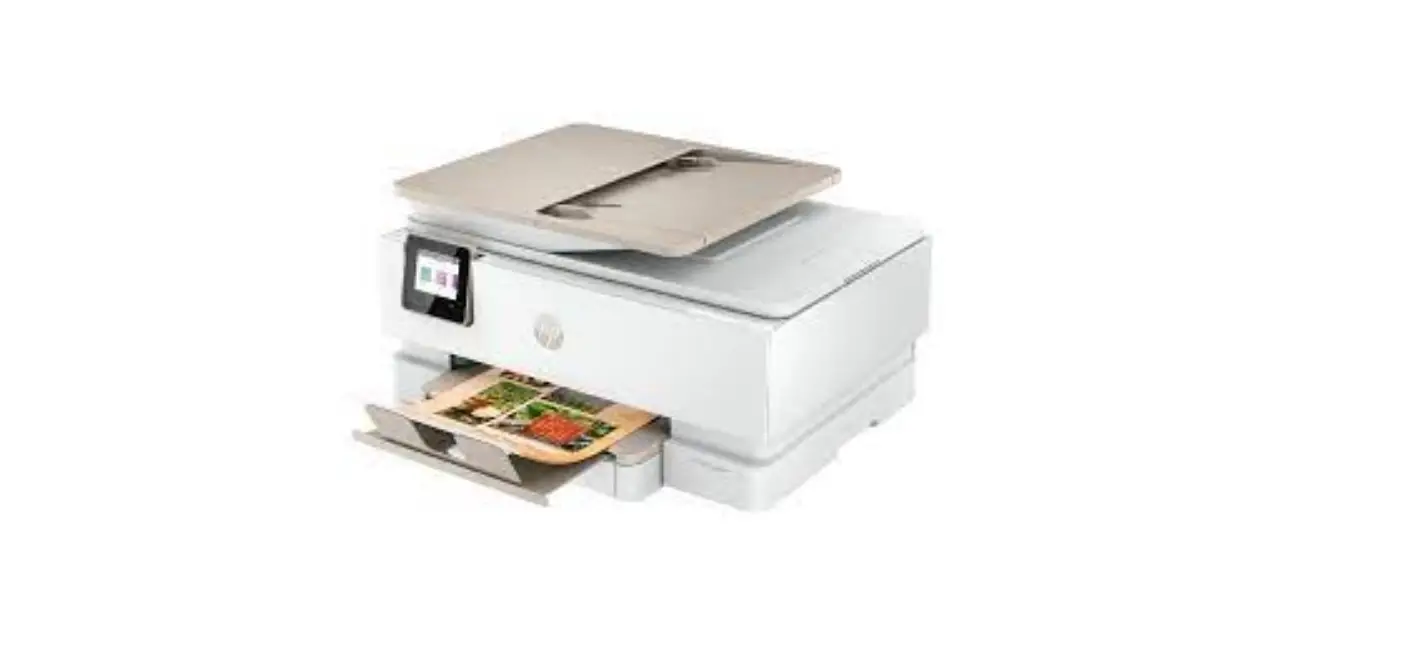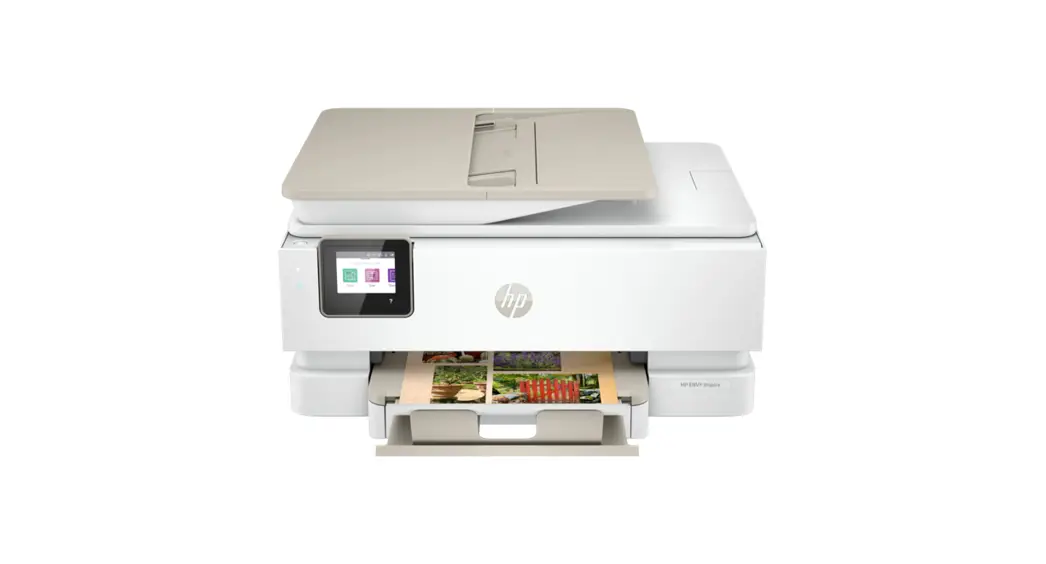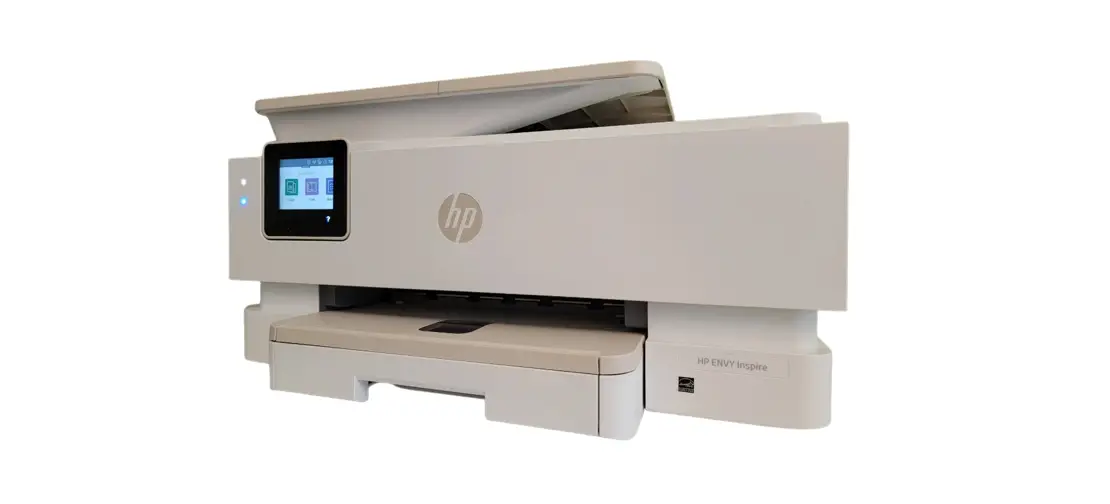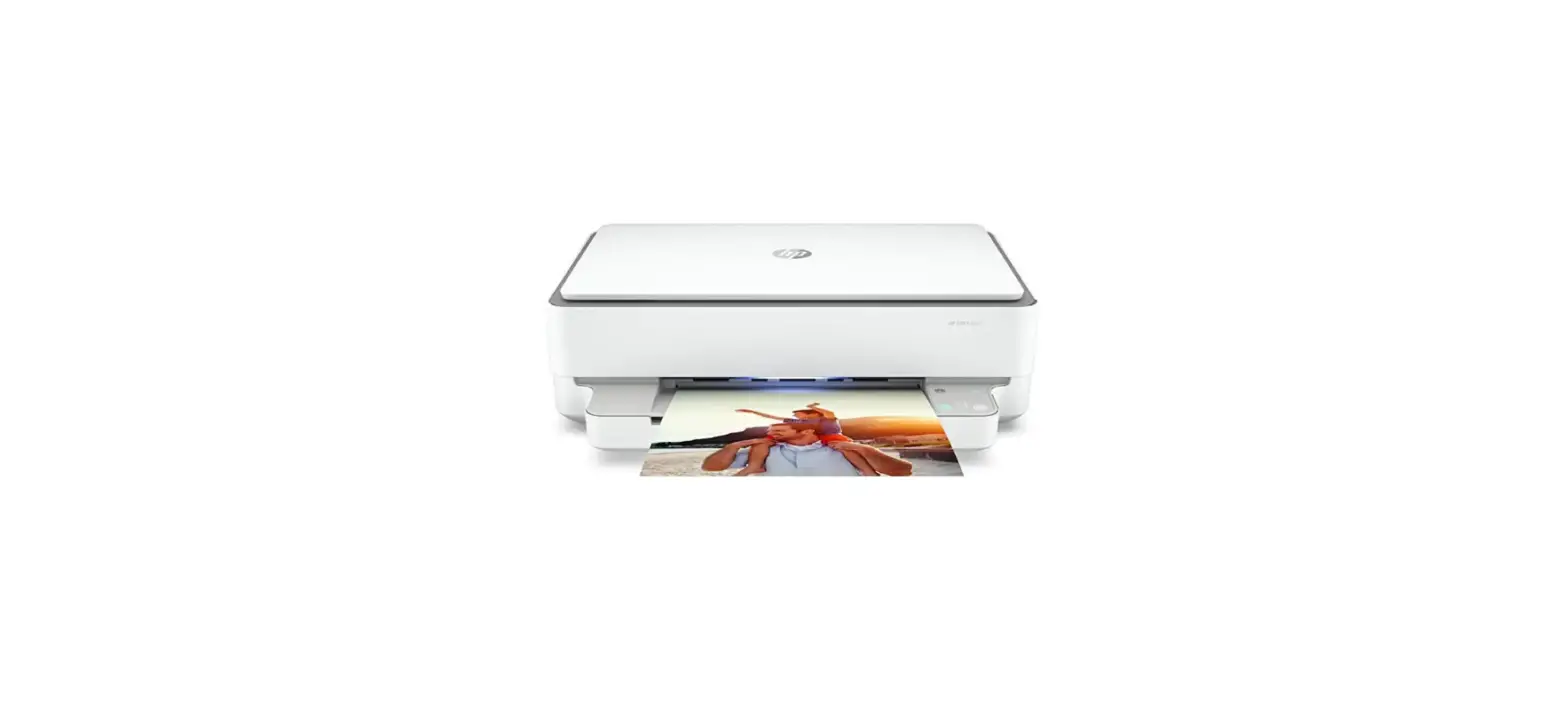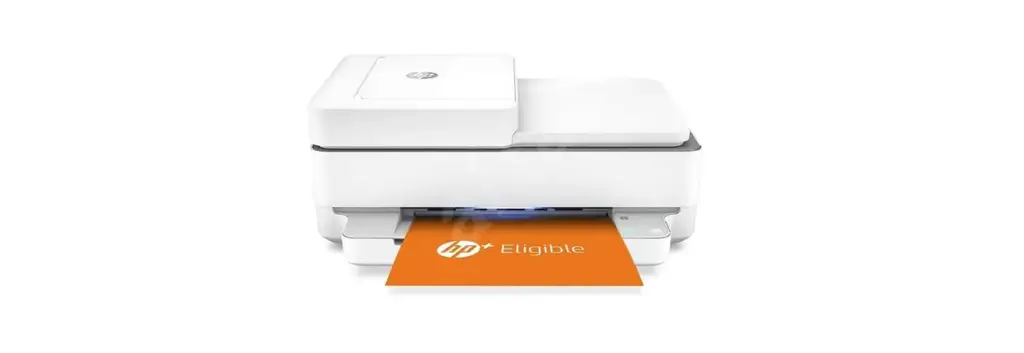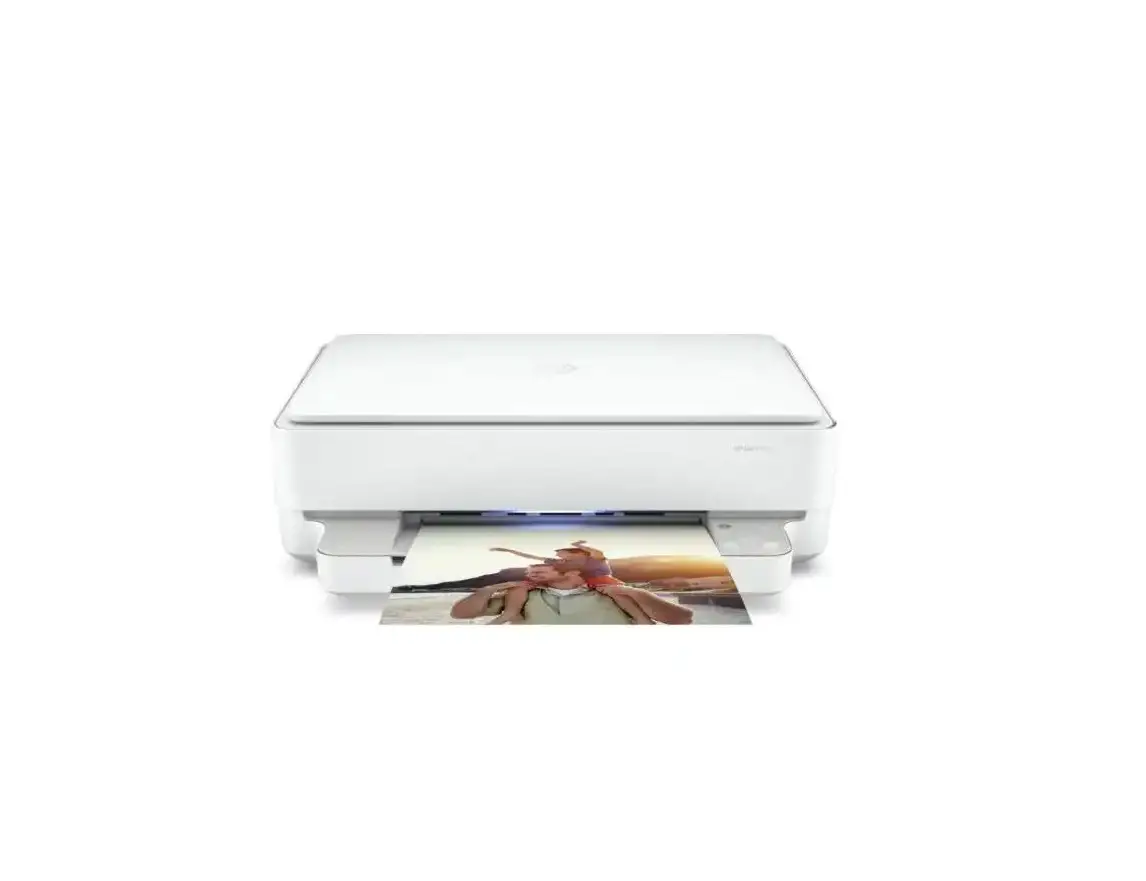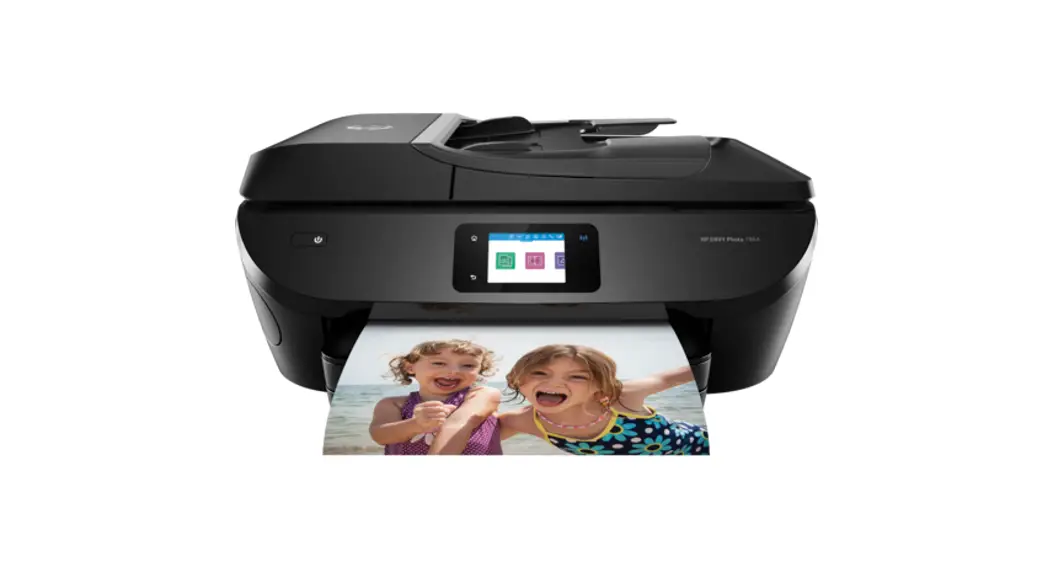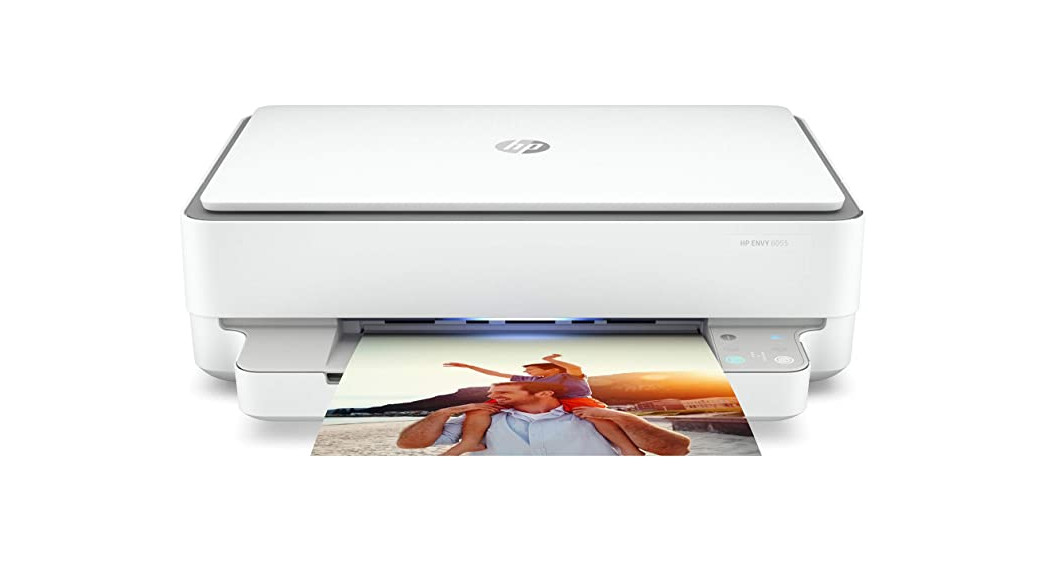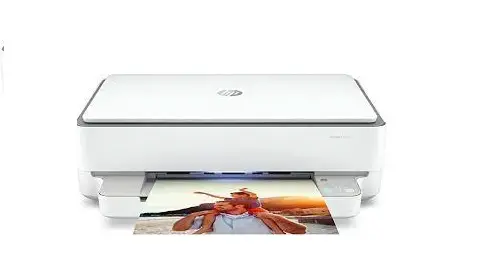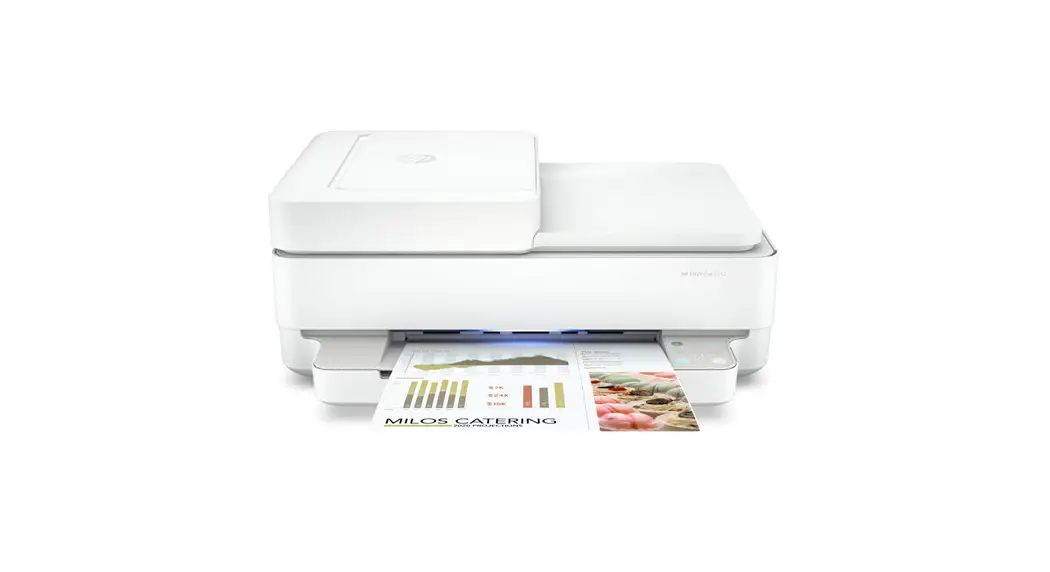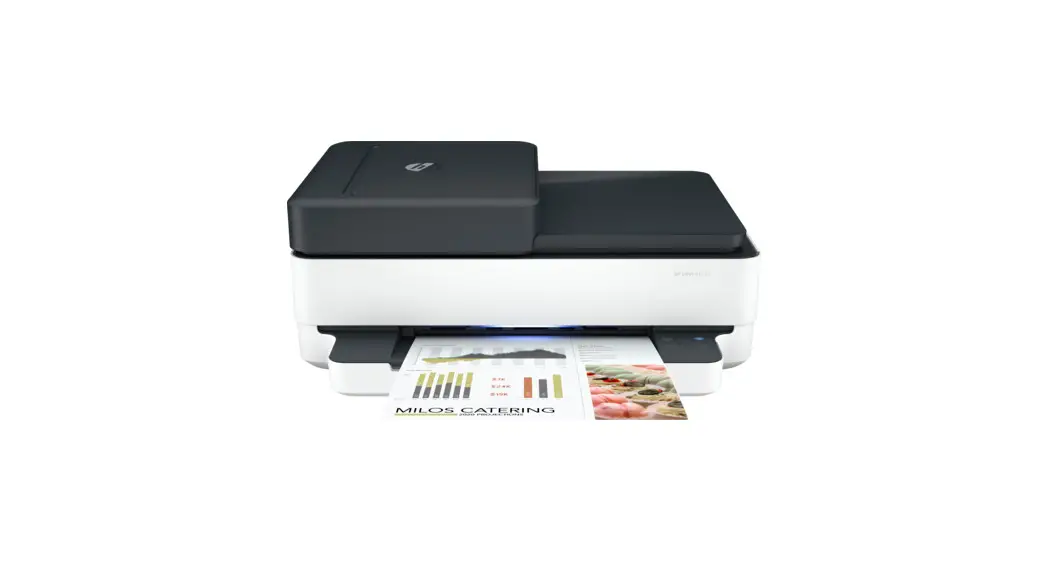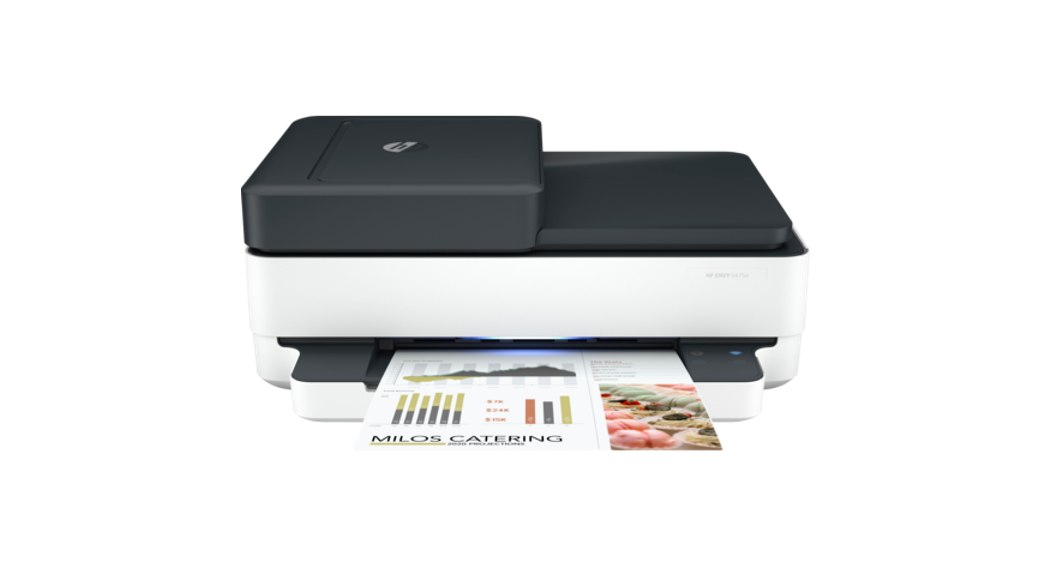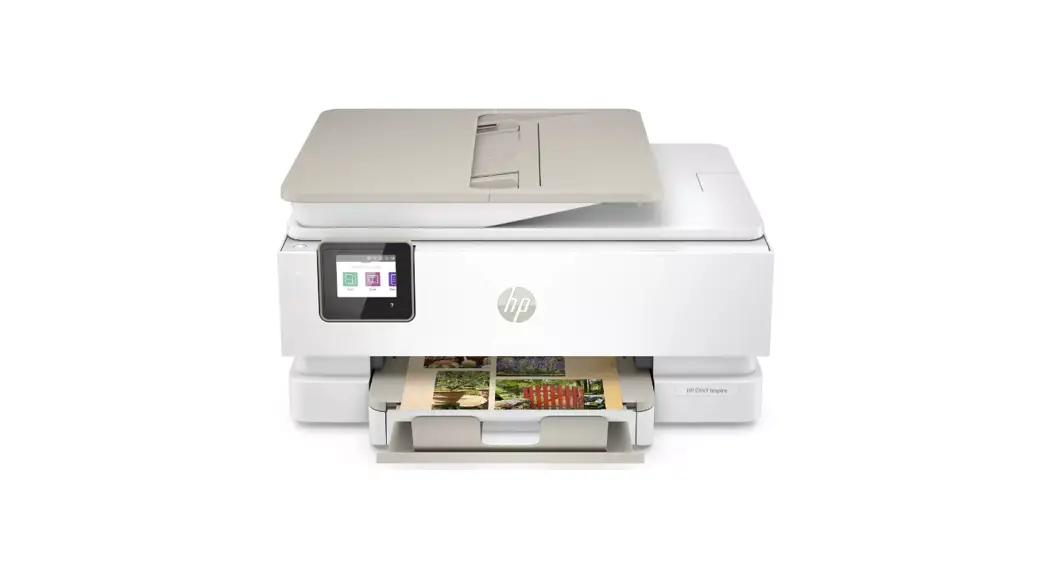
 HP ENVY Inspire
7900 series
User Guide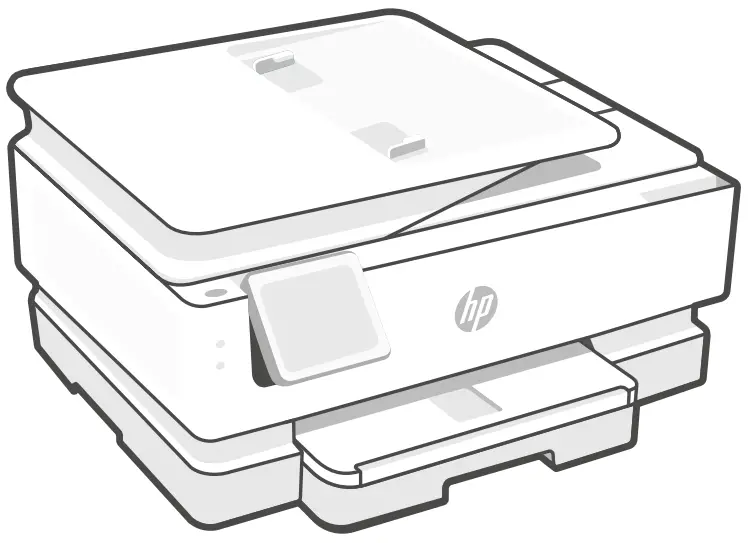
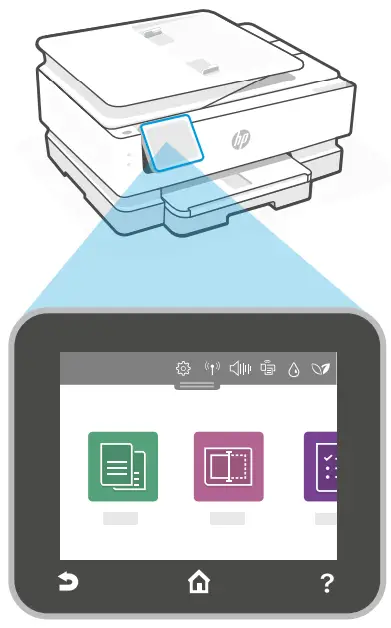
Control Panel
Dashboard
Open the Dashboard by touching or swiping at the top of the display to access printer tasks and status.
 | Setup |
 | Wireless |
 | Quiet mode |
 | Wi-Fi Direct |
 | Ink Status |
 | HP EcoSolutions |
 | Back |
 | Home |
 | Help |
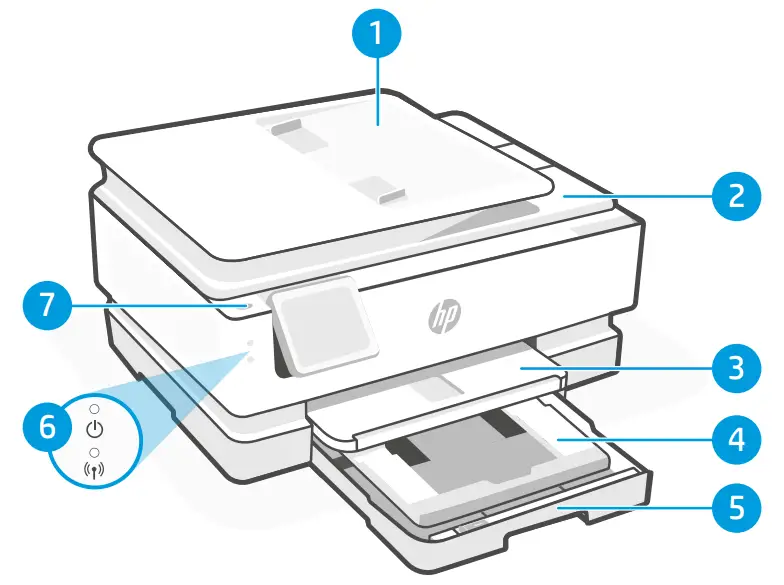
Printer Features
- Automatic document feeder
- Scanner lid
- Output tray
- Photo tray (4×6, 5×5, 5×7 inches)
- Main tray (Letter/A4, 4×12 inches photo)
- 6 Power light and Wi-Fi light
- Power button
Printer updates
Automatic firmware updates are turned on for this printer. To change this setting, see the online product user guide at hp.com/support. View the HP Privacy Policy and information on data collection at hp.com/privacy
Help and tips for Wi-Fi and connectivity
If the software is unable to find your printer during setup or post setup, check the following conditions to resolve the issue.
During Setup
| Potential Issue | Solution |
| Printer Wi-Fi setup mode timed out (Wi-Fi light not blinking) 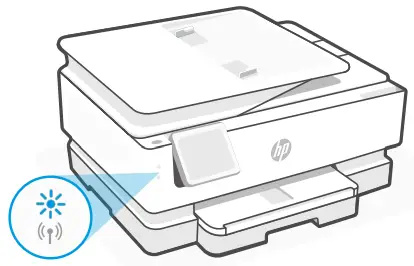 | If the HP Software is unable to find your printer, the printer might have exited setup mode. Check the control panel and select “Resume Setup”, if prompted. |
| Computer or mobile device too far from printer | Move your computer or mobile device closer to the printer. Your device might be out of range of the printer’s Wi-Fi signal. |
| Computer connected to a Virtual Private Network (VPN) or remote work network | Disconnect from a VPN before installing HP Smart software. You can’t install apps from the Microsoft Store when connected to a VPN. Connect to the VPN again aftwer finishing printer setup. Note: Consider your location and the security of the Wi-Fi network before disconnecting from a VPN. |
| Wi-Fi turned off on computer (computer connected by Ethernet) | If your computer is connected by Ethernet, turn on the computer’s Wi-Fi while setting up the printer. Disconnect the Ethernet cable temporarily to complete setup over Wi-Fi. |
| Bluetooth is turned off on your computer or mobile device Location is turned off on your mobile device | Turn on Bluetooth for the computer or mobile device being used to complete printer setup. For mobile devices, turn on Location services also. Bluetooth and Location help the software find your network and printer. Note: Your location is not being determined and no location information is being sent to HP as part of the setup process. |
| Printer won’t reconnect or maintain a connection to a netwwork after setup | 1. Swipe down on the printer control panel to open the Dashboard. 2. Touch > Network Setup > Restore Network Settings. Touch Yes when prompted. The Wi-Fi light will blink blue.3. Close and reopen HP Smart on your computer or mobile device. 4. In HP Smart, right-click or press and hold the printer card to remove the printer from the Home screen. Then, add the printer again and follow the on-screen prompts. |
Printer hardware setup information Follow instructions in the HP Smart software for easy setup. Visit 123.hp.com to install software.
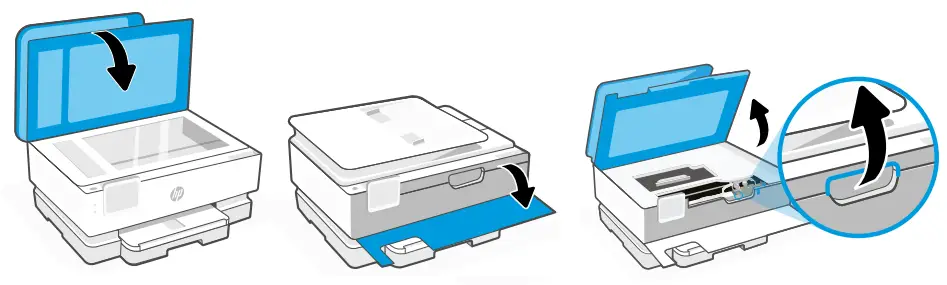
Install cartridges
- Make sure the scan lid is closed. Open the front door and then lift the cartridge access door (as shown).
Caution: Do not grab or squeeze the automatic document feeder when lifting the door.
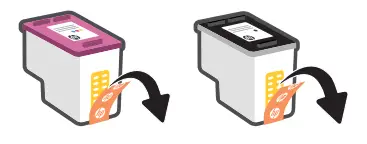
- Remove the protective tape on both cartridges. Do not touch the contacts under the tape.

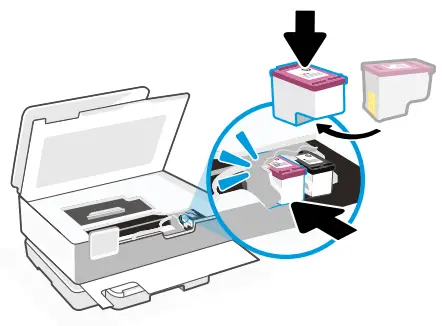
- Rotate the cartridges so the taller end faces towards the printer. Insert the cartridges and click into place.

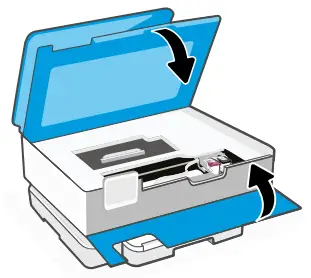
- Close the carriage access door and front door when finished.

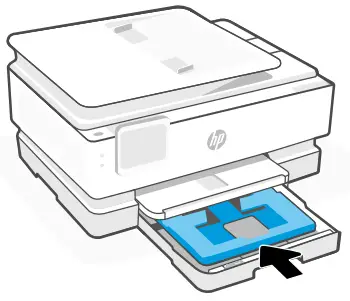
Load Letter or A4 paper
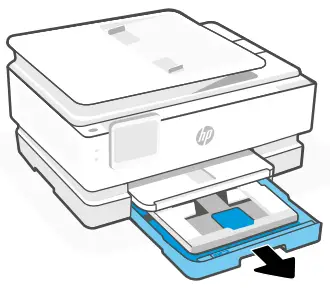
- Open the main tray.

- Push in the photo tray to access the main tray.

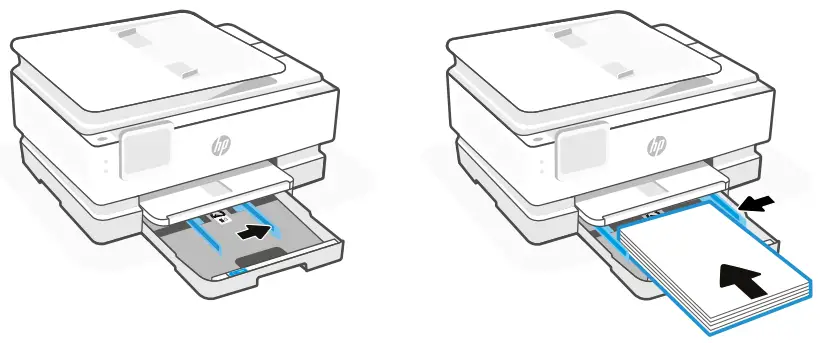
- Slide out the paper guides.
Load Letter or A4 paper.
Push paper all the way into the tray and adjust the guides.
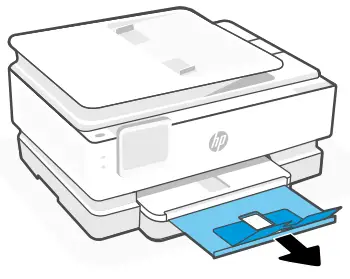
- Close the main tray. Pull out the output tray extender.


Help and Support
For printer troubleshooting and videos, visit the HP support site. Enter your model name to find the printer.

The information contained herein is subject to change without notice.
© Copyright 2021 HP Development Company, L.P.
Microsoft and Windows are either registered trademarks or trademarks of Microsoft Corporation in the United States and/or other countries. Mac, OS X, macOS, and AirPrint are trademarks of Apple Inc., registered in the U.S. and other countries. Android is a trademark of Google LLC. iOS is a trademark or registered trademark of Cisco in the U.S. and other countries and is used under license.
 Printed in Thailand
 123.hp.com - HP Smart
 HP Privacy Central | HP® Official Site