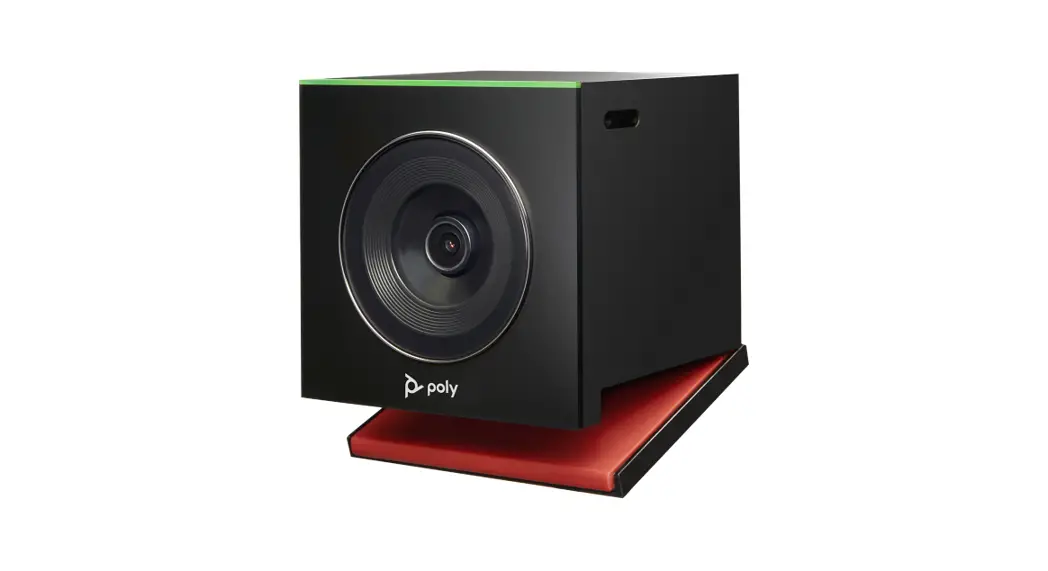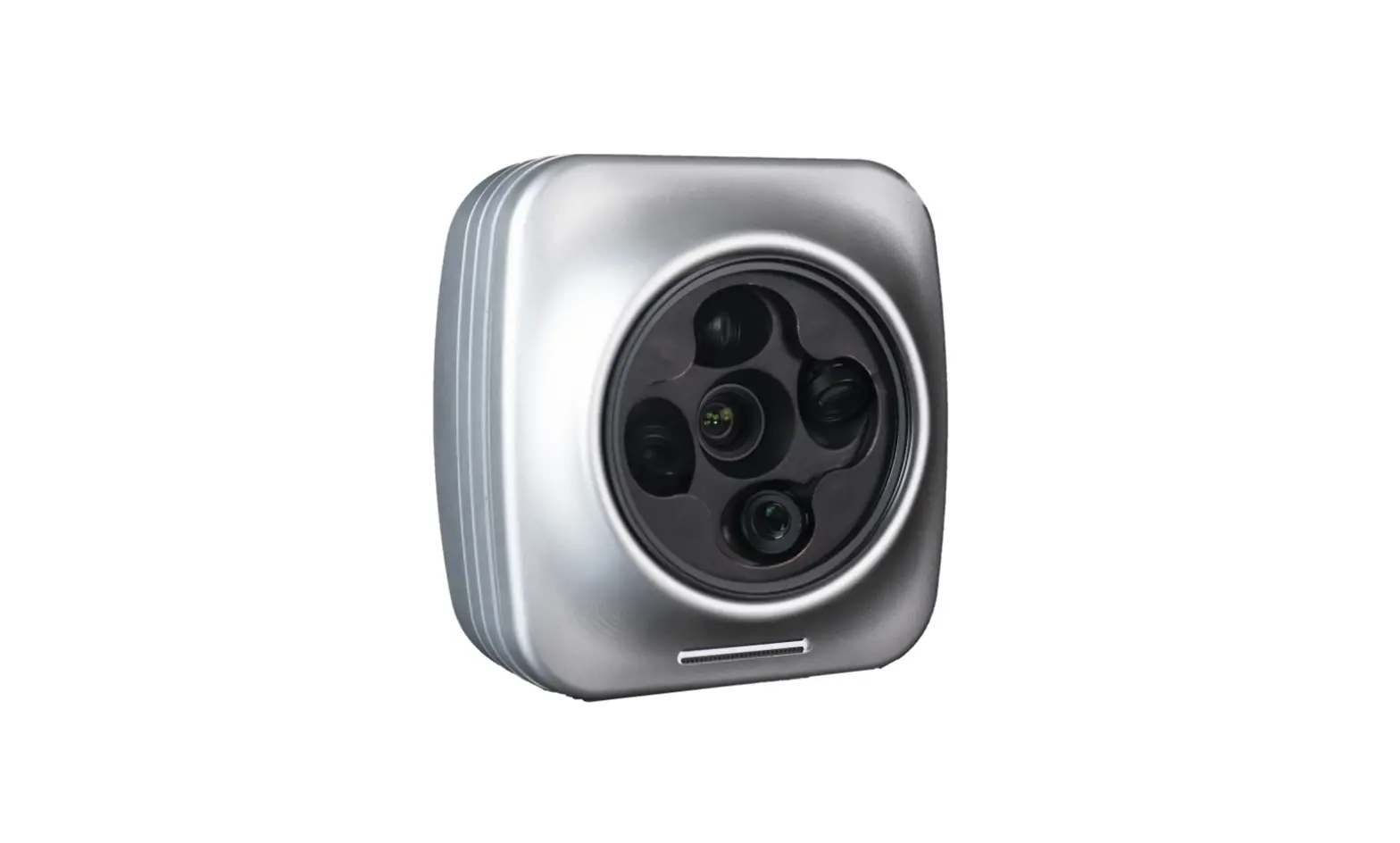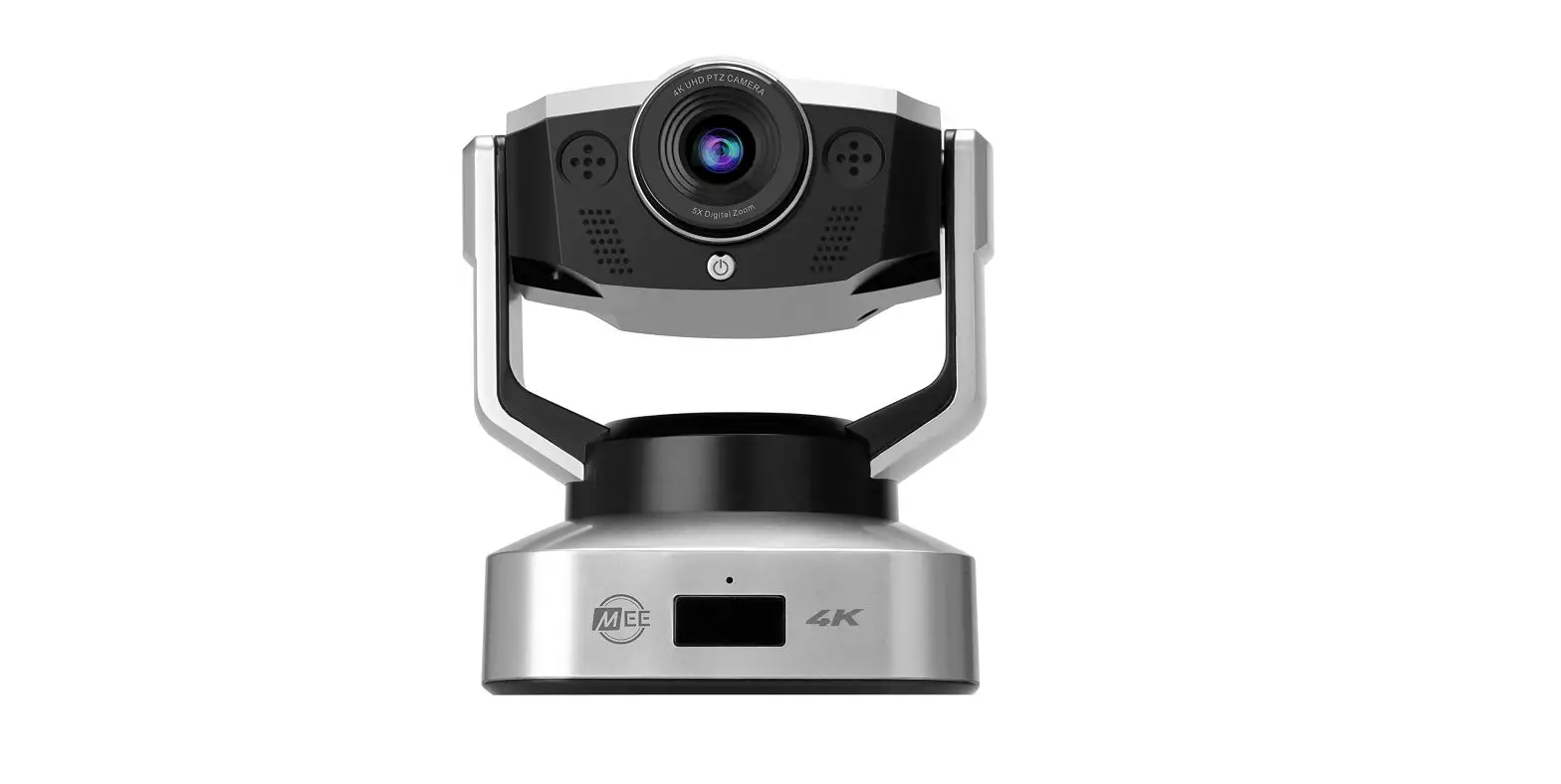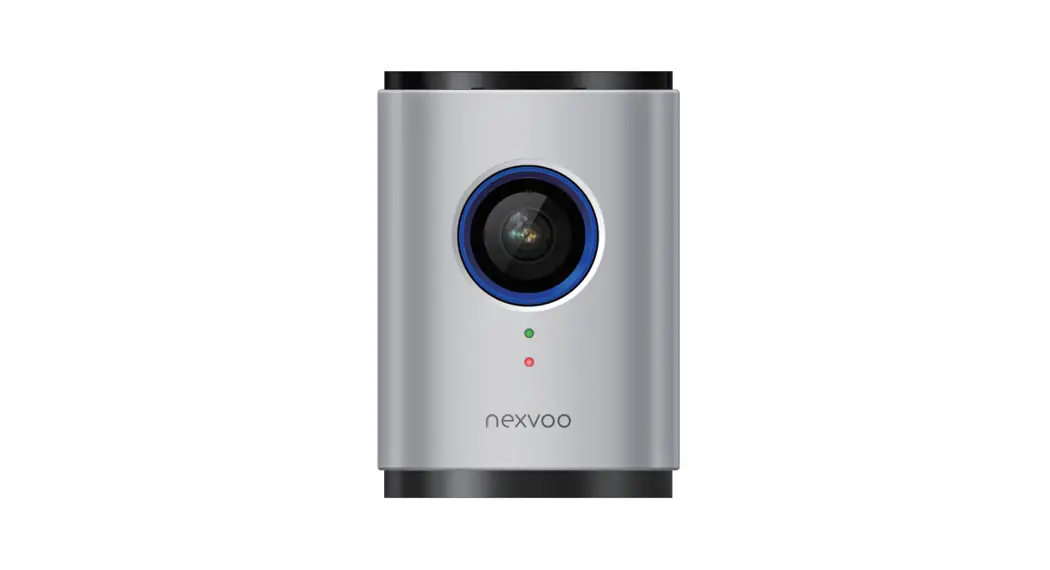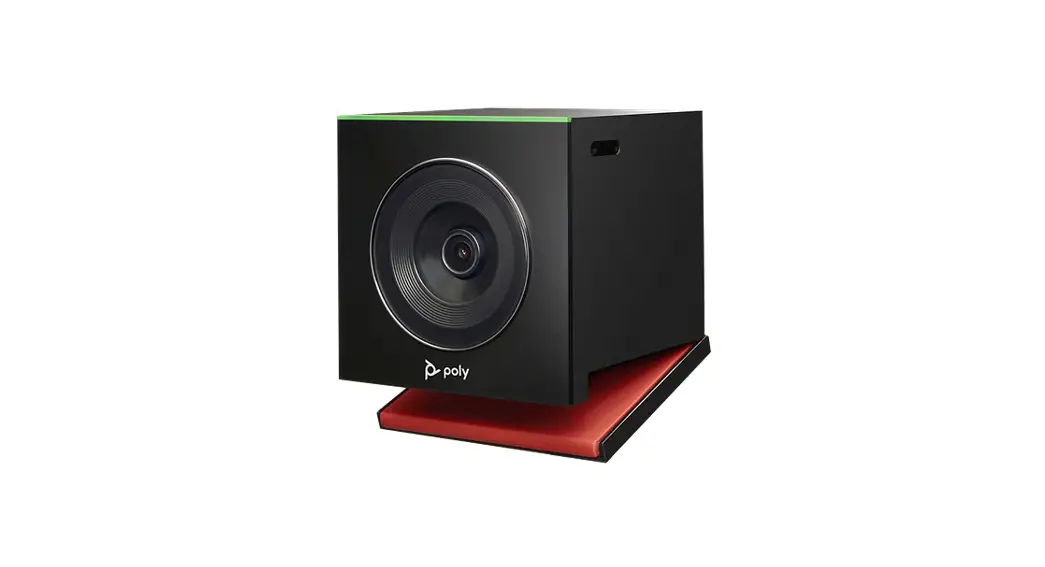
 EagleEye Cube USB Camera
User Manual
What’s New in Release
The Poly EagleEye Cube USB camera 1.1 includes the features and functionality of previous releases and includes the following new features:
- Polycom G7500 Support
- ISP Enhancement for Better Video Quality
- Interoperability with Eco-System
Polycom G7500 Support
The EagleEye Cube USB camera now supports Polycom G7500.
ISP Enhancement for Better Video Quality
The EagleEye Cube USB camera 1.1 includes improved noise reduction and image quality in low-light environments.
Interoperability Enhancement with Ecosystems
The EagleEye Cube USB camera 1.1 supports Zoom-defined APIs to turn speaker tracking on or off.
Release History
The following table lists the release history of the EagleEye Cube USB camera 1.1.
Release History
| Release | Release Date | Features |
| 1.1 | August 2019 | Polycom G7500 support ISP Enhancement for Better Video Quality Interoperability Enhancement with Ecosystems |
| 1.0 | June 2019 | Initial Release |
Security Updates
Please refer to https://www.poly.com/us/en/support/security-center for information about known and resolved security vulnerabilities.
Software Installation and Upgrades
Upgrade the camera using Polycom Companion, Poly Trio Visual+, or Poly G7500. The EagleEye Cube USB camera also supports Windows Update.
Products Tested with This Release
The EagleEye Cube USB camera is tested extensively with a wide range of products. The following list is not a complete inventory of compatible equipment. It indicates the products that have been tested for compatibility with this release.
Note: Poly recommends that you upgrade your Poly devices with the latest software versions, as compatibility issues may already have been addressed by software updates. See the https://www.poly.com/us/en/support/service-policies to match product and software versions.
Products Tested with this Release
| Product | Tested Versions |
| Zoom | 4.4.6 |
| BlueJeans | 2.14.1 |
| Poly Trio Visual+ | 5.9.1 |
| Polycom Companion | 1.2.1 |
| Polycom G7500 | 2.1.0 |
| Skype for Business | 2016 and later |
| Icron USB 2.0 Ranger 2304 |
Note: To output video using Windows 7, you must enable Windows 7 Compatibility Mode in Polycom Companion and then reboot.
System Constraints and Limitations
The following sections list constraints and limitations when using the EagleEye Cube USB camera.
Participant Threshold When Using Camera Tracking
When using the Frame Speaker, Frame Group, or Participant Count features, limit the number of participants to 12 people.
Environmental Color Limitations
Color reproduction accuracy can vary depending on environmental conditions and camera sensor capabilities.
Power Requirements for Log Retrieval
To retrieve logs from an EagleEye Cube USB camera that’s attached to a codec, you must disconnect the camera from the codec and reconnect it to a PC running Polycom Companion. However, the camera must be continually powered during the USB cable transfer. To prevent loss of power to the camera during this transition, attach a cable that supports PoE+ to the camera before you disconnect the USB cable from the codec.
Resolved Issues
The following table lists the resolved issues in EagleEye Cube USB camera version 1.1.
| Category | Issue ID | Found in Release | Description |
| Application | EN-135474 | 1.1 | Occasionally, admin settings aren’t accessible on the Polycom Companion user interface. |
| System | EN-133840 | 1.1 | In low light conditions, the camera’s focus and brightness aren’t as effective. |
| System | EN-144139 | 1.1 | When you upgrade the EagleEye Cube USB camera using RealPresence Resource Manager, the LED flashes red for 5 to 10 seconds. |
| Video | EN-137089 | 1.1 | When you enable tracking and the video stream is stopped and then started, the LED position and view of the video output is out of sync. |
Known Issues
The following table lists known issues in EagleEye Cube USB camera version 1.1 and previous releases
Note: These release notes do not provide a complete listing of all known issues that are included in the software. Issues not expected to significantly impact customers with standard voice and video conferencing environments may not be included. In addition, the information in these release notes is provided as-is at the time of release and is subject to change without notice.
Known Issues
| Category | Issue ID | Release | Description | Workaround |
| Detection | EN-147533 | 1.1 | After a provisioning update through RealPresence Resource Manager, the Ethernet cable is removed from the Poly EagleEye Cube USB, and the camera is plugged into a PC; Polycom Companion and DFU can’t detect the Poly EagleEye Cube USB camera. | Factory restores the camera. |
| Detection | EN-136190 | 1.0 | When you connect a PoE cable to the camera and connect the camera to the PC’s USB PowerShare port, Windows 10 doesn’t detect the camera after the OS goes into or recovers from sleep mode. | Unplug the USB cable then plug it back in. |
| Detection | EN-136542 | 1.0 | When you connect a PoE cable to the camera and connect the camera to a Mac using a USB- C cable, Mac OS doesn’t detect the camera. | Replace the USB-C cable with a USB-A to USB-C cable or remove the PoE cable. |
| Interoperability | EN-137504 | 1.1 | In a Windows environment, Polycom Companion can’t import a Poly EagleEye Cube USB camera’s manual IP address and provisioning configuration. | No workaround. |
| Interoperability | EN-146737 | 1.1 | Starting Polycom Companion with both Poly Studio and a Poly EagleEye Cube USB camera connected to the PC can cause Windows 10 to crash. | Start Polycom Companion with only an EagleEye Cube USB camera connected. |
| Logs | EN-131221 | 1.0 | The camera doesn’t restore logs before you unplug and re-plug its USB connection. | No workaround. |
| Networking | EN-145812 | 1.1 | Periodically, 802.1X configurations display incorrectly in the Polycom Companion 802.1x configuration page. | No workaround. |
| Category | Issue ID | Release | Description | Workaround |
| Tracking | EN-133841 | 1.0 | Camera tracking isn’t as effective when the user is near the edge of the camera’s view or the user doesn’t face the camera. | No workaround. |
| Video | EN-136534 | 1.0 | When you connect a PoE cable to the camera and connect the camera using a USB-C cable, soft-video endpoints (such as Skype for Business) don’t display or preview video. | Factory reset the camera. |
| Video | EN-135021 | 1.0 | When using select USB-C hubs, the video is corrupted on high resolution. | Use a USB 3.0 cable to connect the camera directly to the PC or replace the USB-C hub with a USB 2.0 hub. |
Get Help
For more information about installing, configuring, and administering Poly products, go to Poly Support.
For information about Poly partner solutions, see https://www.poly.com/PolycomService/support/us/support/strategic_partner_solutions/index.
The Poly Community
The https://community.poly.com/ gives you access to the latest developer and support information. Participate in discussion forums to share ideas and solve problems with your colleagues. o register with the Poly Community, and create a Poly online account. When logged in, you can access Poly support personnel and participate in developer and support forums to find the latest information on hardware, software, and partner solutions topics.
 Home - Poly Community
 Support | Poly, formerly Plantronics & Polycom