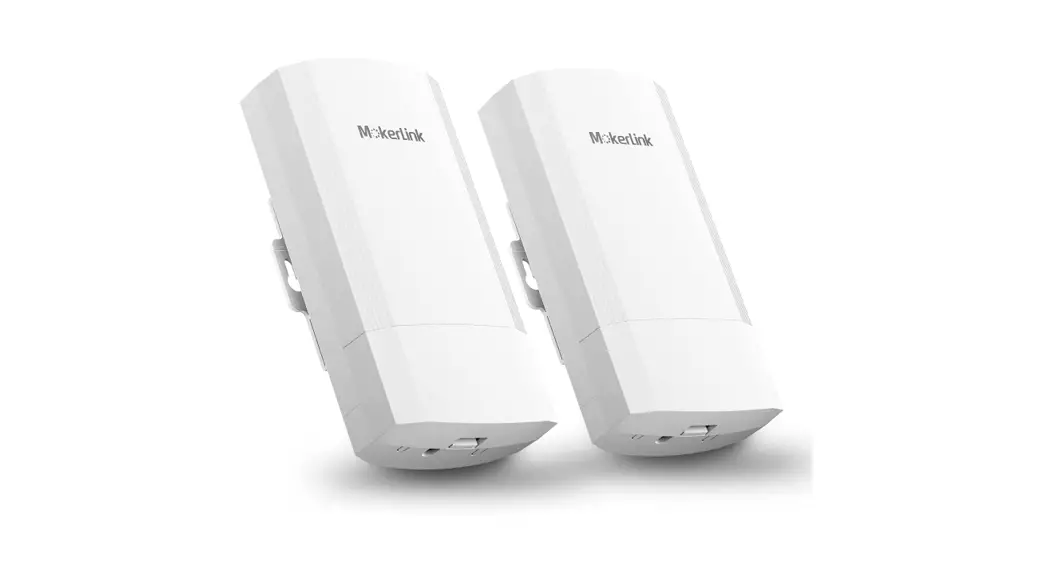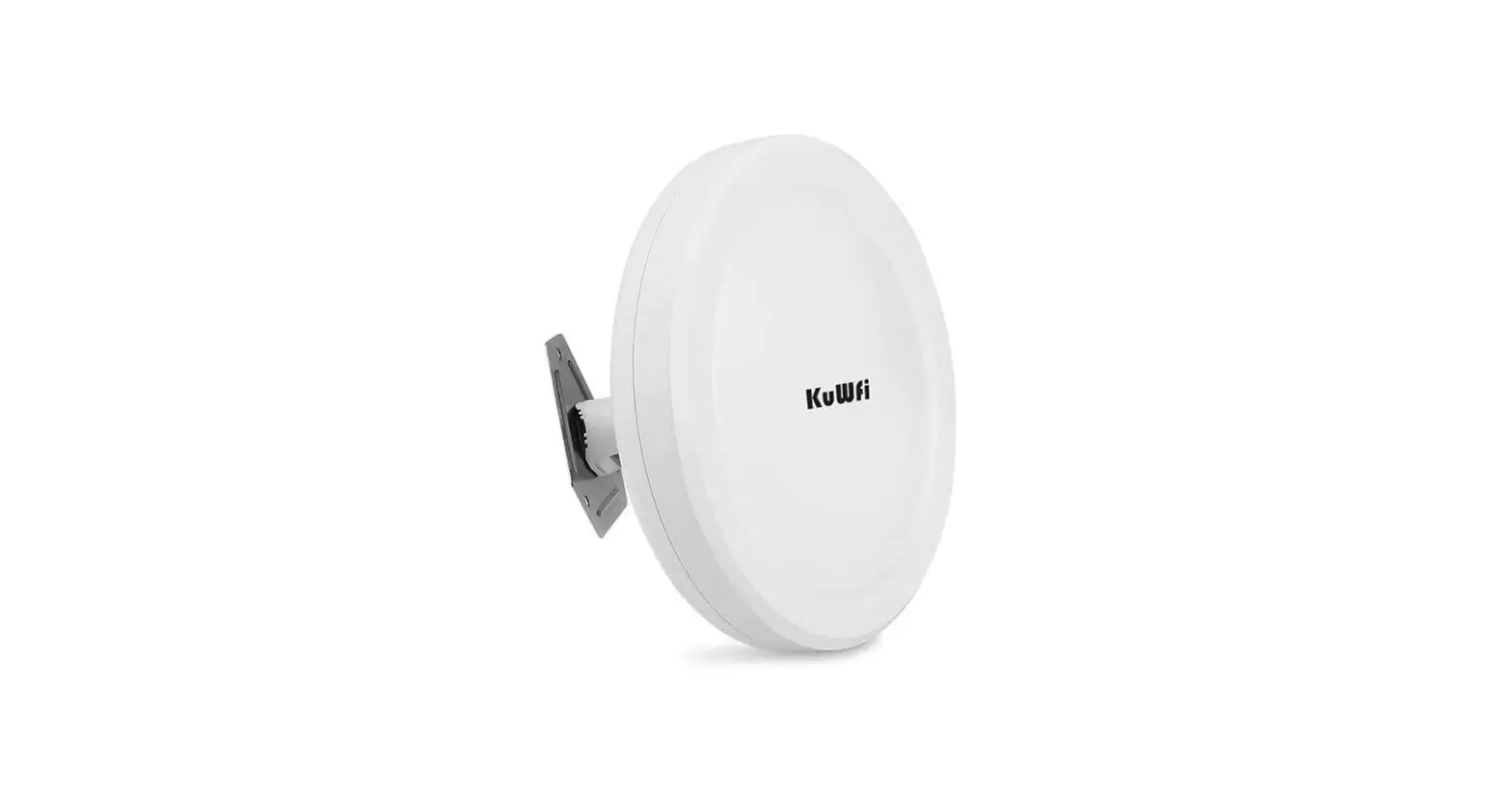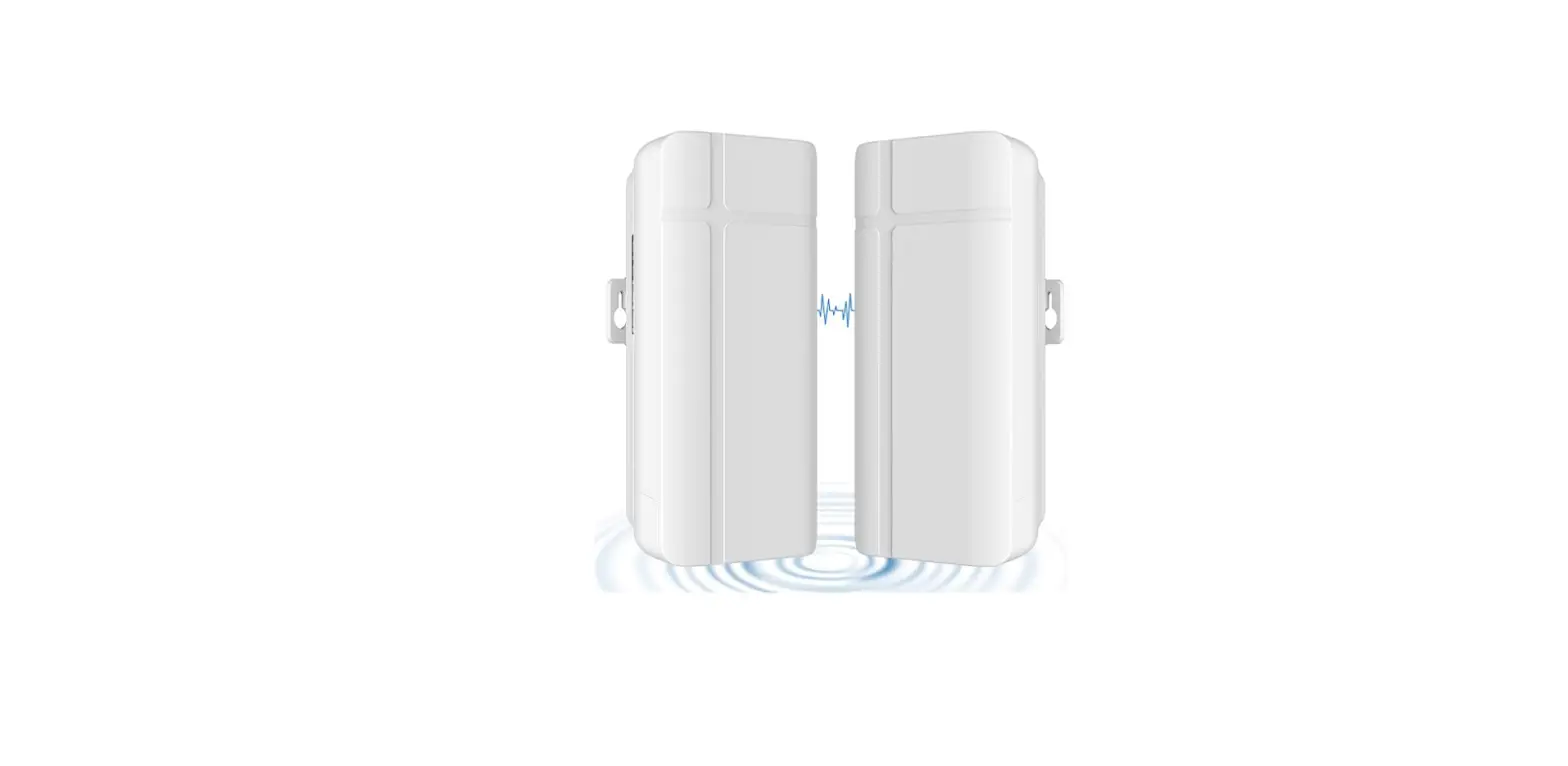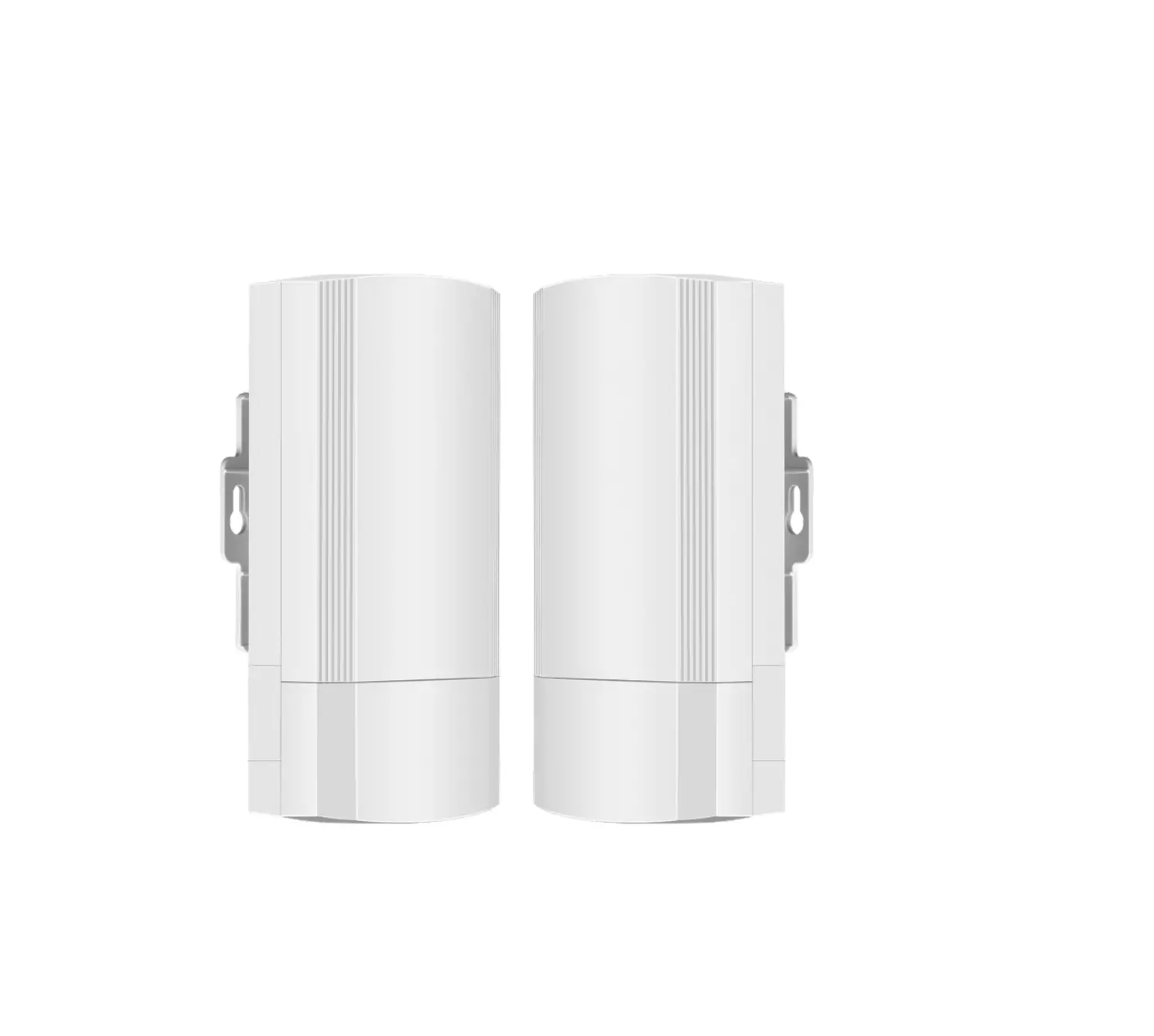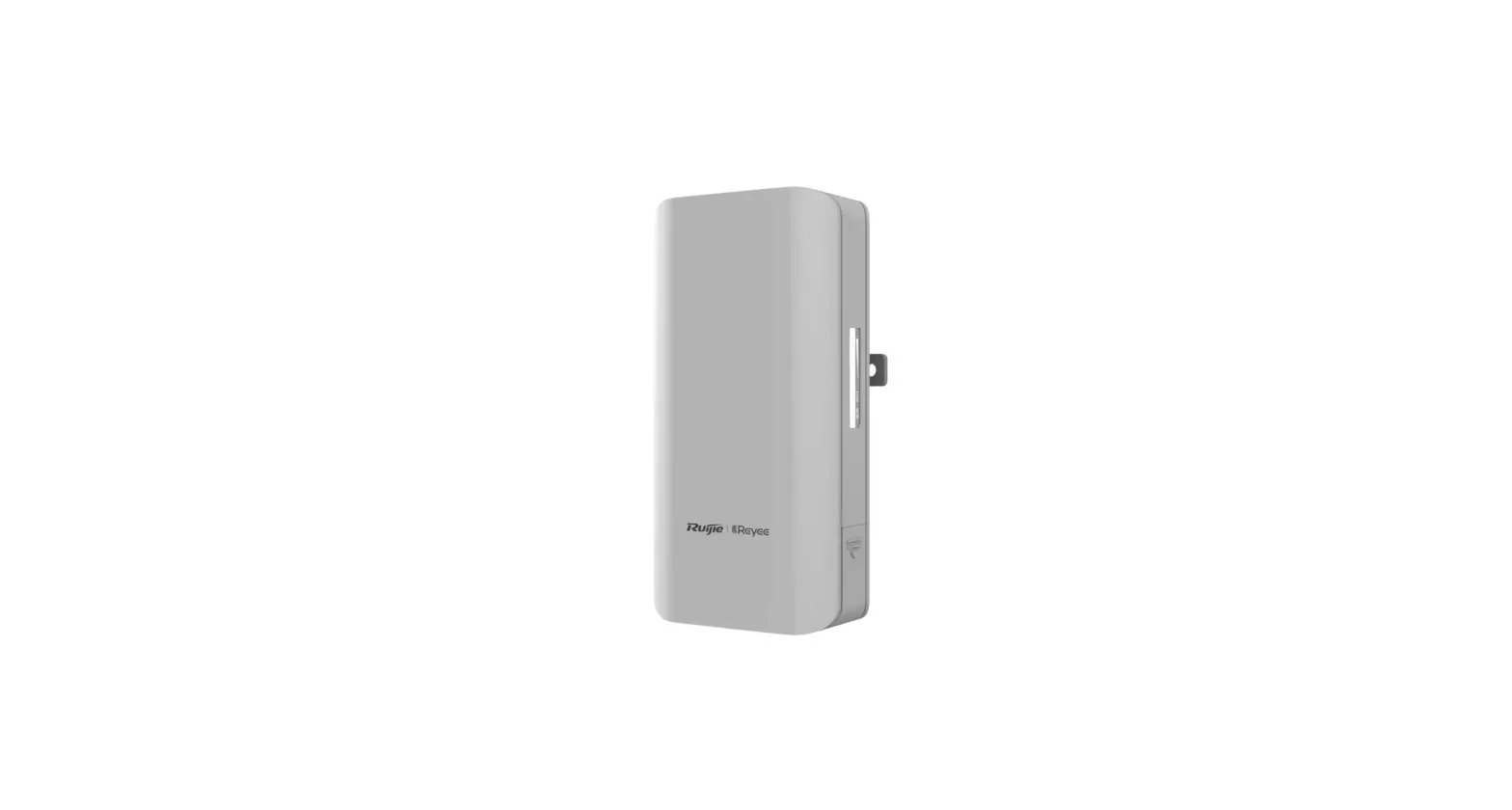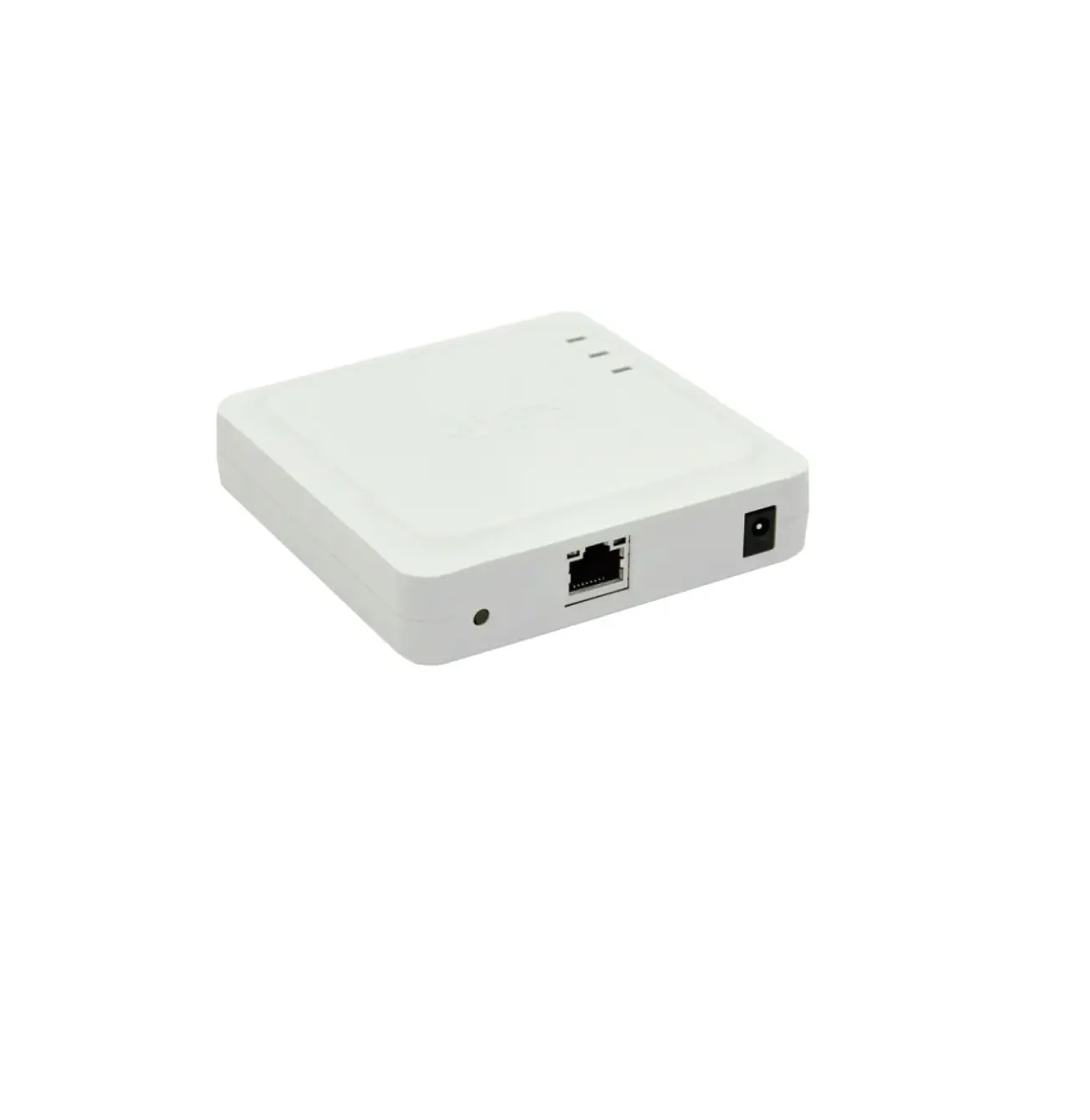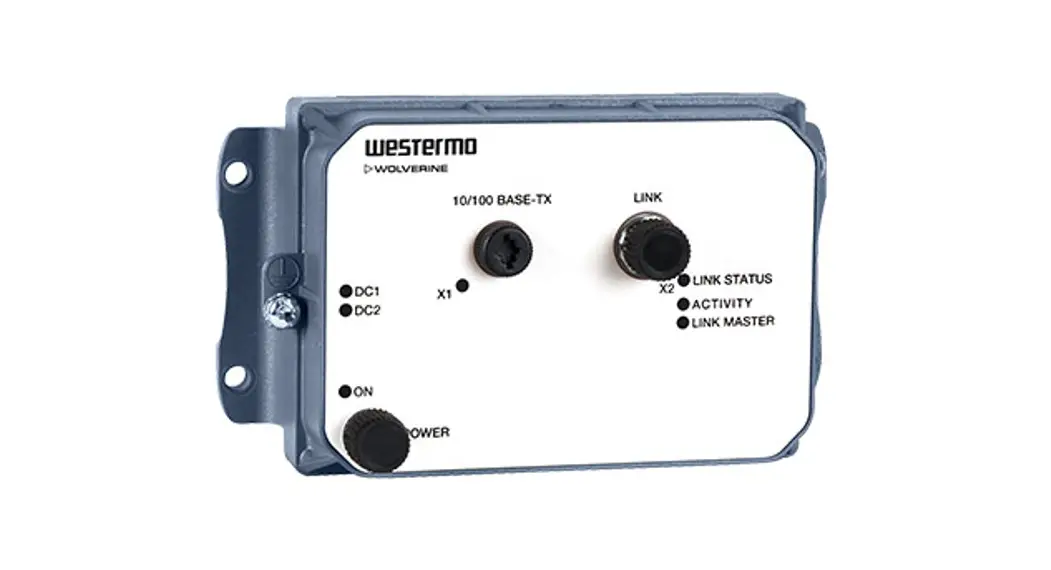
 28 Port Gigabit Managed Wireless Outdoor Bridge
Installation Guide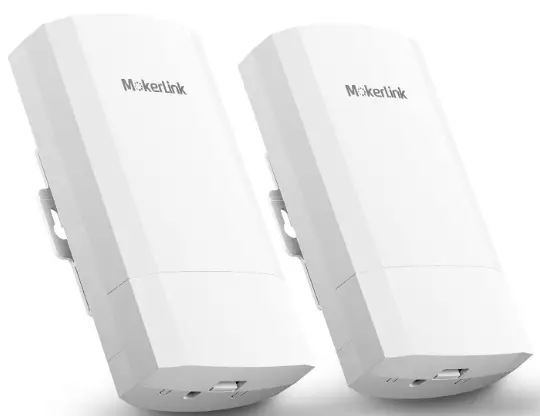
28 Port Gigabit Managed Wireless Outdoor Bridge
Wireless Outdoor Bridge
Quickly Installation Guide
Device Installation
(Take the 5.8g wireless bridge as an example)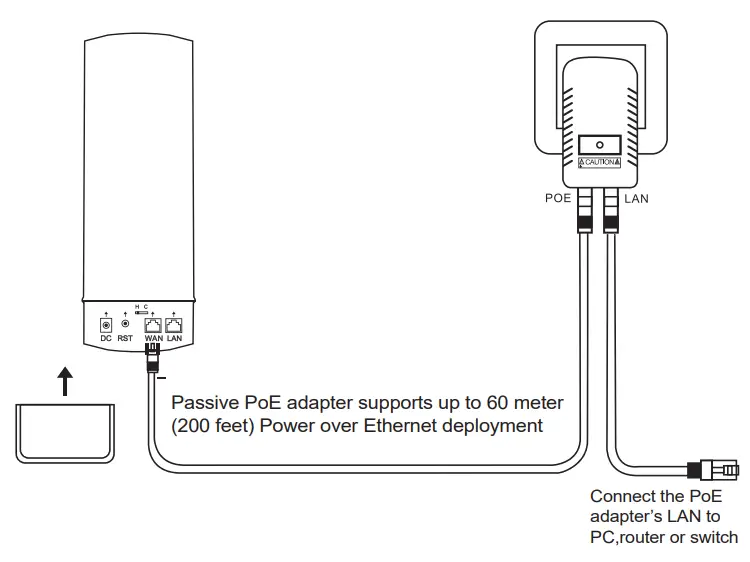
Please prepare a long enough network cable to connect the POE adapter and CPE.Recommend to use a Cate5 (or above) shielded network cable with a ground wire.
Working Enviroment
 Only applicable to areas below 2000 meters above sea level
 Only applicable to areas to non-tropical weather conditions
Connection Topylogy
Point to Point
IP Camera – Switch – Wireless Bridge
Wireless Bridge – DVR – Monitoring PC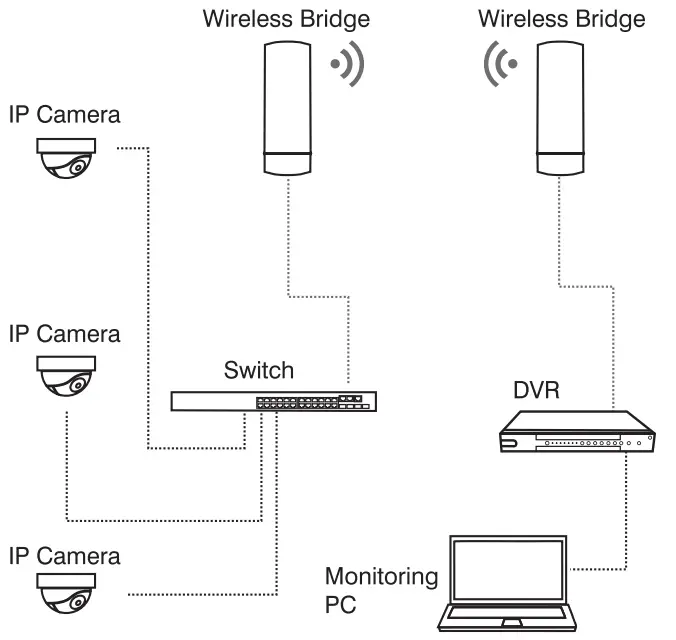 Point to multiple point
IP Camera – Wireless Bridge
Wireless Bridge – DVR – Monitoring PC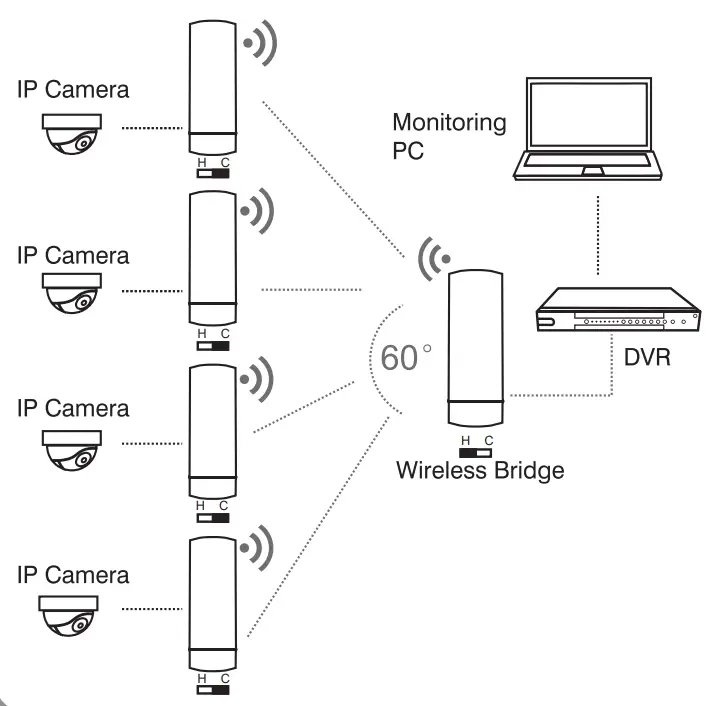
(*Two bridge ways:One Key Bridge & LED Display Bridge)
Bridge Ways
Quick Installation Guide
1.One Key Bridge
1.Config Master/Slave CPE
Put the switch to H,CPE will work as Master.Put the switch to C,CPE will work as Slave.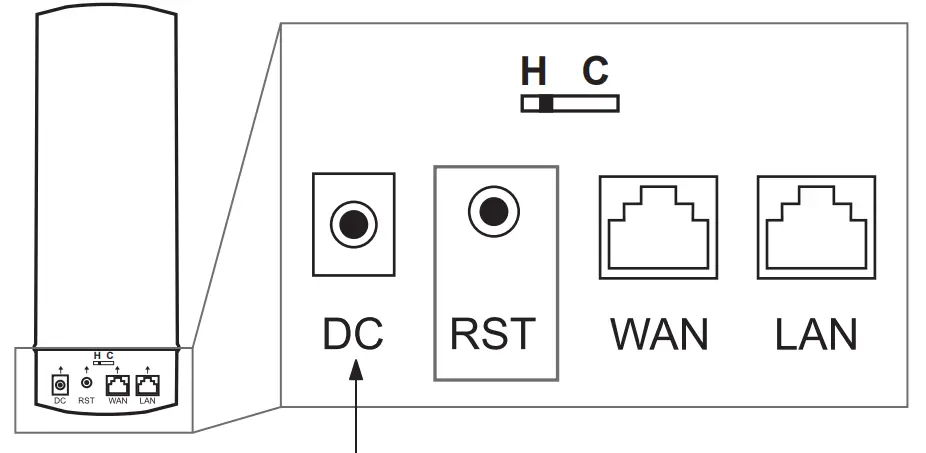
*Note:The pictures of the above products may change slightly according to the production cycle,and the final apperance is based on the physical object.
2.Point to Point Connection
Press reset button on both master and slave CPE,will start bridging.
Point to Mult Point Connection
Press reset button on master and multi slave CPE,will start bridging.
Note:Master CPE and slave CPE bridging actions (press reset button) need to be finished in 1 minute.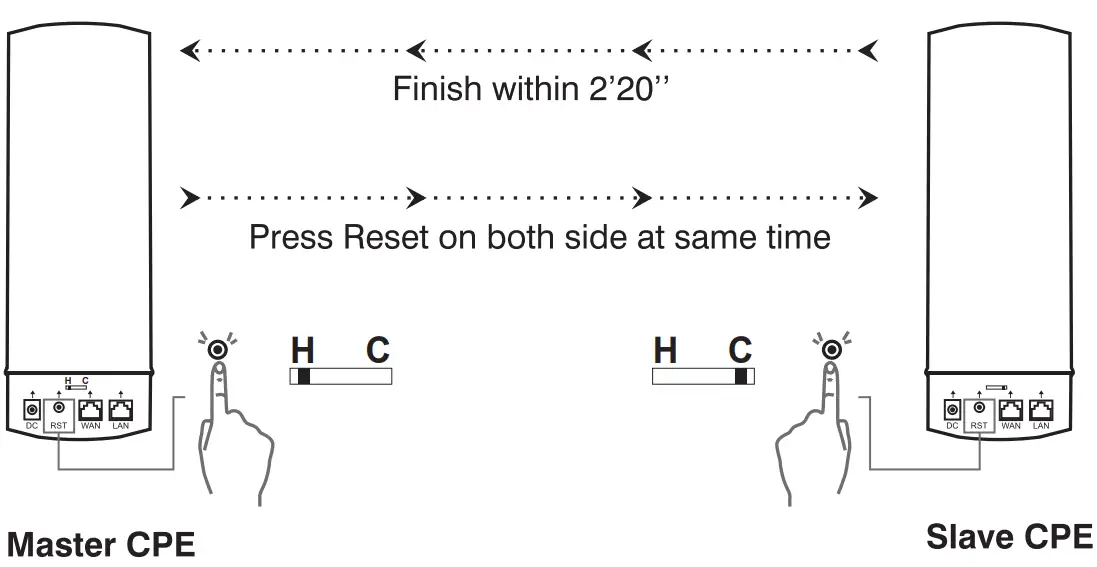
2.LED Display Bridge
1.Config Master CPE
When bridge two CPEs,make one work as master:press “F” to make H/C blinking,and press “S” to change to “H”,it will save automatically in 5 seconds
2.Config Slave CPE
Set another CPE to work as slave:press “F” to make H/C blinking, and press “S” to change to “C” ,it will save automatically in 5 seconds.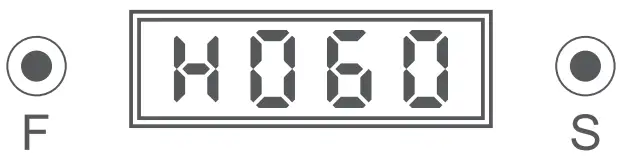
Note:
- CPE default working mode is AP mode after reset,IP is 192.168.188.253
- F is select button,can be used to choose master/slave working mode,wifi channel,IP,and checking signal strength.
- S is config button,can be used to set master/slave working mode,wifi channel,IP.
3.Point to Point Connection
Press reset button on both master and slave CPE,will start bridging.
Point to muit Point Connection
Press reset button on master and multi slave CPE,will start bridging.
Note:Master CPE and slave CPE bridging actions (Press reset button) need to be finished in 1 minute,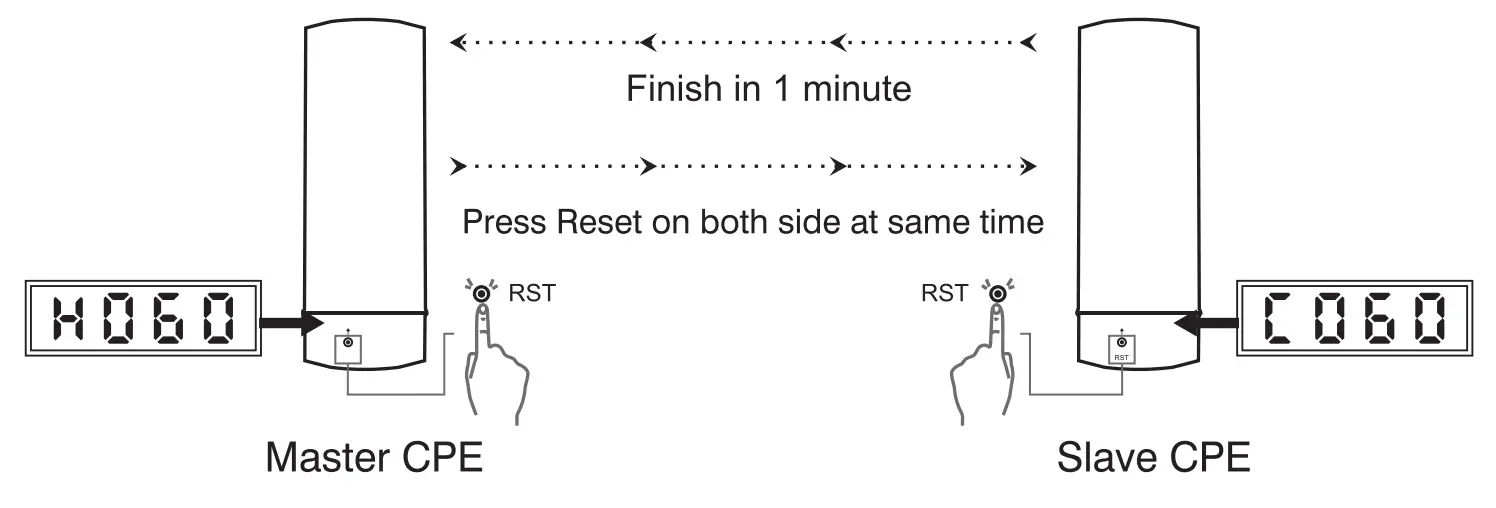
Wireless Outdoor Bridge
Appendix-Channel Table
Wireless Bridge Regional Channel Code Instructions
| Regional Code | 56 Channel | |
| China | 5.180GHz | (Channel 36) |
| 5.200GHz | (Channel 40) | |
| 5.220GHz | (Channel 44) | |
| 5.240GHz | (Channel 48) | |
| 5.260GHz | (Channel 52) | |
| 5.280GHz | (Channel 56) | |
| 5.300GHz | (Channel 60) | |
| 5.320GHz | (Channel 64) | |
| 5.745GHz | (Channel 149) | |
| 5.765GHz | (Channel 153) | |
| 5.785GHz | (Channel 157) | |
| 5.805GHz | (Channel 161) | |
| 5.825GHz | (Channel 165) | |
| America | 5.180GHz | (Channel 36) |
| 5.200GHz | (Channel 40) | |
| 5.220GHz | (Channel 44) | |
| 5.240GHz | (Channel 48) | |
| 5.260GHz | (Channel 52) | |
| 5.280GHz | (Channel 56) | |
| 5.300GHz | (Channel 60) | |
| 5.320GHz | (Channel 64) | |
| 5.500GHz | (Channel 100) | |
| 5.520GHz | (Channel 104) | |
| 5.540GHz | (Channel 108) | |
| 5.560GHz | (Channel 112) | |
| 5.580GHz | (Channel 116) | |
| 5.600GHz | (Channel 120) | |
| 5.620GHz | (Channel 124) | |
| 5.640GHz | (Channel 128) | |
| 5.660GHz | (Channel 132) | |
| 5.680GHz | (Channel 136) | |
| 5.700GHz | (Channel 140) | |
| 5.745GHz | (Channel 149) | |
| 5.765GHz | (Channel 153) | |
| 5.785GHz | (Channel 157) | |
| 5.805GHz | (Channel 161) | |
| 5.825GHz | (Channel 165) | |
| ETSI | 5.180GHz | (Channel 36) |
| 5.200GHz | (Channel 40) | |
| 5.220GHz | (Channel 44) | |
| 5.240GHz | (Channel 48) | |
| 5.260GHz | (Channel 52) | |
| 5.280GHz | (Channel 56) | |
| 5.300GHz | (Channel 60) | |
| 5.320GHz | (Channel 64) | |
| 5.500GHz | (Channel 100) | |
| 5.520GHz | (Channel 104) | |
| 5.540GHz | (Channel 108) | |
| 5.560GHz | (Channel 112) | |
| 5.580GHz | (Channel 116) | |
| 5.600GHz | (Channel 120) | |
| 5.620GHz | (Channel 124) | |
| 5.640GHz | (Channel 128) | |
| 5.660GHz | (Channel 132) | |
| 5.680GHz | (Channel 136) | |
| 5.700GHz | (Channel 140) | |
| Regional Code | 2.4G Channel | |
| China | 2.412GHz | (Channel 1) |
| 2.417GHz | (Channel 2) | |
| 2.422GHz | (Channel 3) | |
| 2.427GHz | (Channel 4) | |
| 2.432GHz | (Channel 5) | |
| 2.437GHz | (Channel 6) | |
| 2.442GHz | (Channel 7) | |
| 2.447GHz | (Channel 8) | |
| 2.452GHz | (Channel 9) | |
| 2.457GHz | (Channel 10) | |
| 2.462GHz | (Channel 11) | |
| 2.467GHz | (Channel 12) | |
| 2.472GHz | (Channel 13) | |
| America | 2.412GHz | (Channel 1) |
| 2.417GHz | (Channel 2) | |
| 2.422GHz | (Channel 3) | |
| 2.427GHz | (Channel 4) | |
| 2.432GHz | (Channel 5) | |
| 2.437GHz | (Channel 6) | |
| 2.442GHz | (Channel 7) | |
| 2.447GHz | (Channel 8) | |
| 2.452GHz | (Channel 9) | |
| 2.457GHz | (Channel 10) | |
| 2.462GHz | (Channel 11) | |
Please note: Defaul Regional Code is China
Wuhan MokerLink Technology Co.,Ltd Rm10,13/F,Main
Building 7,Changhang Lanjing International
No.116 Gaoxin Ave.,Hongshan Dist.,Wuhan,China
http://www.mokerlink.com
[email protected]  For technical support and other information, please visit http://www.mokerlink.com/support/
 MokerLink Store