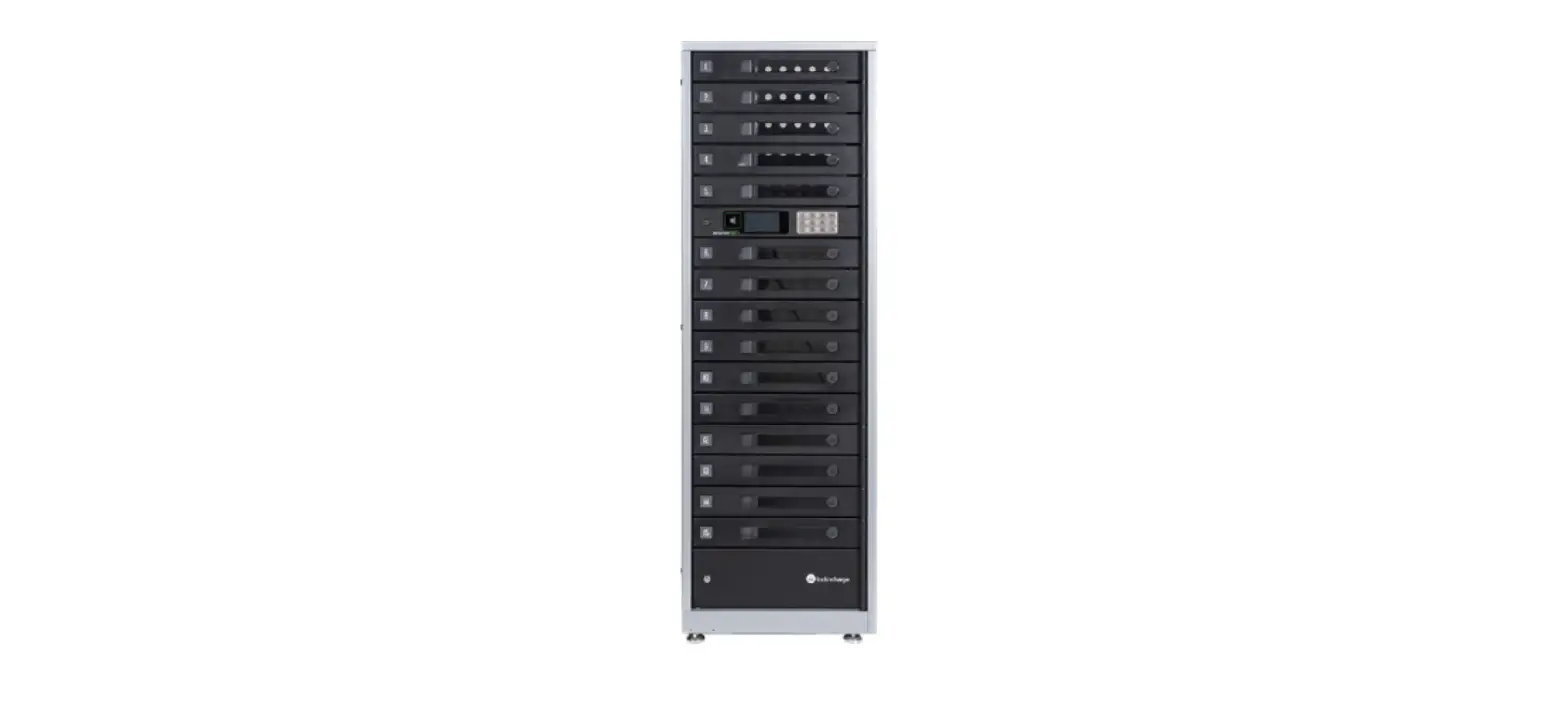

locknCharge FUYL Products
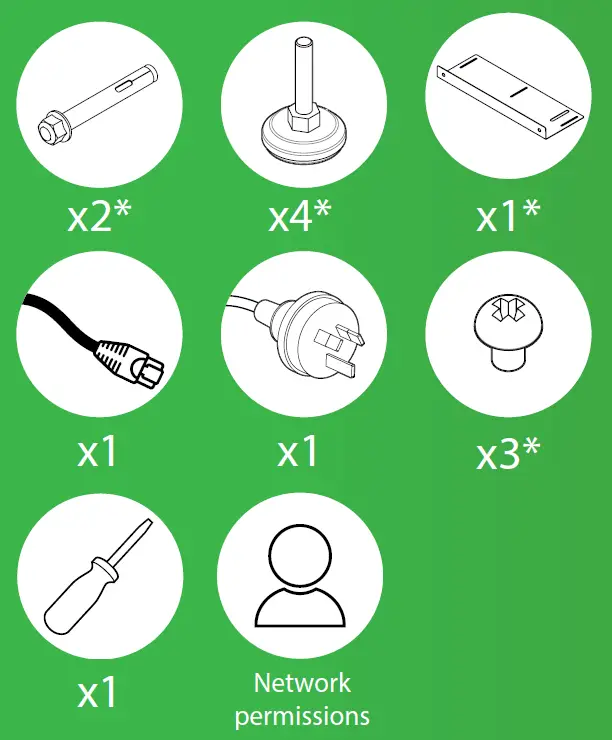
TOOLS REQUIRED
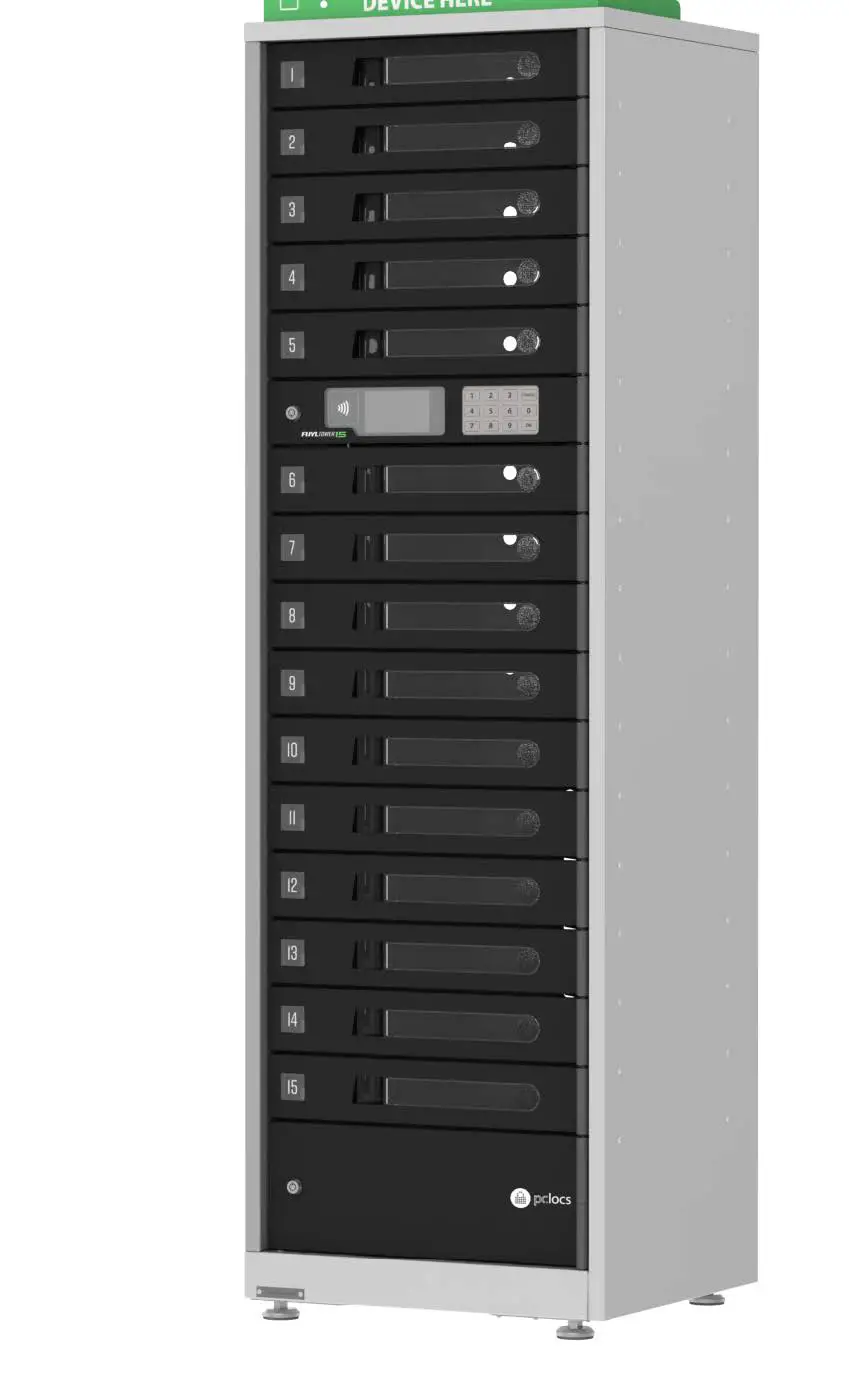
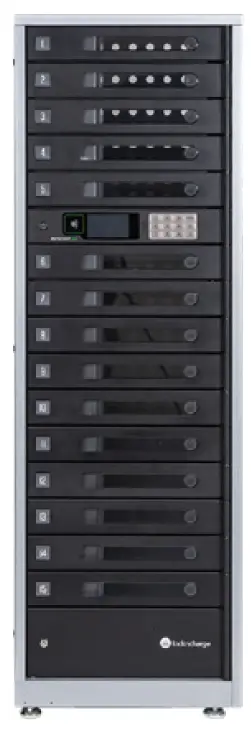
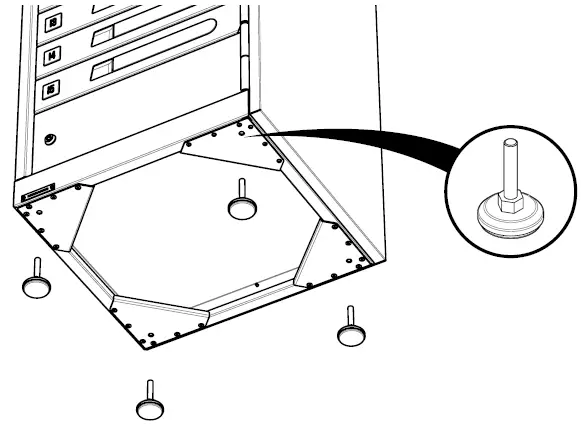
FUYL TOWER 15: INSTALL TOWER FEET
CAUTION
Heavy product. Requires two or more people to setup.
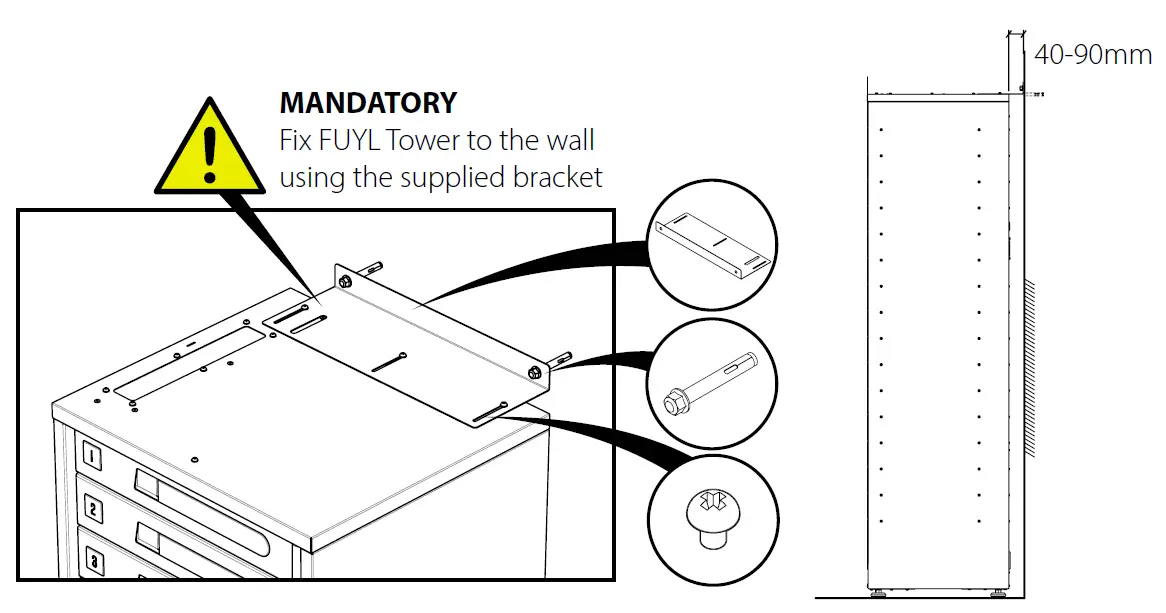
FUYL TOWER 15: AFFIX TOWER TO THE WALL
MANDATORY
Fix FUYL Tower to the wall using the supplied bracket
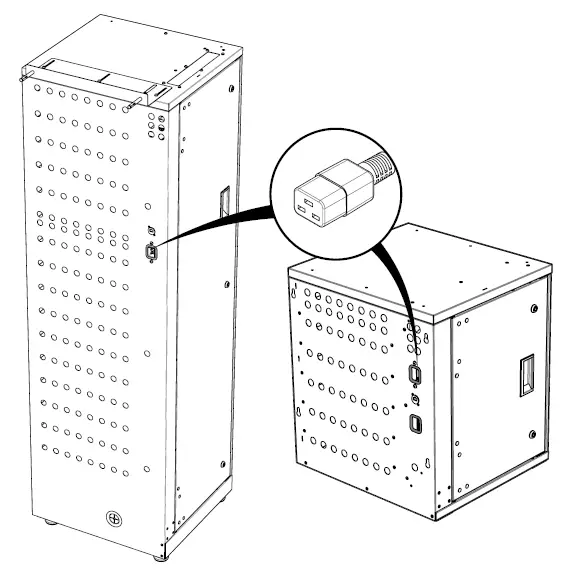
CONNECT TO POWER
NOTE
It will take approximately 2 minutes for the FUYL Tower to boot up.
CONNECTING TO THE CLOUD
NOTE: Step 4 onwards is not required if you have decided to not connect your Tower to the Cloud.
IMPORTANT
Connecting a FUYL Tower to the Cloud Platform requires technical knowledge of your organization’s network configuration. Please only proceed if you are experienced with network configuration and have the permission of your network administrator.
Firewall and Proxy whitelisting
When onboarding a FUYL Tower, it will attempt to create an outgoing network connection to contact the Cloud Platform. These addresses may need to be whitelisted if your firewall restricts outgoing connections to unknown addresses.
| Address | Port | Protocol |
| pclocs-firmware-updates-869893548898.s3.us-west-2.amazonaws.com | TCP 433 | https |
| registry.pclocs.io | TCP 443 | https |
| a136cfw17adicb-ats.iot.us-west-2.amazonaws.com a136cfw17adicb-ats.iot.us-east-2.amazonaws.com a136cfw17adicb-ats.iot.eu-west-2.amazonaws.com a136cfw17adicb-ats.iot.ap-southeast-2.amazonaws.com | TCP 8883 | mqtt |
| time1.google.com, time2.google.com, time3.google.com, time4.google.com | UDP 123 | ntp |
The addresses in the table above may not be up to date. Please visit our docs site for the latest information.
Australia and NZ: https://docs.pclocs.io/fuyl-networking
US and the rest of the world: https://docs.lockncharge.io/fuyl-networking
RETRIEVE LOCAL HOST ADDRESS
Connect the ethernet cable to your laptop or port and enter the admin menu on the Tower’s LCD screen.
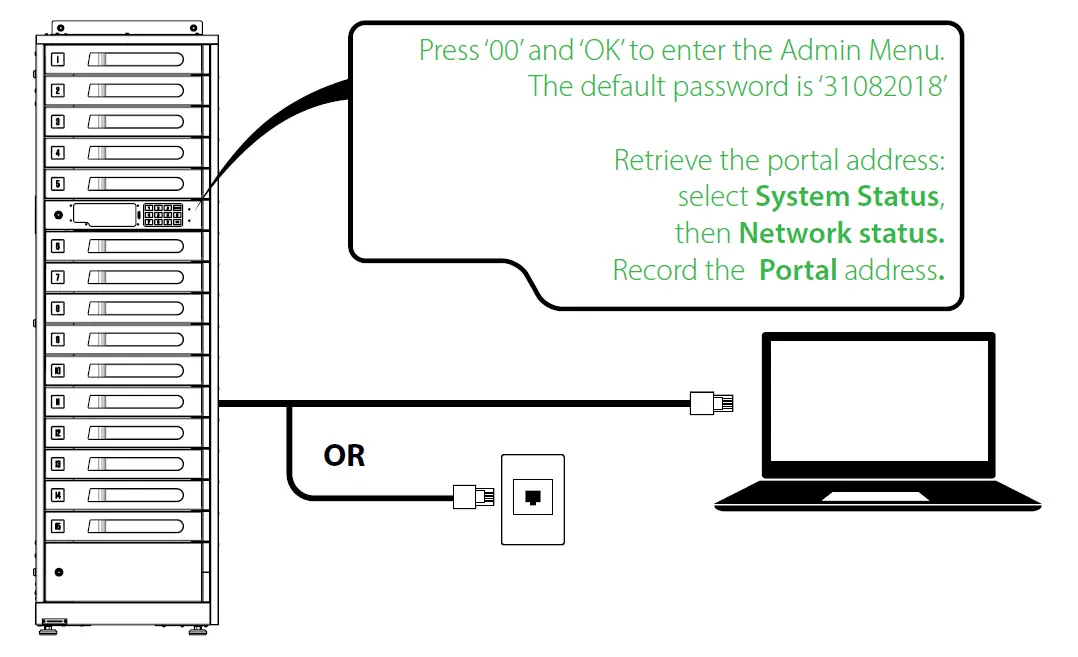
NOTE: If you are connecting to a Laptop, the FUYL Tower should be restarted before retrieving the portal address.
ONBOARD TOWER TO YOUR ACCOUNT
Open browser and type the Portal address (the local host you recorded in step 5) to navigate to the onboarding wizard.
NOTE: Some browsers will report security warnings. The security warnings appear because the FUYL Tower has generated a self-signed certificate to secure your connection. It should be safe to proceed because it is a temporary connection to the local host on the FUYL Tower.
Default login credentials
- Username: admin
- Password: 31082018
Follow the onboarding wizard to connect your Tower to your Cloud Account.
In addition to the networking requirements highlighted in step 4, you will also need to have your Account Code available which would have been emailed to you on sign up. For more details on networking requirements, follow the links below:
Australia and NZ: https://docs.pclocs.io/fuyl-networking
US and the rest of the world: https://docs.lockncharge.io/fuyl-networking
LOGIN TO THE CLOUD PORTAL WITH YOUR ACCOUNT
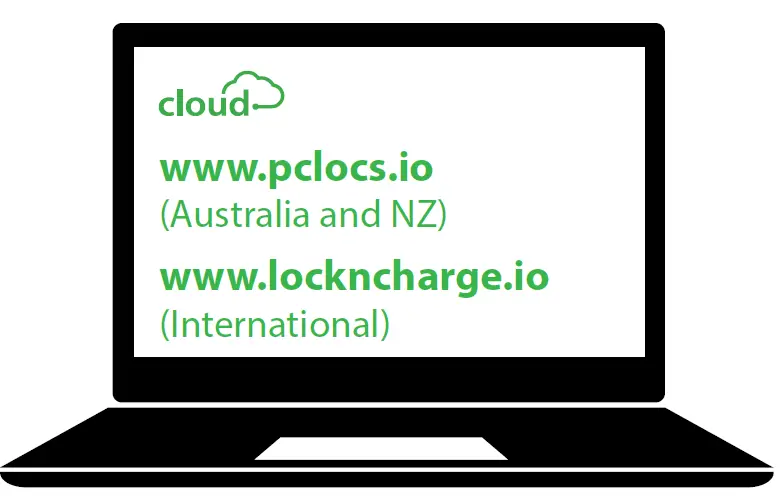
For additional FUYL Tower and Cloud resources, please visit on of the following web pages:
Australia and NZ: www.pclocs.com.au/fuyl-tower-support-library
USA: www.lockncharge.com/fuyl-tower-support-library
UK and Europe: www.lockncharge.com/eu/fuyl-tower-support-library
International: www.lockncharge.com
References
 Mobile Device Charging Stations & Charging Carts | LocknCharge
-
FUYL Tower Support Library - LocknCharge Europe
-
FUYL Tower Resources - LocknCharge
-
We are Here to Help - Support Services | LocknCharge
-
lockncharge.io
-
Mobile Device Charging Stations for iPads, Laptops & Tablets | PC Locs
-
FUYL Tower Support Library - PC Locs
-
Support - PC Locs
-
pclocs.io
-
docs.lockncharge.io/fuyl-networking
-
docs.pclocs.io/fuyl-networking
-
FUYL HOW TO: FUYL Tower 15 Setup Video - LocknCharge & PC Locs on Vimeo
 Mobile Device Charging Stations & Charging Carts | LocknCharge
 lockncharge.io
 Mobile Device Charging Stations for iPads, Laptops & Tablets | PC Locs
 pclocs.io
 docs.lockncharge.io/fuyl-networking
 docs.pclocs.io/fuyl-networking
 FUYL HOW TO: FUYL Tower 15 Setup Video - LocknCharge & PC Locs on Vimeo