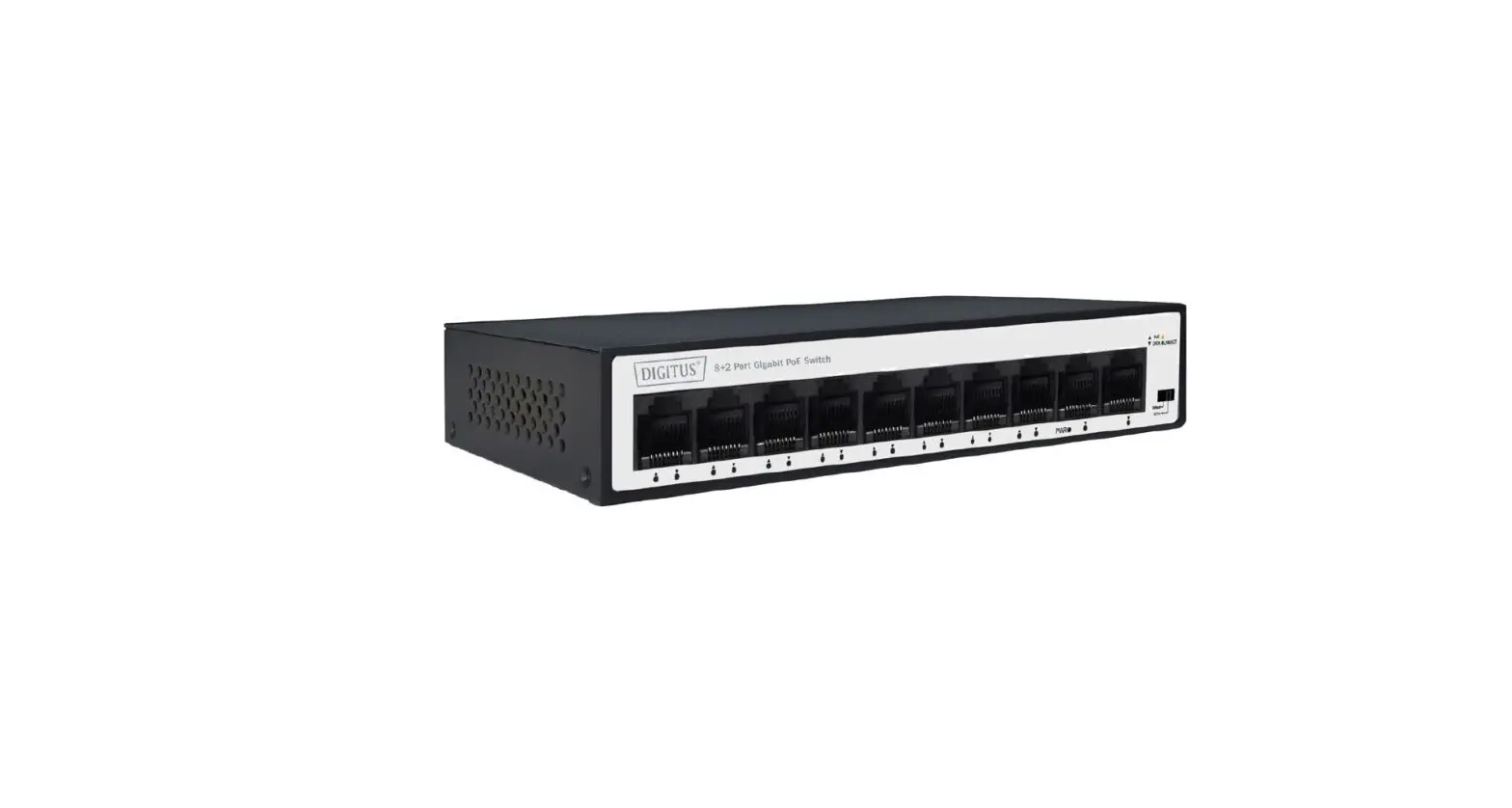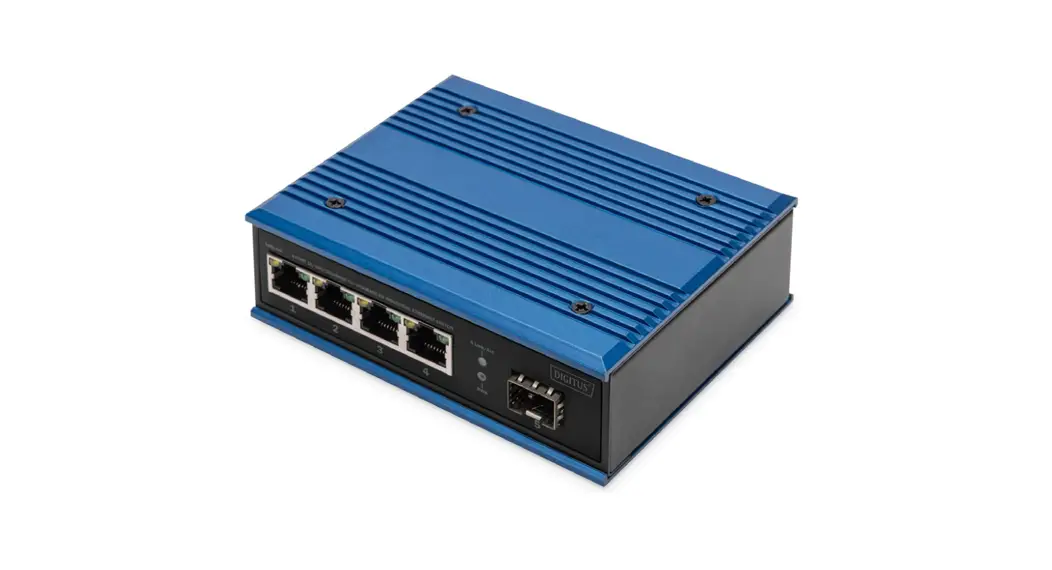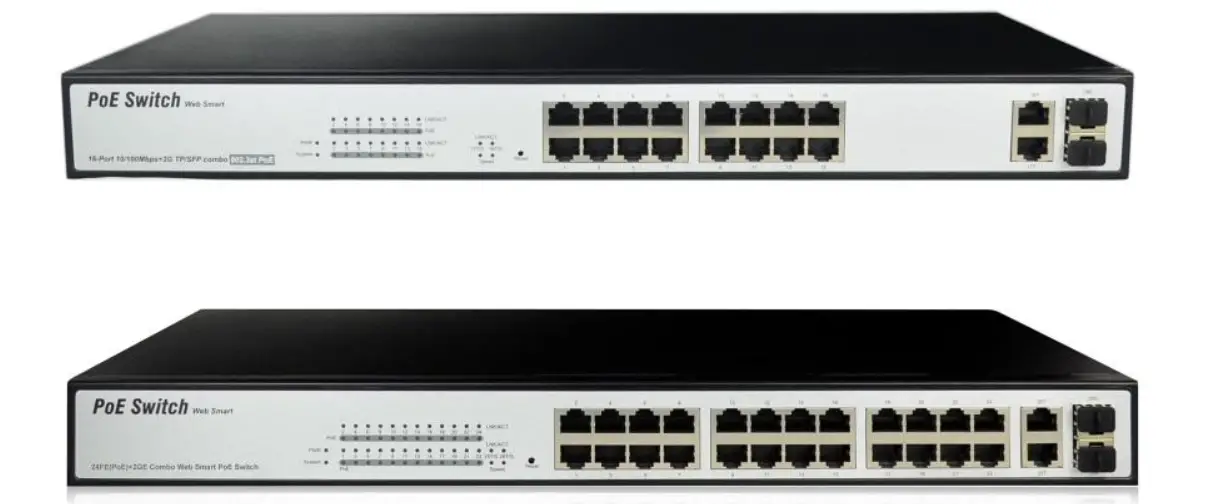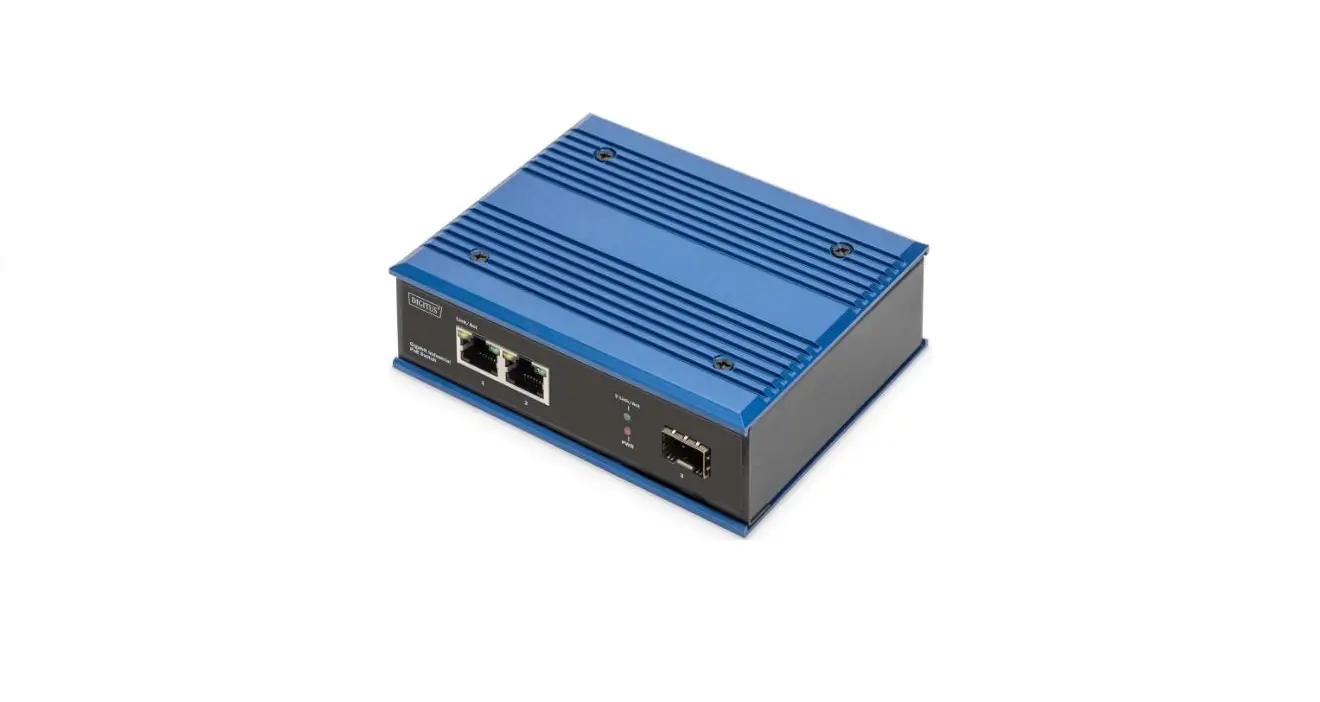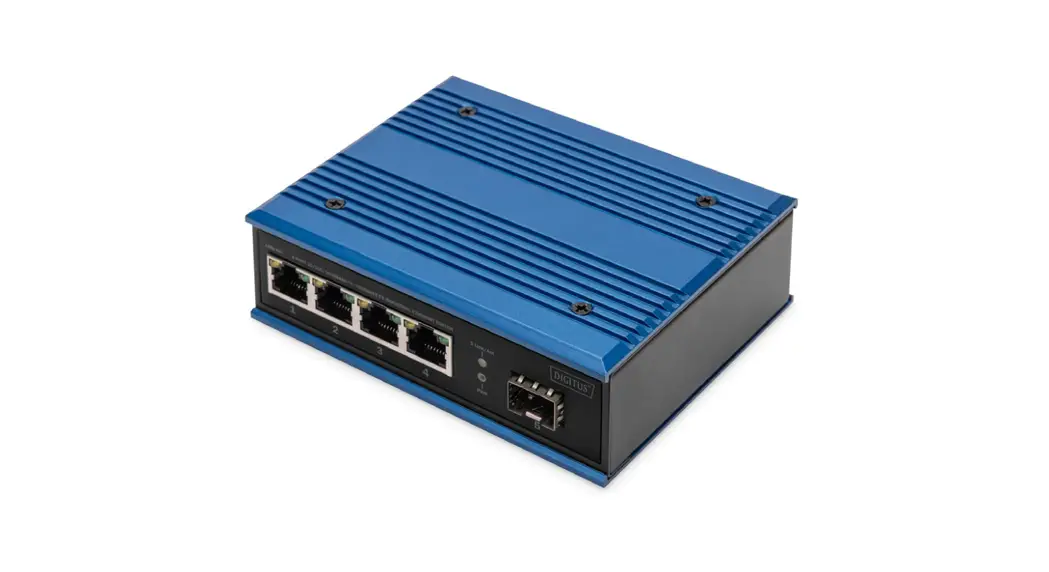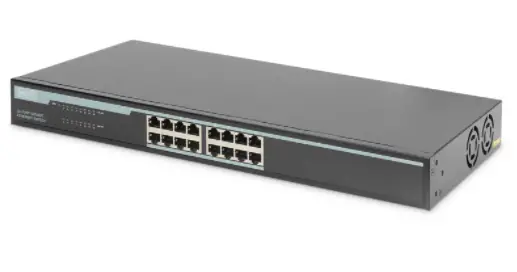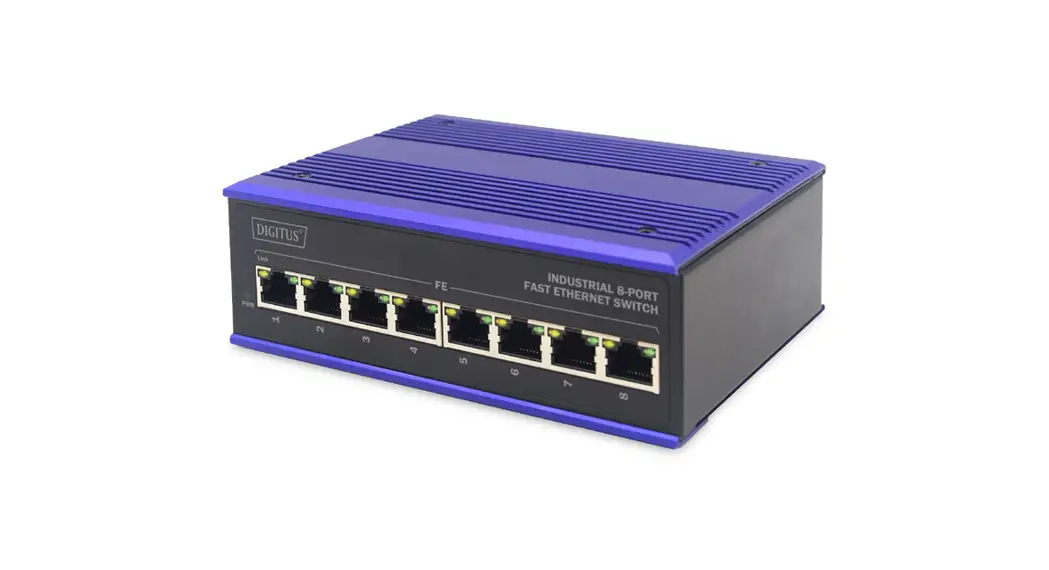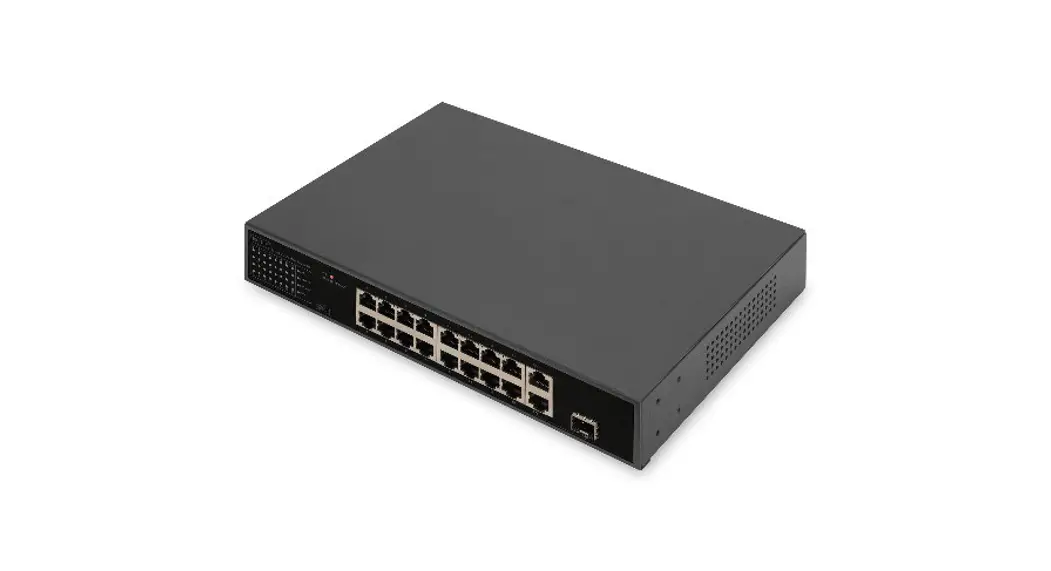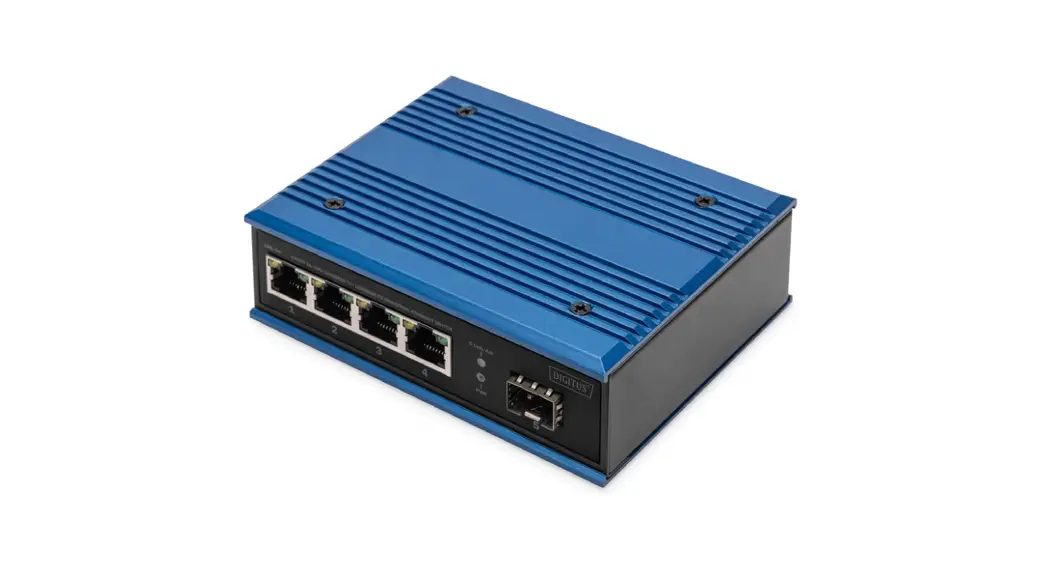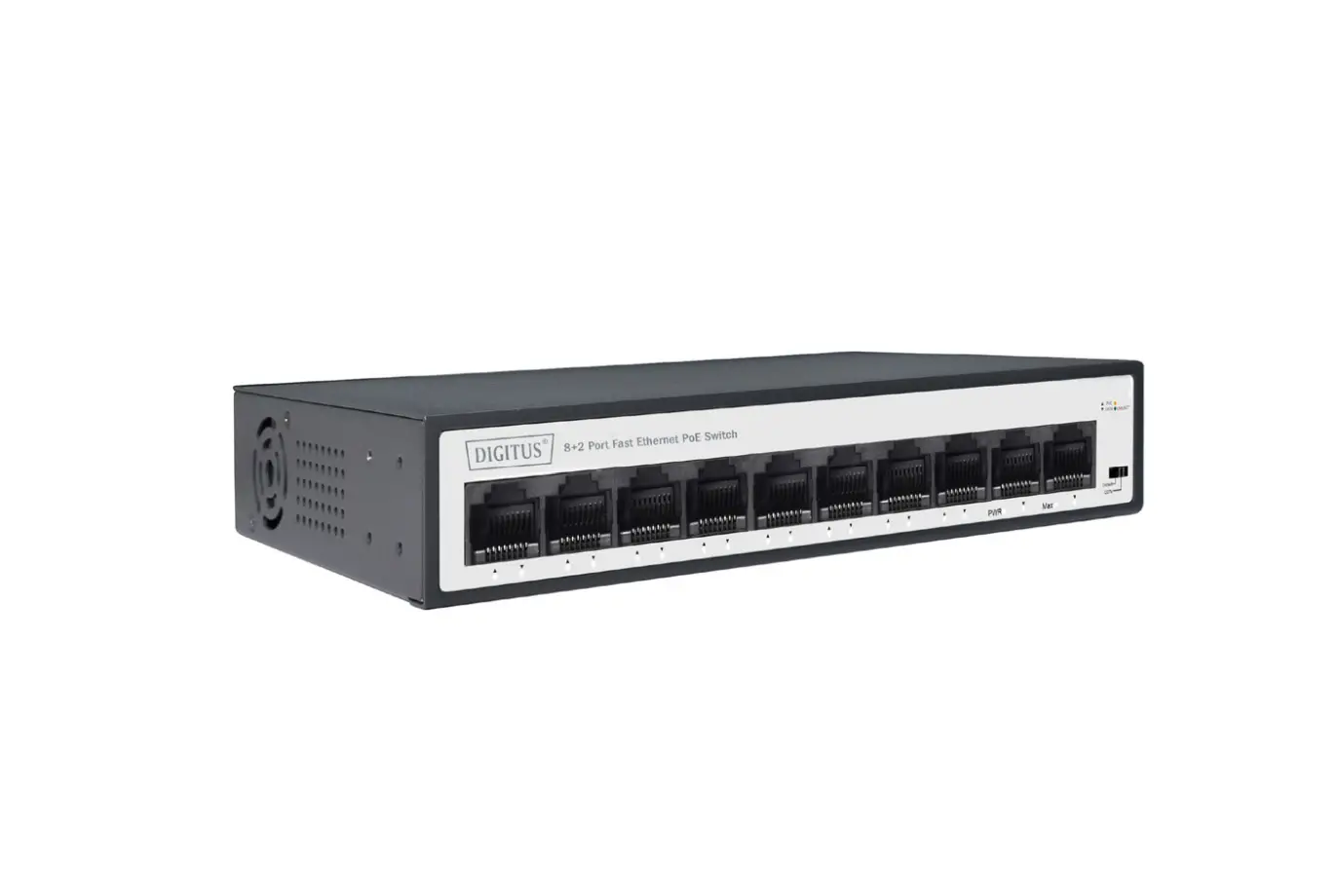
DIGITUS DN-95354 8+2 Port Fast Ethernet PoE Switch

Introduction
DN-95354 has a CCTV function which can improve the network environment and reduce network maintenance costs. It is easy to manage and meet the networking and access requirements of Business buildings, community, hotel and office.
Main Features
- Support IEEE802.3 at standard, compatible with IEEE802.3 af by electrical equipment (PD)
- Stand-up output power up to 30W
- Support IEEE802.3 x full duplex flow control and Backpressure half duplex flow control
- Panel lights to monitor working state and help fault analysis
- Perfect security mechanism
- Line-speed forwarding intelligent identification
- Support CCTV Function
- Support Energy-Efficient Ethernet (EEE) function (IEEE802.3az)
- Support PD-ALIVE function
Package Contents
- PoE Switch
- User Guide
- Power Cord
Product Specification
| Technical | |
| Interface | 10* 10/100 RJ45 port |
| PoE port | 1 ~ 8 |
| PoE stand | IEEE802.3af/at |
| PoE total | 60 W |
| Power supply | 65 W |
| Key function | CCTV |
| PoE port output | Max 30W |
| RJ45 PoE power supply | Mode A, Anode1/2, Cathode3/6 |
| Indicator | PWR (Green), LNK/ACT (Green) PoE (Orange), Max (Green) |
| Network media | 10 BASE-T: UTP category 3,4,5 cable (≤100m), 100 BASE-TX: UTP category 5, 5e cable (≤100m), |
| MAC Address Table | 2K, Automatic study, automatic updates |
| Jumbo frame | 9216 Bytes |
| Packet buffer | 2 Mbit |
| Transfer Mode | Store-and-forward |
| Packet Forward Speed | 14, 88 Mpps |
| Bandwidth | 20 Gbit/s |
| Device Dimension | 168 x 94 x 32mm |
| Green energy saving | Support IEEE (802.3az) |
| Mains input | 100 ~ 240V AC, 50/60Hz |
| Operating Temperature | 0°C ~ 40 °C |
| Storage Temperature | -40 °C ~ 70 °C |
| Operating Humidity | 10% ~ 90% non-condensing |
| Storage Humidity | 5% ~ 90% non-condensing |
| Surge Protection | Common mode ± 2KV, differential mode ± 1KV |
| MTBF | >50000 hour |
| Electrostatic standard | Contact ±6KV, air ± 8KV |
Hardware Description
Front Panel
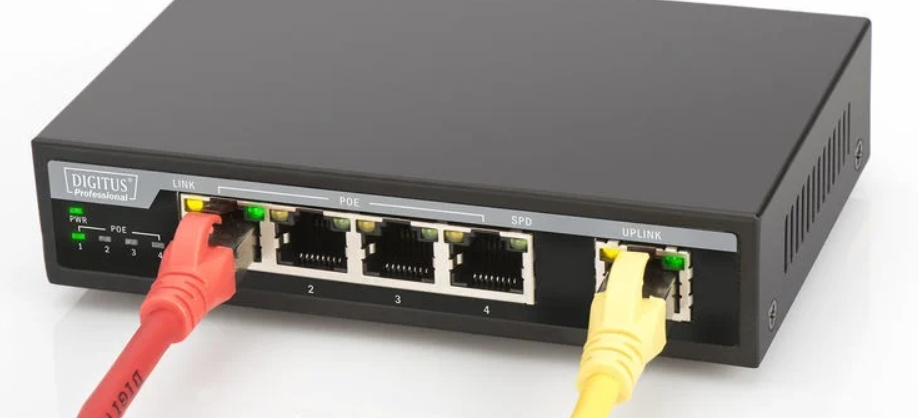
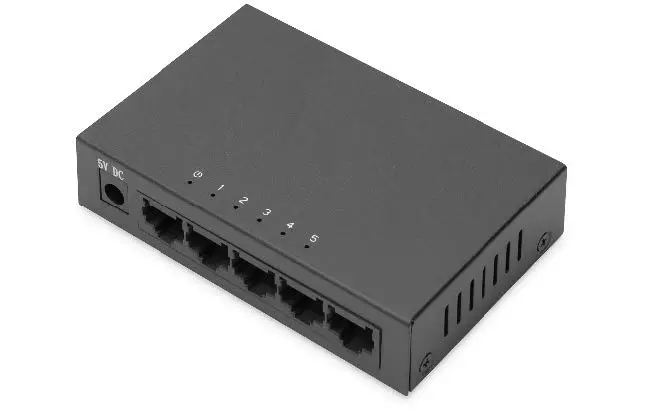
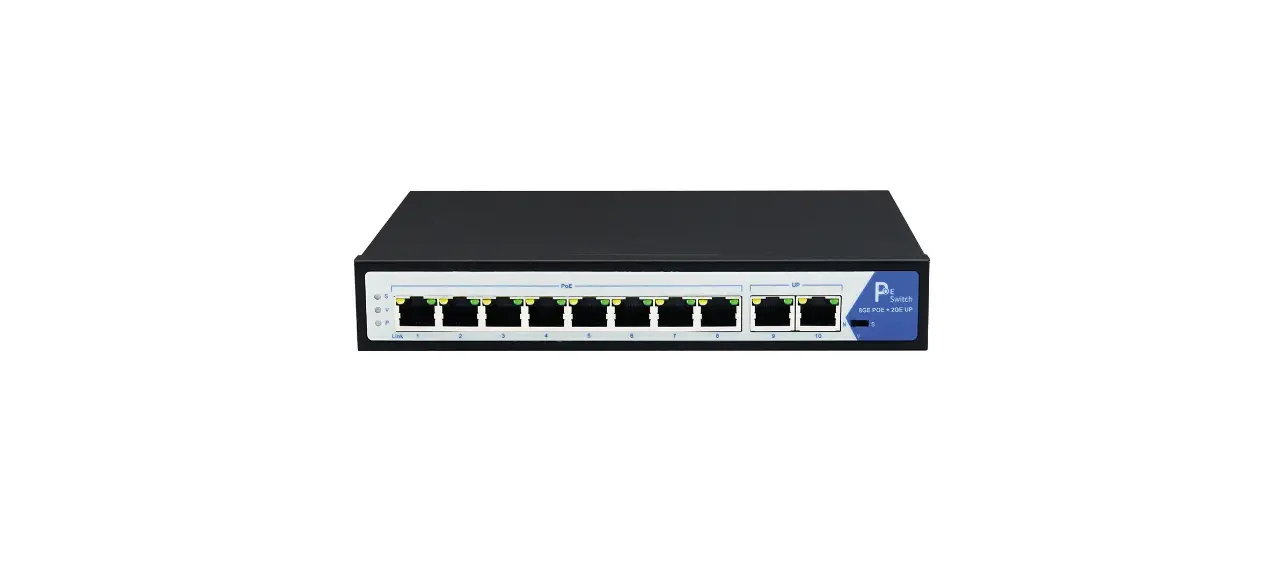
The Front Panel Consists of Ethernet Ports. The LED indicators are also located on the panel.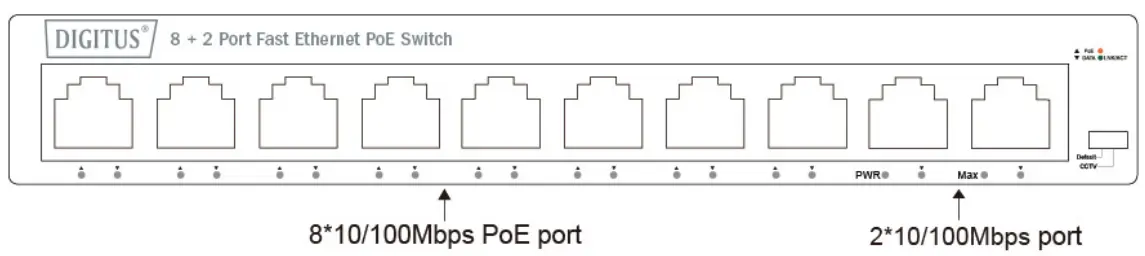
DIP Switch: The DIP switch located on the right of the panel.
Default: the factory default mode, can normal communication between port 1~10.
CCTV mode: 1-8 port can be isolated each other, but 1-8 port can connect to 9, 10 port after open CCTV to stop broadcast storm to increase forwarding rate of frame. The CCTV mode, up to 250m PoE distance allows you to expand you network via Ethernet cable to where there is no power line or outlet but where you want to fix device such as IP Cameras.
Note: After change the mode, there is no need to restart manually to make the corresponding configuration take effect.
LED indicator
| LED | Color | Function |
| PWR | Green | Off: No Power supply. Light: Indicates the switch has power. |
| LNK/ ACT | Green | Off: No device is connected to the corresponding port. Light: Indicates the link through that port is successfully established at 10/100Mbps. |
| PoE | Orange | Off: No PoE powered device (PD) connected. Light: There is a PoE PD connected to be port, which supply power successfully. Blink: Indicates port abnormal power supply. |
| Max | Green | Off: PoE power is less than 80% of total power. Light: PoE power above 80%. |
Rear Panel
The rear panel of the PoE Switch indicates an AC inlet power socket, which accepts input power from 100 to 240V AC, 50/60HZ.
Note: the lightning protection grounding column is located on the left side of the rear panel, please make sure to use the conductor to ground in case of lightning!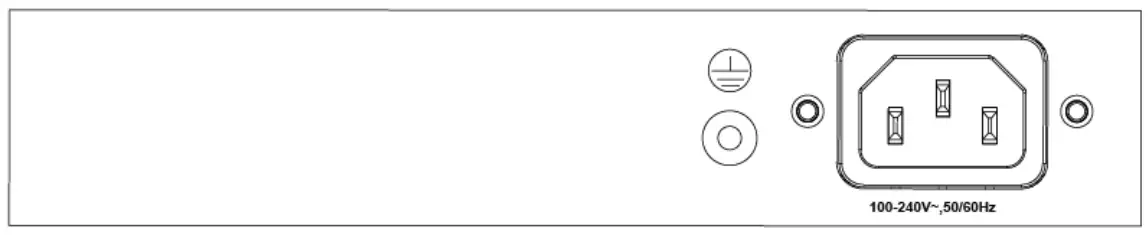
Power socket
Connect the female connector of the power cord here, and the male connector to the AC (Alternating Current) power outlet. Please make sure the voltage of the power supply meets the requirement of the input voltage.
Grounding column
The switch already comes with lightning protection mechanism. You can also ground the switch through the PE (Protecting Earth) cable of AC cord or with Ground Cable.
Installation the Switch
This part describes how to install your Ethernet Switch and make connections to it. Please follow the following instructions in avoid of incorrect installation causing device damage and security threat.
- Before cleaning the switch, unplug the power plug first. Do not clean the switch with wet cloth or liquid;
- Do not place the switch near water or any damp area. Prevent water or moisture from entering the switch chassis;
- Do not place the switch on an unstable case or desk. The switch might be damaged severely in case of a fall;
- Ensure proper ventilation of the equipment room and keep the ventilation vents of the switch free of obstruction;
- Make sure that the operating voltage is the same one labeled on the switch;
- Do not open the housing when the switch is in operation or when electrical hazards are present to avoid damage.
Desktop Installation
Install the Switch on a desktop, please attach cushioning rubber feet on the bottom at each corner of the Switch in case of the external vibration. Allow adequate space for ventilation between the device and the objects around it.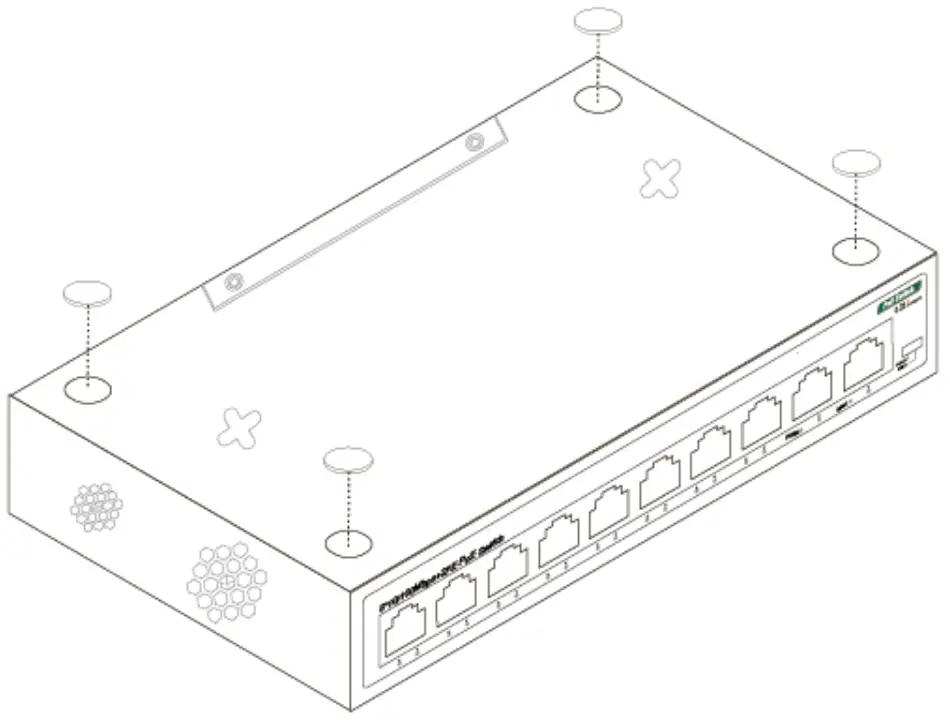
Wall-mounted installation
Aim at the two fixed holes, and add the machine smoothly on the screw, as shown in the figure below. Provide two screws with a diameter of about M4 and a nut with the diameter of 7mm.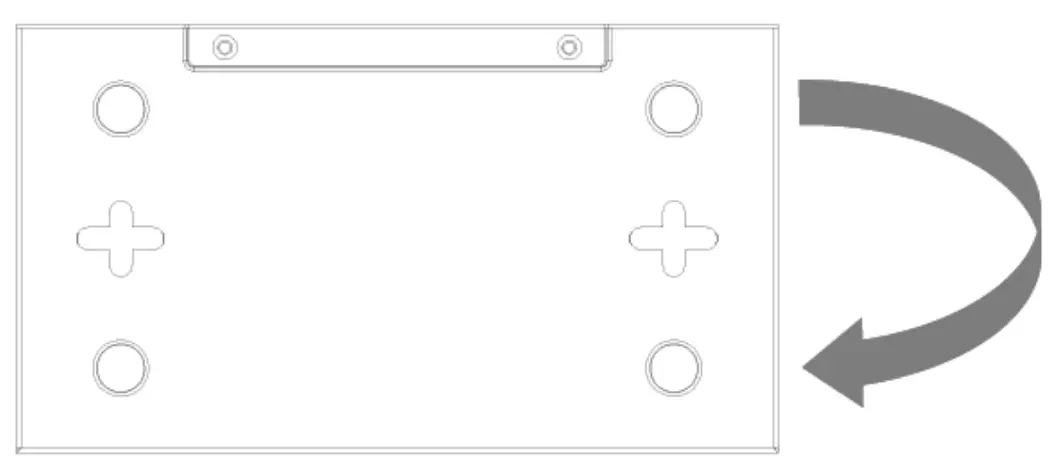
Turn on the switch
Please connect the AC power cord into the rear of the switch and to an electrical outlet (preferably one that is grounded). When the switch is power on, the LED indicators flash momentarily for one second, which represents a resetting of the system. The Power LED indicator turns on green.
Note: Please confirm the voltage is correct before power on, otherwise the switch will be damaged.
(The power input is:100V-240Vac, 50/60Hz)
Disclaimer
This is a Class A product. In home environment, this product may\ cause radio interference.
In this case, the user may be required to take appropriate measures.
Hereby Assmann Electronic GmbH, declares that the Declaration of Conformity is part of the shipping content. If the Declaration of Conformity is missing, you can request it by post under the below mentioned manufacturer address.
Customer Support
www.assmann.com
Assmann Electronic GmbH
Auf dem Schüffel 3
58513 Lüdenscheid
Germany


 ASSMANN Electronic GmbH | Germany