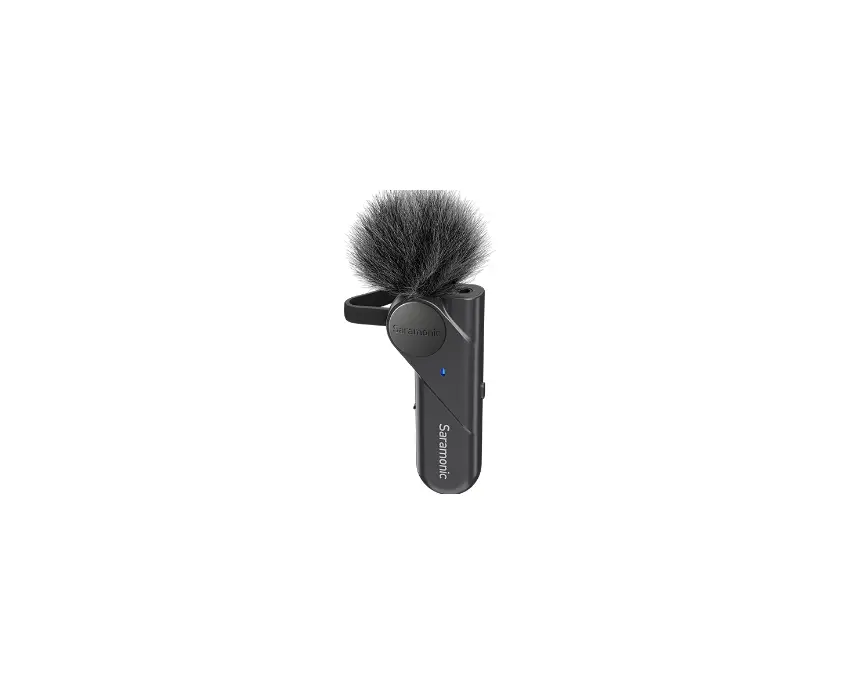
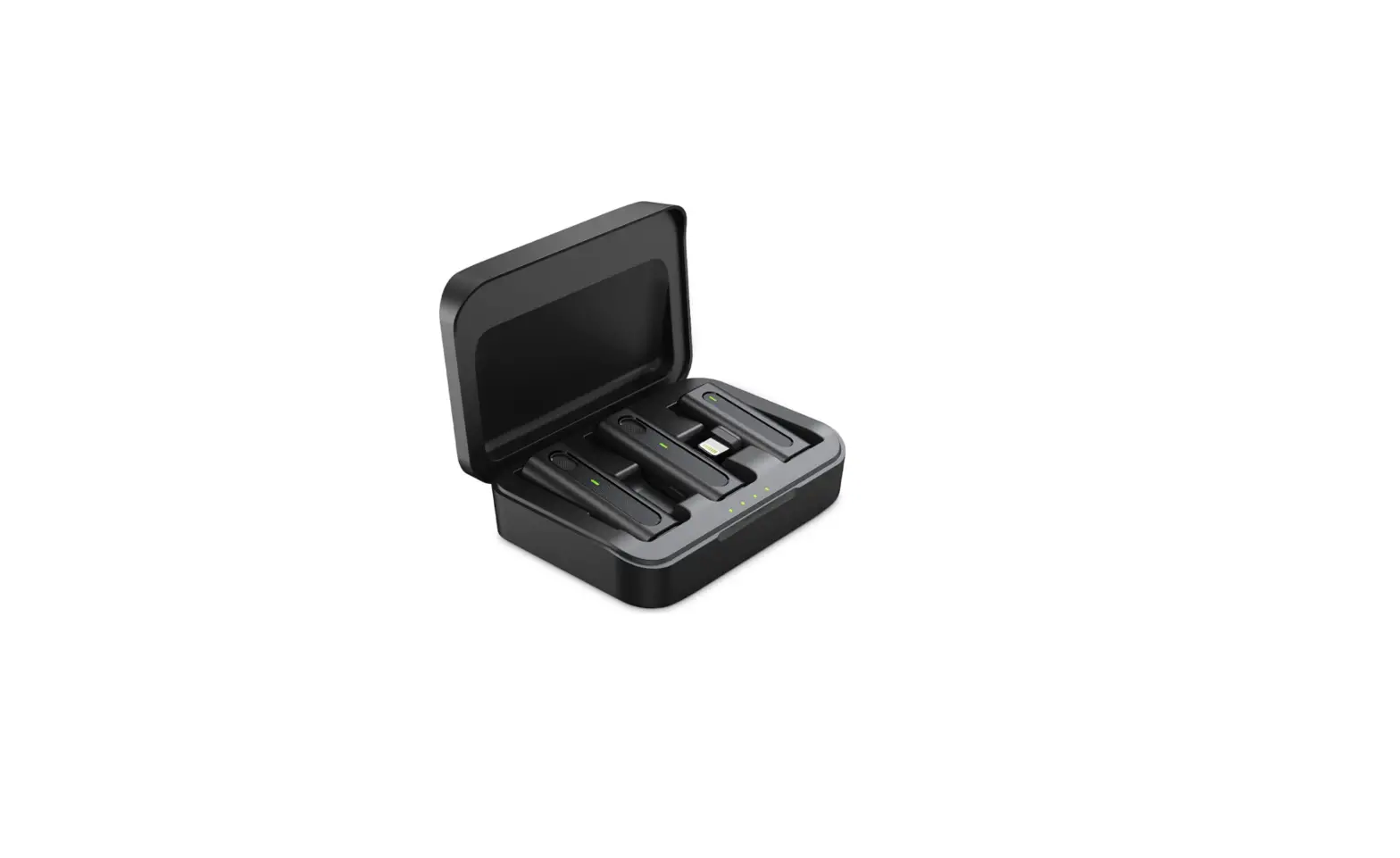
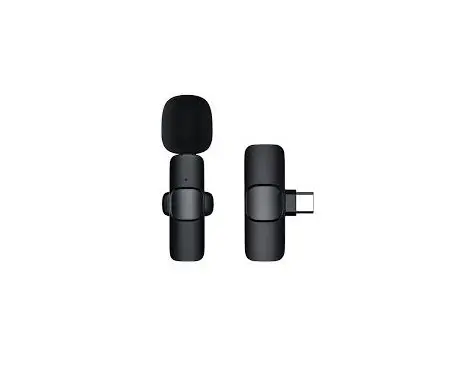
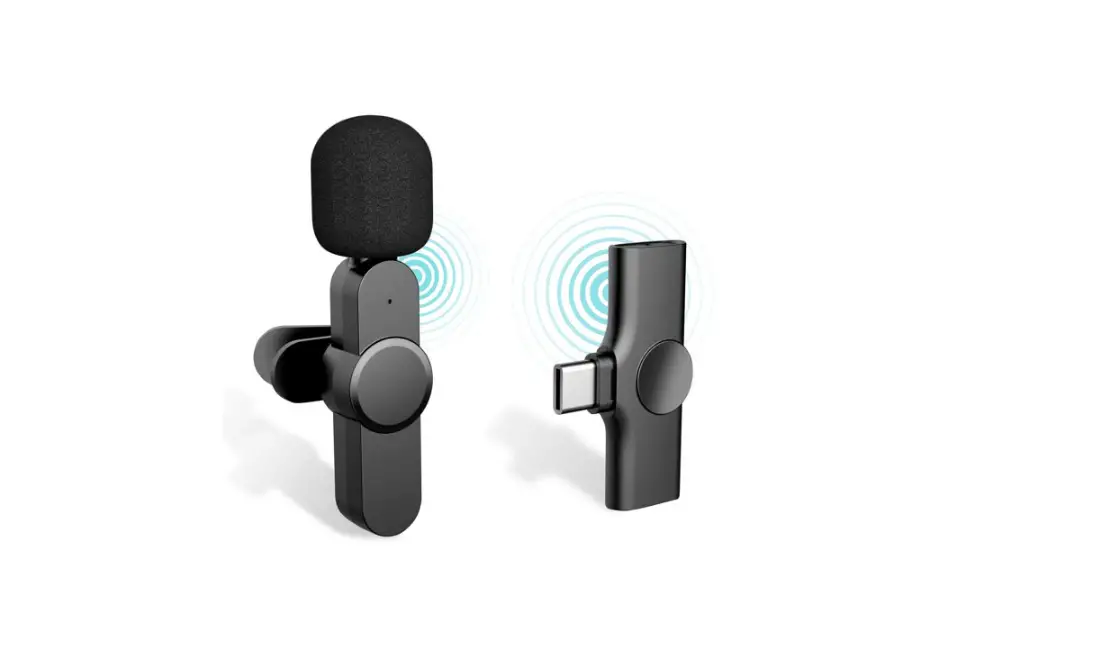
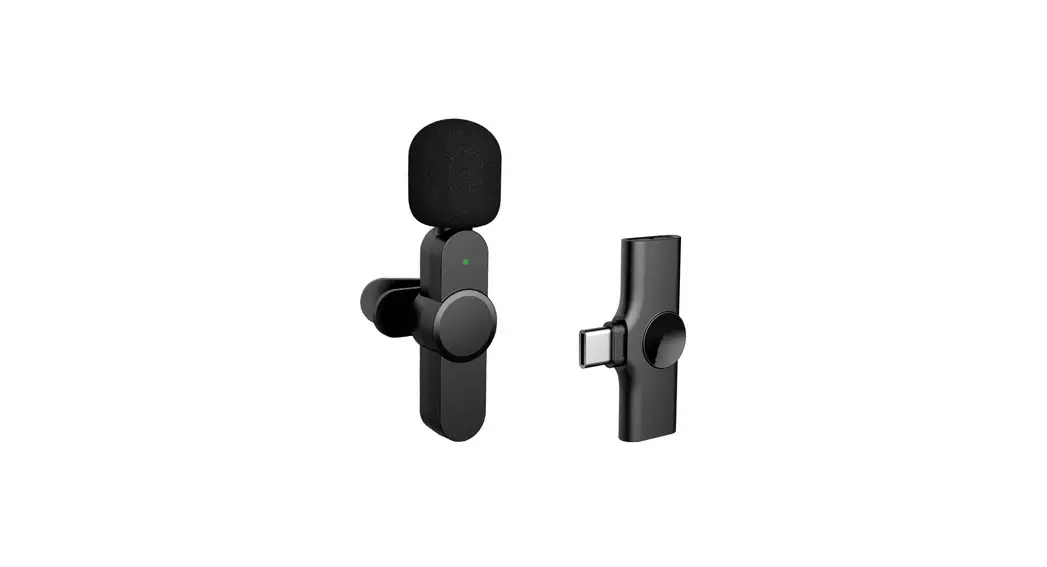
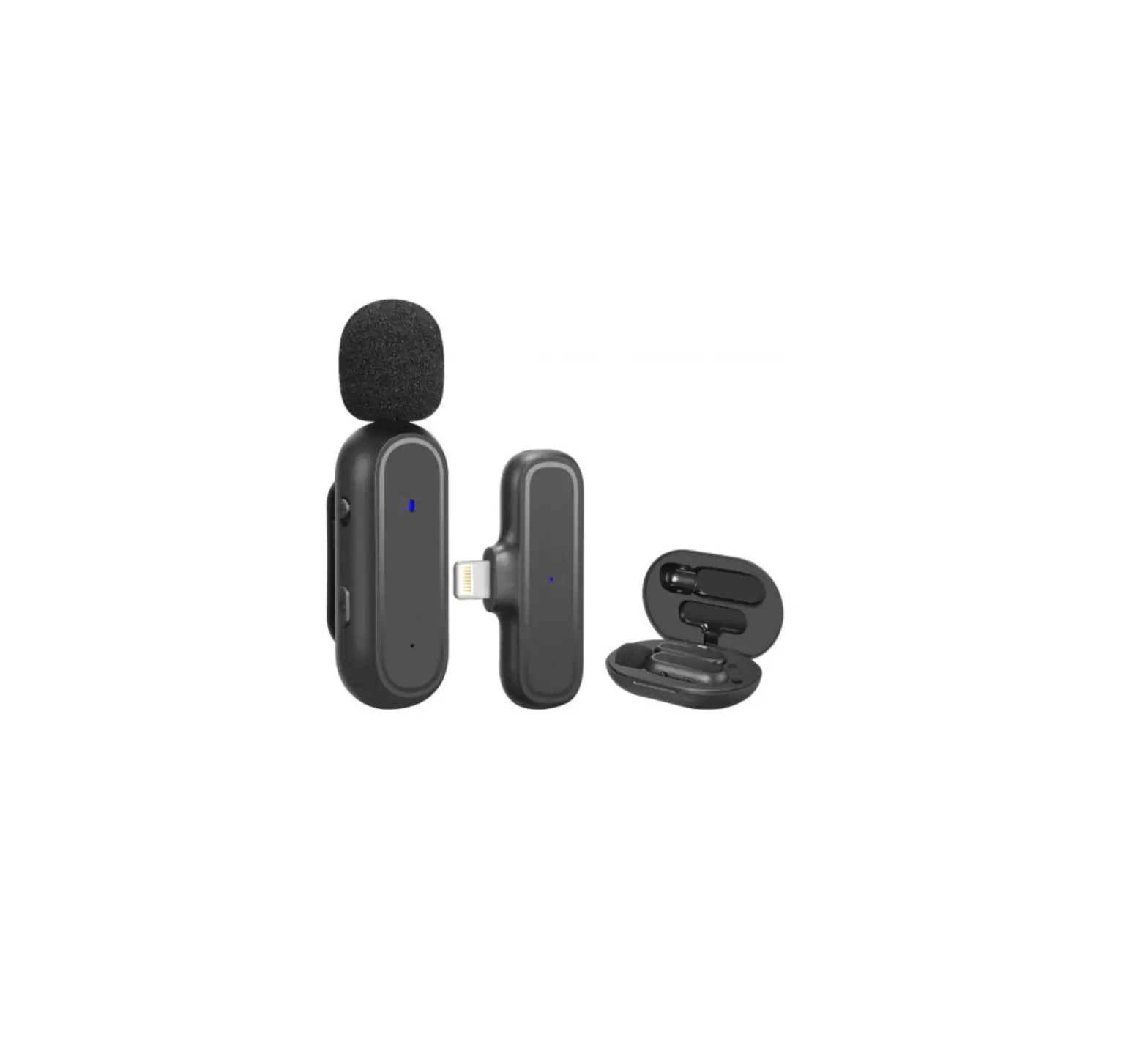
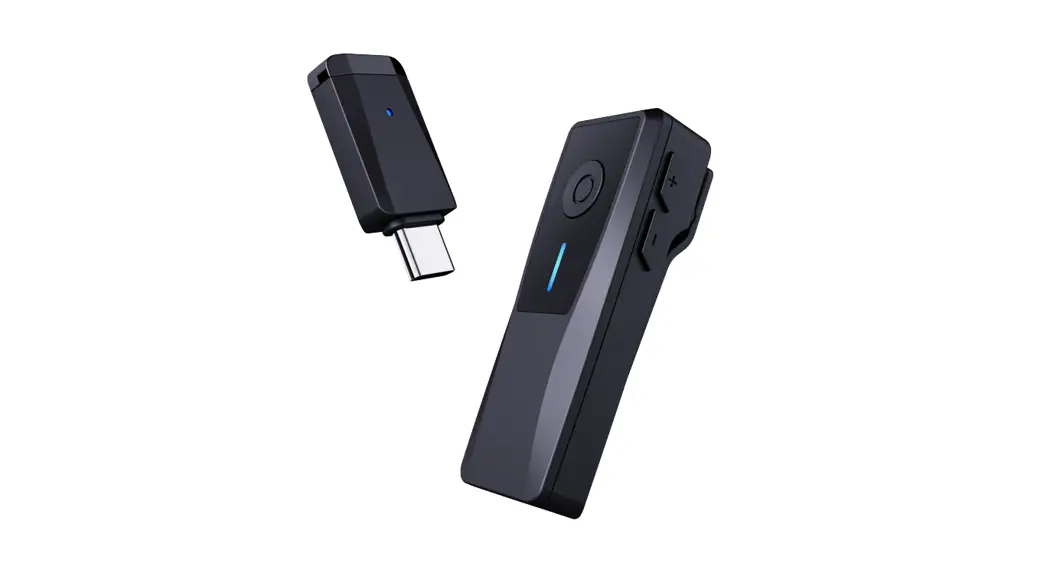
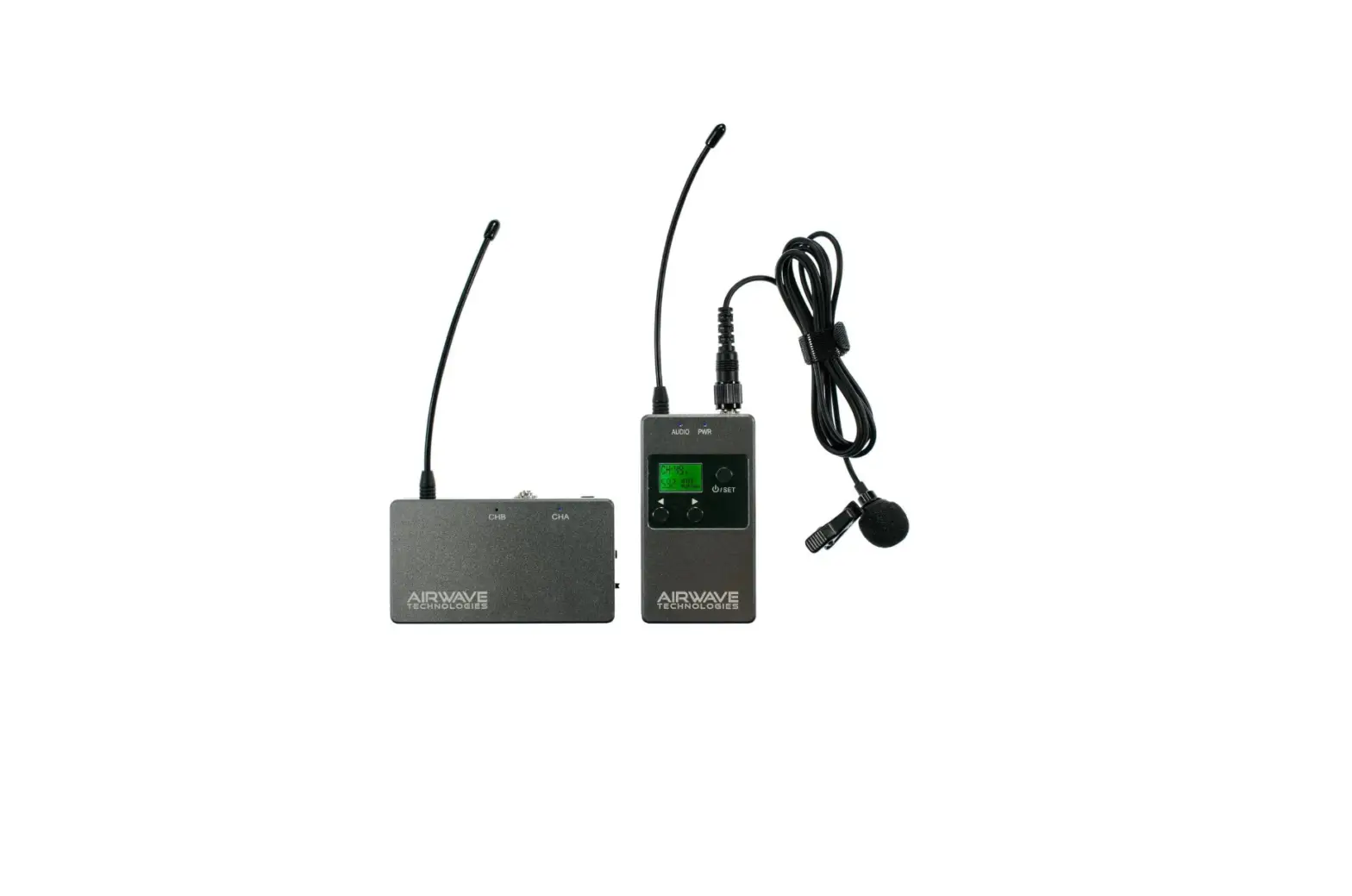
MICT 2BBKW Wireless Lavalier Microphone
Product Information
- Product Name: Wireless Lavalier Microphone
- Model: [Model Number]
- Clear Voice: Yes
- Noise Cancelling: Yes
- Plug and Play: Yes
- Long Range: Yes
- Wide Compatibility: Yes
- Long Battery Life: Yes
Product Usage Instructions
- Power on/off the transmitter:
- Press and hold the transmitter’s power button for 3
seconds.
- Press and hold the transmitter’s power button for 3
- Turn on noise-cancelling mode:
- Click the transmitter’s noise-cancelling button, the indicator
turns green.
- Click the transmitter’s noise-cancelling button, the indicator
- Turn on reverb mode:
- Under normal mode, click the transmitter’s power button, the
indicator turns yellow.
- Under normal mode, click the transmitter’s power button, the
- Turn on the mute mode:
- Double-click the transmitter’s power button, the indicator
turns red.
- Double-click the transmitter’s power button, the indicator
- Return to normal mode:
- When in other modes, click the transmitter’s power button, the
indicator turns white.
- When in other modes, click the transmitter’s power button, the
- Connect the receiver:
- Plug the receiver into the smartphone’s port.
- Power on the transmitter:
- Press and hold the power button for 3 seconds, and the
transmitter will automatically pair with the receiver after
powering on.
- Press and hold the power button for 3 seconds, and the
Specifications
- Operating Frequency: [Frequency]
- Frequency Response: 20Hz-20KHz
- Directivity: [Directivity]
- Transmission Distance: [Transmission Distance]
- Battery Capacity: [Battery Capacity]
- Battery Life: [Battery Life]
Note: Please refer to the specific model for detailed
specifications and features.
Additional Support
Scan the QR code to get video and other support.
1 2 3 4 5 6
4
2
1
3 5
6
8 9
7
Type C
7 8 9
*
*
10 11
10 LED 11
*
/
3
1
2
3
3S
3
1.
VIVO/OPPO/RealmeOTG
OTG
1
OTG &
2
3
OTG OTG
vivo realme
Galaxy C9 pro
Galaxy Note 8 Galaxy S8
W2018
Galaxy A50/505
Galaxy A60/605
Galaxy M30s
Galaxy A6s
CC9 Pro
X60/X60 Pro
LG
Q/Q2/V3/V5/X2/X50
Oneplus 3T Oneplus 5T Oneplus 6/ 6T Oneplus 8T Nova 2/2 s Nova 2 Plus Mate 20 Pro XPERIA Series LG G55E LG V20
OTG
.
2. App AppApp
3. Type C Type C
4.
5.
2.4GHz 20Hz-20KHz 20 105mAh 11230mAh 12500mAh
8H
1.5H 111H 122H 20.6 x 16.0 x 47.9mm11.0g 24.4 x 9.9 x 47.9mm5.4g 1159.3 x 32.1 x 62.0mm45.6g 1283.0 x 32.1 x 62.0mm65.9g
1 2 3 4
WIRELESS LAVALIER MICROPHONE
User Manual
Clear Voice
Noise Cancelling
Plug and Play
Long Range
Wide Compatibility
Long Ba ery Life
Scan the QR code to get video and other support.
Overview
4
2
1
3
1 Indicator 2 Power Bu on 3 Noise-cancelling Bu on 4 Built-in Microphone 5 Charging Port 6 Clip
5
Transmi er (mic)
6
Back of the transmi er
Indicator Description
Transmi er
Indicator Status
Blinks red and white alternately Solid white Blinks red Solid red (when charging) Red lights off (when charging) Solid red Solid orange Solid green
Description
Transmi er and receiver are not paired. Transmi er and receiver paired successfully. Low ba ery. Charging. Fully charged. Mute. Reverb mode is on. Noise-cancelling mode is on.
Receiver
Indicator Status
Blinks red and white alternately Solid white
Description
Transmi er and receiver are not paired. Transmi er and receiver paired successfully.
Overview
8 9
For iPhone 7
For Type-C Devices
Receiver
7 Plug 8 Charging Port 9 Indicator
*Please refer to the specific model for the type of plug.
Indicator Description
Charging Case
Indicator Status
Digital Column blinking
Description
Power percentage of the charging case. Transmi er charging
*Charging case is optional, please refer to the specific model.
Overview
10 11
Charging Case 10 Digital LED Display 11 Charging Port
*Charging case is optional, please refer to the specific model.
Operating Instructions
Power on/off the transmi er
Press and hold the transmi er’s power bu on for 3 seconds.
Turn on noise-cancelling mode
Click the transmi er’s noise-cancelling bu on, the indicator turns green.
Turn on reverb mode
Under normal mode, click the transmi er’s power bu on, the indicator turns yellow.
Turn on the mute mode
Double-click the transmi er’s power bu on, the indicator turns red.
Return to normal mode
When in other modes, click the transmi er’s power bu on, the indicator turns white.
Power bu on Noise-cancelling bu on
How to Use
1 Connect the receiver
Plug the receiver into the smartphone’s port.
Scan the QR code to get video and other support.
Note: When the smartphone’s ba ery is low, charge the smartphone through the receiver’s charging port.
How to Use
2 Power on the transmi er
Press and hold the power bu on for 3 seconds, and the transmi er will automatically pair with the receiver after powering on.
3S Power Bu on
Noise-cancelling Bu on
Other
Specifications
Operating Frequency Frequency Response Directivity Transmission Distance Ba ery Capacity
Ba ery Life
Charging Time
Dimensions & Weight
2400-2483.5 MHz 20Hz-20KHz Omnidirectional 20 Meters Transmi er: 105mAh 1-Pack Charging Case: 230mAh 2-Pack Charging Case: 500mAh
Transmi er: 8 Hours
Transmi er: 1.5 Hours 1-Pack Charging Case: 1 Hours 2-Pack Charging Case: 2 Hours
Transmi er: 20.6 x 16.0 x 47.9mm; 11.0g Receiver: 24.4 x 9.9 x 47.9mm; 5.4g 1-Pack Case: 59.3 x 32.1 x 62.0mm; 45.6g 2-Pack Case: 83.0 x 32.1 x 62.0mm; 65.9g
Package Contents
1 Transmi er 3 Charging Cable
2 Receiver 4 User Manual
*Note: The charging case and windscreen are optional, please refer to the specific model.
Warning
Do not disassemble, crash, squeeze or expose it to fire. Stop using when the product is swollen. Do not expose the product to excessive temperature. Stop using when the product is submerged. The product contains small accessories which may cause accidental ingestion and choking hazard, please keep it away from children.
FAQs
1. Why microphone can not record after connecting to smartphone?
Check the indicators status of transmi er and receiver. Charge the transmi er if it is low power. Some smartphone brands such as VIVO/OPPO/Realme need to enable OTG connection in the se ings, the usual path reference is as follows.
(Note: Please contact the smartphone manufacturer to get support on OTG se ing when having trouble finding the path.)
Se ings
Step 1
Enter Se ings the phone.
Other Se ings
Storage Date Default keyboard Screenshot Record Screen
Step 2
Enter Other Se ings or search for OTG in the search bar.
Recent Tasks OTG Connection Backup & Restore Factory Se ings Google
Step 3
Enable OTG Connection.
2. Why microphone can not record for the phone’s own camera app?
The system of some smartphones prevents the microphone from ge ing audio permissions due to severe restrictions. If this happens, please contact the smartphone manufacturer. Try other apps instead. This product is compatible with most apps.
3. What is in-ear monitoring? Does this product support it?
In-ear monitoring allows you to hear the sound recording by the microphone through earphones.
This product supports in-ear monitoring, the operation is as follows. When the microphone is working normally, put the Type C headphones into the the transmi er’s charging port. Then you are able to hear the sound recording by the microphone.
*Note: The product does not include Type C headphones.
How to Use
3 Record
Wear the transmi er properly and start to record.
Overview
FAQs
4. How to reduce noise while recording? Enable Noise-cancelling mode of the transmi er. Please adjust the distance between the transmi er and the sound source properly. If you have purchased a model equipped with a windscreen, please install the windscreen on the transmi er.
5. What should I do if the smartphone’s ba ery is low when recording? Charge the smartphone by connecting the charging cable to receiver’s charging port.
FCC Statement
This equipment has been tested and found to comply with the limits for a Class B digital device, pursuant to part 15 of the FCC Rules. These limits are designed to provide reasonable protection against harmful interference in a residential installation. This equipment generates, uses and can radiate radio frequency energy and, if not installed and used in accordance with the instructions, may cause harmful interference to radio communications. However, there is no guarantee that interference will instructions, may cause harmful interference to radio communications. However, there is no guarantee that interference will not occur in a particular installation. If this equipment does cause harmful interference to radio or television reception, which can determined by turning the equipment off and on, the user is encouraged to try to correct the interference by one or more of the following measures: –Reorient or relocate the receiving antenna. –Increase the separation between the equipment and receiver. –Connect the equipment into an outlet on a circuit different from that to which the receiver is connected. –Consult the dealer or an experienced radio/TV technician for help. FCC Radiation Exposure Statement The device has been evaluated to meet general RF exposure requirement. The device can be used in portable exposure condition without restriction. Any Changes or modifications not expressly approved by the party responsible for compliance could void the user’s authority to operate the equipment. This device complies with Part 15 of the FCC Rules.Operation is subject to the following two conditions: (1) this device may not cause harmful interference, and (2) this device must accept any interference received, including interference that may cause undesired operation.