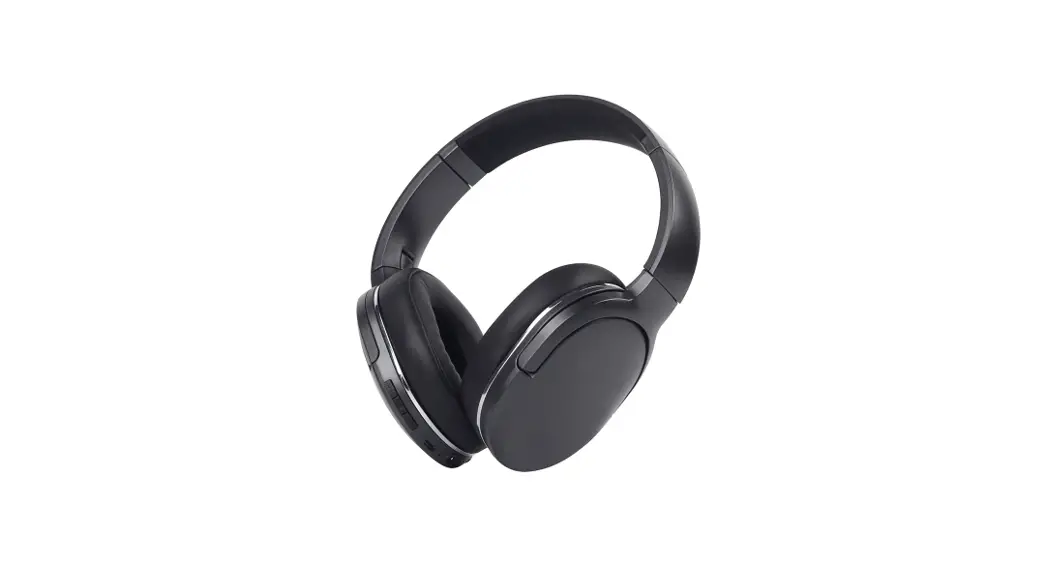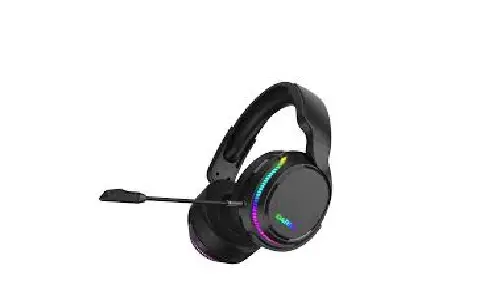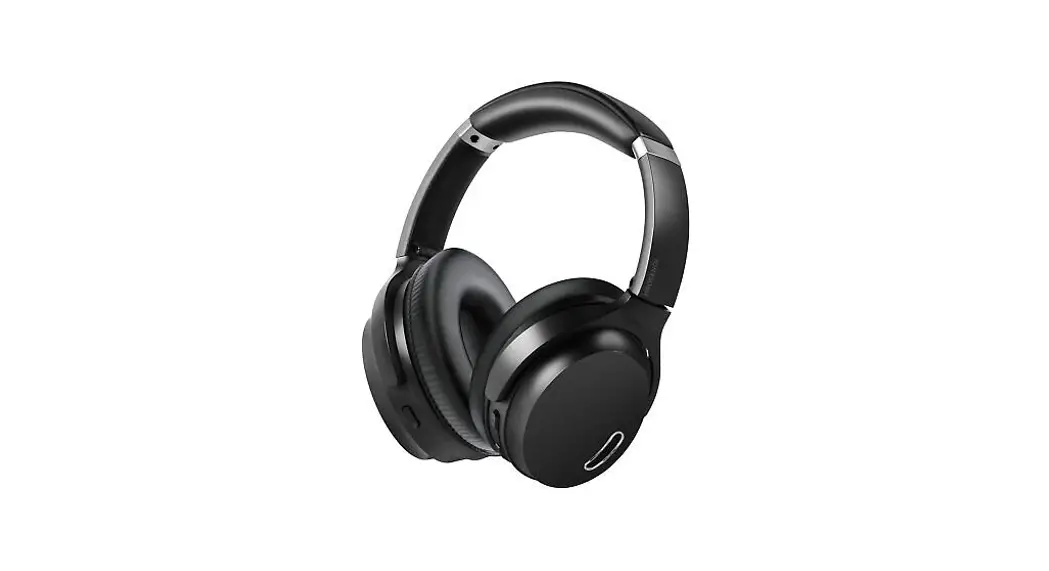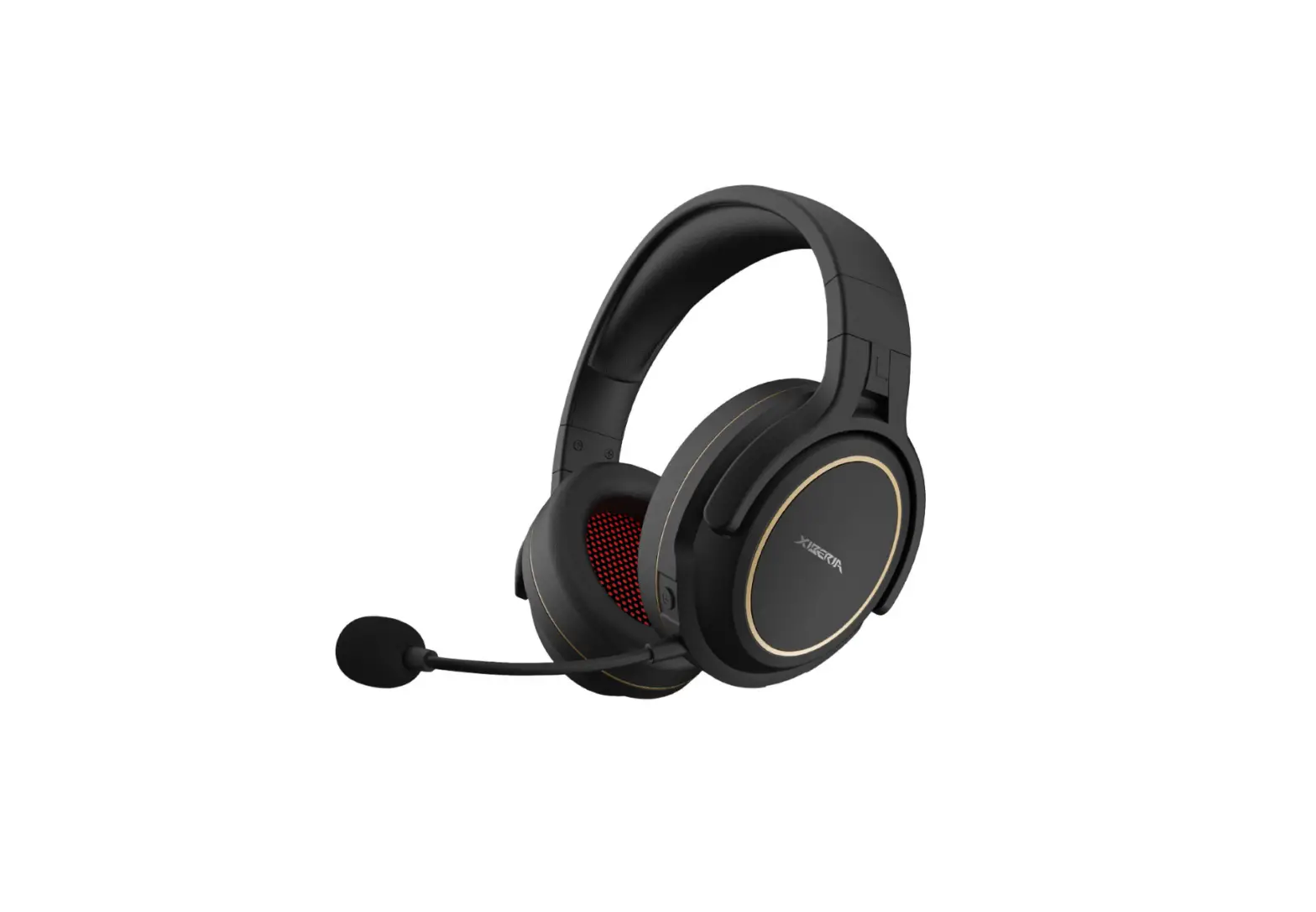
DONGGUAN G01 Wearing a Wireless Headset User Manual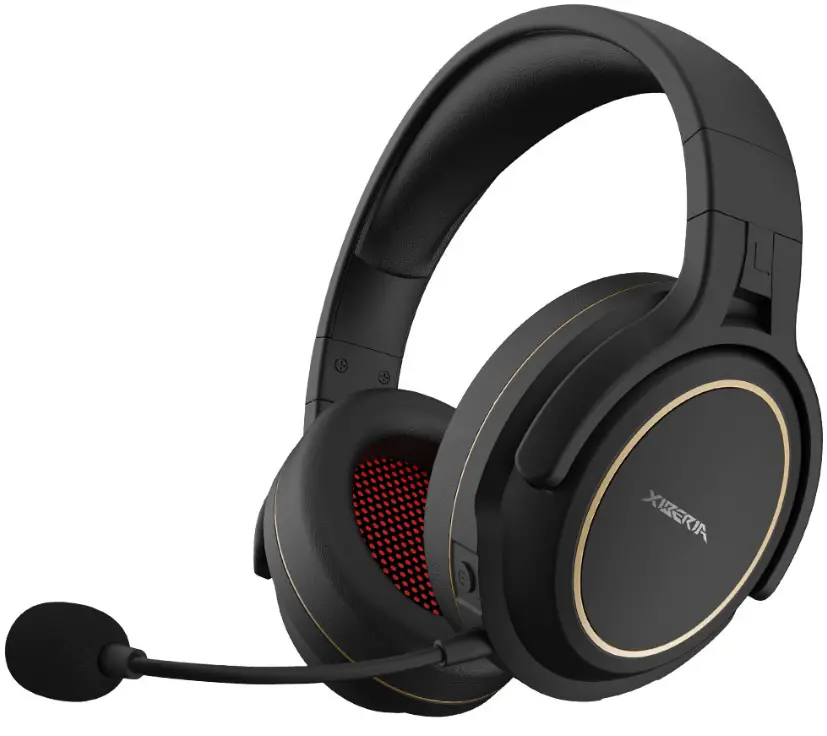
Headphone specifications
| Model | GO1 |
| Headphone battery capacity | lithium battery 3.7V/1500mA |
| Working time | about 18 hours (70% volume) |
| Charging time | about 4 hours |
| Standby time | about 200 hours |
| Input charging standard | USB-TYPEC, DCSV/2A |
| Frequency response | 20HZ-20KHZ |
| Sensitivity | 104 ± 3dB@1 kHz |
| MIC sensitivity | 38±3dB@lkHz(single pointing) |
| Effective distance lithium | linear transmission distance is about 12 meters |
Wearing instructions
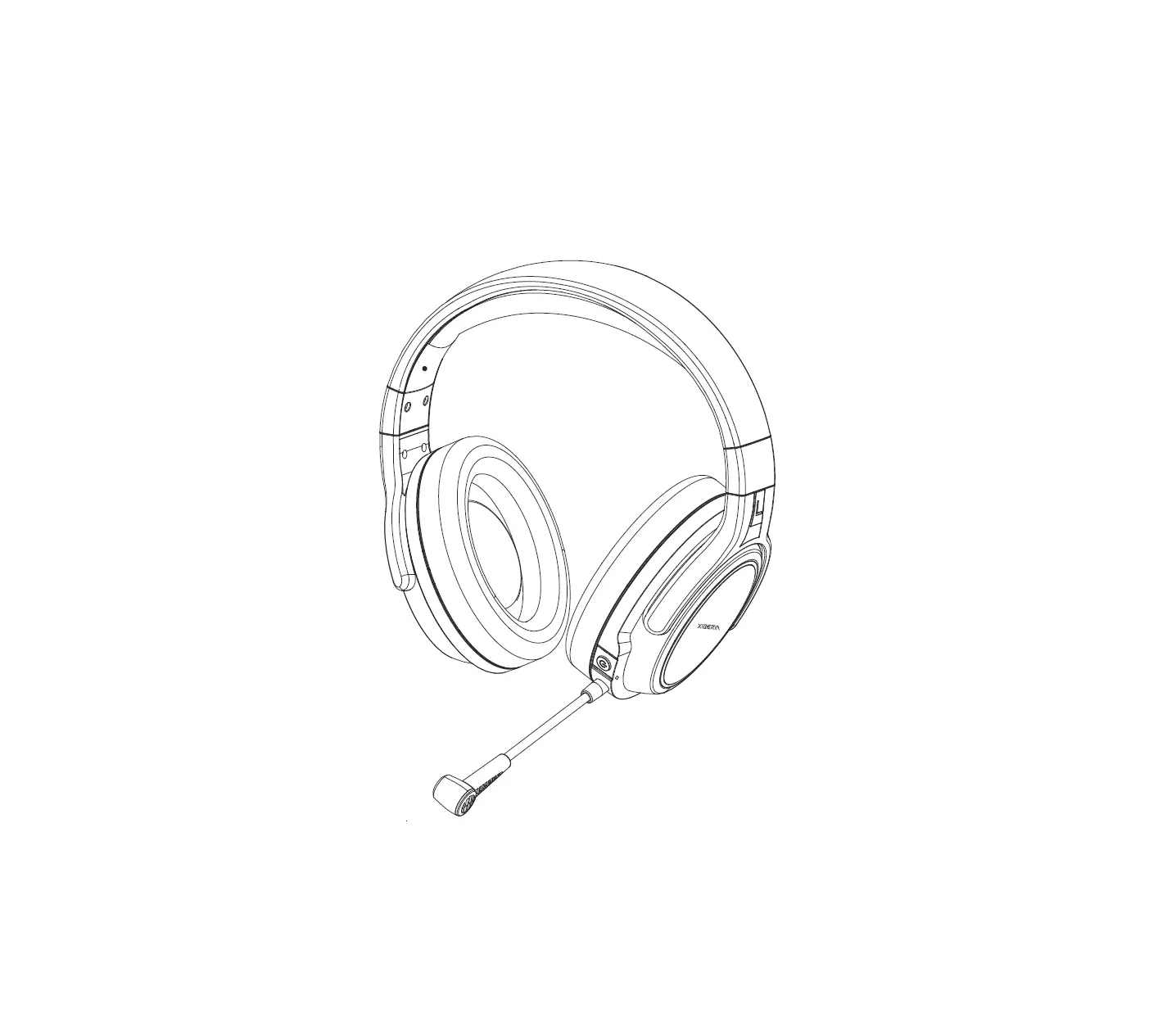
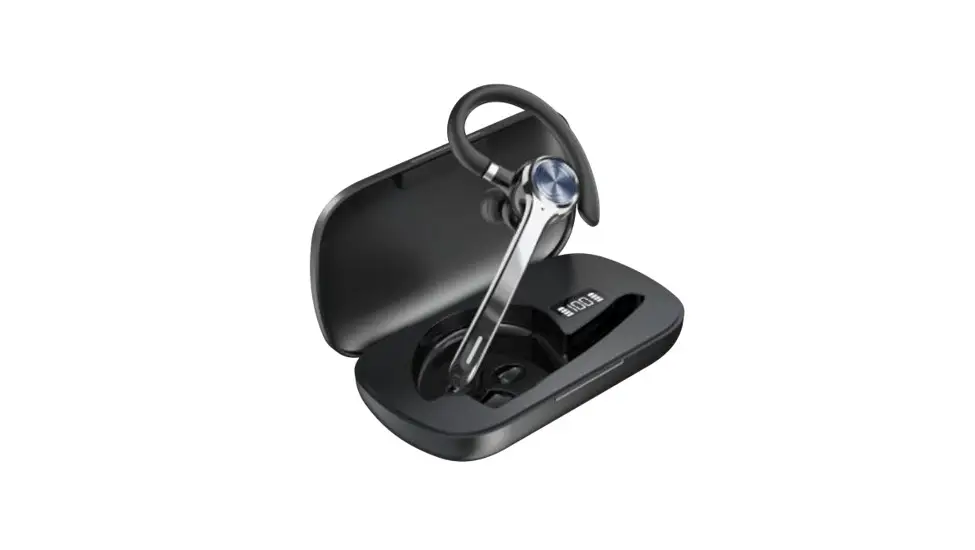
Telescopic adjustment of the wearing position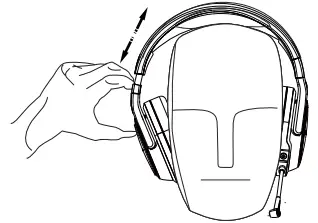
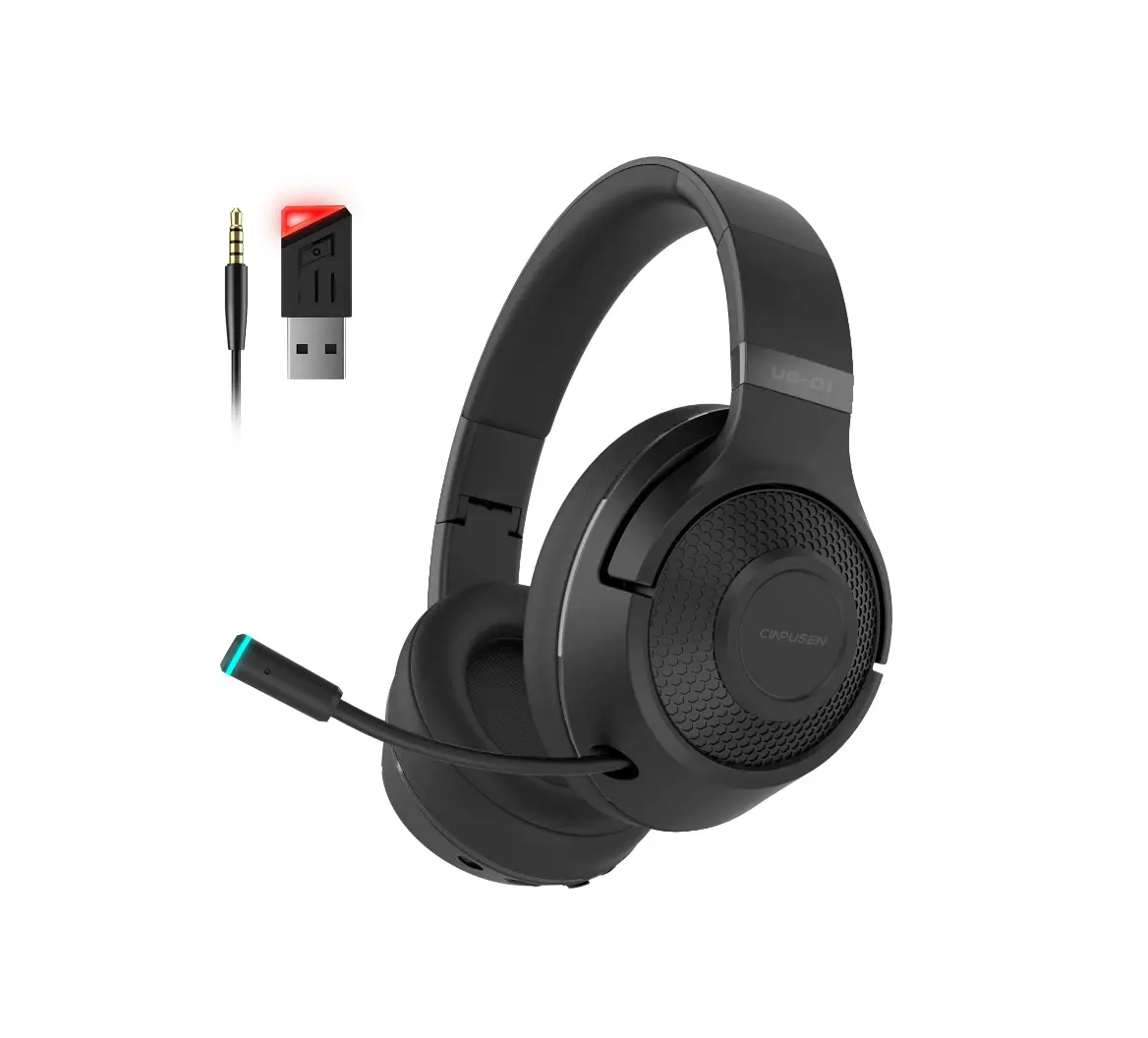
Overview
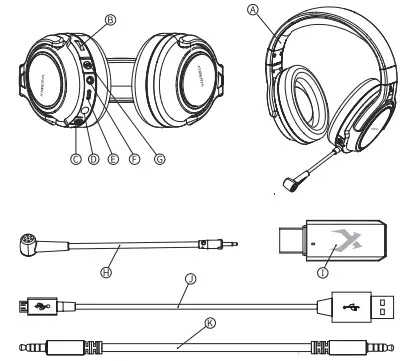
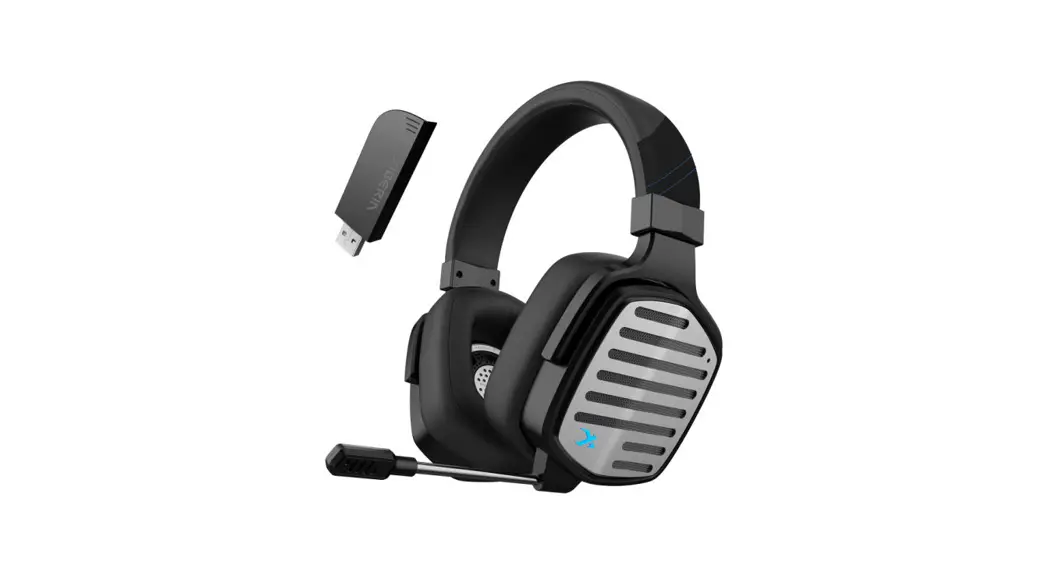
- A. Headphones
- B. Volume adjustment
- C. Switch button
- D. Microphone plug hole
- E. USB plug hole
- F. 3.5mm headphone jack
- G. Microphone mute button
- H. Removable microphone
- I. Wireless receiver
- J. USB charging cable
- K. 3.5mm headphone cable
Headphone charging
We recommend charging the battery before using it for the first time;
When the charging cable is connected, the LED light on the ear cup will return to the charging state.
| Earmuffs LED lights | charging |
| flicker | Charging |
| Extinguished | finished charging |
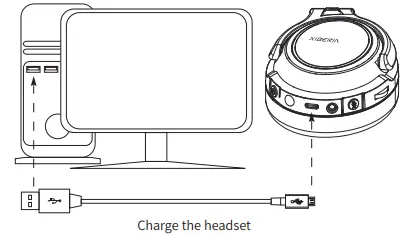
Light-on time: The normal time for battery charging is about 4 hours;
Charging indication: the red indicator light is on when the headset is charging; the blue indicator is lit when the headset is full
On/Off
Power on: The headset is in the off state. Press and hold the power button for 3 seconds to hear the power on tone, and the blue status light flashes.
Shutdown: The headset is turned on. Press and hold the power button for 3 seconds to hear the power-on tone, and the blue status light is off.
Headset pairing
The headset and USB wireless adapter are paired and ready to use at the factory. If the headset loses pairing, you can manually re-pair it by following the steps below (it is recommended to contact technical support before re-pairing to determine if it is necessary)
- Turn off the headset;
- Unplug the USB wireless transmitter and reinsert it;
- Re-open the headset according to the boot mode;
- Seeing that the blue LEO is on is indicating that the connection is successful.
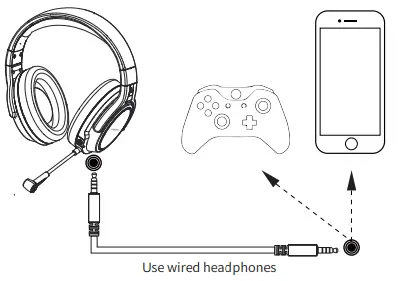
Headphone connection (wired)
The headset can be used as a wired headset with the included 3.5 mm audio cable. To use the headset in wired earphone mode:
- Connect the 35 mm headphone cable to the headphone port on the headset.
- Insert the 3.5 mm headphone cord into the device
Headphone connection (PC)
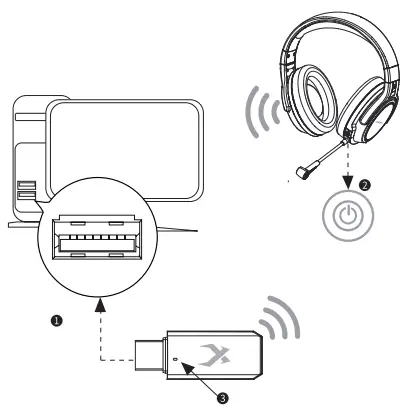
How to connect your headset wirelessly to your PC:
- Plug the wireless transmitter into the USB connector of the PC. The status light of the wireless receiver will flash, indicating that it is waiting for a connection.
- Press and hold the power button on the headset for 3 seconds to turn on the power.
- When the status light of the wireless transmitter and the blue light on the earphone of the earphone are kept on, the headset has been successfully connected.
Note: If this is your first time using this headset, you will need to set the headset as a preset input and output device.
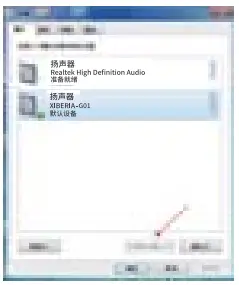
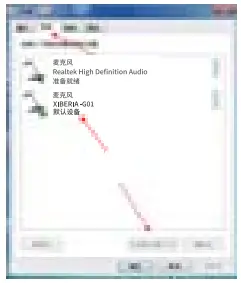
Headphones Windows
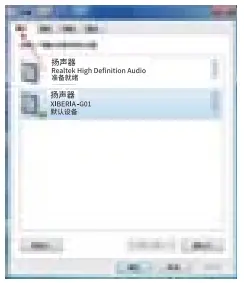
If this is your first time using a headset, you will need to set the headset as the default input and output device.
- Right-click the speaker icon on the taskbar and select Play Device.

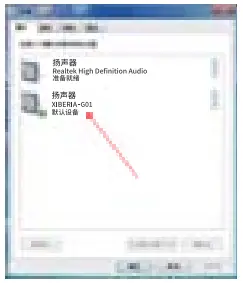
- Right-click on “XIBERIA -G01 Device” and select “Set as Default Device”.

- Click on the “Recording” tab, then “right click on “XIBERIA-G01 device” and select “Set as default device”.

- GO1 wireless headphones can be used.

Headphone connection and configuration (PS4TM, PS4TM Pro)
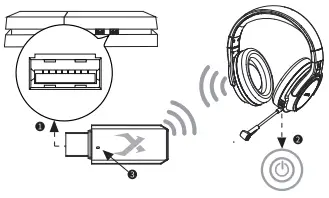
To use the headset with the PlayStation”TM4 (PS4T) in a wireless state
- Open your PS4 TM game console
- Connect the wireless adapter to the USB port on the PS4TM. The wireless adapter status light will flash to indicate that it is waiting for a connection
- Hold the power button on the headset for 3 seconds to turn it on.
- When the wireless adapter status indicator and the earphone earphone LED are always on, the headset is connected.

After detecting the “G01Wireless Headset” device, configure the PS4 TM audio device as follows:
- Navigate to the Settings menu and select it.
- Highlight the Device menu option and select it.
- Scroll down to “Audio Device” and select it.
- Set the “Input Device” to the XIBERIA-GO1 Wireless Headset
- Set the “Output Device” to the XIBERIA-G01 Wireless Headset.
- Select “Output to Headset” and select “All Audio”.