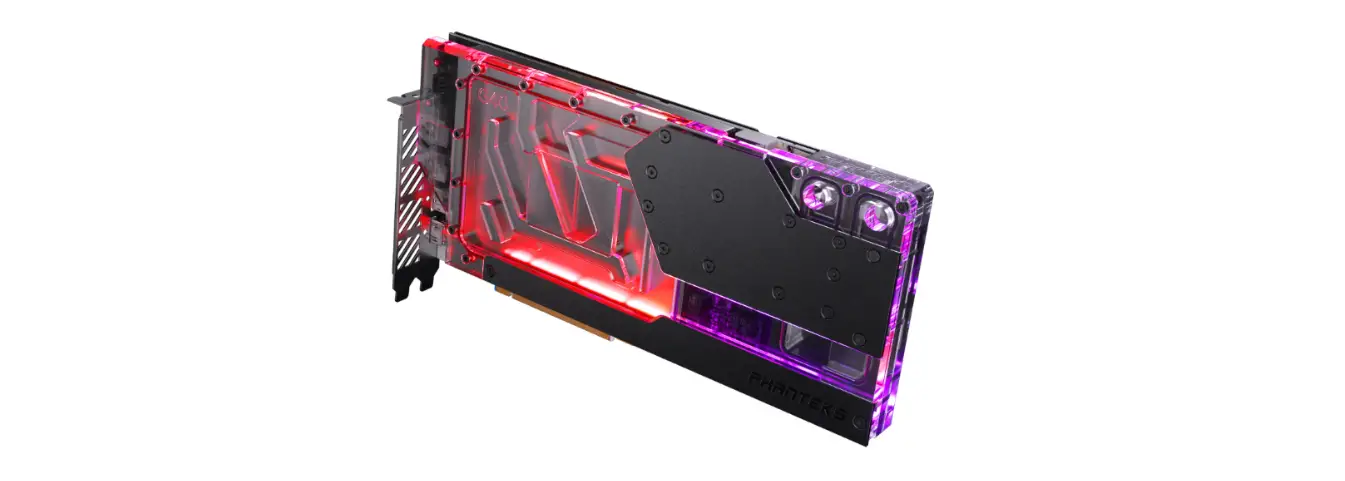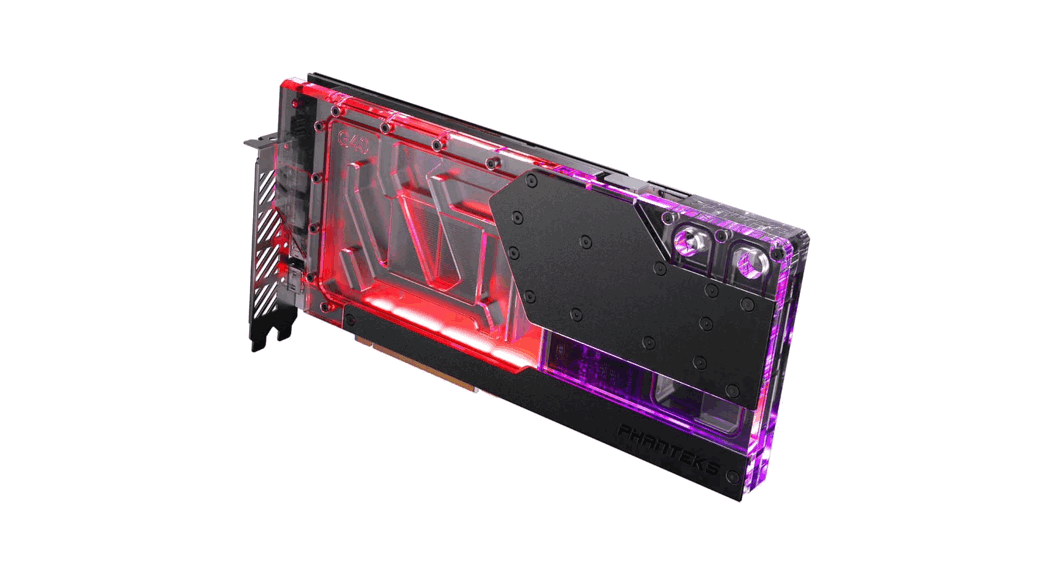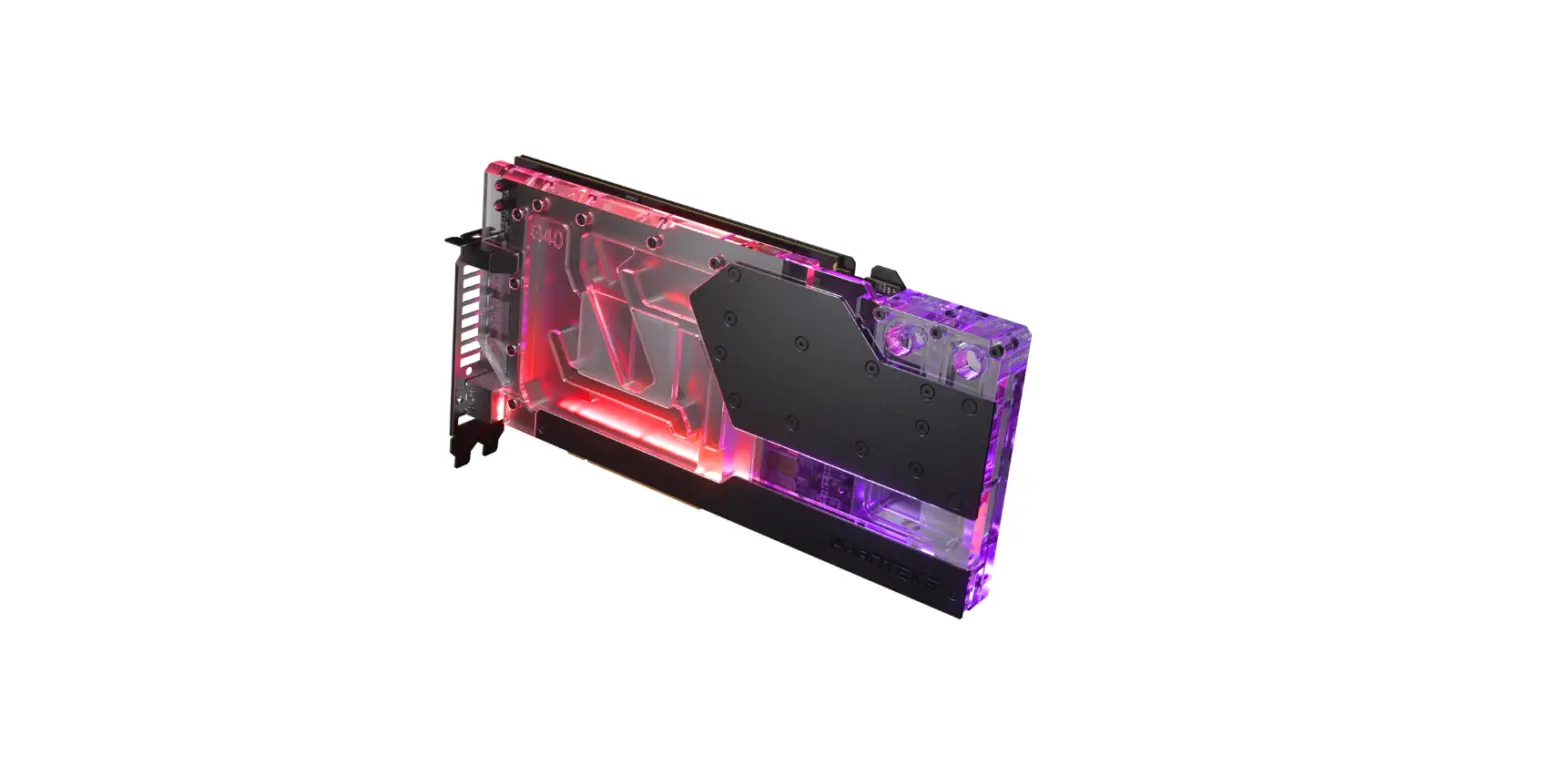
 GLACIER G40 MSI GPU BLOCK
PH-GB4090MS_BK01/CRO1/MW01_BP
Installation Guide
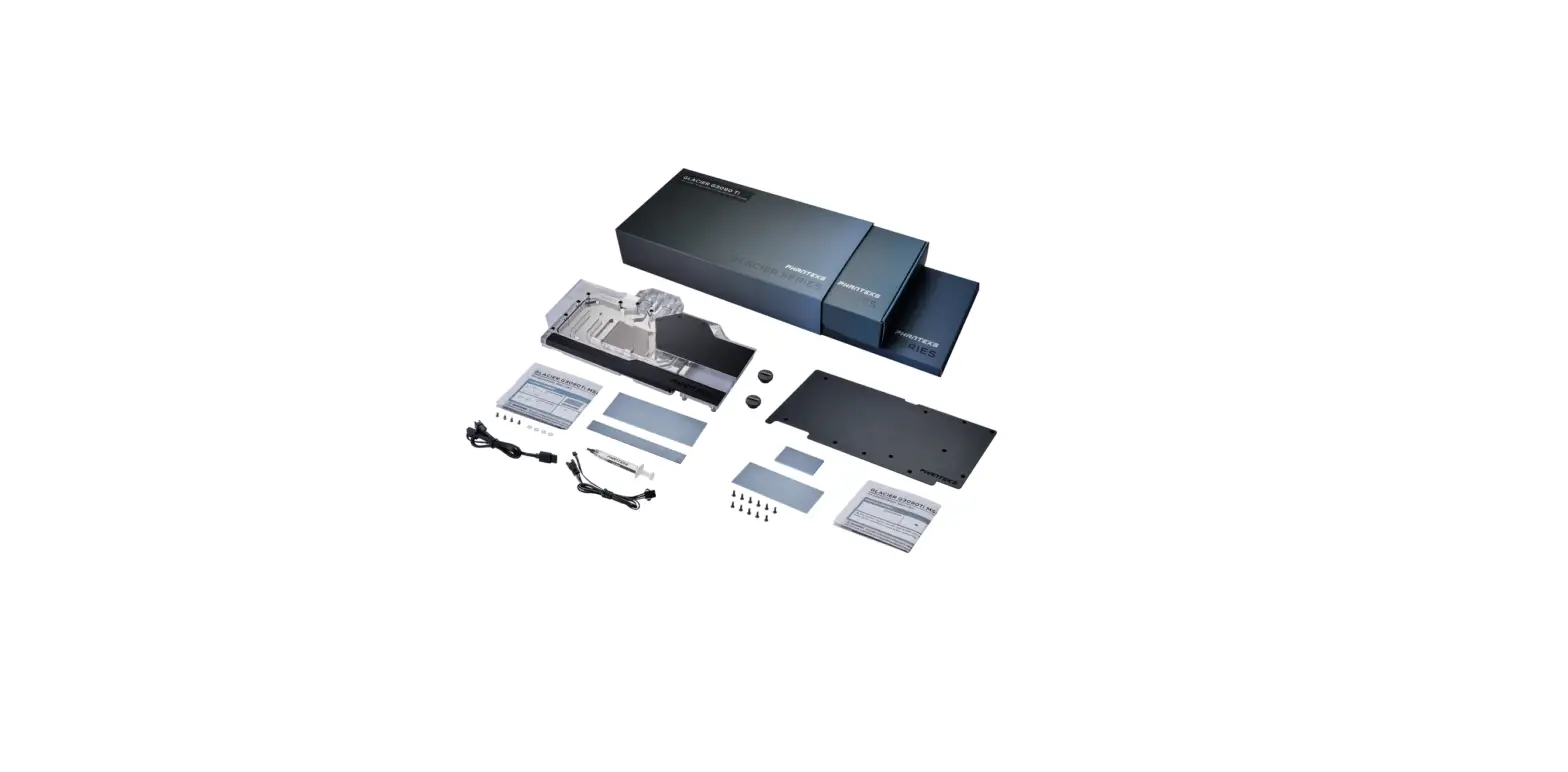
PACKAGE CONTENTS
| GB4090MS block QTY: 1 | GLACIER stop fitting QTY: 2 |
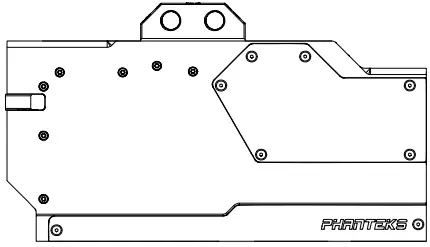 |  |
| Support bracket QTY:1 | Thermal compound QTY: 1 |
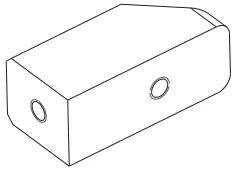 | 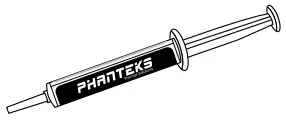 |
| Block thermal pads QTY: 2 pre-cut pieces | M3x10 screw (1x) M3 Nut (2x) |
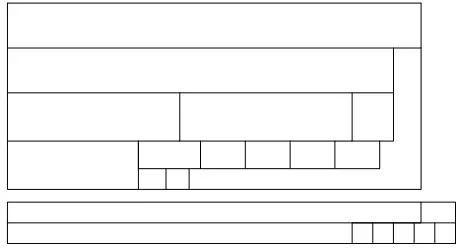 | 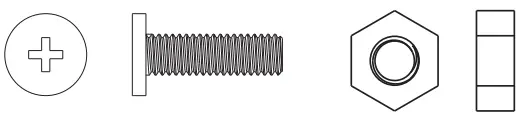 |
| M2.5×5 screws/washers QTY: 4/4 | Phanteks D-RGB cable QTY: 1 |
 | 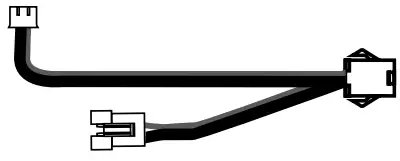 |
| GB4090MS backplate QTY: 1 | Backplate thermal pads QTY: 2 pre-cut pieces |
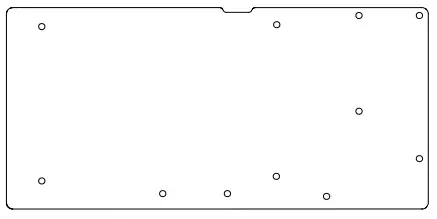 | 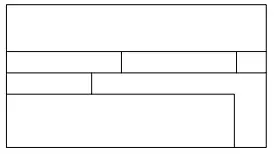 |
| M2.5×8 flush screws Qvy: 11 | Motherboard cable Quy: 1 |
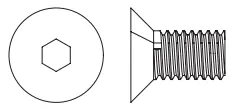 | 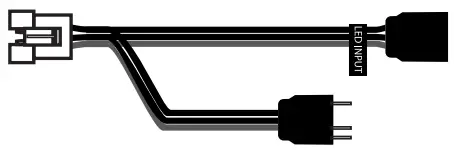 |
 WARNING. – This product is intended for advanced users. Improper installation may result i n damage to your equipment. While all efforts have been made t o provide the most comprehensive information possible, Phanteks assumes no liability expressed or implied for any damage(s) occurring to your components as a result of using Phanteks cooling products, either due to mistake or omission o n our part in the below instructions, or due to failure or defect in the Phanteks cooling products. Do not disassemble the water block. Warranty will be voided.
STEP 1. REMOVING STOCK COOLER
Unscrew all highlighted screws to remove the stock cooler and backplate. backplate screws tock cool
 stock cooler screws
Make sure to unplug the LED and Fan cables when you remove the stock cooler.
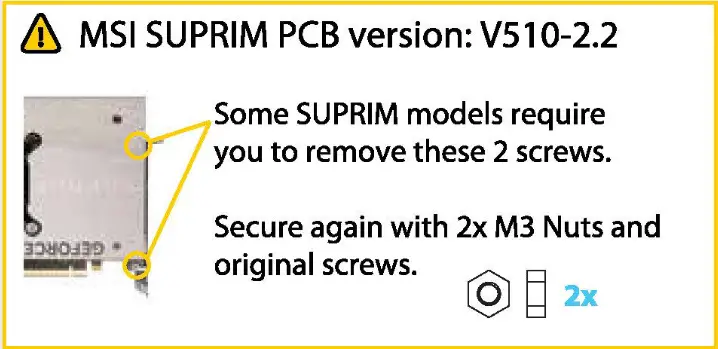
MSI RTX 4090 SUPRIM (X) 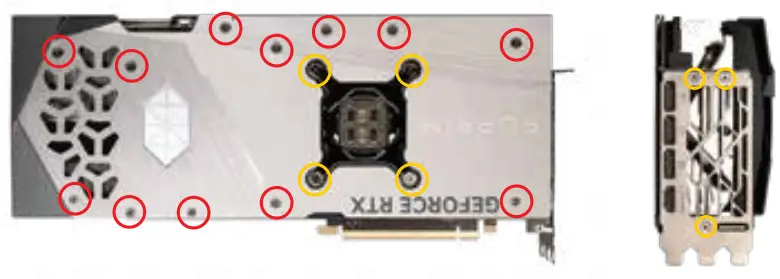
MSI RTX 4090 GAMING(X) TRIO 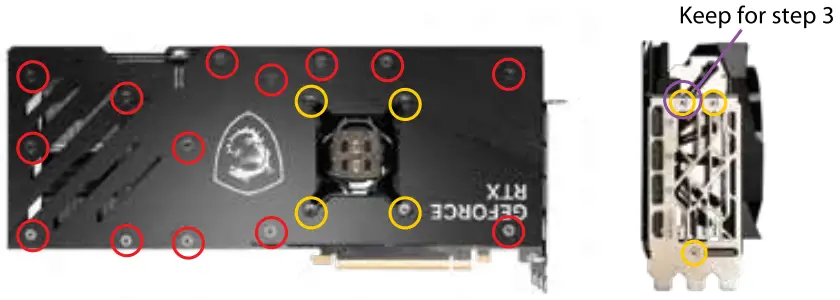
STEP 2. APPLYING THERMAL PAS
Clean off the original thermal compound. We recommend using isopropanol alcohol.
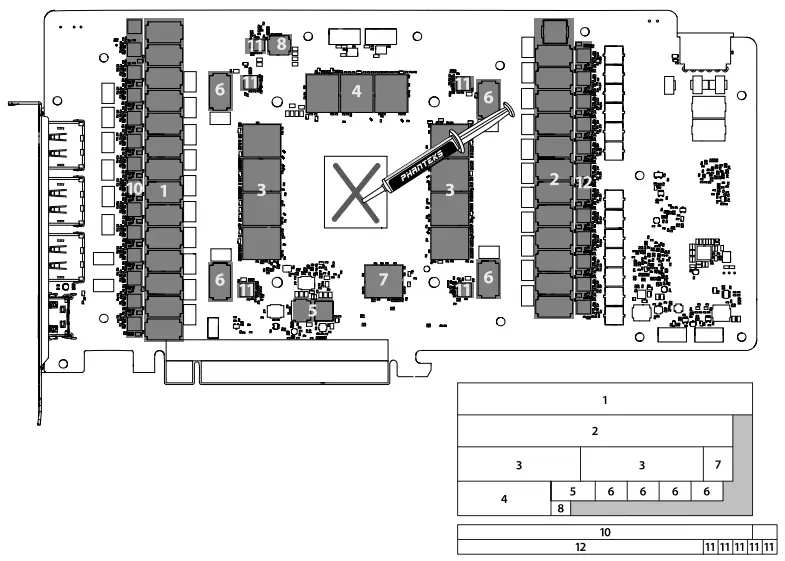
Remove the protective film and place the the thermal pads on the correct position on the PCB.
Apply the Phanteks Thermal Compound to the center of the GPU chip. Make sure to remove the protective film on both sides of the thermal pads.
MSI RTX 4090 SUPRIM (X) / GAMING(X) TRIO
STEP 3. MOUNT THE WATER BLOCK
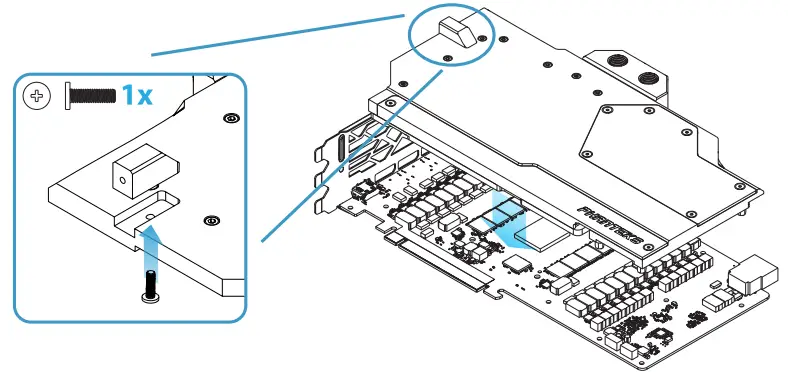
Secure the support bracket to the GPU block first.
Carefully position the water block onto the graphics card. Align the mounting holes on the PCB with the holes on the water block.
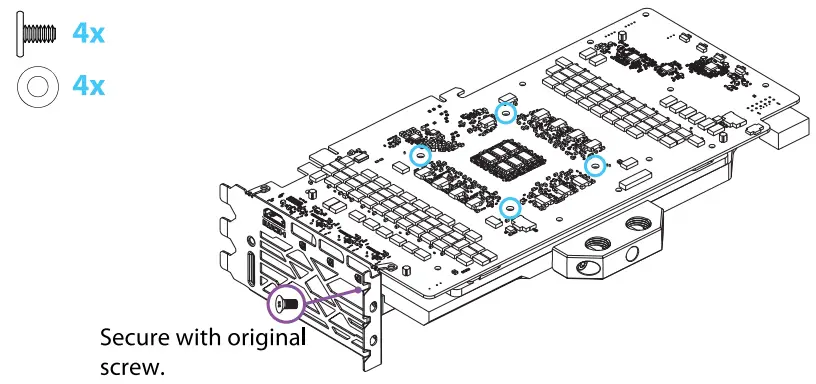
Secure the water block with 4 M2.5x5mm screws and washers to the PCB.
Secure the Support Bracket with the original cooler screw.
 Make sure to lay the GPU with the water block flat down without resting on the PCI bracket.
STEP 4. APPLYING THERMAL PADS
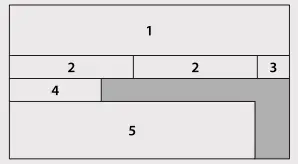
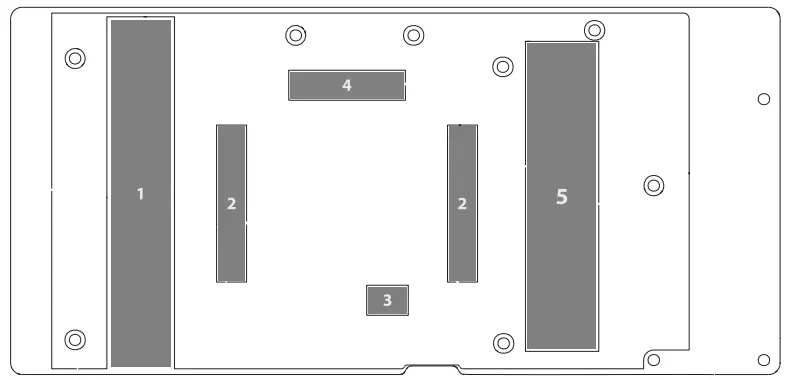
Remove the protective film on both sides and place the thermal pads on the correct position on the backplate.
STEP 5. INSTALL THE BACKPLATE
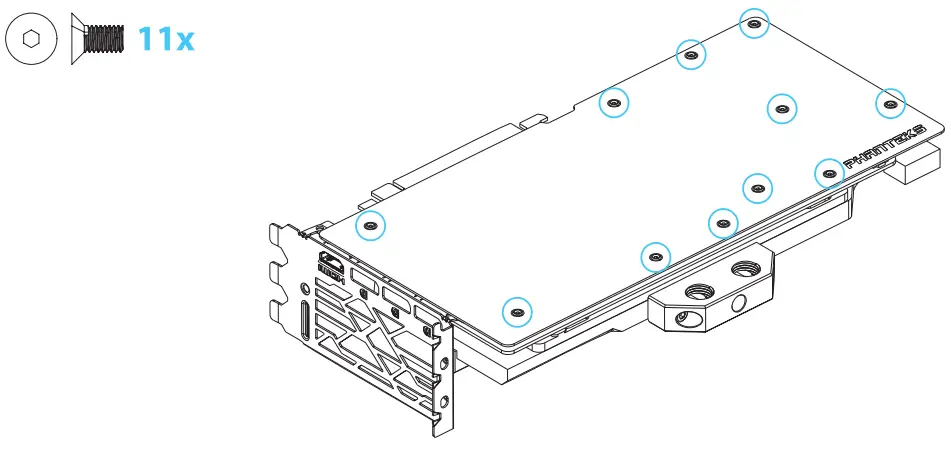
Carefully position the backplate onto the graphics card . Align the mounting holes on the PCB with the holes on the backplate.
Secure the backplate with 11 M2.5x8mm flush screws to the PCB.
STEP 6. INSTALL INTO THE SYSTEM
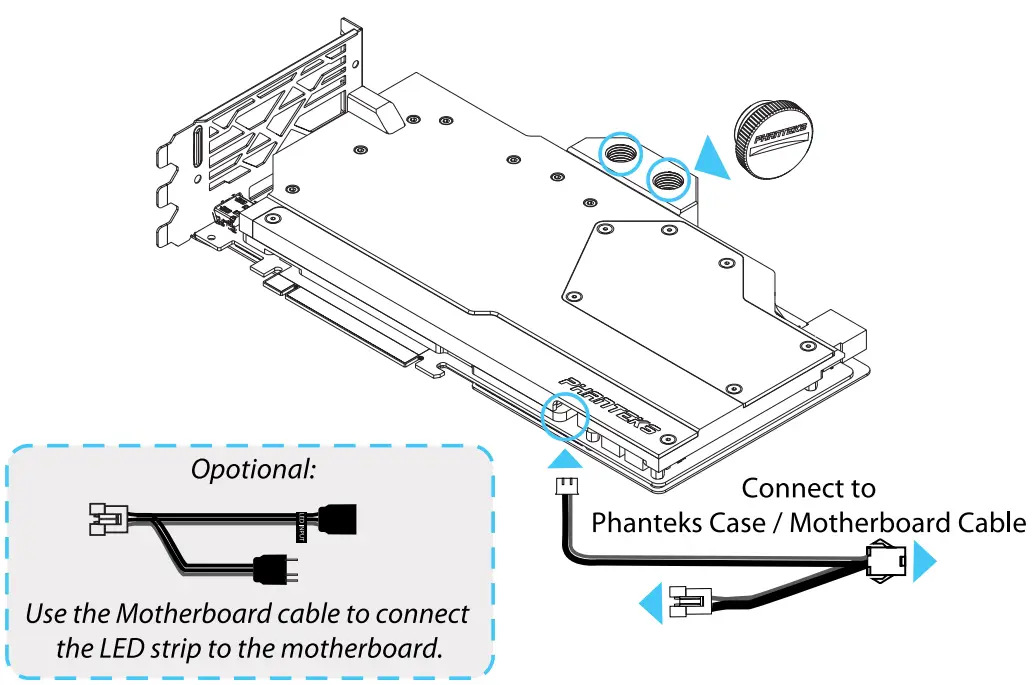
- Connect the D-RGB cable to the D-RGB strip in the water block.
 All Phanteks D-RGB products can be daisy-chained together.
 - Install the GPU into the system.
- Install the waterloop and Stop Fittings Always perform a leak testbefore providing power t o any system components.
INSTALLATION GUIDE V1.1