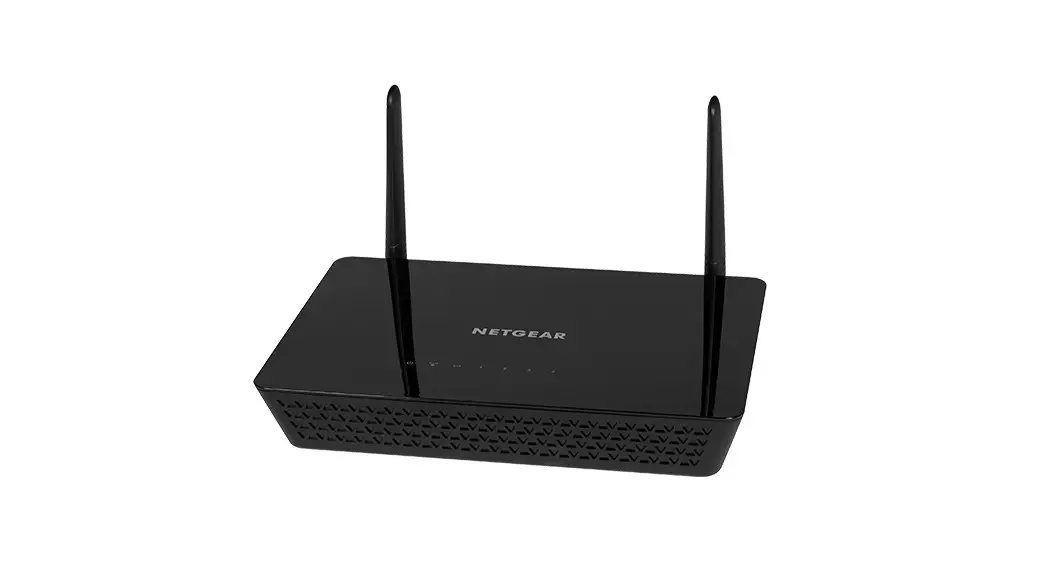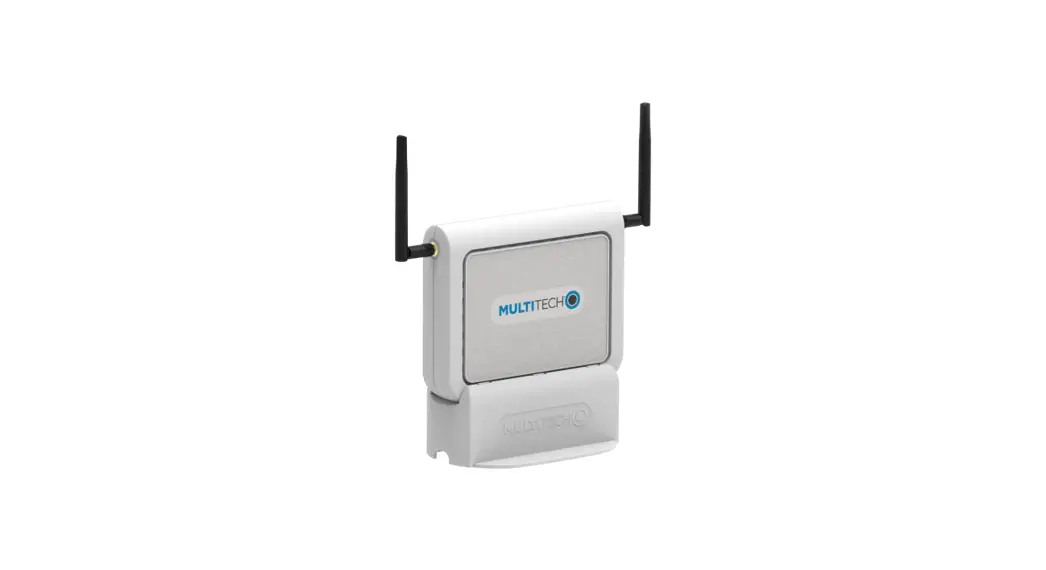

 MultiConnect CBRS Wi-Fi AP
Quick Start Guide
Welcome to the MultiConnect CBRS Wi-Fi AP
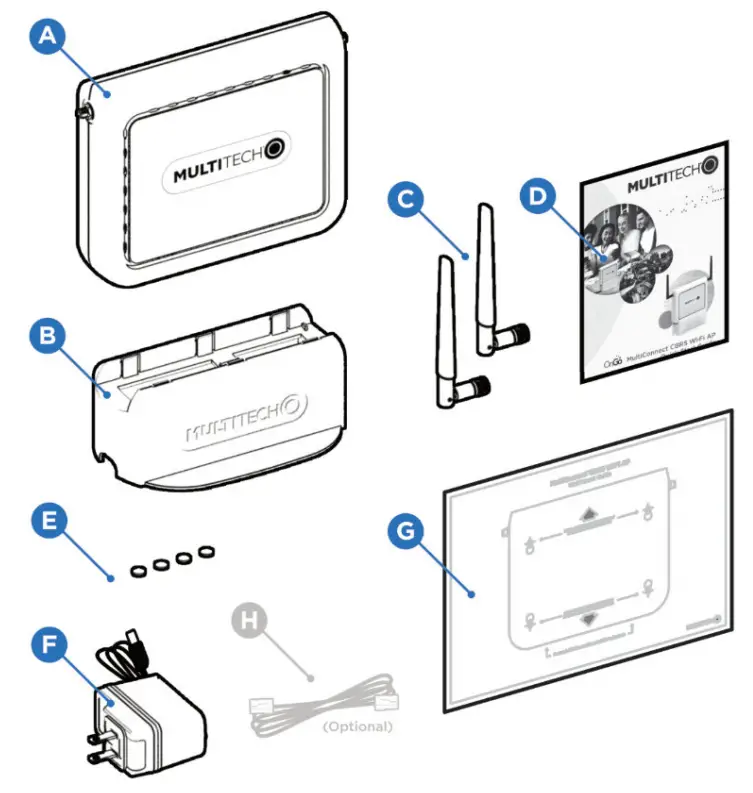
Package Contents
| A. Primary Device x1 B. vertical Stand x C. Antennas x2 D. setup Guide x1 | E. Rubber Feet x 4 F. Power Supply x 1 G. Wall Mount Guide x 1 H. Internet Cable ×1 |
Preliminary Device Assembly
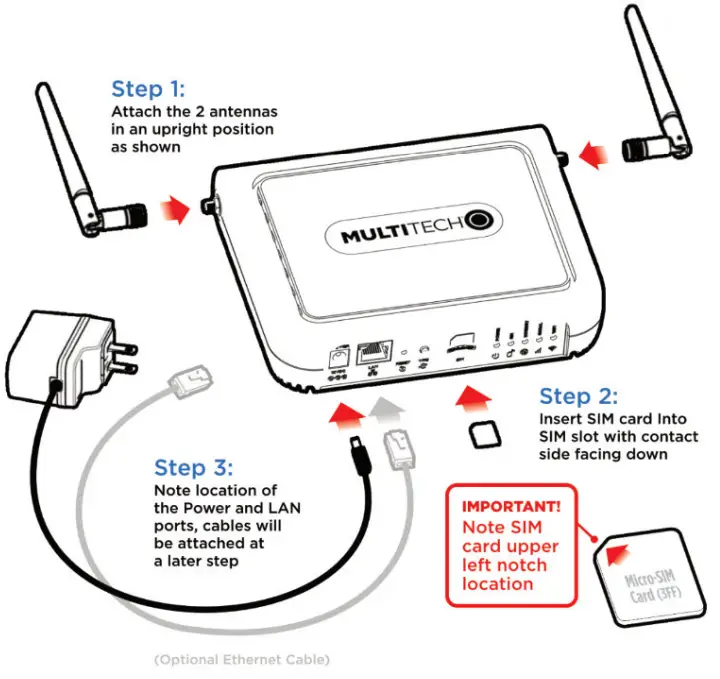
Prepare Vertical Stand
If using the vertical stand, attach the 4 rubber feet to the bottom of the flanges as shown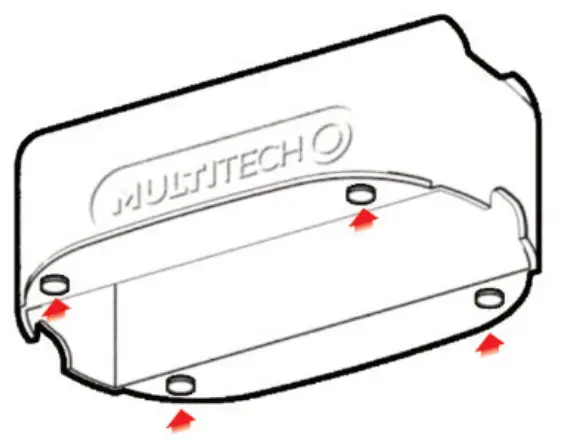
Choose Wall Mount or Vertical Stand to Support Device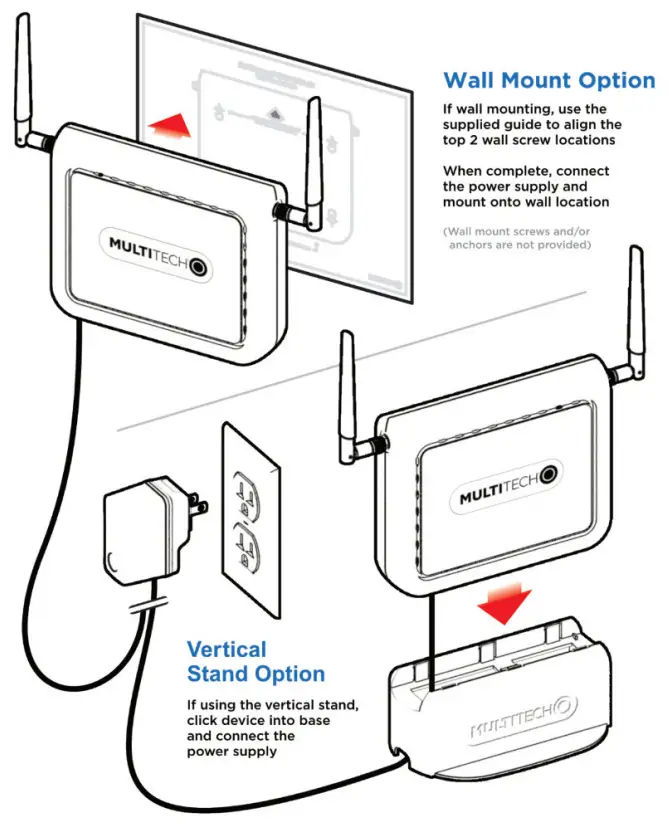
Device Connector Ports, Inputs and LED Indicators
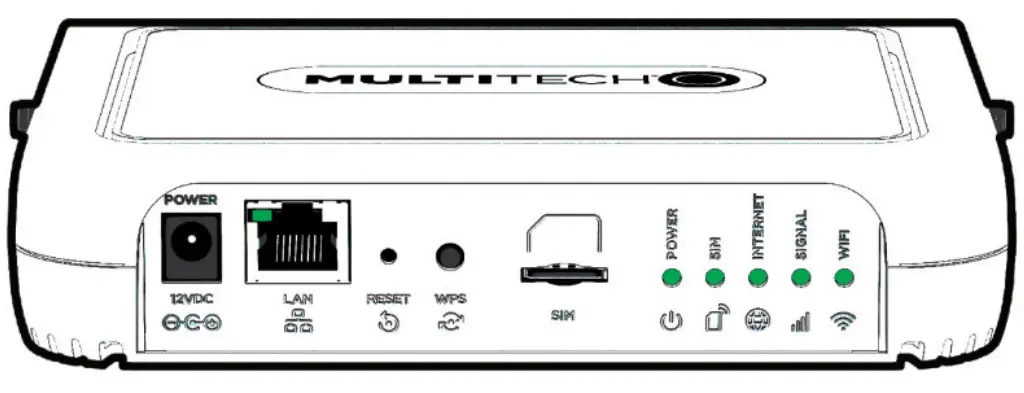
Device Connector Ports and Inputs
| Item | Icon | Description |
| Power Connector |  | Power/ 12VDC Connector Port |
| LAN Port |  | (Optional) Connect an Ethernet cable /R-45 connector type |
| Reset Input Button |  | Push and hold for 20 seconds to reset the device back to configured default settings |
| WPS input Button |  | Wi-Fi WPS push-button |
| SIM Slot |  | Insert the Micro-SIM (FF) card provided by your service provider |
| Antennas Connectors |  | Finger tighten both antennas into an upright position |
Device LED Status Indicators
| LED | Icon | Description |
| POWER |  | On: Device is in normal operational mode Off: No power Flashing: The device is in firmware upgrade mode, recovery mode, or needs troubleshooting |
| SIM |  | On: SIM card detected and ready Off: SIM card not present or not detected Flashing: Detecting and querying SIM card information |
| INTERNET |  | On: Device 4G is established and active Off: No active cellular connection Flashing: Active data transferred via cellular |
| SIGNAL |  | On: Device has a strong cellular signal Off: No cellular signal Fast Flash: Medium cellular signal Slow Flash: Weak cellular signal |
| WIFI |  | On: Device Wi-Fi enabled and active Off: Wi-Fi disabled Flashing: Active data transferred via Wi-Fi |
| LAN (LED on the LAN port) |  | On: The device has a LAN connection Off: No LAN connection Flashing: Data actively transmitting via the connection |
Establish a Wireless Connection
Be certain the following steps have been completed prior to wireless connection:
- Attach two cellular antennas to the two SMA threaded connectors
- Insert Micro-SIM (3FF) card into SIM slot with contact side facing down
- Attach a power blade to the power adapter and a power adapter to the device
- Plug the power adapter into an outlet to power on the dived
Using Wi-Fi to Connect Device
To perform Wi-Fi connection on your Wi-Fi client
A. Confirm INTERNET and WIFI LEDs are active,
B. Scan Wi-Fi OR code with a compatible mobile device or
C. Select the Wi-Fi SSID and enter the password printed on the back of device or, follow the instructions provided with a WPS compatible Wi-Fi client and use the device’s push-button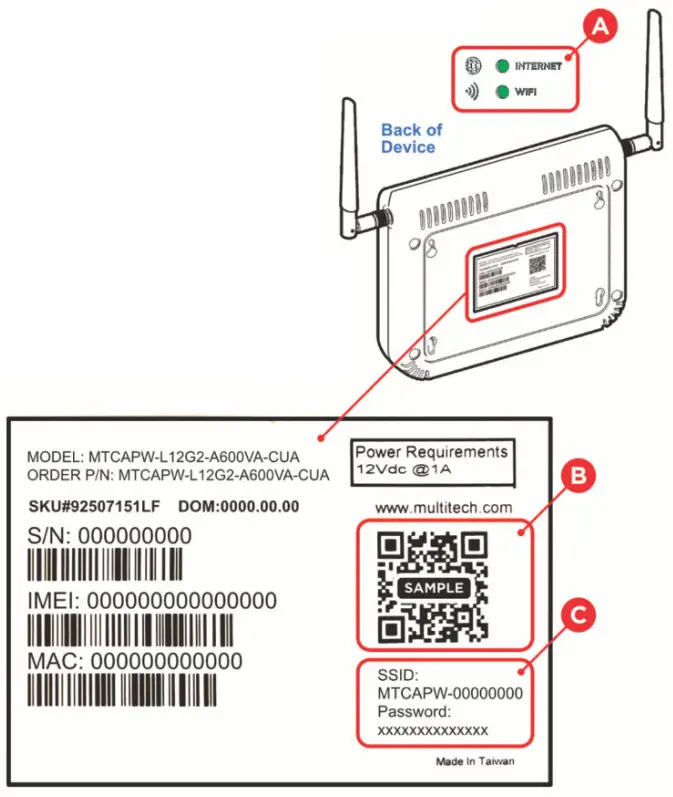 47 CFR Part 15 Regulation Class B Devices
This equipment has been tested and found to comply with the limits for a Class B digital device, pursuant to part 15 of the FCC Rules. These limits are designed to provide reasonable protection against harmful interference in a residential installation. This equipment generates, uses, and can radiate radio frequency energy and, if not installed and used in accordance with the instructions, may cause harmful interference to radio communications.
However, there is no guarantee that interference will not occur in a particular installation. If this equipment does cause harmful interference to radio or television reception, which can be determined by turning the equipment off and on, the user is encouraged to try to correct the interference by one or more of the following measures:
- Reorient or relocate the receiving antenna.
- Increase the separation between the equipment and receiver.
- Connect the equipment into an outlet on a circuit different from that to which the receiver is connected.
- Consult your network operator or local technical support for further assistance.
Warning: Changes or modifications to this unit not expressly approved by the party responsible for compliance could void the user’s authority to operate the equipment.
Additional Regulatory and Safety Information
For additional regulatory and safety information, consult your model’s datasheet, which is available at https://www.multitech.com/cbrs-wifi-ap
MultiConnect’ CBRS Wi-Fi AP
Document Number; 82131050L (2021-08)
Copyright and Trademark
This publication may not be reproduced, in whole or in part, without the specific and express prior written permission signed by an executive officer of Multi-Tech Systems. Inc. All rights reserved. Copyright © 2021 Multi-Tech Systems, Inc.
Multi-Tech Systems, Inc. makes no representations or warranties, whether express, implied, or by estoppels, with respect to the content, information, material, and recommendations herein and specifically disclaims any implied warranties of merchantability, fitness for any particular purpose, and non-infringement.
Multi-Tech Systems, Inc. reserves the right to revise this publication without obligation to notify any person or organization of such revisions or changes.
MultiTech, MultiConnect, and the Multi-Tech logo are registered trademarks of Multi-Tech Systems, Inc. All other brand and product names are trademarks or registered trademarks of their respective companies.
Multi-Tech Systems, Inc.
2205 Woodale Drive
Mounds View, Minnesota 55112 U.S.A.
Phone: 763-785-3500 or 800-328-9717
For support please contact your service provider
11500Y208DOB001A1