User Namual

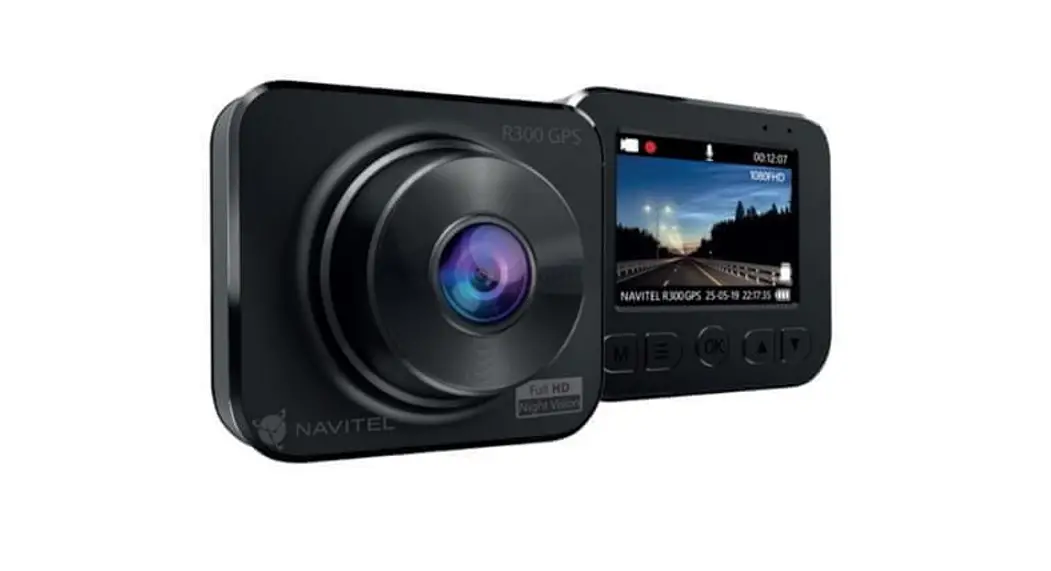
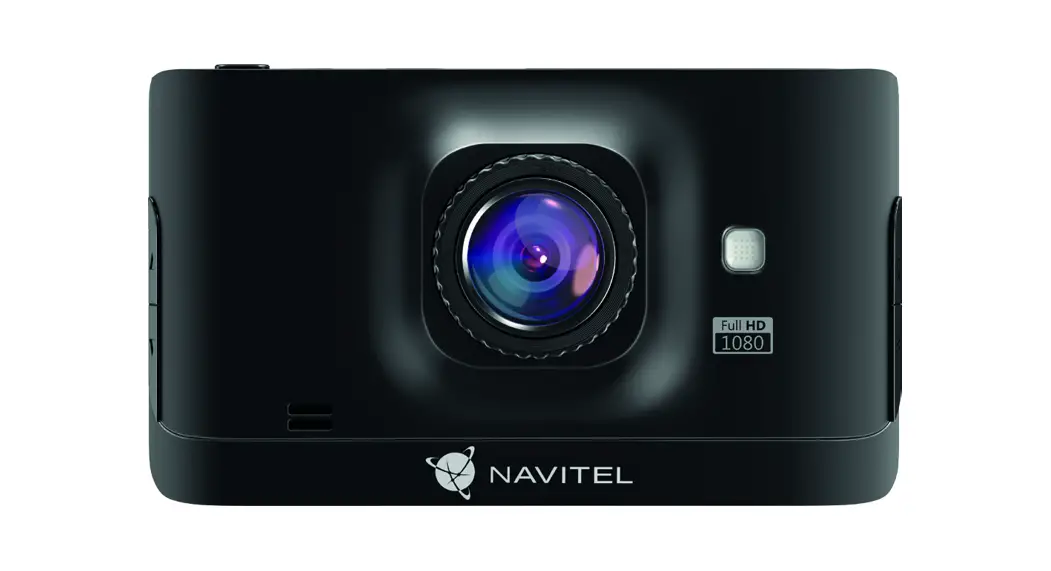
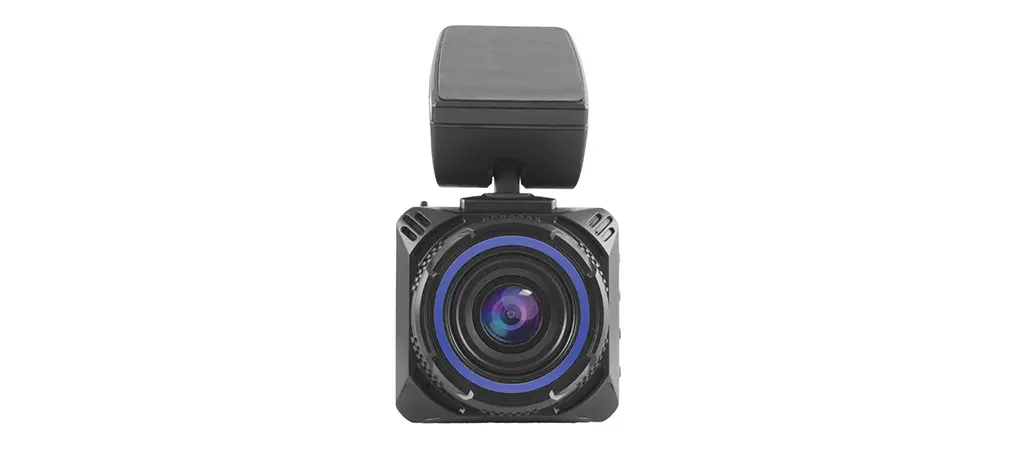
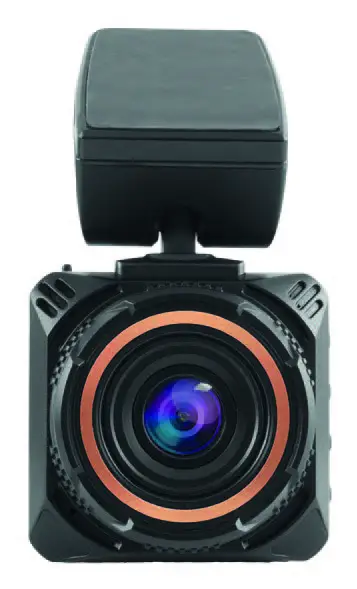
NAVITEL R600 GPS
Portable Video Recoder
Introduction
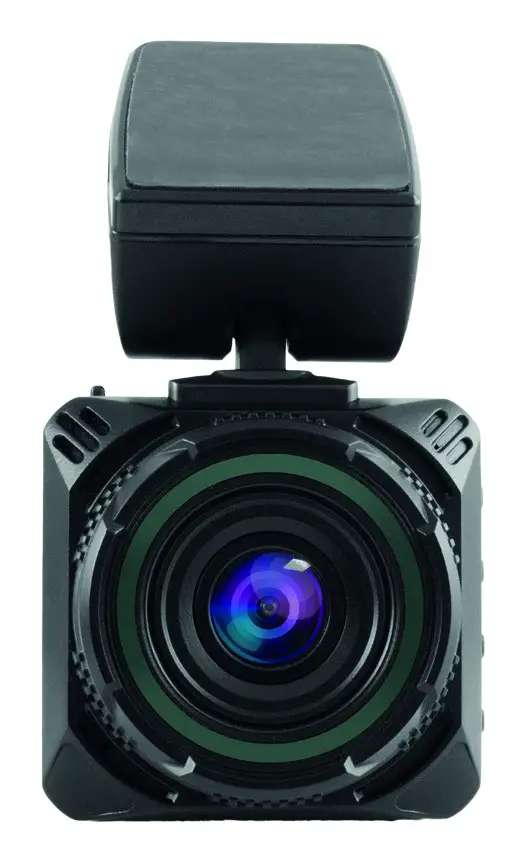
Dear Customer! Thank you for purchasing this NAVITEL® product. NAVITEL R600 GPS is a multifunctional high-definition DVR with many functions and features that are described in this User Manual. Please read the manual carefully before using the device and keep it for future reference.
Device layout
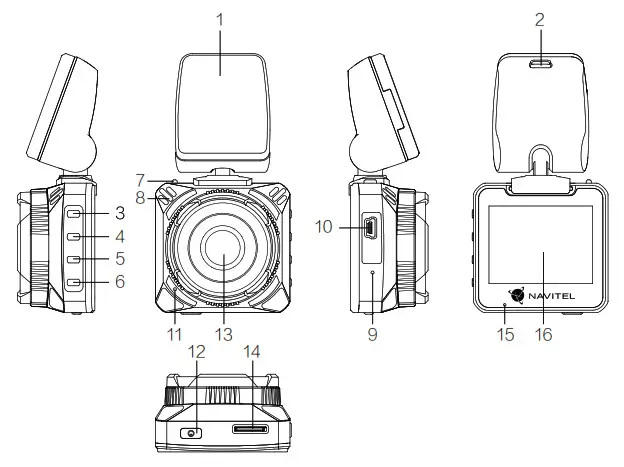
| 1. Adhesive mount (3M sticker) | 5. Down | 9. Reset | 13. Camera |
| 2. Mini-USB port for charging | 6. OK | 10. Mini-USB port | 14. MicroSD slot |
| 3. Menu | 7. Mount lock | 11. Microphone | 15. LED indicator |
| 4. Up | 8. Speaker | 12. Power | 16. Display |
Specifications
| Processor | MSTAR AIT8336 | Storage | MicroSD card |
| Display | 2”, TN | MicroSD card capacity | Max. 64 GB |
| Camera | SONY 307 (night vision) | USB | mini-USB 2.0 |
| Recording format | MOV | Battery | 180 mAh |
| Video resolution | 1920×1080, 30 fps | Power | 5 V, 1.5 А |
| Image format | JPG | Microphone / speaker | Yes |
| Image resolution | 2 MP | GPS-alert | cameras / warnings / speed |
| View angle | 170° | Language | English |
| Lens | 4-layer glass |
Note: the specifications may change due to upgrades.
Installation
- Put the microSD card into the DVR. Use a high-speed SD card (Class10 or above); capacity should be within 8-64 GB.
 • To avoid malfunctions of the DVR and / or SD-card, don’t insert and remove SD-card during DVR operation.
• Before using a microSD card, please format it inside the DVR to avoid data errors. For formatting the SD-card in Menu mode select Format SD-card and confirm it. - Secure the DVR on the windshield with the mount.
- Connect the car charger to the cigarette lighter socket.
- Connect the car charger to the GPS antenna input (mini-USB). When connecting the car charger directly to the DVR mini-USB port, the GPS operation is not available.
- Adjust the DVR position.
- Turn the power on; check whether the DVR is installed correctly. If the DVR is installed correctly, the indicator will glow red; the DVR will start up and begin recording.

 • To avoid malfunctions of the DVR and / or SD-card, don’t insert and remove SD-card during DVR operation.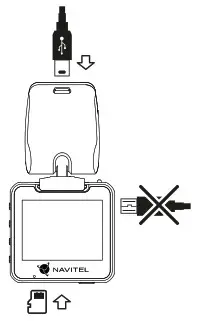
Precautions
- Use only the original charger adapter. Using another adapter may negatively affect the device’s battery. Use accessories only approved by manufacturer.
- Permissible ambient temperature in operating mode: 0 to +35 °C. Storage temperature: +5 to +45 °C. Relative humidity: 5% to 90% without condensation (25 °C).
- Put the device away from fire sources to avoid explosion or fire.
- Do not expose the device to physical impacts.
- Avoid contacting the device with sources of electromagnetic radiation.
- Keep the lens clean. Do not use chemicals or detergents to clean the product; always turn off the device before cleaning.
- Strictly follow the laws and regulatory acts of the region where the device is used. This device can not be used for illegal purposes.
- Do not disassemble or repair device by yourself. In case of device failure, contact the service center.
STARVIS and STARVIS are trademarks of Sony Corporation.
| Button | Functions |
| Power | Press shortly to turn the device on. Press and hold for 2 seconds to turn the device off. Press to switch between Record (STBY), Capture, Video, and Photo modes. In Record mode (REC), press to lock/unlock a file (protected file cannot be deleted or overwritten). In Menu press to choose the next menu section. |
| Menu | Press to enter Menu. In Menu, press to exit any menu or list of functions. |
| Up / Down | In Record mode, press Down to turn the microphone on / off. In Video / Photo mode, press to select the previous/next file. In Menu, press to choose the previous/next menu item. |
| ОК | In Record mode (STBY), press to start recording. In Record mode (REC), press to stop recording. In Capture mode, press to take a picture. In Video mode, press to select a file, or pause/resume video. In Photo mode, press to select a file. In Menu, press to select a Menu item. |
| Reset | If the device is not responding, press to reset. |
Note: the built-in battery is designed only for recording an emergency event in parking mode and turning off the device correctly when the power is turned off; for the full operation of the device in any mode, a constant power connection is required.
NAVITEL s.r.o. hereby declares that the device NAVITEL R600 GPS is compatible with the European directive RED 2014/53/EU. The full text of Declaration of conformity is available at the following internet address: www.navitel.cz/en/declaration_of_conformity/r600gps
Device functions
| Format SD-card | Formatting a microSD card in the DVR is necessary for the correct operation of the device. Before using a microSD card or in case of data error, please format the microSD card. For formatting the SD-card in Menu mode select Format SD-card and confirm it. |
| Record | Connect the device to an external power supply and it will start recording automatically. Press the OK button to stop recording. Press OK again to record another video. Each video will be saved automatically. |
| Capture | In Record mode (STBY), press the Power button to enter Capture mode, press the OK button to take a photo (it will be saved automatically). |
| Video | In Record mode (STBY), press the Power button twice to enter Video mode; press the Up and Down buttons to select a file; press the OK button to play a file. During playback, press OK to pause/unpause; press the Up and Down keys to fast forward/rewind. |
| Photo | In Capture mode, press the Power button twice to enter Photo mode; press the Up and Down buttons to select a file; press the OK button to play a file. |
| Record audio | Record video with or without sound. |
| Lock file | In Record mode (REC), press Power to protect the current recording. A key symbol will appear at the bottom of the screen. In Video / Photo mode, select a file, press Menu and select Protect, then Lock Current or Lock All. Protected files cannot be deleted or overwritten. Select Unlock Current / Unlock All to remove protection. |
| Loop recording | This feature allows you to save a video as a set of files given in the duration menu. If the memory card runs out of space, the unprotected files will be overwritten in the order in which they were created. |
| G-sensor | If the vehicle is hit by something, the DVR will automatically lock the current video. |
| Parking monitor | In shutdown state, if vibration is detected, the device will turn on automatically and start recording. The file will be protected (locked). |
| Battery | Red indicator lights up when the device is plugged into an external power supply; as the battery is charging, the red light will gradually dim; the red light going out means the battery is full. |
| LCD OFF | The device can automatically shut off the screen to reduce power consumption; time interval can be set in the Screen Saver menu. |
| GPS location | Device supports built-in GPS chipset and GPS antenna, it can show longitude, latitude and other information on your current location. Press GPS Status to check GPS dates. |
| USB-connection * | When connecting the device to a PC using a USB cable, two connection options will appear: 1) Mass Storage: play, copy and delete files. 2) Record: standard mode. |
* This function is available only in firmware version 1.7.28 and higher.
Digital Speed & Camera Info
The Digital speed feature is used to display time and vehicle speed calculated with the help of GPS signal [1]. Modes:
- Speed current speed is displayed constantly [B],
- Speed + time current speed [B] and time [C] are displayed.
The Camera info feature notifies the driver about cameras and warnings (hereinafter Cameras) along the way. When you turn on the Camera info,
the current speed and time are displayed. With the approach to the nearest camera the following information is displayed [2]: - current speed [B],
- camera type [D],
- dynamic progress bar indicating approach to the nearest camera [E],
- distance to the camera [F].
All information is displayed on a black screen.
In Record mode (REC), are displayed [A].
If the vehicle is still, 0 is displayed.
If there is no GPS-signal, [3] is displayed.
Note. A weak GPS signal may be caused by bad weather conditions and other external factors. Please consult your vehicle speedometer.
 are displayed [A].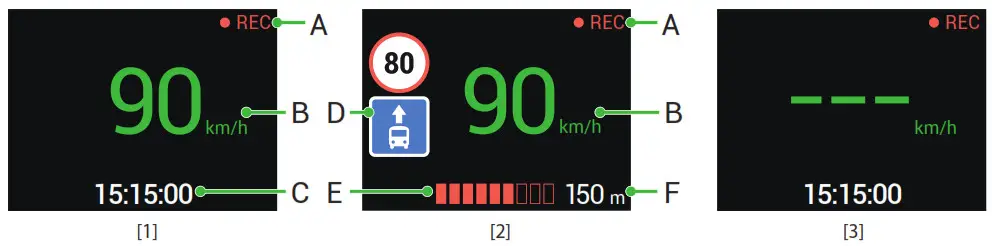

 NAVITEL Prohlášení o Shodě
 NAVITEL detailed offline maps for iPhone, iPad, Android