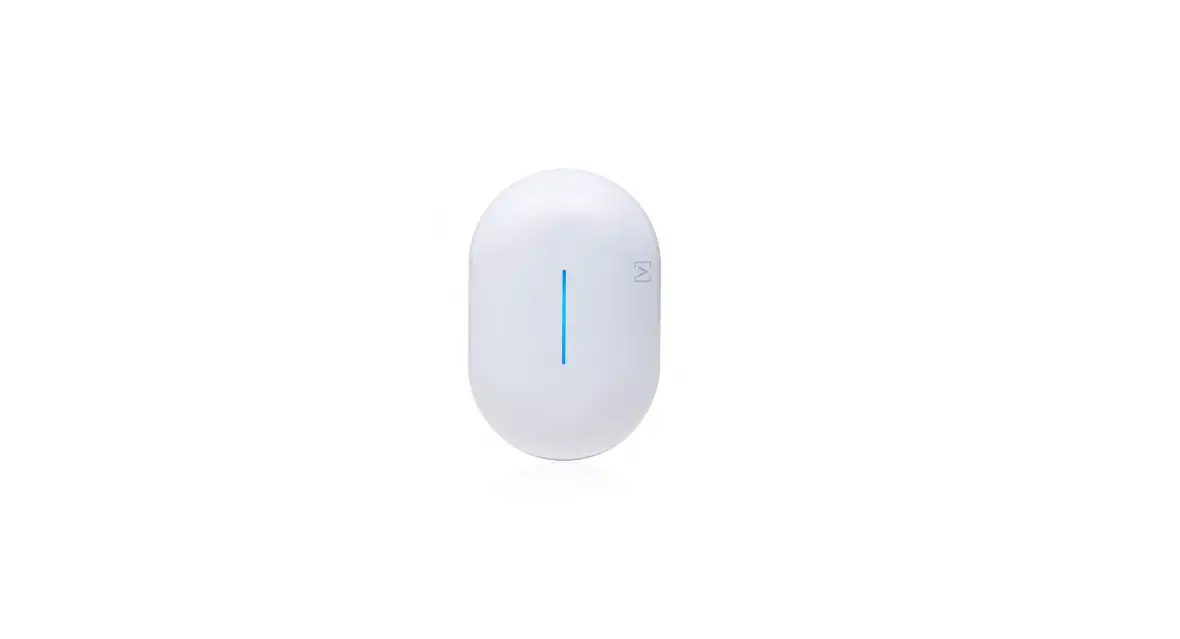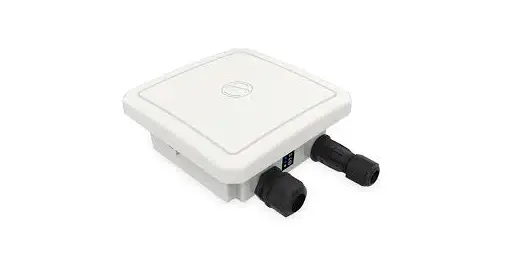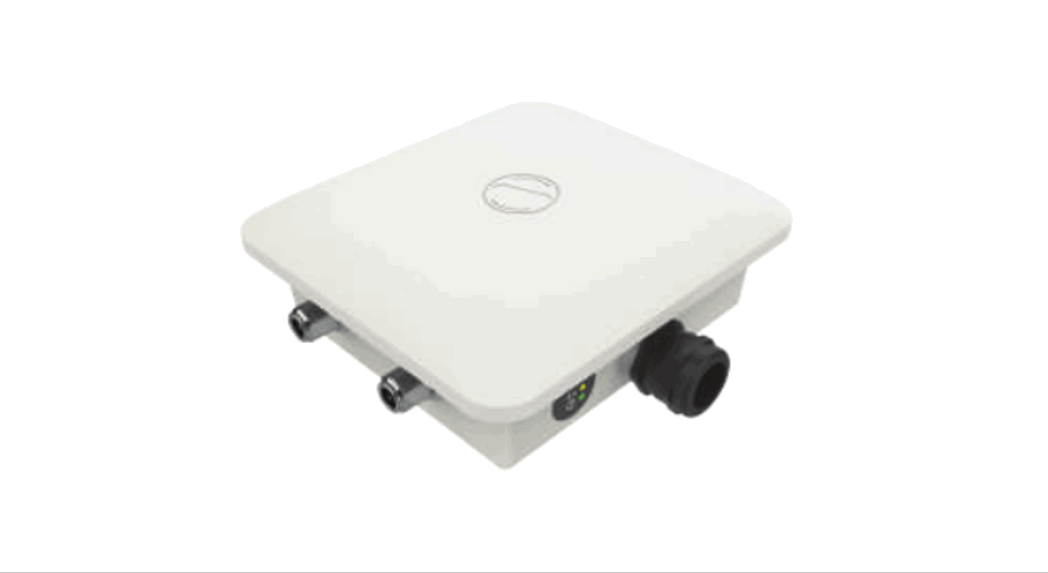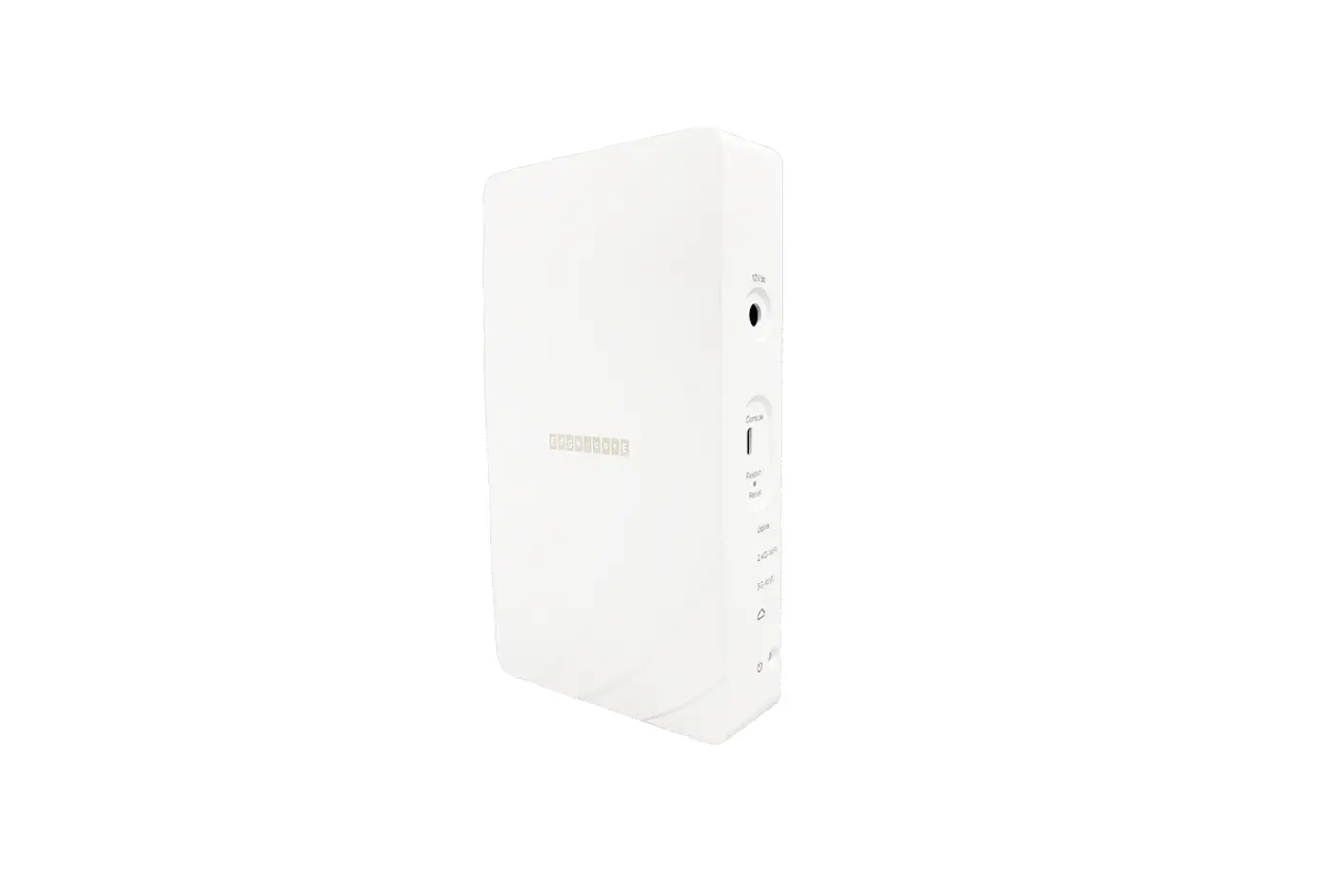

ALTA AP6-Pro WiFi 6 Outdoor Access Point
Before You Begin
Download the Alta app on your mobile device, and create your free Alta account.
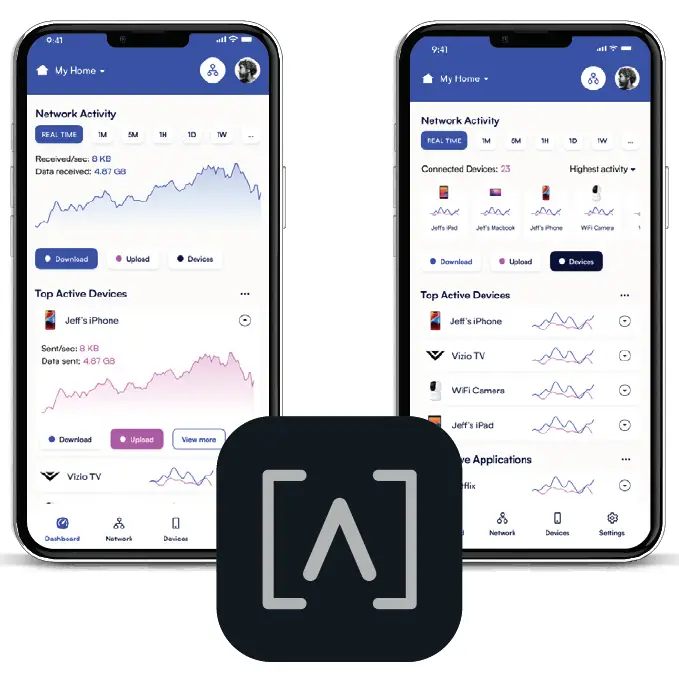
You may also visit manage.alta.inc to manage your Alta devices.
Package Contents
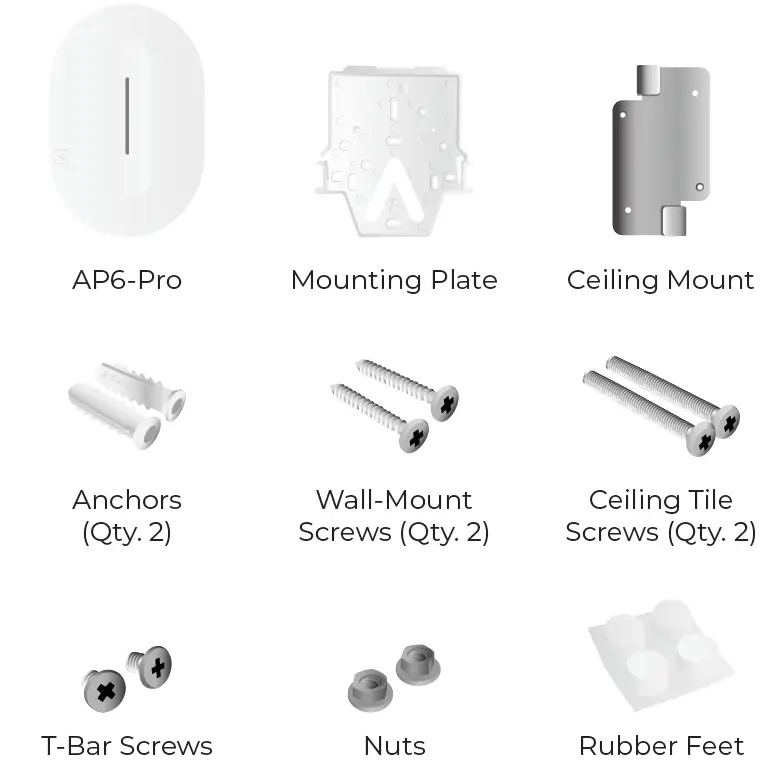
Note: Be sure to use the included mounting hardware for installation.
Installation Requirements
- Ethernet cabling (CAT 5 or above)
- 48V PoE+ switch or PoE injector
- Phillips screwdriver
- Drill and drill bit for wall or ceiling mounting
Hardware Overview
Front
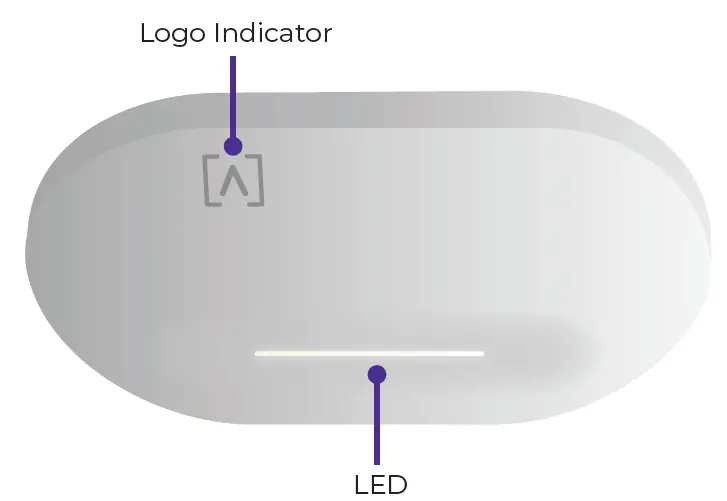
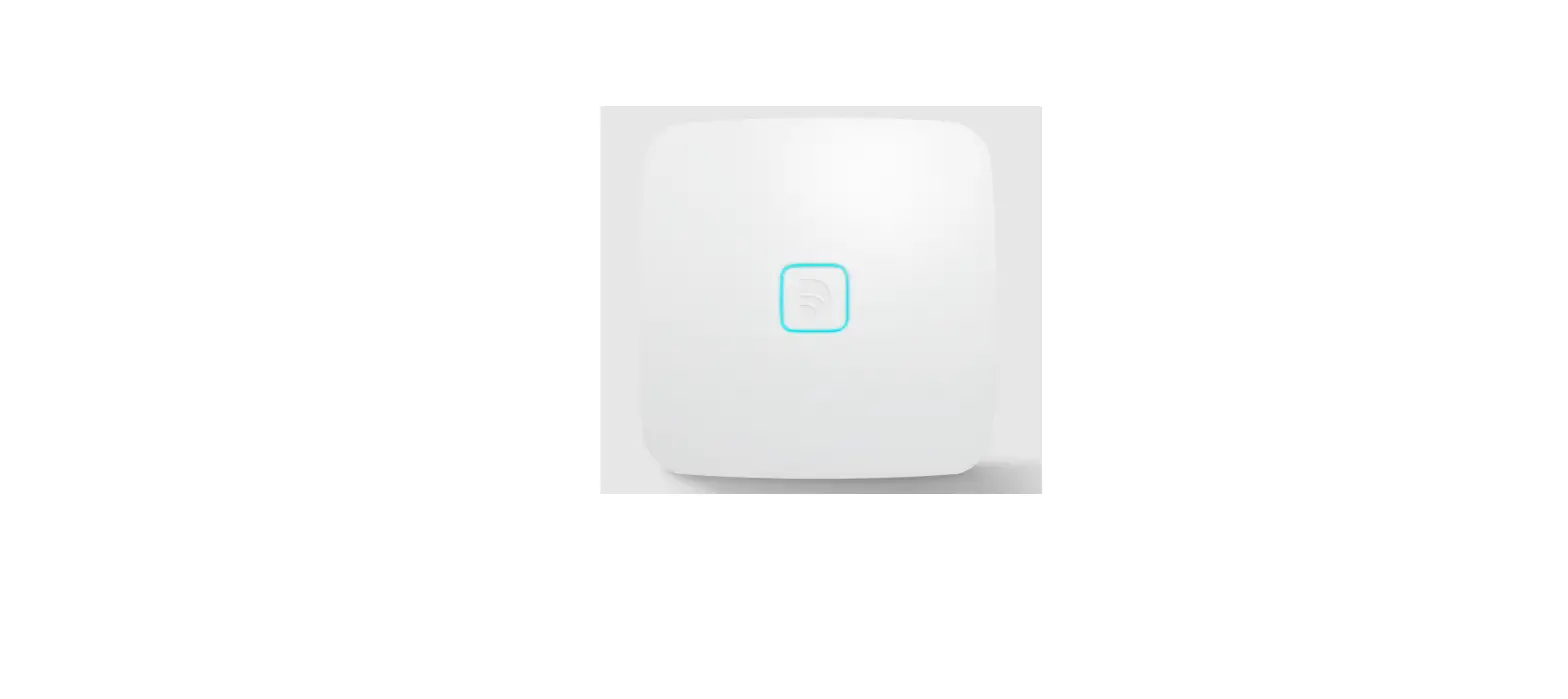
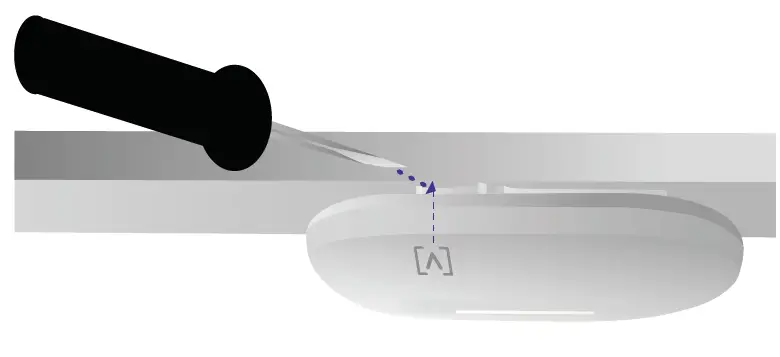
Logo Indicator If you need to remove the AP from the mount, use a flat blade screwdriver to disengage the Mounting Plate here.
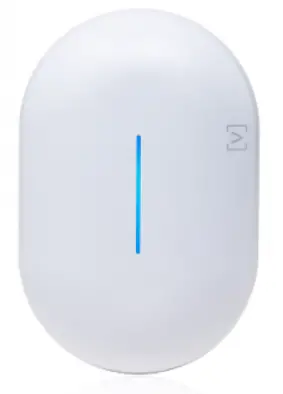
LED Illuminates white by default when AP is online and functional. Can be changed to blue, white, or off in the Alta app or management interface. Flashes when booting.
Back
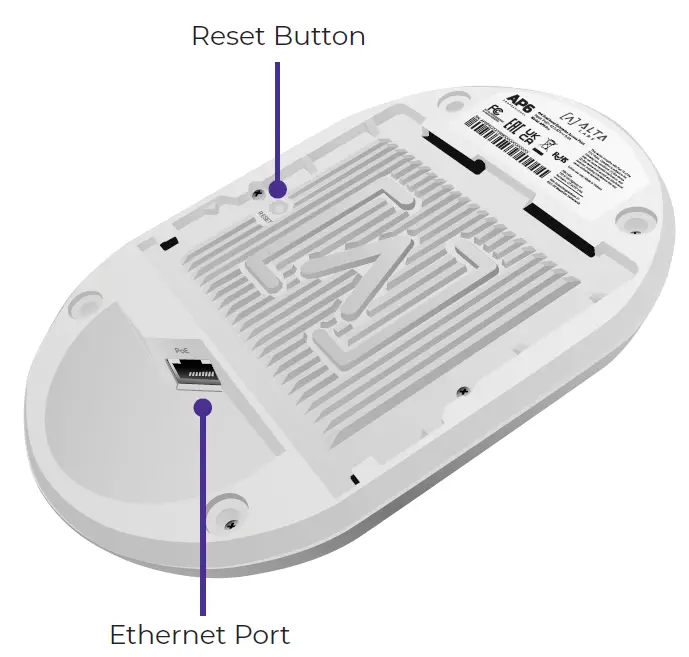
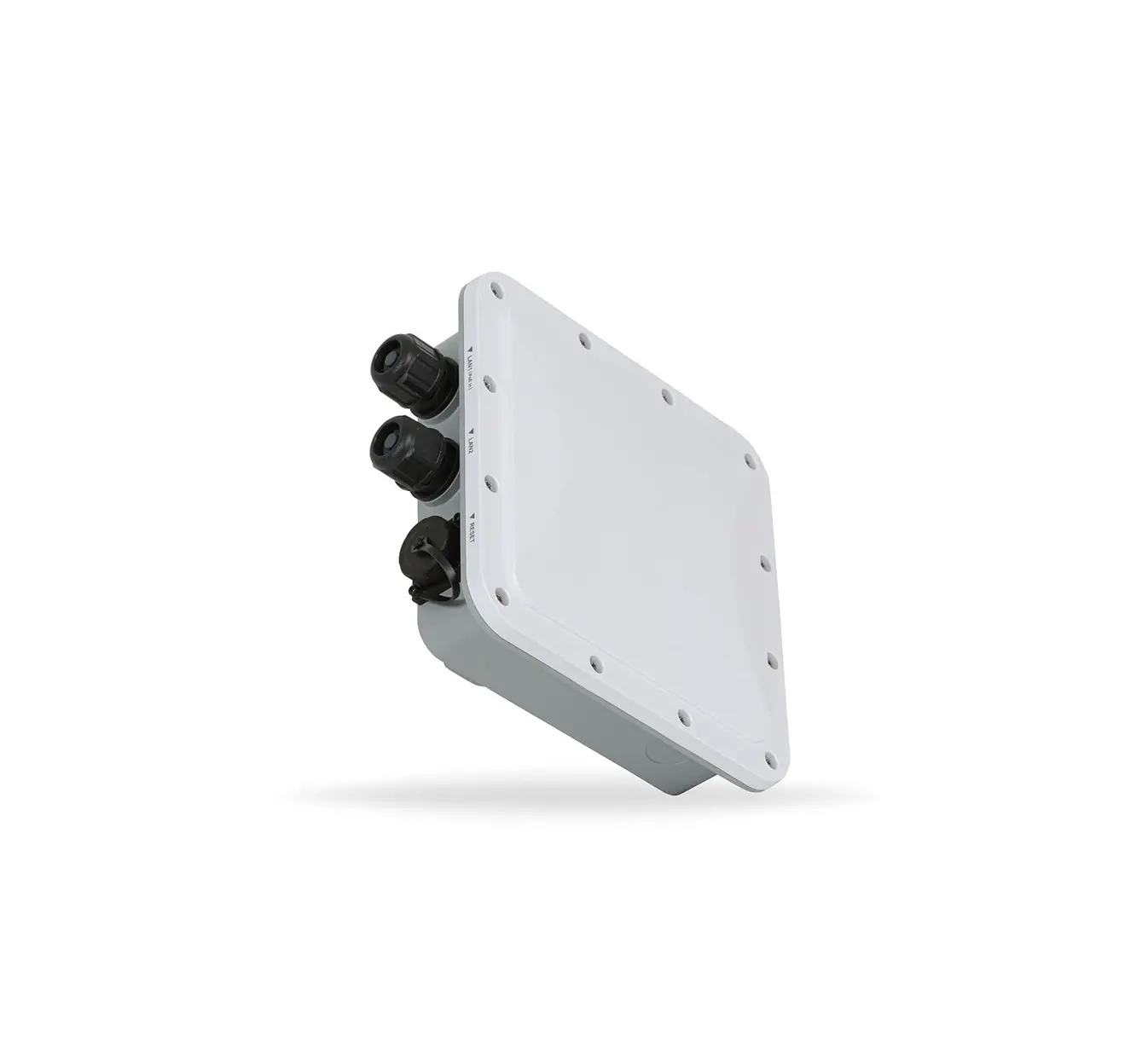
Reset Button Press down for 10 seconds until the LED begins flashing to reset the AP to factory defaults.
Ethernet Port Connects to an Ethernet cable from your PoE+ Switch. An optional 48V, 0.5A adapter can be purchased and used to power the AP.
Hardware Installation
Ceiling Tile Mount
- Remove the appropriate ceiling tile.
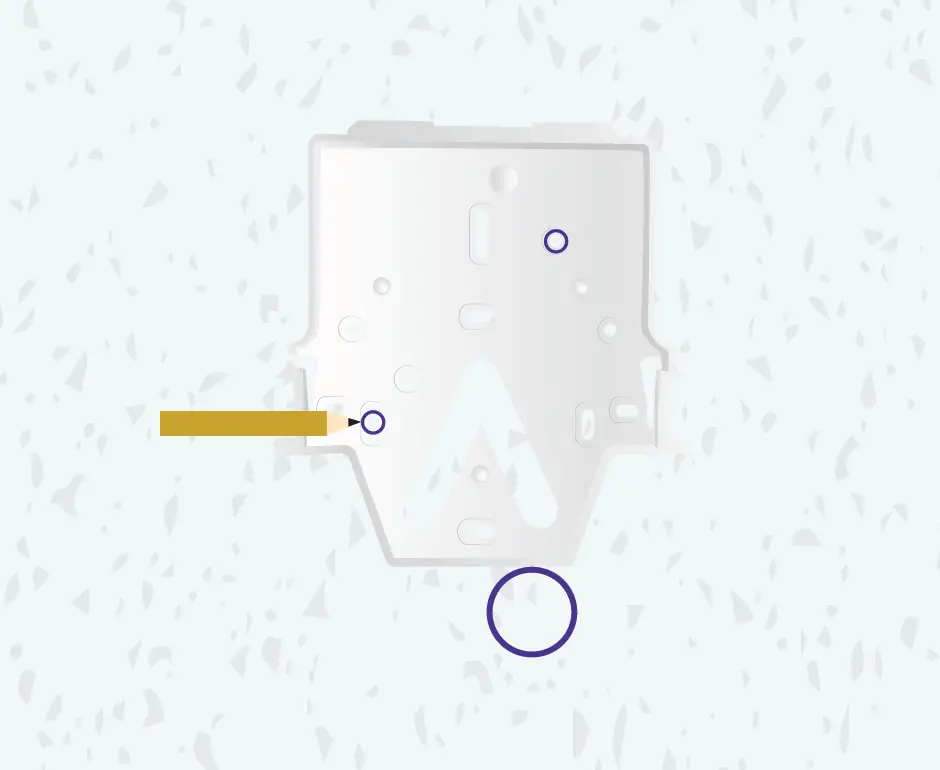
- Align the Mounting Plate in the desired location flat on the tile (typically centered). Mark the areas indicated below for the screws and the Ethernet cable.

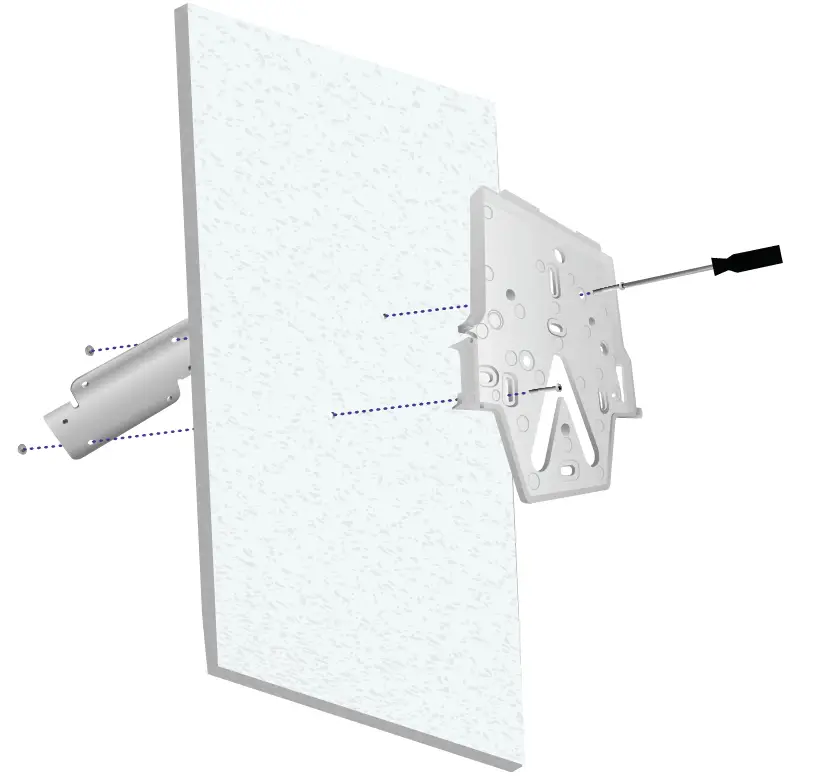
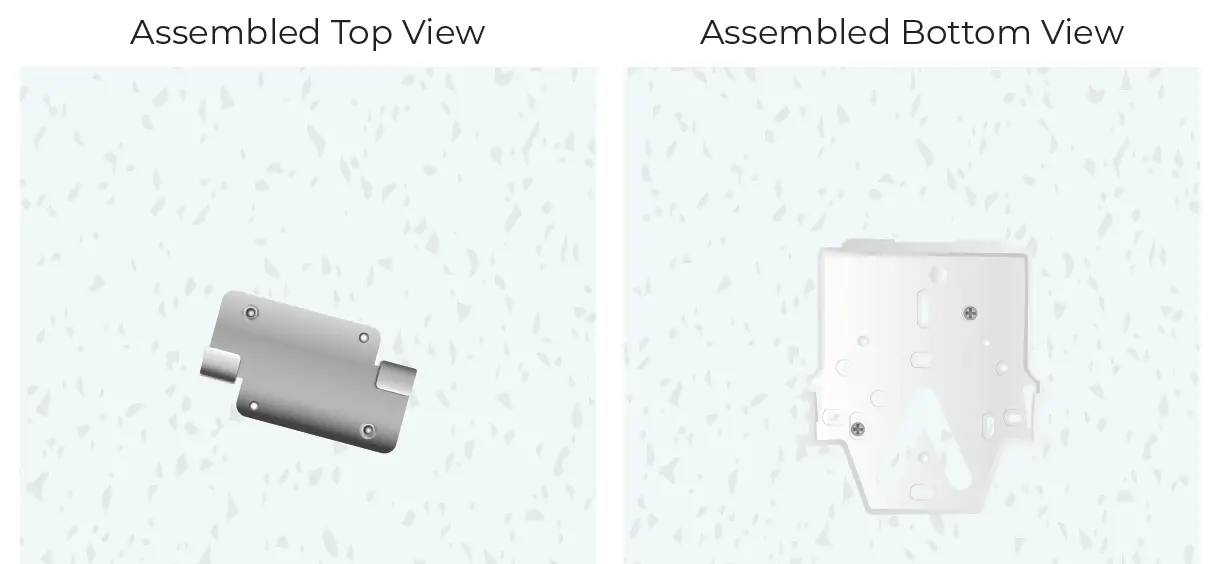
- Secure the Mounting Plate to the Ceiling Mount with the ceiling tile between using the two Ceiling Tile Screws and the two Nuts.
Proceed to “Connecting The AP” on page 13
Wall Mount
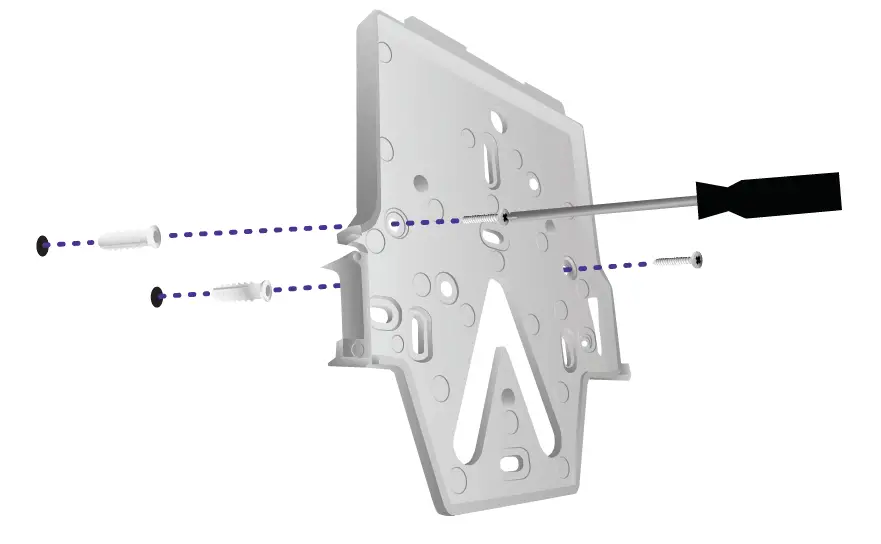
- Position the Mounting Plate in the desired location and use a pencil to mark the holes.

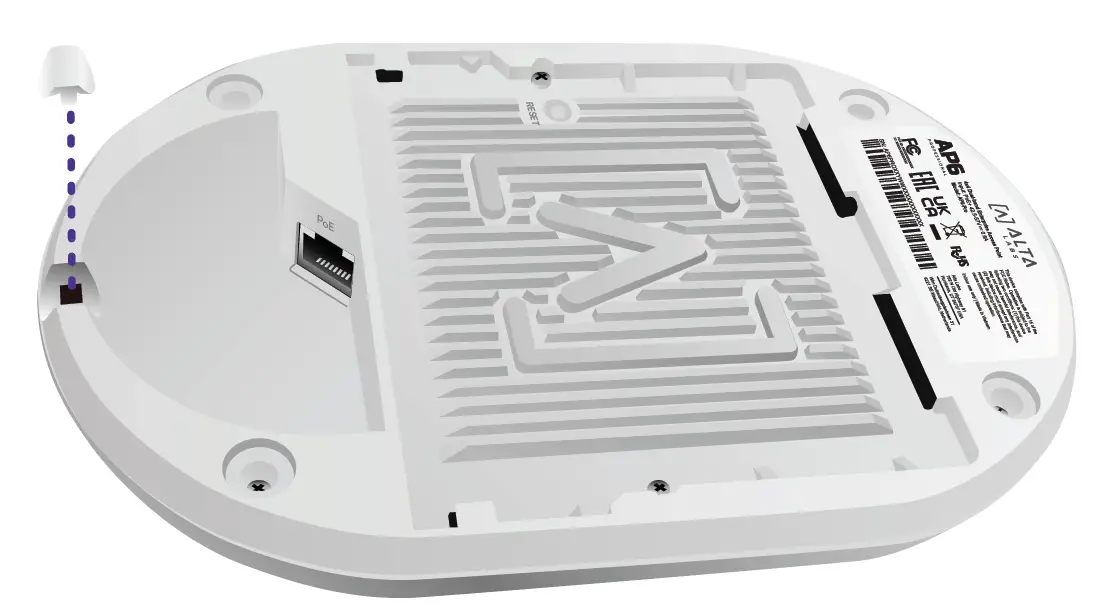
- If running cabling along the wall, remove the notch on the AP.

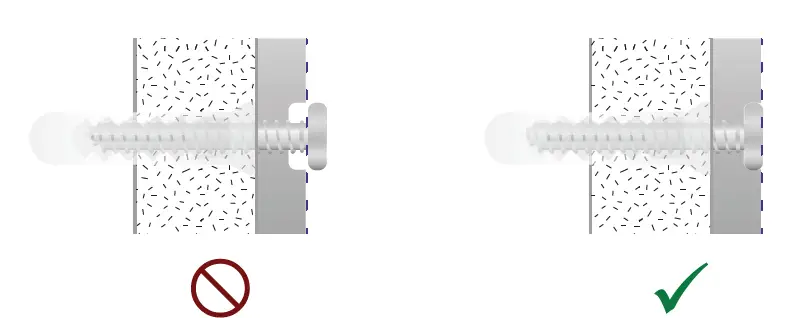
- Secure the Mounting Plate to the wall using the Wall-Mount Screws and a Phillips screwdriver. Be sure to use the screws included with the product.
If mounting on drywall, use the anchors to ensure secure mounting. Use a 6 mm drill bit to drill the holes for the anchors and insert them in the wall.
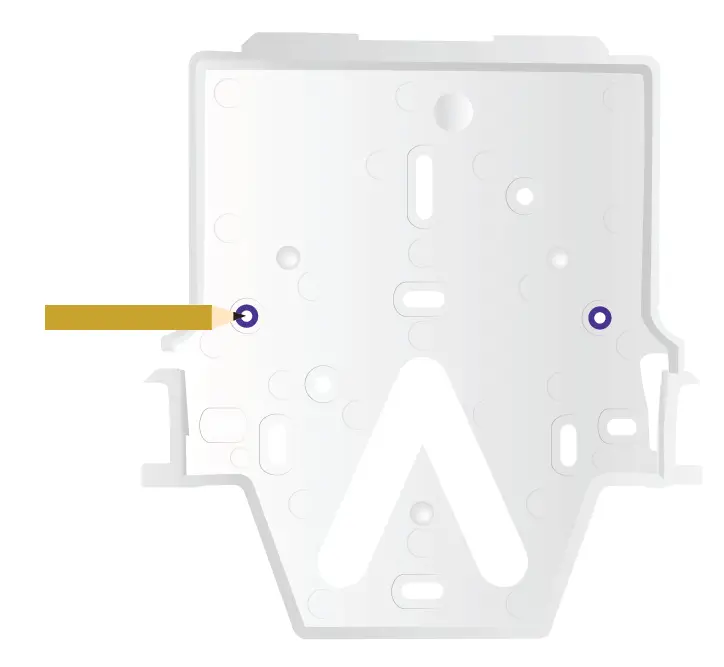
Note: Ensure the included Wall-Mount Screws are flush with Mounting Plate.
T-Bar Ceiling Tile Mount
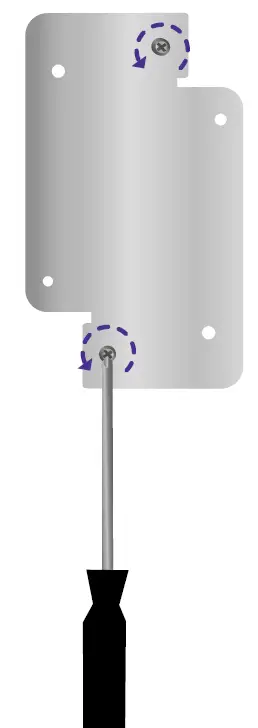
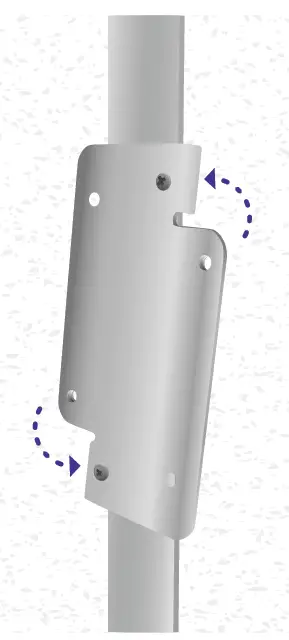
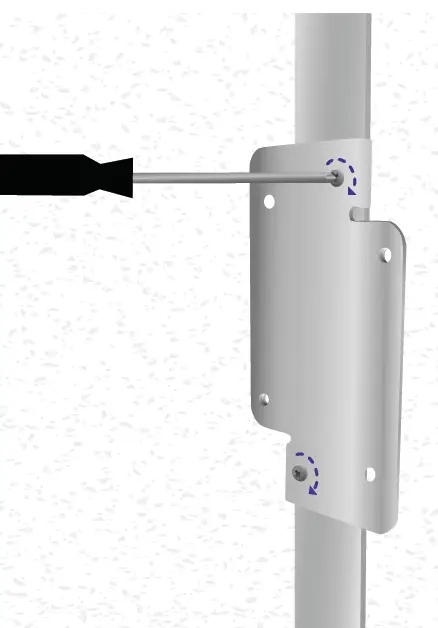
- Use a small Phillips head screwdriver to loosen the two pre-installed screws on the Ceiling Mount to allow enough clearance for the T-Bar.

- Rotate the Ceiling Mount around the T-Bar.

- Tighten both screws using a Phillips screwdriver.

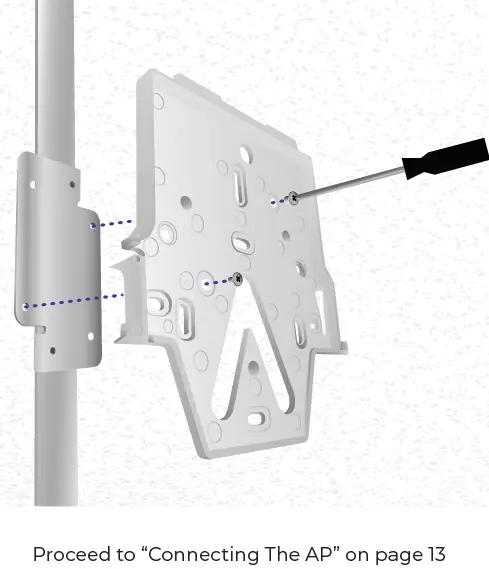
- Connect the Mounting Plate to the Ceiling Mount with the T-Bar Screws.
Connecting The AP
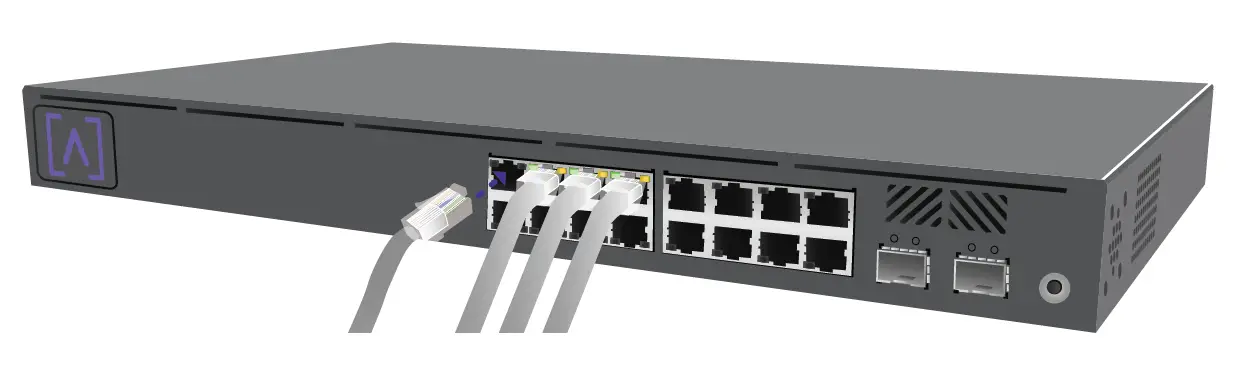
The AP is powered over Ethernet, it can be powered by a PoE+ Switch or using an optional 48V, 0.5A PoE Injector.
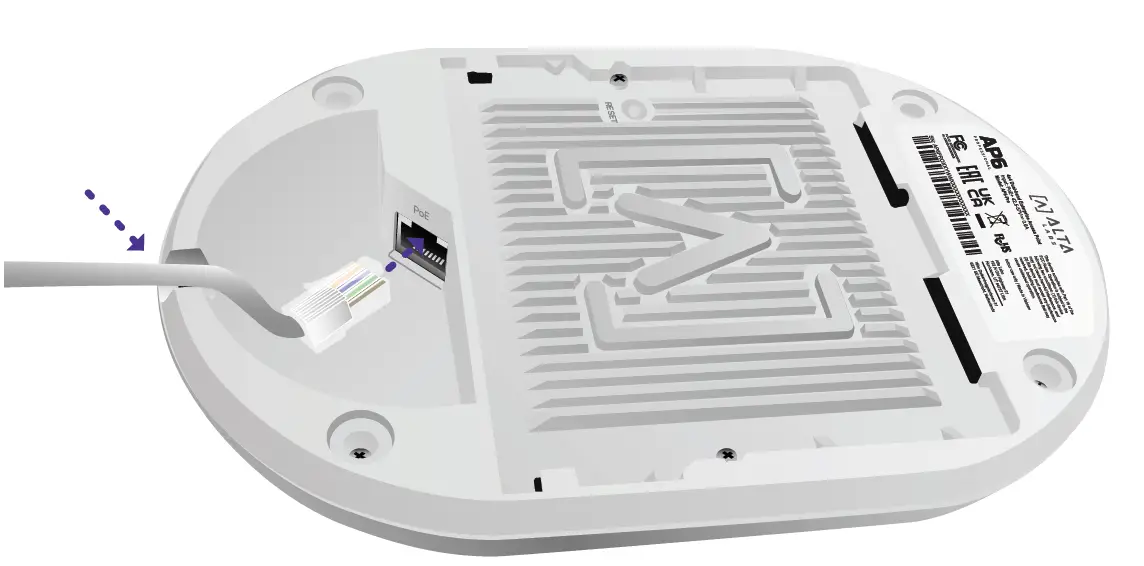
- Connect an Ethernet cable from your PoE+ Switch (or optional PoE Injector).

- Connect the other end to the Ethernet Port on the AP. If mounting on the wall, the Ethernet cable can be fed through the removable notch area.

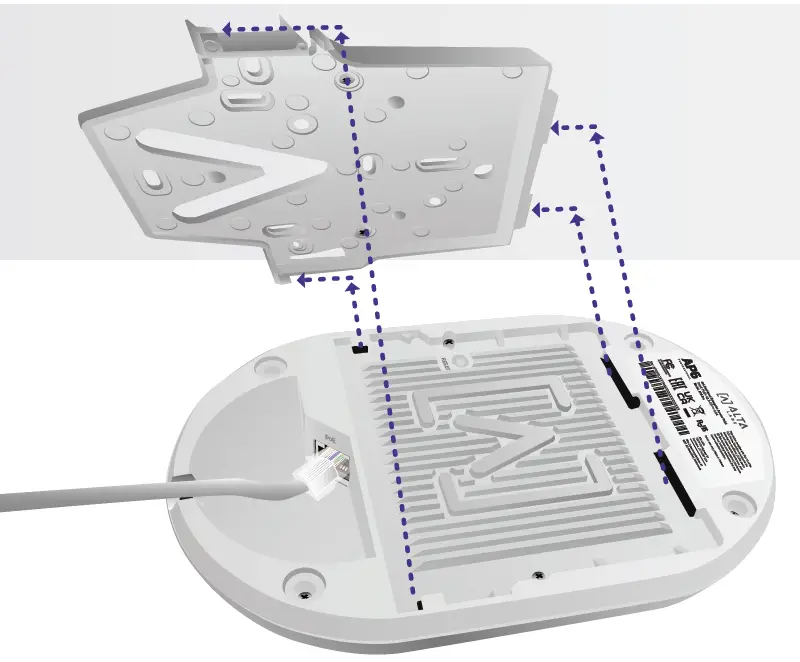
- Align the AP with the Mounting Plate.

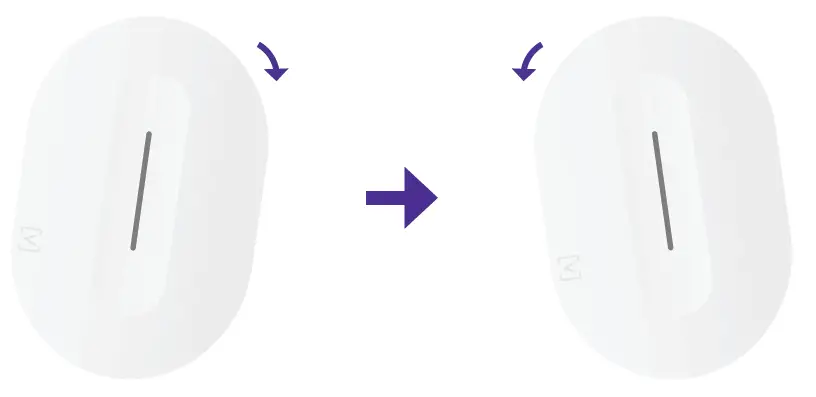
- Slightly tilt the AP right and then left as you slide the AP down the Mounting Plate to lock it into place.
Set Up Your Device
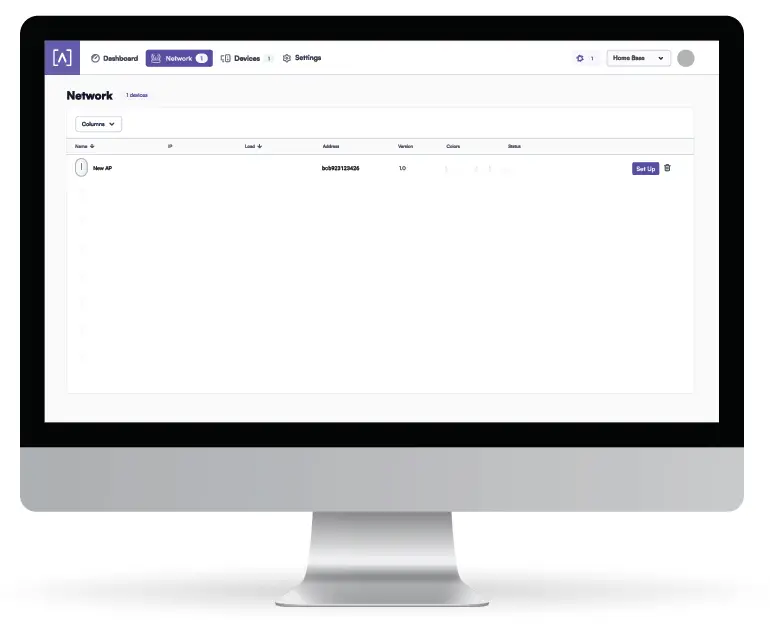
- Follow the instructions in the Alta app or management interface to set up your AP.
Disconnecting the AP
If you need to remove the AP from the mount, use a flat blade screwdriver to disengage the Mounting Plate at the logo indicator.
Specifications
| Model: AP6-Pro | |
| Dimensions | 190mm (7.5″) x 125mm (4.9″) 32mm (1.25″) |
| Weight | 0.4 kg (0.9 lbs) |
| Mount Material | Ceiling/Wall: Polycarbonate Drop Ceiling: Steel |
| Weatherproofing | IP54 |
| Network Interface | Ethernet, WiFi, Bluetooth |
| Management Interface | (1) GbE RJ45 Port |
| Button(s) | Reset/Factory Reset |
| LED | Blue, White |
| Power Method | PoE+ |
| Power Supply | PoE+ Enabled Network Switch 48V, 0.5A PoE Adapter (Optional) |
| Supported Voltage Range | 42.5-57V DC |
| Max. Power Consumption | 25W |
| Max. Transmit Power | 2.4 GHz: 23 dBm @2NSS 5 GHz: 26 dBm @4NSS |
| MIMO | 2.4 GHz: 2 x 2 5 GHz: 4 x 4 |
| Throughput Rate | 2.4 GHz: Up to 573 Mbps 5 GHz: Up to 5.8 Gbps |
| Mounting | Wall, ceiling, drop-ceiling, table top |
| Operating Temperature | -30 to 60° C (-22 to 140° F) |
| Operating Humidity | 5 to 95% Noncondensing |
| Certifications | CE, FCC, IC |
Compliance
Federal Communication Commission
Interference Statement
This product has been tested and found to comply with the limits for a Class B digital device pursuant to Part 15 of the FCC Rules. These limits are designed to provide reasonable protection against harmful interference when the equipment is operated in a commercial environment. This equipment generates, uses, and can radiate radio frequency energy and, if not installed and used in accordance with the instruction manual, may cause harmful interference to radio communications. Operations of this equipment in a residential area is likely to cause harmful interference in which case the user will be required to correct the interference at his own expense.
However, there is no guarantee that interference will not occur in a particular installation. If this equipment does cause harmful interference to radio or television reception, which can be determined by turning the equipment off and on, the user is encouraged to try to correct the interference by one or more of the following measures:
- Reorient or relocate the receiving antenna.
- Increase the separation between the equipment and receiver.
- Connect the equipment into an outlet on a circuit different from that to which the receiver is connected.
- Consult the dealer or an experienced radio/TV technician for help.
FCC Caution
This device complies with Part 15 of the FCC Rules. Operation is subject to the following two conditions:
(1) This device may not cause harmful interference, and
(2) This device must accept any interference received, including interference that may cause undesired operation.
This device is restricted to indoor use.
Non-Modification Statement
Changes or modifications not expressly approved by the party responsible for compliance could void the user’s authority to operate the equipment.
FCC Radiation Statement
This equipment complies with FCC radiation exposure limits set forth for an uncontrolled environment. This equipment should be installed and operated with minimum distance 20cm between the radiator and your body.
CAN ICES-003(B) / NMB-003(B)
This device contains licence-exempt transmitter(s)/receiver(s) that comply with Innovation, Science and Economic Development Canada’s licence-exempt RSS(s). Operation is subject to the following two conditions:
- This device may not cause interference.
- This device must accept any interference, including interference that may cause undesired operation of the device.
The device for operation in the band 5150-5250 MHz is only for indoor use to reduce the potential for harmful interference to co-channel mobile satellite systems.
ISED Radiation Exposure Statement:
This equipment complies with IC RSS-102 radiation exposure limits set forth for an uncontrolled environment. This equipment should be installed and operated with minimum distance 20cm between the radiator & your body.
The Country Code Selection feature is disabled for products marketed in the US/Canada.
For product available in the USA/Canada market, only channel 1~11 can be operated. Selection of other channels is not possible.
Community Forum forum.alta.inc
Technical Support help.alta.inc
All specifications are subject to change without notice. Alta Labs products are sold with a limited warranty: alta.inc/warranty
© 2023 Soundvision Technologies. All rights reserved. Alta Labs is a trademark of Soundvision Technologies.
 Warranty
 Support :