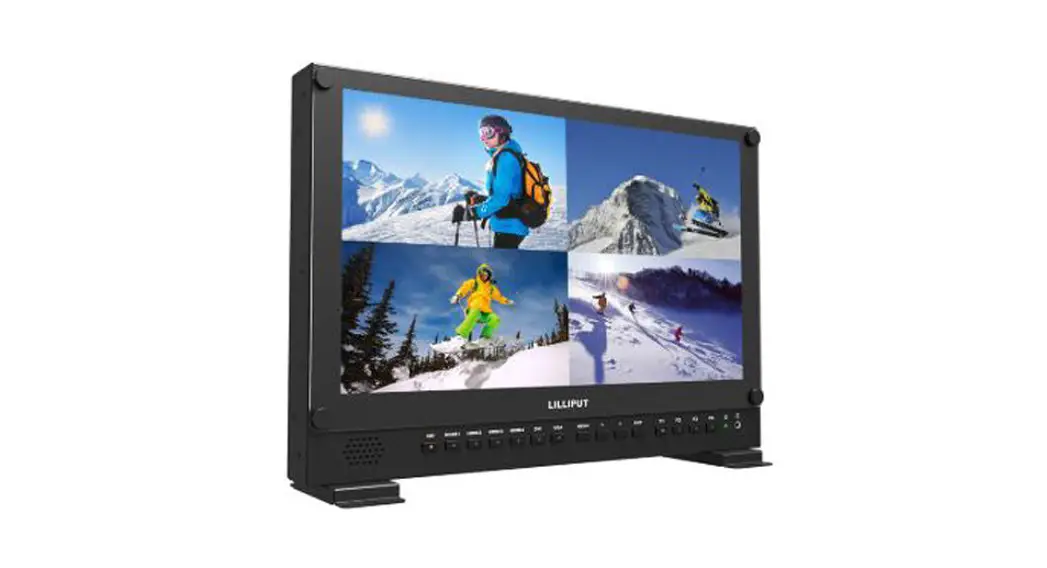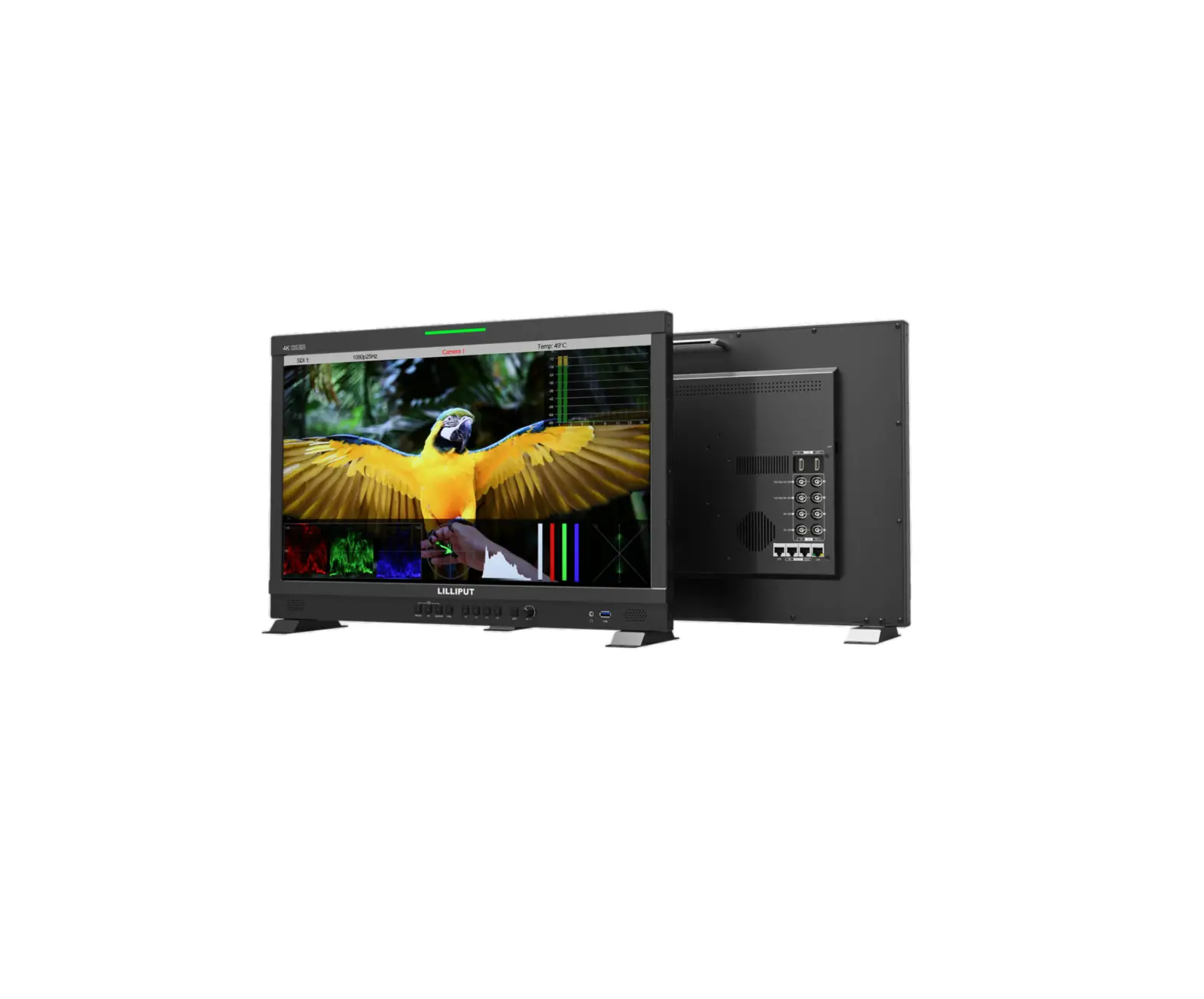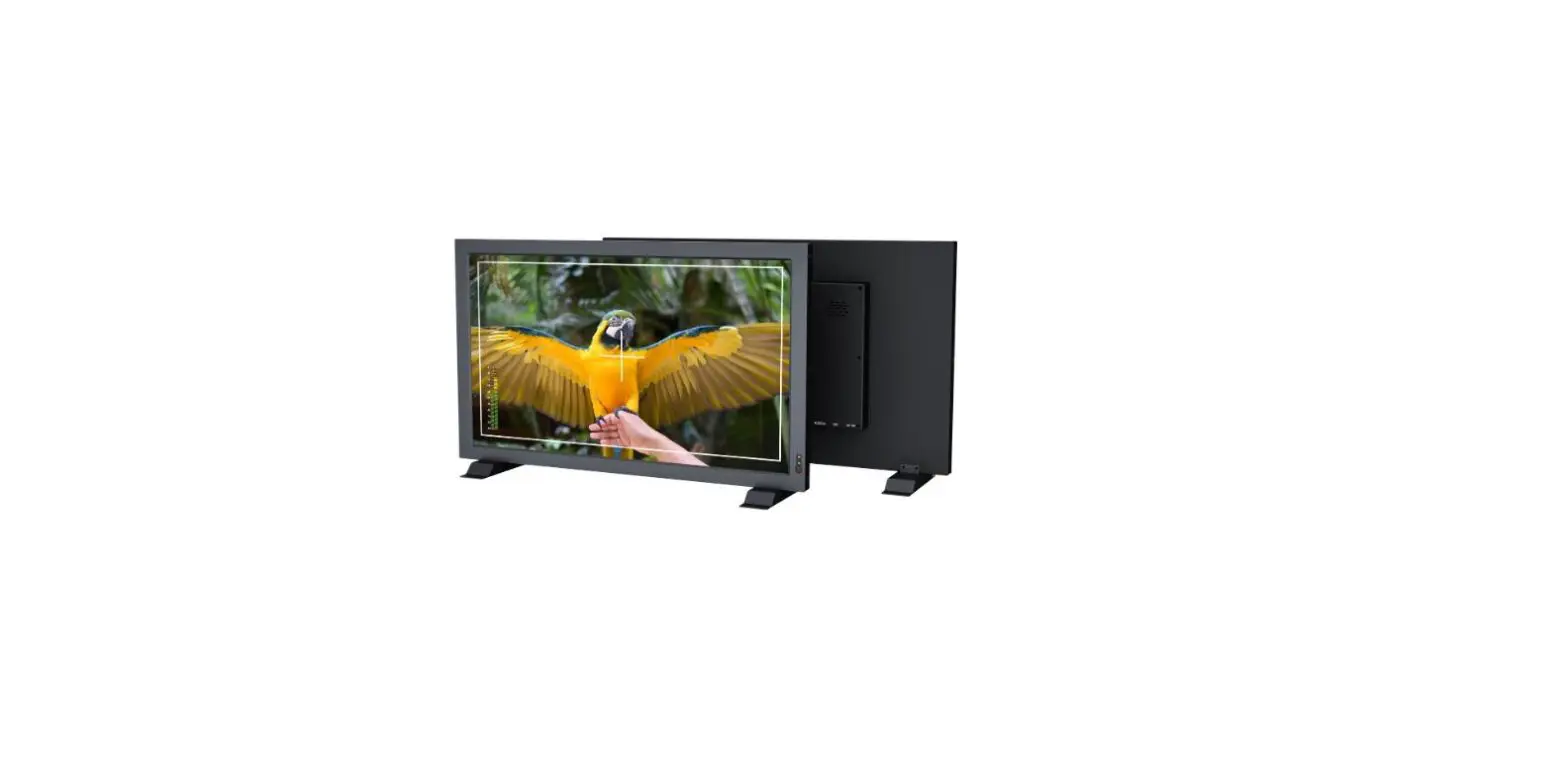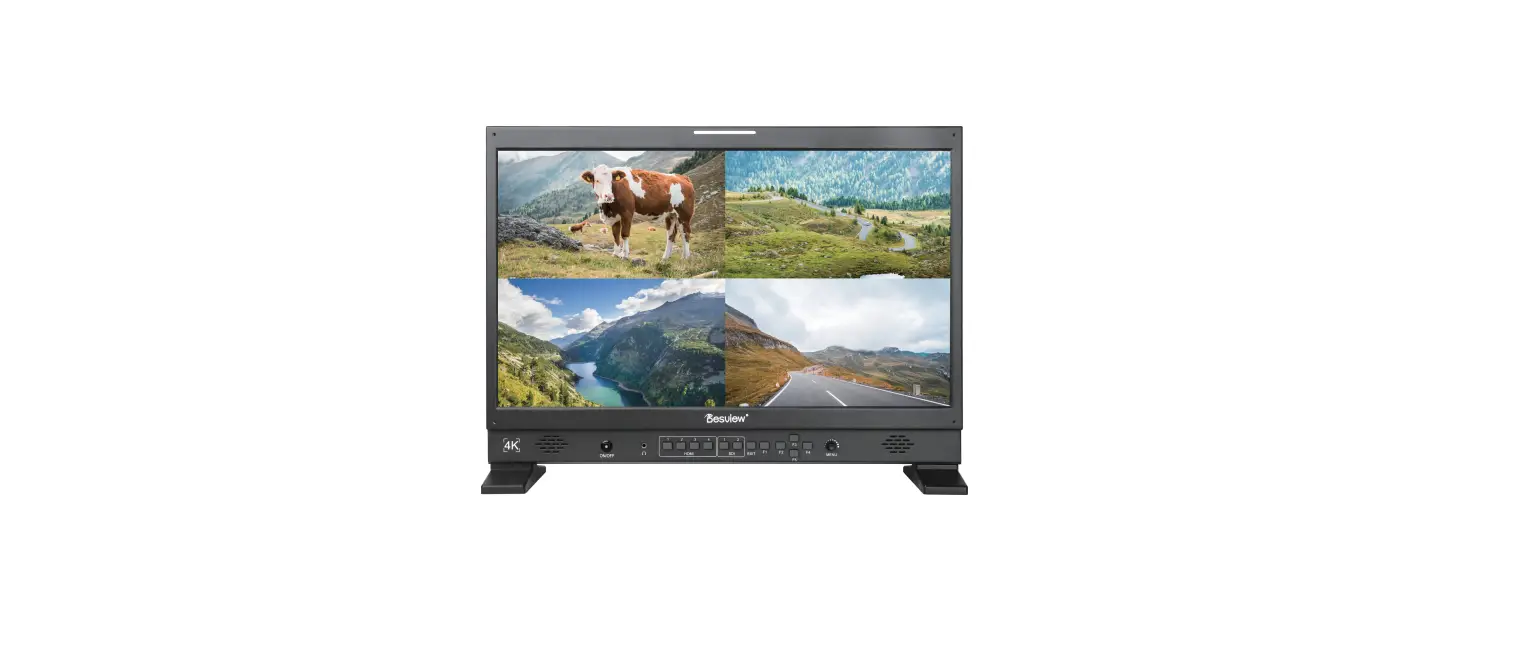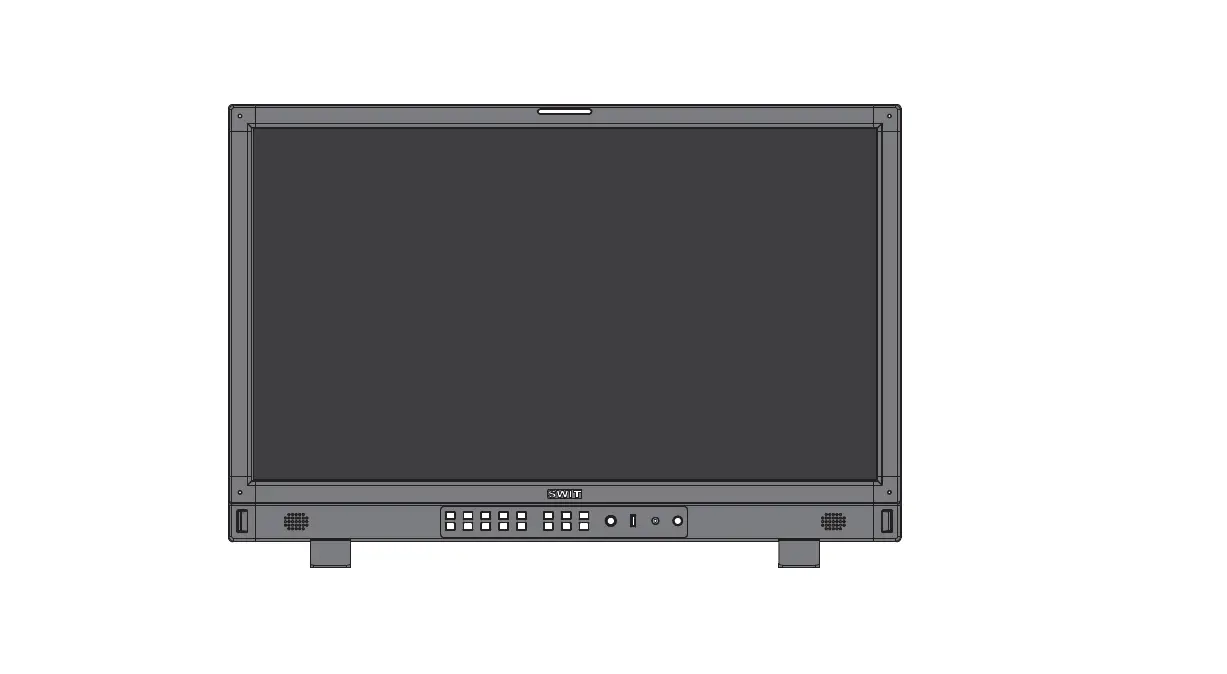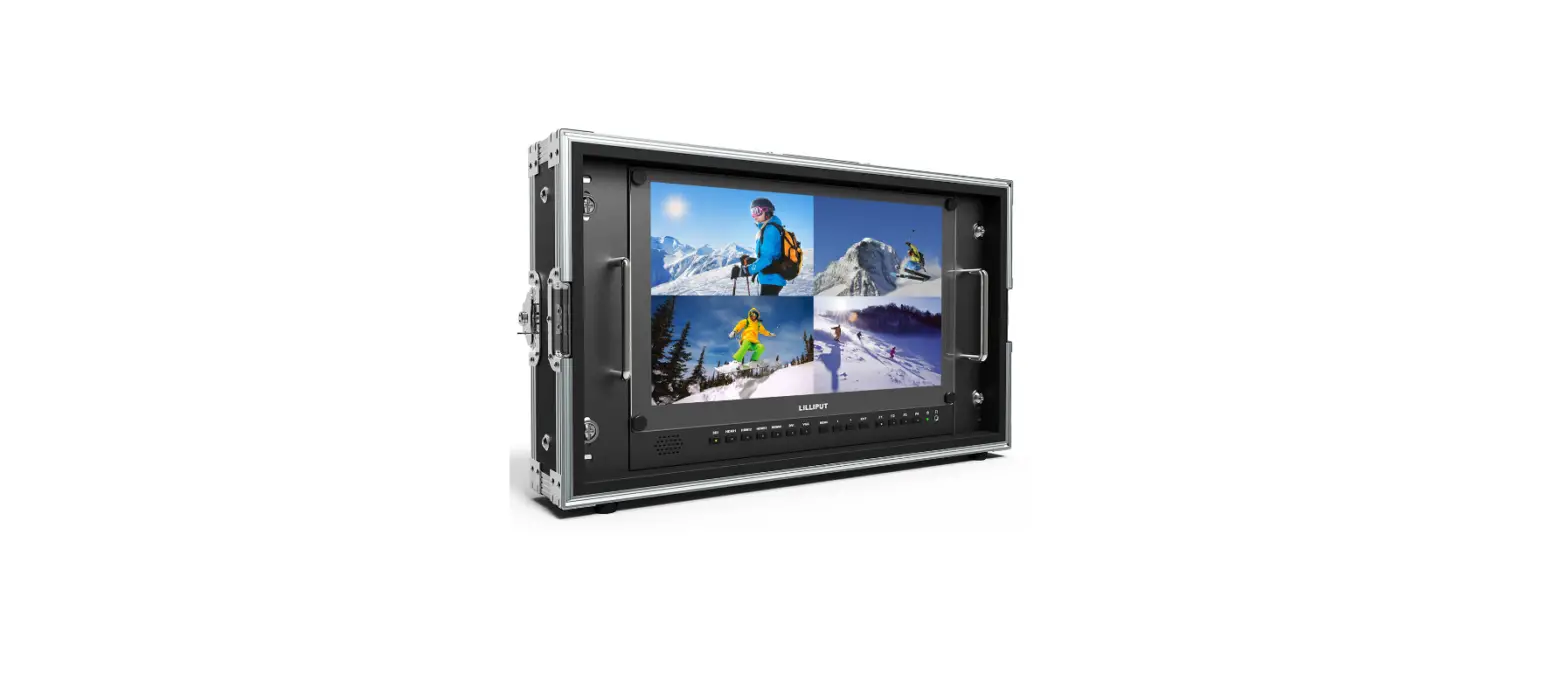

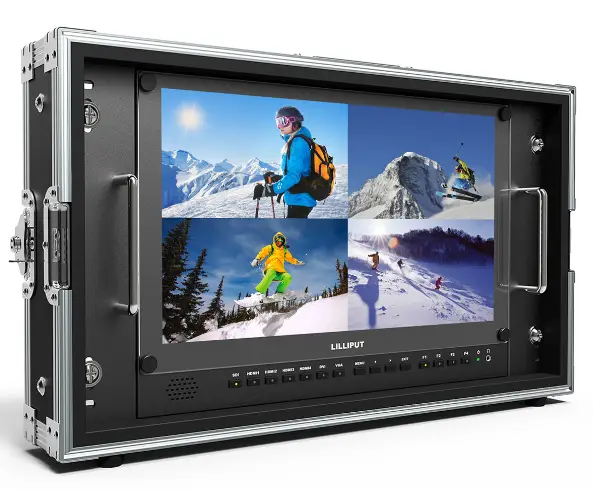
LILLIPUT BM150-4KS 15.6 Inch 4K Broadcast Director Monitor
IMPORTANT SAFETY INSTRUCTIONS
The device has been tested for conformance to safety regulations and requirements, and has been certified for international use. However, like all electronic equipment, the device should be used with care. Please read and follow the safety instructions to protect yourself from possible injury and to minimize the risk of damage to the unit.
- Please do not place the display screen towards the ground to avoid scratching the LCD surface.
- Please avoid heavy impact.
- Please do not use chemical solutions to clean this product. Simply wipe with a clean soft cloth to maintain the brightness of the surface.
- Please do not block any vent hole.
- Please follow the instructions and trouble-shooting to adjust the product.
- Internal adjustments or repairs must be performed by a qualified technician.
- Please keep user guide for future reference.
- Please unplug the power and remove the battery if long-term no-use, or thunder weather.
FEATURES
- Support multiple signal inputs 3G-SDI, HDMI, DVI and VGA.
- Multiple View Display supports quad view split from different input singles simultaneously.
- Ultra HD 4K screens containing 8.3 million pixel (3840×2160), so the resolution is four times that of Full HD.
- 3D LUT for Accurate Color Reproduction and Color space display (Native/Rec.709/User1~User3).
- Support to upload 3D LUT table via USB port.
- Equip HDR function.
- Image flip offers great convenience for user’s user to place the monitor with various mounting methods under different conditions. Users can view the monitor normally no matter what mounting angles.
- Wireless video transmitter for optional.
PRODUCT DESCRIPTION
Front `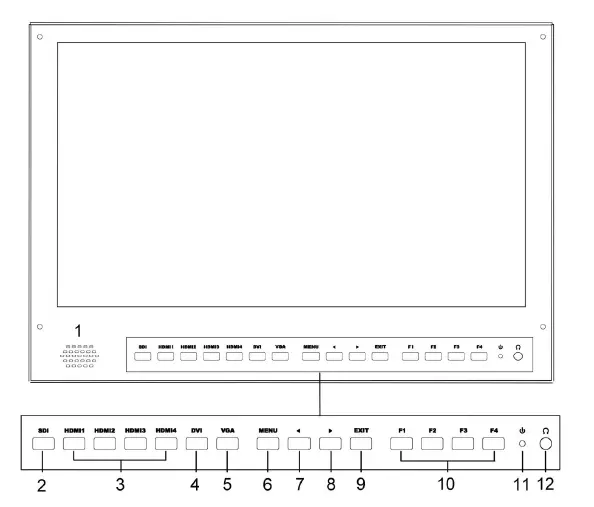
- Speaker
- SDI
Signal switch to SDI mode when light on. - HDMI 1 ~ 4
Signal switch to HDMI mode when light on. - DVI
Signal switch to DVI mode when light on. - VGA
Signal switch to VGA mode when light on. - MENU
Press to enter menu.
Press to enter option in the menu. - ◄
Select option in the menu.
Decrease the option value.
Before enter the menu, single press to activate volume, press again to decrease the volume. - ►
Select option in the menu.
Increase the option value.
Before enter the menu, single press to activate volume, press again to increase the volume. - EXIT
Back or exit. - F1~F4 User definable buttons
Default function options- F1: Color Space
- F2: Display Mode
- F3: Safety Marker
- F4: Aspect
(functions can be customized by long keep pressing any one of the 4 buttons)
- Power indicating light (green light: working).
- Earphone jack
Back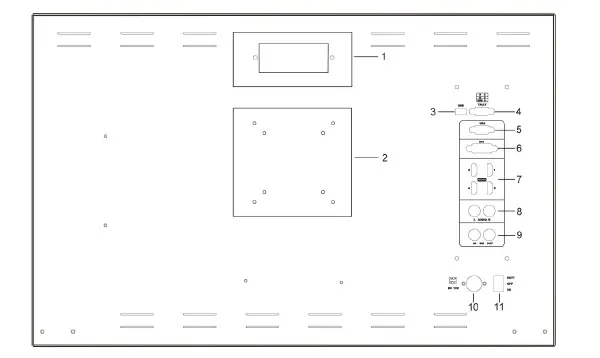
- Handle (Exclude available for 15.6 inch)
- VESA 75×75 & VESA 100×100 mounting port
- USB port
- TALLY port
- VGA input port
- DVI input port
- HDMI input port×4。
HDMI 1 & HDMI 2: HDMI2.0, support 4K 60Hz
HDMI 3 & HDMI 4: HDMI1.4, support to 4K 30Hz NOTE: HDR is only available under HDMI 1 signal input. - Audio L/R
- SDI input/output ports
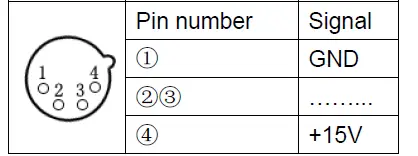
- DC IN (XLR) terminal
Connects the DC power supply to the monitor.
- Power switch
“II” is battery power, “○” is power off, “I” is DC power.
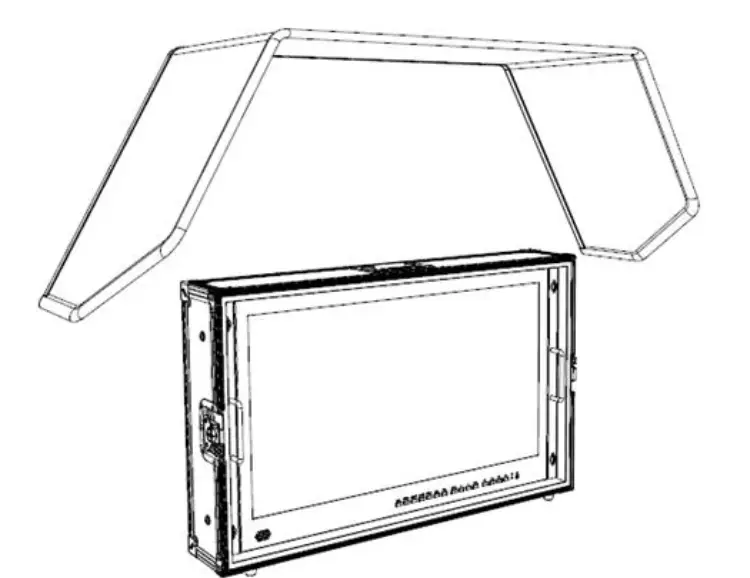
SUN SHADE INSTALLATION
Not include 31.5 inch.
- Put the sun shade on the suitcase, and match the hook and loop fasteners on both sides

- As shown below after finished.

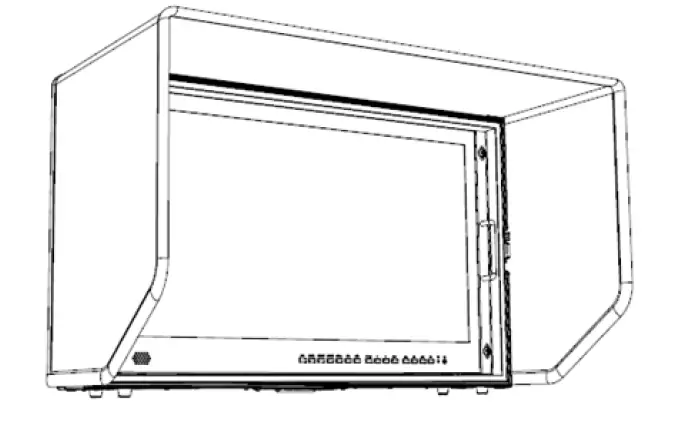
Please check whether the device is connected well or not.
- F1~F4 user definable shortcut buttons
Long keep pressing any one of the 4 buttons for 3 5 seconds to activate shortcut menu setting. Option selected will be highlighted as white option will be highlighted as yellow, unavailable option will be highlighted as gray. - Select option via
◄ /► buttons. - Then press
MENU ” button to confirm to set as default option.
Shortcut functions can be customized to meet user s needs as following
| NO. | Shortcut Menu when long press any F shortcut button |
| 1 | Center Marker |
| 2 | Safety Marker |
| 3 | Aspect Marker |
| 4 | Aspect |
| 5 | Underscan |
| 6 | Check Field |
| 7 | Freeze |
| 8 | Pixel to Pixel |
| 9 | Peaking |
| 10 | False Color |
| 11 | Exposure (Only available under SDI mode) |
| 12 | Histogram(Only available under SDI mode) |
| 13 | Time Code (Only available under SDI mode) |
| 14 | Display Mode |
| 15 | Disp Mirror |
| 16 | Color Space |
Default options:
- F1 Color Space F2 Displa y Mode
- F3 Safety Marker F4 Aspect
◄ / ► Buttons Operation
- Under non menu screen, press
◄ /► buttons to activate volume bar, - Use
◄ / ► buttons to select the desired option.
Press the MENU button to select Volume, Brightness, Contrast, Saturation, Hue, Sharpness
MENU Operation
When power on, press MENU on the device, t he menu of function setting will display on the screen.
- Press
◄ / ► button to choose menu - Then press
MENU button to confirm - Press
EXIT button to return / exit menu.
Picture
|
Picture | Brightness | 0~100 | |
| Contrast | 0~100 | ||
| Saturation | 0~100 | ||
| Hue | 0~100 | ||
| Sharpness | 0~4 | ||
| Color Space | Native/Rec.709/User1~User3 | ||
| HDR | Off/Auto/HDR10 | ||
| Backlight Mode | Standard/Outdoor/User | ||
| Backlight | 0~100 | ||
| Temperature | 9300/7500/6500/5800/User | ||
| Red Gain | 0~255 | Note: Available only under “User” mode. | |
| Green Gain | 0~255 | ||
| Blue Gain | 0~255 | ||
Brightness
Adjust the general brightness of the LCD. For example, if it uses outside in bright conditions, increase the LCD brightness to make it easier to view.
Contrast
Increase or dec rease the range between the bright and dark areas of the image. High contrast can reveal detail and depth in the image, and low contrast can make the image appear soft and flat. Saturation
Adjust the color intensity.
Press ◄ /►” buttons to increase or decrease the color intensity
Hue
It means tint. Use this setting to choose the tint from 0 to 100.
Sharpness
Increase or decrease the sharpn ess of the image. When the sharpness of image is insufficient, the value of sharpness can be increased to make the image clearer.
Color Space
Selects the color space from among [ Native Rec.709 ] User1~User3
- Saturation/Hue/Color Temperature is only available under Native mode.
- Select [AUTO] or [HDR10] mode under HDR function, the color space will be saved as Native mode automatically. It can be only changed to other color space mode by hand.
- It supports to upload user-defined Lut table “User1~User3”.
- User-defined Lut table only support RGB format. If the format is not correct, please transform it to the correct format by using tool “Lut Converter” (See appendix 1 for details) and named as User1.cube, User2.cube or User3.cube.
- Copy the User-defined Lut table to flash disk and insert it to the device, the screen displays a prompt message to show whether to upgrade. Select upgrade, the device will be loading automatically in a black screen and then restart after finishing loading.
- Requirements for flash disk
- Format: FAT32
- Memory: <16G
- File directory: root directory
- Must be formatting before using it
- Please note that the responding time for loading user-defined Lut table will be a bit slower. Please wait patiently.
- Requirements for flash disk
- The device only supports loading one table at a time. If needs to load more than one tables, please load them one by one.
HDR
Select HDR from among [Off], [Auto], [HDR10].
- HDR is only available under HDMI 1 signal input .
- HDR under AUTO or DHR10 mode, and the input signal support HDR, the below function is disabled :
- Contrast Brightness Saturation Hue Sharpness Color Space , BackLight
- Color Temperature [Auto] Automatically recognize whether the input HDMI signal supports HDR. If it supports, the input signal shows as the HDR10 performance If it doesn’t, HDR function is disabled . It ’s suggested select [Auto] when use HDR
function
- Do not recognize whether the input HDMI signal supports HDR, it will activate the HDR function enforcedly when input signal. If the input signal does not support the HDR function, the image display s abnormal color.
Backlight Mode
Select Backlight Mode from among [Standard], [Outdoor], [User].
Backlight
It is only available under [User] mode.
Temperature
Adjust the color temperature to make the image warmer (Yellow) or colder (Blue). Increase the value to make the image be warmer, decrease the value to make the image be colder. User can use this function to strengthen, weaken or balance the image color according requirements. The standard white light color temperature is 6500K.
Note: Only a vailable under User mode to adjust Color Gain.
Function
|
Function | Center Marker | ON, OFF | |
| Safety Marker | OFF, 95%, 93%, 90%, 88%, 85%, 80% | ||
| Aspect Marker | OFF, Full, 17:9, 16:9, 4:3, 1.85:1, 2.35:1 | ||
| Aspect | Full ,17:9, 16:9, 4:3, 1.85:1, 2.35:1 | ||
| Underscan | ON, OFF | ||
| Pixel To Pixel | ON, OFF | ||
| Check Filed | OFF, Red, Green, Blue | ||
| Freeze | ON, OFF | ||
| Peaking | ON, OFF | ||
| Peaking color | Red/Green/Blue/White | Only available when under SDI Mode. | |
| Peaking level | 0~100 | ||
| False Color | OFF/ON | ||
| Exposure | OFF/ON | Only available when under SDI Mode. | |
| Exposure level | 0~100 | ||
| Histogram | OFF/ON | ||
| Time Code | OFF/LTC/VITC | ||
- Center Marker
Select On, it will appear marker on center of screen - Safety Marker
Use this setting to set off the safety marker or choose the one of the safety markers: [ 95%95%], 93%93%], 90%90%], 88%88%], 85%85%], 80% - Aspect Marker
Display the different aspect of the displayed image . [OFF], Full ], 17:9 ], 16:9 ], 4:3 ], 1.85:1 ], 2.35:1 - Aspect
Switch aspect ratio setting among from [ Full][17:9][16:9][4: 3][1.85:1][2.35: 1].
For example:
In [Full] mode, images are scaled to fill the entire screen. - In
4:3 mode, images are scaled up or down to fill the maximum 4:3 portion of the screen. - In
16:9 mode, images are scaled to fill the entire screen if the device aspect is 16:9 - Underscan
If the image shows size error , use this setting to zoom in/out pictures automatically when receiving HDMI signals - Pixel to Pixel
The pixel to pixel is a monitor set to 1:1 pixel mapping with native fixed pixels, which avoids loss of sharpness due to scaling artifacts and normally avoids incorrect aspect ratio due to stretching. - Check Field
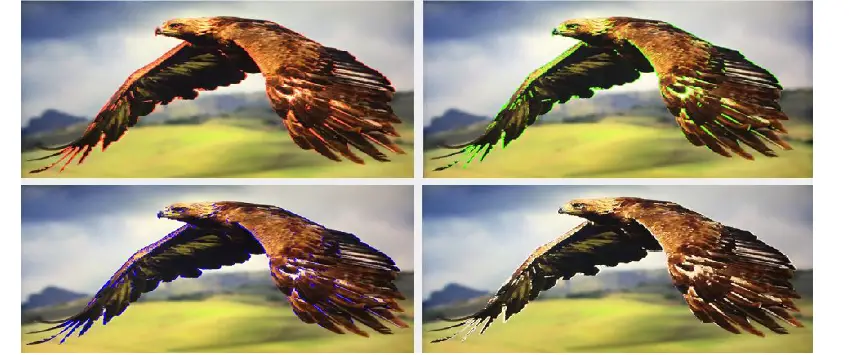
Use the check field modes for monitor calibration or to analyze individual color components of an image. The device preset i n Blue, Green, and Red check field modes, only the selected color will be shown. - Peaking
The peaking is used to aid the camera operator in obtaining the sharpest possible picture. Select On to display colored outlines around sharp areas of the image.
NOTE: Peaking color and level only can be changed when under SDI mode.
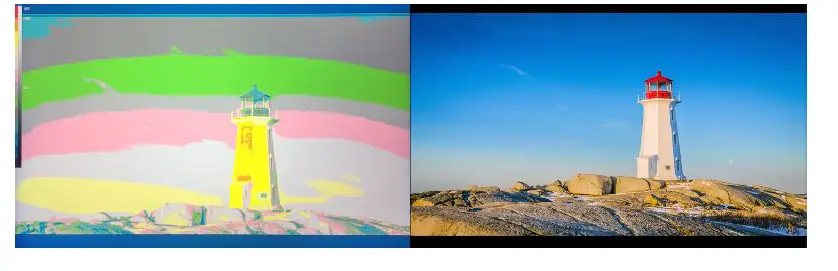
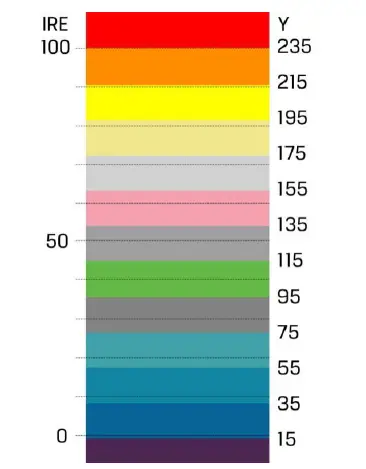
- False Color
This monitor has a false color filter to aid in the setting of camera exposure. As the camera Iris is adjusted, elements of the image will change color based on the luminance or brightness values. This enables proper exposure to be achieved without the use of costly, complicated external equipment.

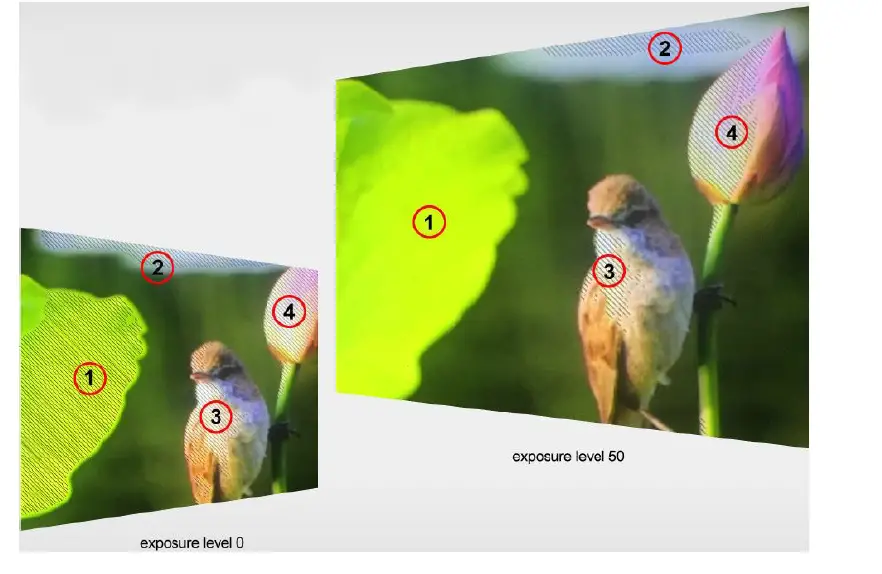
- Exposure & Exposure Level
The exposure feature helps the user achieve optimum exposure by displaying diagonal lines over areas of the image that exceed the setting exposure level. The exposure level can be set to 0~100.
Note: Only available when under SDI mode.
- Histogram
The histogram makes users view visually the exposure of whole and each RGM channels. It has the full contrast rang of video for easy color correction during post production.
NOTE: Only available when under SDI mode. - Time Code
The Time Code supports Longitudinal time code (LTC) and Vertical interval time code (VITC). The time code display on the monitor is synchronizing with that of Full HD camcorder s. It displays the duration of the clips in hours: minutes: seconds: frames. It s very useful for identifyin g specific frame in film and video production.
Note: Only available when under SDI mode.
Display Mode
- Display Mode 1P 2P LR 2P TB 2P PIP 4P
Display Mode
The monitor presets 1P, 2P LR, 2P TB, 2P PIP, 4P five display modes. This function can be work with Select Region function to meet user s requirement.
For example:
In 1P mode, images are scaled to fill the entire screen.
In 2P LR, display two different signals on the left and right sides.
Display Setting
| Display Setting | Display Rotate | 0°, 90°, 180°, 270° | Available when single display. |
| Display Mirror | OFF, L/R, U/D | Available when single display. |
Display Rotate and Display Mirror
This setting support to flip the image to 0°, 90°, 180°, 270° modes. I t is only available when single display.
Display mirror
This setting displays two different input signals to Light/Right or Up and Down, the user can choose it to view the images according to the requirement. It is only available when dual display on left and right.
Select Region
|
Select Region | Unavailable | Display mode 1P |
| Left Side/Right Side/Full | Display mode 2P LR | |
| Top Side/Bottom Side/Full | Display mode 2P TB | |
| Main/Sub/Full | Display mode 2P PIP | |
| 1P In/1P Out/2P In/2P Out/3P In/3P Out/4P In/4P Out/4P full | Display mode 4P |
Note: This Menu is enabled for audio source selection. It is only available when under multi picture and picture in picture mode . Activate the corresponding EN source to select the needed audio and picture under Audio Source function.
Input
| Input | Signal switch to region selected according to users’ needs. |
Audio
|
Audio | Volume | 0~100 | |
| Level Meter | OFF/ON | NOTE: Only available when under SDI mode | |
| Audio Source | Analog/Digital region 1~4 | ||
Volume
Adjust the volume among 0 100.
Level Meter
Select whether to activate or deactivate level meter.
Note: Default as on under [Waveform]\ Waveform]–[Multi]
Audio Source
Digital region 2~4 is only available under multi display s mode and must activate the corresponding Region under Select Region function at the same time.
VGA
|
VGA | Auto Adjust | Press to confirm after selected. |
| H Position | 0~100 | |
| V Position | 0~100 | |
| Clock | ||
| Phase | 0~100 |
System
|
System | Reset | Press to confirm after selected. |
| Menu Time | 10~60s | |
| OSD H Position | 0~100 (To set menu display area) | |
| OSD V Position | 0~100 (To set menu display area) | |
| Language | English, Chinese | |
| Transparency | 0~255 (To set menu transparency) | |
| Color Calibration | Off/On | |
| Rotate | 0°, 90°, 270° | |
| Border Width | 0~10 | |
| Border Color | R, G, B, W |
Reset If there is any problem unknown, press to confirm after select ing . The monitor will return to default set.
Menu Time
Adjust the OSD displaying time form 10 to 60s.
OSD H Position and OSD V Position
Move OSD horizontally or vertically.
Language
Switch between English and Chinese.
Transparency
Set Menu transparency. Increase the value, the more transparent it will be.
OSD Rotate
Flip OSD to three modes.
Border Width and Border Color
User can choose the border color among Red, Green, Blue, White. And adjust the thickness by using Border Width function. Activate Lut Converter
This setting is available when display in 2P LR, 2P TB, 2P PIP, 4P mode.
The lines separate the different input signals means Border.
Information
- Information To display current information.
ACCESSORIES
- Folding Sunshade (not include 1 piece
- Carry-on Suitcase (not include 1 piece
- 15V DC Power Adapter 1 piece
- Adapter Fixing Belt 2 pieces
- TALLY Connector (in bulk) 1 piece
- V-mount or Anton Bauer Mount 1 piece
- User Manual 1 copy
- Battery Plate Bracket 1 piece
- Base Bracket 1 pair
- Wireless Video Transmitter o ptional) 1 pair
- Acrylic S creen P rotector o ptional for 15.6 only 1 piece
PARAMETERS
| Display Screen | 15.6” IPS | 28” IPS | 31.5” IPS |
| Physical Resolution | 3840×2160 | 3840×2160 | 3840×2160 |
| Aspect Ratio | 16:9 | 16:9 | 16:9 |
| Brightness | 330cd/㎡ | 300cd/㎡ | 350cd/㎡ |
| Contrast | 1000: 1 | 1000: 1 | 1300: 1 |
| Viewing Angle | 176°/ 176°(H/V) | 170°/ 160°(H/V) | 178°/ 178°(H/V) |
| Input Voltage | DC12~24V(XLR) | DC12~24V (XLR) | DC12~24V (XLR) |
| Input Signal | 3G-SDI, HDMI DVI, VGA, Audio, USB and TALLY | 3G-SDI, HDMI DVI, VGA, Audio, USB and TALLY | 3G-SDI, HDMI DVI, VGA, Audio, USB and TALLY |
| Output Signal | 3G-SDI | 3G-SDI | 3G-SDI |
| Power Consumption | ≤23W | ≤51W | ≤67W |
| Operating Temperature | 0℃~50℃ | 0℃~50℃ | 0℃~50℃ |
| Storage Temperature | -20℃~60℃ | -20℃~60℃ | -20℃~60℃ |
| Dimension (LWD) | 389×267×38mm | 670×425×45mm | 718×478×38mm |
| Weight | 3.2kg / 12 kg (with case) | 9.4kg / 21 kg (with case) | 13.3kg |
TROUBLE SHOOTING
- Only black-and-white display.
Check whether the color saturation is properly setup or not. - Power on but no pictures.
Check whether the cables of HDMI, VGA,DVI and 3G-SDI are correctly connected or not. Please use the standard power adapter coming with the product package. Improper power input may cause damage. - Wrong or abnormal colors.
Check whether the cables are correctly and properly connected or not. Broken or loose pins of the cables may cause a bad connection. - When on the picture shows size error.
Press “MENU → Function → Underscan” to zoom in/out pictures automatically when receiving HDMI signals - Other problems.
Please press “MENU” button and choose “MENU → System → Reset → confirm”. - According to the ISP, the machine cannot function properly.
ISP for program upgrades, non-professionals do not use. Please reboot your device if press accidentally! - No Sound.
Press HDMI button if no sound; if still unavailable, please contact the technician. - No signal displayed when connecting with HDMI 1.
Please long press HDMI 1 button for 3-5 seconds to activate HDMI signal.
Note: Due to constant effort to improve products and product features, specifications may change without notice.
Appendix 1 3D LUT of Loading Manual
BM 4KS supports 3DLUT to load the color calibration document and the User Log by using flash disk
Format Requirement
- LUT format
Type .cube 3D Size 17x17x17
Data Order RGB
Table Order RGB - USB flash disk version
USB : 2.0
System FAT32
Size: <16G - Color calibration document Rec709.cube
- User Log : User1 ~User3.cube
LUT Format Conversion
The format of LUT should be transformed if it doesn’t meet Lilliput s requirement.
It can be transformed by using Lut Converter (V1.3.30).
Activate Lut Converter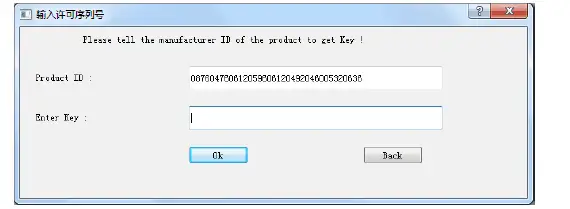
One individual Product ID for one computer. Please send the ID number to Lilliput to get an Enter Key. Then the computer get s the permission of Lilliput Lut Converter after input ting the Enter Key.
Enter the Lut Converter interface after input the Enter Key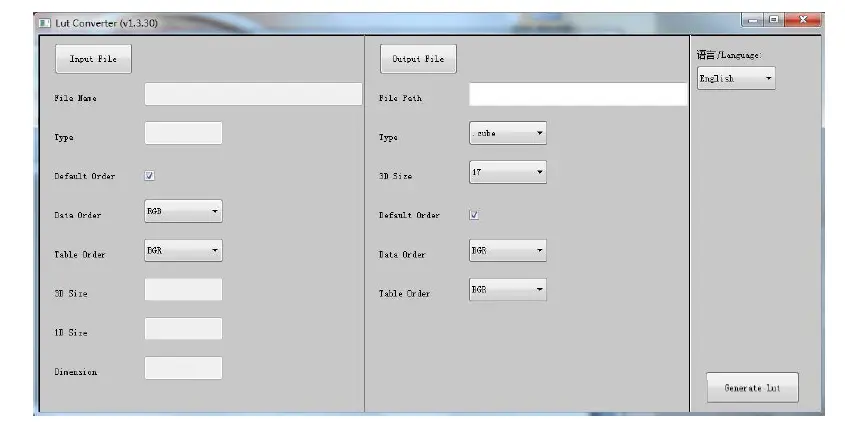
Click Input File, then select *LUT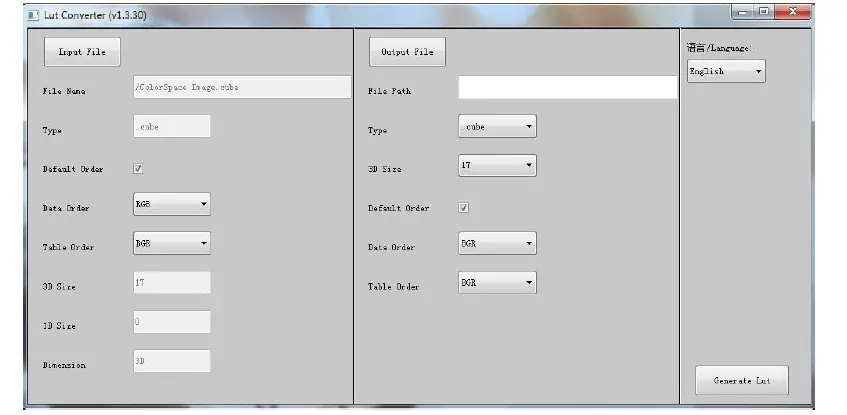
Click Output File, and then select the file name as required format. Such as:
Rec709.cube
- 3D Size 17 , Data Order RGB , Table Order RGB

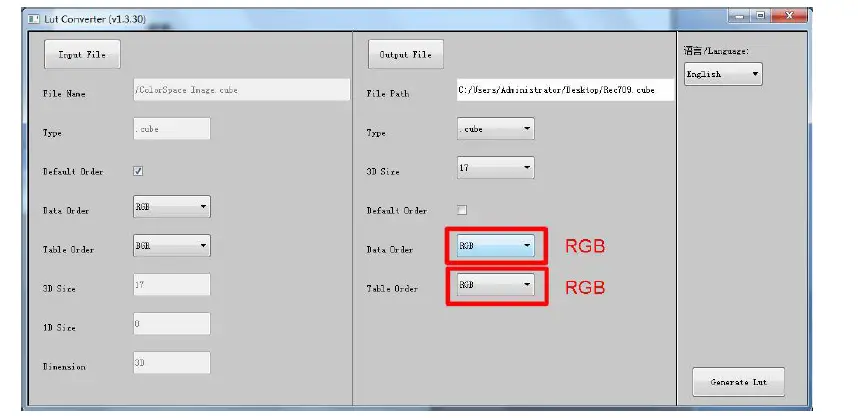
Click Generate Lut button to finish the transform.
USB Loading
- The USB flash disk must be formatted before using to make sure that there are no other files in the root directory.
- Copy needed files to the root directory of the USB flash drive.
Please note that the system only supports updating one LUT table at a time.
Therefore, only a single file to be loaded can be copied to the USB flash drive. If it need s to update more LUT tables, please delete other files in USB flash disk and repeat the above steps. - Power on the device , insert the corresponding video signal into any video signal interface and switch the signal to the corresponding channel to make sure the device displays normally.
It does n’ t suggest that update the LUT table when there is no input signal as t he device will enter the power saving mode in such s ituation. - Insert the flash disk into the USB interface on the device and wait for about 5 seconds. It will pop up prompt box Load Rec709.cube after detecting the flash disk. Operate by using press MENU “”, EXIT on the front of device. Click YES to load, and click NO or press EXIT to exit.
The device displays a black screen after confirm ed the load ing and it will update the corresponding LUT table back stage according to the name of the updated LUT.
The device will be restart ed automatically a fter completed. The whole updating process takes about 6 seconds according to the updated LUT name - Please activate and set up the updated LUT table under the menu after restarting. It does’ t need to be reset if the current updated LUT has been selected before updating.
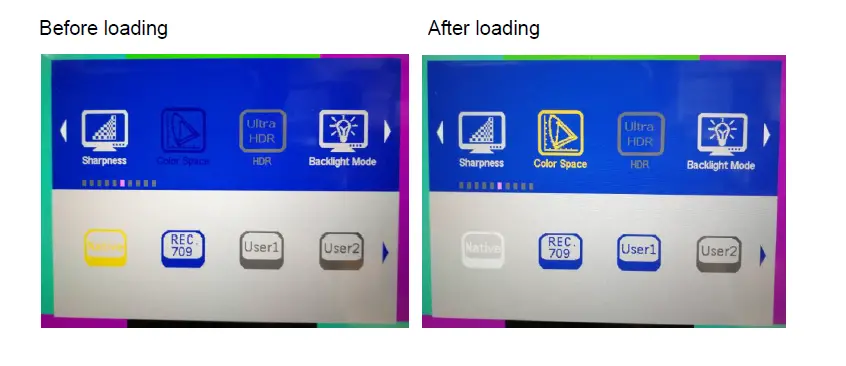
Please note it only calibrates the color for Rec709 mode and upload it to the device in the factory. User1~User3 is grayed out and disabled in the menu. After loading the user LUT table, the corresponding button will be shown as blue and able to be use, shown as the following figure.