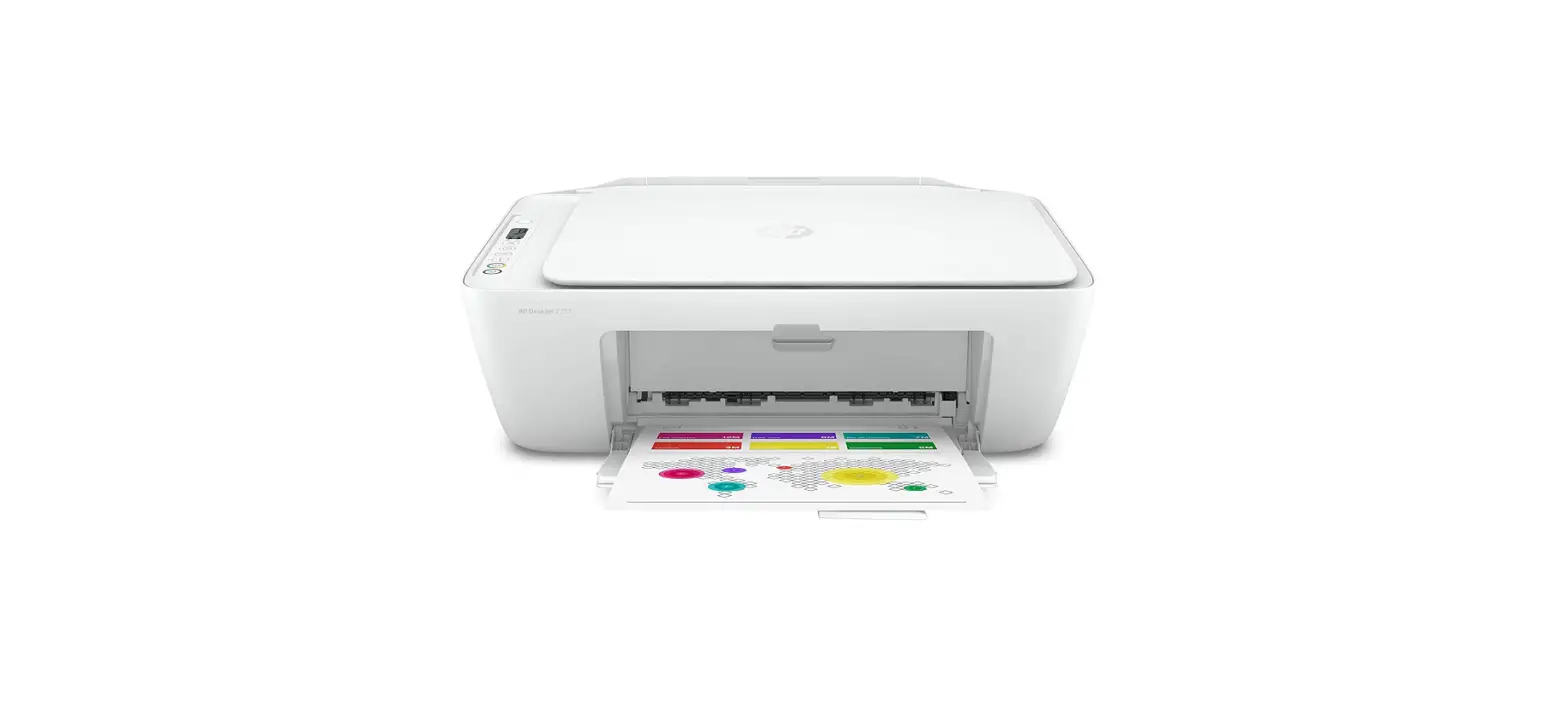

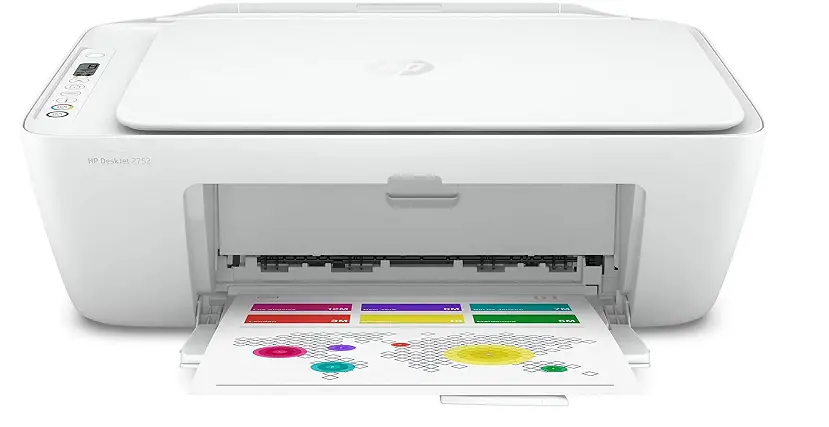
hp DeskJet Ink Advantage 2700 All-in-One Series Printer
INSTALLATION Setup
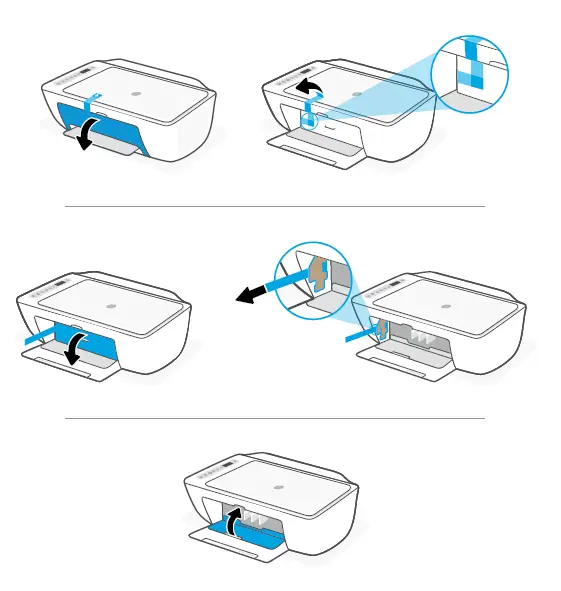
- Remove and discard all packaging, tape, and cardboard. Close the ink access door

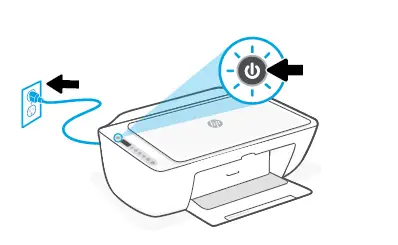
- Plug in and turn on the printer.

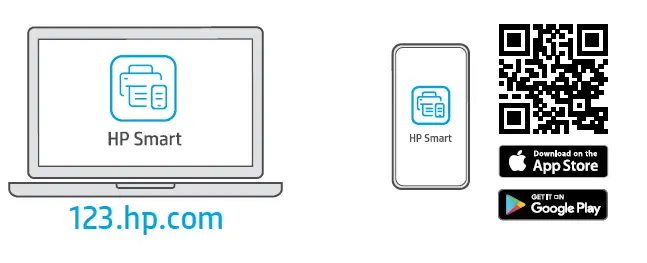
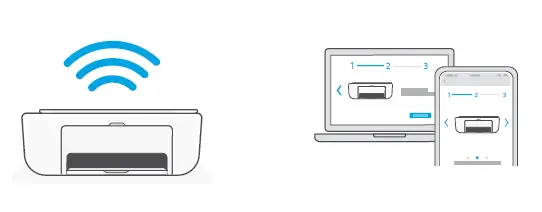
- Install the required HP Smart software from 123.hp.com or your app store on a computer or mobile device.

- Follow instructions in HP Smart to connect the printer to a network and finish setup
- If connecting the printer to Wi-Fi, your computer or mobile device must be near the printer during setup. See Reference Guide for Wi-Fi troubleshooting and tips

- If connecting the printer to Wi-Fi, your computer or mobile device must be near the printer during setup. See Reference Guide for Wi-Fi troubleshooting and tips
Get help with setup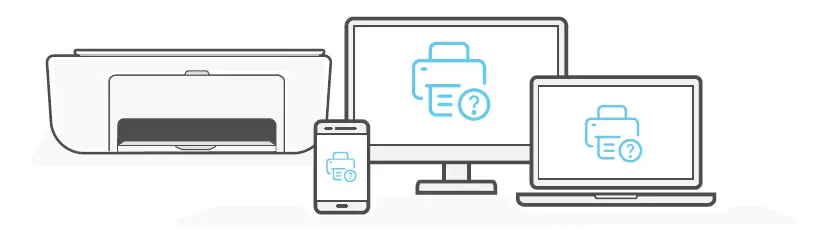
Find setup information and videos online
hp.com/support/printer-setup
© Copyright 2021 HP Development Company, L.P. Printed in China Impreso en China Impresso na China
The Apple logo is a trademark of Apple Inc., registered in the U.S. and other countries. App Store is a service mark of Apple Inc
 123.hp.com - HP Smart
 hp.com/support/printer-setup