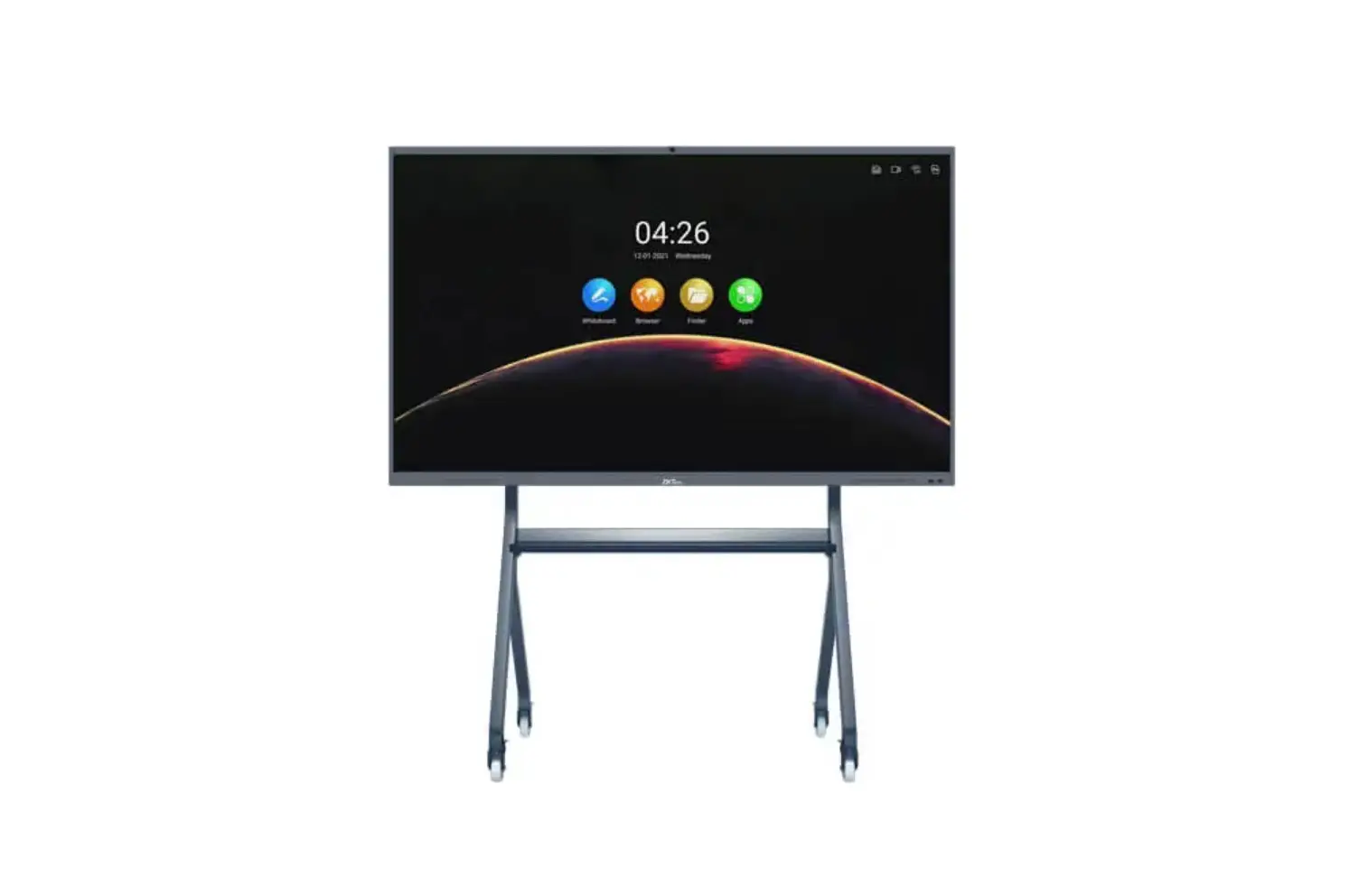
ZKT2080002 Smart Interactive Display
Mobile Stand Installation Guide Version: 1.1
Before installing the Mobile Stand, it is recommended to equip
this model with a whiteboard. Please carefully read this manual
before installation.
Installation Steps:
Step 1:
Set the wheel to the brake state and screw it into the brackets
(as shown in Figure 1). Adjust the wheel to the braking state
before operation.
Packing List:
- A – Left support 1 piece
- B – Right support 1 piece
- C – Wall bracket 1 piece
- D – Tray 1 piece
- E – Wheels 4 pieces
- F – Bar for hanging on the wall 2 pieces*
- Cross recessed hex head screw 14 pieces
- Spring cushion M12 M6 screw* 4 pieces
- Phillips Screwdriver (User Prepared) 2 pieces
- Adjustable Wrench (User Prepared) 1 piece
*It indicates that due to differences in models, some models
include this accessory, please refer to the current one.
Step 2:
Attach Wall Bracket to Left Bracket (as in Figure 2), 3 sets of
mounting heights (1 & 4, 2 & 5, 3 & 6), optional on
demand.
Support hole:
| 1 | 2 | 3 |
| 4 | 5 | 6 |
Front
Wall Bracket Hole Suggestions Compatible models:
| 55 | 65 – 70 | 75 – 86 | |
| Matching holes | 3, 6 | 2, 5 | 1, 4 |
Step 3:
Attach the right bracket to the other end of the bracket wall
(as shown in Figure 3).
Step 4:
Installation of the tray between the two supports (as in Figure
4). First insert the tray in the locating pin on the stand and hold
all 1 the bolts. Adjust the Tray in positioning bolts.
Step 5:
Attach the wall hanging bar to the entire machine as required.
necessary (as shown in Figure 5).
Step 6:
Hang the complete assembled machine on the wall bracket and lock
the security screw of the Wall hanging bar (as in Figure 6). Make
sure the brakes are locked, this step requires at least 2
professionals to complete.
Step 7:
Please refer to the following image for the finished
product.
Observations:
When the interactive whiteboard with its own hanging bar cannot
be seamlessly combined effectively with the tripod, you need to
modify it together with the wall mount plate, as shown below.
continuation.
1. Attach the wall mount plate to the wall bracket.
| 1 |
| Front |
Make sure the side of the wall plate with the locking holes is
the front side.
2. Hang the interactive whiteboard on the wall mounting plate
and lock the security bolt.
ZKTeco Industrial Park, No. 32, Industrial Road, Tangxia City,
Dongguan, China. Phone: +86 769 – 82109991 Fax: +86 755 –
89602394
Product Usage Instructions:
- Before using the Mobile Stand, equip it with a whiteboard as
recommended. - Carefully read the installation manual before starting the
installation process. - Set the wheel to the brake state and screw it into the brackets
before starting the installation process. - Attach Wall Bracket to Left Bracket using the suggested holes
and matching models. - Attach the right bracket to the other end of the bracket
wall. - Install the tray between the two supports and adjust it in
positioning bolts. - Attach the wall hanging bar to the entire machine as
required. - Hang the complete assembled machine on the wall bracket and
lock the security screw of the Wall hanging bar. Make sure the
brakes are locked, and this step requires at least 2 professionals
to complete. - Refer to the image provided in the installation manual for the
finished product. - If the interactive whiteboard with its own hanging bar cannot
be seamlessly combined effectively with the tripod, attach the wall
mount plate to the wall bracket and hang the interactive whiteboard
on the wall mounting plate and lock the security bolt.
Mobile Stand Installation Guide Version: 1.1
· To ensure correct and safe use, read
carefully read this manual before installation. It is recommended to equip this model with a whiteboard
interactive digital from 55 to 86 inches. · The maximum weight of the bearing can support up to 100 kg.
installation steps
Step 1 Set the wheel to the brake state and screw it into the brackets (as in Figure 1).
Adjust the wheel to the braking state before operation.
Packing list
Step 2
Attach Wall Bracket to Left Bracket (as in Figure 2), 3 sets of mounting heights (1 & 4, 2 & 5, 3 & 6), optional on demand.
Support hole 1 position 2 3
4 5 6
1
Front
Wall Bracket Hole Suggestions Compatible models
55″ 65″ – 70″ 75″ – 86″
Matching holes 3, 6 2, 5 1, 4
A – Left support 1 piece
C – Wall bracket 1 piece
E – Wheels 4 pieces
B – Right support 1 piece
D – Tray 1pc
F – Bar for hanging on the wall 2 pieces*
Cross recessed hex head screw
Spring cushion M12 M6 screw*
Phillips Screwdriver (User Prepared)
Adjustable Wrench (User Prepared)
M8 × 25 mm
ÿ20×ÿ13 mm
M6 × 130 mm
14 pieces 4 pieces 2 pieces
1 PC 1 PC
Use:
“*”
It indicates that due to differences in models, some models include this accessory,
please refer to the current one.
Figure 1
Step 3 Attach the right bracket to the other end of the bracket wall (as shown in Figure 3).
1
figure 3
Front
Figure 2
Step 4
Installation of the tray between the two supports (as in Figure 4).
First insert the tray in the locating pin on the stand
hold all 1 the bolts
Figure 4
adjust the Tray in positioning
bolts
Machine Translated by Google
step 5 Attach the wall hanging bar to the entire machine as required. necessary (as shown in Figure 5).
step 6
Hang the complete assembled machine on the wall bracket and lock the security screw of the
Wall hanging bar (as in Figure 6).
Make sure the brakes are locked, this step requires at least 2 professionals to complete.
F
Figure 5
step 7 Please refer to the following image for the
finished product.
Figure 6
OBSERVATIONS:
When the interactive whiteboard with its own hanging bar cannot be seamlessly combined effective with the tripod, you need to modify it together with the wall mount plate, as shown below. continuation.
1Attach the wall mount plate to the wall bracket.
1
Front
Front Make sure the side of the wall plate with the locking holes is the front side.
2 Hang the interactive whiteboard on the wall mounting plate and lock the security bolt.
ZKTECO CO.,LTD. www.zkteco.com Copyright © 2020 ZKTECO CO., LTD. All rights reserved.
ZKTeco Industrial Park, No. 32, Industrial Road, Tangxia City, Dongguan, China. Phone: +86 769 – 82109991 Fax: +86 755 – 89602394
 ZKTeco | Home Page