
Orbita MF-ECD Hotel Bluetooth-lock  Solution Introduction
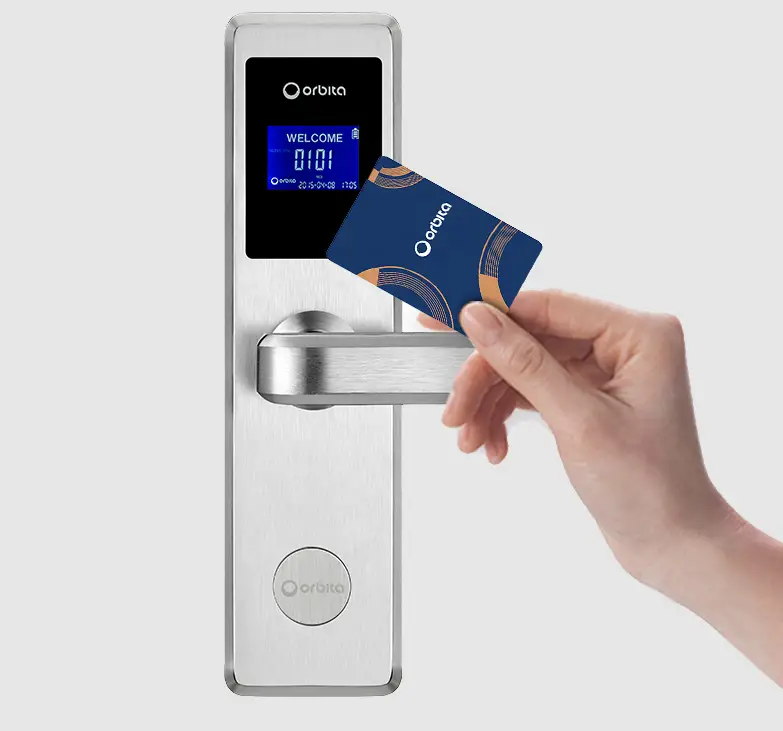 Solution Introduction
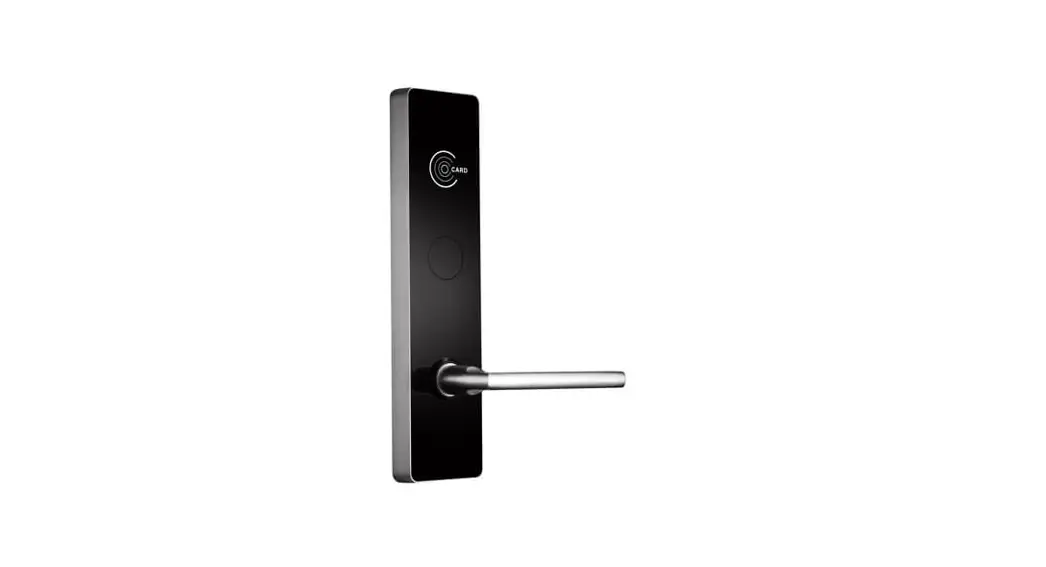
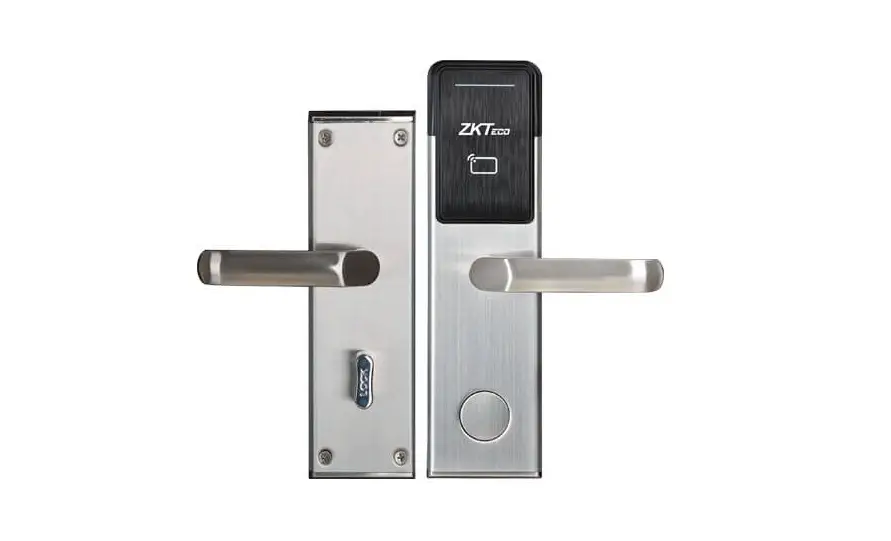
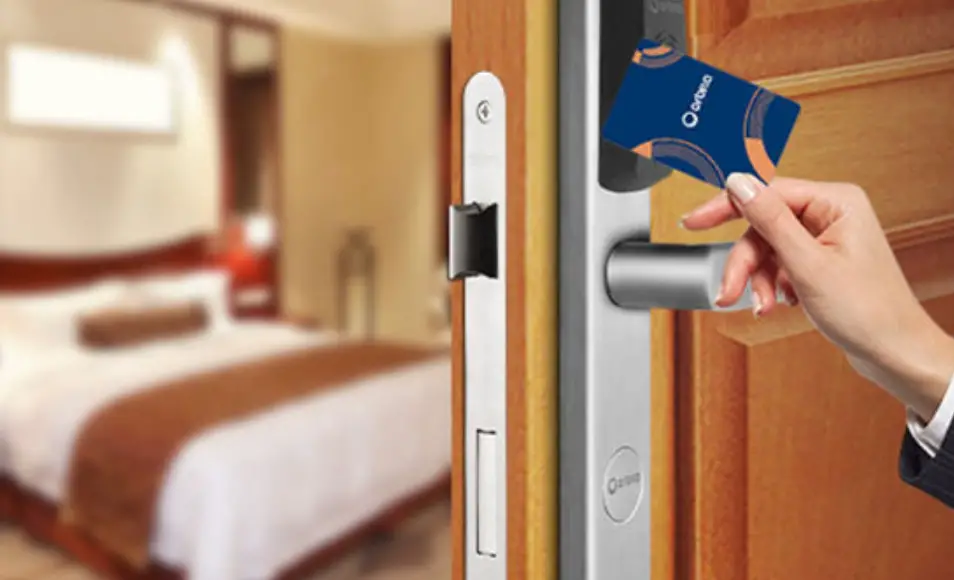
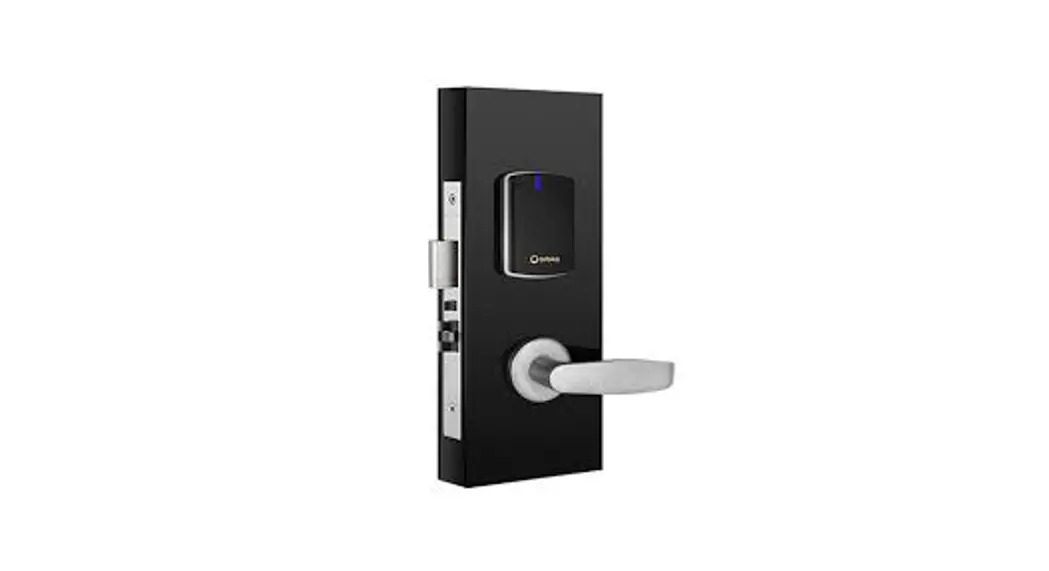
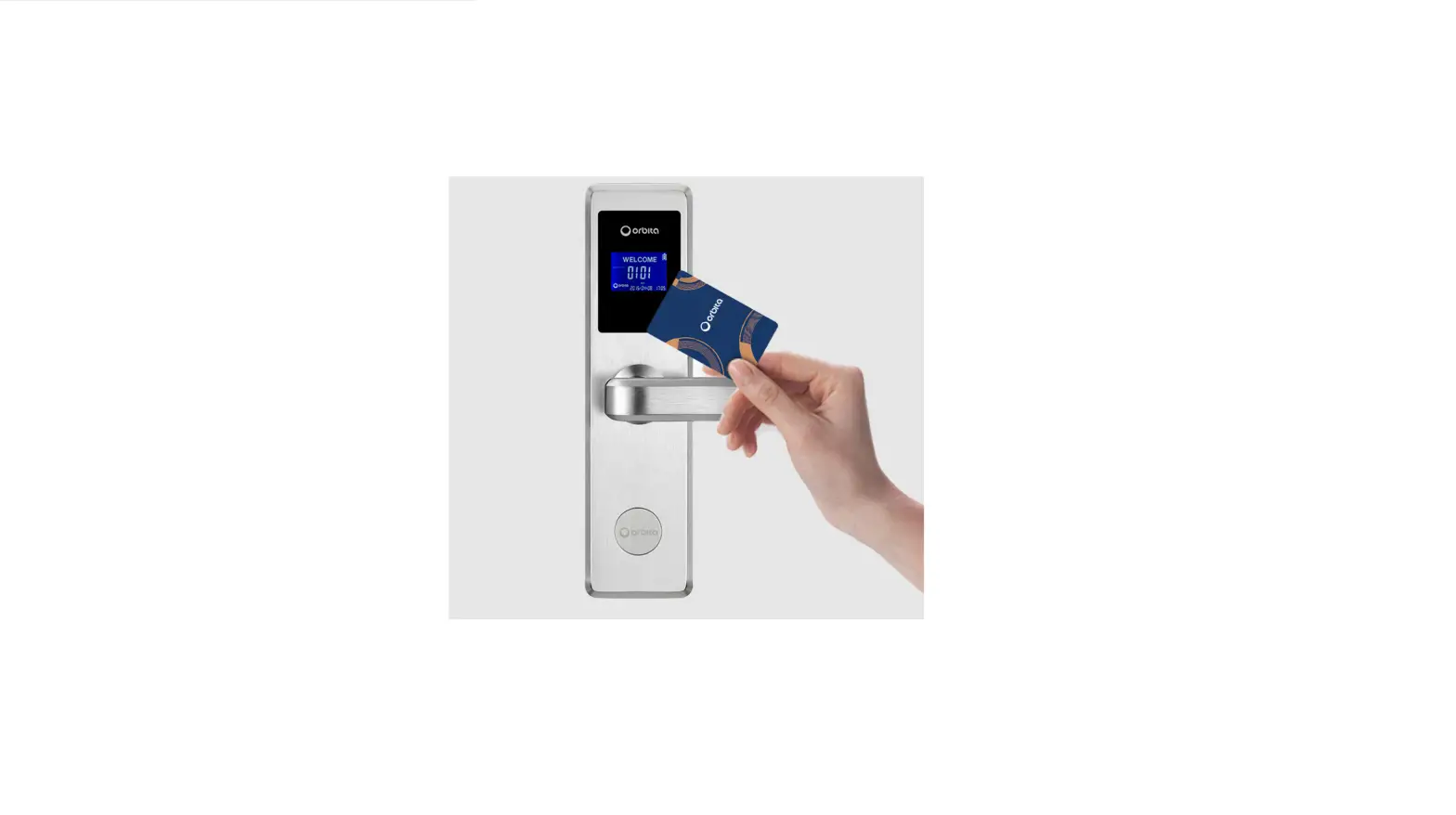
Application scenarios: The E3041 wireless Bluetooth lock adds a low-power Bluetooth module to the original hotel lock E3041, so that it has the wireless Bluetooth networking function in addition to the hotel lock function, which is convenient for hotel management to directly issue electronic keys at the front desk or mobile APP to open the door for guests. When guests arrive at the door of their room, they can directly use the mobile phone APP to open the door, so hotel management and guest experience satisfaction are improved.
The solution uses ultra-low-power MSP430 chip as the main control and lowpower BLE wireless Bluetooth module to add the wireless Bluetooth networking function. NXP card reader chip supports M 1 card.
M1 non-contact IC card is a multi-function card that can be read and written repeatedly. It is widely used in automatic toll collection systems for buses,
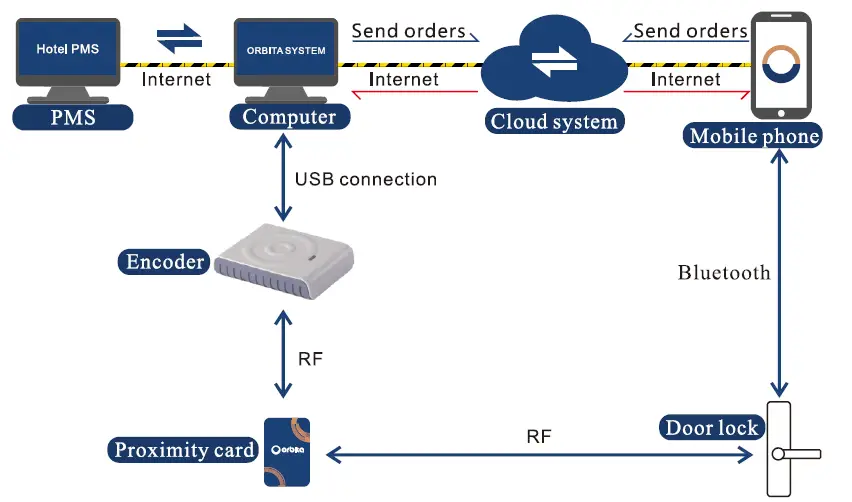
System Block Diagram 
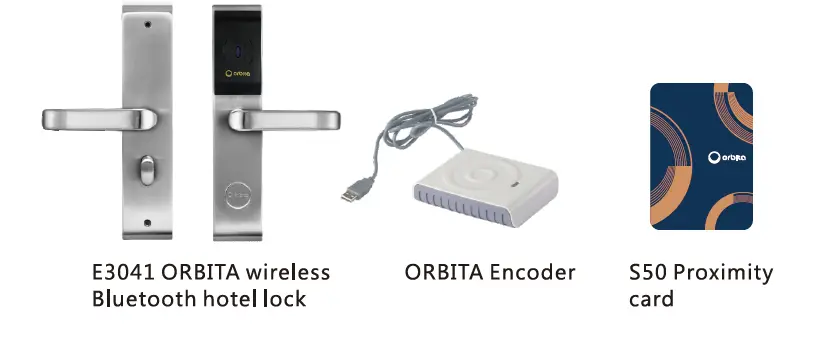
Product supporting components
| Provider | Name | Quantity | Remarks |
|
ORBITA | ORBITA Wireless bluetooth hotel lock | 1 piece per room | Required |
| Encoder | 1 piece | Required | |
| 550 Card | Several | Required | |
| Hotel smart door lock management system (computer) | 1 set | Required | |
|
Client | Mobile phone (Android or iPhone) | 1 piece | Required |
| Computer | 1 piece | Internet conne- ction required | |
| Network cable/Crystal head | Several | Required |
Performance Parameters
| Power supply | 6 V (4*1.5 V) alkaline battery |
| Low voltage alarm | 4.8 V ±0.1 V |
| Standby quiescent current | 50-80 µA |
| Operating current | Below 250 mA |
| Unlocking time | About 3 seconds |
| Supported card types | MIFARE Ml card (S50.S70) |
| Maximum reading distance | 2cm |
| Bluetooth distance | Within 10 meters without obstruction |
| Networking | BLE wireless Bluetooth |
| Supported mobile phone system | Android 4.3 /1OS 7.0 and above |
| Operating temperature range | -20~ 70°C |
| Operating humidity range | 30%~85% |
| Unlocking method | Card, mobile APP, mechanical key |
Preparations for Wireless Bluetooth Lock Operation
- Before configuring the wireless Bluetooth lock, you need to prep are:
- one computer, one encoder, Orbita card encoding system software, 3 key cards.
- Bluetooth lock (at least 1) with mechanical key, mobile phone ( Android or Apple).
- Install card encoding system
Install the Bluetooth version of “Orbita Hotel Card Encoding System” on the computer. The name is provisional.
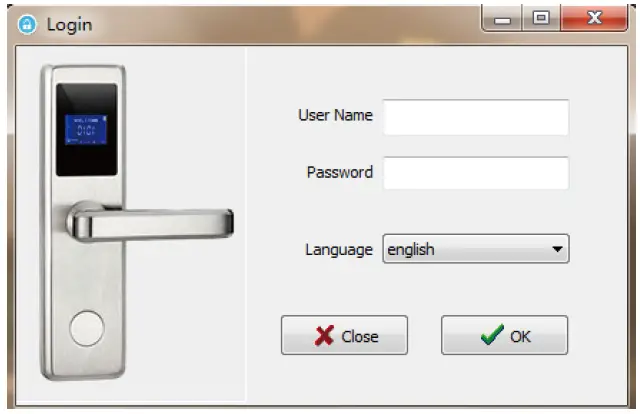
- Log into card encoding system
Connect the encoder to the computer, start the hotel management
system, enter the default account number 001, password 001 and log in. (In the lower left corner there is the words “Connect to the Encoder SuccessfuIly” .)
- Assign room information
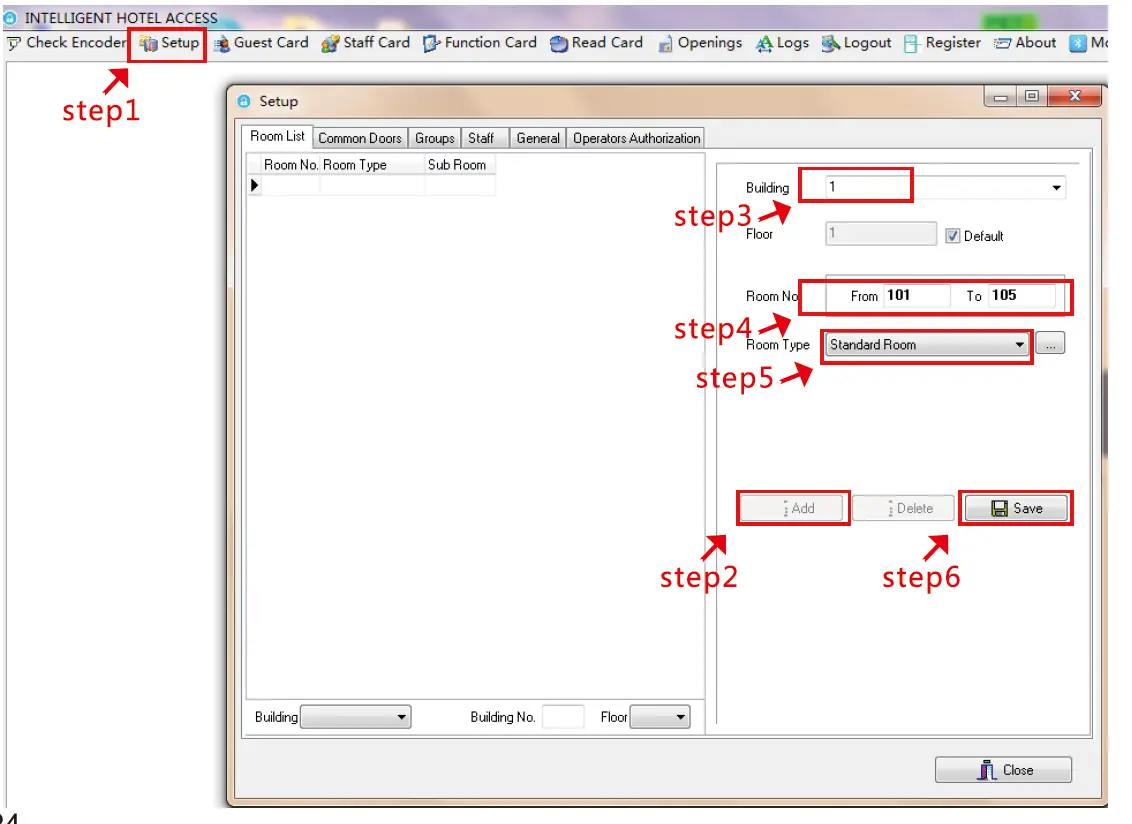
Click “Settings” – “Add” – enter “Building” – enter “Room No.” – select “Room Type” – click “Save”
- Encode Setting Cards
After adding the room number, click “Setting Card” – “Set Room” – “Standard Room” – “Select” – “Building” – “Room No.” . After choosing the right room number, place a blank door card on the encoder.
  Click the “Setting Card” button on the software to encode a room setting card (the words “Card Encoded Successfully” will appear in the lower left corner).
- Encode Networking Cards
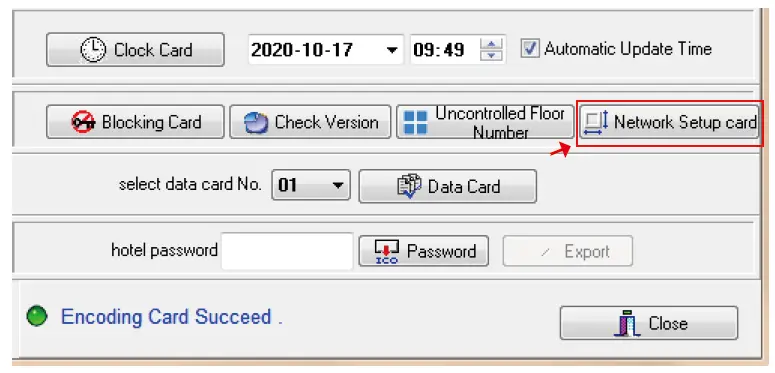
Remove the encoded Setting Card from the encoder, place a blank card on it, and click “Networking Card” to encode a Networking Card to configure the wireless Bluetooth connection with the mobile phone APP.
- Encode Guest Cards
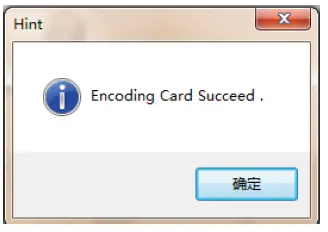
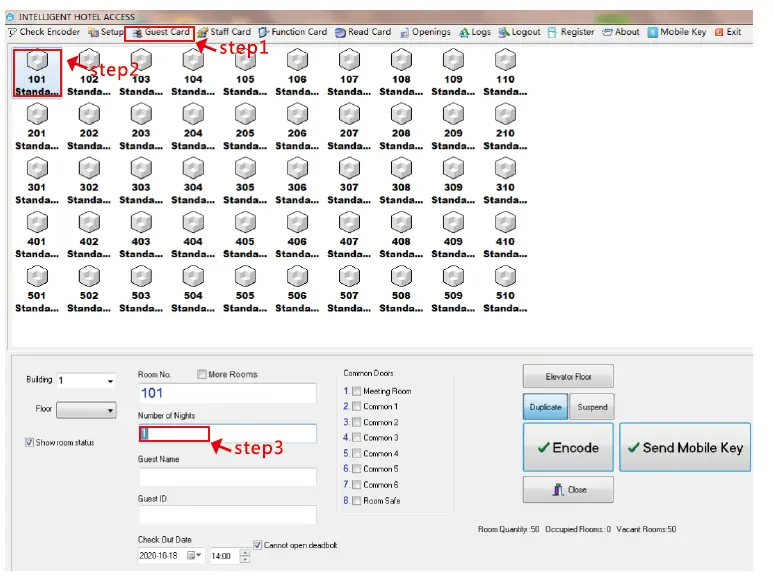
Re-place a blank card on the encoder, click “Guest Card” – doubleclick the corresponding room number – fill in “Days of stay” and click the “Encode” button. At this time, the “Card Encoded Successfully” hint box will pop up, click “OK”
- Set door lock
Swipe the Setting Card at the wireless Bluetooth door lock to set the room number for the door lock. (Short sound indicates successful setting, long sound indicates cancelled setting)
At this time, if you swipe the Guest Card, the door should open. (If the door does not open, please repeat the previous step to set the room number.)
Note: If the buzzer alarms 8 times when you swipe the Setting Card, you need to use the mechanical key to turn it to the forced clearing state and then swipe the Setting Card. - Steps of Wireless Bluetooth Lock Networking
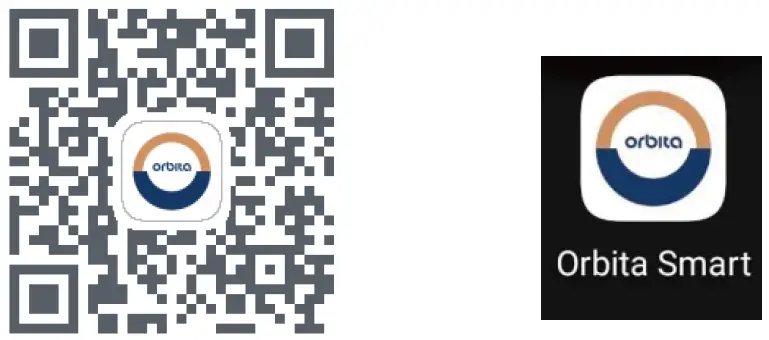
- Download APP on your mobile phone:

- Install APP
Install the APP after downloading. Once the installation is complete, the “Orbita Smart Lock” icon - Login account
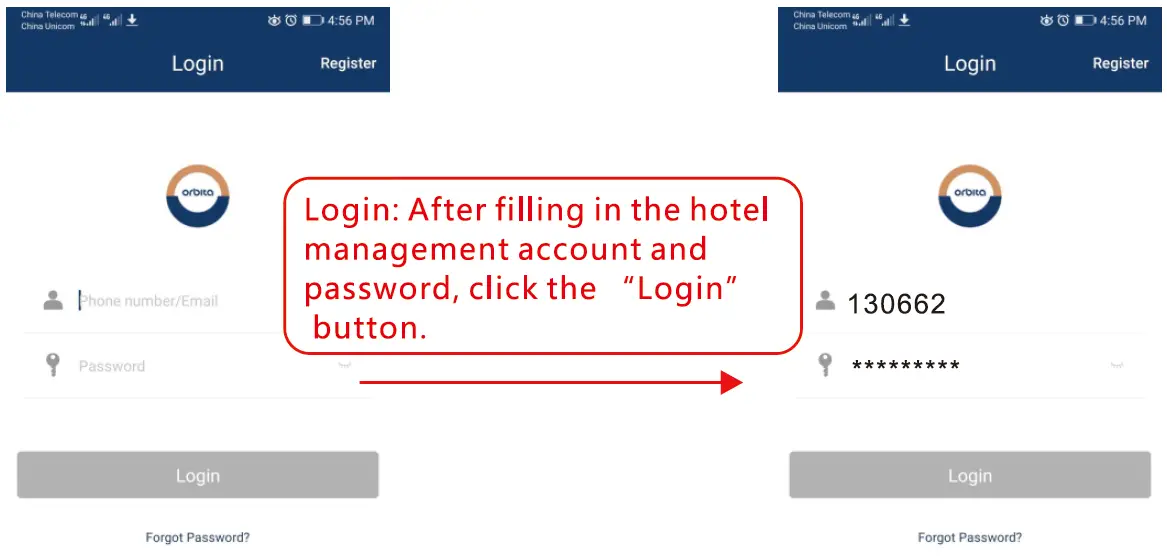
After opening the APP, you will see the account login interface. Fill in the Bluetooth lock management account and password. (If you don’ t have an account, please click the upper right corner to register an account. The login account is the hotel management account, which is used for hotel Bluetooth management. Later you need to use this account to bind to the hotel’ s card issuing system. For details, please refer to the software manual.)
User agreement and permissions: After logging in, there will be requests for the access permission and location permission from “Orbit Smart Lock” , please click “Allow” all. And the “Summary of User Agreement and Privacy Policy” needs to be agreed . - Add Bluetooth lock
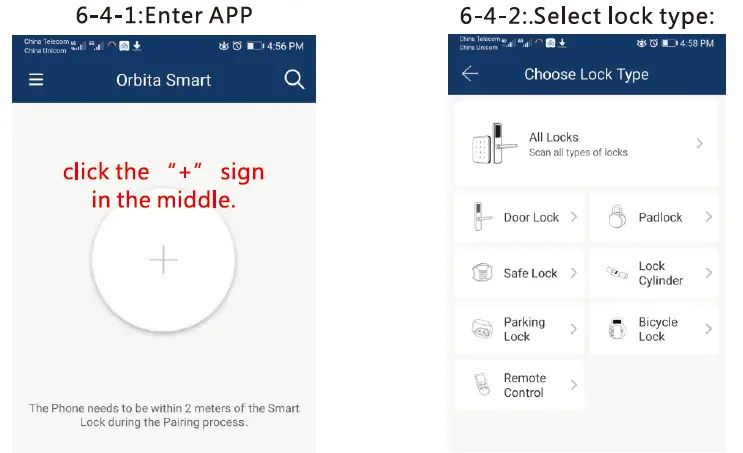
After entering the APP, click the “+” sign in the middle.
- Add lock
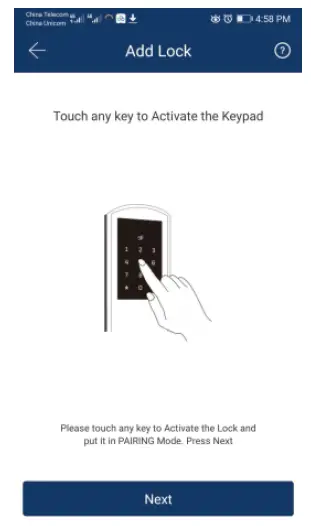
After going to the “Add Lock” page, stop operating the phone and switch to other operations (6.4.3.1).
- Door lock operation
After entering the “Add Lock” page in the APP, insert the mechanical key into the hotel lock and turn it until the forced authorization status light stays on, then swipe the Networking Card. After hearing a beep, which means that the card is successfully swiped, you can release the key.
- Add lock
After successfully swiping the “Networking Card” , click “Next” in the mobile APP. - APP captures Bluetooth lock
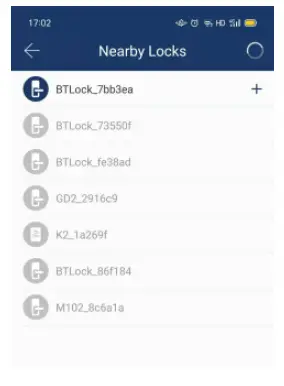
At this time, you will see the Bluetooth lock starting with “BTLock_xxxxxx”
(xxxxxx is a random value). If the Bluetooth lock of BTLock_xxxxxx does not appear, please wait for about 10 seconds to refresh the Bluetooth. If it still does not appear after about 10 seconds, please re-swipe the “Networking Card” until the Bluetooth lock appears. After the Bluetooth lock appears, please click the “+” sign behind to add the door lock to the APP.
- Bluetooth lock naming
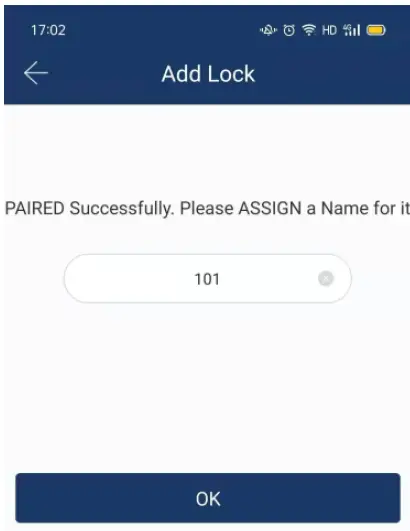
After the door lock is successfully added, enter the corresponding hotel room number and click “OK”.
- Bluetooth lock added successfully
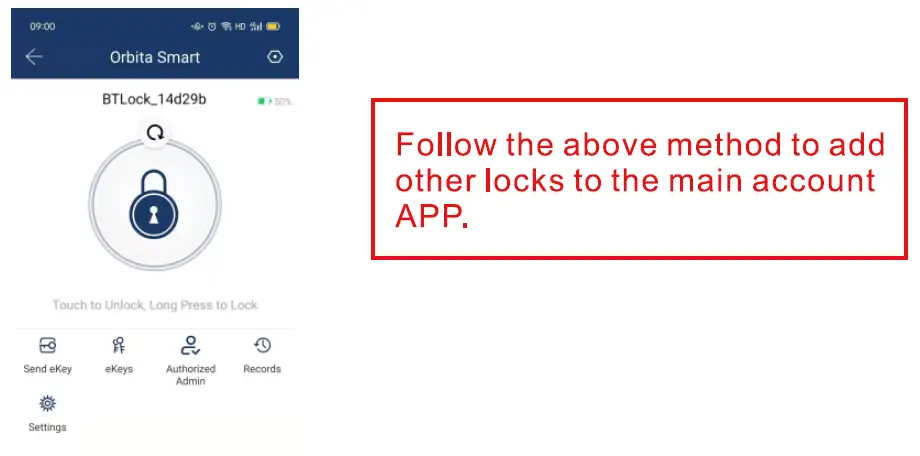
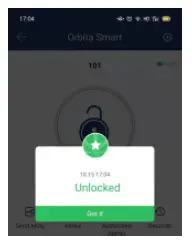
After confirming, ii will automatically return to the main interface of “Orbita Smart Lock”. Click the unlock symbol in the APP center to test whether it works normally
- Unlock with APP
The normal unlocking page with APP is shown below.
- Add lock
- Download APP on your mobile phone:

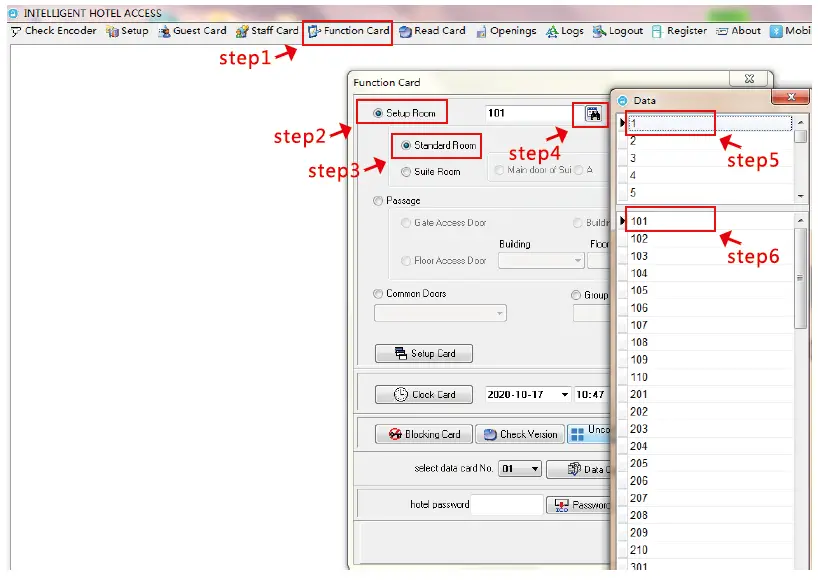 After choosing the right room number, place a blank door card on the encoder.
 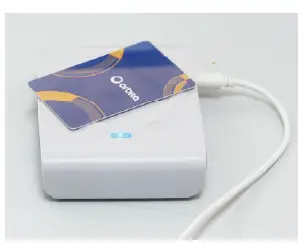 Click the “Setting Card” button on the software to encode a room setting card (the words “Card Encoded Successfully” will appear in the lower left corner).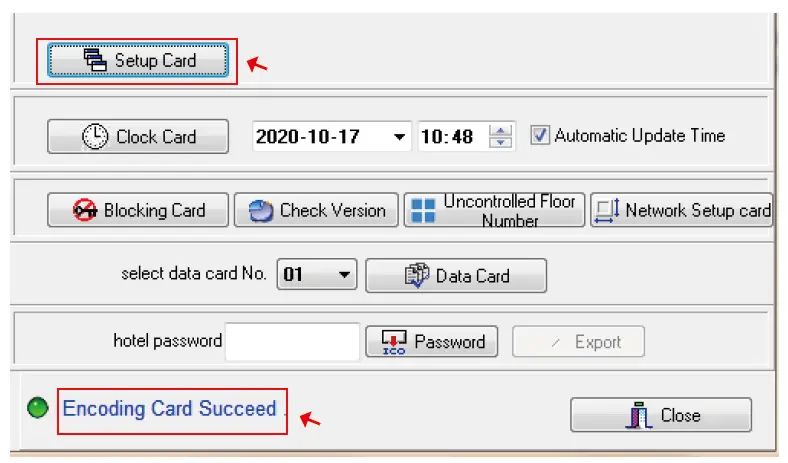
 At this time, the “Card Encoded Successfully” hint box will pop up, click “OK”