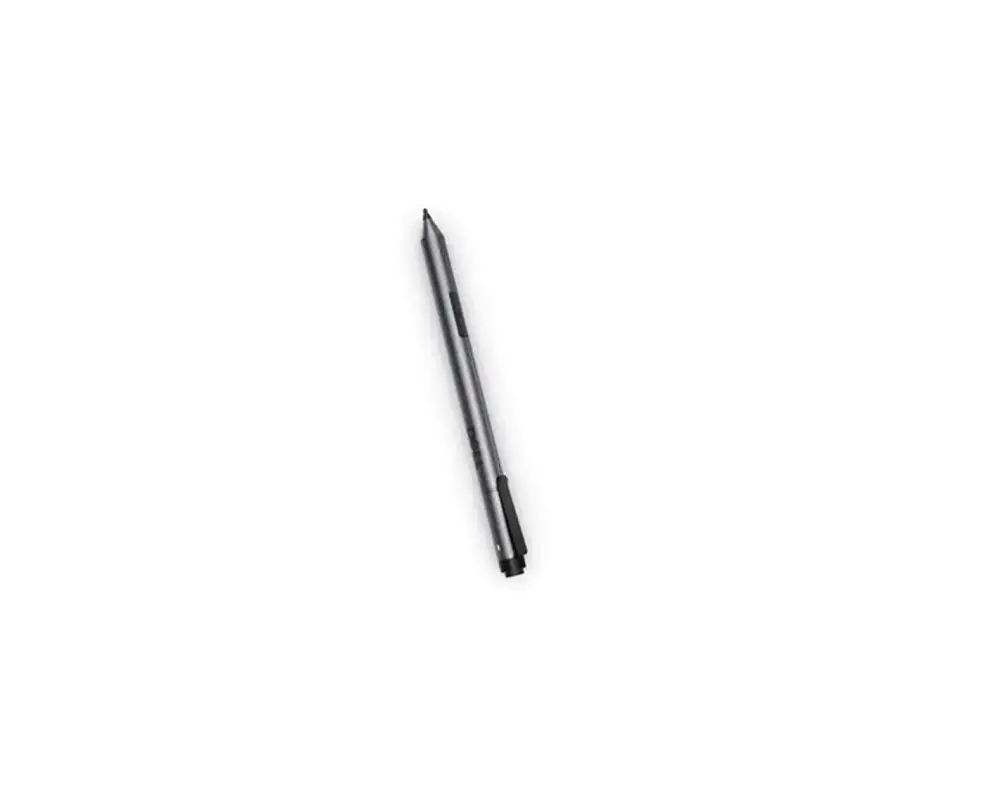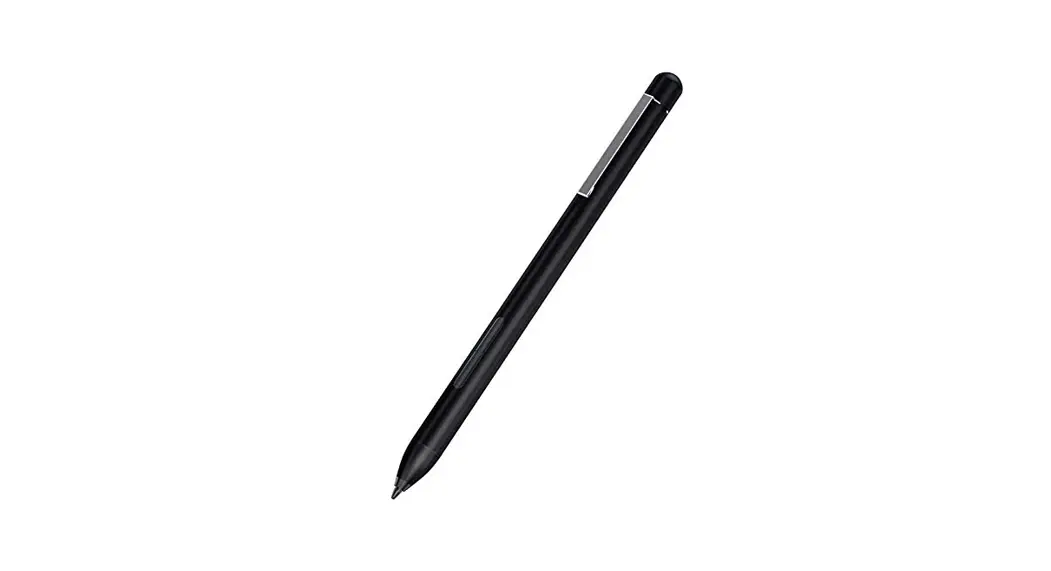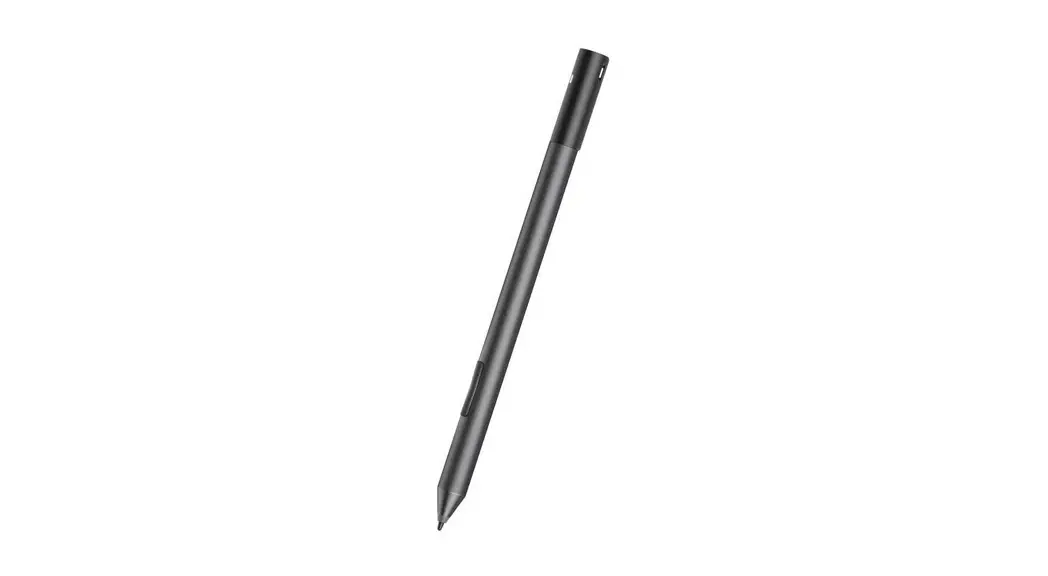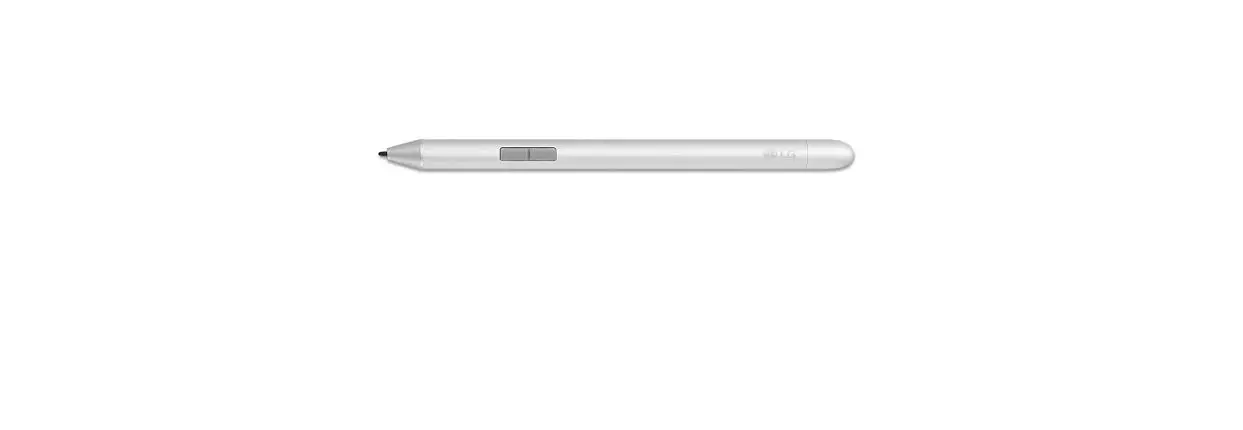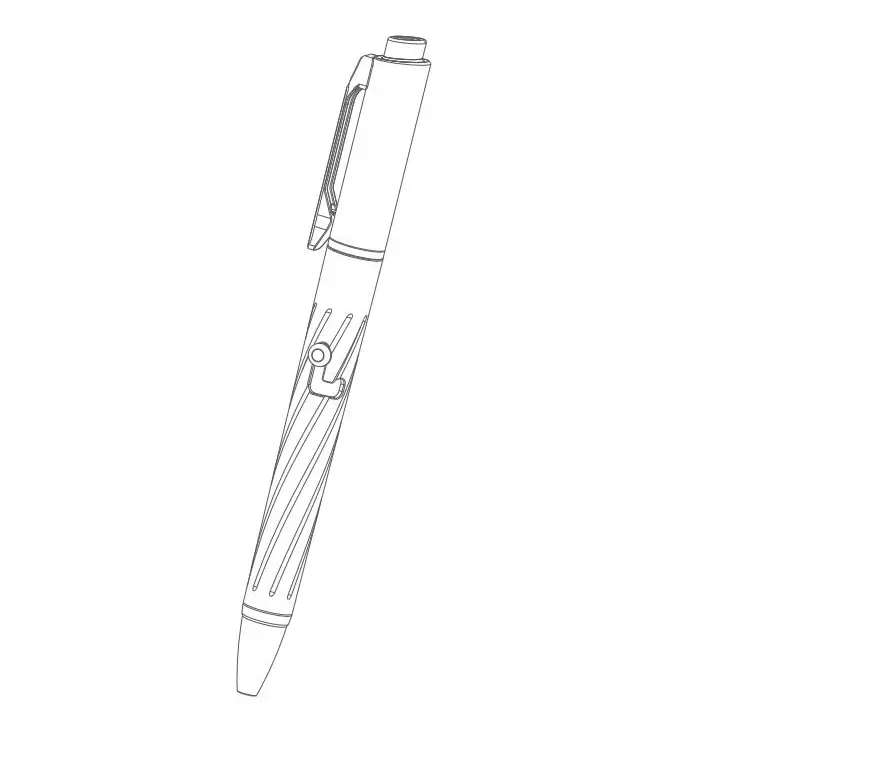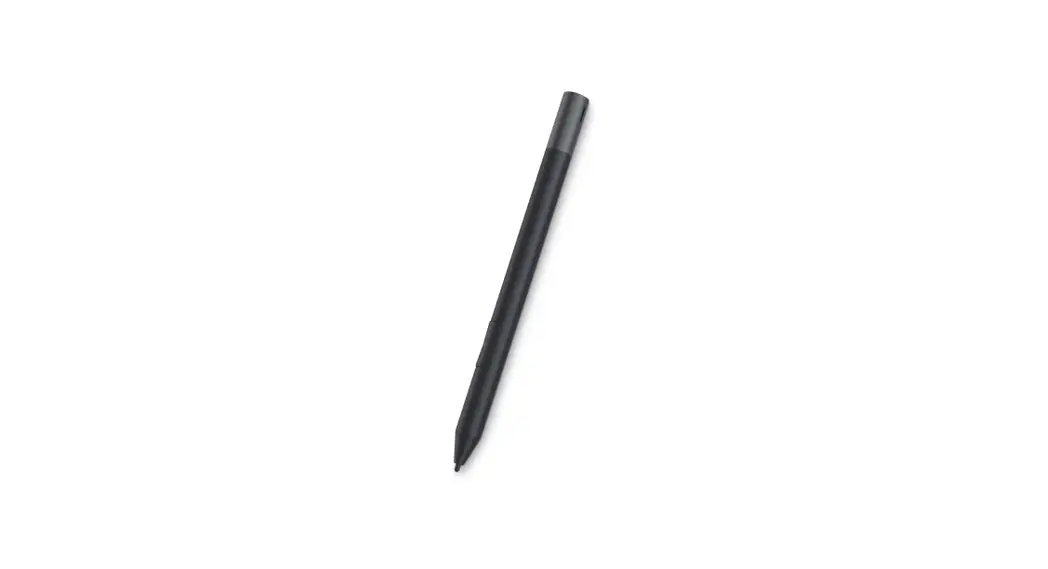
 Dell Premium Active Pen
PN579X
User’s Guide
Regulatory Model: PN579X
Notes, cautions, and warnings NOTE: A NOTE indicates important information that helps you make better use of your computer.
 CAUTION: A CAUTION indicates potential damage to hardware or loss of data if instructions are not followed.
 WARNING: A WARNING indicates a potential for property damage, personal injury, or death.
Copyright © 2018 Dell Inc. or its subsidiaries. All rights reserved. Dell, EMC, and other trademarks are trademarks of Dell Inc. or its subsidiaries. Other trademarks may be trademarks of their respective owners. 2018 – 04 Rev. A01
What’s in the box
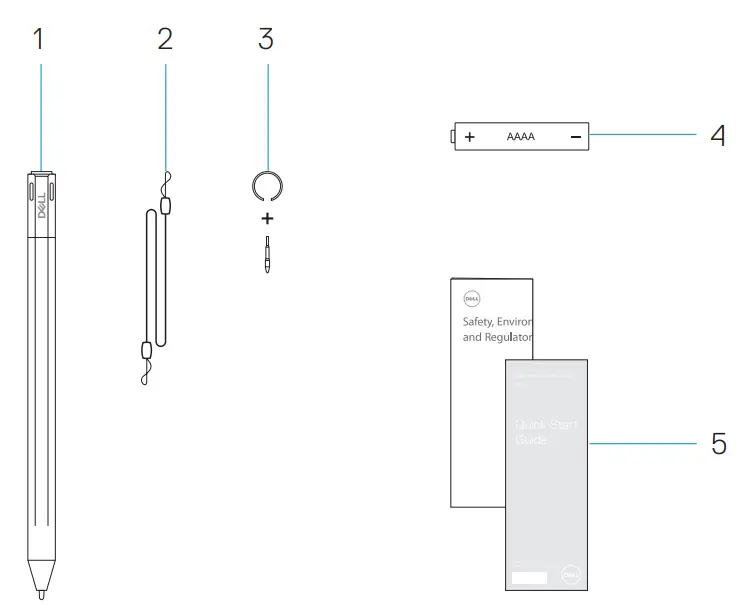
- Dell Premium Active Pen
- lanyard
- nib and tip remover
- AAAA battery
- manuals
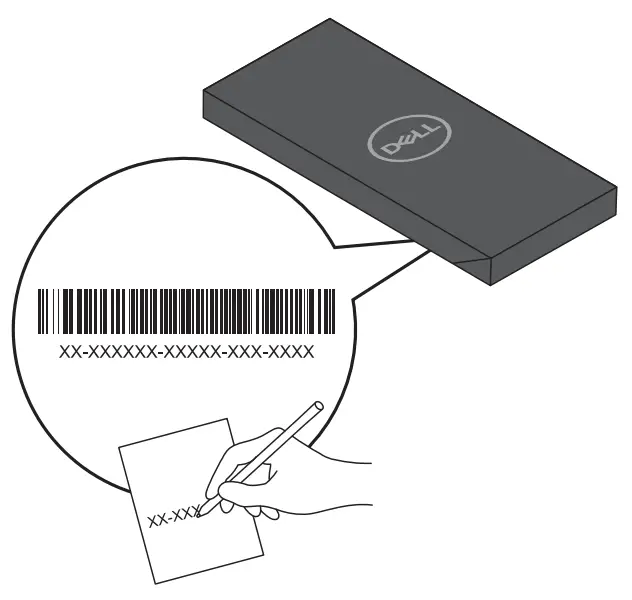
NOTE: For warranty purposes, note the PPID number on the box or retain the box.
Features
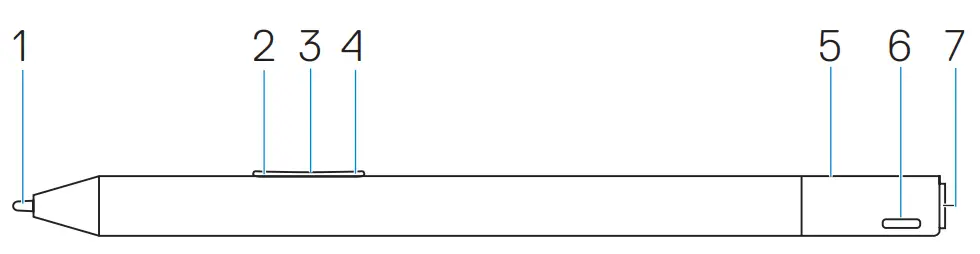
| Feature | Functionality |
| 1 Tip | Move the tip over a touch screen to move the pointer. Allows you to write, draw, select objects, and so on. |
| 2 Bottom Barrel Button | Press and hold this button and move the tip over the area you want to erase. To change the functionality of this button, see Using Active Pen Control Panel. |
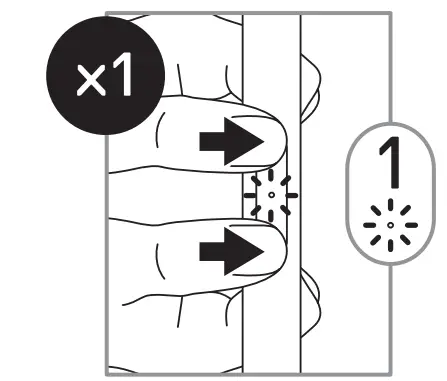
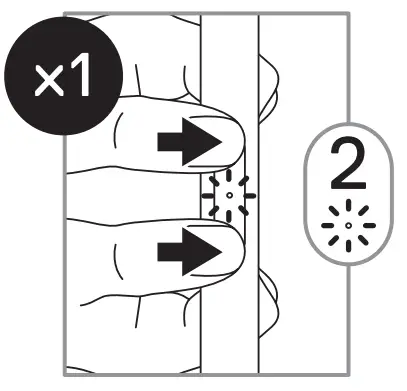
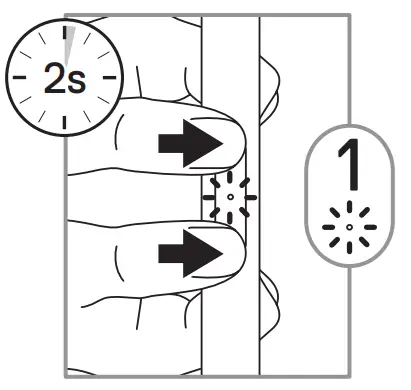
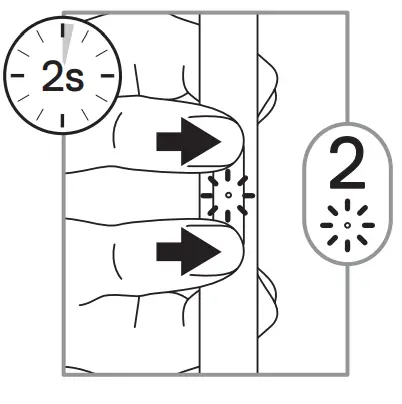
| 3 Protocol changing light | Mode Checking: • Press briefly on both Bottom Barrel Button and Top Barrel Button, to indicate the current Inking Mode as follows: • Microsoft Pen Protocol (MPP) — Blinks twice • Wacom Active Electrostatic (AES) — Blinks once Mode Switching: • Press and hold for 2 seconds on both Bottom Barrel Button and Top Barrel Button to trigger Mode Switching. After completion of mode switching, indicator will show the current effective Mode as follows: • MPP — Blinks twice • AES — Blinks once NOTE: The default Inking Mode is AES.NOTE: The Dell Premium Active Pen PN579X supports Wacom’s Universal Pen Framework (UPF) that enables to switch between Microsoft Surface devices and Wacom Active ES (electrostatic) devices.The Microsoft Surface devices support the MPP protocol and the Wacom ES devices support the AES protocol. |
| 4 Top Barrel Button | Press this button to open the context menu or perform a right-click. To change the functionality of this button, see Using Active Pen Control Panel. |
| 5 Bluetooth pairing light | Blinking white light indicates pairing mode is enabled. A solid white light indicates the pairing is complete. For information on pairing the pen with a Bluetooth device, see Pairing with a Bluetooth device. |
| 6 Hole for lanyard | Attach the lanyard here. For information on attaching the lanyard, see Attaching the lanyard. |
| 7 Top button | The new Active Pen Control Panel allows the Top button to be programmed to launch specific applications listed in the content menu. The default applications launched from the Top button are: • Single Press — Ink Worspace • Double Press — Screen Sketch • Long Press — Sticky Note NOTE: The highlighted gesture of Single Press, Double Press and Long Press are only valid after adding Active Pen Control Panel application.NOTE: For more information on system compatibility, please refer to the system’s user manual.• In presentation mode, press once to go to the next slide and press twice at short intervals to go to the previous slide. NOTE: This feature is only available after installing the Active Pen Control Panel. For instructions on installing the Active Pen Control Panel, see Installing Active Pen Control Panel. |
Dell Premium Active Pen uses one AAAA battery. The battery provides power for the tip, barrel buttons, Bluetooth functionality, and top button quick-launch features.
Installing the battery CAUTION: Incorrectly installing the battery damages the pen.
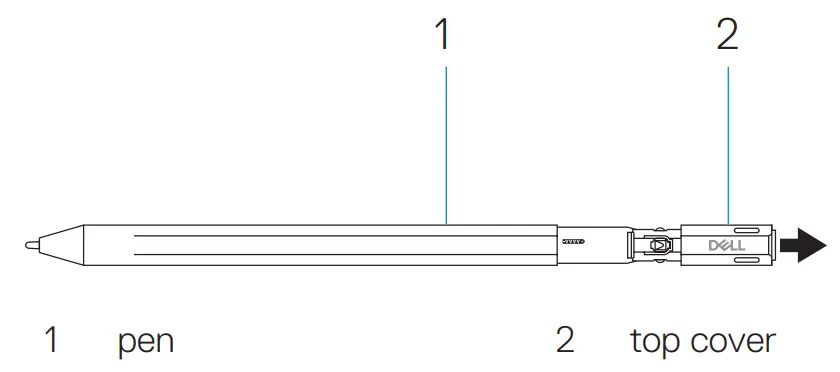
- Remove the top cover from the pen.

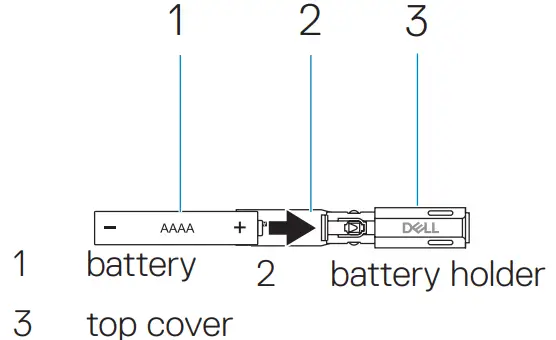
- Insert the battery in the battery holder then attach to the top cover with the positive side of the battery facing the top cover.

- Align the flat side of the pen with the flat side of the top cover and attach the top cover to the pen.


Attaching the lanyard
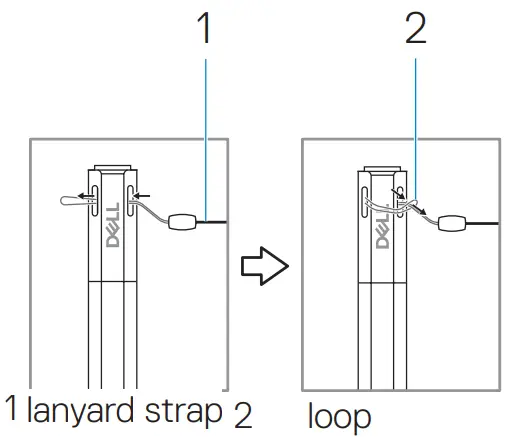
- Insert the loop of the lanyard through the hole in the top cover of the pen.
- Thread the lanyard strap through the loop and pull firmly to secure it in place.

- Attach the other side of the lanyard to your portable device.
Pairing with a Bluetooth deviceNOTE: You can use Dell Active Pen PN579X only with selected Dell computers and tablets. For a list of supported devices, see www.dell.com. NOTE: If the pen is already listed under Bluetooth devices, remove the pen from the list before pairing with your device.
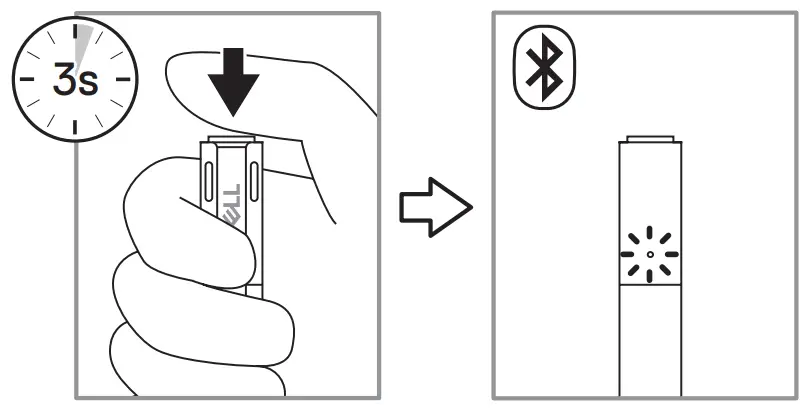
- Press and hold the Top button for 3 seconds to enable pairing mode.
The Bluetooth-pairing light starts blinking to confirm the pairing mode is enabled.
- In Windows Search, type Bluetooth.
- From the list that appears, tap or click Bluetooth and other devices settings.
- Ensure that the Bluetooth is set to On.
- From the list of devices, tap or click Dell Active Pen PN579X→ Pair.
 NOTE: If Dell Active Pen PN579X is not listed, ensure pairing mode is enabled on the pen.
 - Confirm the pairing process on both pen and device.
The Bluetooth-pairing light turns solid white for a few seconds to confirm the pairing and then the light turns off. After the pen and a device are paired, they connect automatically when Bluetooth is enabled and they are within the Bluetooth range.
Mode Checking between AES and MPP
Press briefly on both Bottom Barrel Button and Top Barrel Button, to indicate current Inking Mode.
- AES Mode — LED blinks once

- MPP Mode — LED blinks twice

Inking Mode Switching
Press and hold for 2 seconds on both Bottom Barrel Button and Top Barrel Button to trigger Mode Switching. After completion of mode switching, indicator will show the current effective Mode.
- LED blinks once — AES Mode is active

- LED blinks twice — MPP Mode is active

Active Pen Control Panel
You can customize the buttons on your pen, change pressure sensitivity, and so on, using Active Pen Control Panel.
Installing Active Pen Control Panel
To install Active Pen Control Panel:
- Turn on the computer or tablet.
- Go to dell.com/PN579X.
- Tap or click Drivers & downloads.
- Select the operating system from the drop-down menu.
- Under Active Pen Control Panel, tap or click Download.
- Save the file.
- After the download is complete, open the file and follow the instructions on the screen to install the Active Pen Control Panel. NOTE: Active Pen Control Panel software is available on Windows 10 Creators update (RS2) and up.
Using Active Pen Control Panel
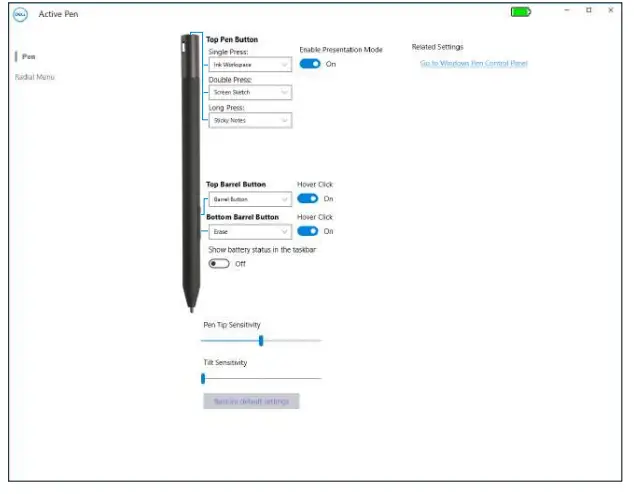
| Top Pen Button | • Turn on Enable Presentation Mode to use the button to navigate through a PowerPoint presentation. • Top Pen Button can be disabled or programmed to run specific applications or functions as listed below: • Single Press/Double Press/Long Press — Ink Workspace (default for Single Press), OneNote, Sketchpad, Screen Sketch (default for Double Press), Sticky Notes (default for Long Press), Open/Run, Keystrokes, Page Up, Page Down, Play/Pause, Next Track, Previous Track, Volume Up, Volume Down, Mute, and Defined by System. |
| Top Barrel Button | Top Barrel Button can be disabled or programmed to run specific applications or functions as listed below: • Barrel Button (default), Radial Menu, Erase, Open/ Run, Keystrokes, Cortana, Ink Workspace, Sketchpad, Screen Sketch, Sticky Notes, OneNote, Page Up, Page Down, Go Back, Go Forward, Copy, Paste, Undo, Redo, Switch Application, Wacom Settings, Web Browser, E-mail, Play/Pause, Next Track, Previous Track, Volume Up, Volume Down, and Mute. NOTE: The listed customization features are valid with Windows 10 RS2 (Creators update) and Windows 10 RS3 (Fall creators update).NOTE: Turn on Hover Click to enable the selected Top Barrel Button function while hovering the tip over the screen without the tip touching the screen. |
| Bottom Barrel Button | Bottom Barrel Button can be disabled or programmed to run specific applications or functions as listed below: • Barrel Button, Radial Menu, Erase (default), Open/Run, Keystrokes, Cortana, Ink Workspace, Sketchpad, Screen Sketch, Sticky Notes, OneNote, Page Up, Page Down, Go Back, Go Forward, Copy, Paste, Undo, Redo, Switch Application, Wacom Settings, Web Browser, E-mail, Play/Pause, Next Track, Previous Track, Volume Up, Volume Down, and Mute. NOTE: Turn on Hover Click to enable the selected Bottom Barrel Button function while hovering the tip over the screen without the tip touching the screen. NOTE: Turn on Show battery status in the taskbar to enable displaying battery status in the taskbar. |
| Pen Tip Sensitivity Tilt Sensitivity | Move the slider to change your pen sensitivity. Move the slider to change the tilt sensitivity. NOTE: Tilt functionality is application dependent. |
NOTE: Click Go to Windows Pen Control Panel for more configuration options.
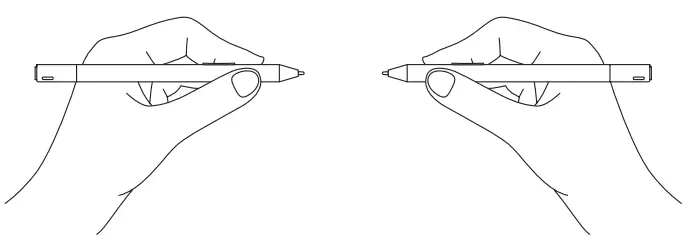
Hold the Dell Premium Active Pen as you hold a pencil or pen. Adjust the grip so that you can use the barrel button easily. Ensure not to accidentally press the barrel buttons while drawing or positioning the Dell Premium Active Pen.
Tip replacement
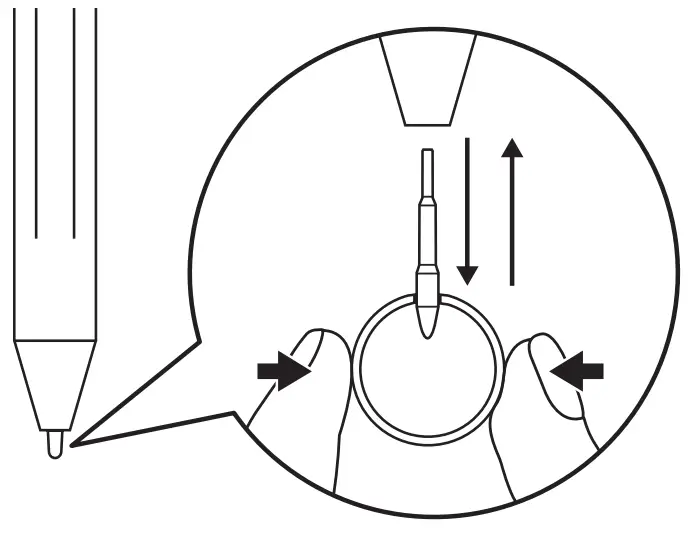
NOTE: Replace the pen tip when the length reduces to approximately 1 mm (0.04 inch) or has a sharp edge.
- Using the tip remover shipped with your device pull the tip out of the pen.
- Using the tip remover, slide the end of the new tip into the barrel of the pen.
- Push the new tip firmly in place.
Troubleshooting
NOTE: You can use Dell Premium Active Pen only with selected Dell computers and tablets. For a list of supported devices, see www.dell.com.
| Problem | Possible causes | Possible solutions |
| Pen does not work. | • Battery is installed incorrectly. • Battery is out of charge. | • Ensure the battery is correctly installed. For more information, see Installing the battery. • Replace the battery. For more information, see Installing the battery. |
| Pen is not functioning properly with the Notebook. | Pen could be using a mode that is not compatible with the Notebook. | Switch the Inking mode if Notebook is not detecting Inking Cursor when the pen is near the screen, see Inking Mode Switching. |
| Pen is not writing smoothly. | Nib is worn out. | Remove the existing nib and then replace it with the new nib that shipped with your active pen, see Tip replacement. |
| Pen does not write and the barrel buttons do not work. | Battery is either incorrectlyinstalled or out of charge. | Replace the battery. For more information, see Installing the battery. |
| Default functions for thebarrel buttons do not work. | Functions not supportedby application. | Test the barrel buttons in One Note or another application that supports these features. |
| Pressing the top button once, twice, or for 1.5 seconds does not open the desired application. | • The desired application is not installed or not supported. • Pen is not paired with your device. | • Ensure that the desired application is installed and in the list of available applications in Active Pen Control Panel. See Using Active Pen Control Panel. • Ensure the pen is paired with your device. For more information, see Pairing with a Bluetooth device. |
| Tilt support function does not work. | Function not supported by application. | Tilt support function is application dependent. Use another application that supports this function. |
| Unable to pair the penwith your device. | • Unsupported device. • Bluetooth driver on your device is outdated. | • Dell Premium Active Pen works only with Dell devices. • Install the latest Bluetooth driver for your device. |
| Pen shows as Not Connected under Bluetooth devices list. | Pen is not paired correctly with your device. | • Install the latest Bluetooth driver for your device. • Remove the pen from your Bluetooth list and pair it again. For more information on pairing the pen with your device, see Pairing with a Bluetooth device. |
| Bluetooth-pairing light does not turn on. | Battery may be out of charge. | • Change the battery. See Installing the battery. |
| Pressing and holding the top button or pressing the top button twice in succession does not wakeup the computer or tablet from connected standby. | Your computer or tablet may not support the connected standby feature. | Ensure to use this feature on computers and tablets that support the connected standby feature. Search PN579X on Dell website for a list of supported devices. |
Specifications
| Model | PN579X |
| Length (with the tip) | 150 mm (5.91 in) |
| Diameter | 9.5 mm (0.37 in) |
| Weight | 18 g (0.04 lb) |
| Wireless | Bluetooth Smart Low Energy 4.2 |
| Pen tip detectable height | 5 mm to 10 mm (0.2 in to 0.39 in) |
| Battery | AAAA non-rechargeable battery |
| Supported operating system | Windows 10 |
| Supported features | • Tilt support functionNOTE: Tilt support function is application dependent. • Dual Modes: • Wacom AES1/AES2.0 • Microsoft Pen Protocol v1.5 |
Getting help and contacting Dell
Self-help resources
You can get information and help on Dell products and services using these online self-help resources:
| Information about Dell products and services | www.dell.com |
| Windows 8.1 and Windows 10 |  Dell Help & Support app Dell Help & Support app |
| Windows 10 |  Tips app Tips app |
| Windows 8.1 |  Help + Tips app Help + Tips app |
| Accessing help in Windows 8.1 and Windows 10 | In Windows search, type Help and Support, and press Enter. |
| Online help for operating system | www.dell.com/support/windows |
| Troubleshooting information, user manuals, setup instructions, product specifications, technical help blogs, drivers, software updates, and more | www.dell.com/support |
Contacting Dell
To contact Dell for sales, technical support, or customer service issues, see www.dell.com/contactdell. NOTE: Availability varies by country and product, and some services may not be available in your country. NOTE: If you do not have an active internet connection, you can find contact information on your purchase invoice, packing slip, bill, or Dell product catalog.
Statutory information
Warranty
Limited warranty and return policies
Dell-branded products carry a 1-year limited hardware warranty. If purchased together with a Dell system, it will follow the system warranty.
For U.S. customers:
This purchase and your use of this product are subject to Dell’s end user agreement, which you can find at www.dell.com/terms. This document contains a binding arbitration clause.
For European, Middle Eastern and African customers:
Dell-branded products that are sold and used are subject to applicable national consumer legal rights, the terms of any retailer sale agreement that you have entered into (which will apply between you and the retailer) and Dell’s end user contract terms.
Dell may also provide an additional hardware warranty—full details of the Dell end user contract and warranty terms can be found by going to www.dell.com, selecting your country from the list at the bottom of the “home” page and then clicking the “terms and conditions” link for the end user terms or the “support” link for the warranty terms.
For non-U.S. customers:
Dell-branded products that are sold and used are subject to applicable national consumer legal rights, the terms of any retailer sale agreement that you have entered into (which will apply between you and the retailer) and Dell’s warranty terms. Dell may also provide an additional hardware warranty—full details of Dell’s warranty terms can be found by going to www.dell.com, selecting your country from the list at the bottom of the “home” page and then clicking the “terms and conditions” link or the “support” link for the warranty terms.
Regulatory statement
Federal Communication Commission Interference Statement
This device complies with Part 15 of the FCC Rules. Operation is subject to the following two conditions:
- This device may not cause harmful interference, and
- this device must accept any interference received, including interference that may cause undesired operation.
This equipment has been tested and found to comply with the limits for a Class B digital device, pursuant to Part 15 of the FCC Rules. These limits are designed to provide reasonable protection against harmful interference in a residential installation. This equipment generates, uses and can radiate radio frequency energy and, if not installed and used in accordance with the instructions, may cause harmful interference to radio communications. However, there is no guarantee that interference will not occur in a particular installation. If this equipment does cause harmful interference to radio or television reception, which can be determined by turning the equipment off and on, the user is encouraged to try to correct the interference by one of the following measures:
- Reorient or relocate the receiving antenna.
- Increase the separation between the equipment and receiver.
- Connect the equipment into an outlet on a circuit different from that to which the receiver is connected.
- Consult the dealer or an experienced radio/TV technician for help.
CAUTION: Any changes or modifications not expressly approved by the party responsible for compliance could void the user’s authority to operate this equipment.
This transmitter must not be co-located or operating in conjunction with any other antenna or transmitter.
Industry Canada statement:
This device complies with ISED’s licence-exempt RSSs. Operation is subject to the following two conditions:
- This device may not cause harmful interference, and
- this device must accept any interference received, including interference that may cause undesired operation.
Radiation Exposure Statement:
The product comply with the Canada portable RF exposure limit set forth for an uncontrolled environment and are safe for intended operation as described in this manual. The further RF exposure reduction can be achieved if the product can be kept as far as possible from the user body or set the device to lower output power if such function is available.
 Support for Dell Active Pen - PN579X | Overview | Dell US
 Computers, Monitors & Technology Solutions | Dell USA