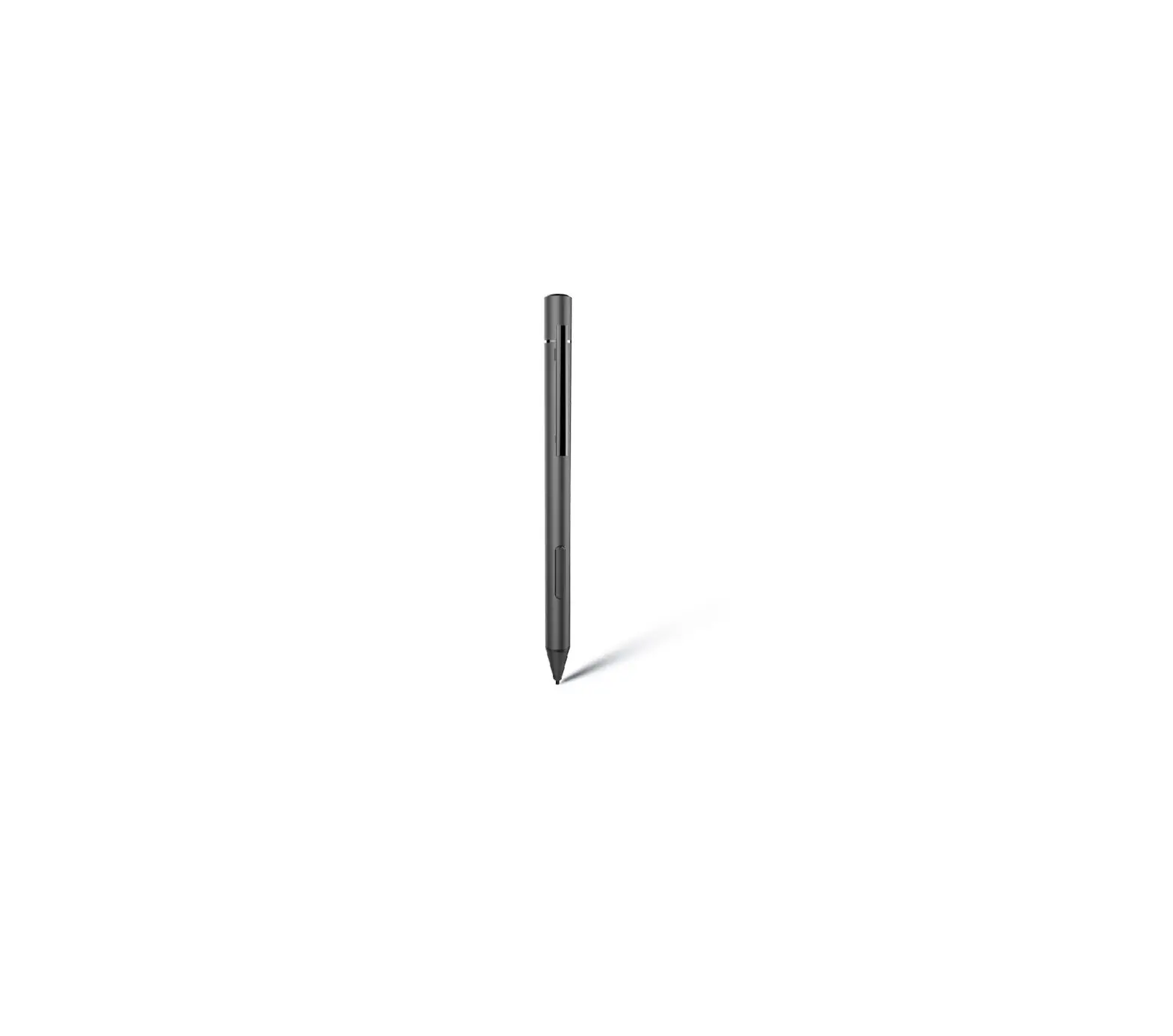
Interactive Smart Pen(IR) User Manual
Skizze Pen Driver Downloads
- Download from Microsoft Store
- Download from www.skizze.cn
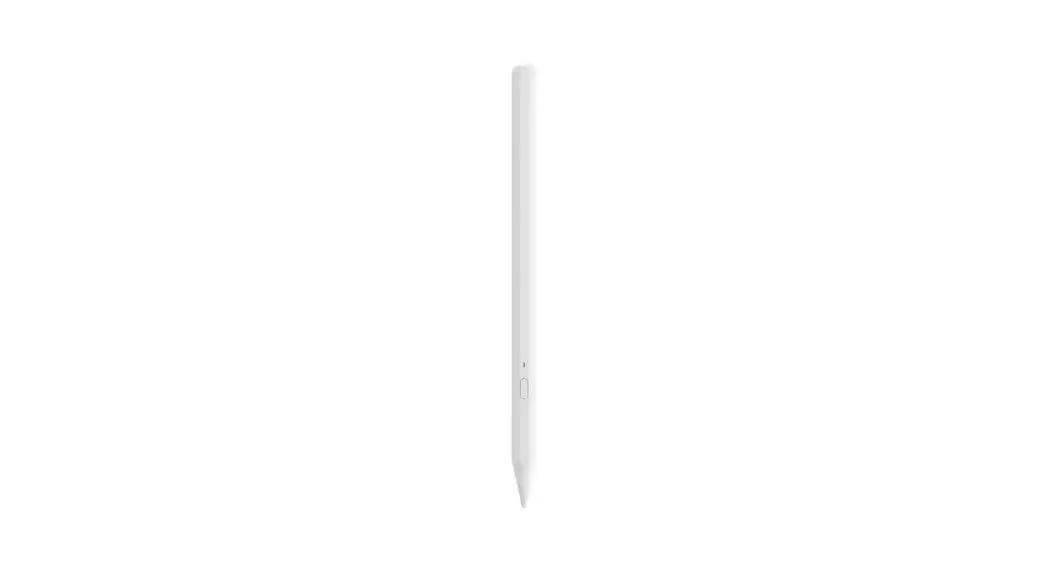
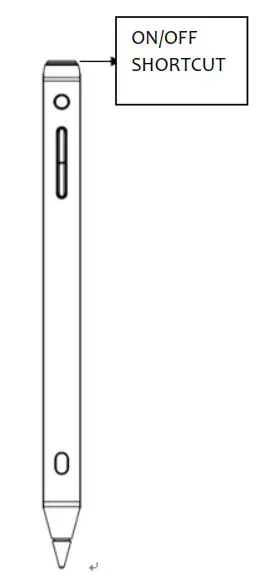
Components Overview
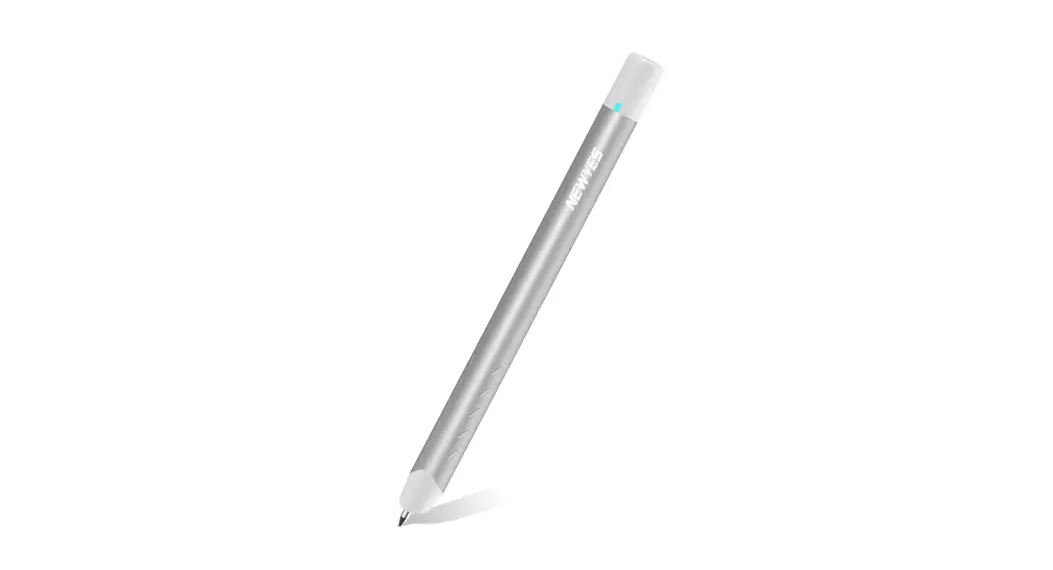
Please read the main components and their corresponding functions before using them.
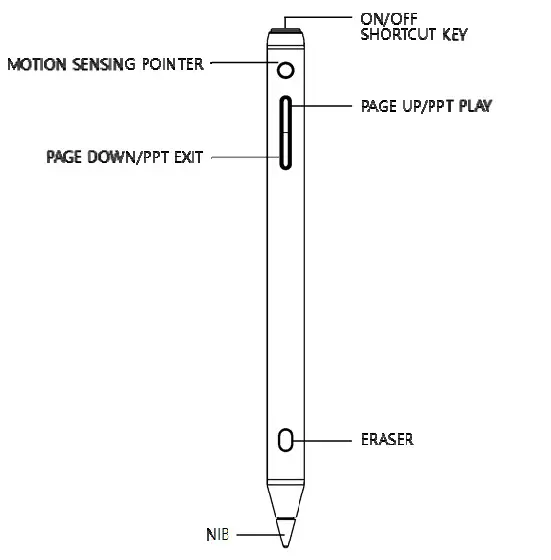
Use a super‐power pen
- Installation is successful, input user ID, pen tip verification is successful, Bluetooth has connected automatically, and pen is enabled.
- Installation successful, input user ID, pen tip verification successful, confirm to enable pen
- Click on the key, the pen tip indicator is white, and the pen enters the starting state.
- The pen tip indicator is white, and the pen is connected with the touch device.
- Writing, PPT demonstration, flying squirrel function in the air began to use
Remarks: Use conditions of the super‐energy pen:
- Only Windows 101709and above are supported;
- The touch screen system supports Bluetooth (the device has its own Bluetooth function or an external Bluetooth dongle);
- The touch screen supports fine nibs.
Windows Ink writing
Set up The function setting interface for shortcut key click and double click is as follows:

Press the rubber key long enough to erase the handwriting.
Status of Smart Pen
Operation and status description of On/Off button
| Button Name | Operation | Function | Nib Indicator Status |
| On/Off & Shortcut | Click Once | Power on |  3 times white blink 3 times white blink |
| Press and Hold | Power off |  4 times green blink 4 times green blink |
Notes: Click once to check the pen’s connection status when power on
Connected, Blink once in white
Disconnected,  Blink thrice in blue
| NibIndicatorStatus | Battery Condition |
Charging
 Blink in red Blink in red | Low Battery |
 Red on Red on | Charging |
 Green on Green on | Fully Charged |

ReplaceNib

The nib is a consumable item, if the nib is worn during use, please replace it as shown above.
Remark:
The package contains two spare nibs, if you want more extra, please purchase on the authorized website.
The smartpen contains precision components. Do not disassemble when replacing the pen nib.
Safety information
Please read the safety precautions carefully before using this smartpen: Power cord security
When charging, please put the smartpen in a proper positionDo not try to repair
Do not attempt to disassemble, repair, or change any part of the product to avoid risk to you.
If the after‐sales service technician finds that the smartpen has traces of damage, your product will lose its warranty.Stay away from children
The smartpen contains tiny structural parts. Keep your smartpen away from children.
Cleaning
Use a damp cloth to clean the appearance of the smartpen. Avoid touching the charging interface with aerosols, solvents, abrasives, etc.Battery
Smartpen contains sensitive electronic components, such as batteries, which can be damaged or cause personal injury if dropped, squeezed, or exposed to liquids.
The smartpen device is not removable. Do not replace the battery yourself, resulting in overheating or personal injury. Battery replacement is done by designated after‐sales service personnel.Operating environment
Do not use the smartpen in a place that is wet, dusty, or near a magnetic field to prevent the pen from malfunctioning.
Store the smartpen at ‐20℃~45℃. If the temperature is too high or too low, it may cause equipment malfunction.
Do not place the smartpen near fire or heat sources such as electric heaters, water heaters, candles, and other places that are prone to high temperatures.
Name and content of harmful substances in products
| Harmful substances | Components | |
| PCB | Accessory | |
| Pb | x | x |
| Hg | 0 | 0 |
| Cd | 0 | 0 |
| Cr (VI) | 0 | 0 |
| PBB | 0 | 0 |
| PBDE | 0 | 0 |
O: Indicates that the content of the harmful substance in all homogeneous materials of the part is below the limit requirement specified in GB/T 26572.
X: Indicates that the content of the harmful substance in at least one of the homogeneous materials of the part exceeds the limit requirement specified in GB/T 26572‐2011, but meets the environmental protection requirements of the EU RoHS Directive.
According to the Chinese electronic industry-standard SJ/T, 11364‐2014 and related Chinese government regulations, this product and some of its internal or external components may have an environmentally friendly use period mark, depending on the component and component manufacturer, the mark lifespan on the product and its components may vary. The expiration date on the component takes precedence over any conflicted or different UFUP labels on the product.

FCC Warning Statement
Changes or modifications not expressly approved by the party responsible for compliance could void the user’s authority to operate the equipment. This equipment has been tested and found to comply with the limits for a Class B digital device, pursuant to Part 15 of the FCC Rules. These limits are designed to provide reasonable protection against harmful interference in a residential installation. This equipment generates uses and can radiate radio frequency energy and, if not installed and used in accordance with the instructions, may cause harmful interference to radio communications. However, there is no guarantee that interference will not occur in a particular installation. If this equipment does cause harmful interference to radio or television reception, which can be determined by turning the equipment off and on, the user is encouraged to try to correct the interference by one or more of the following measures:
– – Reorient or relocate the receiving antenna.
– – Increase the separation between the equipment and receiver.
– – Connect the equipment into an outlet on a circuit different from that to which the receiver is connected.
– – Consult the dealer or an experienced radio/TV technician for help.
This device complies with part 15 of the FCC Rules. Operation is subject to the following two conditions: (1) This device may not cause harmful interference, and (2) this device must accept any interference received, including interference that may cause undesired operation. The device has been evaluated to meet general RF exposure requirements.