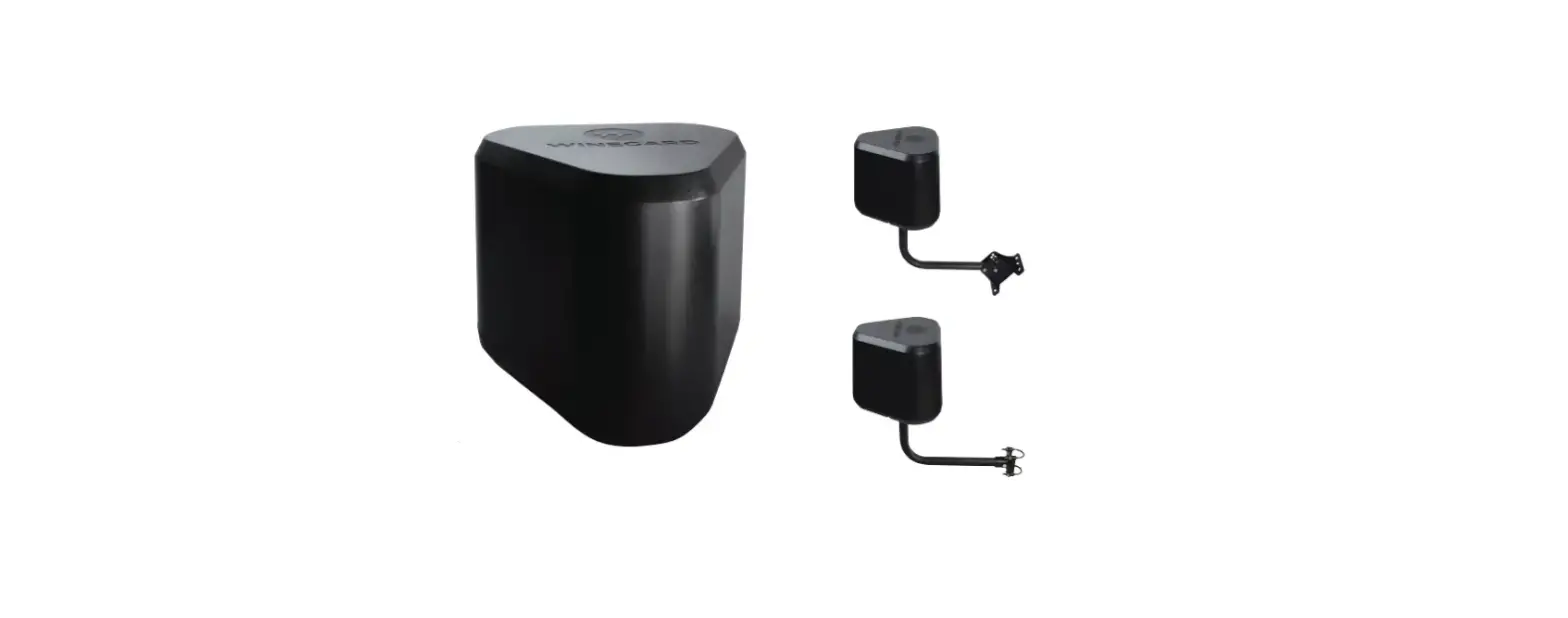
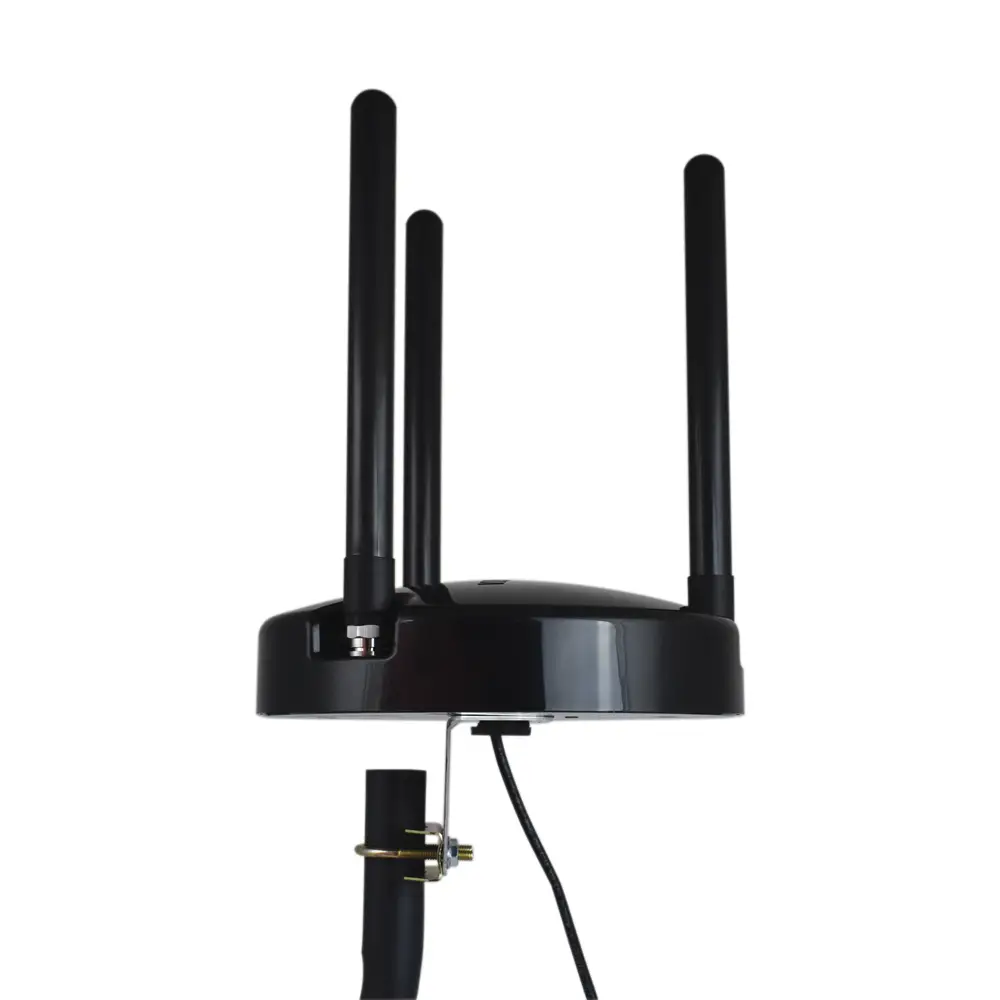
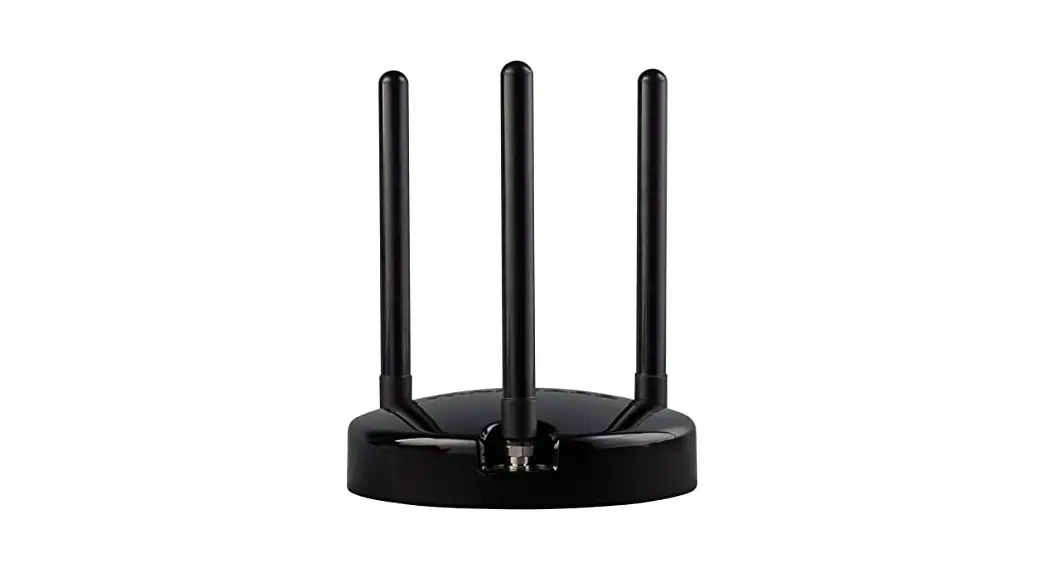
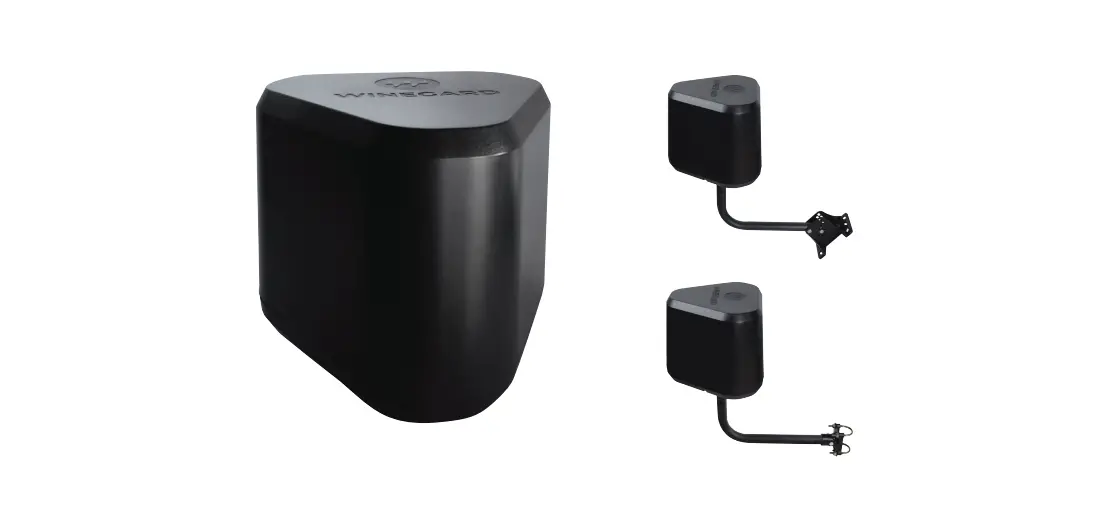
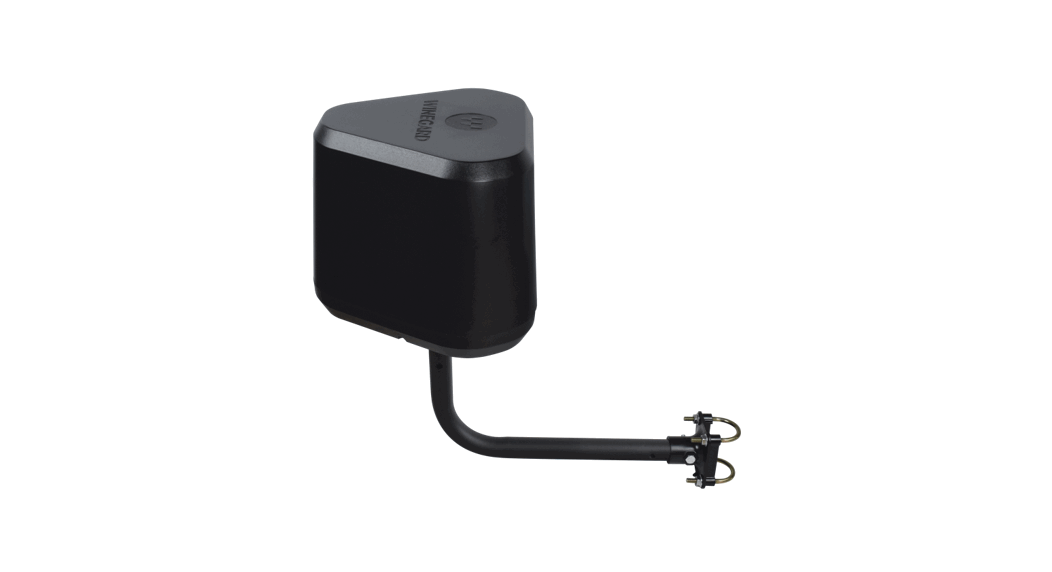
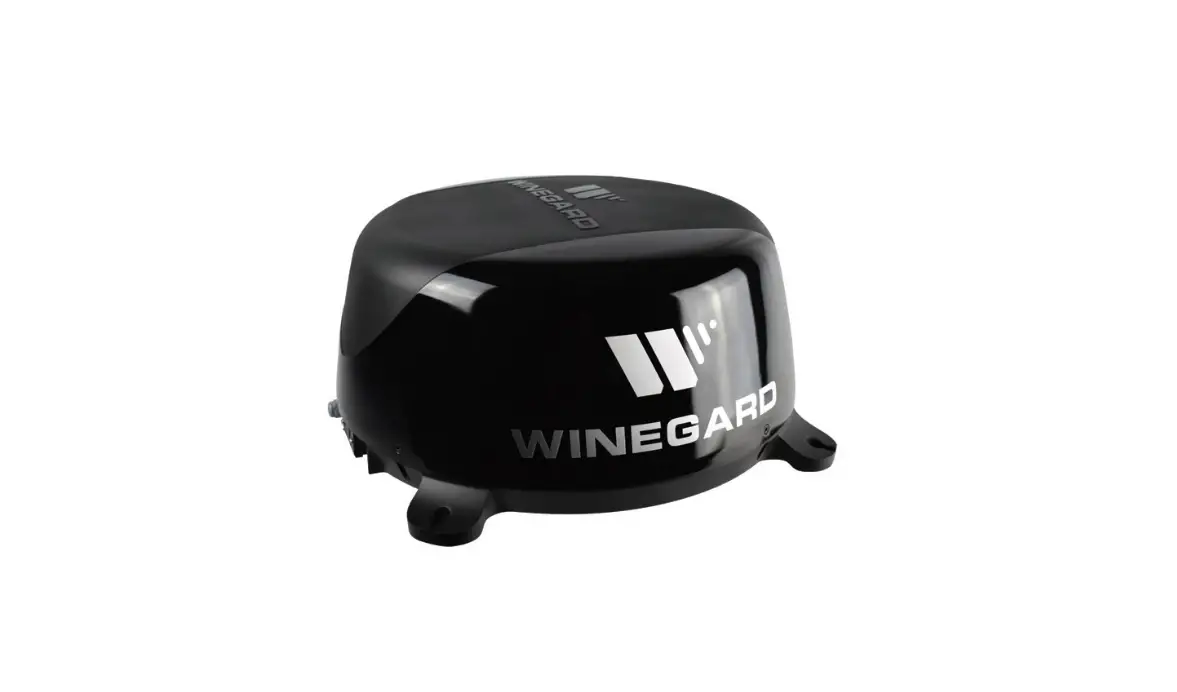
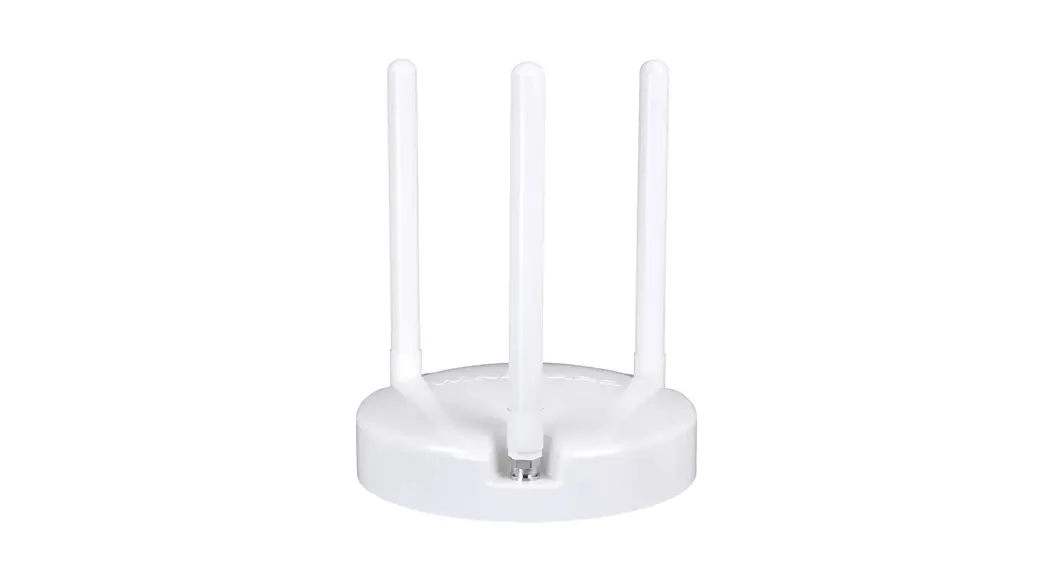
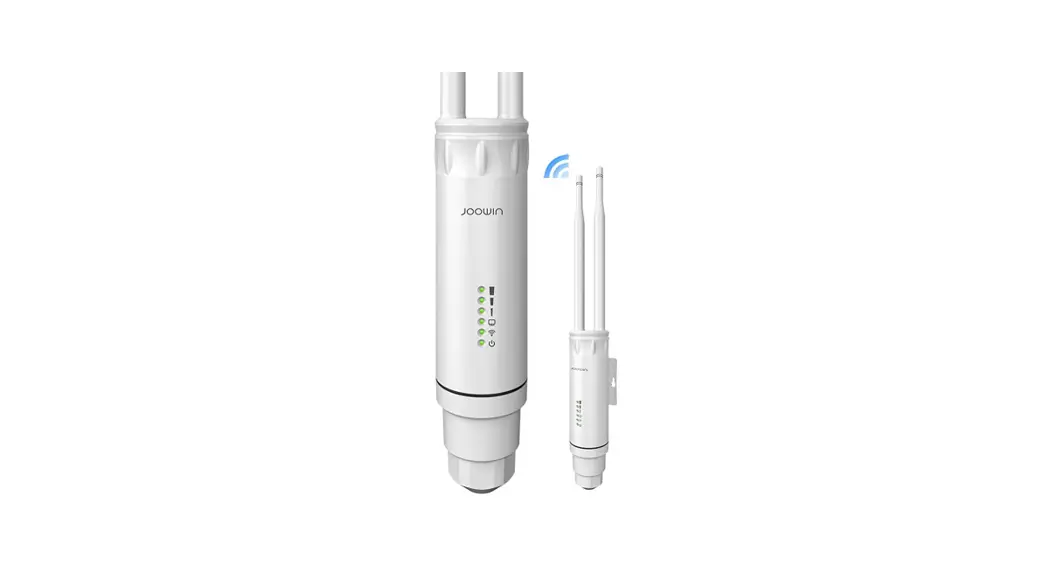
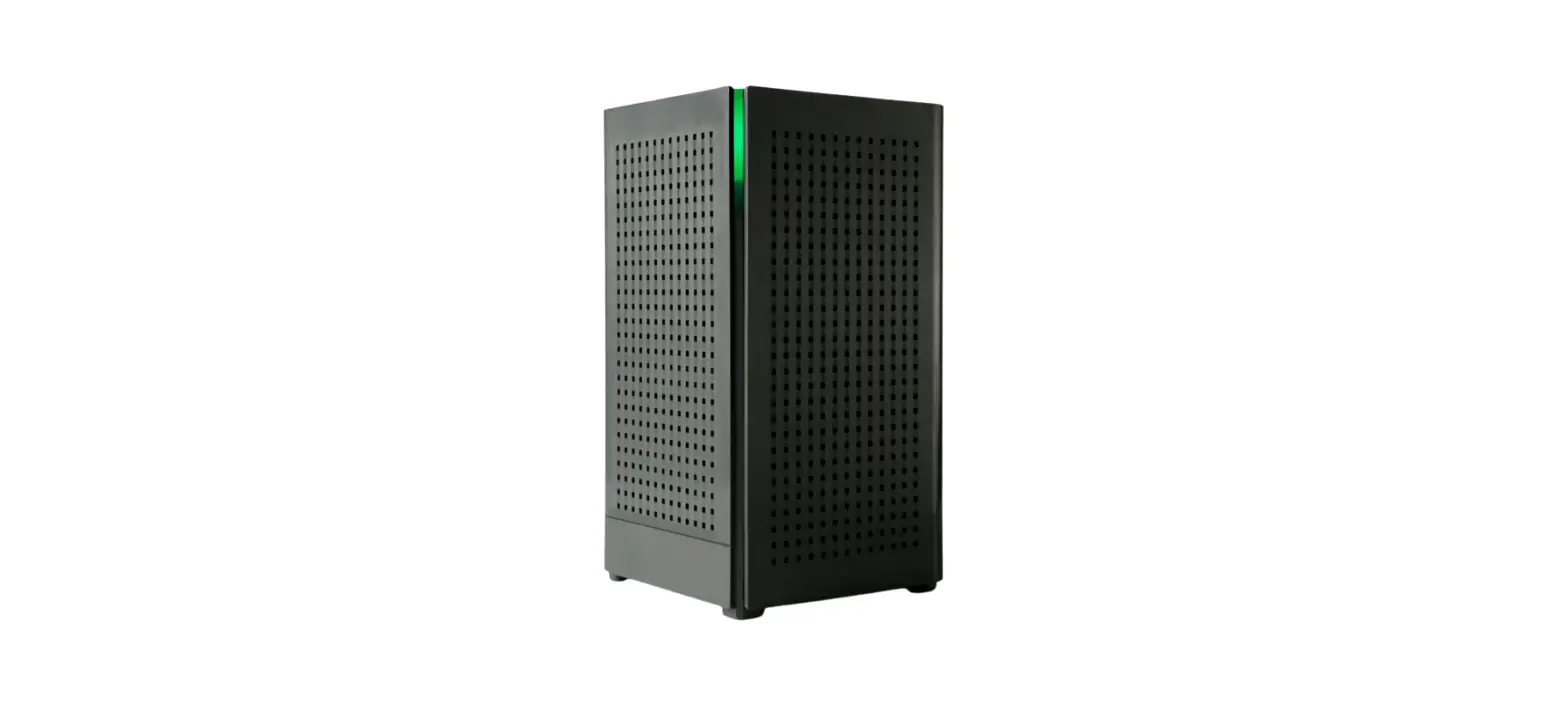
2452469 Extreme 2.0 Outdoor WiFi Extender
Product Information:
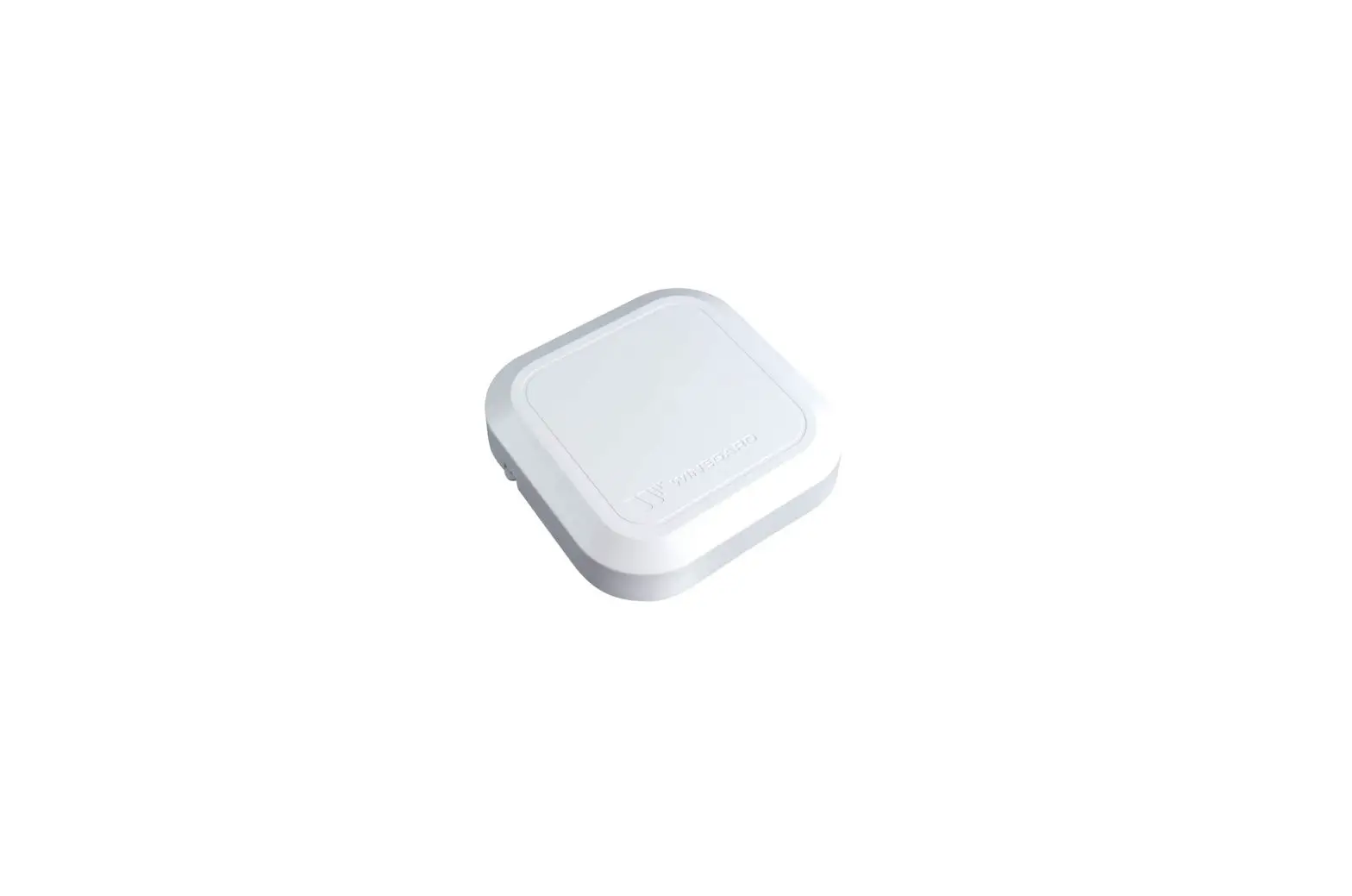
The Extreme WiFi Extender is a device designed to boost and
extend the range of your wireless network. It comes with a power
inserter and requires an Ethernet cable for installation. The unit
is weatherproof and should be installed correctly to ensure optimal
performance.
Product Usage Instructions:
- Outside Installation: Assemble and install the
Extreme WiFi extender. Make sure not to install it upside down.
Ensure that the gasket is firmly seated in the cover plate to
maintain weatherproofing. - Inside Installation: Connect the Ethernet
cable to the power inserter’s POE port. Then, plug the power
inserter into a power source. Note that the power inserter should
only be installed indoors. - Perform Setup: Follow the instructions on the
back of the unit for setup. - Scan for Wireless Networks: Use a WiFi-enabled
device (tablet, smartphone, or laptop) to scan for wireless
networks. To speed up installation, disable Auto-Join (Apple) or
Auto-Connect (Android) on the WiFi service you want to join. - Select SSID and Connect: Choose the SSID
(network name) provided on the label below the unit. Connect to it
using the password also mentioned on the label. Allow up to two
minutes for the SSID to appear as an available selection. - Open Internet Browser: Once connected to the
WiFi extender, open an internet browser and enter “10.11.12.1” into
the address bar. Press Enter. Use the following login information:
Username: admin, Password: admin. - Scan for WiFi: Click on the “Scan for WiFi”
option. Select the desired 2.4 GHz Local Network from the available
options. It is recommended to choose a network with a signal
strength above 50%. - Continue and Reconnect: Click “Continue” and
enter the network password if prompted. The unit will reboot, and
you may need to reconnect to the internet. Once connected (which
may take up to two minutes), the strength of your connection will
be displayed under WiFi Signal. - Ready for Expanded Internet: Your Extreme WiFi
extender is now ready to provide an extended internet connection.
For additional features and settings, refer to the complete manual
available on the manufacturer’s website. The manual covers topics
such as setting up access point wired mode or bridge mode, changing
passwords or SSID, enabling a 5GHz network, and more. Setup videos
are also available on the website.
For any further assistance or troubleshooting, please refer to
the complete manual or contact Winegard Company at the given
address.
Winegard® ExtremeTM 2.0 Outdoor WiFi Extender
INSTALLATION Not provided: 7/16″ wrench, Phillips-head screwdriver, Ethernet cable (max 85′), and hardware to mount foot
Quick Start Guide
c b
1 OUTSIDE Assemble and install Extreme WiFi extender (a-c). WARNING: Do not install extender upside down. NOTICE: Gasket must be firmly seated in cover plate to ensure unit is weatherproof (c).
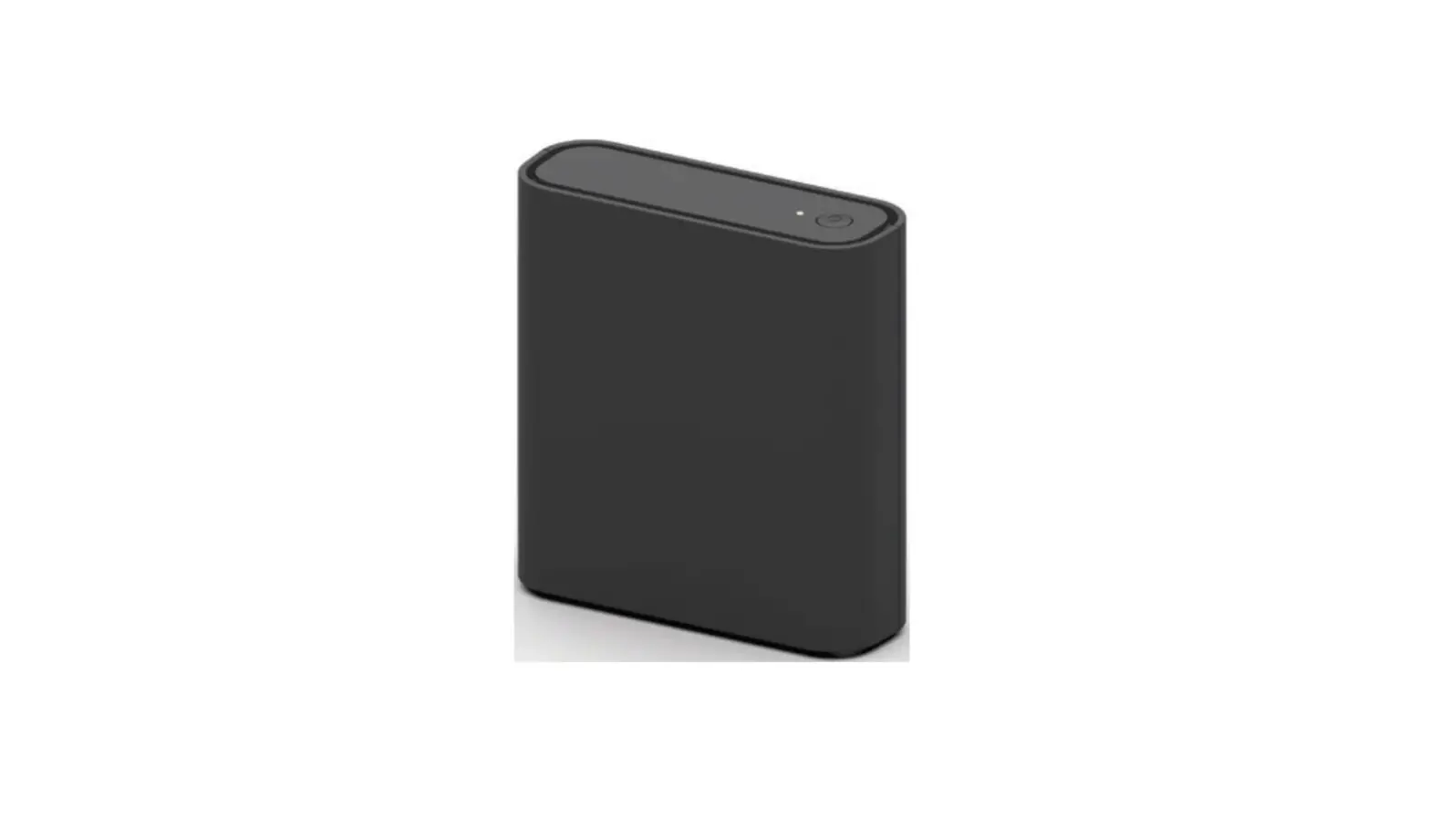
2 INSIDE Connect Ethernet cable to power inserter (POE port) and plug into power (d). WARNING: Install power inserter inside only.
3 PERFORM SETUP Instructions on back.
-ora
d
Power inserter
For more product details, including full manual (English, Français, Español), warranty, and videos, visit Winegard’s website.
Winegard Company 2736 Mt. Pleasant St. | Burlington, IA 52601
Printed in U.S.A. © 2021 Winegard Company All trademarks, registered trademarks, and logos are the property of their respective owners and are not affiliated with Winegard Company.
Rev1-22 2452469
Winegard® ExtremeTM 2.0 Outdoor WiFi Extender
Quick Start Guide
PERFORM INSTALLATION BEFORE CONTINUING WITH SETUP BELOW
SETUP Recommended browsers: Microsoft® Edge, Firefox®, Google ChromeTM, or Safari®
1 SCAN for wireless networks using a WiFienabled device (tablet, smartphone, or laptop). To speed up installation, turn off Auto-Join (Apple) or Auto-Connect (Android) on the WiFi service you intend to join.
2 SELECT SSID and connect with password on label below. Allow up to two minutes for the SSID to appear as an available selection.
3 OPEN an internet browser once connected, and type 10.11.12.1 into the address bar. Press Enter. Login information Username: admin Password: admin
Click Scan for WiFi. Select desired 2.4 GHz Local Network. Signal strength below 50% is not recommended.
Click Continue. Enter network password if prompted. The unit will reboot and you may need to reconnect to the internet. Once connected (takes up to two minutes), the strength of your connection will appear under WiFi Signal.
Place label here
4 READY for expanded internet! Check out the complete manual on our website for additional features. It covers setting up access point wired mode or bridge mode, changing your password or SSID, enabling a 5GHz network, and more. Setup videos are also available on our website.
For more product details, including full manual (English, Français, Español), warranty, and videos, visit Winegard’s website.
Winegard Company 2736 Mt. Pleasant St. | Burlington, IA 52601
Printed in U.S.A. © 2021 Winegard Company All trademarks, registered trademarks, and logos are the property of their respective owners and are not affiliated with Winegard Company.
Rev 1-22 2452469