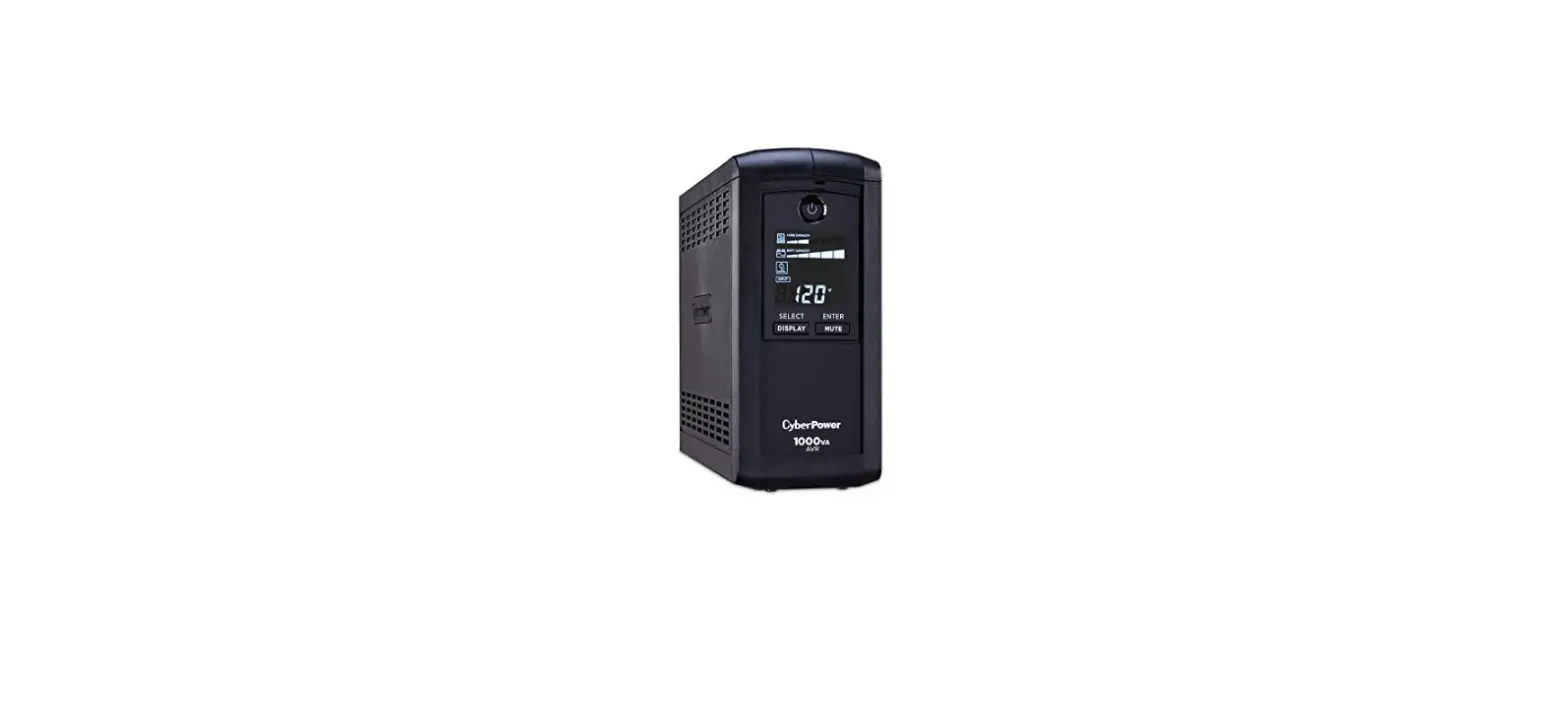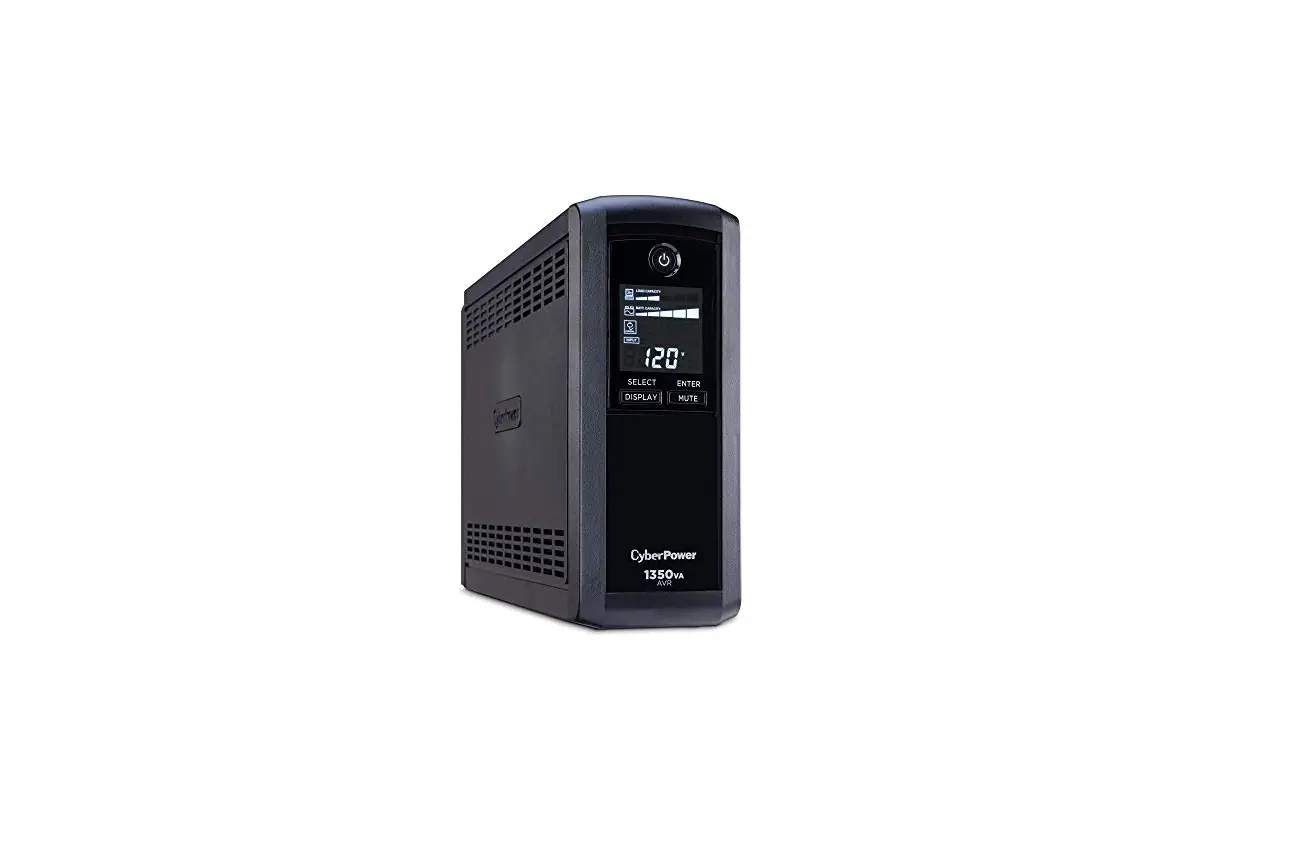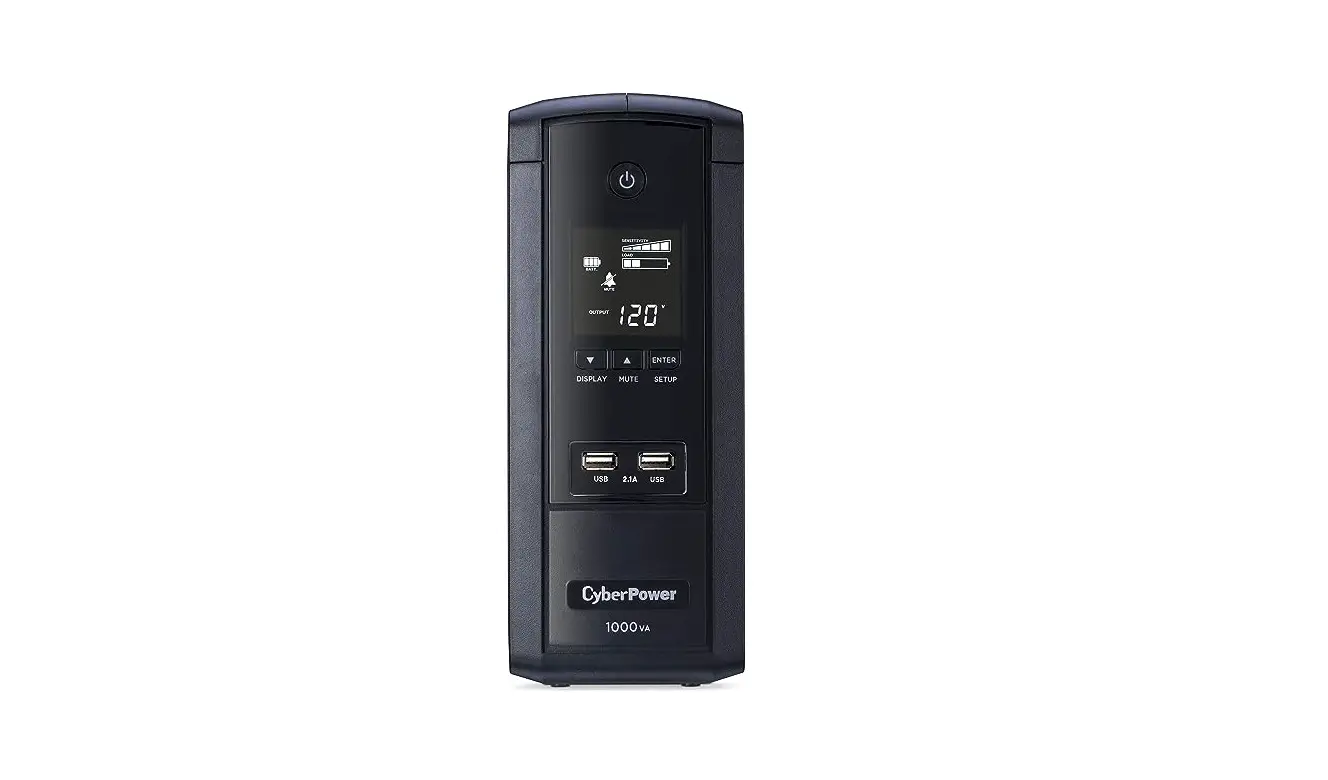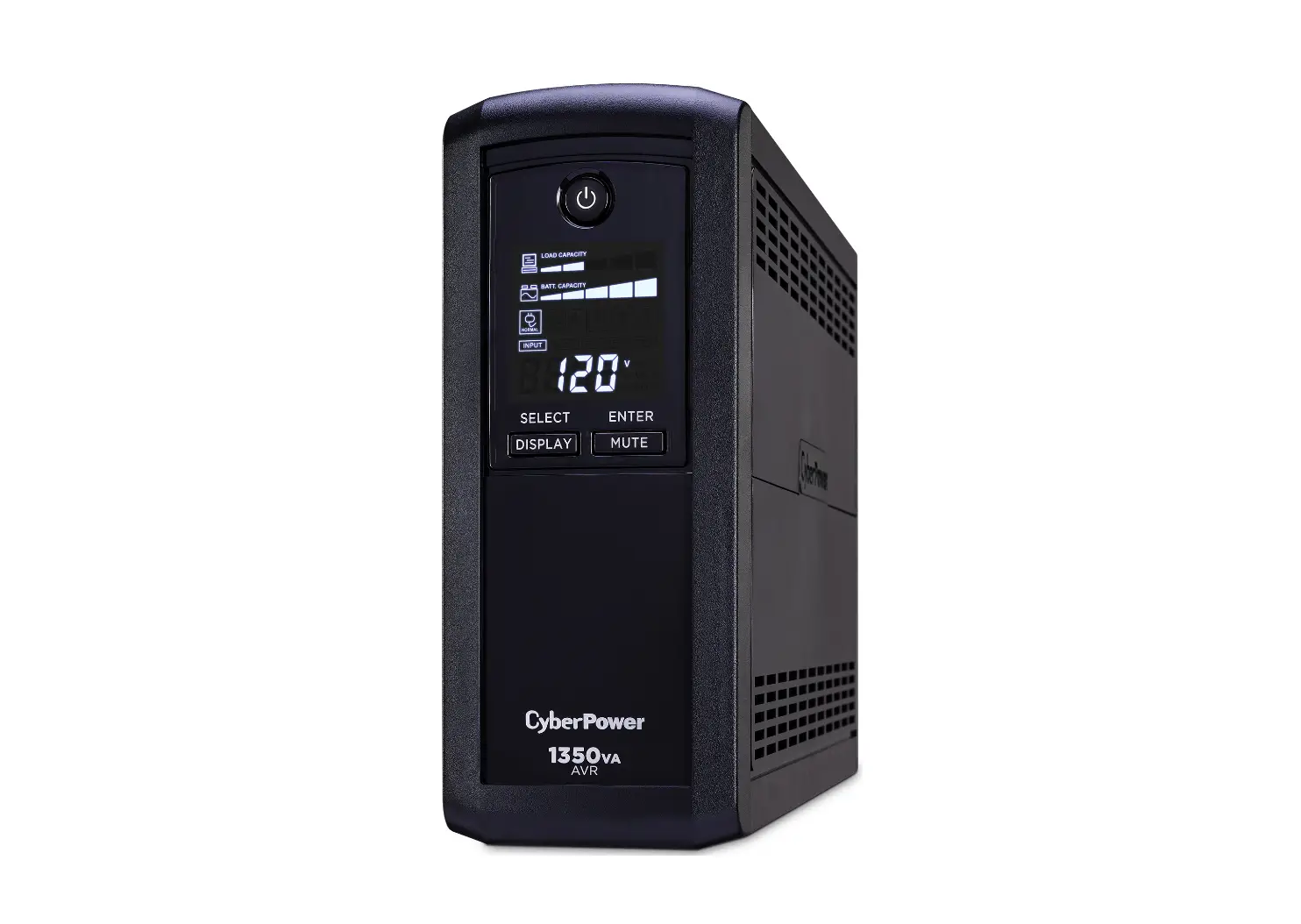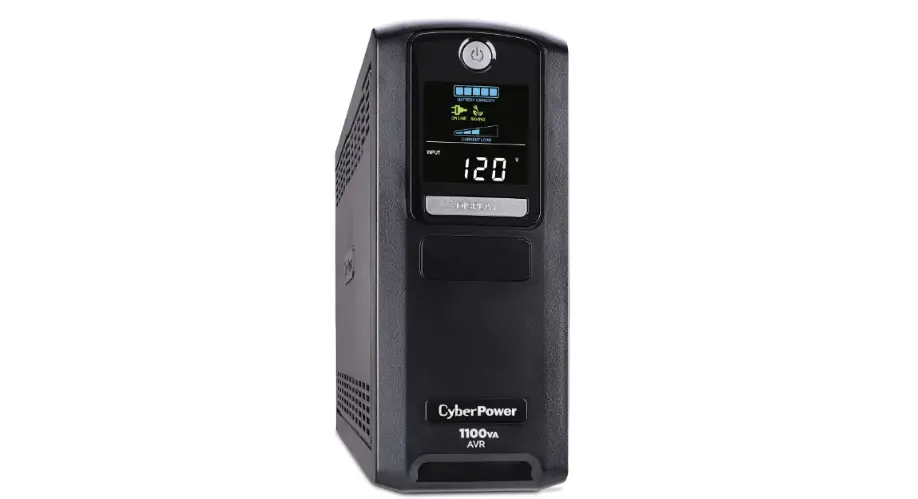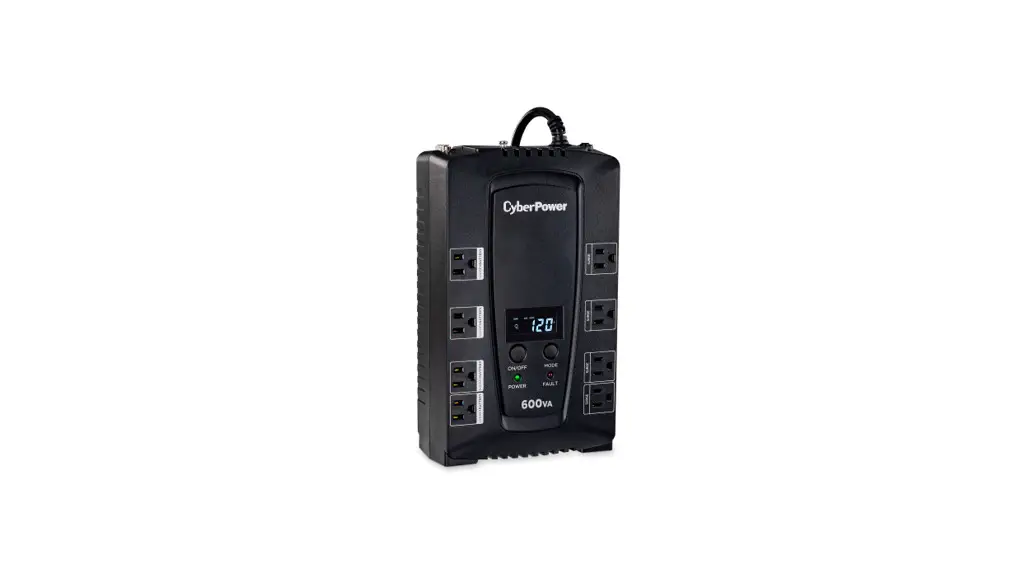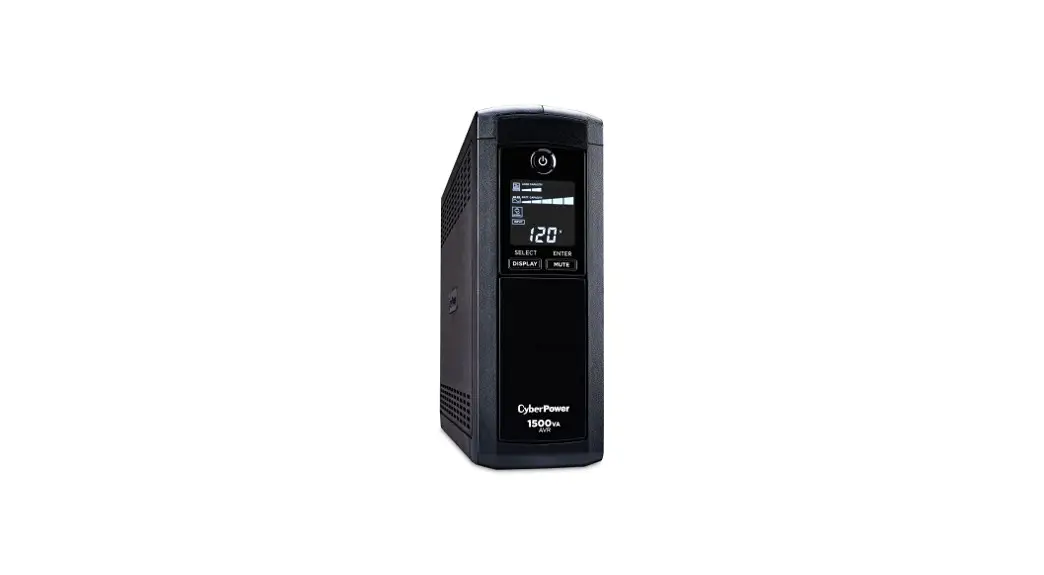
 CP1500AVRLCD Intelligent LCD
Instruction Manual
CP1500AVRLCD Intelligent LCD
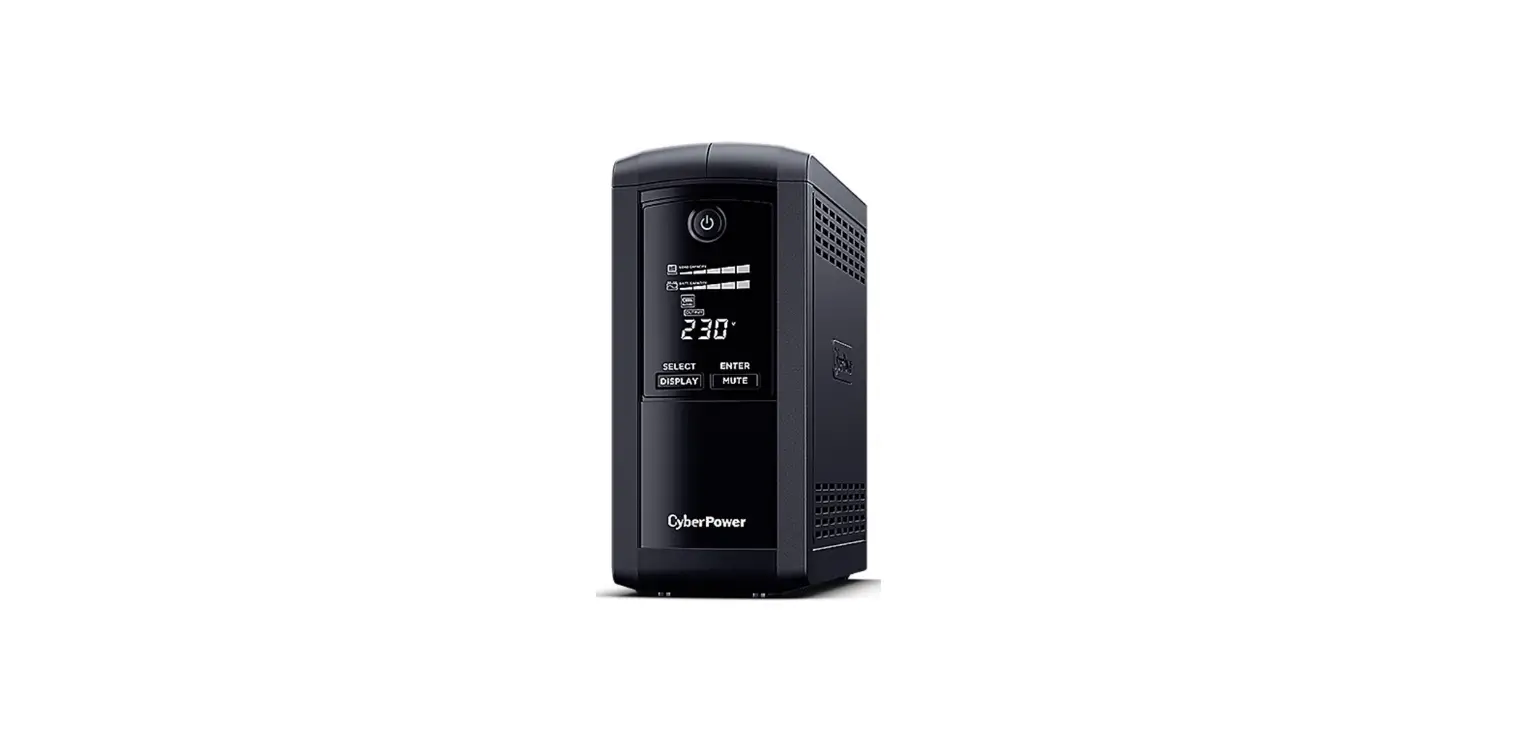
 | Power On: Press and hold the POWER button. You will hear a constant tone for 1 second, followed by a short beep. Release the button after the short beep. Power Off: Press and hold the POWER button. You will hear a constant tone for 1 second, followed by two short beeps. Release the button after the two short beeps. |
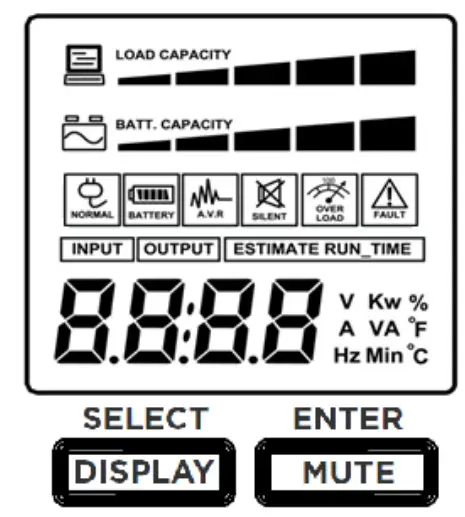 |  DISPLAY: Press the button for 3 seconds to change current LCD screen status between “Auto Off” and “Always On”. LCD Auto Off: In Line Mode, LCD screen will off automatically after 1 minute of inactivity; in Battery Mode, LCD screen is always on. LCD Always On: LCD screen will be always on. SELECT: Short press the button to view the information about the UPS or to scroll down function / option menu. |
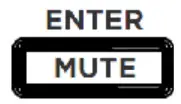 MUTE: Press the button for 3 seconds to enable the audible alarm (beeps once) or disable (beeps twice) the audible alarm. ENTER: Short press the button to confirm the settings or enter into the functions. (For more information about this button, please refer to the following of the Setup Mode) | |
 Enter into Setup Mode: Press both of the “SELECT” and “ENTER” at the same time for approximately 3 seconds to access the setup mode’s 11 functions: Utility Power, MAX O/P Voltage, MIN O/P Voltage, Sensitivity, Low Battery Warning, Self Test, Audible Alarm, LCD Auto Off, Last Fault Reason, Back to Default Settings, and Back to Status Display. Select Function: Short press the “SELECT” button to scroll down the function / option menu. Confirm Option: When an option is selected, short press the “ENTER” button. After the setting has been confirmed, the LCD screen will stop flashing. |
Function
| Function | LCD Display | Options | Default | Description |
| Utility Power | 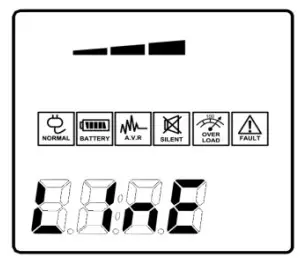 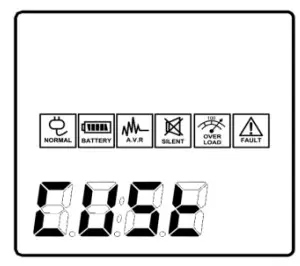 (CUSt)* * Only when MIN or MAX O/P Voltage is configured. | 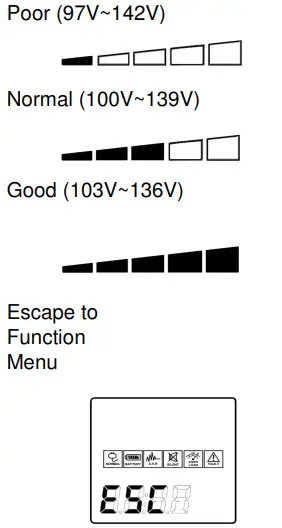 | Normal | This function determines how the UPS will switch to Battery Mode. 3 different output voltage ranges can be chosen according to the quality of the AC utility service in your location. If your utility service is not stable, you can select Poor (97V~142V). The UPS will go to Battery Mode less often to tolerate the utility power fluctuations. If your utility service is stable, you can select Good (103V~136V). The unit will go to Battery Mode more often. |
| MAX O/P Voltage | 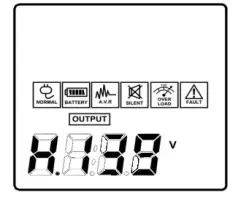 | H136V ~ H142V Escape to Function Menu 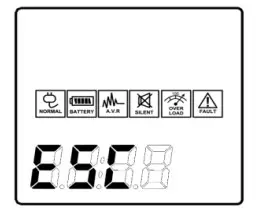 | H139V | In Utility Power settings, only 3 types of fixed voltage ranges can be chosen. However, you can fine tune the MAX O/P voltage in this function. If the utility voltage is usually high, and the connected equipment can work in this condition, you can set the output voltage range higher to reduce the UPS from going to Battery Mode as often. |
| MIN O/P Voltage | 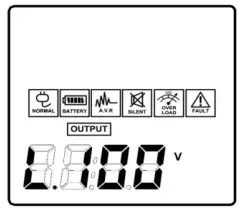 | L97V ~ L103V Escape to Function Menu 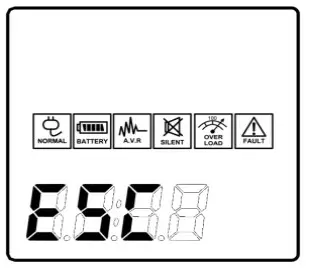 | L100V | In Utility Power settings, only 3 types of voltage ranges can be chosen. However, you can fine tune the MIN O/P voltage in this function. If the utility voltage is usually low, and the connected equipment can work in this condition, you can set the output voltage range lower to reduce the UPS from going to AVR Mode or Battery Mode as often. |
| Sensitivity | 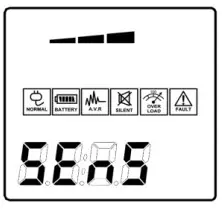 | 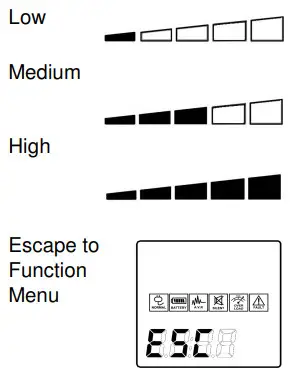 | Medium | If the connected equipment can tolerate more power events (Example: unstable power often associated with stormy weather), select Low Sensitivity. The UPS will go to Battery Mode less often. If the connected equipment is more sensitive to power events, select High Sensitivity. The UPS will go to Battery Mode more often. |
| Low Battery Warning | 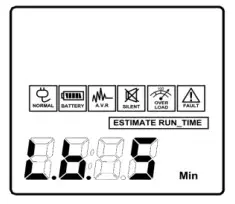 | 5~8 mins Escape to Function Menu 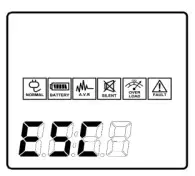 | 5 mins | The audible alarm will sound when the remaining runtime is less than the value selected. |
| Self T est (Battery T est) | 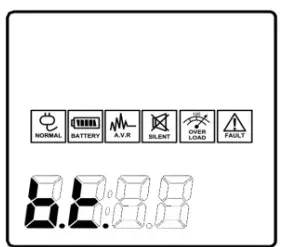 | 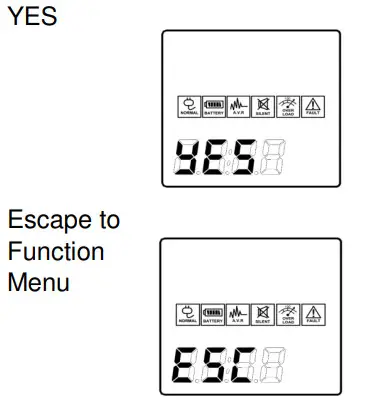 | No Action | In Line Mode, select YES to perform a Self T est on the battery. |
| Audible Alarm | 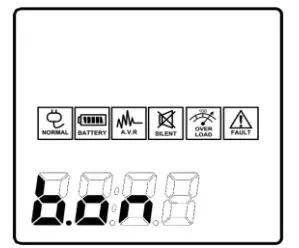 | 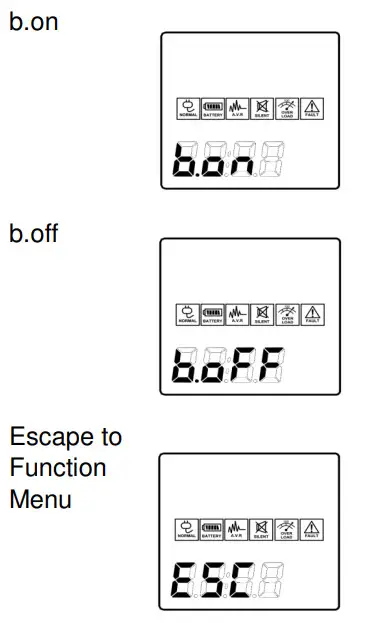 | b.on | “b.on” is buzzer enable; “b.oFF” is buzzer disable. If b.oFF is selected, the unit will mute all alarms except for fault or overload condition. You can also set the audible alarm with the MUTE button mentioned before. |
| LCD Auto Off | 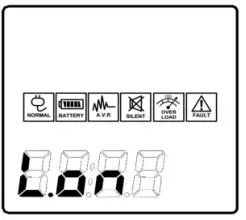 | 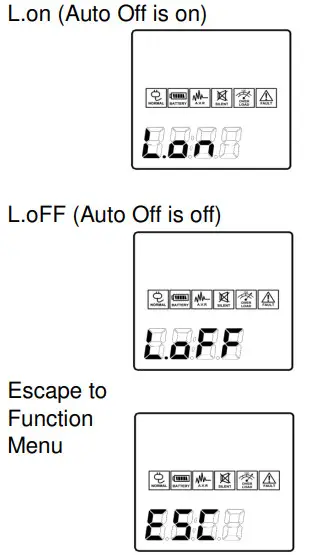 | L.on | “L.on” (Auto Off is on): In Line Mode, LCD screen will off automatically after 1 min of inactivity; in Battery Mode, LCD screen is always on. “L.oFF” (Auto Off is off): LCD screen is always on. |
| Last Fault Reason | 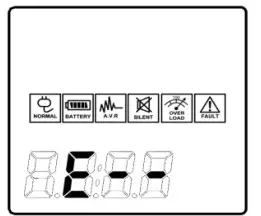 | There is no setting in this page. This page will only show the error code for last fault reason. E01 : Charger fault (Over Charge). E02 : Charger fault (No Charge) E11 : Battery Fault E21 : Output short. E22 : Over load. | ||
| Back to Default Settings | 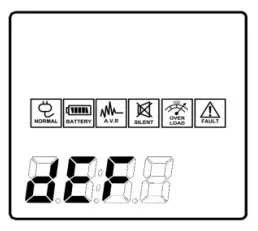 | 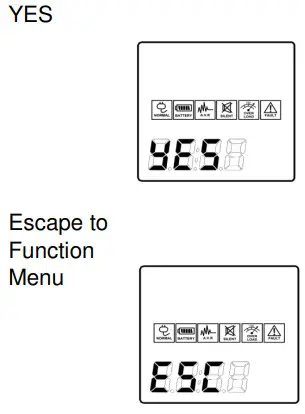 | No Action | Select Yes to restore the UPS factory default settings. |
| Return to Status Display | 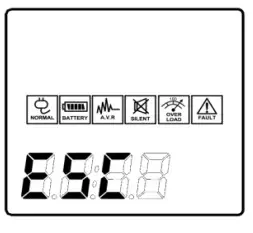 | — | Press the ENTER Button to leave setup mode and go back to the Status Display. |
All rights reserved. Reproduction without permission is prohibited.