Details
Modem InformationDOCSIS 3.1 Dual Band Concurrent 802.11 AC Wave 2 WiFi Modem 32 SC-QAM or 2 OFDM channel bonding | Highest Service LevelGigablast |
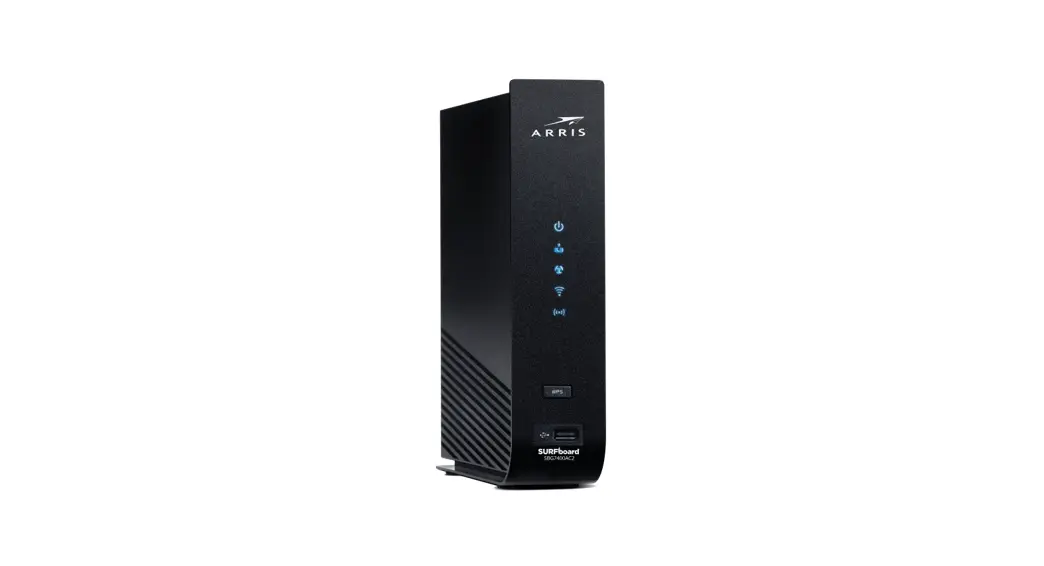
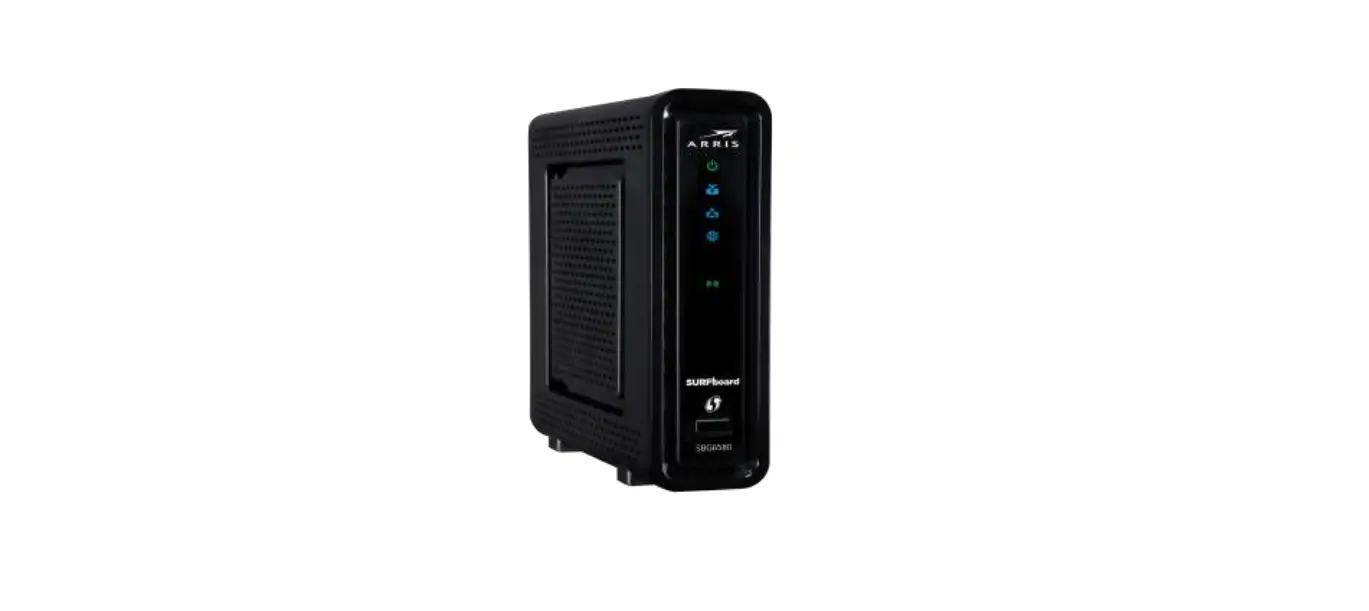
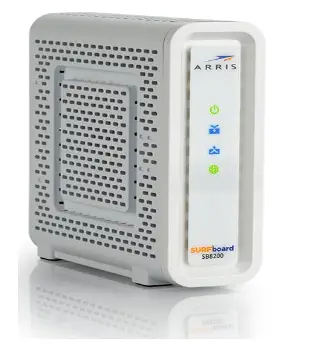
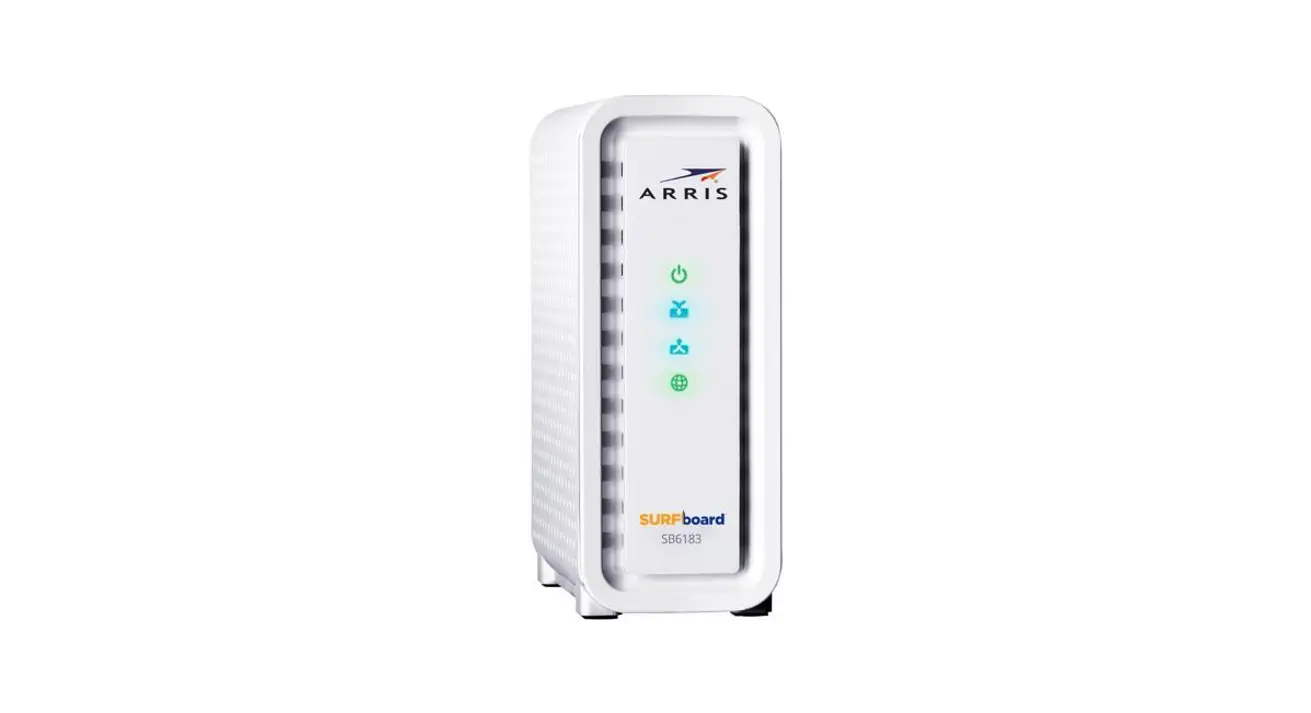
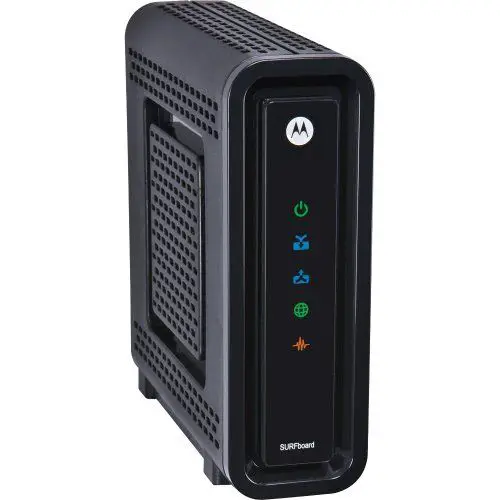
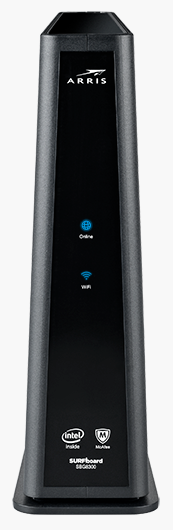
Front View
| The modem will automatically power on when the power adapter is connected. After the modem is successfully connected to the network, the Online and WiFi indicators illuminate a solid green to indicate that the modem is online and fully operational. | |
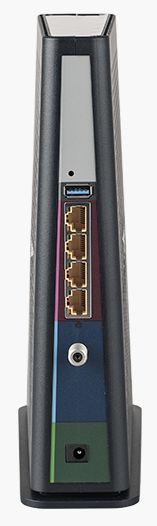
Back View
| The following are available on the back of the modem.
| |
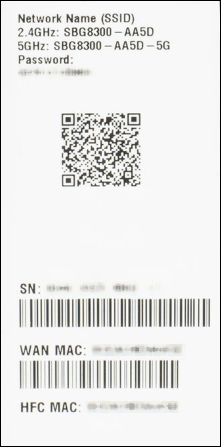
MAC Address / WiFi Network Label
|
|
Troubleshooting
The lights indicate the current status of your gateway. To troubleshoot any connection problems, use the table below.
| Modem Light | Status | Problem |
|---|---|---|
| Online
| Off | No connection. Verify all cable connections and try resetting the modem. |
| Solid Blue | Power is connected. | |
| Solid Green | IP Link/Online | |
| Slow Blinking Blue | Acquiring downstream channel connection. | |
| Fast Blinking Blue | Acquiring upstream channel connection. | |
| Blue/Green | Firmware downloads in progress. | |
| WiFi
| Slow Blinking Green | No clients found (5 GHz or dual-band). |
| Solid Green | Clients found, but no traffic (5 GHz or dual-band). | |
| Fast Blinking Green | Clients with active traffic/WPS (5 GHz or dual-band). | |
| Slow Blinking Blue | No clients found (2.4 GHz band only). | |
| Solid Blue | Clients found, but no traffic (2.4 GHz band only). | |
| Fast Blinking Blue | Clients with active traffic/WPS (2.4 GHz band only). |


Manufacturer Resources
For more detailed technical information on the SBG8300, use the resources below.
- ARRIS_SBG8300_QSG [PDF]
- ARRIS_SBG8300_Manual [PDF]