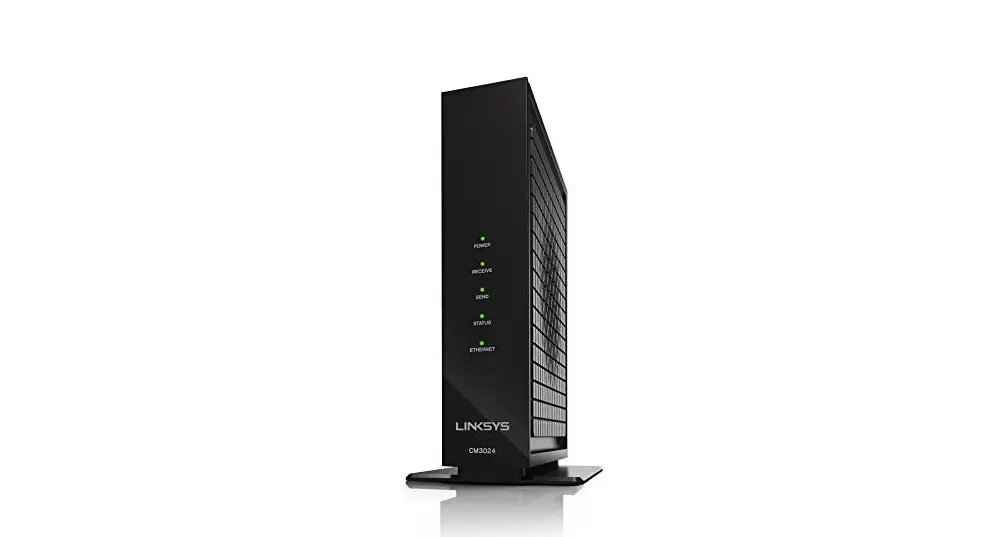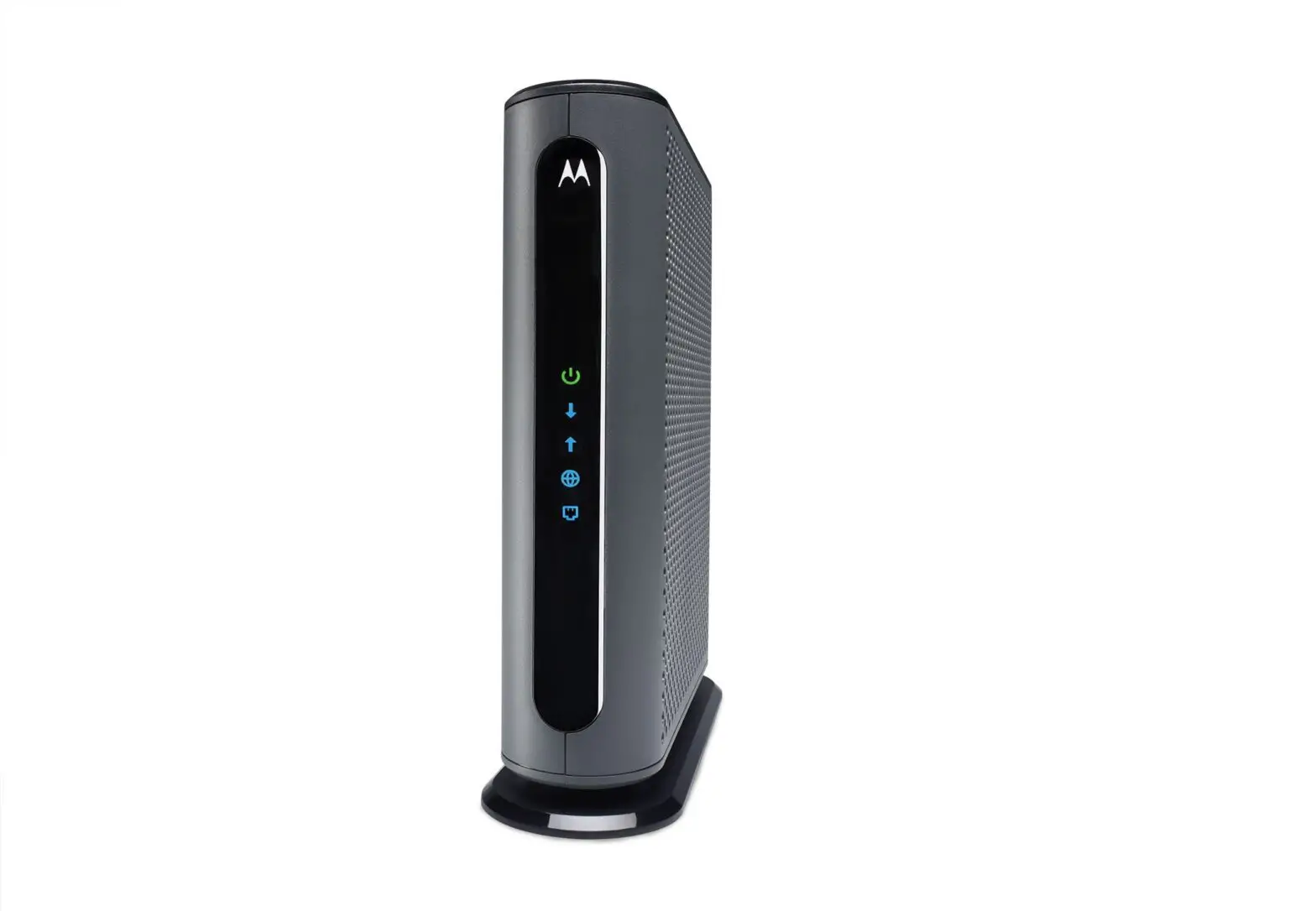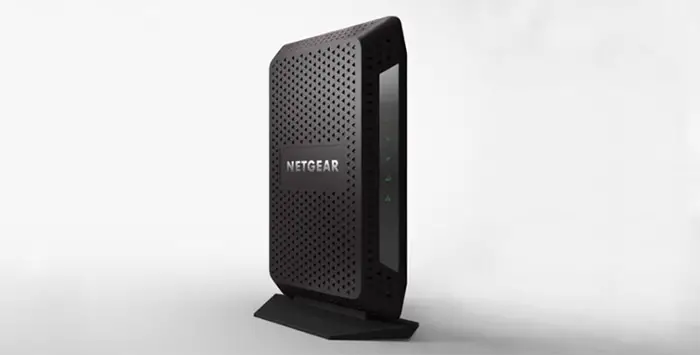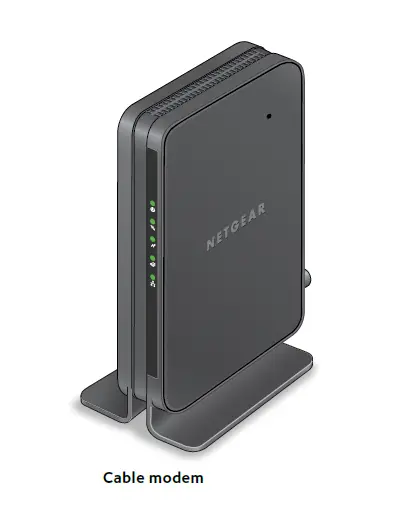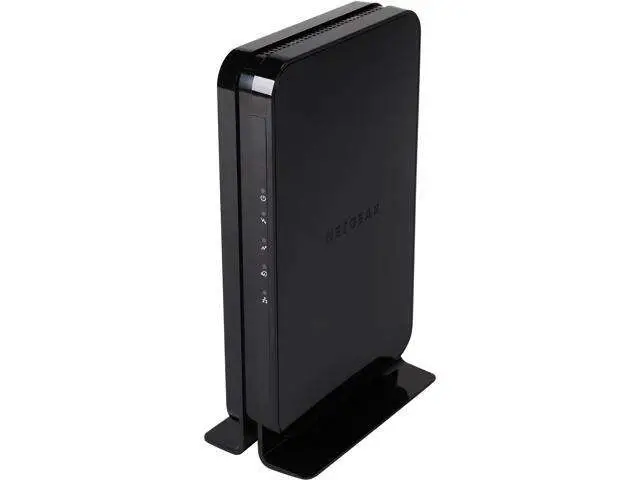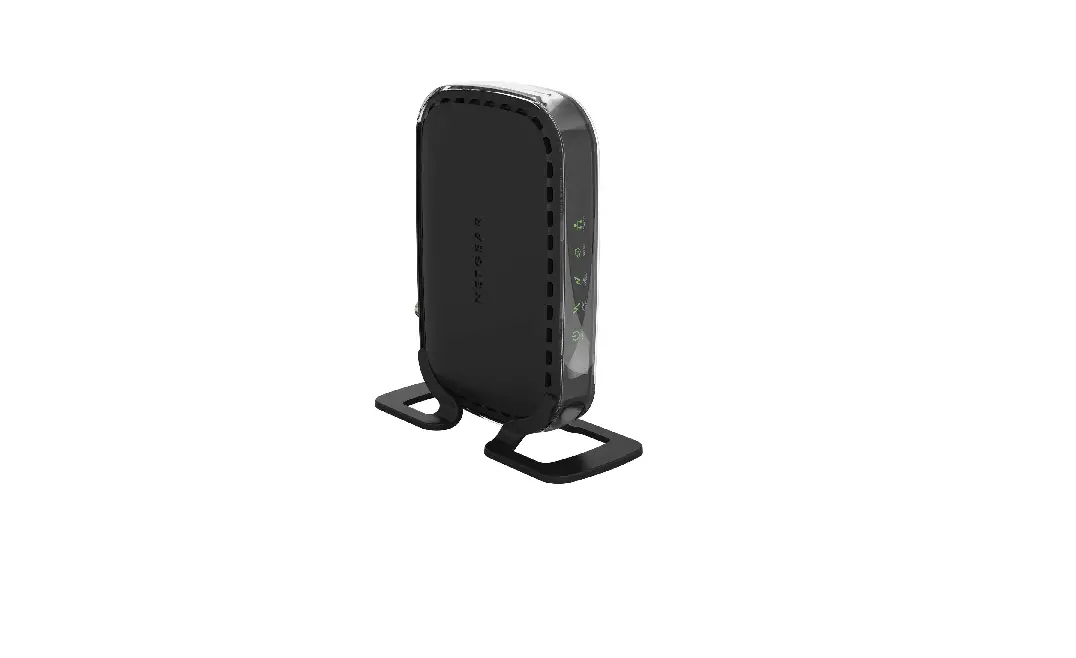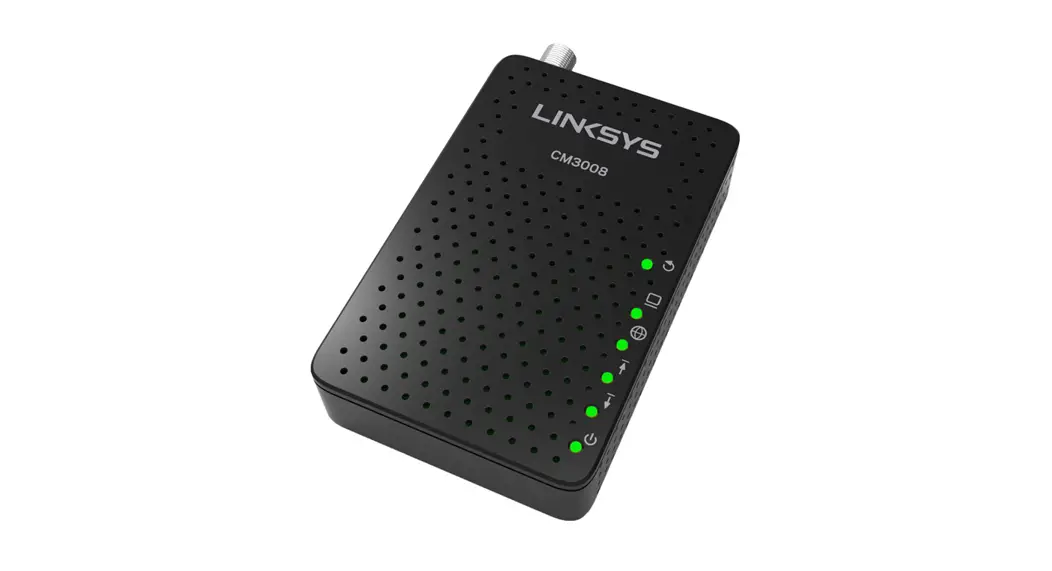
Linksys CM3008 High Speed DOCSIS 3.0 Cable Modem Router
Modem InformationDOCSIS 3.0 Cable Modem 8×4 channels with speeds of up to 150 Mbps on a wired connection Cox recommends a DOCSIS 3.0 16×4 or higher modem | Highest Service LevelPreferred 150 |
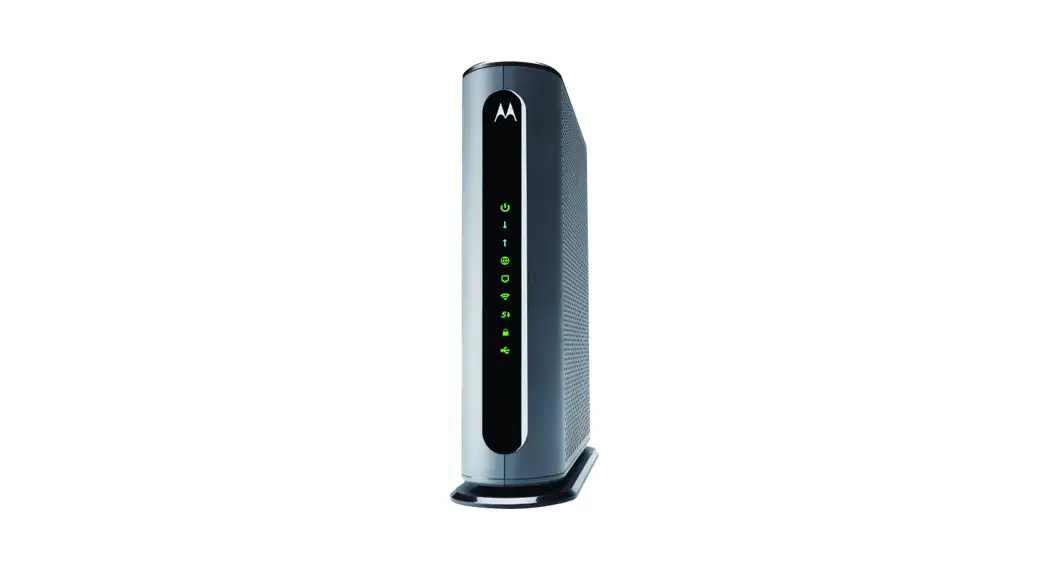
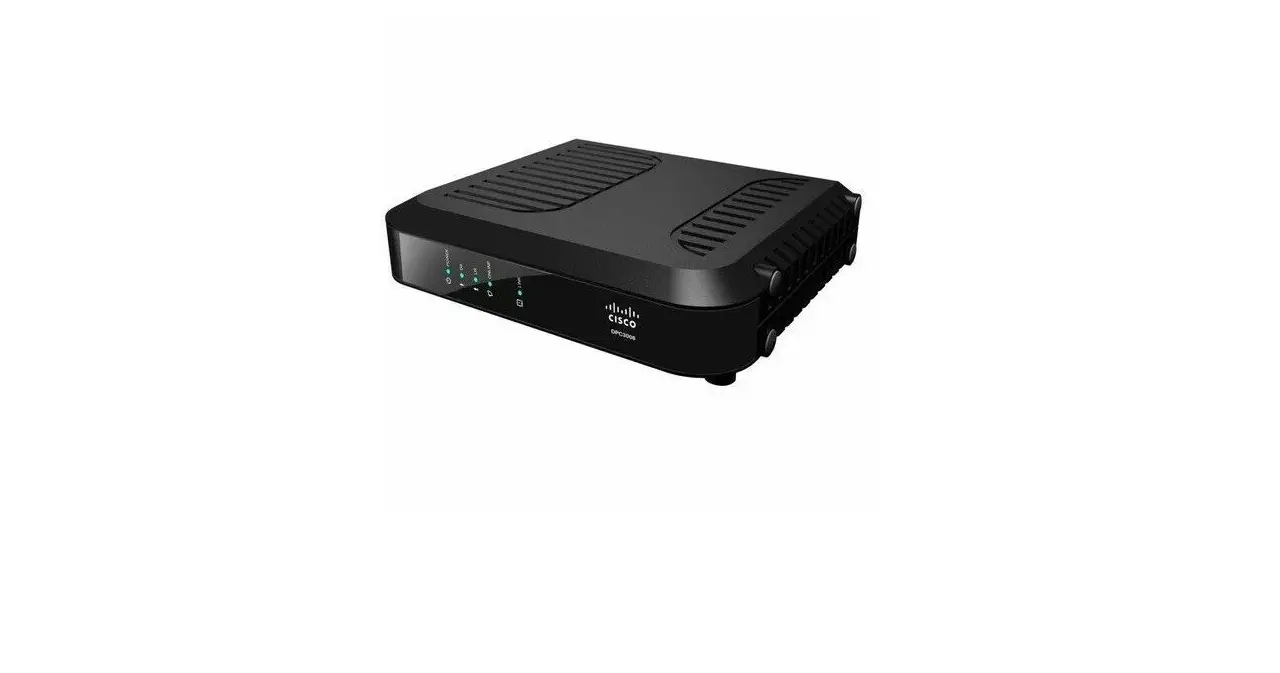
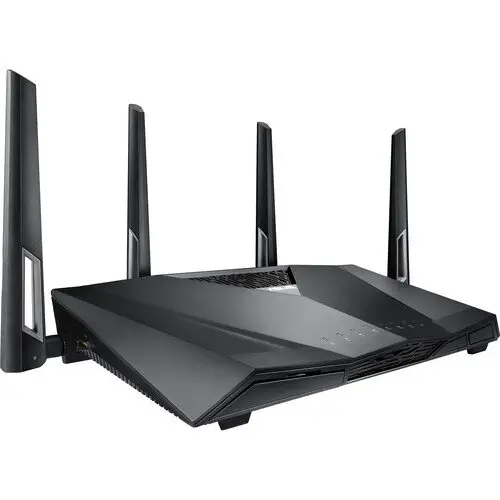
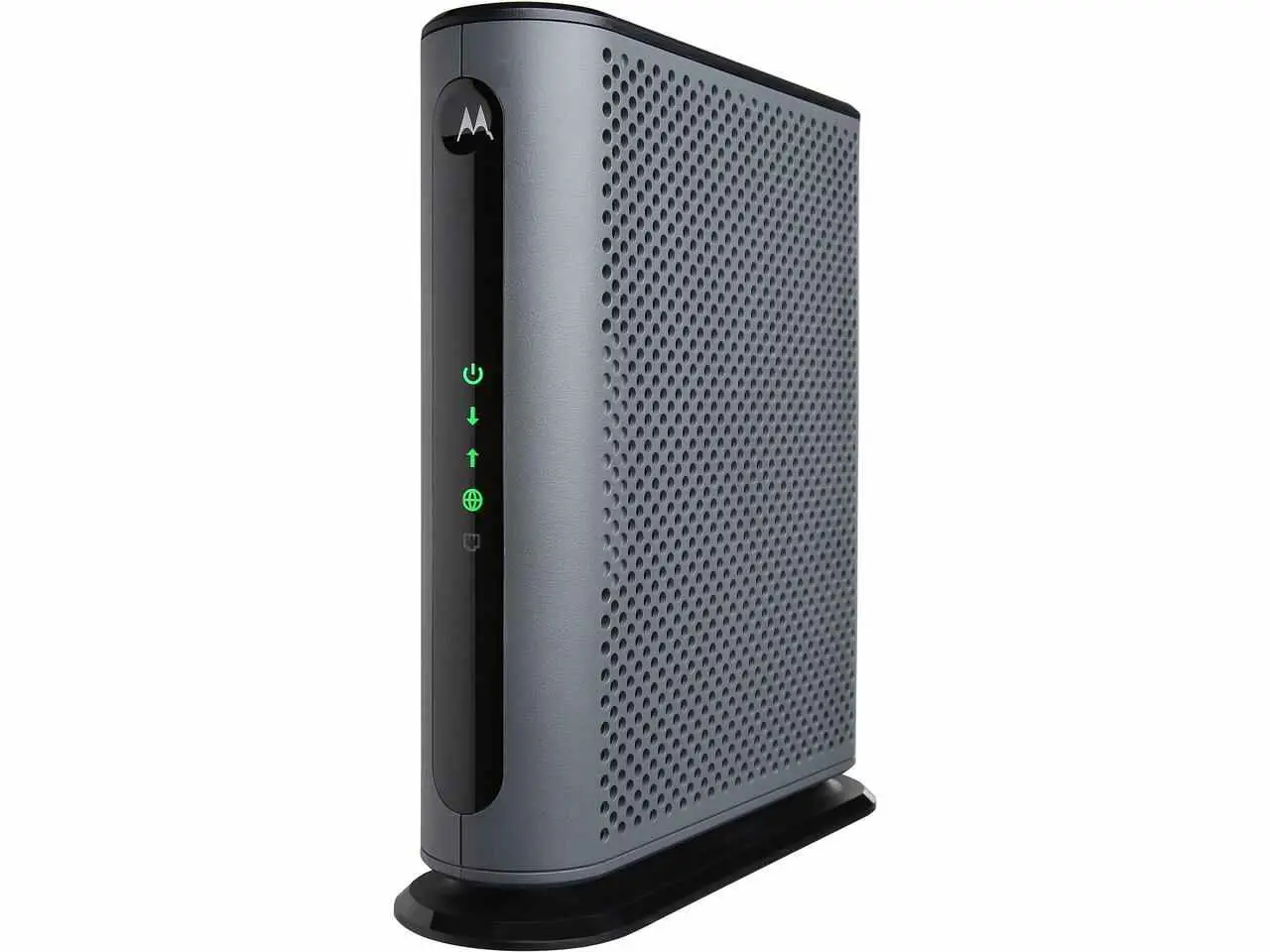
Front View
| ||
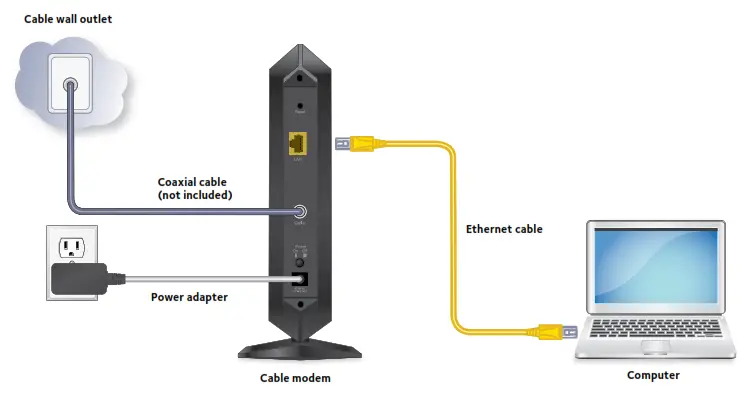
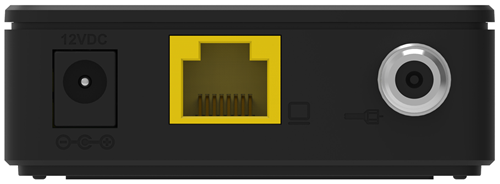
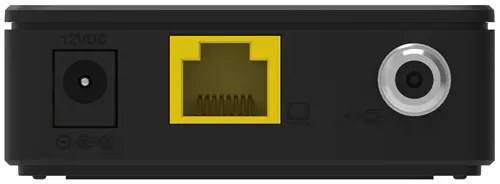
Back View
| The modem includes the following connection ports:
| |
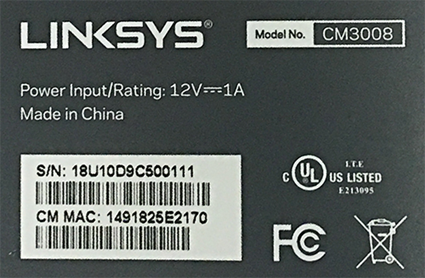
MAC Address
| The information below is usually found on a sticker located on the bottom of the modem.
|

Troubleshooting
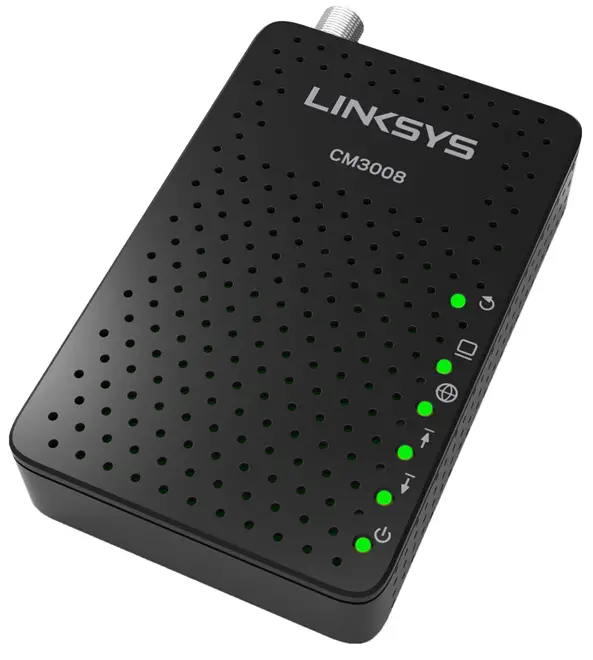
The lights indicate the current status of your modem. To troubleshoot any connection problems, use the table below.
| Modem Light | Status | Problem |
|---|---|---|
| Power
| On | The modem is powered on. |
| Off | No power – Verify power supply connections and electrical outlet. Ensure the outlet is not connected to a switch. Press the Power ON/OFF button on the back of the modem to ensure it is turned on. | |
| Receive
| Solid Blue | Multiple downstream channels are in use. |
| Solid Green | One downstream channel is in use. | |
| Blinking | Scanning for downstream channels. – Verify all cable connections and try resetting the modem. | |
| Send
| Solid Blue | Multiple upstream channels are in use. |
| Solid Green | One downstream channel is in use. | |
| Blinking Green | Scanning for an upstream channel. – Verify all cable connections and try resetting the modem. | |
| Off | No upstream channels are in use. – Verify all cable connections and try resetting the modem. | |
| Status
| On | The modem is online. |
| Blinking | The modem is registering a connection. | |
| Off | The modem is offline. – Verify all cable connections and try resetting the modem. | |
| Ethernet
| On | A device is connected to the Ethernet port. |
| Blinking | Data is being transferred over the Ethernet connection. | |
| Off | No device is connected or the device is disabled. – Verify all cable connections and try resetting the modem. | |
| Reset Button
| N/A | Press and hold for five seconds to restore settings to factory defaults and reboot the modem. |


Manufacturer Resources
User Guide [PDF].