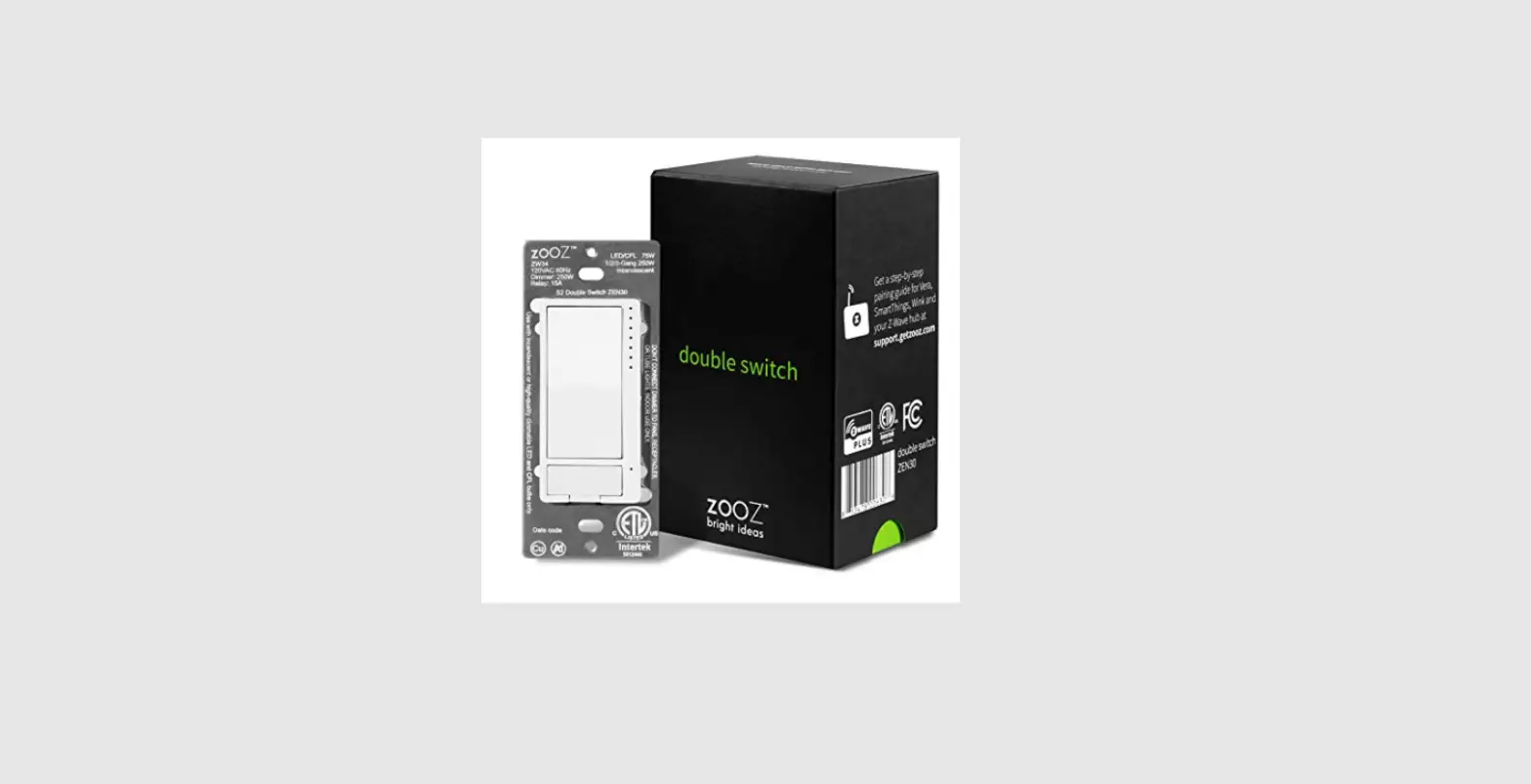
ZEN30 Double Switch 800LR
ZEN30 Double Switch 800LR Ver. 4.10 – Product Information
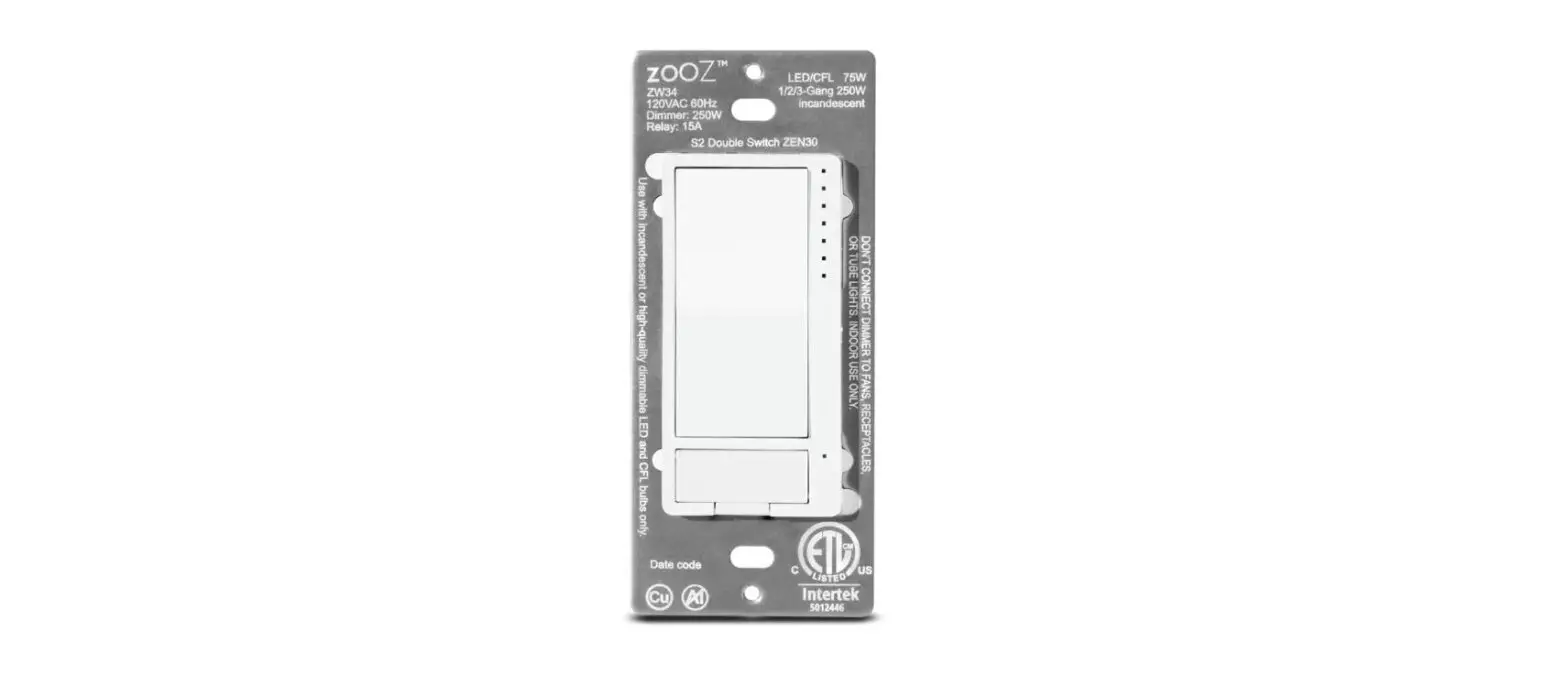
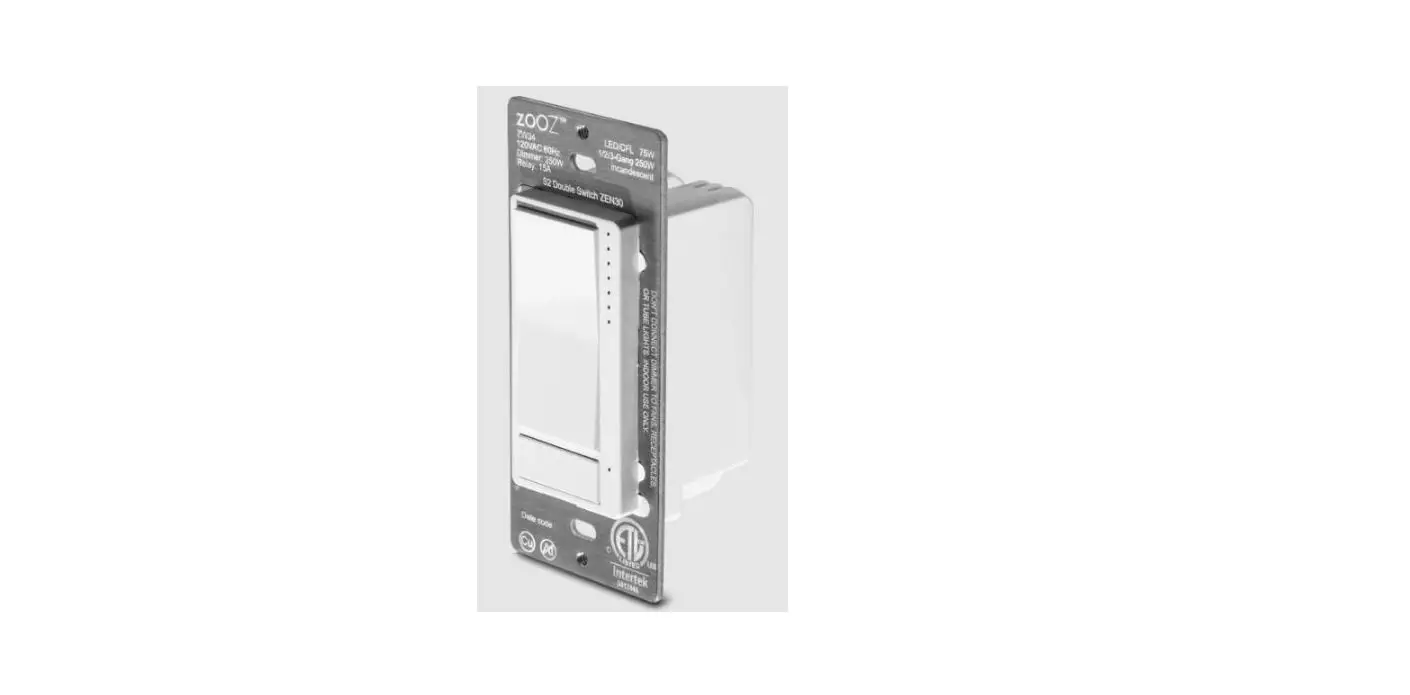
The ZEN30 Double Switch is a smart switch that allows control of
two separate loads with its lower paddle (dimmer) and button
(relay). It supports Z-Wave technology and can communicate with
other Z-Wave devices in the network. It also has LED indicators
that show the status of the switch and can be adjusted according to
user preference. The switch supports the following command classes:
BASIC_SET.
Parameter Settings
- Parameter 1 – LED Indicator Mode for Dimmer:
This parameter determines the behavior of the LED indicators when
the dimmer is turned on or off. The available values are:- Value 0: On when off and off when on. The first LED (counting
from top) is on when the dimmer is off. When the dimmer is on, all
LEDs are off but when the user starts changing brightness, all LEDs
show the new brightness level during dimming (the first LED also
participates in that) and once brightness level is set, the LEDs
stay on for 2 seconds to show selected brightness level and turn
off. - Value 1: On when on and off when off. All LEDs are off when the
dimmer is off. When the dimmer is on, all LEDs show new brightness
level during dimming (the first LED also participates in that) and
once brightness level is set, the LEDs stay on to show selected
brightness level until the switch is turned off. - Value 2: Always off. All LEDs are off when the dimmer is on or
off. All LEDs are off when user is changing brightness. - Value 3: Always on. The first LED (counting from top) is on
when the dimmer is off. When the dimmer is on, all LEDs show new
brightness level during dimming (the first LED also participates in
that) and once brightness level is set, the LEDs stay on to show
selected brightness level until the switch is turned off (right now
just 1 LED stays turned on after the brightness is set instead of
the brightness level LEDs). Default =0
- Value 0: On when off and off when on. The first LED (counting
- Parameter 2 – LED Indicator Mode for Relay:
This parameter determines the behavior of the LED indicators when
the relay is turned on or off. The available values are the same as
Parameter 1. - Parameter 3 – LED Indicator Color for Dimmer:
This parameter determines the color of the LED indicators when the
dimmer is in use. The available values are:- Value 0: White
- Value 1: Blue
- Value 2: Green
- Value 3: Red
- Parameter 4 – LED Indicator Color for Relay:
This parameter determines the color of the LED indicators when the
relay is in use. The available values are the same as Parameter
3. - Parameter 5 – LED Indicator Brightness for
Dimmer: This parameter determines the brightness of the
LED indicators when the dimmer is in use. The available values are:- Value 0: Bright (100%)
- Value 1: Medium (60%)
- Value 2: Low (30%)
Default =1
- Parameter 6 – LED Indicator Brightness for
Relay: This parameter determines the brightness of the LED
indicators when the relay is in use. The available values are the
same as Parameter 5. - Parameter 7 – LED Indicator Mode for Scene:
This parameter determines whether the LED indicator for the scene
is enabled or disabled. The available values are:- Value 0: Enable
- Value 1: Disable
Default = 1
The switch also has a command class association where Group 1 is
for lifeline communication of on/off status to Z-Wave controller,
Group 2 is for ENDPOINT 1 status and overload communication to
other ZWave devices in the network and supports BASIC_SET command
classes, and Group 3 is for ENDPOINT 2 status and overload
communication to other ZWave devices in the network and supports
BASIC_SET command classes.
ZEN30 Double Switch 800LR Ver. 4.10 – Product Usage
Instructions
The ZEN30 Double Switch can be used to control two separate
loads with its lower paddle (dimmer) and button (relay). Follow the
steps below to use the switch:
Using the Lower Paddle (Dimmer)
- To turn on or off the dimmer, press the lower paddle once.
- To set a specific brightness level, hold down the lower paddle.
The LED indicators will show the new brightness level during
dimming. Once the brightness level is set, the LED indicators will
stay on for 2 seconds to show the selected brightness level and
turn off. - To increase the brightness level, press the lower paddle twice.
Each press will increase the brightness level by one step. - To decrease the brightness level, press the lower paddle three
times. Each press will decrease the brightness level by one
step. - To set the brightness level to a specific value, press the
lower paddle four or five times. Four presses will set the
brightness level to 4 (the maximum value), and five presses will
set the brightness level to 5 (the minimum value).
- To turn on or off the relay, press the button once.
- To increase the number of presses required to trigger a scene,
hold down the button. The available options are 2, 3, 4, 5 presses.
Please make sure that when enabling scenes with quick double tap,
the relay doesn’t change state.
LED Indicator Settings
The LED indicators can be adjusted according to user preference
by changing the parameter settings. Refer to the product
information section for details on how to adjust each
parameter.
Command Class Association
The switch supports the following command classes: BASIC_SET.
Group 1 is for lifeline communication of on/off status to Z-Wave
controller, Group 2 is for ENDPOINT 1 status and overload
communication to other ZWave devices in the network and supports
BASIC_SET command classes, and Group 3 is for ENDPOINT 2 status and
overload communication to other ZWave devices in the network and
supports BASIC_SET command classes.
ZEN30 DOUBLE SWITCH 800LR VER. 4.10
Locally Button Press function: 1: press 1x: turn output ON (to last set brightness level) or OFF 2: hold: dimmer up or dimmer down 3: quickly press 3x UPPER PADDLE FOR DIMMER: inclusion; quickly press 3x LOWER PADDLE FOR DIMMER: exclusion (relay button does NOT work for inclusion/exclusion) The device should exit inclusion/exclusion after 30 seconds and LED’s should stop flashing. 4: quickly press 6x UPPER PADDLE FOR DIMMER: change LED Indicator Parameter 1 5. quickly press 6x relay button: change LED Indicator Parameter 2 6. Whatever state the DIMMER is in, quickly press UPPER paddle 2 times, switch turns on to 100% brightness (or according to setting in Parameter 17 and 18) 7: Press and hold for 15 seconds LOWER PADDLE OF DIMMER until all LED’s start blinking quickly, then release and within 5 seconds, press and hold the UPPER PADDLE OF DIMMER for 15 SECONDS until all LED’s blink again for 3 seconds to reset local device 8. press and release lower button: relay ON or OFF (next cycle) 9. Tap 4x and hold more than 10 seconds LOWER PADDLE OF DIMMER to rotate values in parameter 19 for disabling local control > make sure that the mosfet doesn’t change status or scenes are not triggered during this process.
10. Tap 4x and hold more than 10 seconds RELAY button to rotate values in parameter 20 > make sure that the relay doesn’t change state or scenes are not triggered during this process. Button behavior according to scene control attributes: UPPER PADDLE (DIMMER): SCENE 1 0x00 pressed 1 time (overlap with on control) 0x02 held down (overlap with dimming control, this is OK, will only be used by users who use the dimmer as remote control for other dimmer or bulb) 0x03 pressed 2 times 0x04 pressed 3 times 0x05 pressed 4 times 0x06 pressed 5 times
LOWER PADDLE (DIMMER): SCENE 2 0x00 pressed 1 time (overlap with on control) 0x02 held down (overlap with dimming control, this is OK, will only be used by users who use the dimmer as remote control for other dimmer or bulb) 0x03 pressed 2 times 0x04 pressed 3 times 0x05 pressed 4 times 0x06 pressed 5 times
BUTTON (RELAY): SCENE 3 0x00 pressed 1 time 0x02 held down 0x03 pressed 2 times (please make sure that when enabling scenes with quick double tap, the relay doesn’t change state) 0x04 pressed 3 times 0x05 pressed 4 times 0x06 pressed 5 times
Command class
COMMAND_CLASS_ZWAVEPLUS_INFO, COMMAND_CLASS_SWITCH_MULTILEVEL, COMMAND_CLASS_SWITCH_BINARY, COMMAND_CLASS_ASSOCIATION, COMMAND_CLASS_MULTI_CHANNEL_ASSOCIATION, COMMAND_CLASS_ASSOCIATION_GRP_INFO, COMMAND_CLASS_TRANSPORT_SERVICE, COMMAND_CLASS_VERSION, COMMAND_CLASS_MANUFACTURER_SPECIFIC, COMMAND_CLASS_DEVICE_RESET_LOCALLY, COMMAND_CLASS_POWERLEVEL, COMMAND_CLASS_CONFIGURATION, COMMAND_CLASS_CENTRAL_SCENE, COMMAND_CLASS_MULTI_CHANNEL, COMMAND_CLASS_SECURITY_2, COMMAND_CLASS_SUPERVISION, COMMAND_CLASS_FIRMWARE_UPDATE_MD
Association
Group 1 for lifeline communication of on / off status to Z-Wave controller. Group 2 for ENDPOINT 1 status and overload communication to other ZWave devices in the network. Supported command classes: BASIC_SET Group 3 for ENDPOINT 2 status and overload communication to other ZWave devices in the network. Supported command classes: BASIC_SET
Parameter Settings
Parameter=1 LED Indicator Mode for Dimmer Size=1 byte Value=0 On when Off and Off when On 1st LED (counting from top) is ON when dimmer is OFF. When dimmer is ON, ALL LED’s are OFF BUT when user start changing brightness, all LED’s show new brightness level during dimming (1st LED also participates in that) and once brightness level is set, the LED’s stay on for 2 seconds to show selected brightness level and turn off.
Value=1 On when On and Off when Off
All LED’s are OFF when dimmer is OFF. When dimmer is ON, ALL LED’s show new brightness level during dimming (1st LED also participates in that) and once brightness level is set, the LED’s stay on o show selected brightness level until the switch is turned off.
Value=2 Always Off All LED’s are OFF when dimmer is ON or OFF. All LED’s are OFF when user is changing brightness.
Value=3 Always On 1st LED (counting from top) is ON when dimmer is OFF. When dimmer is ON, ALL LED’s show new brightness level during dimming (1st LED also participates in that) and once brightness level is set, the LED’s stay on o show selected brightness level until the switch is turned off (right now just 1 LED stays turned on after the brightness is set instead of the brightness level LEDs). Default =0
Parameter=2 LED Indicator Mode for Relay
Size=1 byte Value=0 On when Off and Off when On Value=1 On when On and Off when Off Value=2 Always Off Value=3 Always On Default =0
Parameter=3 LED Indicator Color for Dimmer
Size=1 byte Value=0 White Value=1 Blue Value=2 Green Value=3 Red Default =0
Parameter=4 LED Indicator Color for Relay
Size=1 byte Value=0 White Value=1 Blue Value=2 Green Value=3 Red Default =0
Parameter=5 LED Indicator Brightness for Dimmer
Size=1 byte Value=0 Bright (100%) Value=1 Medium (60%) Value=2 Low (30%)
Default =1
Parameter=6 LED Indicator Brightness for Relay
Size=1 byte Value=0 Bright (100%) Value=1 Medium (60%) Value=2 Low (30%) Default =1
Parameter=7 LED Indicator Mode for Scene
Size=1 byte Value=0 Enable Value=1 Disable Default = 1
1st attribute for scene 1 or scene 2 or scene 3 (single tap) = LED1 (counting from TOP) lit 3 seconds, and then turns off to confirm the Scene is triggered.
LED1
2nd attribute for scene 1 or scene 2 or scene 3 (2 tap) = LED1+ LED2 lit 3
seconds , and then turns off to confirm the Scene is triggered.
LED2
3rd attribute for scene 1 or scene 2 or scene 3 (3 tap) = LED1+ LED2+LED3 lit 3
LED3
seconds , and then turns off to confirm the Scene is triggered.
Upper 3xtap now shows scene#3 ( 3 LEDS lit for 3s no blinking all LEDs ) Lower
LED4
paddle does not indicate the scene but ALL LEDs blinks for 30s as it is in exlusion
mode. HOWEVER with par 7=1 (disable LED foe scenes ) no ANY LED activity while
LED5
3xtap
!!! After next par7 cycle lower paddle works as it should all LEDs blink
Now 3 tap lower or upper starts flashing all LEDS for 30s, no scene indicator then.
4th attribute for scene 1 or scene 2 or scene 3 (4 tap) = = LED1+
LED2+LED3+LED4 lit 3 seconds , and then turns off to confirm the Scene is
triggered.
5th attribute for scene 1 or scene 2 or scene 3 (5 tap) = = LED1+ LED2+LED3+LED4+LED5 lit 3 seconds , and then turns off to confirm the Scene is triggered.
6th attribute for scene 1 or scene 2 or scene 3 (held down) = = LED1+
.
LED2+LED3+LED4+LED5+LED6 lit 3 seconds , and then turns off to confirm the
Scene is triggered.
Parameter=8 Auto Turn-Off Timer for Dimmer
Size=4 byte Values: 0 65535 (minutes) 0 timer disabled 0 default setting
.
FCC Caution
This device complies with part 15 of the FCC Rules. Operation is subject to the following two conditions: (1) This device may not cause harmful interference, and (2) this device must accept any interference received, including interference that may cause undesired operation.
Any Changes or modifications not expressly approved by the party responsible for compliance could void the user’s authority to operate the equipment.
Note: This equipment has been tested and found to comply with the limits for a Class B digital device, pursuant to part 15 of the FCC Rules. These limits are designed to provide reasonable protection against harmful interference in a residential installation. This equipment generates uses and can radiate radio frequency energy and, if not installed and used in accordance with the instructions, may cause harmful interference to radio communications. However, there is no guarantee that interference will not occur in a particular installation. If this equipment does cause harmful interference to radio or television reception, which can be determined by turning the equipment off and on, the user is encouraged to try to correct the interference by one or more of the following measures: -Reorient or relocate the receiving antenna. -Increase the separation between the equipment and receiver. -Connect the equipment into an outlet on a circuit different from that to which the receiver is connected. -Consult the dealer or an experienced radio/TV technician for help.
This equipment complies with FCC radiation exposure limits set forth for an uncontrolled environment. This equipment should be installed and operated with minimum distance 20cm between the radiator & your body.