 AVHub
AVHub
Quick Start Guide
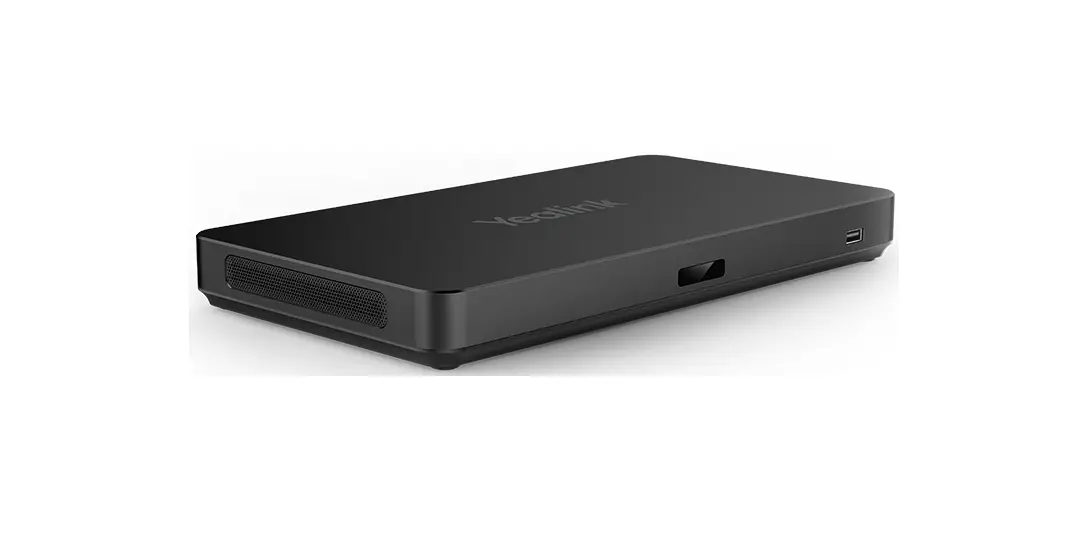
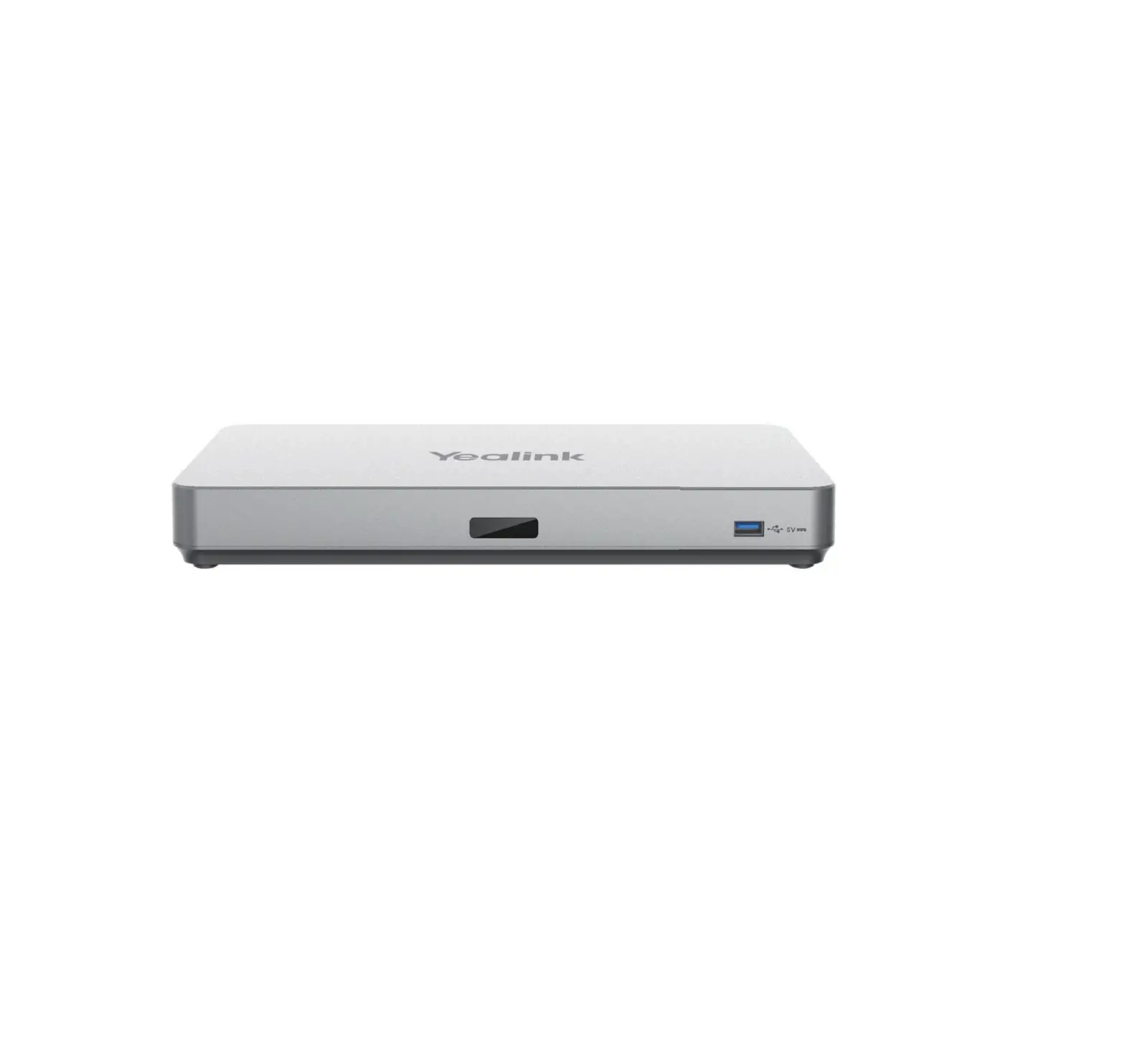
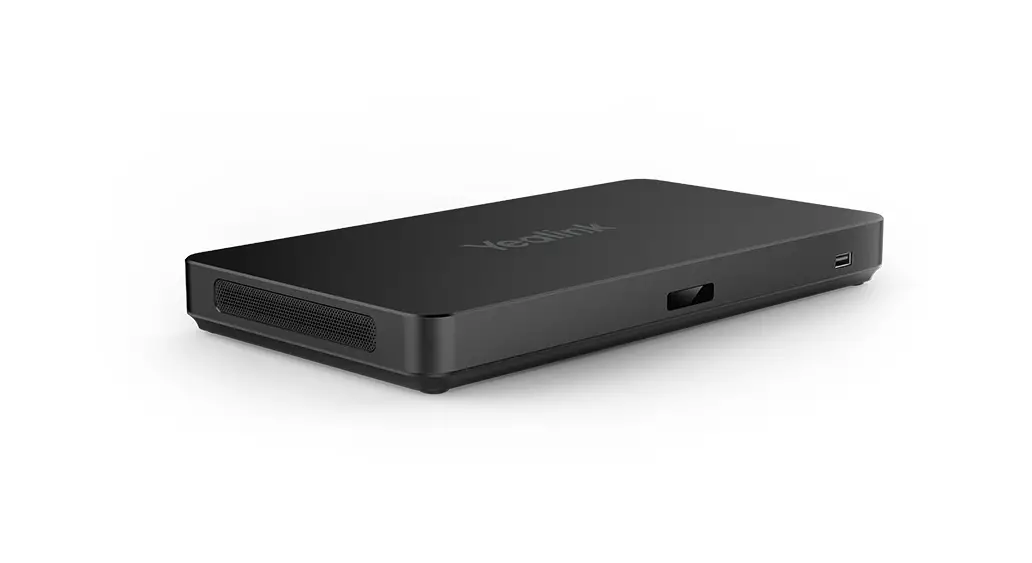
Meeting Audio & Video Processor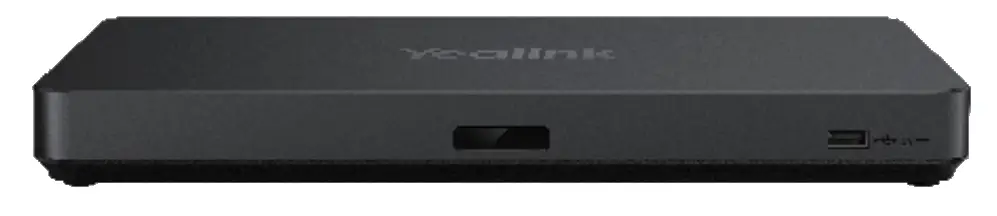
Package Contents
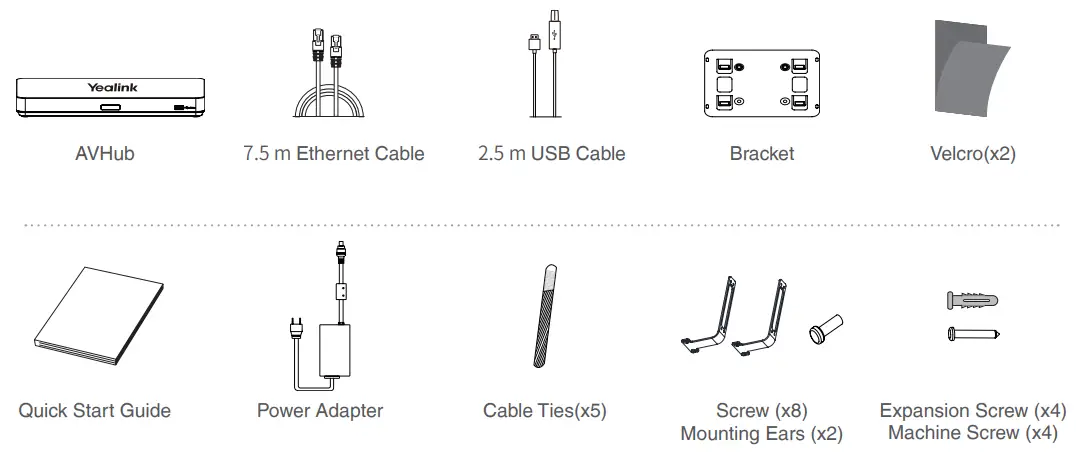
We recommend that you use the accessories provided or approved by Yealink. The use of unapproved thirdparty accessories may result in poor performance.
Hardware Interface Instructions

| ❶ LED Indicator: different status of the AVHub. | ❻ RCA In: connect to an audio input device via a RCA cable. |
| ❷ USB-A Port | ❼ RCA Out: connect to an audio output device via a RCA cable. |
| ❸ USB-B Port | ❽ 6.3 mm Line-in Port |
| ❹ Codec Port | ❾ 6.3 mm Line-out Port |
| ❺ VCH Port | ❿ DC48V: connect to the power adapter. |
LED Indicator Instructions
MVC Mode
| LED Status | Description |
| LED indicator off Solid red Fast flashing red Solid orange Fast flashing orange Solid green | The AVHub is powered off. The AVHub is in sleep status. The PC is not connected after the AVHub is powered on. Resetting the AVHub. The AVHub is starting up. The AV-Hub is upgrading firmware. The AVHub is working. |
VCS Mode
| LED Status | Description |
| LED indicator off Solid red Fast flashing red Solid green Fast flashing green Solid orange | The AVHub is powered off. The VCS device is in sleep status. After the AVHub is powered on, the VCS device is not connected to AVHub. Resetting the AVHub. The AV-Hub is upgrading firmware. The AVHub is working. The VCS audio device is adjusting volume or mute The AVHub is starting up. |
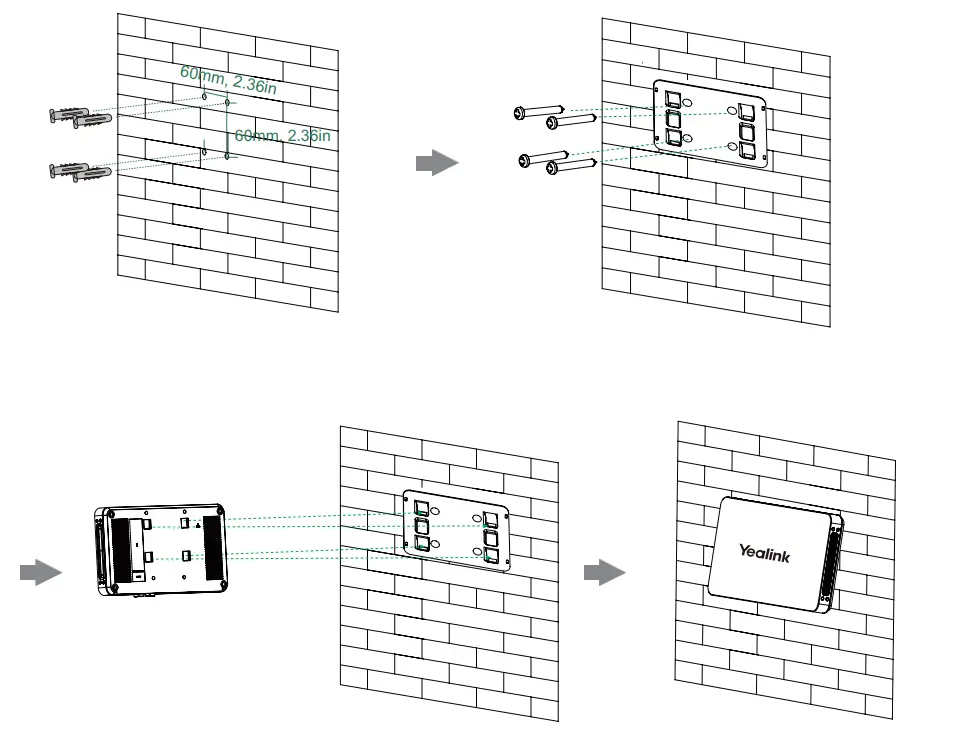
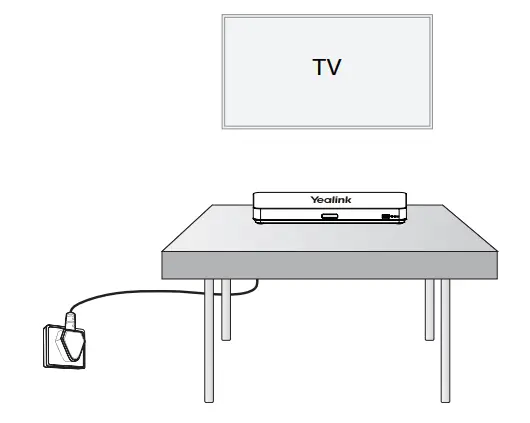
AVHub Installation
- Mount on the Wall

- Stick under the Table

- Put on the Desk

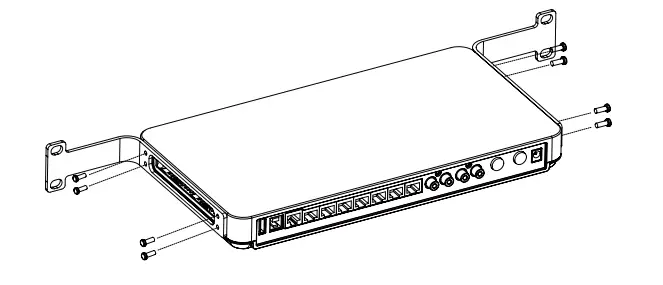
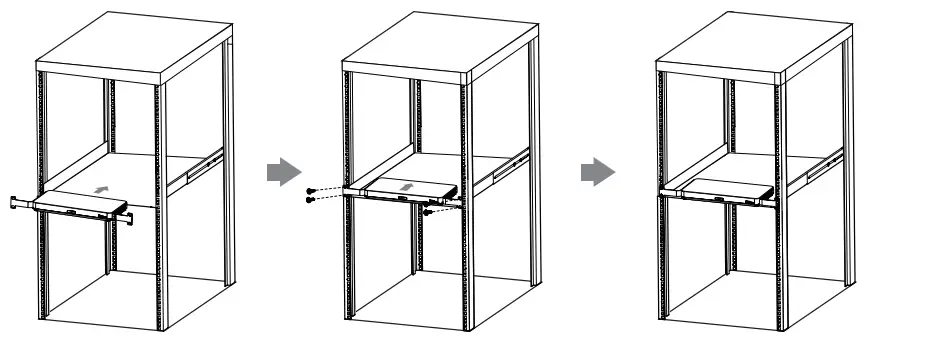
- Mount on the Rackbghjg
❶ Install the mounting ears on both sides of the AVHub.
❷ Push the AVHub into the rack, and then fix it to the rack with screws.

Endpoint Connection
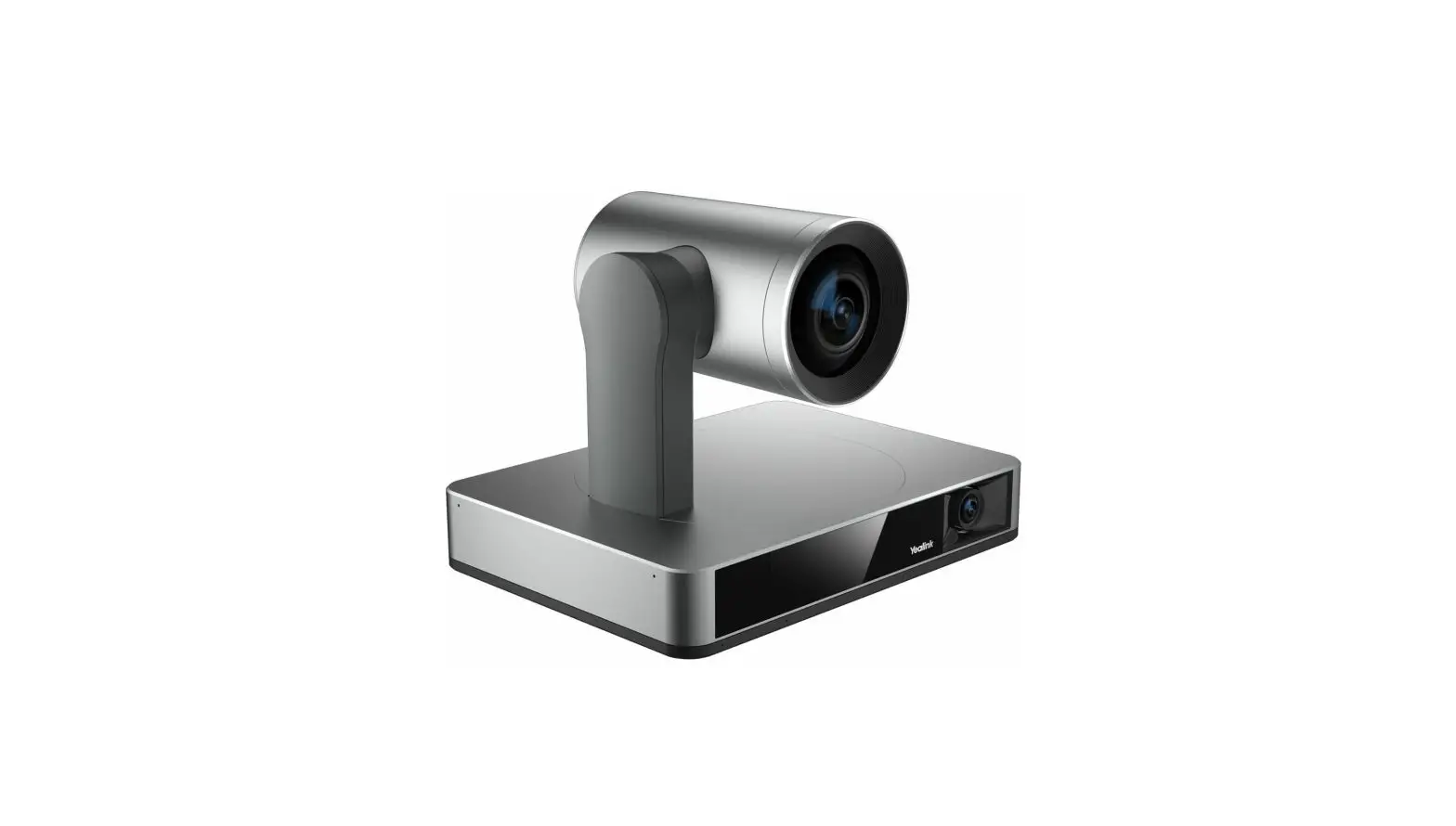
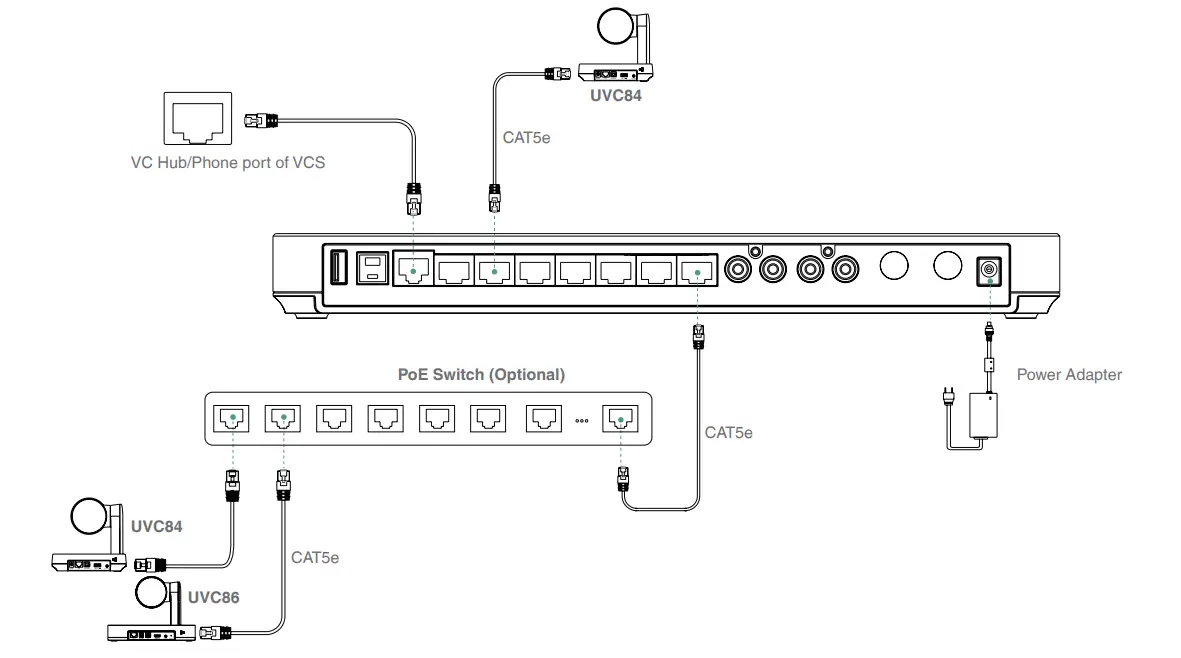
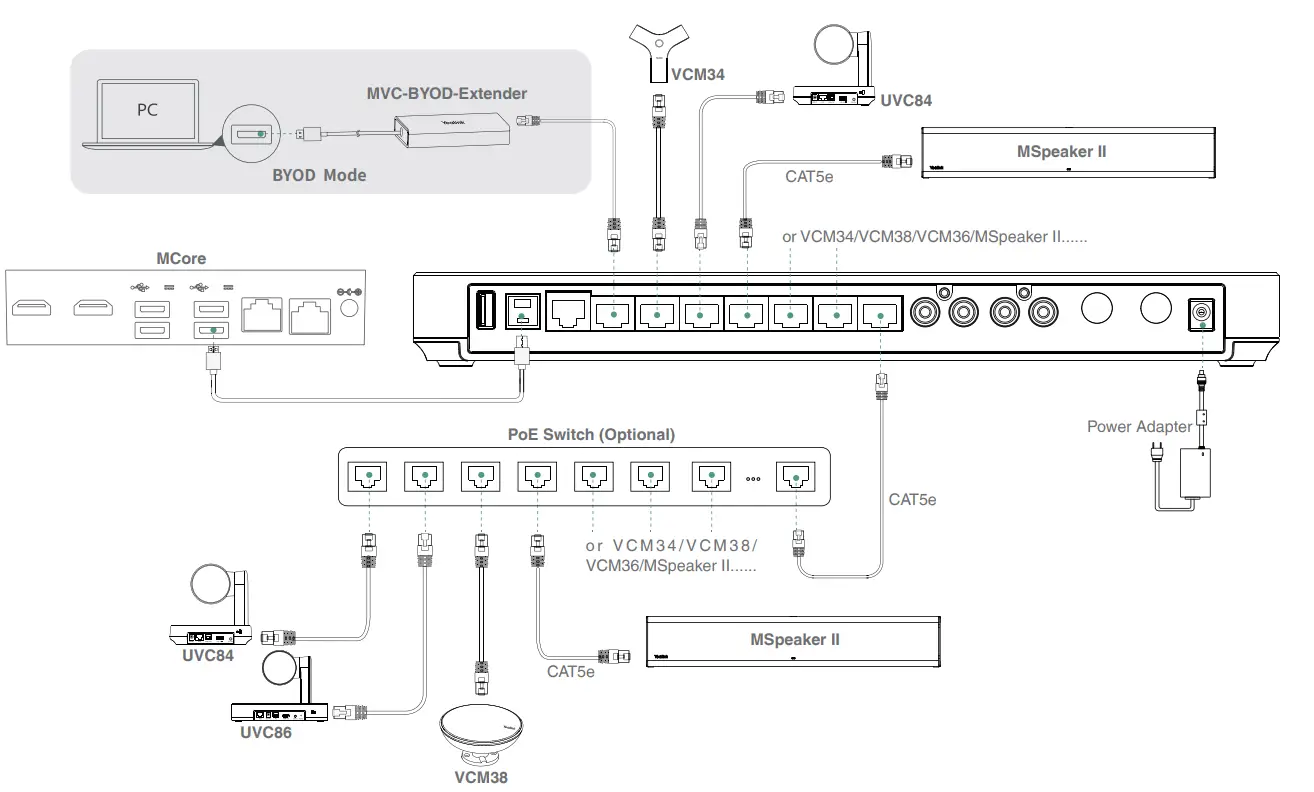
When you connect the UVC84/UVC86 directly to the AVhub, the total number of connections must be no more than 4 devices. If the total number of connections exceeds 4 devices, you need to connect a PoE switch (the PoE switch must meet the 802.3 AT (PoE+) standard)
- VCS Deployment Solution
MVC Deployment Solution
 Yealink | UC & C Terminal, Video Collaboration, Conference Phone, IP Phone, Headsets & Video Conferencing
 Yealink | UC & C Terminal, Video Collaboration, Conference Phone, IP Phone, Headsets & Video Conferencing