Guest Pin Number Registration
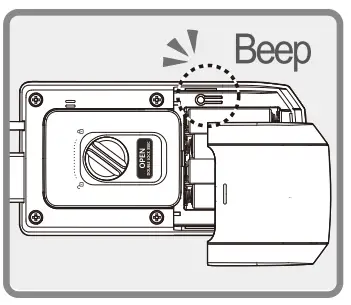
- Open the battery cover. Press the [ Registration ] button once -a beep sound will be heard.
 OUTSIDE
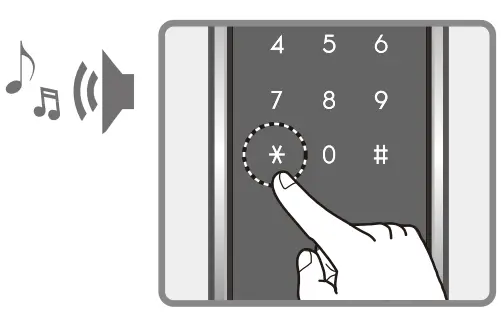
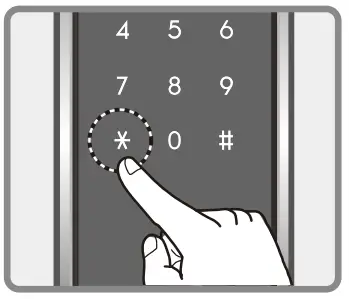
 - Enter the current pin number, followed by the [
 ]button.
 OUTSIDE
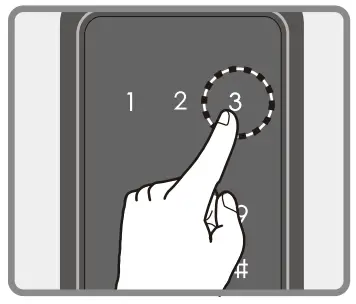
 - Press the number [ ] button.
 OUTSIDE
 - Enter a new guest pin number to be registered (4-12 digits) and press the [a] button to complete the registration.

 OUTSIDE
 OUTSIDE
 OUTSIDE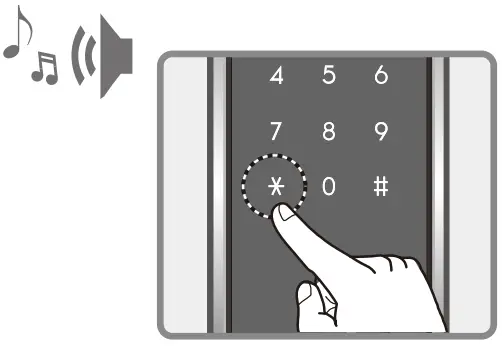
- The guest pin number is 1-time entry only.
- New registration will delete the old guest pin number.
- When registration mode is canceled old pin number will be restored.
Dual-mode Security Feature Setting
The pin number & RFID card should be registered first before setting this feature.
- Press the [Registration] button for 5 seconds the entire LED will light up after 3 seconds the alarm will stop and after 2 seconds it will be on again. OUTSIDE
- Enter the current pin number. When you press []button, the front panel LED will blink and light up.
 OUTSIDE
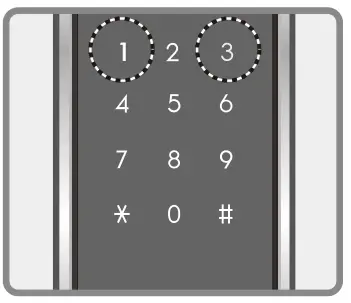
 - Press the [ 1 ] button to Turn Off Dual-Mode Security. Press the [ 3 ] button to Turn-On Dual-Mode Security.
 During Dual-mode Security Setting, when the confirmation sound is heard, everything will be turned off.
 OUTSIDE
 During Dual-mode Security Setting, when the confirmation sound is heard, everything will be turned off.
Random Number Feature
 Note
Note
The random number feature is enabled in default. This is a security feature that keeps the pin number from being exposed by the additional random number that is added before or after the original pin number. The number to be entered including the pin number should not exceed 20 digits.
Opening Door Outside
Method 1: Opening by pin number
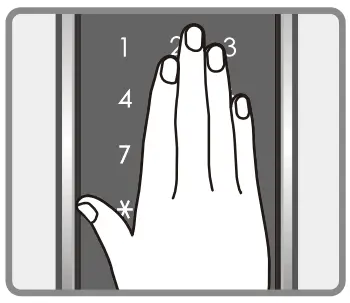
- Touch the number pad.
 OUTSIDE
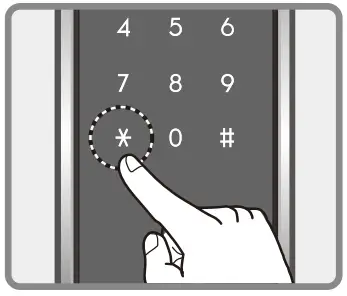
 - Enter [ Pin number ] and press [ ] button.
 OUTSIDE
 - After the melody is heard, the door will open.

 OUTSIDE
 OUTSIDE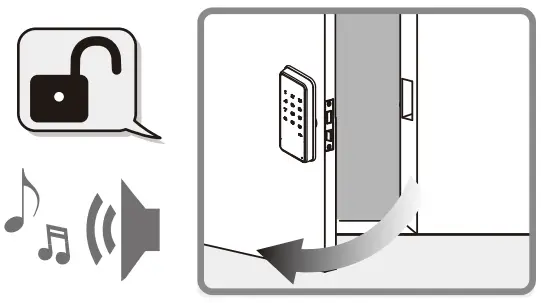
Method 2: Opening by RFID card
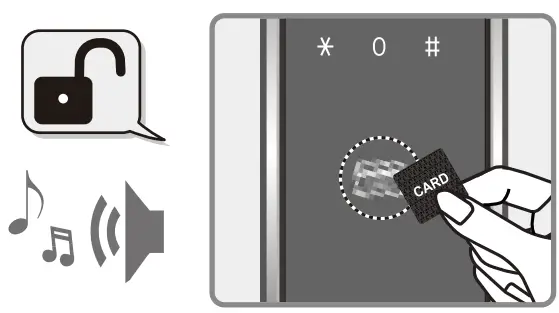
- During Automatic Detection Mode Press the registered RFID card on the reader. Melody will be heard and the door will open.

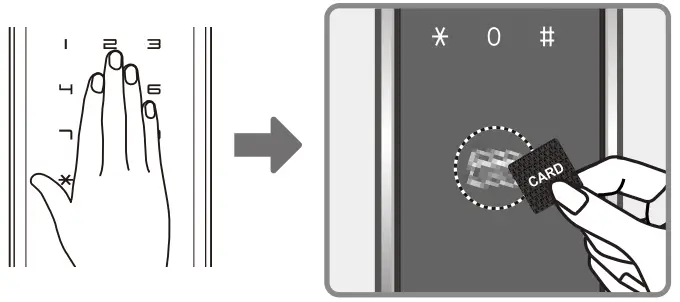
- During Manual Detection Mode Touch the number pad, check if the number pad lights up, and place the registered RFID card on the reader. Melody will be heard and the door will open.
Method 3: Opening by random number
Touch the number pad, enter any random number, Enter pin number, press [ ] button or enter pin number first, then enter any random number, then press [] button and the door will open.
- Enter any random number + Enter pin number + [ ] button.
- Enter pin number + Enter any random number + [ ] button. Either way, when the melody is heard. The door will open.
Method 4 : Opening by Dual-mode Security
Enter Pin Number + Press [ ] button
Place the card to be registered on the card reader
Closing the Door Outside
Method 1: Automatic lock mode
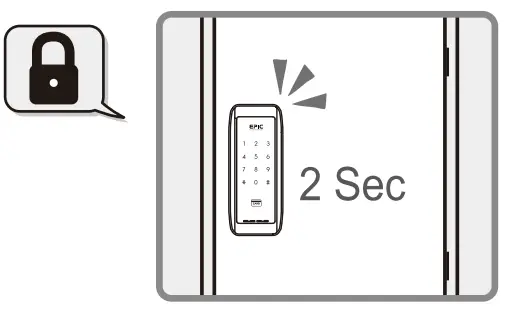
► The door will lock automatically after 2 seconds of closing the door.
Method 2: Manual lock mode
► Touch the number pad and the door will lock.
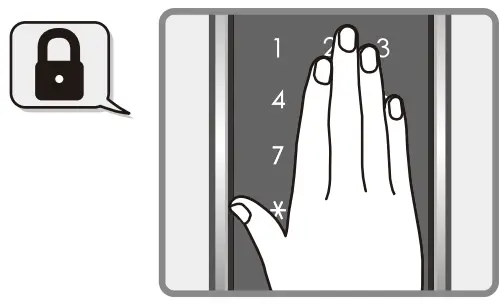
Opening Door Inside
Note
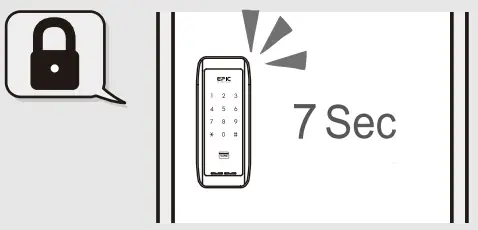
Press the [ Open / Close ] button inside. Within 7 seconds of opening the door or the door will lock again.
Press the [ Open / Close ] button or turn the manual lock knob
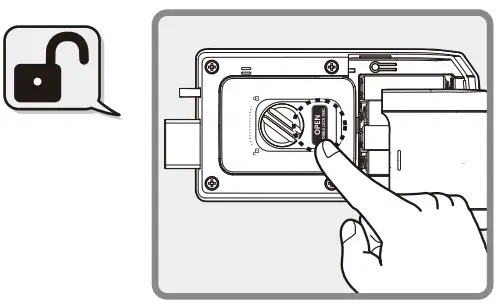 ► While the door is closed press the [ Open / Close ] button or turns the manual lock knob, the door will open.
 Caution
Do not install on inside-pulling doors.
Closing Door from Inside
Method 1: Automatic lock mode
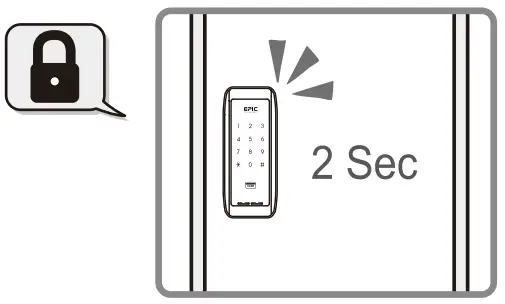
► The door will lock automatically after 2 seconds of closing the door.
Method 2: Manual lock mode
► While the door is closed press the [ Open / Close ] button or turns the manual lock knob, the door will lock.
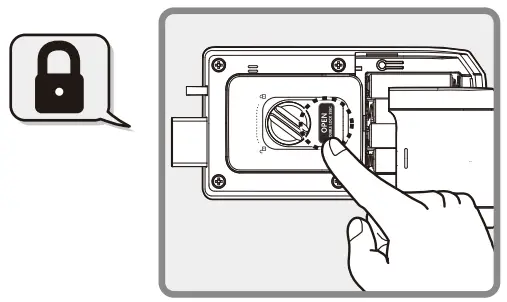 Note
Note
In manual mode, when the [ Open / Close ] button is pressed, the -beep sound will be heard to signal that the door is locked.
Forced-Lock Feature
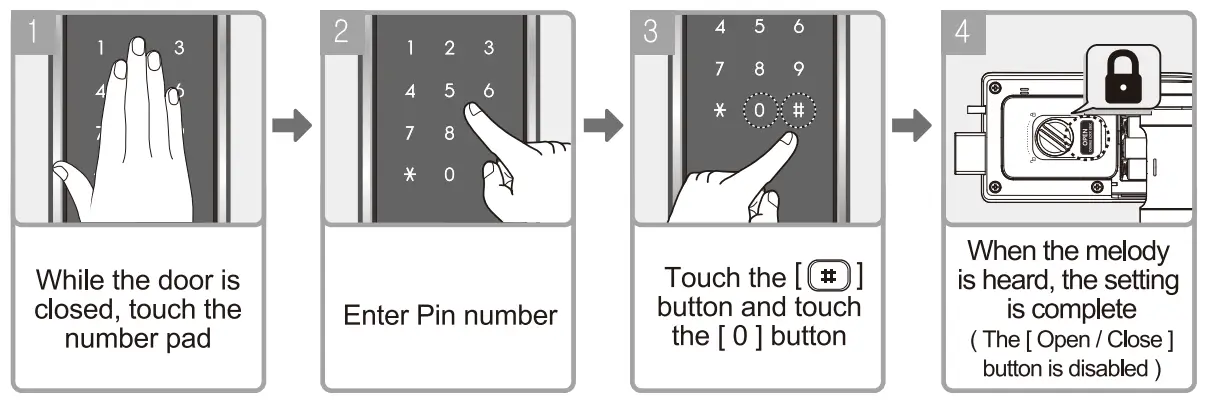
- Outside Force Lock
– When this is set the door cannot be opened from the inside.
[ Open / Close ] button is disable. CANCEL
Open the door by pin number and the [ Force Lock ] setting will be canceled. - Internal Force Lock
– When this is set the door cannot be opened from the outside. Pin number entry is disabled.
1. While the door is closed.
2. Press the [ Open / Close ] button for 3 seconds. When the melody is heard, the setting is complete.
 CANCEL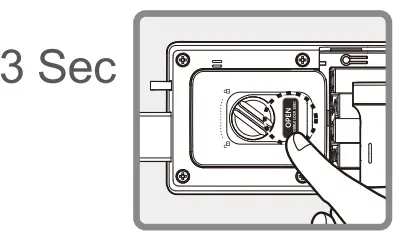
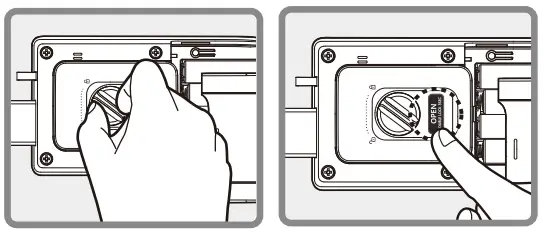
CANCEL
Open the door by the [ Manual Knob (lock/unlock) ] or by the [ Open / Close ] button inside and the [ Force Lock ] will be canceled.
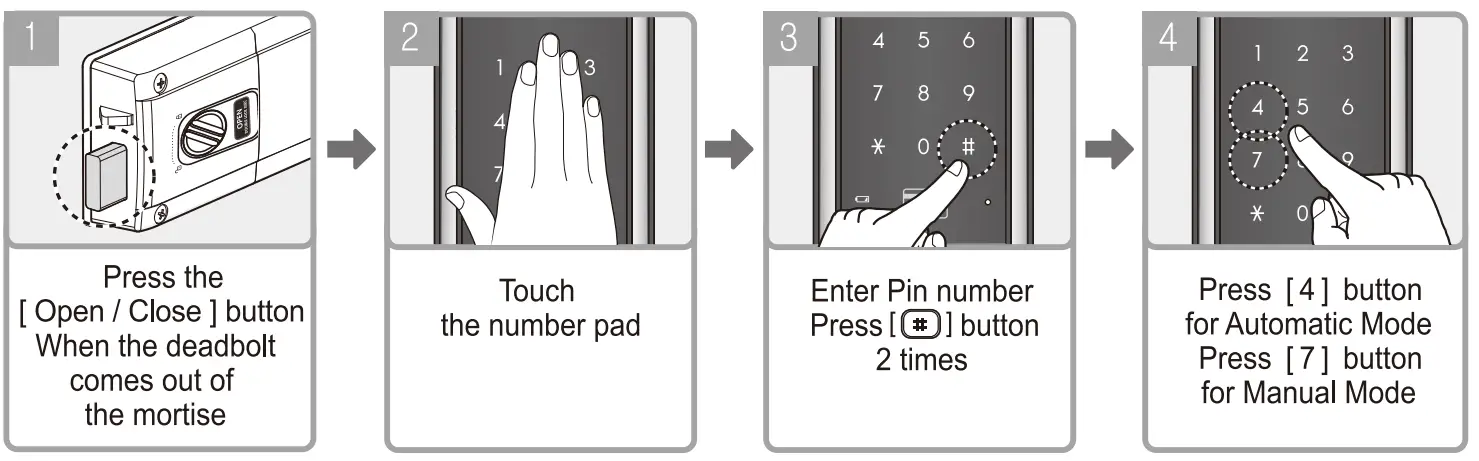
Automatic / Manual Lock Setting
An optional feature that lets you set the lock-in automatic and manual lock mode.
Setting
While the door is partially opened.
 Note
Note
Automatic Lock Mode is set in default. In Manual Lock Mode, the door will not lock after closing the door, instead touch the number pad outside or press the [ Open / Close ] button inside to lock the door.
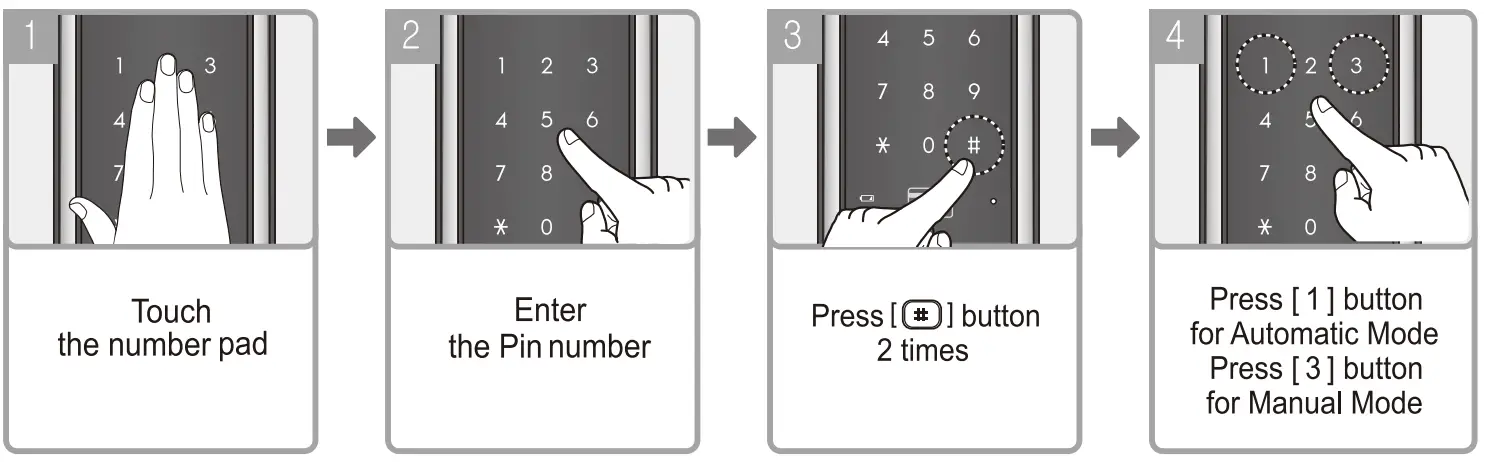
RFID Card Automatic / Manual Detection Setting
An optional feature that lets you set the RFID Card detection to automatic and manual mode.
 Note
Note
- In Automatic Mode, – Place the RFID Card on the card reader and the door will open.
- In Manual Mode, – Touch the number pad, Place the RFID Card on the card reader and the door will open.
Automatic Mode is enabled in default.
Sound Mute Function
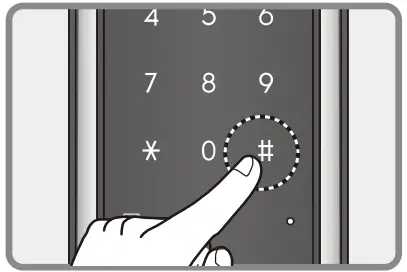
Regardless of the volume setting, This feature lets you mute the operation melody. This is per 1-time usage only. The operation sound will occur on the next operation.
- Touch the number pad and press the [ ] button. (In mute state)
- Enter the Pin number, press the [ ] button, and the door will open. (Number pad will blink)
Sound Volume Setting
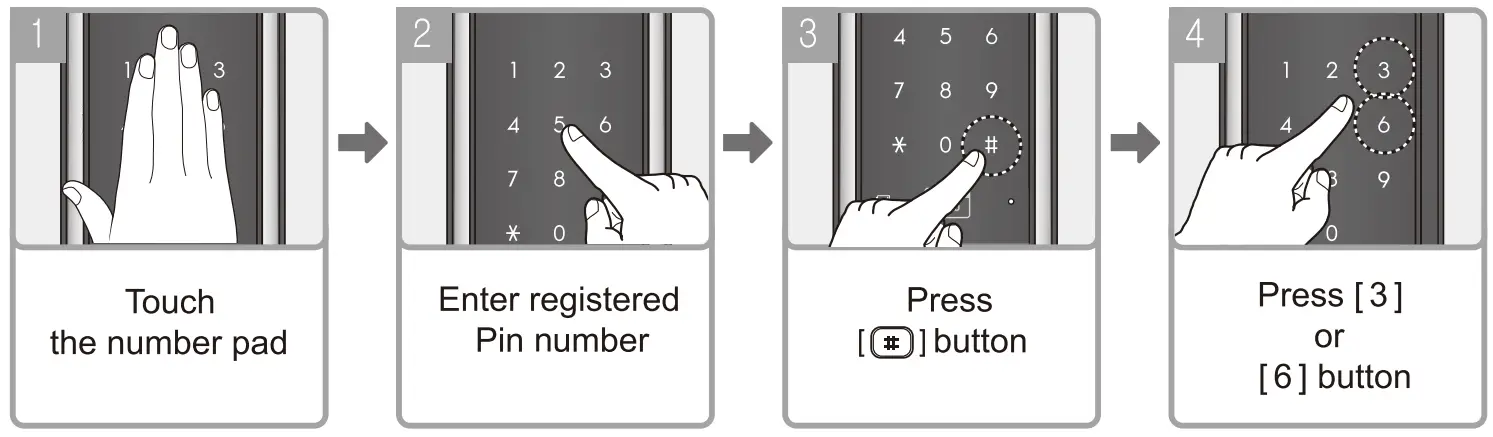
This feature allows the user to adjust the operation sound volume per level. (perform while the door is closed)
Sound can be adjusted up to 7 levels.
Note
Press the [3] button to increase the sound.
Press the [6] button to decrease the sound. In mute mode, the number pad will blink when you press a number.
The volume level is set on high in default.
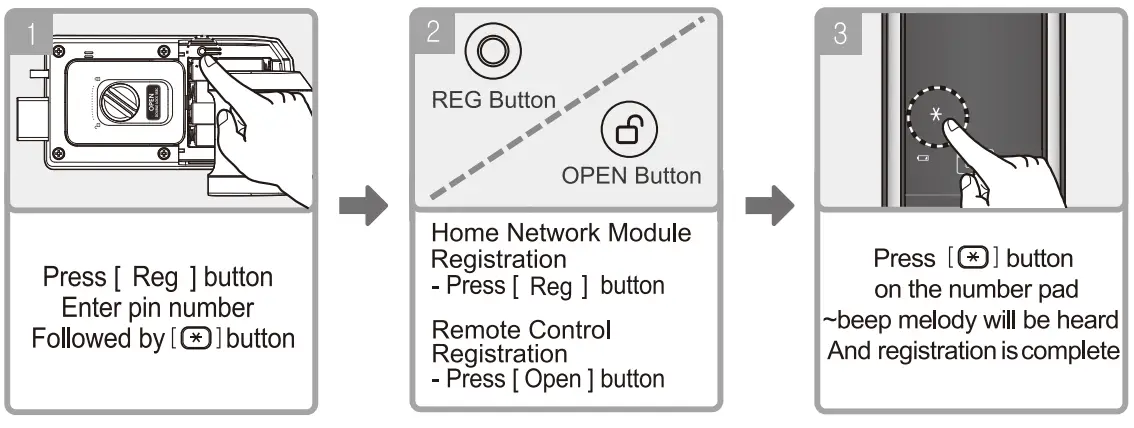
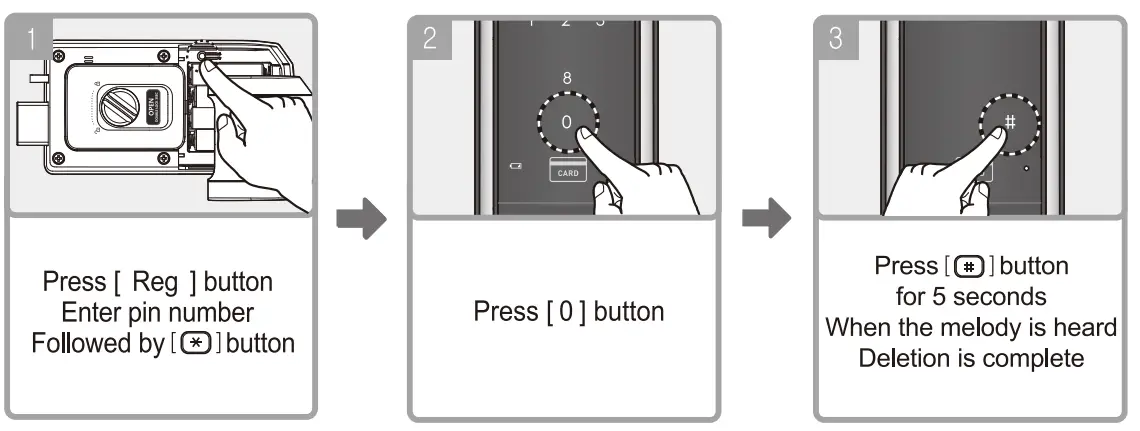
Home Network Module & Remote Control Setting
This feature lets you open the door remotely via home network devices and remote control. (Optional)
Home Network Module and Remote Control setting procedure are the same.
Registration
 Note
Note
For registration of additional remote control repeat step number 2 Up to 5 remote controls can be registered.
Deletion
 Note
Note
New registration of single remote control will delete previously registered ones. This method can be used as an alternative to deleting the remote control.
NOTE: This equipment has been tested and found to comply with the limits for a Class B digital device, pursuant to part 15 of the FCC Rules. These limits are designed to provide reasonable protection against harmful interference in a residential installation. This equipment generates, uses, and can radiate radio frequency energy and, if not installed and used in accordance with the instructions, may cause harmful interference to radio communications. However, there is no guarantee that interference will not occur in a particular installation. If this equipment does cause harmful interference to radio or television reception, which can be determined by turning the equipment off and on, the user is encouraged to try to correct the interference by one or more of the following measures:
- Reorient or relocate the receiving antenna.
- Increase the separation between the equipment and receiver.
- Connect the equipment into an outlet on a circuit different from that to which the receiver is connected.
- Consult the dealer or an experienced radio/TV technician for help