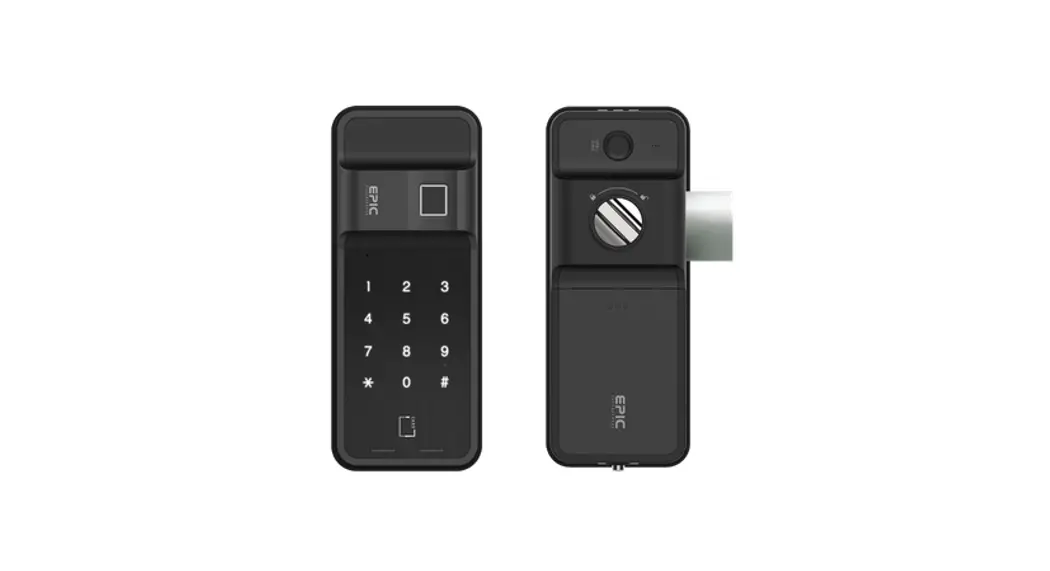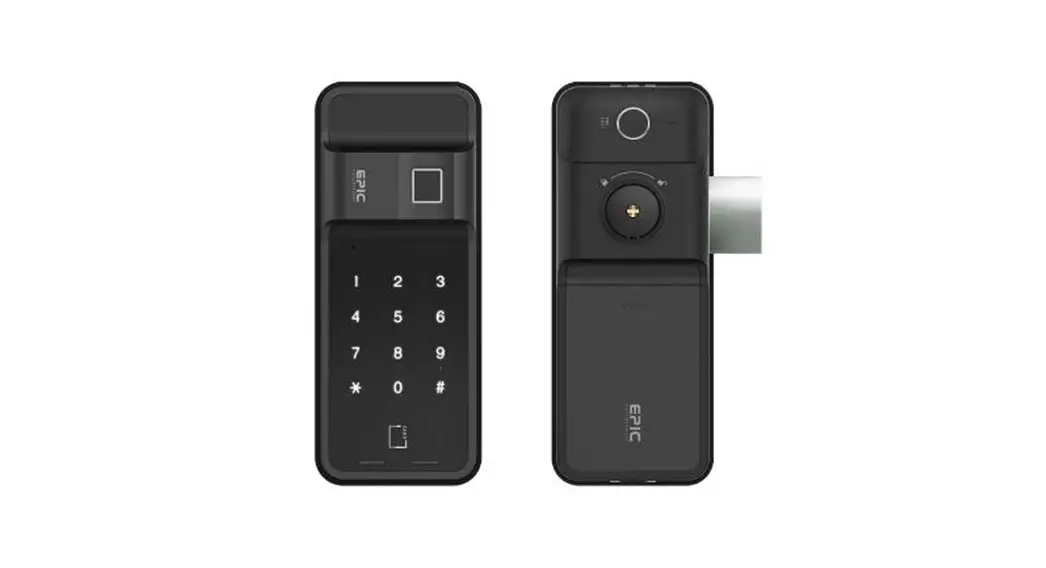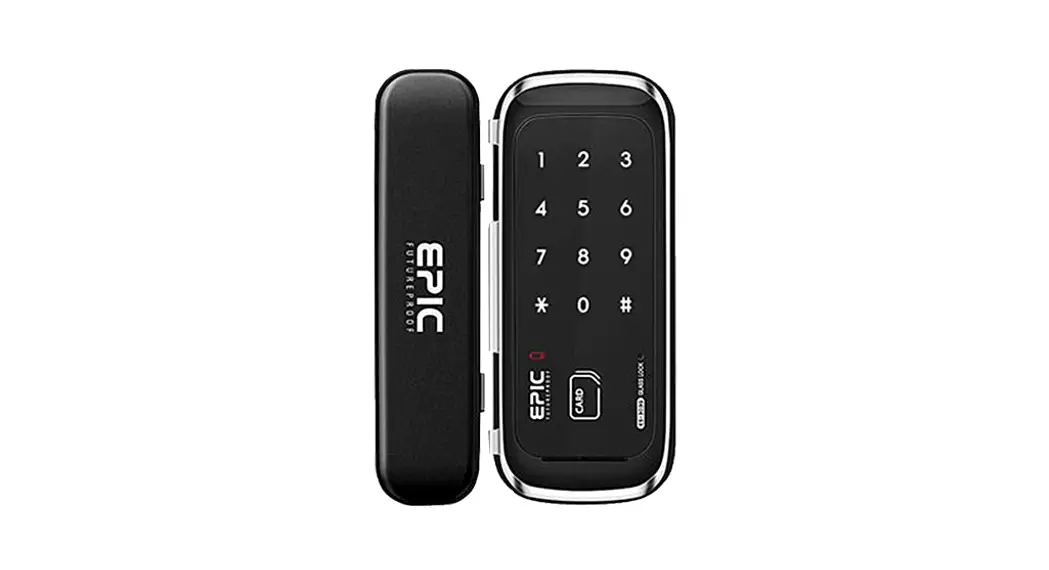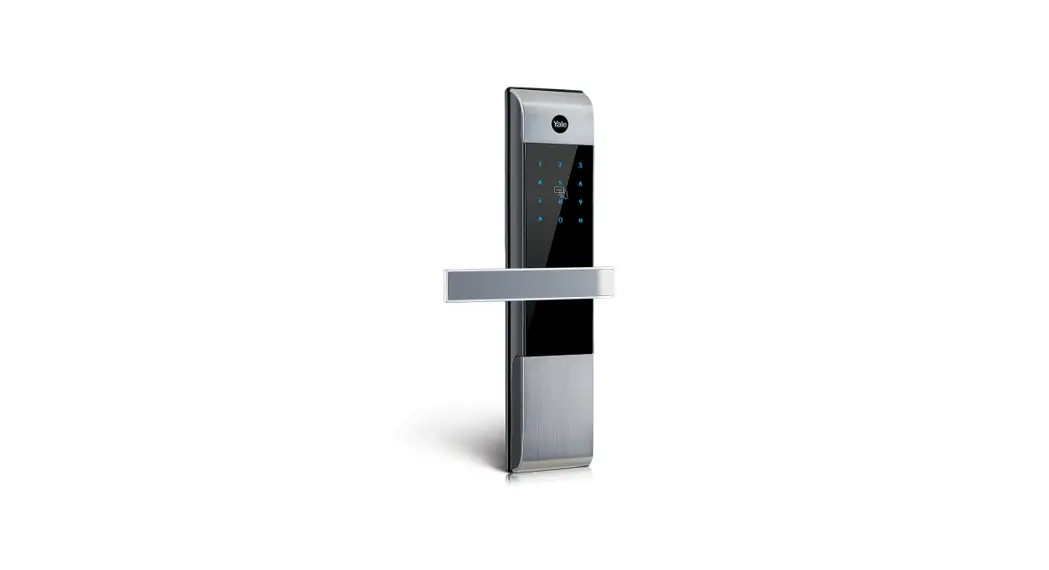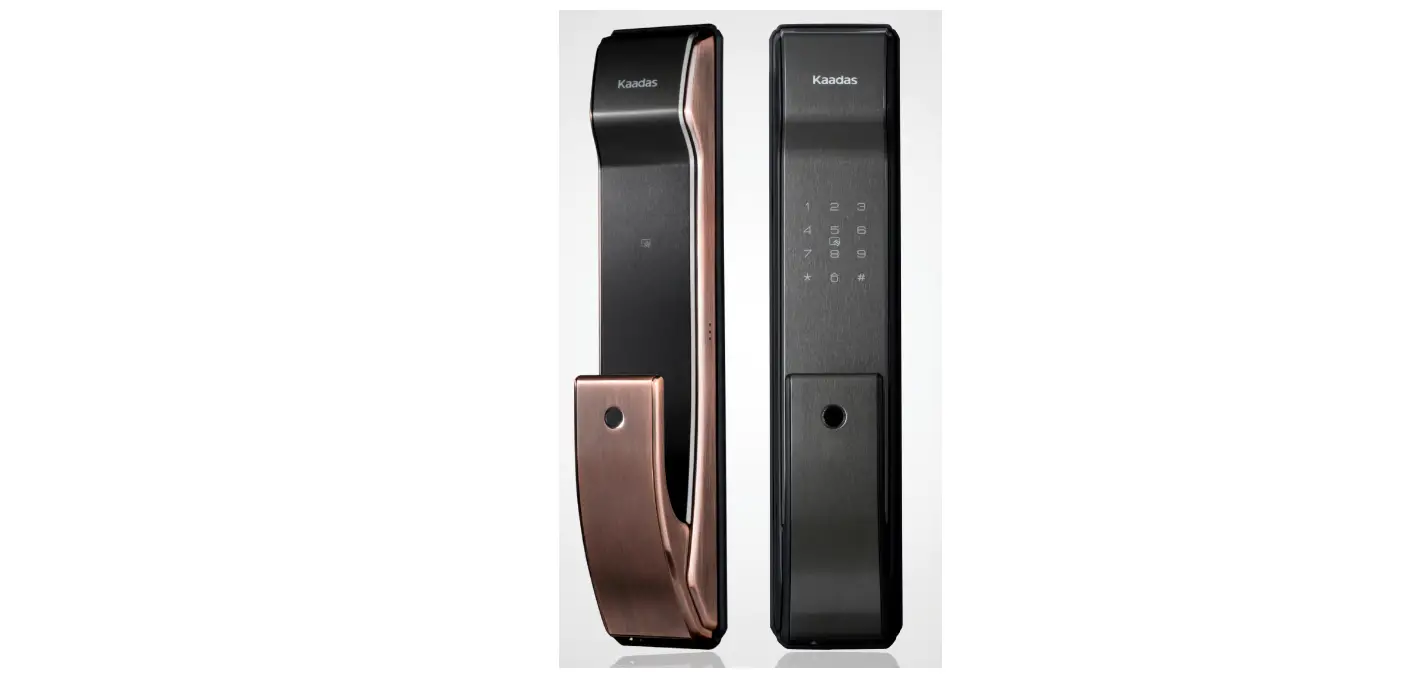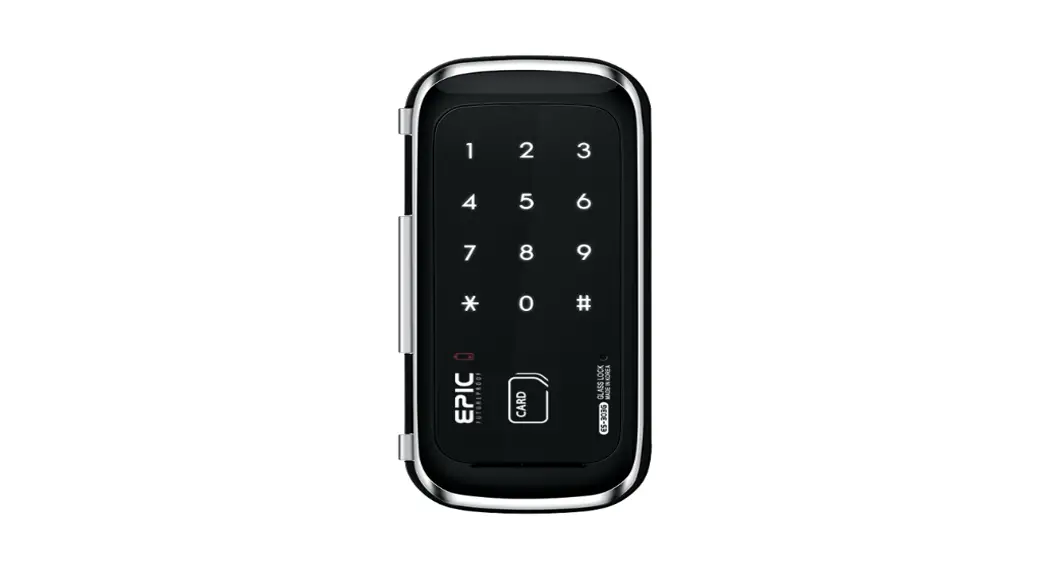
 SYSTEMS ES-303G Digital Lock for Glass Door
User Manual 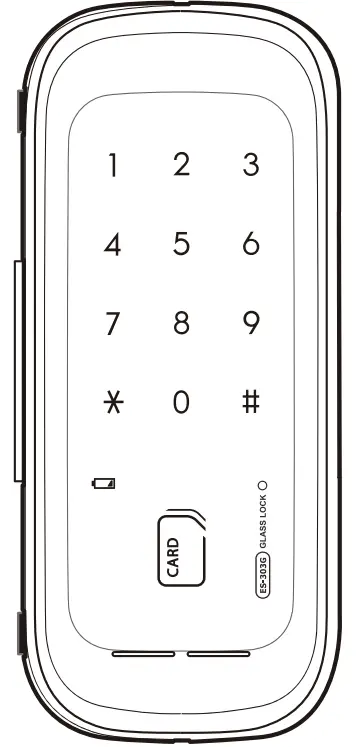 User Manual
Pin Number / RFID Card
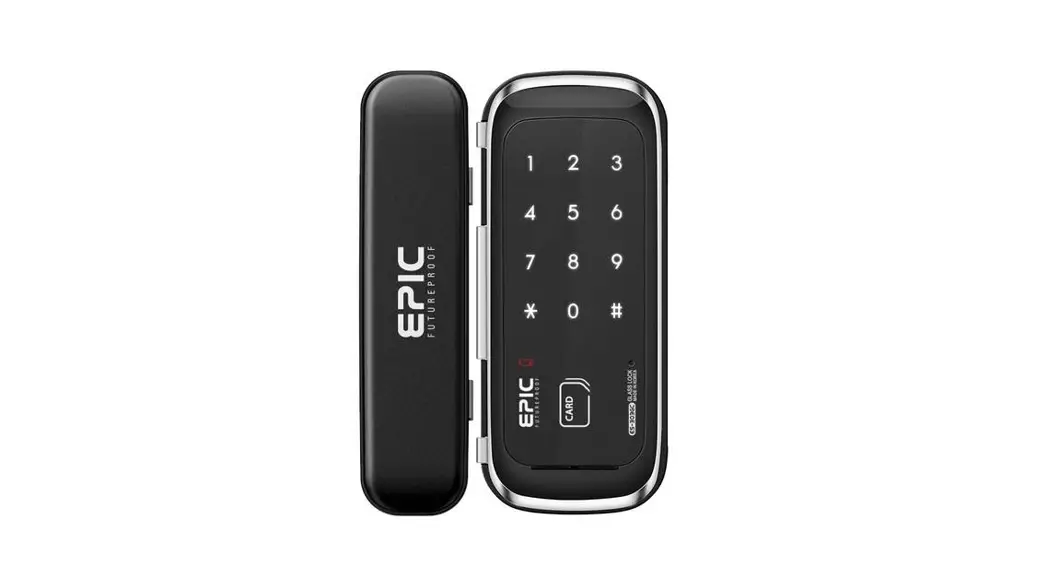
ES-303G Digital Lock for Glass Door
Left & Right hand Automatic Recognition type Glass Door Lock
Easy to install due to automatic recognition of left and right position
Default Pin number is 1,2,3,4
Create a new 4-12 digits Pin number that Is difficult to crack or guess.
Do not use consecutive and repetitive number.
PTSP2530ONTA REV.02 This product should be installed by skilled installer only.
To receive full coverage of the product warranty, Please do not install by yourself, For safety purposes.
Product Components
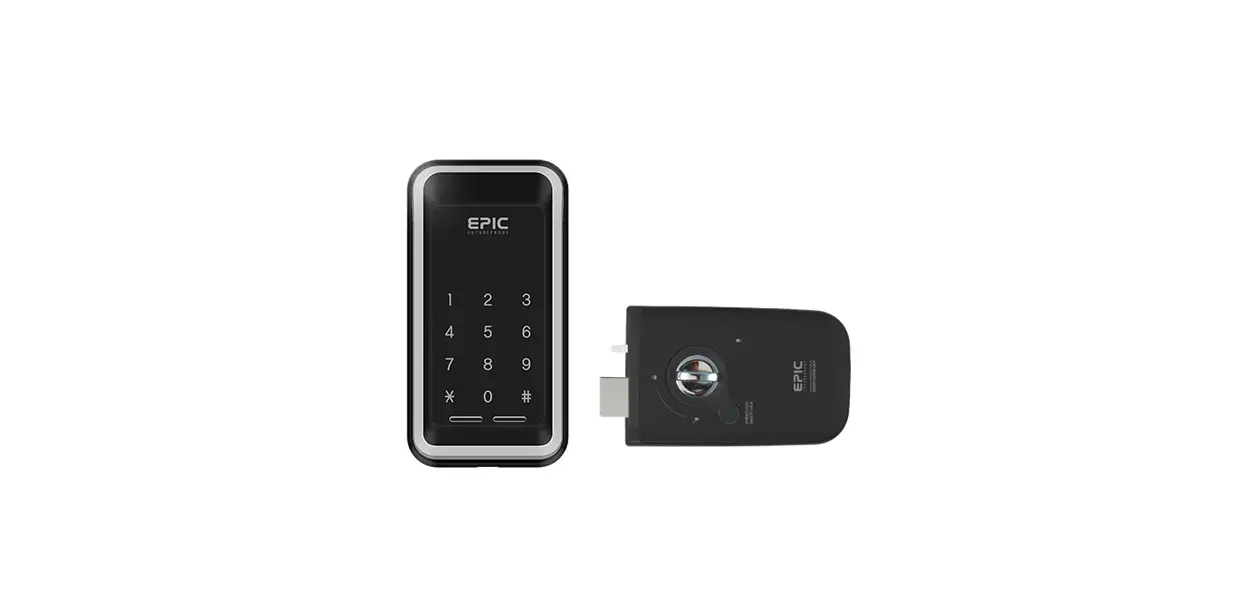
[ Outer body part ]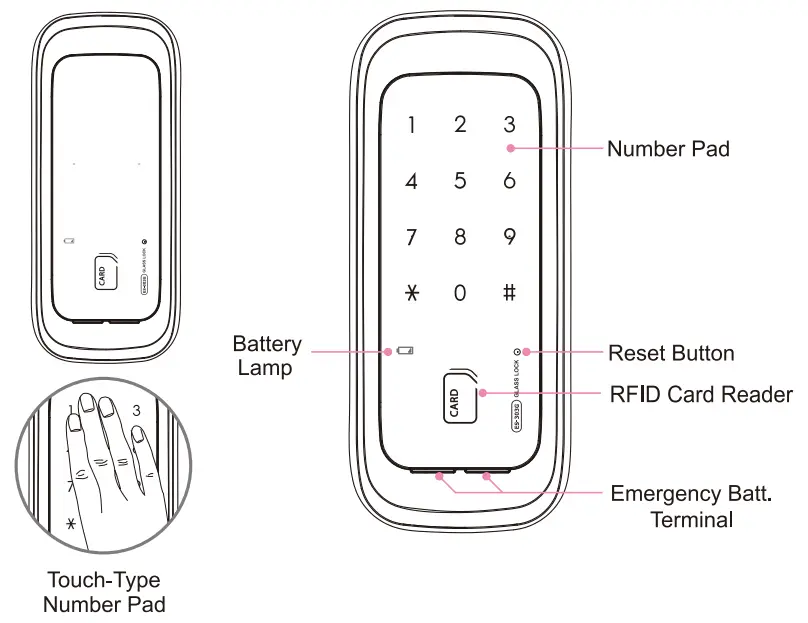 [ Inner body part ]
 User’s Guide
Trace form
Batteries (LR6 AA) 4EA
RF ID Card (Sticker) 2EA
Saew
Pin Number Registration
To change existing pin number Default pin number upon purchase is [ 1, 2, 3, 4]
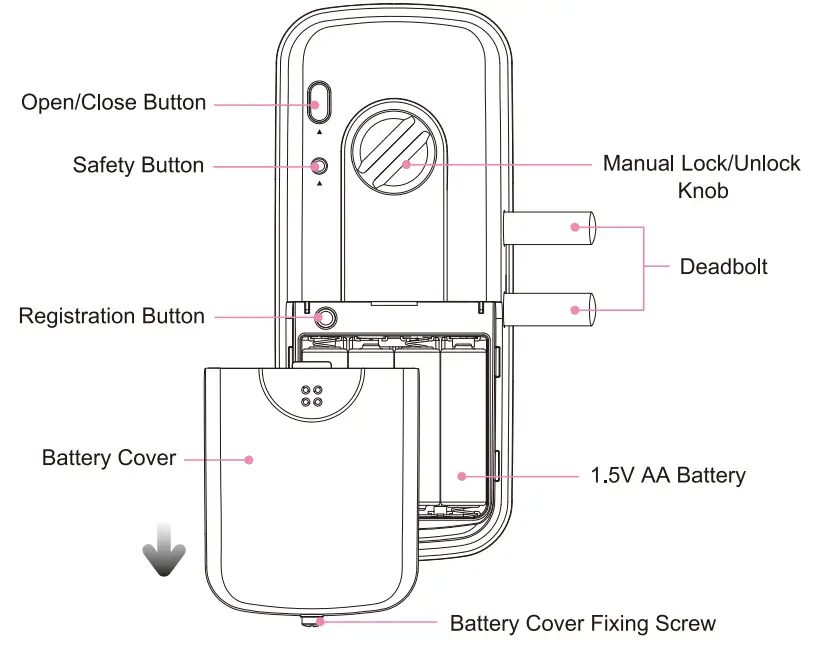
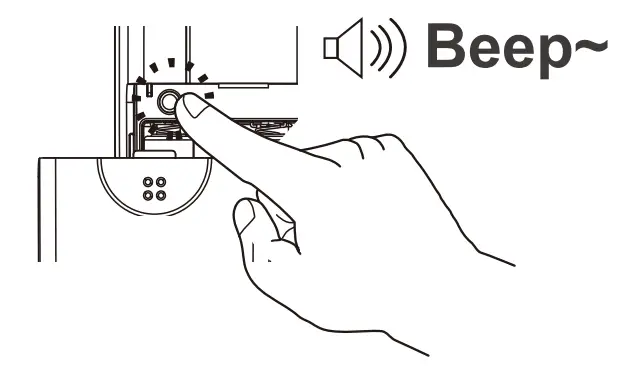
- Open the [Battery Cover]
Press [Registration] button once
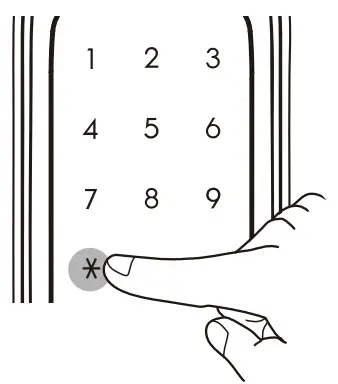
- Enter current pin number followed by [
 ] button.
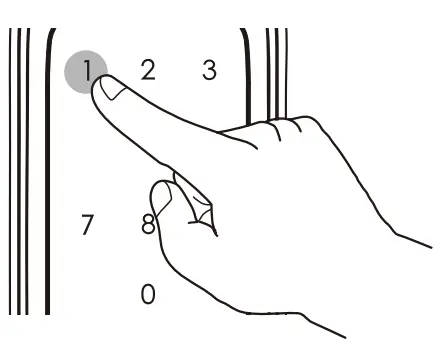
- Press number 1 button.

- Enter new pin number to be registered 4~12 digits.
Press [] button.
 Caution
After pressing Registration button, pin number should be entered within 10 seconds or the registration will be cancelled. New registration (steps 41), 2), °3), 4)) will
delete all previously registered pin on the lock.
Only 1 set of Pin Number can registered.
RFID Card Registration (Normal)
- Open the [Battery Cover]
Press [Registration] button once.
Enter current pin number followed by [] button. - Press number 2 button.

- Place RFID Card to be registered on the Card reader.
(A beep sound will signal registration of each card )
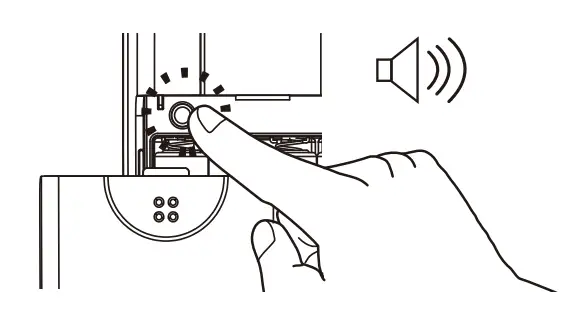
- Press [Registration] button after cards has been registered.
And the registration is complete.
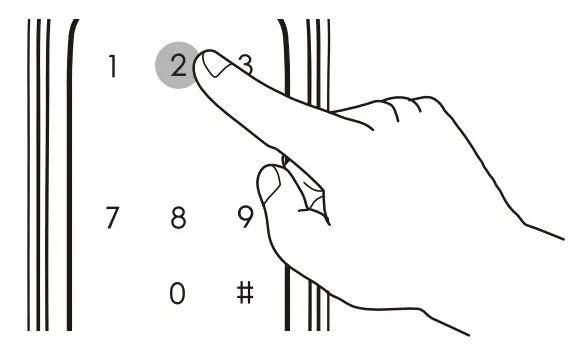
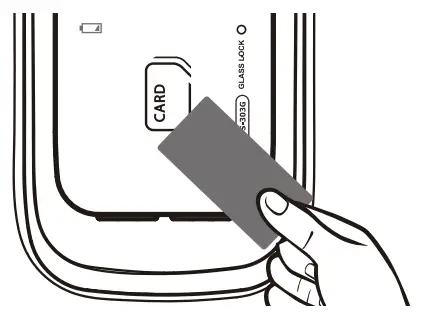
Up to 100 RFID cards can be registered.
To register multiple RFID cards, repeat step 3 before the number pad turns off.
Press [Registration] button to complete Caution
When registering additional smart key, the existing registered card cannot be deleted.
If you want to delete it, please delete all cards then register.
RFID Card Registration (Individual)
- Press [Registration] button once
Enter current pin number followed by [] button. - Press number 2 button.
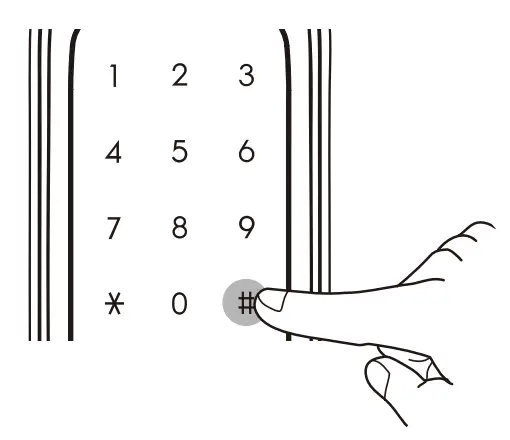
- Enter the card location number consisting of 3 digits from (001~100), followed by the[
 Jbutton.
- Place the card to be registered on the reader.
The beep sound will be heard, and the saved 3 digit location number will be displayed on the number pad. - If you want to register additional RFID Card repeat step 4 Press [Registration] button when complete.

RFID Card Deletion (All-at-once)
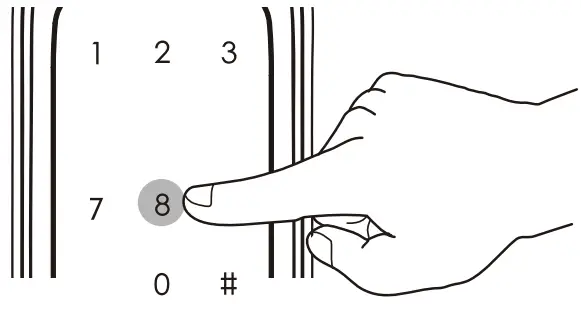
- Press [Registration] button once
Enter current pin number followed by [] button. - Press number 8 button.

- Long Press[] button for 5 seconds
When the melody is heard, All RFID Cards are deleted.
RFID Card Deletion (Individual)
- Press [Registration] button once
Enter current pin number followed by [] button. - Press 8 button, followed by [] button.
Enter the registered card location number, followed by [] button. - After deletion is complete, all numbers are lighted on the number pad Additional card deletion is in standby mode.If there is no location number to be deleted, Press[] button or [Registration] button.
Guest Pin Number Registration
- Press [Registration] button once
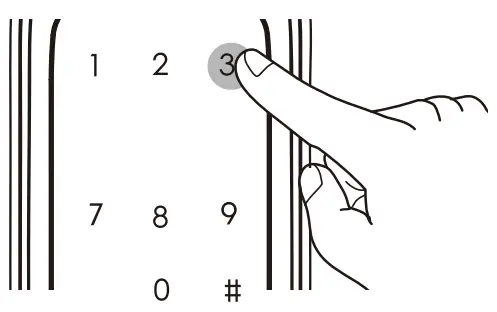
Enter current pin number followed by [] button. - Press number 3 button.

- Enter new Guest Pin Number to be registered 4~12 digits
Press[ ]button on the number pad a melody will be heard, and the registration is complete
Caution
THE GUEST PIN NUMBER IS FOR 1 TIME ENTRY ONLY Note
Note
WHEN REGISTRATION MODE IS CANCELLED OLD PIN NUMBER WILL BE RESTORED NEW REGISTRATION WILL DELETE OLD REGISTERED PIN NUMBER
Opening Door Outside
Method 1 Opening by Pin number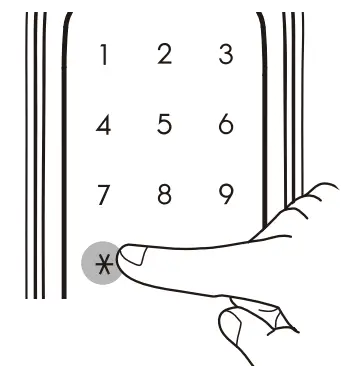
- Touch the number pad
- Enter (Pin number] and Press [] button
- After the melody is heard, the door will open
Opening with Radom Number Feature
– PROCEDURE –
(Before) Enter any random number + Enter Pin number + [  ] button.
( After ) Enter Pin number + Enter any random number + [] button.
Either way, when the melody is heard. The door open. Note
Random number feature is the random set of numbers that is added before or after the original pin number is entered.
Itis used to prevent the pin number from being exposed.
Including the pin number up to 20 digits only can be entered
During authentication with random number. Caution
When Multi-touch feature is enabled. After entering pin number, 3 digit random number will be displayed on the screen,
press the 3 numbers, followed by [+] button and the door will open.
When Multi-touch feature is enabled.
The “Random Number Feature” is disabled.
The “Random Number Feature” is enabled in default upon purchase.
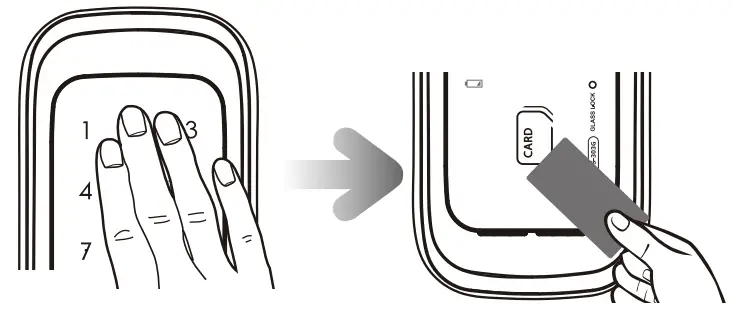
Method 2 Opening by RFID Card
- During Automatic Detection Mode
Place registered RFID Card on the reader
Melody will be heard and the door will open - During Manual Detection Mode
Touch the number pad, check if the number pad lights up, place registered RFID Card on the reader
Melody will be heard and the door will open.
Closing Door Outside
Method 1 Automatic Lock Mode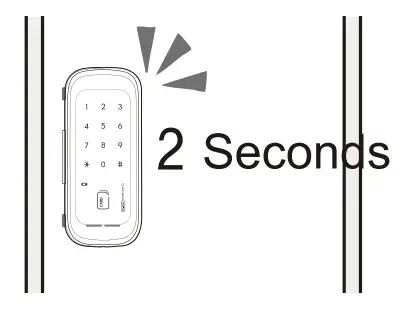 The door will lock automatically
After 2 seconds of closing the door
Method 2 Manual Lock Mode
- Touch the number Dad and the door will lock
 Setting
- Press [] button and the door will lockSetting

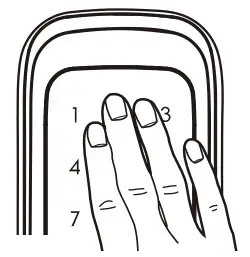 Setting

Opening Door Inside
• Method 1 Normal Mode
While door is locked
Press (Open/Close) button
And the door will open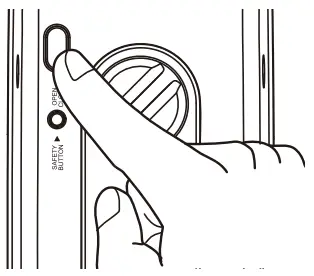 • Method 1 Safety Lock Mode
While door is locked Press [ Safety] button Then Press (Open/Close) button And the door will open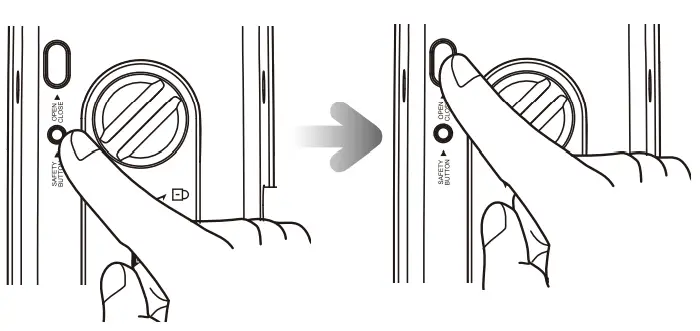 • Method 3 Manual Lock Mode
While door is locked Turn the [Manual Lock Knob ]
To [Open] direction
And the door will open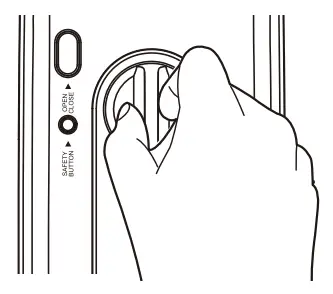
Closing Door Inside
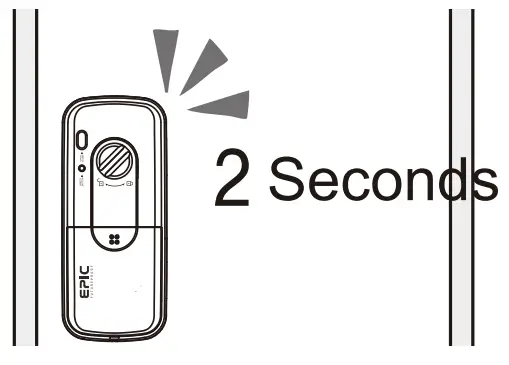
Method 1 Automatic Lock Mode
The door will automatically lock After 2 seconds of closing the door
Method 2 Manual Lock Mode
After closing the door Press (Open/Close) button And the door will lockMethod 3 Closing the door manually
After closing the door Turn the [Manual Lock Knob] To [Close] direction And the door will lock
Force Lock Setting (Outside Force Lock)
This security setting will disable the use of [Open/Close] button inside
Setting
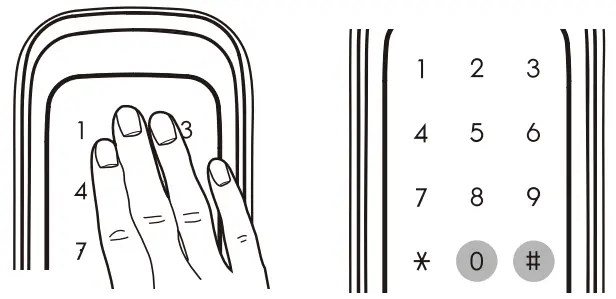
(1) While the door is closed Touch the number pad Enter Registered pin number
(2) Press [C)]button, follwed by [ ] button
 Cancellation
Open the door using Manual Lock / Unlock lever and force lock setting will be cancelled
Force Lock Setting (Inside Force lock)
This security setting will not allow any forms of entry from outside (Pin Number and RFID Card )
Setting
While door is closed Press [Open/Close] button for 3 seconds,When the confirmation tone is heard The setting is complete Cancellation
Open Open the door using Manual Lock/Unlock knob or pressing [Open/Close] Button inside and force lock setting will be cancelled Sound Volume Setting
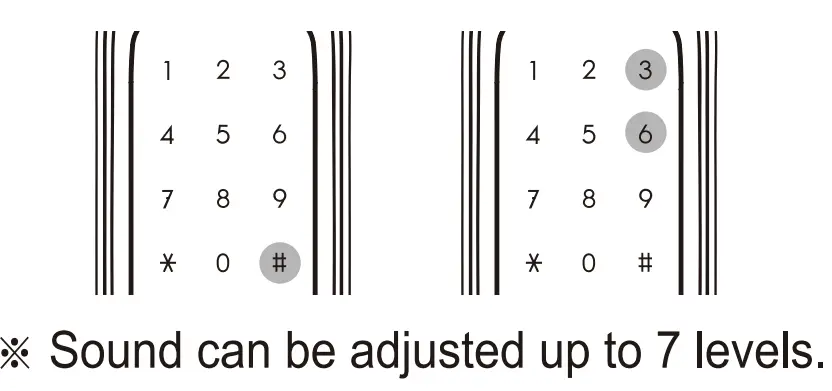
This feature allows the user to adjust the operation sound volume per level. (Perform while door is closed)
(1) Press number pad outside Enter Pin number, Press[] button
(2) Press [3] to increase sound Press [6] to decrease the sound
Sound Mute Setting
Touch external number pad, Press [] button Enter Pin number and the mute setting (Keypad tone and door operation tone)will be mute This feature is 1 time operation only Note When Sound Mute is set, when you enter a number on the number pad, it will be blinking. This is 1 time operation After 1 usage, the sound will come back to normal
Auto / Manual Lock Mode Setting
※ Set the door to automatic or manual lock mode.
(1) Automatic Lock Mode (2) Manual Lock Mode
 Note In manual lock mode, the door will not lock after closing the door. To lock inside, Press [Open/Close] button or Touch the number pad outside, Enter () button and the door will lock
※During purchase of item the Manual Lock Number Pad is set in default
RFID Card Auto / Manual Detection Setting
Sets the RFID Card detection to Auto or Manual mode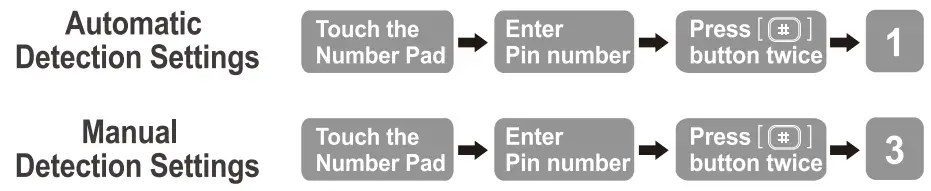
- In Manual Mode, Touch the number pad, Place the RFID Card on the reader and the door will open.
- In Automatic Mode, Place the RFID Card on the reader and the door will open.
- Automatic Mode is enable in default.
Normal & Safe open Mode Setting
When you purchase the product for the first time, it is set in normal mode

Normal Mode Settings
– You can open the door by pressing [OPEN / CLOSE] button inside
Safe Mode Settings
– You can open the door by Pressing [Force Lock] button then press the [OPEN / CLOSE] button within one second
※ Pressing [Force Lock] button and [OPEN I CLOSE] button continuously This enhances the security unlock feature
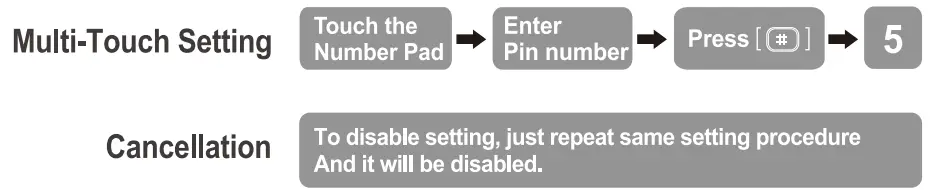
Multi-Touch Safe Feature Setting
Multi-touch Safe Feature is the security feature that enables user to enter additional series of number after entering pin number. It erases fingerprint traces left on the number pad & protects the pin number from being exposed.
 Note
Note
When multi-touch security is enabled, after entering pin number, Press the 3 random number that is displayed on the screen. Press [*] button and the door will open. When Multi-touch Security feature is enabled”Random Number” feature is disabled And when “Random number feature is enabled. Multi-touch Security Feature is disabled.
Dual-Mode Security Feature Setting
※The Pin Number & Smart Key should be registered first before setting this feature.
1. Press [Registration] button for 5 seconds The entire LED will light up After 3 seconds the alarm will stop And after 2 seconds it will be on again.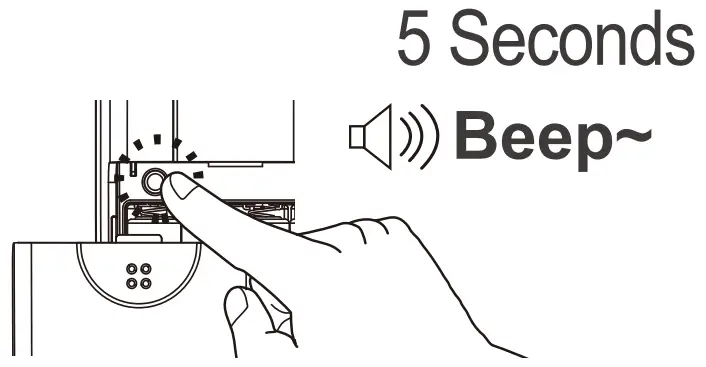 2. Enter current user password. When you press [ ]button, The front panel LED will blink and light-up.
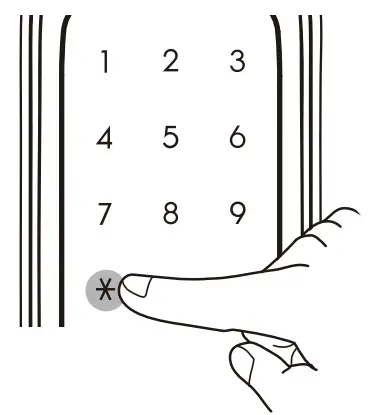 3. Press [ 1 ] button to Turn-Off Dual-Mode Security Press [ 3 ] button to Turn-On Dual-Mode Security.
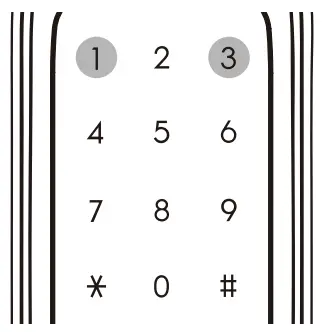 During Dual-Mode Security Setting, when the confirmation sound is heard, everything will be turned-off
HOW TO OPEN THE DOOR
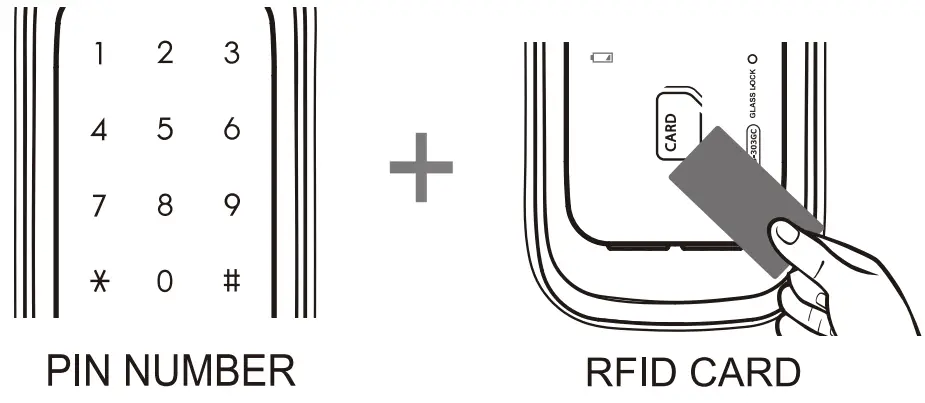
Home Network Modul & Remote Control Setting
Registration
- Press [Registration] button Enter pin number Followed by [] button

- Home Network Module / Remote Control Registration Press [Registration] button / Press [Open] button
 ※ For registration of additional remote control Repeat step number 2 7 \ Up to 5 remote controls can be registered
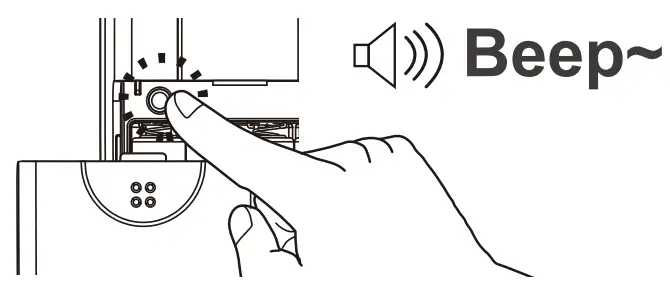
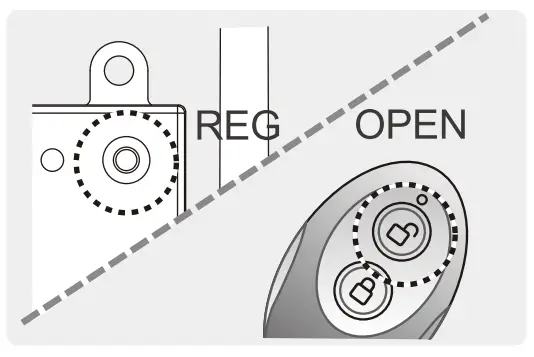 ※ For registration of additional remote control Repeat step number 2 7 \ Up to 5 remote controls can be registered
Deletion
- Press [Registration] button Enter pin number Followed by [ ] button
- Press [0] button
- Press[ ]button for 5 seconds When the melody is heard Deletion is complete
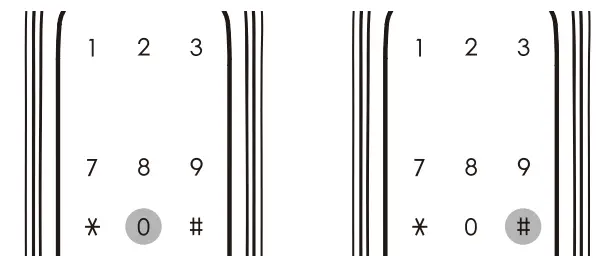
Melody Settings
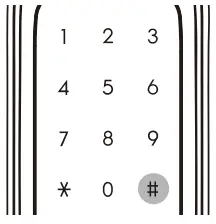
- Touch the number Pad, Enter Pin Number Press [] button for 3 times

- Select from the menu press [7] to turn off melody press [8] to decrease, press [9] to increase
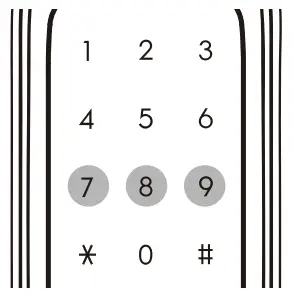
Note
■ This will function in manual lock mode only
■ After the melody is heard and the door is not closed but a new function is performed the melody will be off
■ After the door was opened the melody will not be heard
Deadbolt Jammed Alarm
- During open and close operation if the detection sensor is not working an error sound will be heard
- This will retry for up to 3 times
Replace battery alarm
During normal operation, and a series of alarm is heard. it indicates the need for battery replacement. Please replace all battery with new ones at this time. Caution
Please replace all batteries all-at-once. Do not mix new and old batteries. Do not mix batteries of different brand.
Emergency Battery
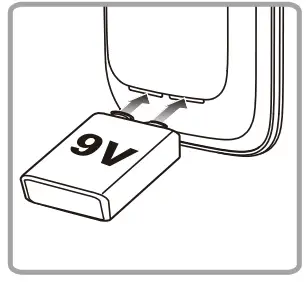
When the batteries run out, the door can be opened using emergency battery. ( 9V battery is purchased separately )
- Place battery on the 9v battery terminal
- Press the [] button
- Enter the [ Pin number )
- Press the () button again and the door will open
Anti-Hacking (invasion) Alarm
When the lock detects forceful entry from inside or outside, It will activate a series of alarm.
Cancellation Remove the batteries or enter the registered pin or card and the alarm can be cancelled.
Fire Sensor Alarm
When the inside temperature rises to (62t ±5°C), the lock will generate an alarm and automatically unlocks the door. Caution
Prolonged exposure of the main body to direct sunlight can activate fire sensor alarm. Even in ‘Force Lock’ status, the door will automatically open. When temperature retums to normal. The lock will retum to it’s normal operation status.
Anti-Prank Alarm & 1 Minute Lock
5 consecutive failed Pin number and Smart keytag entry will activate an alarm. And the lock will not function for 1 minute.
Product Dimension
| Item | Specifications | |
| Installation | tempered glass door | Glass door thickness 12mm |
| Authentication Method | Pin number | 4-12 Digits |
| Smart Key | Up to 100 Keys can be registered | |
| Rated voltage | DC 6V | LR6 1.5V AA size Alkaline Battery 4 PCS |
| Emergency Batt | DC 9V | Alkaline Battery ( Sold Separately ) |
| Product Type | Non fire proof, Temp.Sensor, Non-key, Sub type door lock (D-NF-T-NK-S) | |
| Temp. Sensor | Heat Sensor type | 72 °C ±5 °C (Testing Room) |
| 62 t ±5r (Normal Environment) | ||
| Material | Outer body : Al, Zn ABS Inner body : Zn, ABS | |
RF Specification
| Item | Frequency | Channel | Modulation Type | Antenna Power |
| RFID | 13.56MHz | 1 PC | ASK | 93.5dBuV/m@10m below |
| Remote Device | 447.275MHz | 1 PC | FSK | 10mW below |