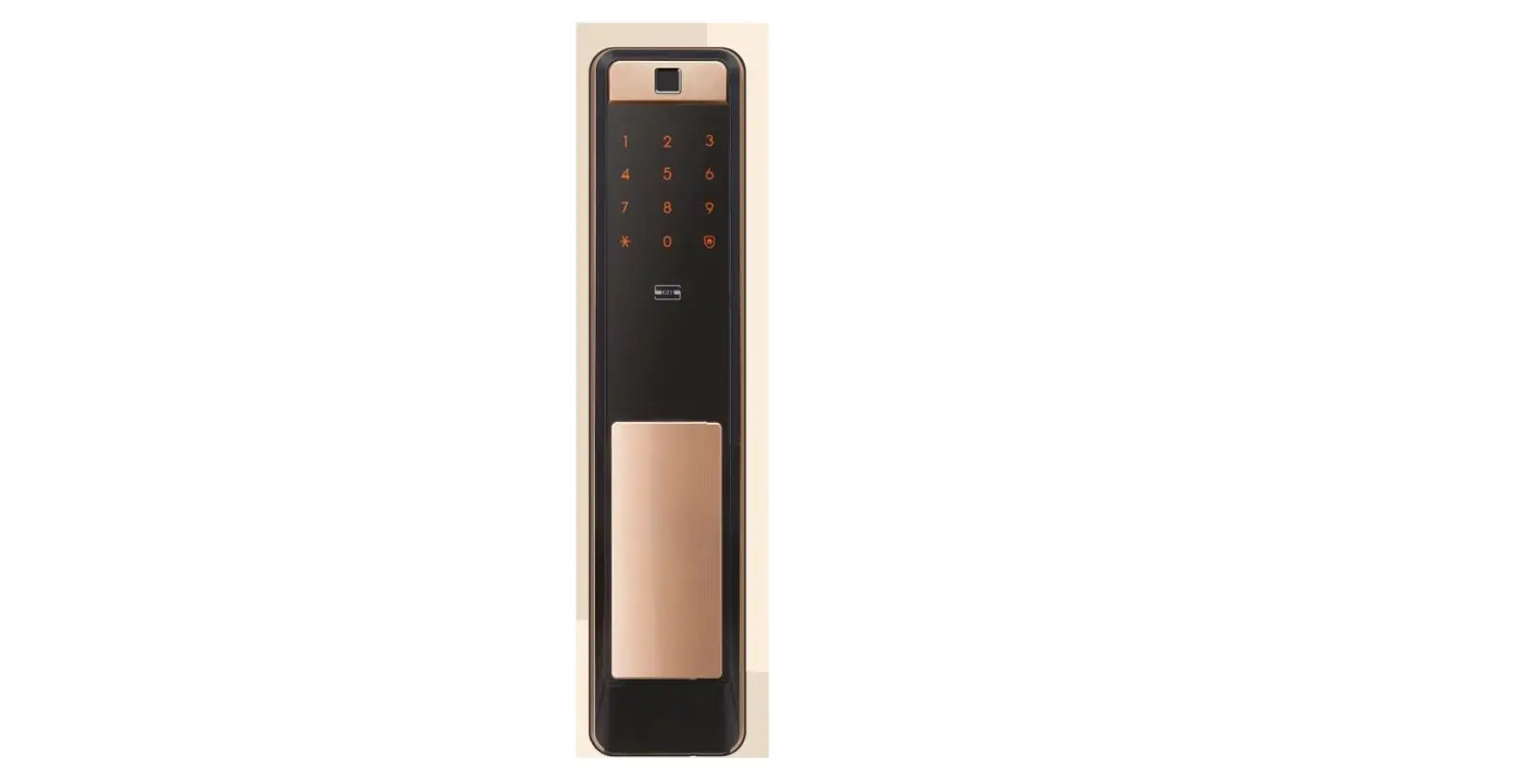
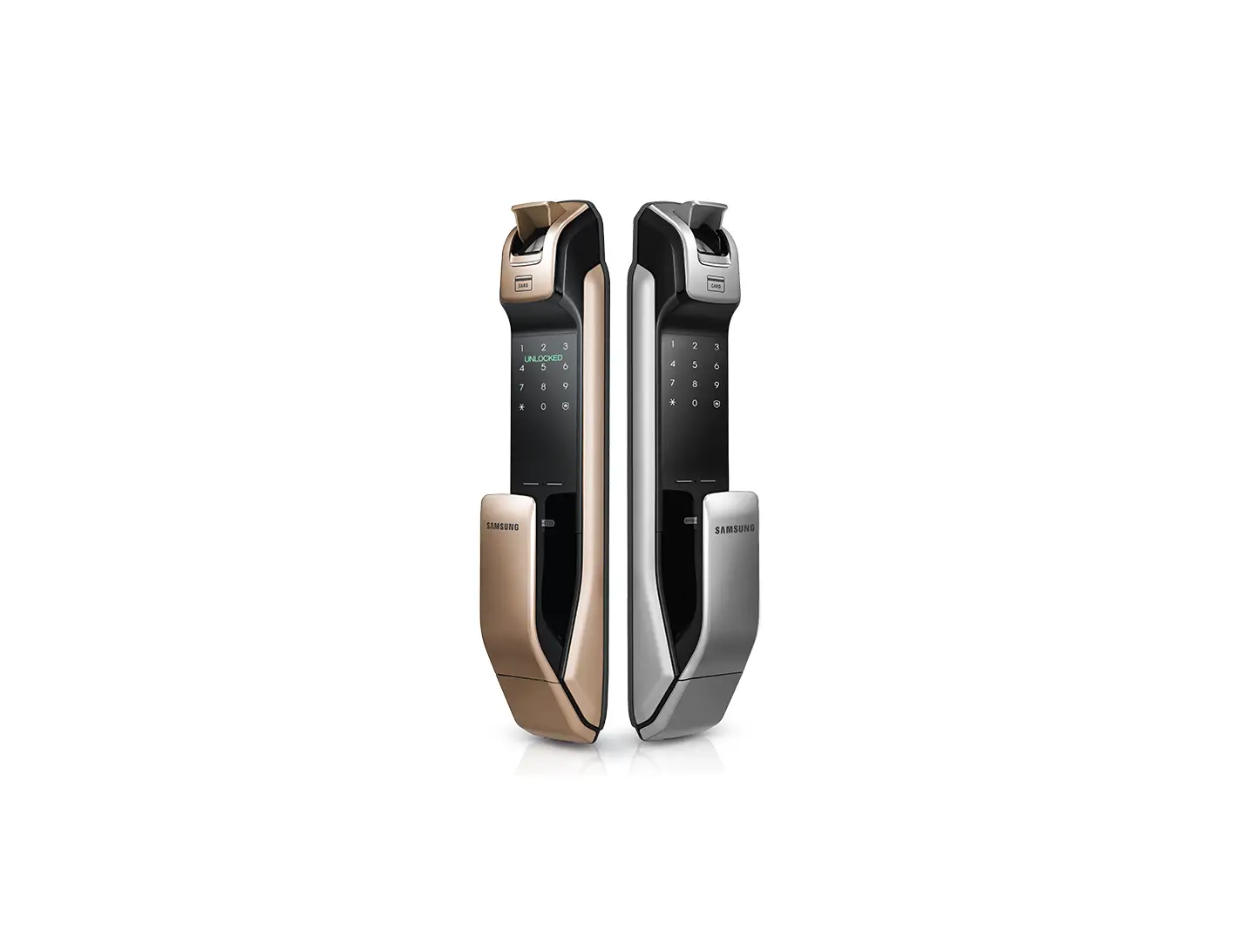
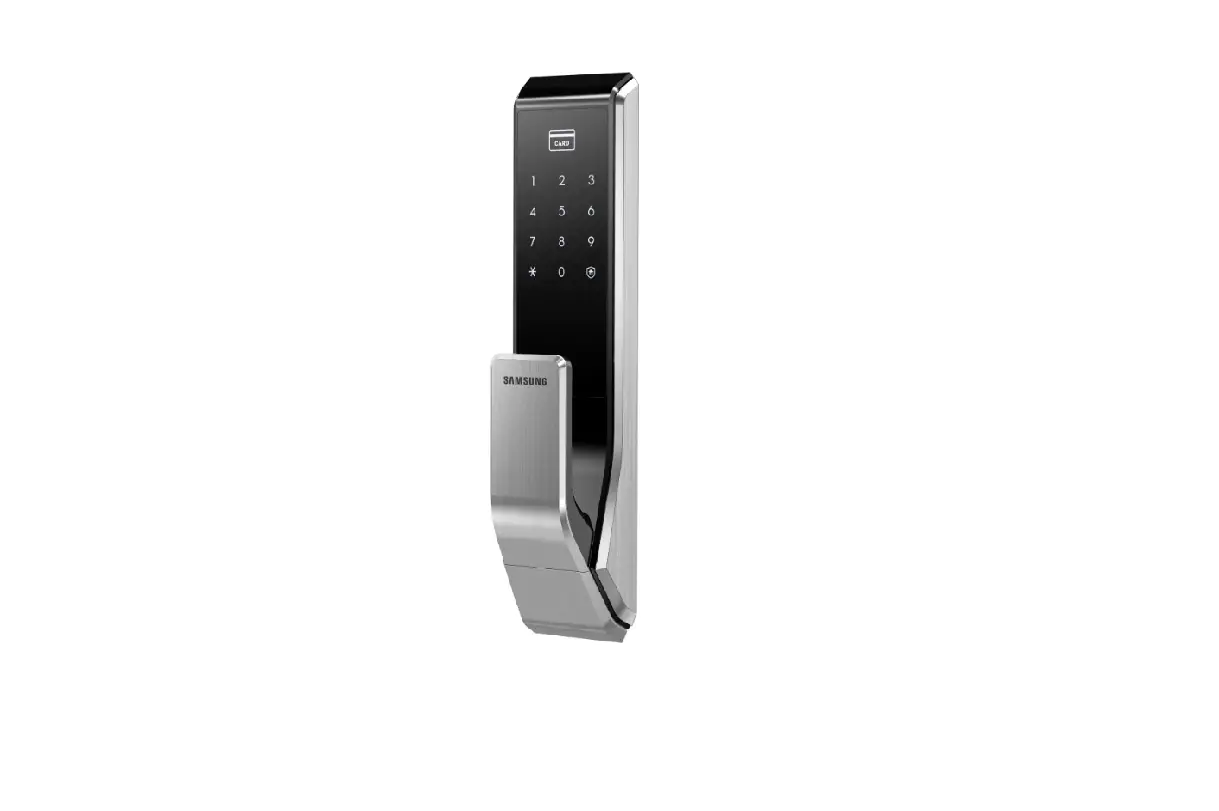
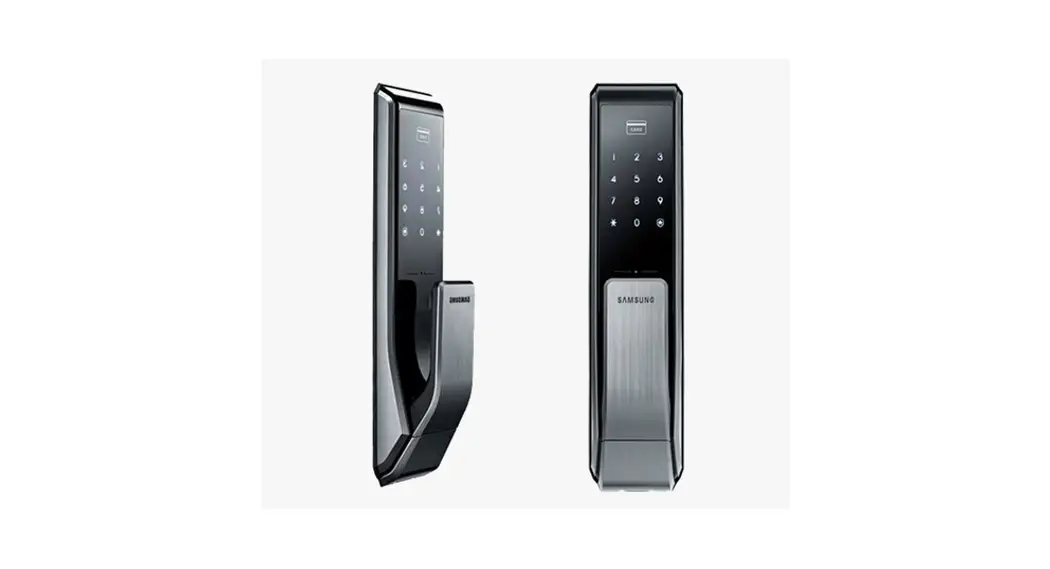
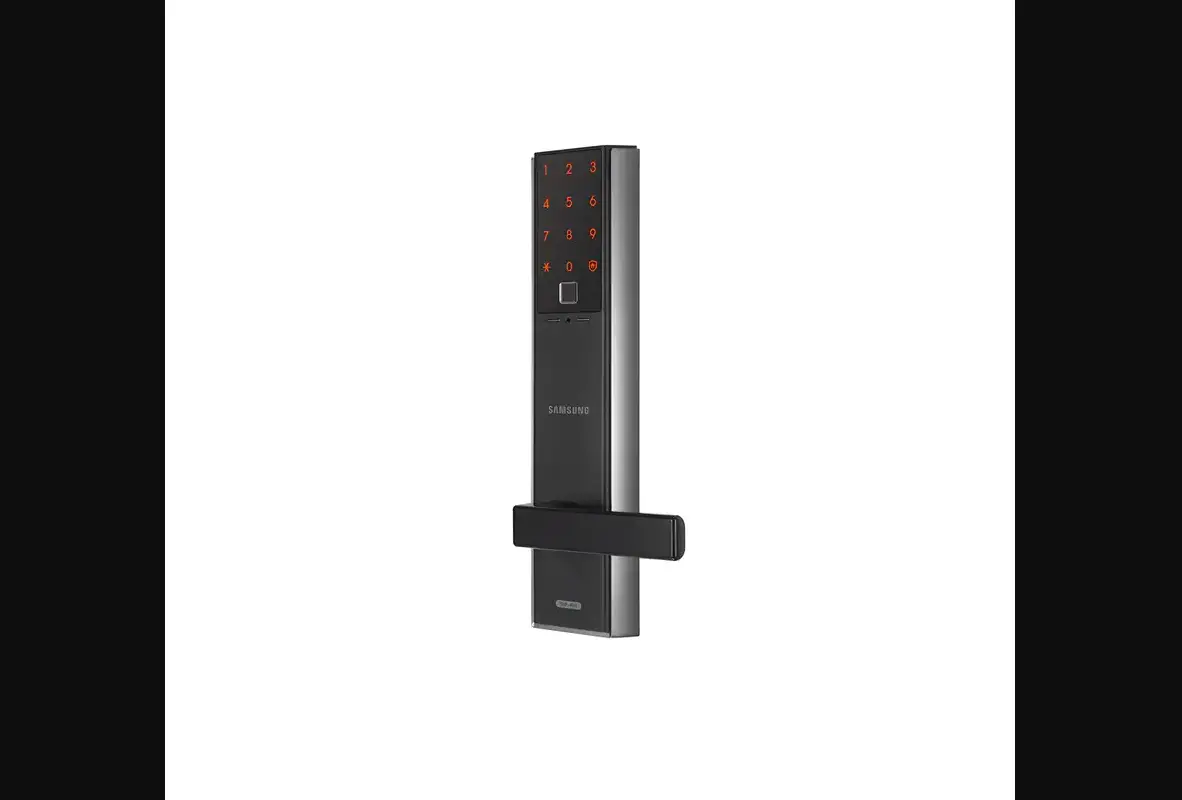
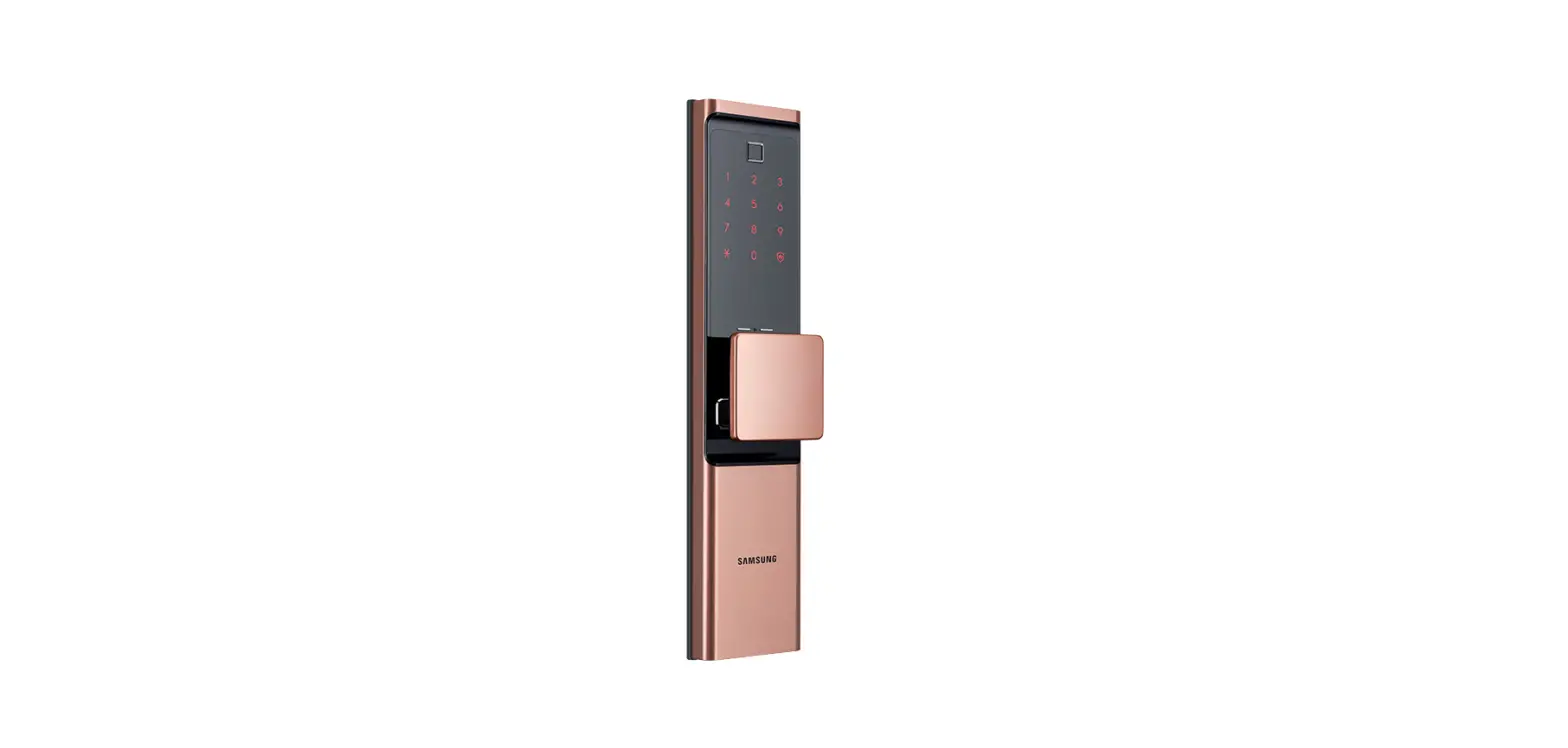
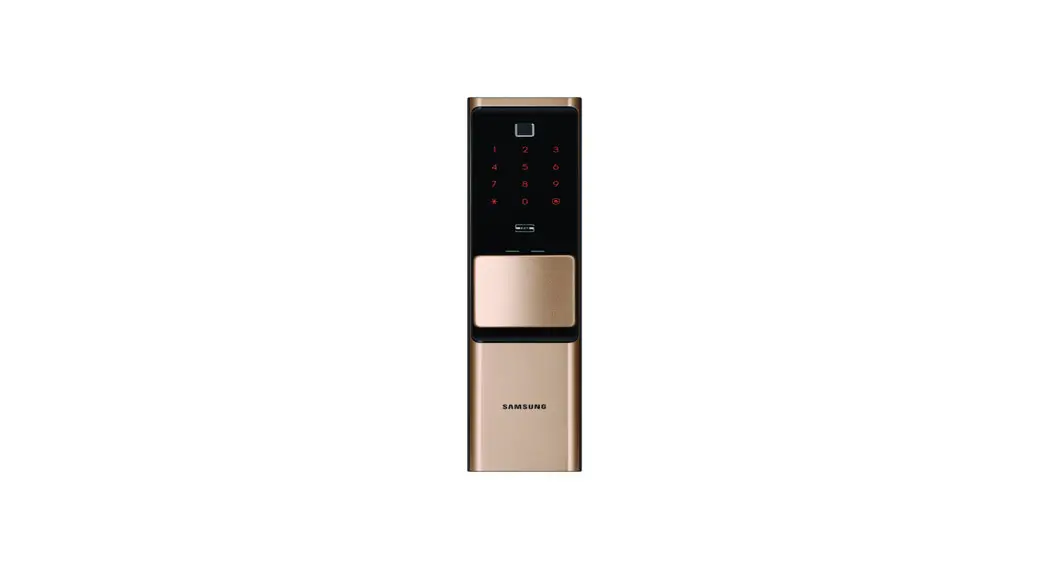
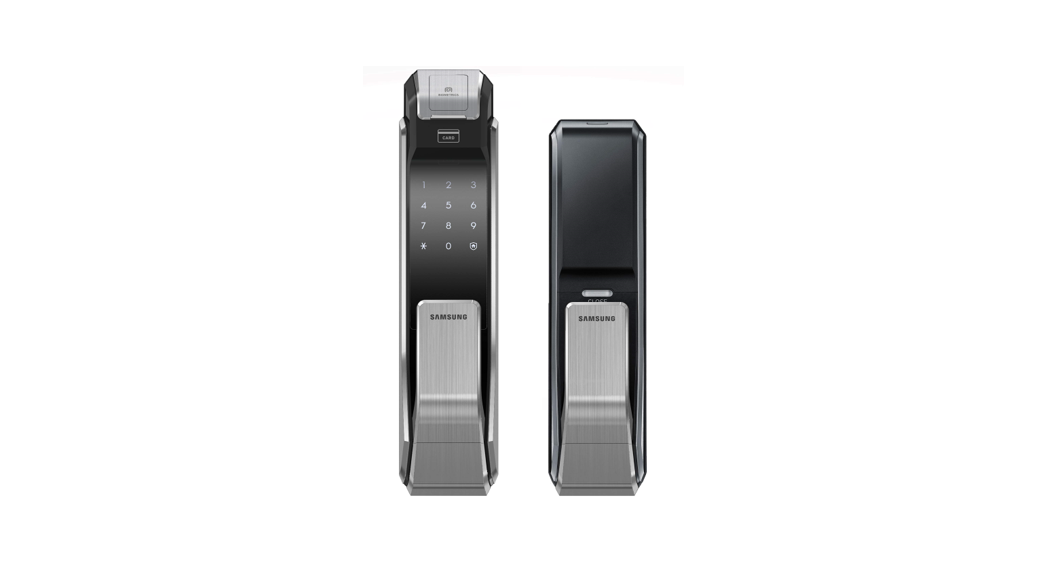
SHP-DP738 Digital Door Lock
Product Information:
- Product Name: SHP-DP738
- Function: Smartphone Interfacing
- Features:
- Convenient door opening using the Bluetooth function of
smartphones - Silent Mode: Suspends the sound of the key entering and door
opening - Double Access Authentication Function: Requires both a password
and fingerprint for entry - Welcome Function: Activates authorization standby mode when
user approaches the door lock - Security Assurance Function: Prohibits entry from the outside
when someone is inside the house - Away Security Function: Generates an alarm if the inside of the
door lock is used while user is outside the house - High Temperature Alarm: Automatically unlocks the door lock if
the inside of the house has a very high temperature - Voice Guide: Provides voice guidance for each action
- Convenient door opening using the Bluetooth function of
Product Usage Instructions:
- Ensure proper installation by following the safety cautions and
instructions in the user manual. - Insert 1.5V AA batteries into the battery compartment of the
inner body. - Mount the wireless module (optional) by following the
installation instructions. - Insert the emergency key into the emergency key insertion slot
on the bottom surface of the outer body. - To open the door from the outside using a password, enter the
correct password on the number pad. - If authorized, the door will unlock and you can open it.
- Make sure to change the password regularly for increased
security.
Note: The information in the user manual may vary without notice
to improve the product’s performance. Improper installation by the
customer may result in additional service costs, so professional
installation is highly recommended.
SHP-DP738
User Manual
Smartphone Interfacing Function
Convenient door opening using the Bluetooth function of smartphones
Silent Mode
When going in or out, the sound of the key entering and door opening will be suspended.
Double Access Authentication Function
Double authorization of a password and a fingerprint is applied to strengthen its security.
Welcome Function
When a user gets close to the door lock, the authorization standby mode will automatically activate.
Security Assurance Function
When someone is inside the house, authorization for entry from the outside will be prohibited.
Away Security Function
When a user is outside the house, if the inside of the door lock is used, an alarm is generated.
High Temperature Alarm
If the inside of a house has a very high temperature, the door lock will be automatically unlocked.
Voice Guide
Guides each action by voice.
GC68-02248D ED:04 Safety Cautions
This section contains important information to ensure the user’s safety and prevent potential damage to property. Warning Please read this section carefully and use the product accordingly.
· The user shall not install or repair the
product without authorization.
· Be sure to correctly match the ends
· Do not install the product in the place
(+/-) when inserting the batteries. Wrong
where the gap between the door and the insertion direction or ends of batteries may
frame is 5 mm or more.
cause batteries to burst or liquid leakage.
· Long-term exposure to direct sunlight may · When the battery replacement alarm
cause a crack on its touch pad. Avoid
melody is heard, replace all existing
exposure to direct sunlight.
batteries with new ones.
· Do not use the excessive force or sharp · Depending on wireless communication
objects to push the lock buttons, as this environments, battery consumption may
can damage the product.
increase.
· Do not operate the product with wet · Interference in wireless communication
hands, and keep liquids such as water may occur when this product is used, or or drinks away from the product, or the radio interference may occur from other product may malfunction or be damaged. devices.
· Do not use water, benzene or alcohol · As this radio system may have radio
when cleaning the product, but use a soft interference during the operation, it cannot
dry cloth.
provide a service for human lives.
· Make sure that the door is completely · Excessive dew condensation may adversely
closed when going outside.
affect the performance of this product.
· Make sure that no unauthorized person
has the access to the password. Change
it regularly.
The information of this user manual may vary without any notices to improve the performance of this product.
Customer’s improper installation may result in a additional service costs. We highly recommend professional installation.
Product Components
The product components may vary depending on the installation environment.
Outer Body
Mortise
Inner Body
Strike
Strike Box
Outer Body Parts
Entry Complete/Silent Mode Switch LED
Battery Replacement Alarm LED
External Power Contact
Inner Body Parts
Battery Cover
Mounting the Wireless Module
(optional) [Registration]
Button [DOUBLELOCK]
Button
Mortise
Fingerprint Detector
Number Pad Proximity Sensor Away Security LED Card Sensor Emergency Alert LED Double Lock LED Reset Part Outer Body Handle
Bottom Surface of Outer Body
Emergency Key Insertion
1.5 V AA Batteries
$BSE
$BSE
0-1-2
A/M
‘JOHFSQSJOU
‘JOHFSQSJOU
Volume Switch
Auto/Manual Locking Switch
smarthome.samsungsds.com
User Manual, Emergency Key `AA’ Batteries (LR6)
Handle Shaft Spring Handle Shaft, Installation
Screws Spacer Installation Manual
2
Dead Bolt Latch Bolt Open-Door Sensor
3
Door Opening from the Outside (password)
When purchased, the product is set to the Multi-Leveled Security Code Entry Mode by default. Please, refer to `Multi-leveled Security Code Entry Mode setting’ for Common Mode setting. Silent Mode Before entering the master/user password, press the [] button and enter the password. Both the sound of the key entering and the door opening will then be muted temporarily. It is a useful function if you do not want to disturb neighbors when you go in and out at night.
1. Multi-leveled Security Code Entry Mode
Accessing the door lock or touching the number pad (in the Welcome function mode) will light up the number pad.
Opening the Door from the Inside
Available in both a push-pull or pull-push
Depending on the direction of the door installed in the residence, customer can choose from either push-pull type or pull-push type on purchase.
Push
Pull
Pull
Push
Or
Success: “Ding dong dang dong” Failure: “This password is incorrect.”
When two random buttons are lit, press the buttons in order.
2. General Mode
When the numbers on the number pad are lit,
enter the master/user password, and press the [] button.
Accessing the door lock or touching the number pad (in the Welcome function
mode) will light up the number pad.
Success: “Ding dong dang dong”
When the numbers on the number pad are lit, enter the master/user
Failure: “This password is incorrect.” password and press the [] button.
Note
A master/user password must be entered after the number pad is lit. If not, touch the number pad and reenter the password.
To cancel the password entry, press the [ ] button and reenter the password. If the master/user password is entered wrong for 5 times, the “Entry failed for 5
times. You are not allowed to enter for 3 minutes.” warning alarm will sound, and the system will shut down for about 3 minutes. When a malfunction happens, a “beep” will be generated every 10 seconds, and the entry block mode will be turned off automatically after 3 minutes with the sound of “The entry block mode will be deactivated.”
Opening the Door from Outside (Fingerprint)
A locked door can be opened from outside by using a fingerprint. Place the registered fingerprint on the fingerprint detector.
When the fingerprint LED is turned
Success: “Ding dong dang dong” on, the door will be opened after
Failure: “Please try it again”
1 second.
Opening the Door from the Outside (Card)
A locked door can be opened from the outside by using a card. Place the registered card on the card detector.
Place the card. The door will be
opened after about 1 second.
Success: “Ding dong dang dong”
Failure: “This key tag is not registered.”
When the Welcome function is deactivated,
Note
touch the number pad to open the door.
4
Please be careful not to trap your hand during use. Warning
Closing the Door from the Inside
Automatic Locking Setting Manual Locking Setting
The door is automatically locked 1 second after the door is closed.
Pressing the [DOUBLE LOCK] button of inner body’s door lock will lock the door.
Menu
Registration Mode
0 1 Password
2
3
4
New Password
Change password
1
User Password
Add the user password
End
2
User Password
Delete a user password
End
3
Delete all user passwords
1
$B$SEBSE
Add a card
End
2
$BSE $BSE
Delete a card
3
Delete all cards
1
‘JOHFSQSJOU Add a fingerprint
‘JOHFSQSJOU
2
‘JOHFSQSJOU Delete a fingerprint
‘JOHFSQSJOU
3
Delete all fingerprints
1
Connect a wireless module
2
Bluetooth Registration/Cancellation
End End End
5
Setting Mode
1 Security
2 3 4 5 6 8
1
Set the Welcome function and Security mode
2
Set the Welcome function (default)
3
Cancel the Welcome function
4
1
Set the detection distance: short distance
2
Set the detection distance: middle distance (default value)
3
Set the detection distance: long distance
1
Activate the Multi-Leveled Security Code Entry Mode (default value)
3
Cancel the Multi-leveled Security Code Entry Mode
1
Set the Dual Access Authentication Mode
3
Cancel the Dual Access Authentication Mode (default)
1
Set the door closing time (default: 1 second)
1
Set the voice guide (default)
3
Cancel the voice guide
1
Set the language: English (default)
3
Set the language: Chinese
1
Activate Bluetooth use (default)
3
Deactivate Bluetooth use
Initialization Mode
4 4
Password
While the door
is opened, press the
Register button
for 5 seconds
Initialize the linked information Initialize the key information
4 84J’J8J’J
6
All registration and setting are activated only when the door is opened. Adding/ Deleting User Password/ Deleting All User
Registration Mode
Passwords
A user can change a password, register and delete a card or a fingerprint, or delete all passwords, cards, or fingerprints.
In addition, a wireless connection can be registered as an option. In the Registration mode, select a function. (For the details of each function, refer to pages 713.)
A user can register a user password (4 to 12 digits). Up to 100 cards can be registered. A user password registered can be deleted, or all user passwords can be deleted.
1. Enter Registration Mode
Select the Registration mode. (Refer to the Registration mode on page 7.)
1. [Register] Button
2. Press the existing password
“Ding dong” “Press the password and the asterisk sign to manage an authentication tool. Press the Security button for the environment setting. Press “88” and the asterisk sign for Bluetooth. Press the Register button to end this process.”
“Ding dong deng” “Press “0” and the asterisk sign to change a password. Press “1” and the asterisk sign to manage a user password. Press “2” and the asterisk sign to manage a key tag. Press “3” and the asterisk sign to manage a fingerprint. Press “4” and the asterisk sign to set up a wireless connection.”
Open the battery cover, and shortpress the [Register] button.
Press the existing password and the [] button.
Change Password
2. Select User Password Management
“User Password Management mode”
Press the [1] button.
[Add a user password] 3. Select Additional Registration
“Additional Registration mode”
Press the [] button.
“Ding dong” “Press “1” and the asterisk sign for additional registrations. Press “2” and the asterisk sign for individual deletions. Press “3” and the asterisk sign for all deletions.”
“Ding dong” “Press a user password and the asterisk sign.”
“All deletion mode”
“Ding dong” “All deleted”
Press the [3] button.
Press the [] button.
Note
Continuously, a user password can be registered or deleted. When a user enters a user password within 60 seconds after a new user password is registered or deleted, the registration or deletion continues to be performed.
To make sure the password has been properly registered or deleted, check the password and close the door.
Adding/Deleting a Card / Deleting All Cards
Up to 100 cards can be registered. A registered card can be deleted, or all cards can be deleted.
1. Enter Registration Mode
Select the Registration mode (refer to the Registration mode on page 7).
A user can register a master password (4 to 12 digits). Only one master password can be registered. The default password is “1234.”
1. Enter Registration Mode
Select the Registration mode. (Refer to the Registration mode.)
2. Select Master Password Change
“Password Change mode”
“Ding dong” “Press a new password and the asterisk sign.”
Press the [0] button.
Press the [] button.
3. Press New Master Password
“Ding dong deng” Success: “It was changed.” Failure: “Wrong information was entered.”
Press a new master password and the [] button.
To prevent intrusions, it is recommended to create a password with 6 or more digits.
(Each digit number ranges from 0 to 9.)
Warning
Manage your master password with care to prevent unauthorized persons from gaining access.
Regularly changing your password can reduce leakage risk.
A registered master password cannot be deleted. Register a new master password.
To make sure the password has been properly registered, check the new password
and close the door.
7
Press the [1] button.
Press the [] button.
4. Press New User Password
“Ding dong deng” Success: “It is registered. If you need to
register it more, press a new user password and the asterisk sign.” Fail: “Wrong information was entered.” or “It already exists.”
Press a new user password and the [] button.
5. Registration End
2. Select Card Management
“Key tag Management mode”
Press the [2] button.
“Ding dong” “Press “1” and the asterisk sign for additional registrations. Press “2” and the asterisk sign for individual deletions. Press “3” and the asterisk sign for all deletions.”
Press the [] button.
If you want to end this process, press the [Register] button shortly.
[Add a card] [Delete a user password] 3. Select Individual Deletion“Individual Deletion mode”
“Ding dong” “Press the user
password and the
asterisk sign.”
3. Select Additional Registration
“Additional Registration mode”
Press the [1] button.
“Ding dong” “Connect the key tag to be registered additionally.”
Press the [] button.
4. Connect the Card to be Added
Press the [2] button.
Press the [] button.
4. Press User Password to Delete
“Ding dong deng” Success: “It is deleted. If you need to
delete more, press the user password and the asterisk sign.” Fail: “This password is not registered.”
Press the user password registered and the [] button.
“Ding dong deng” Success: “It is registered. If you need to
register more, connect a key tag to be registered additionally.”
Failure: “This key tag already exists.”
Connect a card to be added to the card detector.
5. Registration End
5. Registration End
If you want to end this process, press the [Register] button shortly.
8
If you want to end this process, press the [Register] button shortly. 9
[Delete a card] [Add a fingerprint]3. Select Individual Deletion
“Individual Deletion mode”
“Ding dong” “Connect the key tag to be deleted.”
Press the [2] button.
Press the [] button.
4. Contact Card to be Deleted
“Ding dong deng” Success: “It is deleted. If you need to delete
more, contact the key tag to the key tag recognition part.”
Failure: “This key tag is not registered yet.”
Contact the card to delete to the card recognition part.
5. Registration End
If you want to end this process, press the [Register] button shortly.
“All Deletion mode”
“Ding dong” “All deleted.”
3. Select Additional Registration
“Additional Registration mode”
Press the [1] button.
“Ding dong” “Input a new fingerprint three times to the fingerprint recognition part.”
Press the [] button.
4. Contact Fingerprint to Add
“beep”
“beep”
Place the finger for fingerprint registration on the fingerprint recognition part.(When registering your fingerprint, change its position gradually until it is recognized.) When a “beep” sound is heard and the recognition count is displayed on the number pad, remove the finger from the recognition part and place it back again (total of three recognitions).
“beep” “ding dong dang” Success: “It is registered. If you need to register it more, input your fingerprint three times to the fingerprint recognition part.” Failure: “It already exists.”
5. Registration End
If you want to end this process, press the [Register] button shortly.
Press the [3] button.
Press the [] button.
Note
In registering your fingerprint, it is recommended that you register your thumb or index finger.
If the quality of the fingerprint image is bad, fingerprint registration may be refused.
Note
A card can be registered or deleted continuously. When a user connects a card within 60 seconds after a new card has been registered or deleted, registration or deletion can continue.
To make sure the password has been properly registered or deleted, check the password and close the door.
Only Octopus Cards can be used. (* Sold separately) Samsung SDS will not be responsible for any problems occurring from the use of Warning authentication methods, Other than Octopus cards.
[Delete a fingerprint] 3. Select Individual Deletion“Individual Deletion mode”
“Ding dong” “Input the fingerprint to the fingerprint recognition part.”
Adding/Deleting Fingerprint/Deleting All Fingerprints
A user can register up to 100 fingerprints. A fingerprint registered can be deleted, or all fingerprints can be deleted.
1. Enter Registration Mode
Select the Registration mode (refer to the Registration mode on page 7).
2. Select Fingerprint Management
“Fingerprint Management mode”
Press the [3] button.
“Ding dong” “Press “1” and the asterisk sign for additional registrations. Press “2” and the asterisk sign for individual deletions. Press “3” and the asterisk sign for all deletions.”
Press the [] button.
10
Press the [2] button.
Press the [] button.
4. Contact Fingerprint to Delete
“Ding dong deng” Success: “It is deleted. If you need to delete
more, input the fingerprint to the fingerprint recognition part.” Failure: “This fingerprint is not registered yet.”
Contact the fingerprint to delete to the fingerprint recognition part.
5. Registration End
If you want to end this process, press the [Register] button shortly.
11
[Delete all fingerprints] 3. Select All Deletion“All Deletion mode”
“Ding dong” “All deleted.”
Press the [3] button.
Press the [] button.
Note
Continuously, a fingerprint can be registered or deleted. When a user contacts a fingerprint within 60 seconds after a new fingerprint is registered or deleted, the registration or deletion continues to be performed.
To make sure the password has been properly registered or deleted, check the password and close the door.
Managing a Wireless Module (optional)
You can purchase a wireless module sold by Samsung SDS and mount it to the wireless module mounting part. However, even though you purchase a proper Samsung SDS wireless module, it may not be used in a model that does not support modules. In such case, please contact the customer center before purchasing a wireless module to inquire about the wireless module type of your model.
1. Mount Wireless Module
0-1-2
A/M
Open the battery
cover and remove the
batteries.
012
A/M
Open the module cover, and mount a wireless module to the wireless module mounting part.
Insert the batteries and close the battery cover.
012
A/M
2. Enter Registration Mode
Select the Registration mode (refer to the Registration mode on page 7).
3. Select Wireless Connection Setting
“Wireless module management mode”
Press the [4] button.
“Ding dong” “Press “1” and the asterisk sign to manage a wireless module. Press “2” and the asterisk sign to manage a Bluetooth device.”
Press the [] button.
12
[Registering Remote Controls]GC68-02248D ED:04
Up to 3 remote controls can be registered (including household units).
4. Select Wireless Module Management
” Wireless Module Management mode”
“Ding dong” “A wireless module is being set up.”
Press the [1] button. 5. Register a Remote Control
Press the [] button.
“Ding dong deng” Success: “It was normally processed.” Failure: “It has failed.”
Pressing the [OPEN] button of the remote control for 3 seconds will register it.
[Wireless module connection/disconnection] 4. Enter Connection/Disconnection Mode from ControllerThe Connection/Disconnection mode is activated from the controller. (Refer to the user manual of the controller.) 5. Select Wireless Module Management
Initialization
All registered data are deleted.
1. Press and Hold the [Register] Button
“Ding dong” “Press the password and the asterisk sign for interworking initialization. Press “4560852580” and the asterisk sign for the initialization of the key information.”
While the door is opened, press the [Register] button for 5 seconds.
[Initialize the linked information]Remote control linkage: Initialize the remote control information. Bluetooth linkage: Initialize the Bluetooth information.
– The master/user passwords, cards, and fingerprint information are maintained.
2. Enter Master Password
“Ding dong deng” Success: “The reset has been completed.” Failure: “Wrong information was entered.”
When the number pad is lit,
enter the master password and press the [] button.
“Wireless Module Management mode”
“Ding dong” “A wireless module is being set up.”
The master/user passwords, cards, and fingerprint information can be initialized. After the initialization, the password will be changed to “1234.” After password initialization, change the password to a new one.
Press the [1] button.
Press the [] button.
6. Wireless Module Connection
“Ding dong deng” Success: “It was normally processed.” Failure: “It has failed.”
The wireless module is connected.
2. Enter Initialization Number of Key Information.
“Ding dong deng” Success: “The reset has been completed.” Failure: “Wrong information was entered.”
When the number pad is
lit, enter “4560852580” and press the [] button.
Setting Mode
A wireless module not sold by Samsung cannot be arbitrarily connected and used. Warning
Registering/Deleting Smartphone Bluetooth
Download “sHome Doorlock” from Google Play / App Store. For registration details, please refer to the guide included in the app.
The app may not be used in a model that does not support it. In such a case, please contact the customer center to inquire about the Bluetooth compatibility of your model.
Note
You can register and use up to 8 smartphones. When you need to register multiple smart phones, turn off the Bluetooth function of
the registered smartphone before registering another. When you cannot delete a registered smartphone because of smartphone loss,
replacement, or A/S service, initialize the door lock (see page 14). For compatibility of models, please refer to the home page
(smarthome.samsungsds.com).
13
You can set various functions of the door lock. In the Setting mode, select a function. (For the details of each function, refer to pages 15~20.)
1. [Register] Button
“Ding dong” “Press the password and the asterisk sign to manage an authentication tool. Press the Security button for the environment setting. Press “88” and the asterisk sign for Bluetooth. Press the Register button to end this process.”
Open the battery cover, and short-press the [Register] button.
2. [Security] Button
“Ding dong deng”
“Setting mode.
Press “1” and the asterisk sign for the
Press the [ ] button.
Welcome function. Press “2” and the asterisk
sign for the Randomizer. Press “3” and the
asterisk sign for the Dual authentication.
Press “4” and the asterisk sign for the Door
close time. Press “5” and the asterisk sign
for the Voice guidance. Press “6” and the
asterisk sign for Language.
Press “8” and the asterisk sign for Bluetooth.”
14
Welcome Function
When a user accesses a door lock, the door lock gets automatically in the authentication standby status even though the user does not touch the number pad or the fingerprint authentication part.
By default, the Welcome function is activated, the Security mode is deactivated, and the detection distance is set to Middle distance.
1. Enter Setting Mode
Select the Setting mode (see the Setting mode on page 14).
2. Select Welcome Function Setting Mode
“Welcome Function Setting mode”
“Ding dong” “Press “1” and the asterisk sign to activate the welcome function and the security mode. Press “2” and the asterisk sign to activate the welcome function. Press “3” and the asterisk sign to deactivate the welcome function. Press “4” and the asterisk sign to set the identification range.”
Press the [1] button.
Press the [] button.
[Set the Welcome Function and the Security Mode]Welcome function setting: When a user gets close to the door lock, the authentication standby mode will be automatically activated.
Security mode setting: When someone is in front of the door lock for a minute or longer, after voice guidance, warning sound is generated.
2. Set Welcome Function and Security Mode
“Welcome function and Security mode setting mode”
“Ding dong deng” “This function is activated.”
Press the [1] button.
Press the [] button.
[Activate the Welcome Function and Deactivate the Security Mode]2. Select Welcome Function Setting and Security Mode Cancellation
“It activates the welcome function.”
“Ding dong deng” “It is set.”
Press the [2] button.
Press the [] button.
[Cancel the Welcome function]Deactivate the Welcome function: Even when a user gets close to the door lock, the authentication standby mode will not be automatically activated. Authentication needs to be performed by touching the number pad or having a fingerprint detected by the recognition part.
2. Select Welcome Function Cancellation
“It deactivates the welcome function.”
“Ding dong deng” “It is deactivated.”
Press the [3] button.
Press the [] button.
15
[Set the detection distance]A user can set the distance that can detect a user who accesses the door (short distance: about 40 cm; middle distance: about 60 cm; long distance: about 80 cm).
2. Select the Detection Distance Setting
“Identification range setting mode”
Press the [4] button.
“Ding dong” “Press “1” and the asterisk sign for a close range. Press “2” and the asterisk sign for a middle range. Press “3” and the asterisk sign for a long range.” Press the [] button.
3.1 Select the short distance setting
“It is set to a close range.”
“Ding dong deng” “It is set.”
Press the [1] button.
3.2 Select the middle distance setting
“It is set to a middle range.”
Press the [] button.
“Ding dong deng” “It is set.”
Press the [2] button.
3.3 Select the long distance setting
“It is set to a long range.”
Press the [] button.
“Ding dong deng” “It is set.”
Press the [3] button.
Press the [] button.
Note
The detection distance may vary if the device is exposed directly to sunlight, lamps, etc.
It is recommended to limitedly use the security mode setting because an alarm sound may be generated in case of row houses (or apartments) where lighting is always turned on or apartment houses of corridor access directly exposed to the sunlight.
16
Multi-Leveled Security Code Entry Mode
By pressing a password in order after two arbitrary numbers are authorized, a user can prevent password leak. By default, the multi-leveled security code entry mode is set.
1. Enter Setting Mode
Select the Setting mode (see the Setting mode on page 14).
2. Select Multi-Leveled Security Code Entry Mode Setting.
“Randomizer setting mode”
“Ding dong” “Press “1” and the asterisk sign for activation. Press “3” and the asterisk sign for deactivation.”
3.1 Select Double Authorization activation
“Setting mode”
“Ding dong deng” “It is set.”
Press the [1] button.
Press the [] button.
3.2 Select double authorization deactivation
“Deactivation mode”
“Ding dong deng” “It is deactivated.”
Press the [2] button.
Press the [] button.
3.1 Select multi-leveled security code entry activation
“Setting mode”
“Ding dong deng” “It is set.”
Press the [3] button.
Press the [] button.
Door Lock Time Setup Function
Press the [1] button.
Press the [] button.
3.1 Select multi-leveled security code entry deactivation (general mode)
“Deactivation mode”
“Ding dong deng” “It is deactivated.”
Press the [3] button.
Press the [] button.
Double Authorization Mode
Double authorization mode requires both password and fingerprint to open the door, ensuring more security. Activation of the Multi-Leveled Security Code Entry Mode setting requires one or more registered fingerprints. By default, the Multi-Leveled Security Code Entry Mode setting is deactivated.
1. Enter Setting Mode
Select the Setting mode (see the Setting mode on page 14).
2. Select Double Authorization Mode.
“Double Authorization mode”
“Ding dong” “Press “1” and the asterisk sign for activation. Press “3” and the asterisk sign for deactivation.”
Press the [3] button.
Press the [] button. 17
This function sets the interval between the moment the door open sensor recognizes the door was closed and the moment the dead bolt locks the door. In an environment where the door closes slowly and the dead bolt jams before the door is fully closed, such situation can be fixed by adjusting the door lock time. By default, the door lock time is set to 1 second.
1. Enter Setting Mode
Select the Setting mode (see the Setting mode on page 14).
2. Select Door Lock Time Setting Mode
“Door Lock Time Setting mode”
Press the [4] button.
“Ding dong” “Press “1” for one second and “2” for two seconds. Press a number from one to nine and the asterisk sign.”
Press the [] button.
3. Set Time
“It is set to 1 second.” “It is set to 9 second.”
“Ding dong deng” “It is set.”
Press the [1]~[9] button.
Press the [] button.
18
Voice Guide Setting
Door lock functions are guided by voice. By default, the Voice Guide is activated.
1. Enter Setting Mode
Select the Setting mode (see the Setting mode on page 14).
2. Select Voice Guide Setting
“Voice guidance setting mode”
“Ding dong” “Press “1” and the asterisk sign for activation. Press “3” and the asterisk sign for deactivation.”
Press the [5] button.
Press the [] button.
3.1 Select voice guide activation
“Setting mode”
“Ding dong deng” “It is set.”
Press the [1] button.
Press the [] button.
3.2 Select voice guide deactivation
Even when the Voice Guide is deactivated, an alarm sound is generated in case of anomaly/emergency situations, and the low-voltage alarm Voice Guide works normally.
“Deactivation mode”
“Ding dong deng” “It is deactivated.”
Press the [3] button.
Press the [] button.
Voice Language Setting
A user can select English or Chinese for voice guide. By default, the voice language is set to English.
1. Enter Setting Mode
Select the Setting mode. (Refer to the Setting mode on page 13.)
2. Select Language Setting
“Language setting mode”
“Ding dong” “Press “1” and the asterisk sign for English. Press “3” and the asterisk sign for Chinese.”
Press the [6] button.
Press the [] button.
3. Select Language
– Select English
“English setting mode”
“Ding dong deng” “It is set.”
Press the [1] button. – Select Chinese
“Chinese setting mode”
Press the [] button.
“Ding dong deng” “It is set.”
Press the [3] button.
Press the [] button.
Bluetooth Use Setting
You can open the door by running the application (Bluetooth function) of a registered smartphone (refer to Registration mode on page 12). By default, Bluetooth use is activated.
1. Enter Setting Mode
Select the Setting mode (see the Setting mode on page 14).
2. Select the Bluetooth use setting mode
“Bluetooth setup mode”
“Ding dong” “Press “1” and the asterisk sign for activation. Press “3” and the asterisk sign for deactivation.”
Press the [8] button.
Press the [] button.
3.1. Select the Bluetooth use activation mode
“Setting mode”
“Ding dong deng” “It is set.”
Press the [1] button.
Press the [] button.
3.2. Select the Bluetooth use deactivation mode
“Deactivation mode”
“Ding dong deng” “It is deactivated.”
Press the [3] button.
Press the [] button.
Automatic/Manual Locking Setting
The Automatic Locking mode activates the automatic locking function of the door when it is closed.
Open the module cover of the inner body. Set the [Automatic/Manual Locking] toggle switch of the inner body to the A (automatic) or M (manual) position.
Automatic Manual
The door is automatically locked 1 second after the door is closed. If the batteries are completely discharged, the door may not be locked.
The door is not automatically locked when it is closed. It is locked when you press the [DOUBLE LOCK] button of the inner body or touch the [number pad] of the outer body.
Regardless of the automatic/manual locking setting, the door will be locked Note 7 seconds after the door lock is cleared if the door is not opened.
Sound Setting
The sound generated when a password is entered, when the door is locked, or when the locked door is unlocked can be set according to the user’s preference. When purchased, all sounds are set to default (Level 1).
Open the module cover of the inner body. Set the [Volume Control] switch at [0]~[2].
– [0]: The sounds of door opening/closing and key entering are deactivated (except for alarm sounds).
– [1] [2]: All sounds are activated, and the sounds get louder as the level becomes higher.
19
20
21
Security Assurance Mode Activation/Deactivation
This mode is to prevent opening the door from outside while someone is inside. Security Assurance Mode Activation Security Assurance Mode Deactivation
“Anti-picking mode is activated.”
While the door is locked, press the [DOUBLE LOCK] button of the inner body for 3 seconds.
Pulling the handle of the inner body to open the door deactivates this mode.
Security Assurance Mode Operation
Inside: Press the [DOUBLELOCK]
button, then it generates the
Or
“Anti-picking
sound for action-unavailable.
mode has been Outside: Opening the door by touching
activated.”
the [number pad], recognizing
a fingerprint, touching with
a card, or through Bluetooth
generates the sound for
action-unavailable.
Note
When the security assurance function is activated, the door cannot be unlocked from the outside, so please be careful. Take special care to prevent children from accidentally setting this mode afrom the inside.
Away Mode Activation/Deactivation
To prevent intrusion when a user goes out, this function generates an alarm sound when an attempt is made to forcefully open the door from the inside. In the Away Security mode, if someone tries to open the door from the inside, a “beep-beep-beep” sound is generated for 5 minutes.
Away Mode Activation
Security Assurance Mode Deactivation
“Away mode is
activated.”
Or
Once the door is locked, the [ ] button of the outer number pad is lit. Pressing the [ ] button within 3 seconds activates the Away Security mode.
Opening the door by entering a password, registered card, fingerprint, with the [OPEN] button of a remote control, or through Bluetooth deactivates this mode.
Alarm Sound Deactivation
Open the battery cover of the inner body, and press the [Register] button or remove the batteries. Enter a registered fingerprint, authenticate a card, or enter a password, and then press the [] button.
22
Intrusion Detection Function
This function generates an alarm sound when an attempt is made to forcefully open the door from the inside or the outside. (It is a default function, and cannot be activated/deactivated by the user.) If the door is forcefully opened while locked, the door opening sensor detects it and generates an alarm sound for 5 minutes.
Prink Prevention Function
This function generates an alarm sound and deactivates lock operation when the door lock is improperly handled from the outside. If an unregistered fingerprint/card is used or a wrong password is pressed five times in a row to open the door, an alarm sound is generated and the door lock is deactivated for 3 minutes.
High Temperature Alarm Function
If the indoor temperature increases abnormally, the temperature sensor detects it and an alarm is generated. (It is a default function, and cannot be activated/deactivated by the user.) The High Temperature Alarm function is activated at about 70±10, but the temperature may vary depending on the installation environments. When a high temperature occurs, the temperature sensor detects it. The LED of the [DOUBLE LOCK] button of the inner body blinks, while an alarm sound is generated for 15 seconds. After the alarm sound stops, the door is automatically opened. (If the room temperature decreases to below a certain temperature, the door lock is normally operated.)
Battery Replacement
Melody for Replacing Batteries is Generated When the door is opened by pressing a master/user password or recognizing a fingerprint and when the voice message, “Replace the batteries” is heard, the batteries should be replaced. (If the battery replacement alarm melody and message sound are generated, the battery replacement LED is lit on the number pad.)
Battery Replacement When the battery replacement alarm voice is heard, immediately replace all batteries with new ones. – The unit will stop operating suddenly if the batteries are not replaced.
Depending on battery manufacturers, dates of manufacture, and environments of use, the battery life may vary. (Based on 10 times of use a day, the average battery
Warning life of eight AA alkaline 1.5 V batteries is 10 months). Liquid leaks from batteries can damage the product. Check the battery condition 6 months after battery replacement. Before the batteries are replaced after the battery replacement melody sounds, a menu function such as activating the registration/setting mode cannot be used.
23
Emergency Battery Use
If batteries are not replaced after their replacement time comes, they will be completely discharged and the lock will not operate.
Open Door Using Emergency Battery Purchase an emergency battery (9V) at the nearest store. – For an emergency battery, use 6LF22 (9V) Alkaline batteries.
Or
While connecting a 9-V battery to the external power (emergency battery) contact point, place a registered fingerprint, connect a card, or enter a master/ user password.
Emergency Key Use
An emergency battery key is used when the door lock does not work because the battery replacement time comes or a circuit is wrong. The emergency keyhole is viewable from the emergency key insertion part at the lower part of the outer body. Inserting an emergency key and turning it left and right can clear the locked state.
When you have lost an emergency key, it is recommended to contact the Samsung SDS Customer Center for replacing the entire key cylinder.
Warning (Replacing the entire key cylinder body is paid.)
Product Specifications
Item
Specifications
Voltage Four AA Alkaline 1.5 V batteries (LR6) (DC 6 V)
Emergency Power Source
One 9 V battery (6LF22) (separately sold)
Operation Method
Electronic control type (passwords, fingerprints, Octopus cards, and Bluetooth)
Weight
3.41 kg (including the outer body and the inner body)
Product Dimensions (including the
handle)
Outer body 88 mm (W) × 392 mm (H) × 63.8 mm (D) Inner body 88 mm (W) ×392 mm (H) × 68.5 mm (D)
24
 Zigbang Smart Home