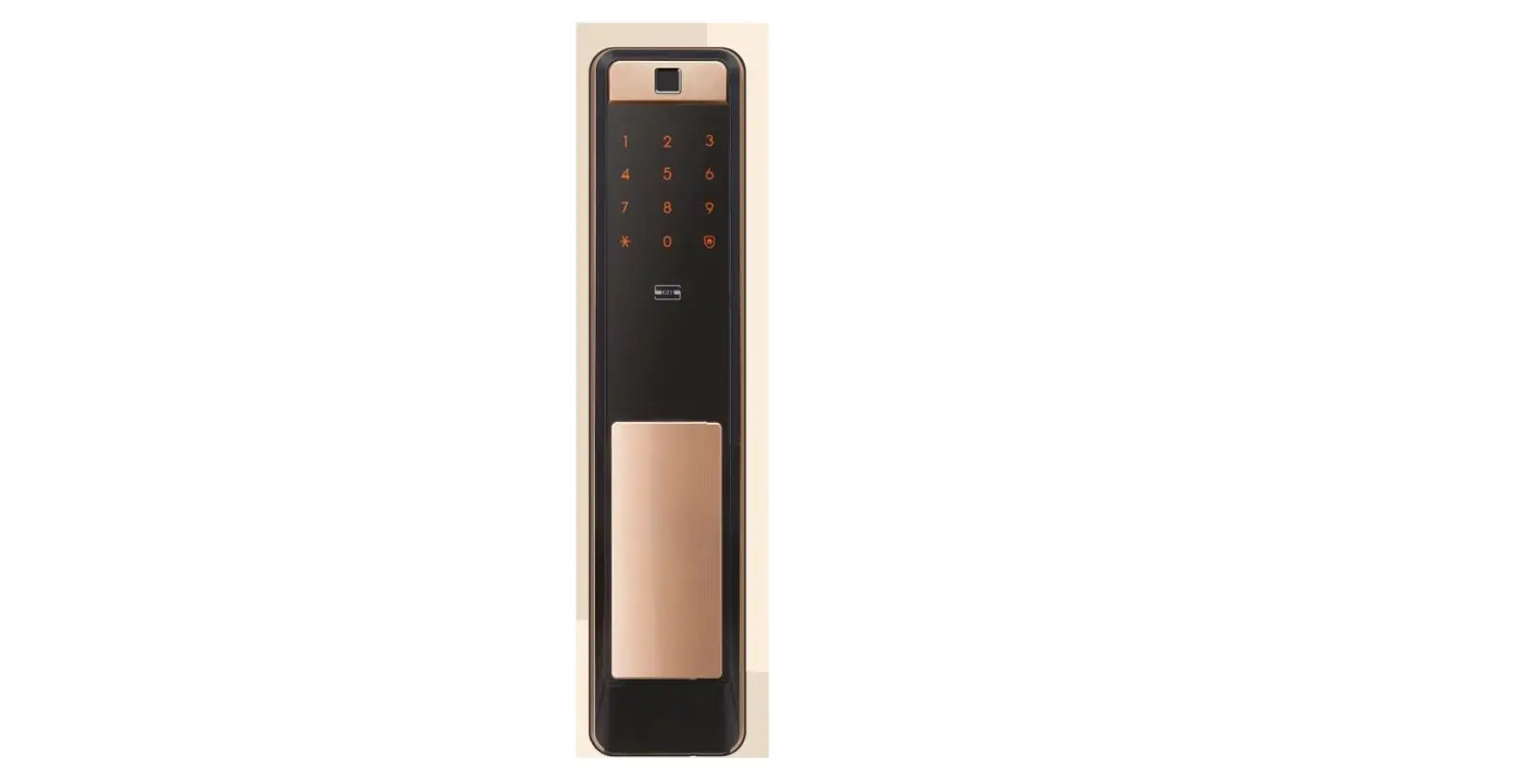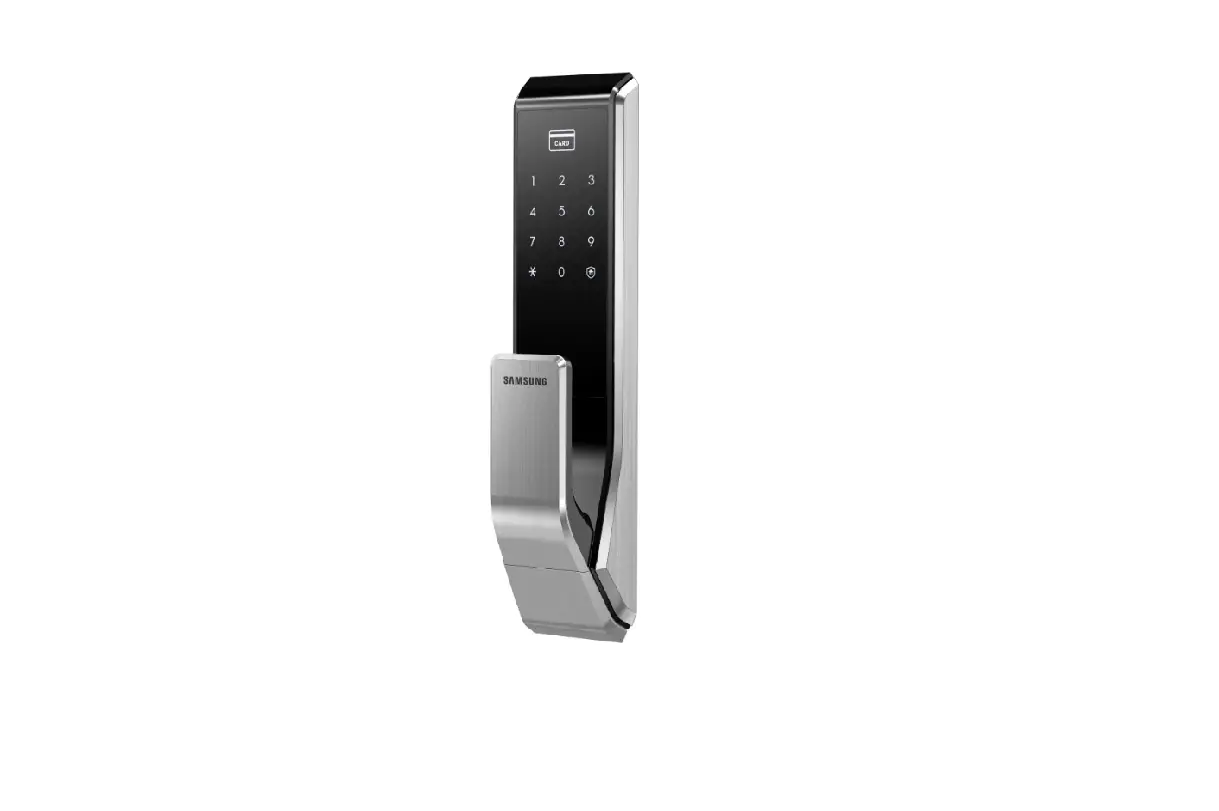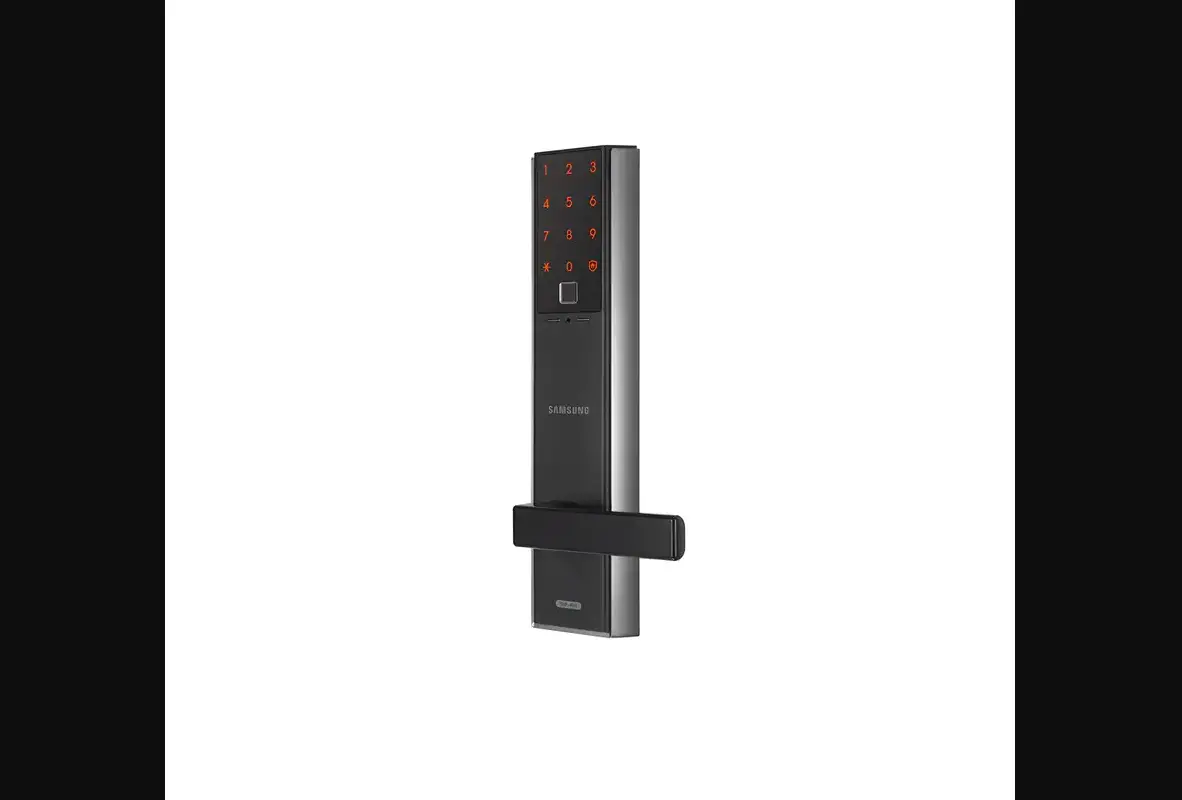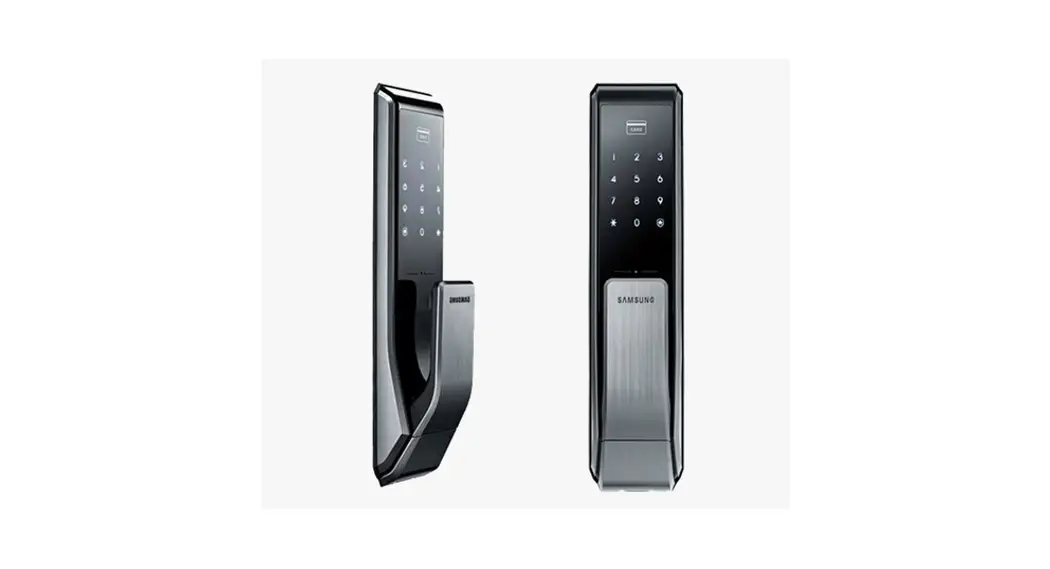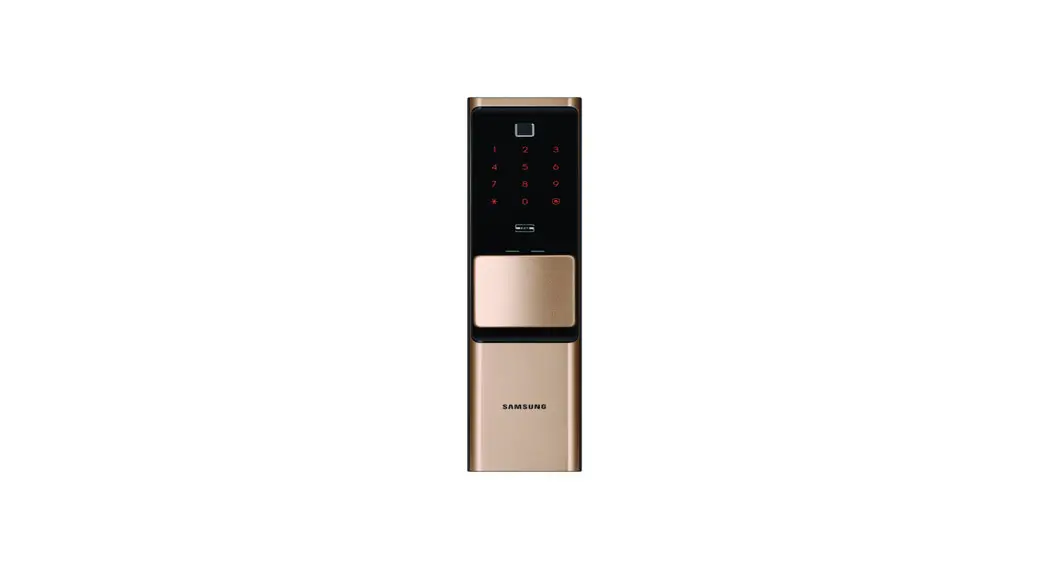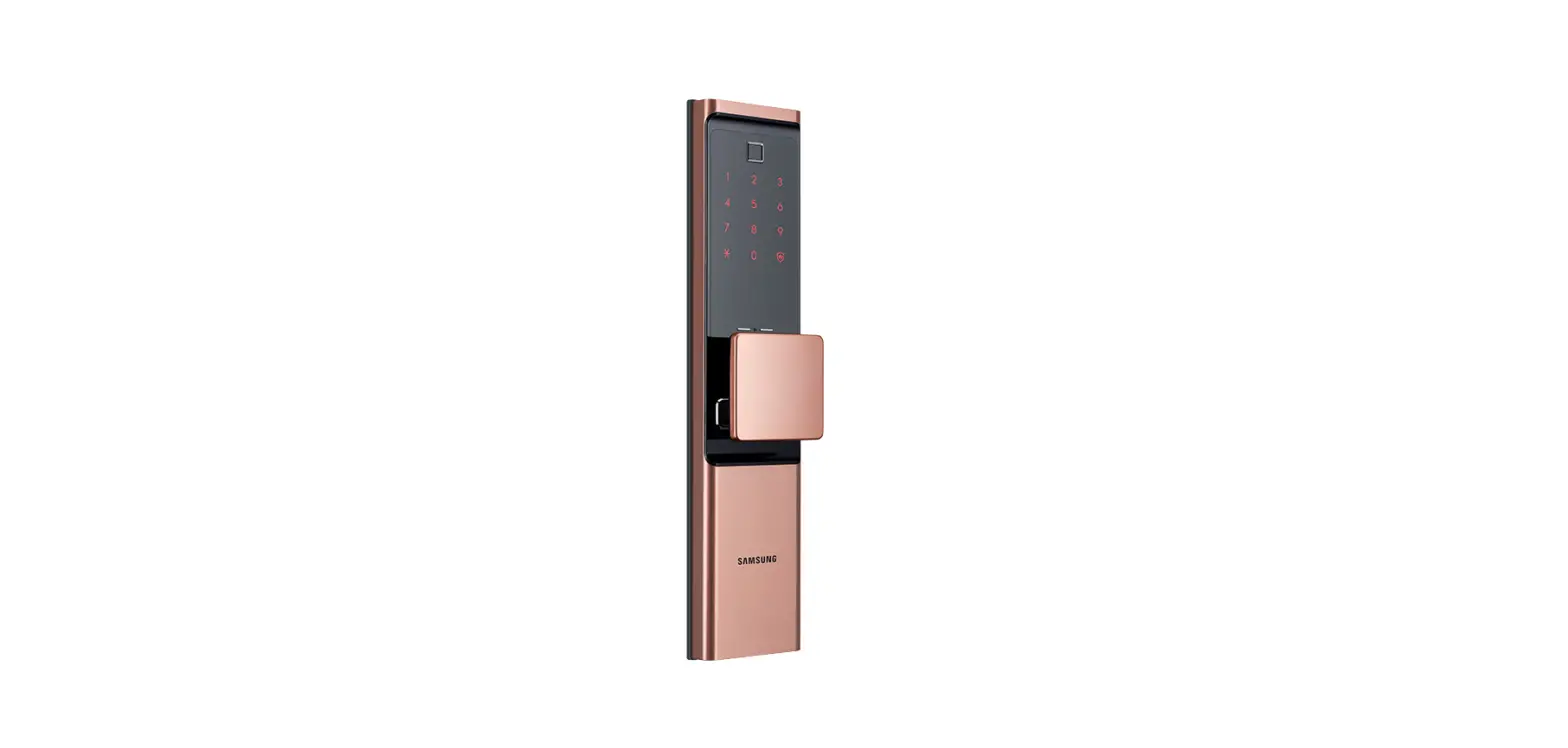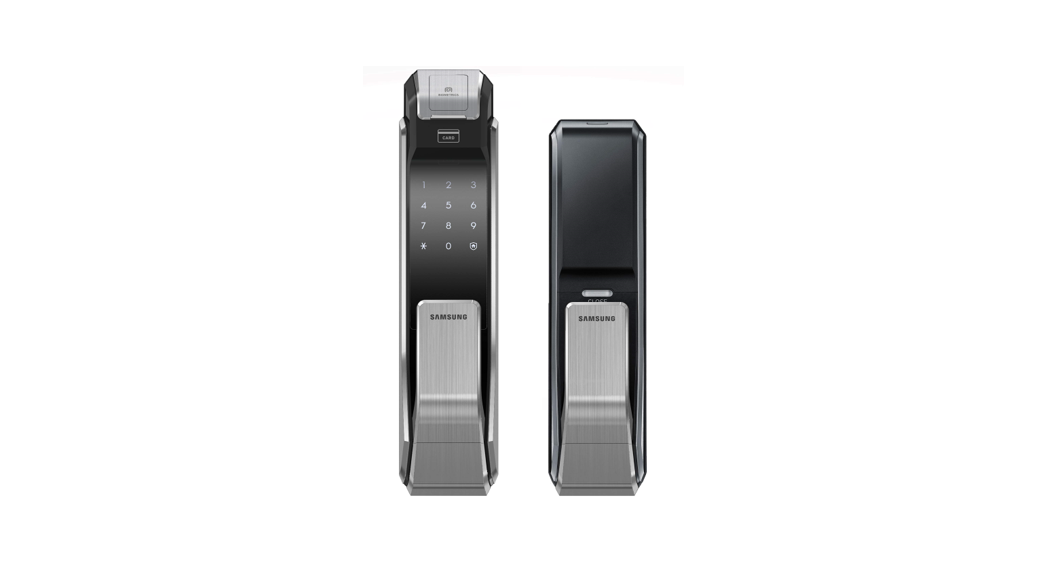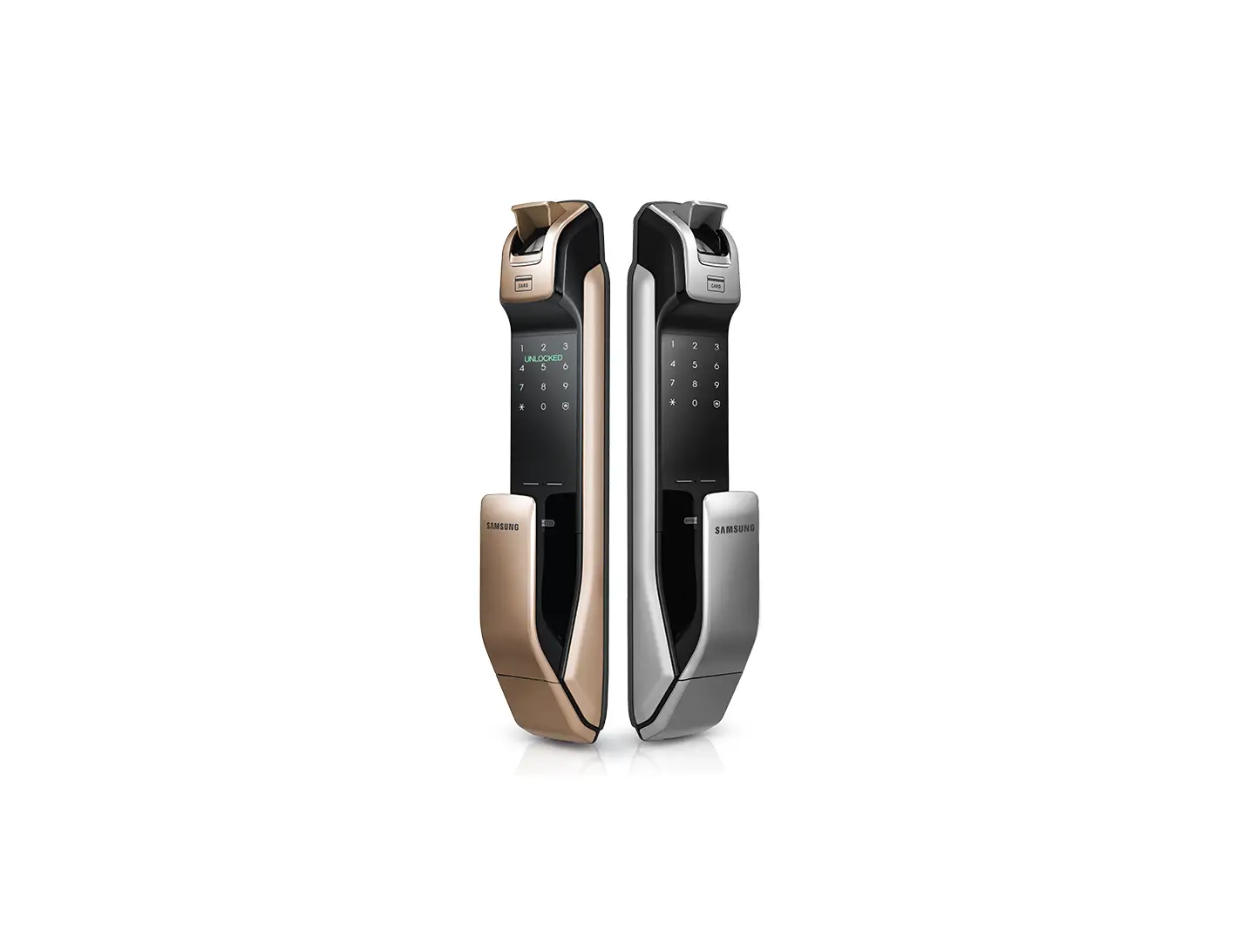
SAMSUNG SHP-DP728 Digital Door Lock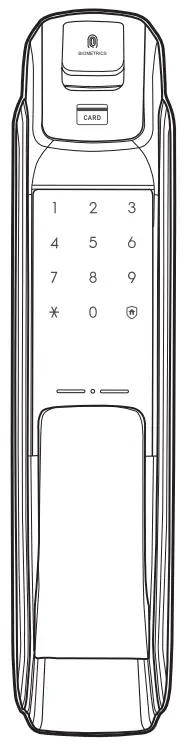
Features
- Convenient Opening
Easy push/pull handle access - Welcome Function
When a user gets close to the door lock, the authorization standby mode will automatically activate. - Silent-Mode Function
When going in or out, the sound of the key entering and door opening will be suspended. - Automatic Card Reading Function
When a card touches the reader, the reader will conveniently recognize the card. - Double Authorization
Requires password & fingerprint combination to open - Security Assurance Function
When someone is inside the house, authorization for entry from the outside will be prohibited. - Built-in Fire Detection
Generates alarm in case of a fire - Security Function
Prevents intrusion from the outside - Smartphone Interworking function
Conveniently open the door through the Bluetooth function of a smart phone
Safety Cautions
 Warning This section contains important information to ensure the user’s safety and prevent potential damage to property. Please, read this section carefully and use the product accordingly.
- The user shall not install or repair the product without authorization.
- Do not install the product in the place where the gap between the door and the frame is 5mm or more.
- Make sure that no unauthorized person has the access to the password.
- Do not operate the product with wet hands, and keep liquids such as water or drinks away from the product, or the product may malfunction or be damaged.
- Do not use the excessive force or sharp objects to push the lockbuttons, as this can damage the product.
- Make sure that the door is completely closed when going outside. The manufacturer does not assume the responsibility for any harm caused by engagement of the lock on an improperly closed door.
- Please do not hang on the product or pull it.
- Long-term exposure to direct sunlight may cause a crack on its touch pad.
Avoid exposure to direct sunlight during installation. - During battery replacement, use a new one instead of the existing battery.
- Be sure to correctly match the poles (+/-) when installing the batteries. Install the batteries with the correct poles (+/-).
- Do not use water, benzene or alcohol when cleaning the product, as these fluids can cause product malfunction.
- Replace the batteries within 1 week after the battery replacement alarm sounds.
- Interference in wireless communication may occur when this product is used.
- According to the wireless communication environment, its battery may consume much.
Product Components
The product components used may vary depending on the installation environment.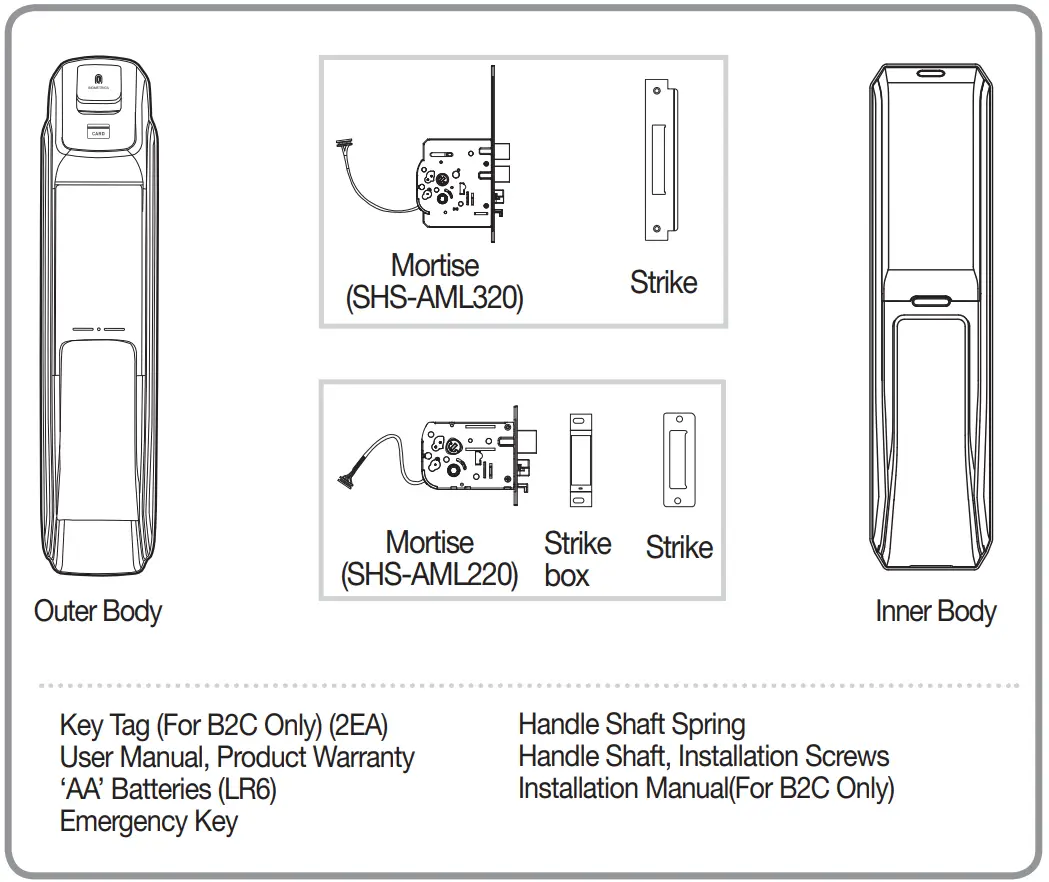
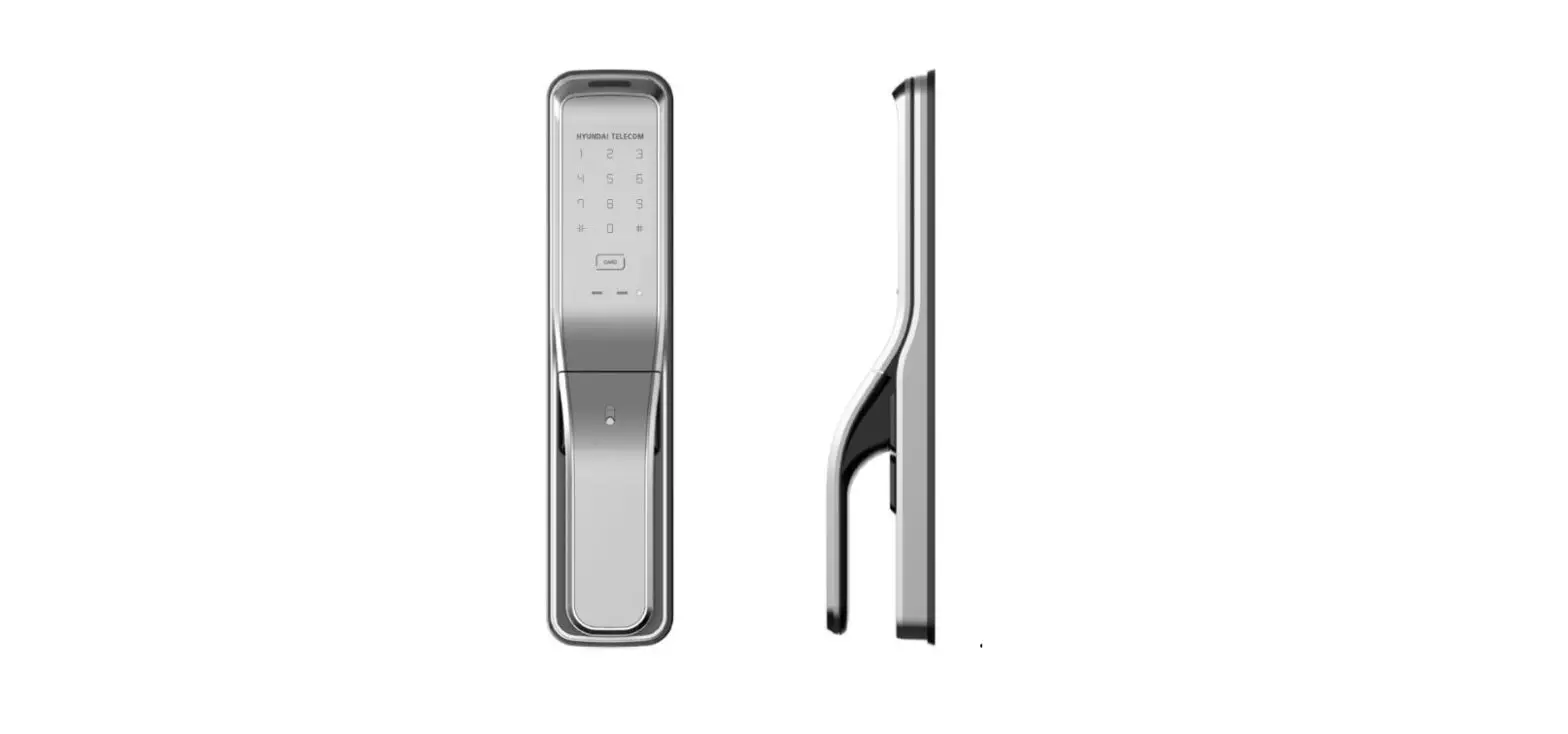
Outer Body Parts
Number Pad Unlighted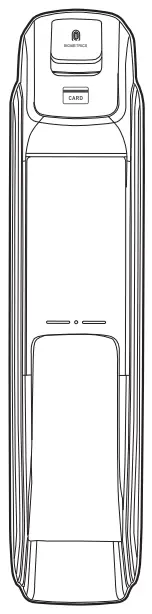
Touch Number Pad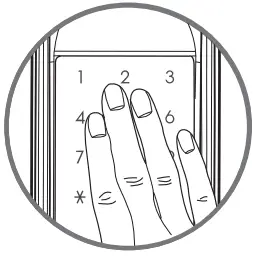
Number Pad Lighted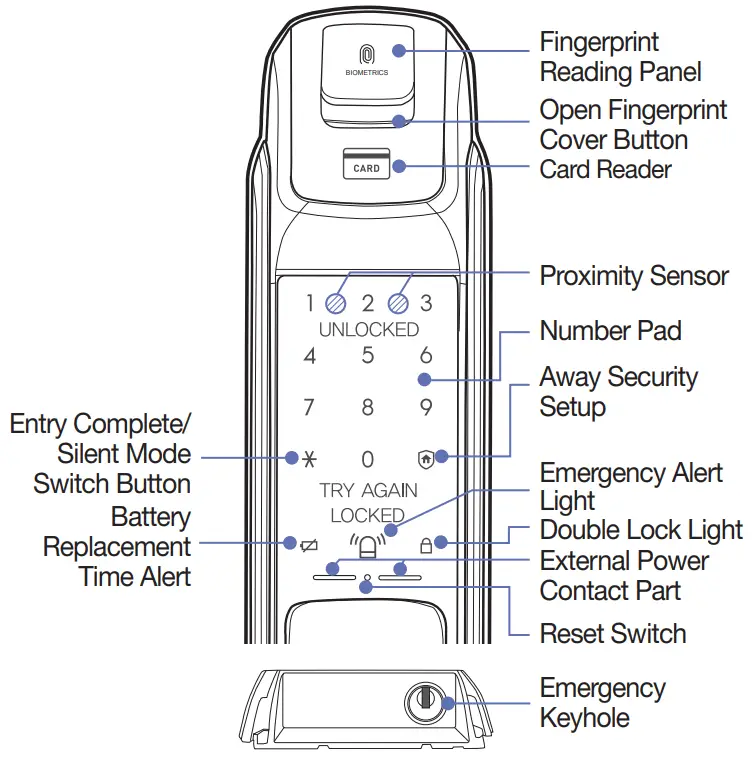
Inner Body Parts
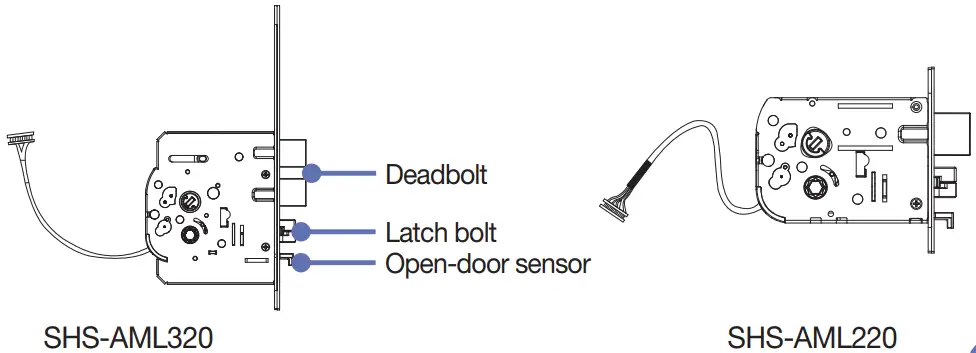
Mortise
Opening the Door from Outside with a Password
When purchased, the product is set to Multi-leveled Security Code Entry Mode initially. Please refer to “Multi-leveled Security Code Entry Mode setting” for Common Mode setting.
※ Silent Mode
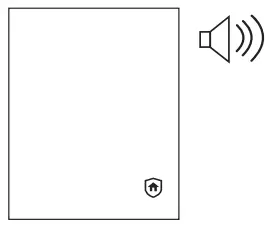
Before entering the password, press the  button and enter the password, then both the sound of the key entering and the door opening will be suspended. It is a useful function if you do not want to disturb neighbors when you go in and out at night.
Multi-leveled Security Code Entry Mode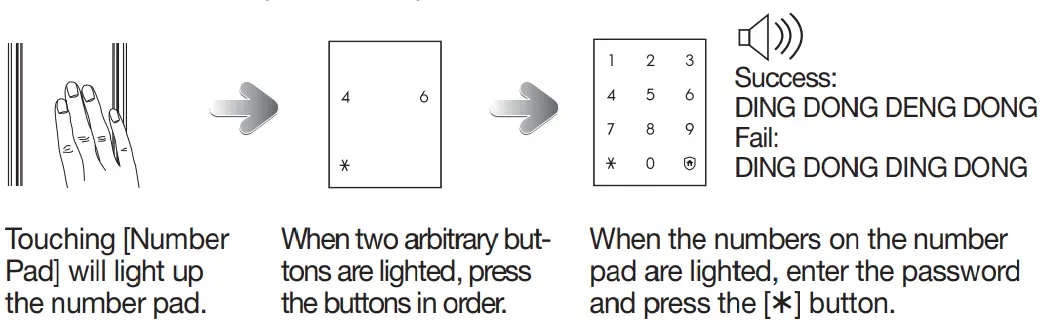
– If the security mode is changed as ‘common mode’, second step will be skipped.
 Note
Note
- Password must be entered after the light is on, and if does not, touch [Number Pad] and re-enter.
- To cancel, press
 button and re-enter.
 - If the password is wrong 5 times, “peep” warning alarm will sound 20 times and the system will shut-down for about 3 minutes. When malfunction happens, “beep” will sound every 10 seconds, and stop mode will be turned off automatically after 3 minutes with multiple ‘beeps’.
Opening the Door from the Outside with a Fingerprint
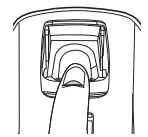
Open the door from the outside using the fingerprint authentication system.
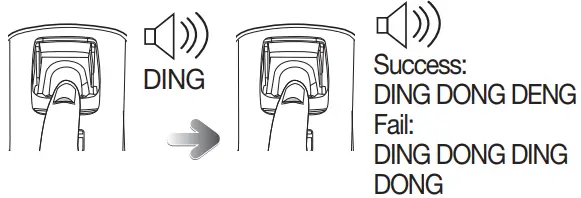
Touch the sensor properly with the fingerprint part of your finger which has been registered.
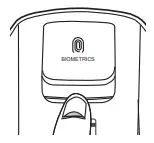
- Pressing [Open Fingerprint Cover] Button

Press the [Open Fingerprint Cover] button and the lid of the Fingerprint Reading Panel opens. - Reading Fingerprint

 Success:
DING DONG DENG DONG
Fail:
DING DONG DING DONG
Touch the Fingerprint Reading Panel with the registered fingerprint after LED light turns on, the lid of the panel closes in approximately a second later. Then push the door handle to open the door.
Opening the Door from Outside with a Card or Key Tag
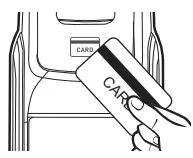
The door can be opened from outside using a card or key tag.
Place the registered card or key tag on the card reader.
Placing the Card or Key Tag on the Card Reader
 Success:
DING DONG DENG DONG
Fail:
DING DONG DING DONG
Place the card or key tag on the card reader.
The door will be opened after 1 second.
Opening the Door from the Inside
Available in both a push-pull or pull-push
Depending on the direction of the door installed in the residence, customer can choose from either push-pull type or pull-push type on purchase.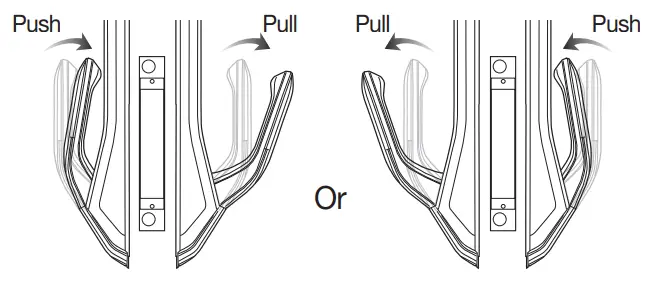
 Warning Please be careful not to trap your hand during use.
Closing the Door from the Inside
- Automatic Locking Setting
The door is automatically locked 1 seconds after the door is closed. - Manual Locking Setting

The door is locked when the [Close] button is pressed.
Note
- To check if the door is locked from the inside, press the security button briefly; the red LED will flash if the door is locked and the blue LED will blink if the door is unlocked.
- For 5 seconds after the door is closed, the Bluetooth authentication mode is not turned on even though you approach the door lock.
(Note that the Bluetooth mode is turned on when you touch the number pad.)
Initialization (Password, Fingerprint, Bluetooth, Card, Key Tag)
All registered data (password, Fingerprint, Bluetooth, card, key tag) are deleted.
After initialization, the password is set to ‘1234’, and the registered card, key tag data are erased. Please register a new password after initialization.
- Pressing the [Register] Button (from the inside)

DING DONG ->
DING DING ->
DING DING
DING DING
Press and hold the [Register] button for 5 seconds - Entering the Numbers for Initialization (from the outside)
 Success: DING DONG DENG
Fail: DING DONG DING
DONG
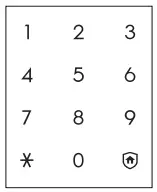
When the number pad is lighted, enter ‘4560852580’ and then press the button.
Activation/Deactivation of the Bluetooth Mode
After the Bluetooth mode is activated, accessing the door lock from the outside or touching its number pad can authenticate the registered Bluetooth smartphone to open the door.
The Bluetooth mode is activated by default.
- DING DONG
Open the battery cover, and press the [Register] button shortly. - DING DONG DENG
[11] button: Activate the Bluetooth mode.
[00] button: Deactivate the Bluetooth mode.
Press the [11] or [00] button and the button to activate or deactivate the Bluetooth mode
Note
- For the information on the pair/unfair of a Bluetooth smart phone, see the description of application use.
- Only smart phones with iOS 7.1 or higher and Android 4.3 or higher support this function. Whether to support Bluetooth, see the App description.
Fingerprint, Card and Key Tag Registration
You can register and use up to 100 fingerprints.
Up to 20 cards, including the key tag, can be registered.
(Only ISO14443 A Type is available.)
- Pressing the [Register] Button (from the inside) DING DONG
Open the battery cover of the inner body and briefly press the [Register] button. - Entering the Password (from the outside) DING DONG DENG, DING DING
Enter the password (‘1234’ after initialization) when the number pad is lighted, and press the button.
[Fingerprint Registration] - Reading the Fingerprint to Be Registered

Success: DING DONG DENG
Fail: DING DONG DING DONG
Success: DING DONG DENG
Fail: DING DONG DING DONG
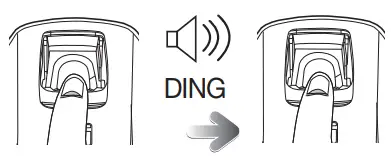
When LED light on the Fingerprint Reading Panel is on, touch the panel with the fingerprint to be registered. When a “ding” sound is heard and LED light goes off, then remove the finger. (Must do it 3 times) - Exiting Fingerprint Registration Mode DING DONG DENG
To end the registration, please press the [Registration] button on the inner body.
[Card and Key Tag Registration] - Placing the Card or Key Tag on the Card Reader (from the outside)
 DING DONG DENG
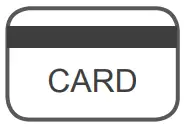
Place the card or key tag to be registered on the card reader of the outer body. You will know the card or key tag has been registered when “DING DONG DENG” sounds. - Confirming Card or Key Tag Registration (from the outside)
Place the registered card or key tag to the card reader on the outer body.
Warning To register multiple cards or key tags, lightly place another card or key tag to the card reader within 20 seconds after registering the previous card or key tag.
Pairing of a smart phone
Up to eight compatible smart phones can be paired. To pair multiple smart phones, turn off the Bluetooth of a paired smart phone, and pair another smart phone. If a Bluetooth smart phone registered is lost, replaced, or repaired and its information cannot be deleted from the door lock, the door lock should be initialized.

Download “sHome Doorlock” from App Store.
Turn on the Bluetooth smart phone.
Open the battery cover and press the [REG] button shortly
If the number pad lights, enter ‘88’ and press the [*] button.
Enter the password and press the [*] button.
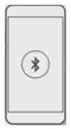
Enter the 6-digit paring code displayed in the App of the phone, and press the [*] button. The smart phone is paired.

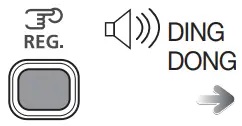
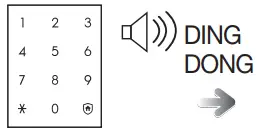
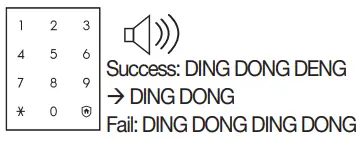
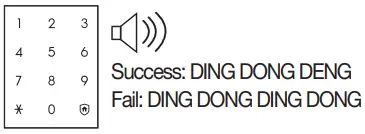
 The smart phone is paired.
Deleting Registered Fingerprints & Cards
You can delete individual or all registered fingerprints and cards.
- Pressing the [Register] Button (from the inside) DING DONG->DING DING
Open the battery cover of the inner body and briefly press the [Register] button for 3 seconds. - Entering the Current Password (from the outside) DING DONG DENG
Enter the current password when the number pad is lighted, and press [*] button.
[Deleting Fingerprints] - Reading the Fingerprint to Be Deleted
 DING DONG DENG
If you want to delete all fingerprints, press [77] + [*] after step2. DING DONG DENG
If you want to delete all cards, press [88] + [*] after step 2. - Exiting Fingerprint Deletion Mode DING DONG DENG
To end the deletion mode, press [Registration] button.
Security Assurance Mode Activation/Deactivation
At-home security mode is to prevent opening of the door from outside while someone is inside.
Security Assurance Mode Activation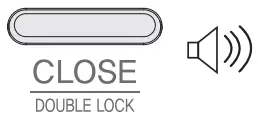
DING DONG DENG
While the door is locked, press [CLOSE] button on the inner body part for 3 seconds.
Security Assurance Mode Deactivation DING DONG DENG DONG
Pull the inner body handle to open the door, and it will deactivate.
Security Assurance Mode Operation or
or 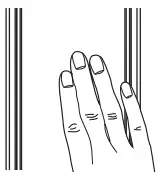 Rapid beeping
Inside: Press the [CLOSE] button, then the sound for action-unavailable will be heard.
Outside: Press the [Number Pad] or touch with a card, then the sound for action-unavailable will be heard.
Warning When the security assurance function is activated, the door cannot be unlocked from the outside, so please be careful. Be especially careful not to allow children to set this mode accidently from the inside.
You can delete Double authorization mode requires both fingerprint and password to open the door, ensuring more security.
To setup the double authorization mode, one or more fingerprints must be registered.
DING DONG
Briefly press the [Register] button on the inner body.
DING DONG DENG
[4] Button : Double authorization mode on
[6] Button : Double authorization mode off
Press the [*] button after pressing the [4] or [6] button, and the authorization mode will be set.
Two-factor Authentication Mode Operation

Touching [Number Pad].- Success: DING DONG DENG
Fail: DING DONG DING DONG
Enter the password when the number pad is lighted, and press the [*] button.  Success: DING DONG DENG DONG
Fail: DING DONG DING DONG
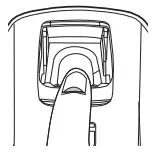
Touch a registered fingerprint on the Fingerprint Reading
Panel. After a successful authentication, the door opens.
Password Change
The password can be 4~12 digits number. Only one password can be registered.
- Pressing the [Register] Button (from the inside)DING DONG
Open the battery cover of the inner body and briefly press the [Register] button. - Entering the Current Password (from the outside)DING DONG DENG, DING DING
Enter the current password (‘1234’ after initialization) when the number pad is lighted, and press the [*] button. - Entering a New Password (from the outside)DING DING DENG
Enter the new password (4 to 12 digits) and press the [*] button. - Checking New Password Operation (from the outside)DING DONG DENG DONG
To make sure the password has been properly registered, check the new password and close the door.
Warning Manage your password with care so that unauthorized people will not have access to it. Regularly changing your password can reduce the risk of it being leaked.
Set up Instructions for Alarm and Anti unlock functions
Alarm function
When this function is activated, an alarm sound and light will turn on for approximately 5 minutes duration.
Anti-Bypass function
When this function is activated, the internal handle will become tightened to prevent bypass attempts through door edge tools will be minimized.
- Set up the Alarm function

DING DONG DENG
When the door is closed, user can set up the alarm function by pressing and holding the button for 3 seconds until sound confirmation. - Set up the Anti-Unlock function

DING DONG DENG
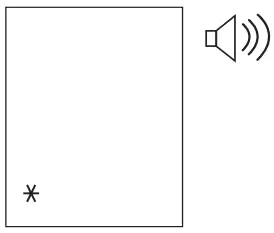
Press [*] and hold.
After 3 seconds, the alarm will be come active. - Release the Alarm function

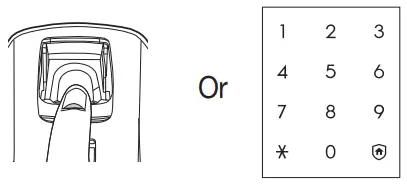
After touching the Number Pad, have a registered fingerprint read, or contact a registered card, or enter the password and then press the [*] button. - Release the Anti-Bypass function

BEEP BEEP BEEP~
Press the [CLOSE] button to release the internal handle from Anti-Bypass function.
When this function is active, it may be harder to pull the internal handle for elderly or children to open the door from inside.
Warning Anti-Bypass function should only be set up when there is no one inside.
Sound Setting and Releasing
The sound that is generated when the number buttons are pressed, when the door is locked or when the locked door is unlocked, can be set according to the user’s preference. The product is set to generate all sounds at the factory.
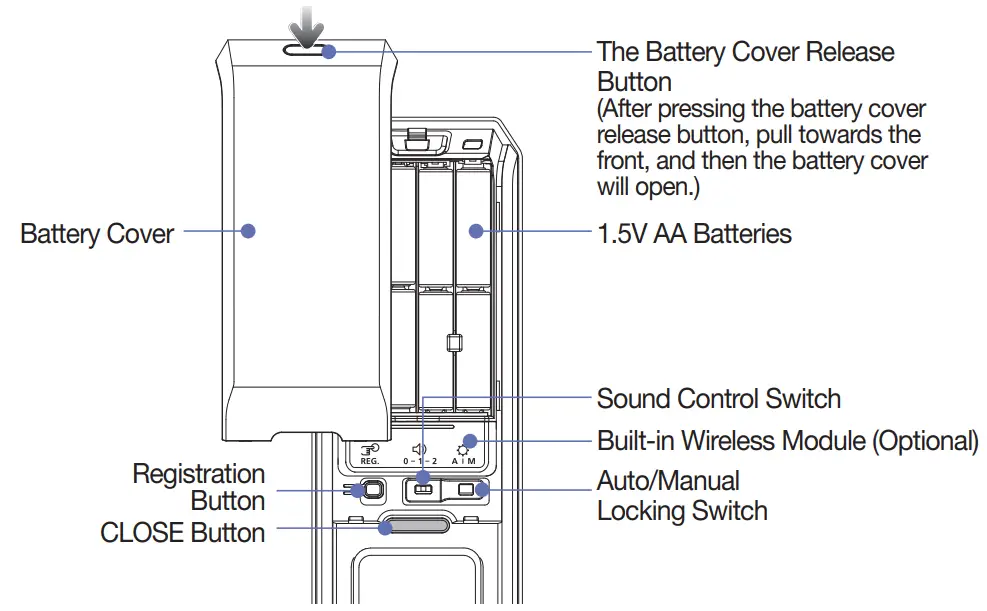
- Open the battery cover on the inner body.

- Put the [Sound Control] switch on one of [0], [1], or [2], and close the battery cover.

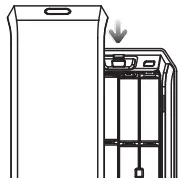
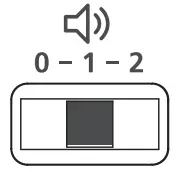
- [ 0 ] Button: All sounds except the alarm sound are deactivated.
- [1] and [2] Buttons: All sounds are activated and the sounds get bigger as the step become higher.
Welcome Function On/Off
The welcome function is a convenient function that automatically activates the authorization standby mode when a user approaches the door, even before touching the number pad.
- DING DONG
Open the battery cover and press [Registration] button briefly. - DING DONG DENG
[1]+[*] button: Welcome function on, the one minute alarm function on
[2]+[*] button: Welcome function on, the one minute alarm function off
[3]+[*] button: Welcome function off
[5]+[*] button: Set up fingerprint Authentication standby mode
[8]+[*] button: Clear Fingerprint Authentication standby mode
On and Off / Function Description
- Welcome function on: The mode will automatically activate the authorization standby mode when a user approaches the door lock.
- Welcome function off: The mode will authorize a user when the user enters the password on the number pad or connects a card to the number pad.
- One-minute alarm function on/ off: When someone remains in front of the door lock for more than a minute, this mode will sound the tamper prevention alarm.
Caution
- The factory defaults are set with the welcome function on and the alarm function off.
- The working distance of the infrared sensor can differ depending on light conditions and other environments. When the front door is exposed to sun light or constant bright lights it is advised to limit the usage of the sensor as it might sound the alarm.
Multi-leveled Security Code Entry Mode
You can set the security mode suitable for your use when you open the door using a password.
- DING DONG
Briefly press the [Register] button on the inner body. - DING DONG DENG
[7] Button : Multi-leveled Security Code Entry Mode
[9] Button : Common Mode
Press the [*] button after pressing the [7] or [9] button, and the security mode will be set.
Door Lock Time Setup Function
This function sets the time interval between the moment the door open/closed sensor recognizes the door as closed and the moment deadbolt locks the door.
In an environment that the door closes slowly and the deadbolt jams before the door is fully closed, the situation can be fixed by adjusting the door lock time.
- DING DONG
Open the battery cover of the inner body and briefly press the [Register] button.
Default: 1 second
[51] : 1 second
[59] : 9 second
Press [51] ~ [59] button, and then press [*] button.
Automatic/Manual Locking Setting
The Automatic Locking mode allows for automatic locking of the door when it is closed.
- Open the battery cover on the inner body.
- Set the [Automatic/Manual Locking] toggle switch of the Inner Body to the ‘A’/‘M’ position.

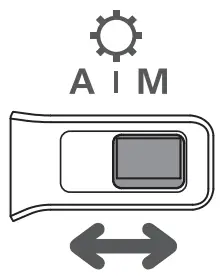
- Automatic: The door is automatically locked 1 seconds after being closed.
- Manual: The door does not lock automatically, and [CLOSE] button must be pressed from the inside, touch [Number Pad] to close the door.
Intrusion Detection Function
This function generates the alarm sound when an attempt is made to forcefully open the door from the inside or the outside.
(This is a basic function of the lock, and cannot be separately set or released.)
If the door is forcefully opened while locked, the door opening sensor detects it and generates the alarm sound.
Replacing the Batteries
Battery Replacement Alarm Generation
If the melody of “Blues for Elise” sounds when opening the door with the password or a card (key tag), it is time to replace the batteries. (The low battery indicator is lighted when the melody sounds.)
Replacing the Battery
Replace all 8 batteries within a 1 week of the first alarm sound.
– The unit will stop operating suddenly if the batteries are not replaced.
Warning
- Depending on battery manufacturer, date of manufacture and the user environment, the duration of use may vary.
(In the case of average use, given as 10 times a day, 8 AA alkaline 1.5Vbatteries can last for 10 months.) - If the poles of the batteries are not placed properly, the lock will not operate normally.
- Liquid leaks from batteries can damage the product. Check the batteries regularly (every 6 months).
- After the battery replacement alarm has sounded, password/card information cannot be registered, changed, deleted, initialized or configured until the batteries are replaced.
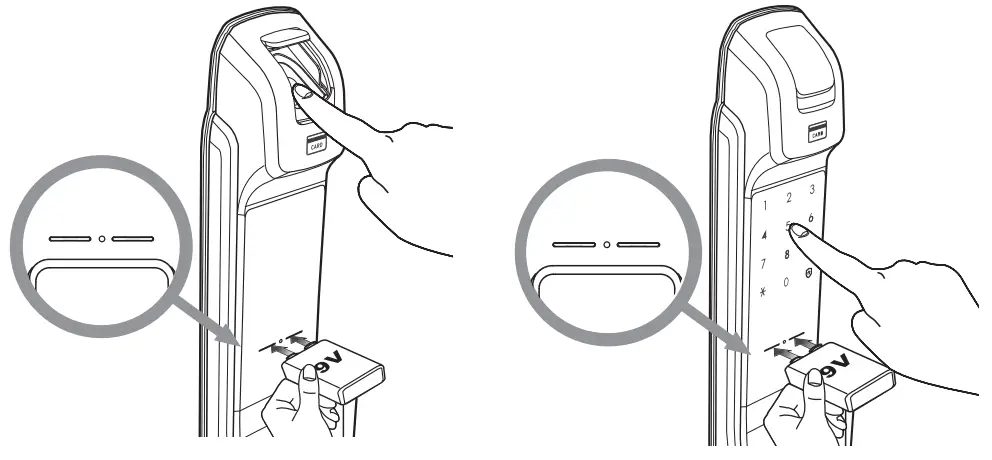
Using the Emergency Battery
If the batteries are not replaced after their replacement time comes, they will be completely discharged and the lock will not operate.
Opening the Door Using an Emergency Battery
Purchase an emergency battery (9V) at the nearest store.
- As the alkaline batteries offer longer life, they are recommended over the manganese batteries or rechargeable ones.

While connecting a 9V battery to the contact point, it is available to use fingerprint, card and password.
Alarm Sound (Prank Prevention Function)
This function generates an alarm sound and deactivates lock operation when it is improperly handled from the outside.
This alarm will sound if an attempt is made to open the door with an invalid card, or if a wrong password is entered five times in a row.
The alarm sound is generated, and the lock is deactivated for 3 minutes. While the door is in this inactive mode, a single “DING” sound is generated every 10 seconds and seven consecutive “DINGS” will sound after 3 minutes. Following this, the lock is released from inactive mode.)
Releasing the Alarm
- Inside Press the [Register] button.
- Outside Apply the registered card or key tag to the card reader, or enter the password and then press the [*] button.
Built-in Fire Detection Function
This function generates the alarm sound when fire is detected so that the residence can quickly respond. The built-in fire detection function is a basic function of the lock, and cannot be released by the user.
Fire detection function is operational at about 70 °C ± 10 °C; this can vary depending on the installation environment.
When fire occurs, the temperature sensor detects it and flashes the [Close] button while generating the alarm sound.
The door is automatically opened after the alarm sound has stopped.
(The lock resumes normal operation if the inside temperature returns to a normal level.)
The built-in fire detection function is activated when the temperature rises around 60°C, which may differ depending on the installation environment.
Product Specifications
| Item | Specifications | |
| Voltage | AA Alkaline 1.5 Batteries (LR6) 4EA or 8EA (6V) | |
| Emergency Power Source | 9V Battery (6LF22) (Separately sold) | |
| Operation Method | Electronic Control Method (Password, Fingerprint, Bluetooth, Card, Key Tag) | |
| Weight | 4.1 kg (including both inner and outer bodies) | |
| Product Dimensions | Outer Body (including the handle) | 87.5mm(W) X 391.8mm(H) X 64.5mm(D) |
| Inner Body (including the handle) | 88.5mm (W) X 357.6mm(H) X 69.3mm(D) | |
The contents of this user guide are subject to change without prior notice to the user in order to enhance performance of the product.