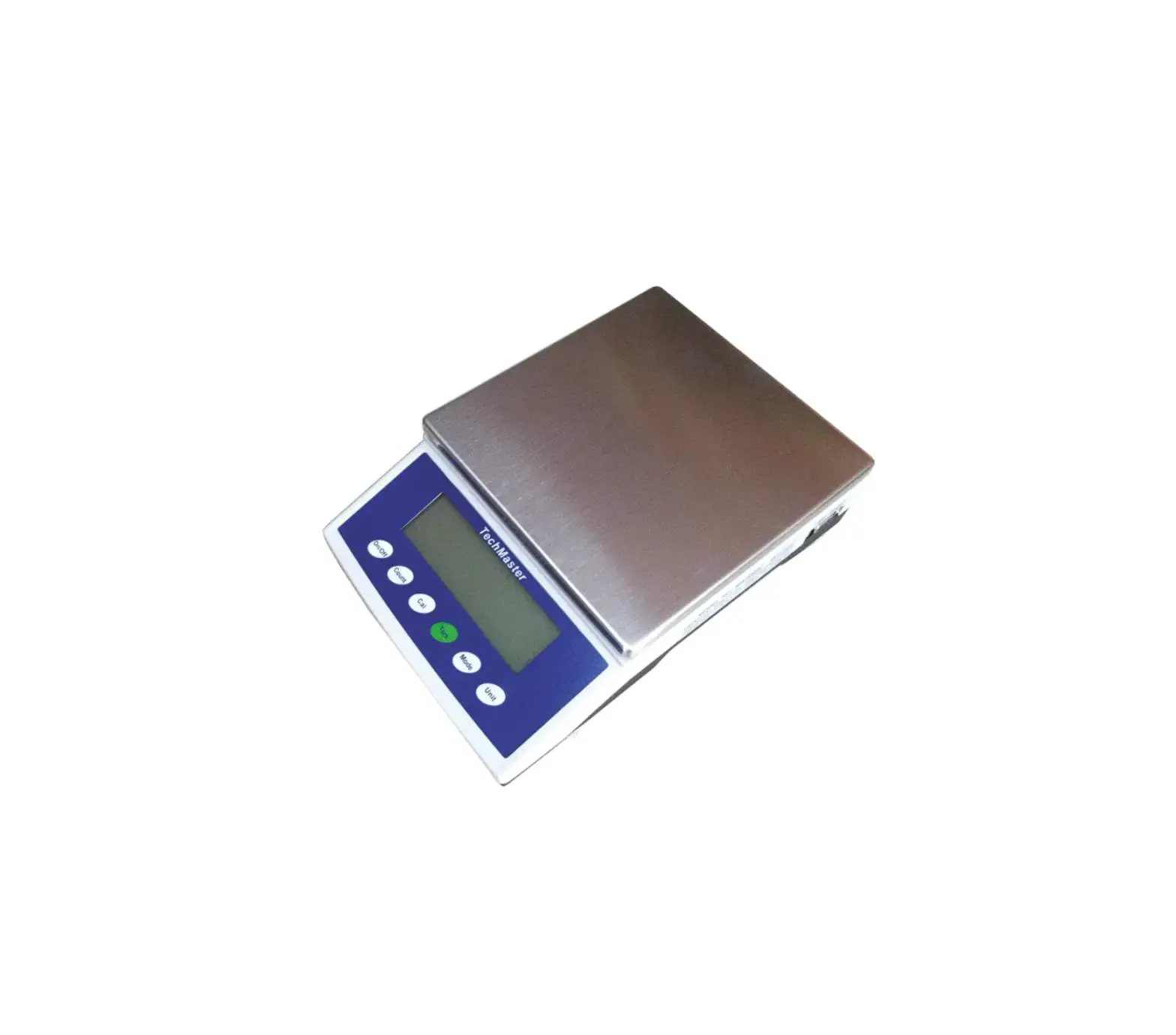
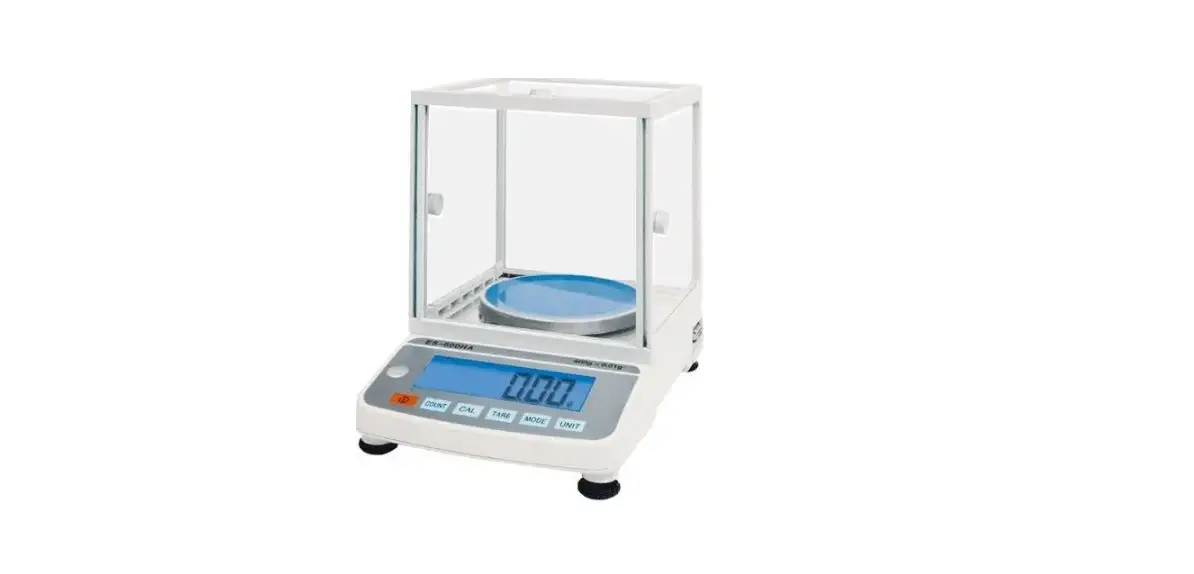
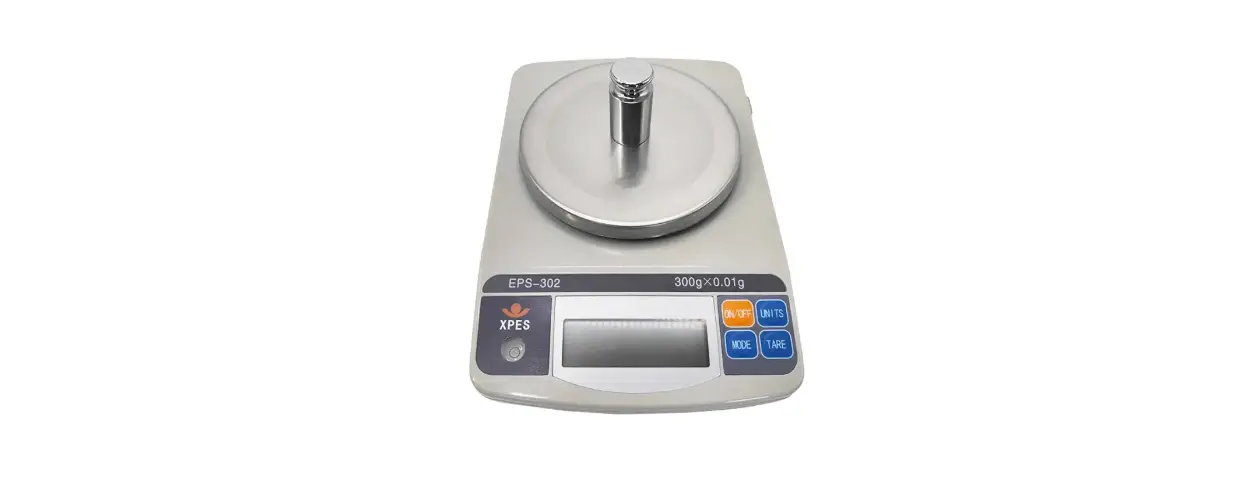
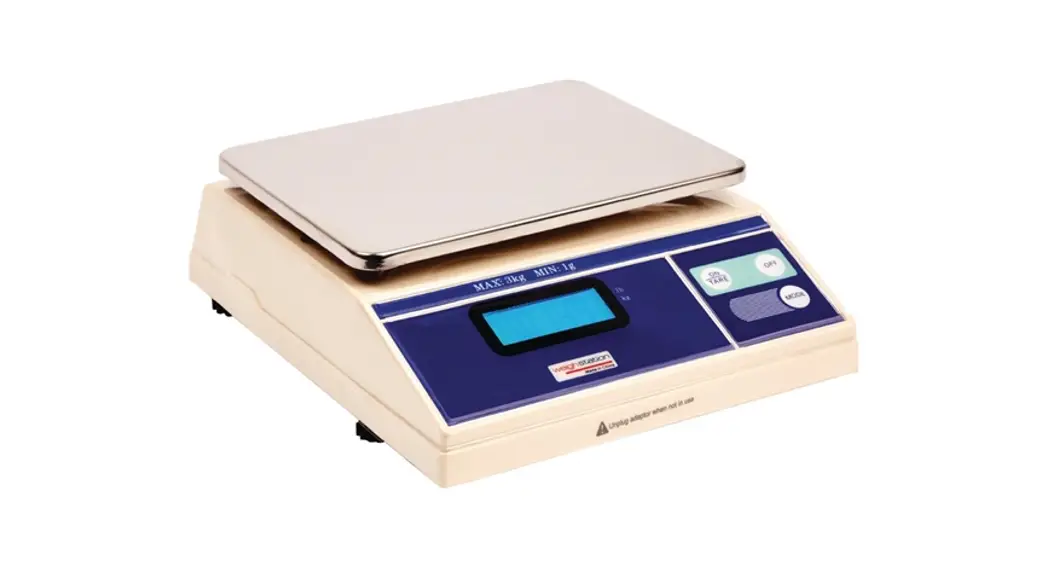
ES Series Electronic LCD Balance or Scale
ES SERIES ELECTRONIC LCD BALANCE
INSTRUCTION MANUAL
1. Introduction
This manual covers the installation, operation, and
troubleshooting for the Portable Advanced Electronic Balances,
models YS302, YS602, YS1101, YS2101, ES-40, ES-50, ES-200(A),
ES-300(A), ES-600(A), ES-1100, ES-2100(A), and ES-3000A, ES-5000A.
To ensure proper operation of the balance, please read this manual
completely.
2. Description
The ES Series Electronic LCD Balance is a portable advanced
electronic balance that helps in weighing and counting parts. It
has a compact design and a digital display that shows the weight in
different units of measurement.
3. Features
- Compact design
- Digital display
- Weighing and counting parts
- Multiple units of measurement
- Calibration menu protection
- Error codes for troubleshooting
4. Unpacking
When unpacking the ES Series Electronic LCD Balance, ensure that
all items are present and in good condition. The package should
contain the following:
- ES Series Electronic LCD Balance
- AC adapter
- Batteries (if applicable)
- User manual
5. Installation
5.1 Environment
The ES Series Electronic LCD Balance should be used in a clean
and dry environment to ensure accurate measurements.
5.2 Power Options
The ES Series Electronic LCD Balance can be powered using either
batteries or an AC adapter.
5.3 Battery Installation
If using batteries, open the battery compartment and insert the
required batteries with the correct polarity. Ensure that the
battery compartment is securely closed.
5.4 AC Adapter
If using an AC adapter, plug one end into the balance and the
other end into a power outlet.
6. Operation
6.1 Turning The Balance On And Off
To turn on the ES Series Electronic LCD Balance, press the power
button. To turn it off, press and hold the power button for 2
seconds.
6.2 Checking Calibration
To check the calibration of the balance, access the calibration
menu and follow the instructions provided in the user manual.
6.3 Weighing
To weigh an item, place it on the platform and wait for the
weight to stabilize. The weight will be displayed on the digital
display.
6.4 Units exchange
The ES Series Electronic LCD Balance allows you to weigh items
in different units of measurement. To change the unit of
measurement, access the setup menu and select the desired unit.
6.5 Taring
To tare the balance, place an empty container on the platform
and press the tare button. This will reset the weight to zero and
allow you to weigh only the contents of the container.
6.6 Parts Counting
The ES Series Electronic LCD Balance allows you to count parts
by weighing a sample and entering the piece weight. The balance
will then calculate the number of pieces based on the weight of the
sample.
The calibration menu allows you to calibrate the balance for
accurate measurements. Follow the instructions provided in the user
manual to access and use this menu.
The calibration menu can be locked using the lockout switch
located on the right side of the balance. Follow the instructions
provided in the user manual to use this feature.
7.3 Calibration Masses
Calibration masses should be kept in a safe, dry place when not
in use.
To access the setup menu, follow the instructions provided in
the user manual.
To access the submenus in the setup menu, follow the
instructions provided in the user manual.
8.3 Reset To Factory Settings
To reset the balance to factory settings, access the setup menu
and select the reset option.
8.4 Unit Selection
To select a unit of measurement, access the setup menu and
choose from the available units.
8.5 Taels
Taels are a unit of measurement for weighing precious metals and
should only be used if necessary.
8.6 Stability Range
The stability range determines how long the balance takes to
stabilize the weight before displaying it on the digital display.
Follow the instructions provided in the user manual to adjust this
setting.
8.7 AutoZero
The autozero feature automatically resets the weight to zero
when the platform is empty. Follow the instructions provided in the
user manual to enable or disable this feature.
8.8 Parts Counting Error Level
The parts counting error level determines the acceptable margin
of error when counting parts. Follow the instructions provided in
the user manual to adjust this setting.
8.9 AutoOff
The autooff feature automatically turns off the balance after a
period of inactivity. Follow the instructions provided in the user
manual to enable or disable this feature.
8.10 End
Always use the END option to exit the setup menu and save your
selections.
9. Calibration LockOut Protection
The calibration menu can be locked using the lockout switch
located on the right side of the balance. Follow the instructions
provided in the user manual to use this feature.
10. Care And Maintenance
To keep the ES Series Electronic LCD Balance operating properly,
ensure that the housing and platform are kept clean and free from
foreign material. Use a cloth dampened with a mild detergent if
necessary. Calibration masses should be kept in a safe, dry place.
Unplug the AC adapter when not in use and remove batteries for long
term storage.
11. Troubleshooting
Refer to the troubleshooting section of the user manual for
assistance with any issues you may encounter while using the ES
Series Electronic LCD Balance.
12. Error Codes
The ES Series Electronic LCD Balance has error codes that can
appear on the digital display. Refer to the user manual for a list
of error codes and their suggested remedies.
ES SERIES
ELECTRONIC LCD BALANCE INSTRUCTION MANUAL
TABLE OF CONTENTS
1.
Introduction
1
2.
Description
1
3.
Features
1
4.
Unpacking
1
5.
Installation
2
5.1
Environment
2
5.2
Power Options
2
5.3
Battery Installation
2
5.4
AC Adapter
3
6.
Operation
3
6.1
Turning The Balance On And Off
3
6.2
Checking Calibration
3
6.3
Weighing
4
6.4 Units exchange
4
6.5
Taring
4
6.6
Parts Counting
4
7.
Using Menus To Configure The Balance
5
7.1
Calibration Menu
6
7.2. Calibration Menu Protection
7
7.3
Calibration Masses
7
8.
Setup Menu
7
8.1
Accessing The Setup Menu
8
8.2
Accessing The Submenus In The Setup
8
8.3
Reset To Factory Settings
8
8.4
Unit Selection
8
8.5
Taels
9
8.6
Stability Range
10
8.7
AutoZero
10
8.8
Parts Counting Error Level
11
8.9
AutoOff
11
8.10 End
11
9.
Calibration LockOut Protection
11
10.
Care And Maintenance
12
11.
Troubleshooting
12
12.
Error Codes
12
9. CALIBRATION LOCK-OUT PROTECTION
Access to the Calibration menu can be disabled using the lock out Switch
located on the right side of the balance. Turn the balance off and unplug the power cord. Locate the access hole on the right side of the balance where the
switch is located and remove the plug from the hole. Using a small screwdriver, slide the switch to the front of the
balance for LOCKED or towards the rear of the balance for
UNLOCKED. Replace the plug in the access hole.
Plug in the power cord and turn on the balance.
10. CARE AND MAINTENANCE
To keep the balance operating properly, the housing and platform
should be kept clean and free from foreign material. If necessary, a cloth
dampened with a mild detergent may be used. Keep calibration masses
in a safe dry place.
Unplug the AC Adapter when not in use. For long term storage,
remove the batteries.
11. TROUBLESHOOTING
SYMPTOM
PROBABLE CAUSE
REMEDY
No Display LO BAT Indicator
Power Adapter not connected. Batteries are dead.
Batteries are weak
Connect power Adapter. Replace batteries
Replace batteries
Incorrect Weight Reading
Balance was not re-zeroed Press ON TARE with no
before weighing Balance has not weight on the platform, then
been properly calibrated.
weigh item.
Calibration Procedure does not work
Unable to display Weight in a particular weighing unit
Incorrect weights being Used
Weighing unit not Enabled in Setup menu.
Use correct weights.
Use Unit Selection submenu to set desired units ON (see Setup menu).
Balance won’t store
END selection was not
Selections made in Setup used to exit Setup menu.
menu
You MUST use END to Exit Setup menu and Save selections.
12. Error Codes
The following list describes the various errors which can appear on
the display and the suggested remedy.
Display Description
Err 1 Sample being weighed exceeds the capacity of the balance.
If error occurs when the sample is within the balance capacity, balance
may be incorrectly calibrated
12
1. INTRODUCTION This manual covers installation, operation and troubleshooting for
the Portable Advanced Electronic Balances, models. YS302, YS602,YS1101, YS2101, ES-40,ES-50,ES-200(A),ES-300(A),ES-600(A),ES-1100,ES-2100(A), and ES-3000A,ES-5000A To ensure proper operation of the balance, please read this manual completely.
2. DESCRIPTION The Portable Advanced balances are precision weighing instruments,
designed to provide years of service with virtually no maintenance .The Portable Advanced housing is constructed of a material which is impact resistant contains a one piece solid-state precision electronics PC boardand a five digit LCD display which is 0.5 inches in heightAll Portable Advanced balances are initially factory set to measure in grams and can be set to measure in other units of measure as desired. Each balance operates through a series of menus which enable precise calibration and the selection of various parameters which enhance operation. A built in lock switch prevents calibration settings from being changed. Power is supplied through an AC adapter or batteries.
3. Portable Advanced balances contain two display menus which enable you to calibrate and configure the balance for specific operating requirements.
· CALIBRATION MenuAllows the balance to be calibrated by using standard weights. · SETUP Menuallows the balance to be set for environmental conditions and customized for specific weighing functions.
When the balance is first turned on, it can be used to weigh tare items without setting the menus. Refer to the individual menus in this manual for detailed descriptions and procedures for programming.
4. UNPACKING All Portable Advanced balances are supplied with a weighing
platform, some of which have been installed, AC power adapter, instruction manual.
1
Weighing Platform
Display Window
AC Adapter Receptacle Calibration Menu Lockout Switch Push Button
5. INSTALLATION Environment Balance performance can be affected by excessive air currents,
corrosives, vibration, temperature or humidity extremes.
5.1 DO NOT use the balance: · Next to open windows or doors causing drafts or rapid temperature
changes. · Near air conditioning or heat vents. · Near vibrating, rotating or reciprocating equipment. · On an non-level work surface. · Near corrosive vapors (example : nitric acid ).
5.2 Power Options The balance can be operated using 4AA alkaline (not included), or
from any AC electrical outlet using the AC adapter supplied.
5.3 Battery Installation Turn the balance over. Press the tabs on the battery cover inward and lift the cover off. Remove the battery holder.
2
Press “ON/TARE” to accept the displayed setting, when released,
auto 0 will be displayed again. 8.8 Parts Counting Error Level
The parts counting error level is based on the resolution (readability) of the particular model balance and sample weight. The adjacent table lists error levels that you can choose from..
To view, change or disable the parts counting error level:
Access the PC Err submenu.
Press “ON/TARE” to display the current setting.
Press “OFF/MODE” to change the setting.
Press “ON/TARE” to accept the displayed setting, when released,
PC Err will be displayed again. 8.9 Auto Off
Auto Off permits the selection of either OFF, 60 seconds, 120 seconds or 180 seconds. When this function is selected, the balance will turn off if it is idle for the selected period of time (60, 120 or 180 seconds). This feature is especially useful when the balance is operated from internal batteries.
To view, change or disable the auto off feature: Access the AOff submenu.
Press “ON/TARE” to display the current setting.
Press”OFF/MODE”to change the setting.
Press “ON/TARE” to accept the displayed setting. When is
released, AOff will be displayed again. 8.10 END
You must use End to exit the Setup menu. Changes you made in the Setup menu are only stored in memory if you use End.
To exit the Setup menu and store your settings, press “ON/TARE” when END is displayed. When is released, the balance will be returned to normal weighing operations.
11
8.6 Stability Range The tability range specifies
how much a displayed weight may change while the stability indicator (unit indicator) remains ON. When displayed weight changes beyond the allowable range, the stability indicator turns OFF indicating an unstable condition. Portable advanced balances permit you to select one of four stability ranges (in divisions) as shown in the table.
To view or change the stability range:
Access the Stb submenu to display the current setting.
Press “ON/TARE” to display the
current setting. Press “OFF/MODE” to change the
setting. Press”ON/TARE” to accept the
displayed setting, when released, Stb
.5d Smallest range: stability indicator is ON only when displayed weight is within. 5 division.
1d Normal range. 2d Increased range.
will be displayed again.
5d Largest range: stability indicator is
ON with displayed weight changes
8.7 Auto-Zero
Up to 5 division.
Auto-Zero minimizes the effects of temperature changes and shift
on the zero reading. By defining a threshold level in divisions, the
balance maintains the zero display until the threshold is exceeded. This
submenu permits you to select one of three threshold levels, or turn the feature OFF. Auto-Zero only functions when the display reads zero.
To view or change the auto-zero setting:
Access the Auto 0 submenu.
Press “ON/TARE” to display the current setting.
Press “OFF/MODE” to change the setting.
10
Install the 4AA alkaline battery in the battery holder, orienting the
Plus (+) and minus (-) ends as indicated on the holder. Replace the battery cover.
5.4 AC Adapter Plug the jack from the adapter into the receptacle located on the
right side of the balance. Plug the adapter into a 220v or 110v AC outlet.
6 OPERATION
6.1 Turning the Balance On and Off When no load on the platform, press “ON/TARE” The balance will display the software version, and then all segments will display will turn on,then the software version is displayed.
NOTE: Allow at least 5 minutes for the balance to temperature stabilize before using. If the balance is moved to a different temperature environment, allow additional time to stabilize.
To turn the balance off, press
and hold
OFF
MODE
until
OFF
is
displayed, then release it.
g 6.2 Checking Calibration
Before using the balance, its calibration should be checked. The balance has been calibrated before shipment, however, calibration is influenced by factors such as:
Variations in the earth gravitational field at different latitudes of
the world. Rough handling. Changes in work location. Height above sea level.
3
To check the balance’s calibration, place a known mass on the center of the platform and read the displayed weight.
If the displayed weight differs from the known mass by more than acceptable limits, refer to the Calibration Menu and the Specifications at the rear of the manual.
6.3 Weighing Press “ON/TARE” to set the display to zero. Place the object to be weighed on the platform. Wait until the unit indicator appears before reading the displayed
weight. When the unit indicator appears, the reading is stable.
6.4 Units exchange Under weighing,press “OFF/MODE” to change the units.
6.5 Taring When weighing samples that must be held in a container, taring
enables the balance to subtract the weight of the container and display only the net weight of the sample.
Press “ON/TARE” with no load on the platform to set the display to zero.
Place the empty container on the platform. Its weight will be displayed.
Press “ON/TARE”. Zero will be displayed and the container’s
weight will be stored in the balance’s memory. Add the sample to the container and read its net weight on the
display. When the container and its contents are removed, the container
weight will be displayed as a negative number.The tared weight will remain in memory until “ON/TARE” is pressed again or the balance is turned off.
6.6 Parts Counting Parts Counting must be enabled in the Setup menu before using
This procedure. The balance will count parts based on the weight of a reference sample, 5, 10, 20, 30, 40 or 50 parts. For optimum results, the parts should be uniform in weight.
4
Access the Sel submenu.
Press “ON/TARE” , the display will show the grams unit indicator (g) along with the current status (ON/OFF).
Press “OFF/MODE” to change the status. Display
Press “ON/TARE” to accept the
Indicator
Displayed status, when released, the display willg
show the next unit indicator along with
oz
the current status.
ozt
dwt
Set each unit or mode ON or OFF
lb
as in steps 3 and 4.
t
ct
pc
Weighing units and Modes grams ounces troy ounces pennyweight pounds taels carat parts counting
8.5 Taels
If taels are enabled, you will
t
be required to choose one of three
different taels: Hong Kong, Singapore,
or Taiwan.
(1) When the display shows
TAEL1, press “OFF/MODE” to change
to another tael if desired.
(2)Press “ON/TARE” to accept the displayed tael.
Hong Kong
Singapore
9
Taiwan
8.1 Accessing the Setup Menu To access the Setup menu, press and hold “ON/TARE” until
SETUP is Displayed, then release.
8.2 To access a submenu : Repeatedly press
“OFF/MODE” until the
desired submenu is displayed.
Press”ON/TARE”to select the displayed submenu.
NOTE: You must use END to store any changes you make to the Setup
menu.The following sections describe each item on the Setup menu in
detail.
8.3 Reset to Factory Settings This submenu enables you to
reset all Setup menu selections to the original factory setting outlined in the adjacent table.
To reset to factory settings: Access the Reset submenu.
Press “ON/TARE” to enter
SETUP MENU
FACTORY SETTING
Unit Selection Stability Auto Zero PC Error Level Auto backlight Auto Off
0.5 oFF Auto oFF
RESET.
Press “OFF/MODE” repeatedly to
change the setting from YES to NO.
Selecting YES resets the Setup menu to the original factory setting.
Press “ON/TARE” to accept the displayed setting.
8.4 Unit Selection The Unit Selection submenu permits you to
specify which weighing units and operating modes will be enabled for use during operation. The adjacent table lists the units and modes available on Portable Advanced balances.
8
Repeatedly press “OFF/MODE” until pc CON is displayed. Place a container on the platform, then press “ON/TARE” . the
balance displays pcADD 5 which is the preset reference quantity. “5”
shows the quantity of the reference sample. To change the reference quantity, repeatedly press “ON/TARE”
until the desired uantity displayed.
NOTE: If you need to exit or Parts Counting Factory Settings
restart parts counting at any time, Parts Counting Mode ………….. Disabled
press and hold “ON/TARE”
Err ………………………….. 0FF
until pc CON is displayed, then
release it. Return to step 2 to restart, or
press “OFF/MODE”
pc
for other weighing functions. Add the displayed number of parts to the container, then press
“ON/TARE”
The balance will display the
current number of parts.
pc
NOTE: If PCErr is displayed, the sample is too small to provide
accurate results within the
selected parts counting error
level (PCErr of the Setup
menu). Add parts to the container as desired and read the quantity on the
display. At this time, only “PC” counting signal is displayed. NOTE: The reference quantity will remain in memory until it is changed or balance is turned off.
To switch between viewing the quantity and weight of the parts, press “OFF/MODE” .
7 USING MENUS TO CONFIGURE THE BALANCE The following illustration identifies the items in each menu and
The factory default settings are shown in bold type. 5
YesNo
Unit selection g,oz,ozt,dwt,lb,t,ct,PC
tbStability .5d,1d,2d,5d
tAuto zero OFF,.5d,1d,3d
Parts counting error level OFF,1,2.5,5
Auto off OFF,60,120,180
bl(backlight selection)
OF,AU,ON nd
To access a menu, press and hold
ON TARE
until desired menu appears,
then release it.
Use these buttons to step through menus and select submenus:
next
OFF
MODE selection
select
ON
TARE displayed item
7.1 Calibration Menu
All the Portable Advanced balances can be calibrated with standard
masses. press and hold
ON TARE
with no load on the platform,
until “CAL” is displayed, then
release it. Access ” CAL ” menu . Balance will first display ” CAL ” . In
a few seconds, balance will display the calibration weight value, press
OFF
MODE
to choose the calibration weight value and press
ON TARE
to make
sure. After that the balance will display the weight value, according to
the shown weight value, put the corresponding calibrating weight on the
center of the platform. In a few seconds, the display will stop, and
meanwhile the calibration weight value will be shown, indicating that
calibration is over. Normal weighting can be done. 6
7.2 Calibration Menu Lockout
The Calibration menu may be locked out to prevent unauthorized
access.
When calibration end, turn the Lockout switch on the right side of
the balance forwards, calibration menu may be stored in balance memory
forever unless calibration menu is changed. When the Lockout switch is turned backwards, calibration menu
cannot be stored in memory. It will disappear with no electricity.
7.3 . Calibration Masses
Before beginning calibration, make sure calibrated masses are on hand. If you begin calibration and realize masses are not available (masses are not accurate), either turn the balance off, or go through the procedure without masses. The balance will use previously stored calibration date.
Required Calibration Masses Span Masses
ES-302A 100g or 300g ES-601A 200g or 600g ES-1101A 500g or 1000g ES-2101A 1000g or 2000g ES-3001A 1000g or 3000g
Calibration should be performed as necessary to ensure accurate
weighing.
8. SETUP MENU
The Setup menu is used to customize the operation of the balance for
your specific requirements. It contains submenus which enable you to
turn features on or off, and program balance parameters. The illustration
below indicates in which submenus appear on the Setup menu.
YesNo
Unit selection g,oz,ozt,dwt,lb,t,ct,PC
tbStability .5d,1d,2d,5d
tAuto zero OFF,.5d,1d,3d
Parts counting error level OFF,1,2.5,5
Auto off OFF,60,120,180
bl(backlight selection)
OF, AU,ON nd
7