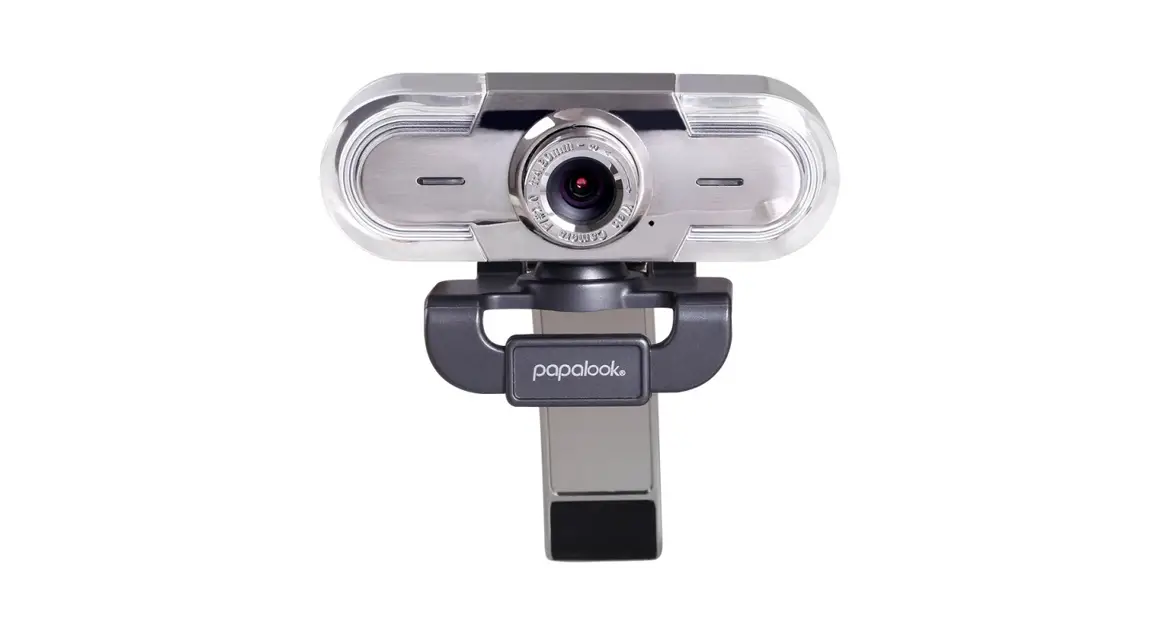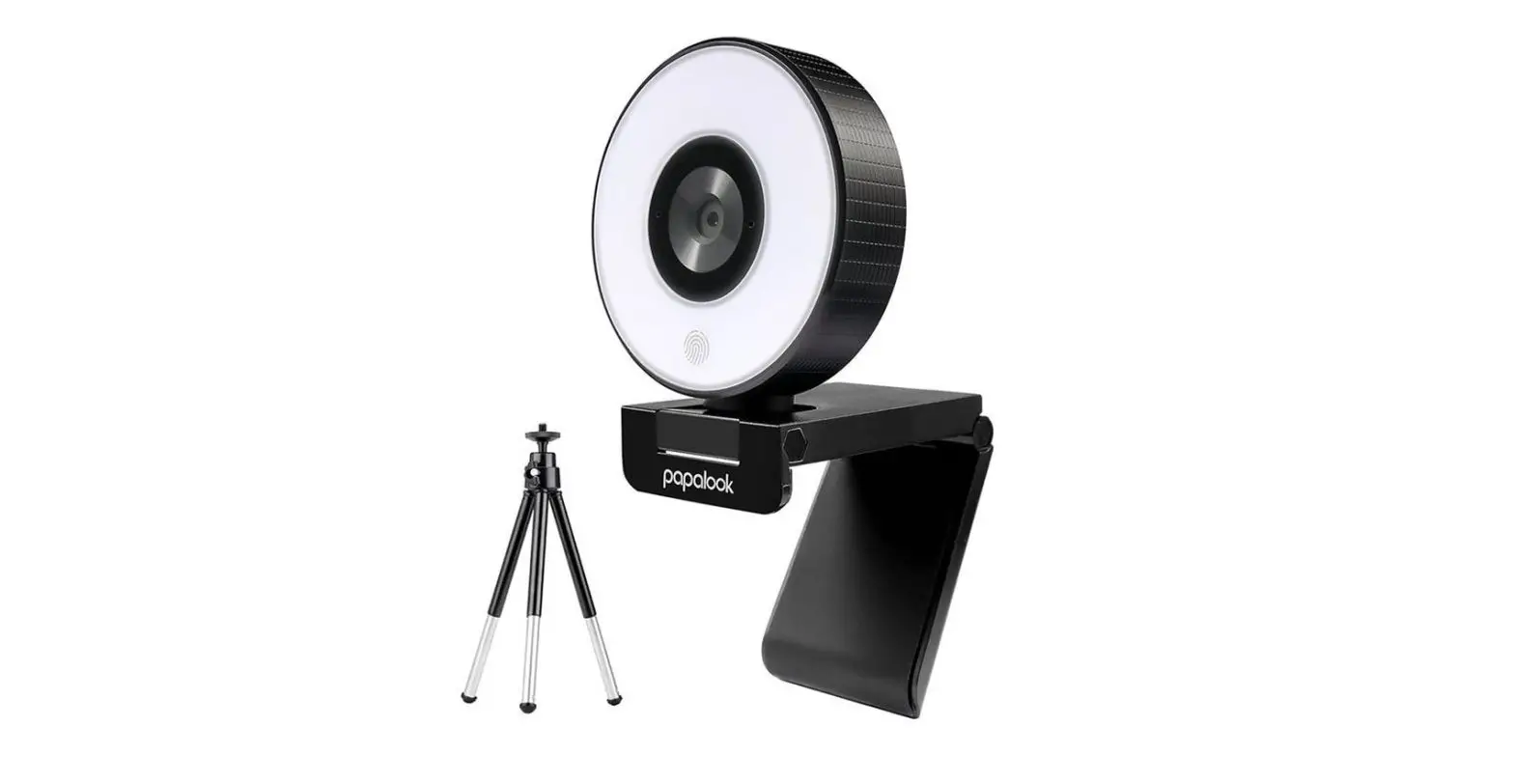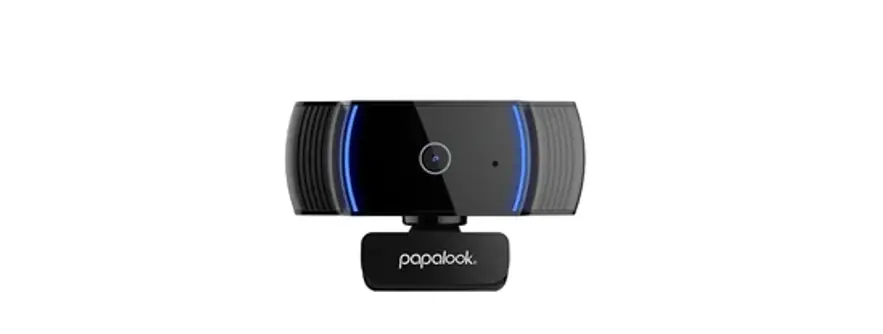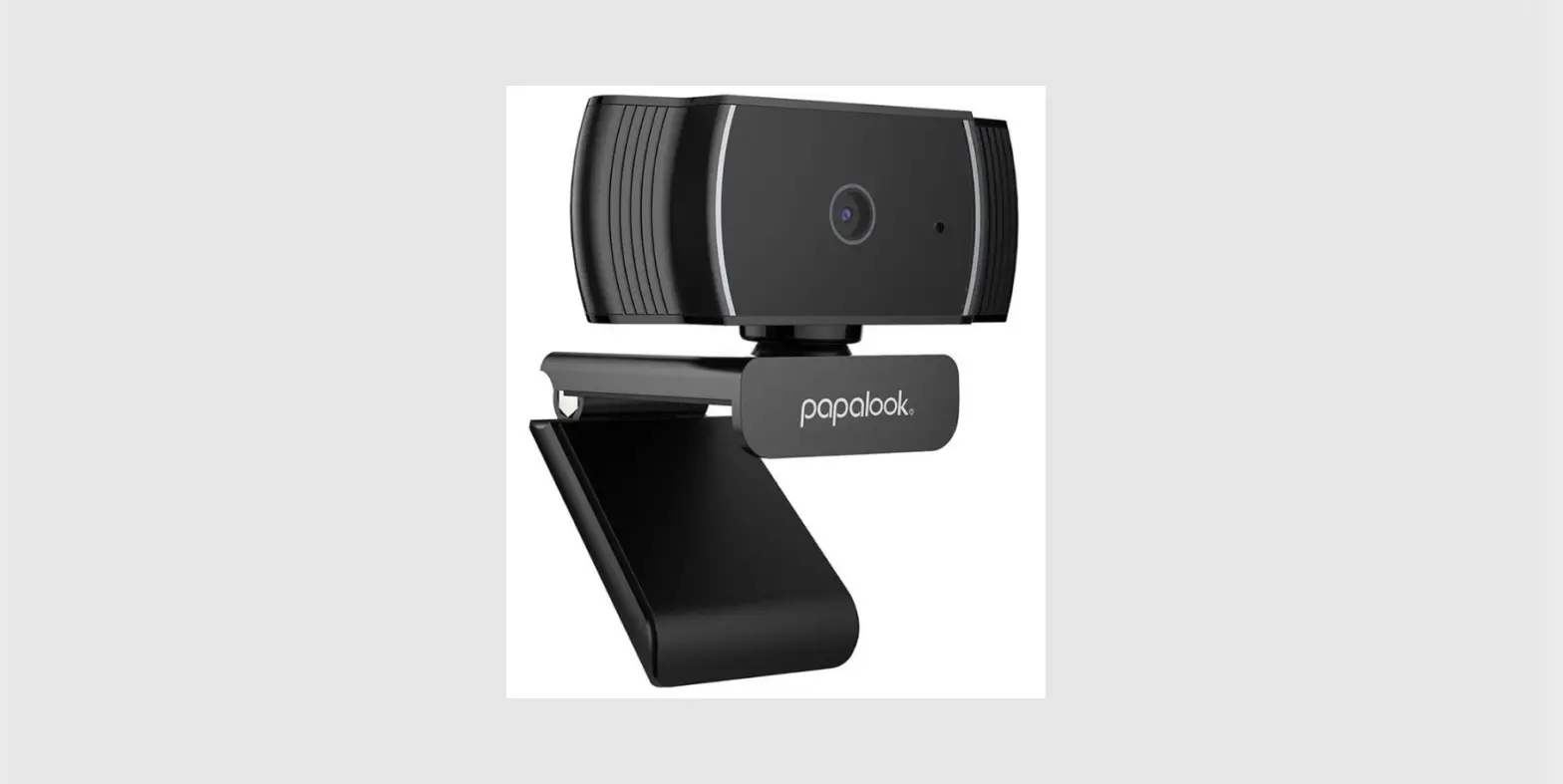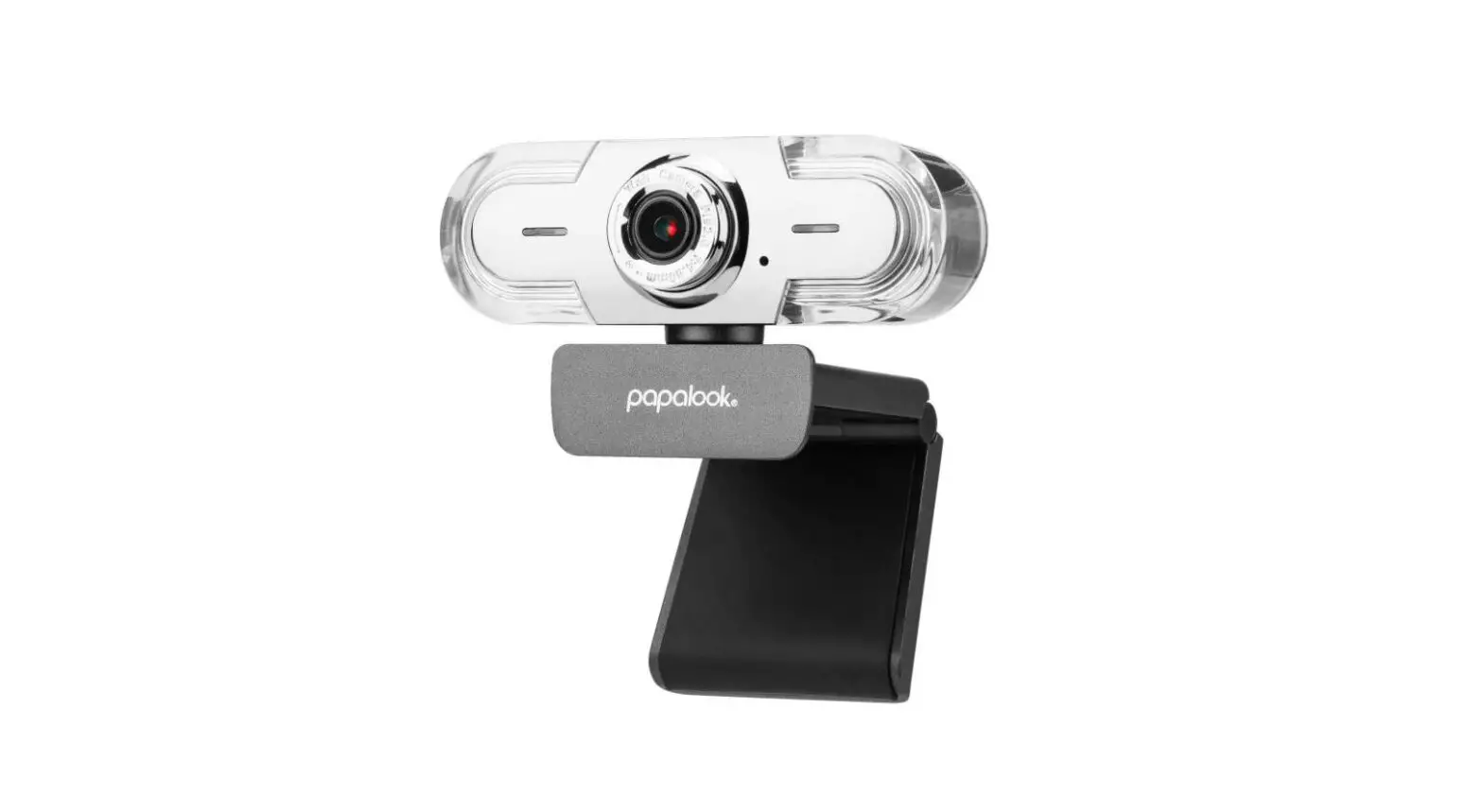

papalook PA452 PRO 1080P WebCam with Microphone
Introduction
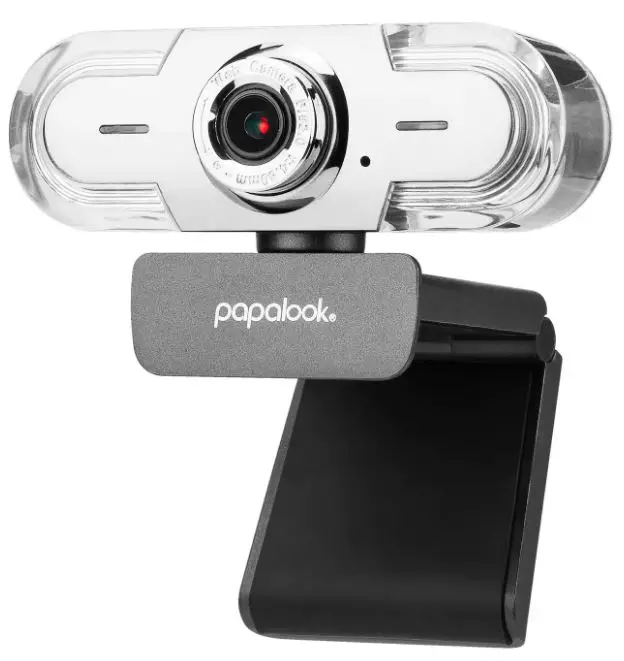
Thank you for purchasing papalook PA452 PRO 1080P HD WebCam, papalook PA452 PRO is a WebCam with ultra strong compatibility such as win10 and Mac OS10.6, high-resolution, built-in microphone with noise reduction compared to papalook PA452. PA452 PRO also provides 2.0 super-large aperture making first-class shots possible even in 5 lux light.
Note: Please read the user’s manual carefully before using, and keep it properly for future reference.
Package Contents
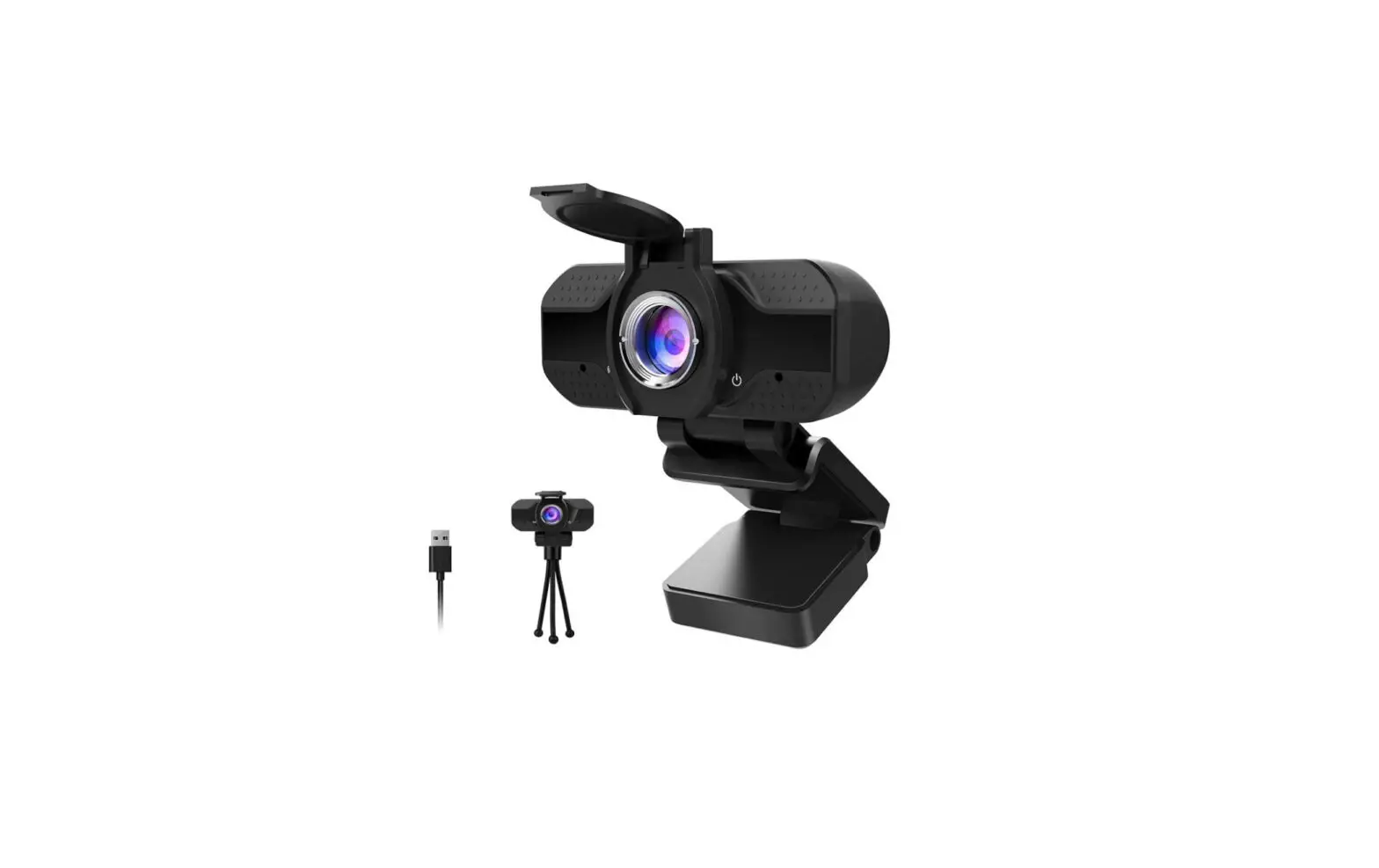
- WebCam x1
- User’s Manual x1
Features
- Video Mode: MJPG & YUY2
- Transmission Rate: (1920*1080) 30F/S; (1280*720) 30F/S; (640*480) 30F/S
- Built-in noise cancelling microphone
- Compatible with Windows XP/7/8/10 or later, Mac OS 10.6 or later, Chrome OSTM, Android v5.0 or above.
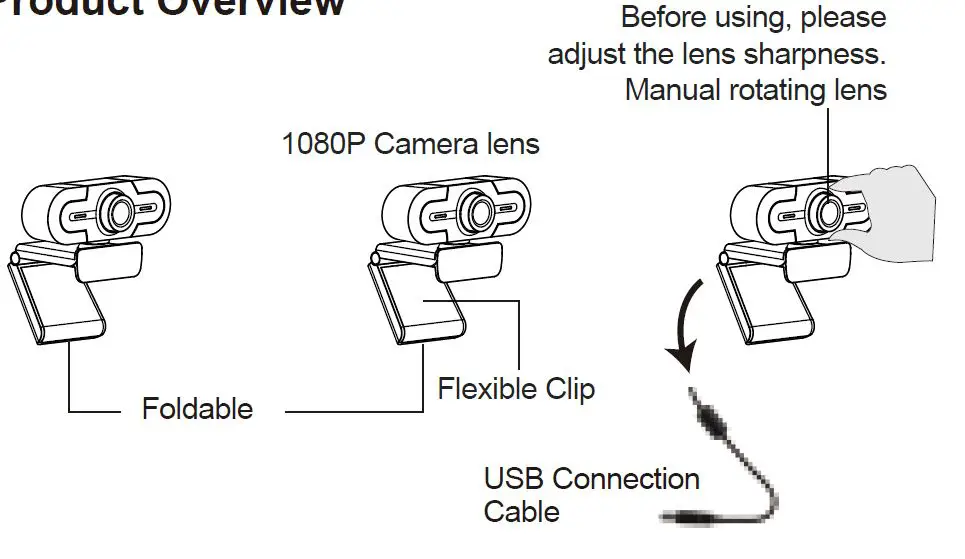
- Adjust the focus by manual rotation
- More better clip-clasp, more stable and support universal tripod.
Note: Feature and Spec. are subject to be changed without any notice.
System Requirements
- IBM PC or compatible PC or laptop with USB port
- Pentium 1G or higher CPU
- Over 500MB free hard-disc space
- 256MB memory
- Support DirectX 9.0 VGA card
For HD 1080P Video Recording
- 2.4GHz Intel CoreTM 2 Duo
- 2 GB RAM
- 1GB hard drive space
- USB 2.0 port
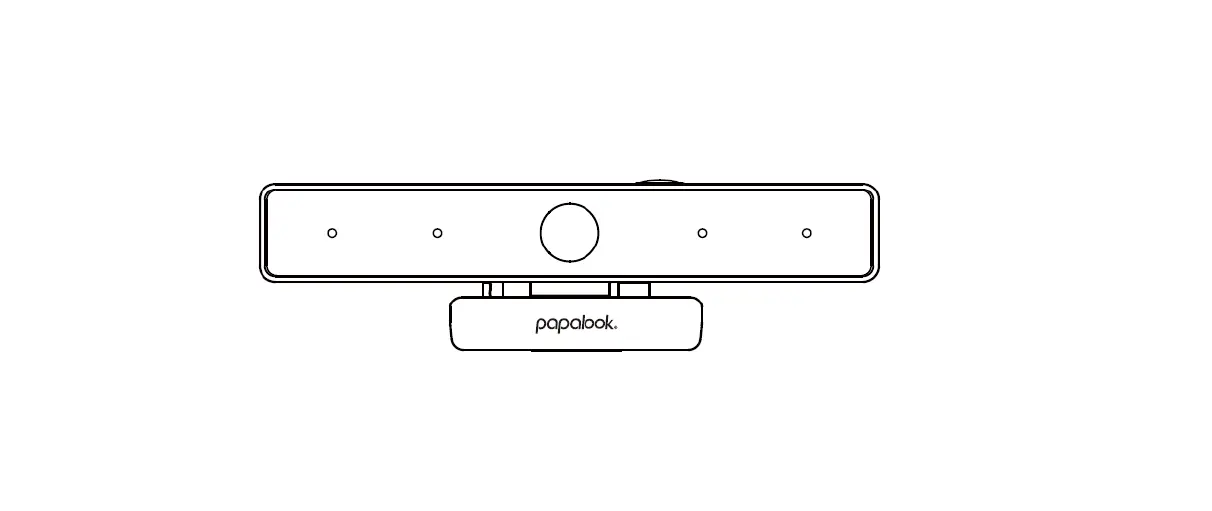
Product Overview
Mounting and Connecting the Camera
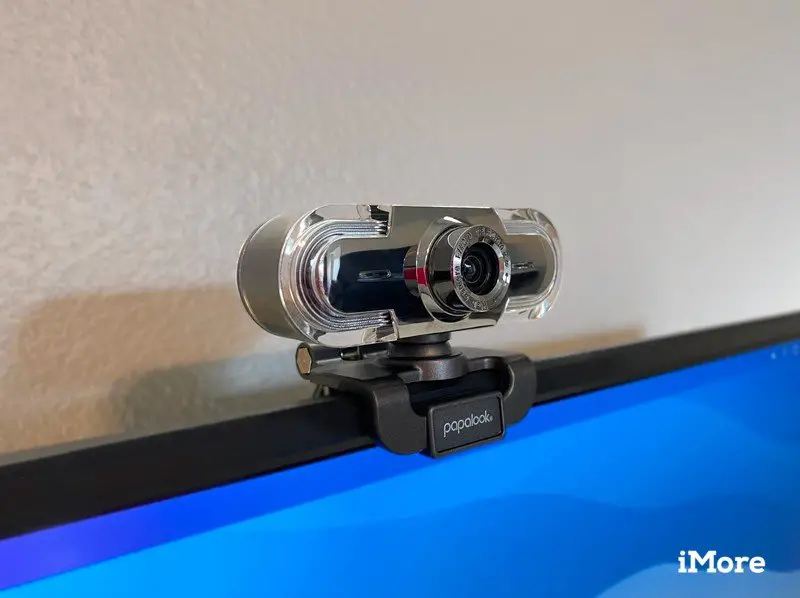
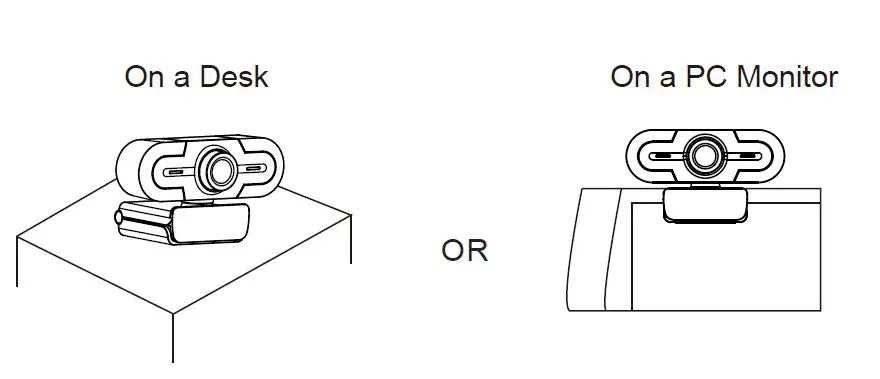
- Place the WebCam where you want it on a computer monitor or a flat surface desktop. For a computer monitor deployment, unfold the flexible clip and place the WebCam on your computer monitor to grip the edge of the screen with the foldable flexible clip. After fixing the WebCam, connect the USB cable to your PC’s USB port.

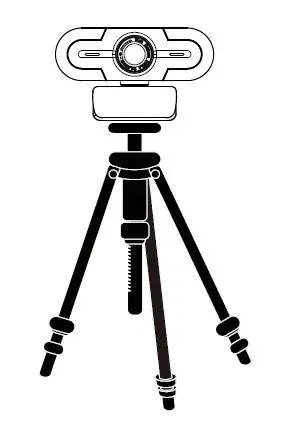
- Use a universal tripod to rotate the hole in the bottom of the item, then you can place the item where you want.

How to use the camera?
Plug and play on Windows XP/Vista/7/8/10, you can use it to make video calls on any application with your friends. Or you can download AMCAP Webcam Software to check whether it works, and use this software to record a video. Only download and open it easily, no need to install. Available from https://www.papalook.com .
Using AMCAP Software Steps:
Please connect the webcam to your computer before opening the AMCAP software.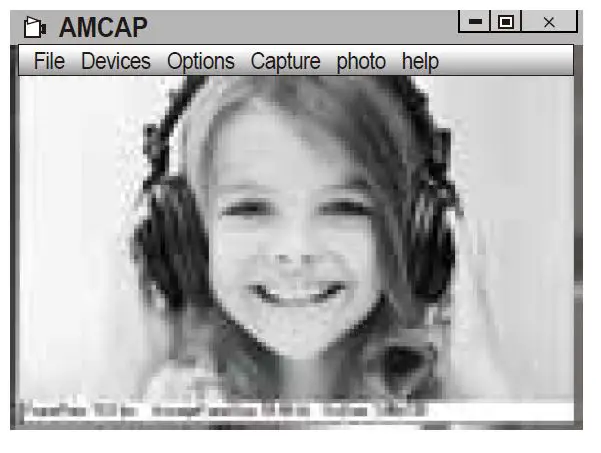
- If the window is blank, please click the “Options”to select “preview”

- You can set attribute like video/phone format/window size, click Options to Choose “Video Capture Pin…”

- If you don’t want to use microphone, the setting steps are as follows:
My computer → Press“right-handbutton” → Manage → Device manager → Sound, Game, Video controller → USB Audio device → Press “right-hand” button → Stop - How to adjust microphone volume?
- XP system:right click the voice icon in the lower right corner,open the volume controller → Option → Attribute → Audio mixer → Choose”USB Audio Device” or “USB Microphone” → Sure → Adjust volume as your need.
- Win7/8/10/Vista system: Control panel → Sound → Record. Double click USB Audio Device or USB Microphone → Microphone attribute → level → Adjust volume as your need.
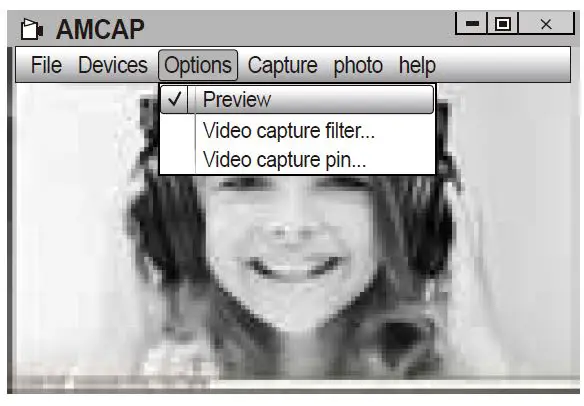
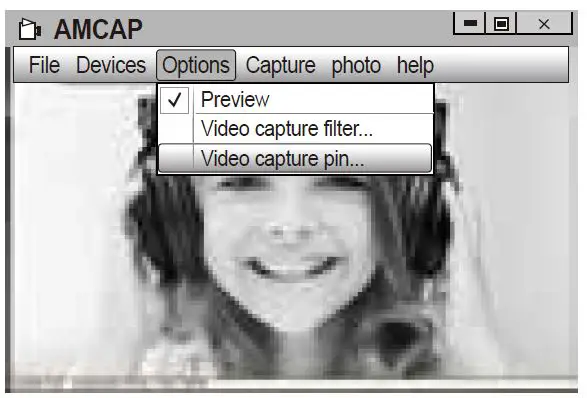
How to record your videos?
Capture → Start Capture → Select OK to start capture of video sequence to save the files . You can select a directory for saving capture videos before Starting Capture , File → Set Capture Directory.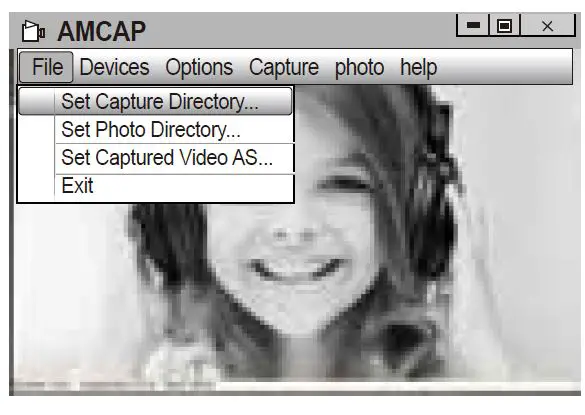
Warranty
The PA452 PRO is covered by a 1-year manufacturer warranty. For more information, visit:www.papalook.com
Specifications
|
Lens Spec. | F/No. | 2.0 |
| Viewing Angle | Horizontal: 90° | |
| Zoom | Yes | |
| Microphone Spec. | MIC. | Built-in with noise cancelling |
| S.P.L | -36±2dB | |
| Directivity | Omni-directional | |
| Hardware Spec. | Interface | USB2.0 (Free Driver) |
| Max Working Current | ≤230mAh | |
| Support OS | Windows XP/7/8/10 or later, Mac OS 10.6 or later, Chrome OSTM, Android v5.0 or above. | |
|
Video/Image Spec. | Video Resolution (Video mode: YUY2) | Max. Resolution: 1920*1080 30fps |
| Min. Resolution: 320*240 30fps, Default: 1280*720 8fps | ||
| Video Resolution (Video mode: MJPG) | Max. Resolution: 1920*1080 30fps | |
| Min. Resolution: 320*240 30fps, Default: 1280*720 30fps | ||
| Photo Resolution | 1920*1080 | |
| Photo Format | JPG | |
| Operating Temp. | -10˚C-45˚C |
Note: Features and technical specifications are subject to change without notice, we apologize for any inconvenience.
 alza.co.uk
 alza.de
 alza.hu
 alza.sk
 AUDSOM: Bring People Together
 papalook: Always Stay Connected