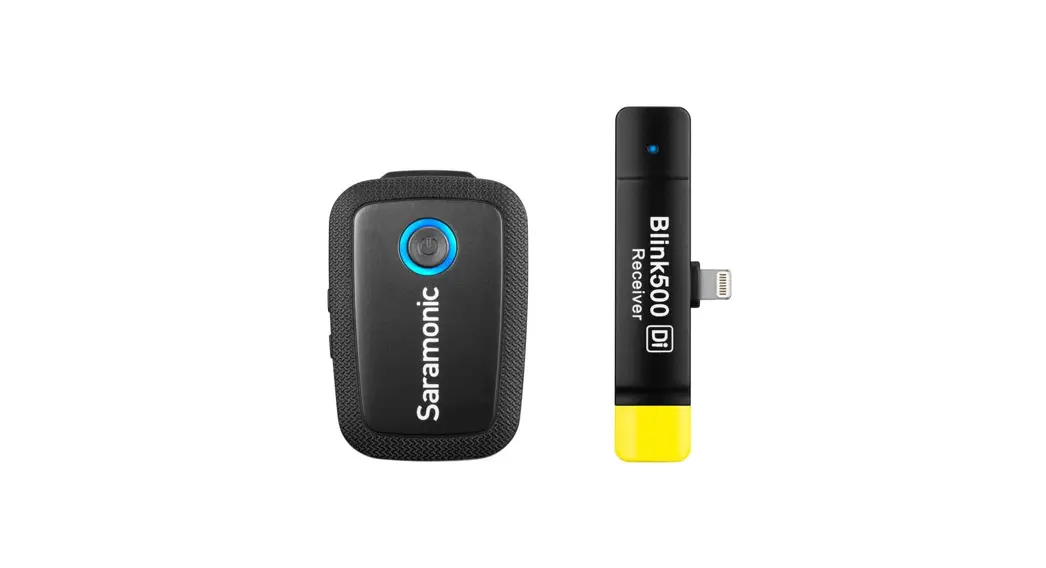
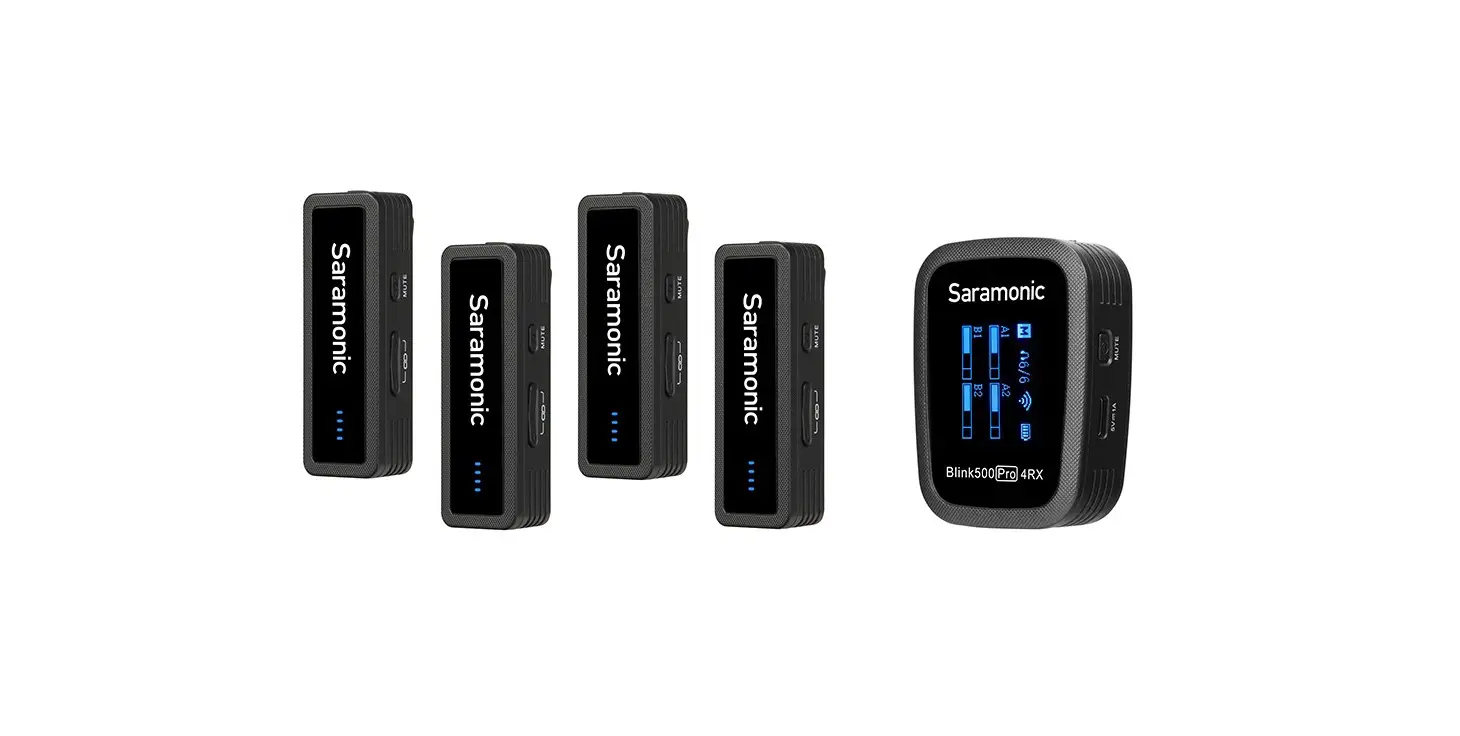
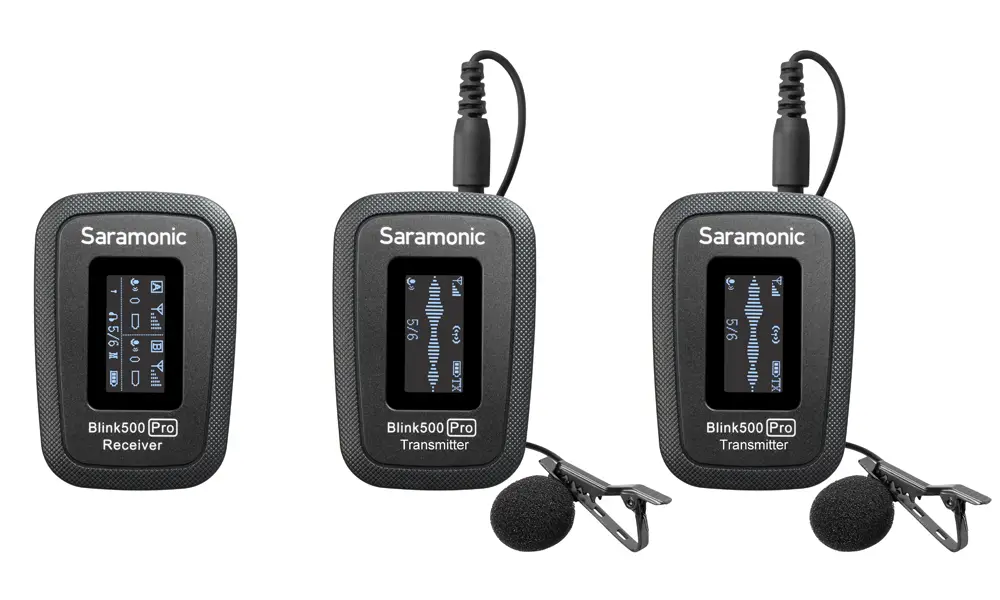
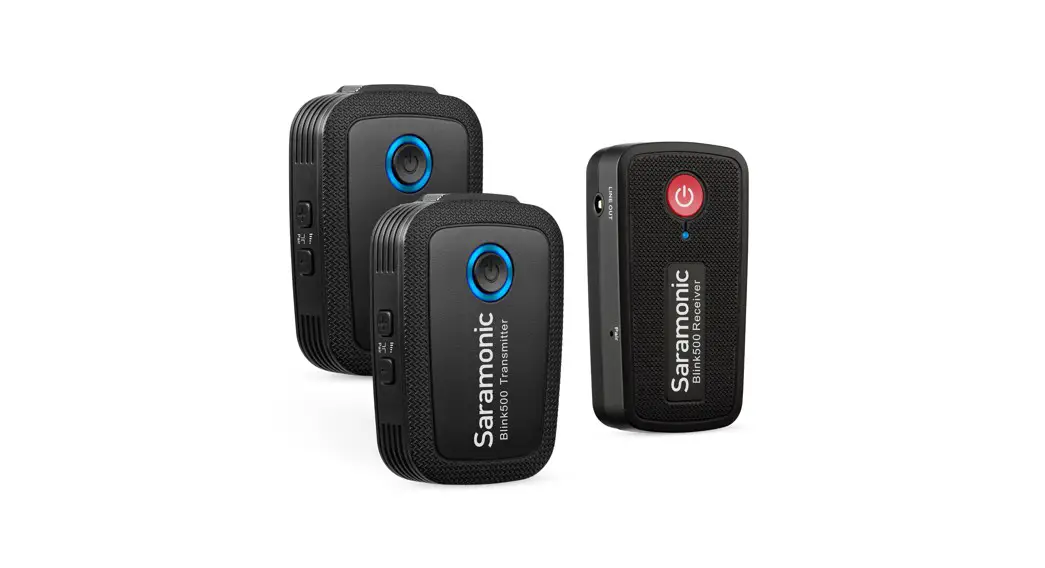
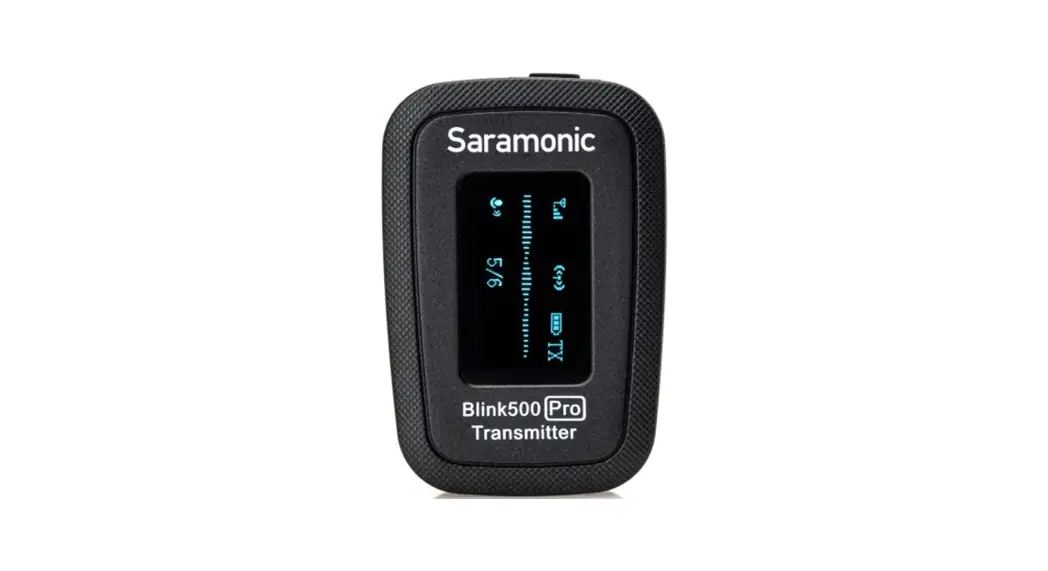
BlinkMe 2.4GHz Wireless Smart Microphone with Touchscreen
Product Information: 2.4GHz Wireless Smart Microphone with
Touchscreen
The 2.4GHz Wireless Smart Microphone with Touchscreen is a
wireless microphone that allows for easy recording of high-quality
audio. It operates on a 2.4GHz frequency and comes with a
transmitter, a receiver, and a microphone capsule. The microphone
capsule is built with noise reduction technology and can be muted
or unmuted using the touchscreen. The device also has an onboard
recording feature that can be enabled or disabled using the
touchscreen. The device can be charged using the USB-C port and has
a 3.5mm monitor port for audio output.
Transmitter
The transmitter is the device that captures the audio and sends
it wirelessly to the receiver. It has a touchscreen screen that
displays the wireless signal strength, battery level, noise
reduction status, and input gain level. The transmitter can be
muted or unmuted using the touchscreen, and the onboard recording
feature can be enabled or disabled using the touchscreen.
Receiver
The receiver is the device that receives the wireless audio
signal from the transmitter and outputs it through its 3.5mm
auto-sensing output or its 3.5mm monitor port. It has a touchscreen
screen that displays the battery level and output gain level.
Touchscreen Operations
The touchscreen allows users to control various settings of the
device, such as onboard recording, noise reduction, TX gain,
brightness, display, and settings. Users can also adjust the input
gain level of the transmitter using the touchscreen.
Product Usage Instructions
- Charge the microphone using the USB-C port.
- Turn on both the transmitter and receiver.
- The LED indicator on both devices will blink blue slowly when
unpaired. - Press and hold the magnet on the transmitter until the LED
indicator blinks blue quickly to enter pairing mode. - Press and hold the magnet on the receiver until the LED
indicator blinks blue quickly to enter pairing mode. - The LED indicator on both devices will turn static blue when
paired successfully. - Connect your headphone to the receiver’s 3.5mm monitor port to
monitor the audio output. - For analog audio output to a camera, smartphone, or mixer,
connect the receiver’s 3.5mm auto-sensing output to the device’s
audio input. - Adjust the input gain level of the transmitter using the
touchscreen’s Gain control slider. Note that the transmitter gain
will affect the volume of the recorded audio. - Enable or disable the onboard recording feature using the
touchscreen’s Onboard Recording setting. - Mute or unmute the microphone using the touchscreen.
- Adjust the brightness of the touchscreen using the
touchscreen’s Brightness slider. By default, this will turn screen
brightness to 50% and turn the screen off after 10 seconds of
inactivity.
2.4GHz Wireless Smart Microphone with Touchscreen
2.4GHz
BlinkMe
User Manual
Statement
Please read this manual carefully before using and strictly operate and store it in accordance with the instructions. Please save the manual for your future reference. If you need further assistance than the user manual, please consult your retailer for help or email us: [email protected] · Non-professional teardown is strictly prohibited. · Please keep it away from heat sources such as heaters or ovens. · Do not remove the battery without professionals’ help. · Please clean the device with only a soft, dry cloth. · When using and storing, please keep away from the dust and moisture.
General Introduction
The Saramonic BlinkMe, a professional dual channel wireless microphone system with touchscreen, which can be used with different magnetic accessories. This ultra-portable and incredibly lightweight mic system boasts universal compatibility with tablets, laptops, cameras, recorders, mixers, and other audio/ video recording devices. Ideal for content creators, filmmakers, journalists, vloggers, live streaming, and so much more. · Quick and easy to operate the intuitive touchscreen · Separate OS without having to rely on any application · Smart onboard recording capability · Also available in 48kHz HD audio when noise reduction enabled · The receiver can charge the transmitter(s) · Customize the wallpaper for the transmitter through the Saramonic App · A magnetic system with several accessories · Flexibly attach or remove the transmitter to or from clothes
01
Overview
Transmitter
Microphone Capsule
Touchscreen
Power Button · Press and hold for 3 seconds power
on or off. · Press twice to lock or unlock the
screen.
LED Indicator Indicates the status of the transmitter when its screen is turned off.
Indicator Blinking blue slowly Blinking blue quickly Static blue Blinking red slowly Blinking red quickly Static red Red light off
Status Unpaired Pairing Paired successfully Mute Low battery Charging Fully charged
NR Button · Press to enable or disable noise
reduction. · Press twice to enable or disable
onboard recording. · Press and hold for 1.5 seconds to
mute or unmute the microphone.
Contacts
Magnet
02
Receiver
LED Indicator Indicates the status of the receiver when its screen is turned off.
Indicator Blinking blue slowly Blinking blue quickly Static blue Blinking red quickly Static red Red light off
Status Unpaired Pairing Paired successfully Low battery Charging Fully charged
Magnet Power Button · Press and hold for 3 seconds power
on or off. · Press twice to lock or unlock the
screen. Contacts
+/- Button Press to turn up or turn down the output gain level of the receiver in 3dB increments from -12dB to +12dB.
Touchscreen USB-C Port
Used for charging the receiver and transferring data. 3.5mm Monitor Port Connect your headphone to monitor the audio output. 3.5mm Auto-Sensing Output (TRS/TRRS) For analog audio output to a camera, smartphone or mixer, etc.
03
Touchscreen Operations
Transmitter
· From the Home screen, press the power button to turn the screen on or off.
· To return to the Home page from any other pages, press the power button once.
· Press the power button twice to lock or unlock the screen and return to the Home page.
Indicates the screen is locked or unlocked. It is recommended that you can lock your screen to avoid
accidental taps during a recording. By default, the device returns to the Home screen automatically when the screen is locked. Indicates the current wireless signal strength between transmitter 1 and the receiver. A gray icon indicates a failed connection. Indicates the battery level of the transmitter. Indicates the noise reduction is enabled. Indicates the audio input level.
Reduce the transmitter gain accordingly when the volume bar turns red. Indicates the microphone is muted. Indicates the onboard recording is enabled. Indicates the input gain of the transmitter. Indicates the left or right sound channel. Indicates Stereo, Mono or Safety Channel mode.
04
From the Home screen, swipe up from the bottom of the screen to access device settings. Swipe up or down to select Onboard Recording, Noise Reduction, TX Gain, Brightness, Display and Settings. From device settings, tap to return to the previous screen.
REC Protection Auto Recording
When the function is activated, the onboard recording can only be disabled by operating the screen instead of pressing the button. When the function is activated, the onboard recording will be enabled automatically as soon as the transmitter is switched on.
Bit Depth
Tap to set bit depth to 16bit or 24bit.
Original sound
Default to original sound. Select original sound or HD
HD noise reduction noise reduction on demand.
Drag the Gain control slider to adjust the input gain level of the transmitter in 1dB increment from -12dB to +12dB. Note that the transmitter gain will affect the volume of the recorded audio.
Power saving
Drag the Brightness slider to adjust the screen brightness. By default, when enabled, this will turn screen brightness to 50% and turn the screen off after 10 seconds of inactivity.
Always on Auto screen off
When enabled, the screen will always stay on. Scroll up or down to set the time when the screen is turned off automatically.
Pairing Language
Tap to access the page where you can pair the transmitter with the receiver. Tap to choose a language.
Date & Time
Tap to set the date and time for the recording files.
Reset
Tap to restore the transmitter to its factory default settings, which resets everything except the onboard recording files and current pairing status.
Version
Tap to view the firmware version and serial number of the transmitter.
Cert info
Tap to view certification information.
05
From the Home screen, swipe down from the top of the screen to display Quick settings.
Power saving Always on Auto screen off
Tap to switch.
Microphone muted Microphone unmuted
Onboard recording enabled Onboard recording disabled
Tap to switch. Tap to switch.
Settings
Tap to quickly access.
Themes Choose a theme you want to be applied to your Home screen. 1. From the Home screen, touch
and hold the screen. 2. Swipe up or down to view
nine types of default themes. 3. Tap the screen to apply the
selected theme.
If you want, you also can customize the wallpaper for your Home screen on the Saramonic app. To download the app, scan the QR code on the screen.
06
Receiver
· To return to the Home page from any other pages, press the power button once.
· Press the power button twice to lock or unlock the screen and return to the Home page.
Indicates the screen of the receiveris locked or unlocked. It is recommended that you can lock your screen to avoid
accidental taps during a recording. By default, the device returns to the Home screen automatically when the screen is locked. Left and right sides: The transmitter’s battery level. Middle of the screen: The receiver’s battery level. Indicates that the receiver is charging.
Indicates that the transmitter is being charged by the receiver. Indicates that the receiver is in Mono, Stereo, or Safety Channel mode. Left and right sides: The transmitter’s input gain. Middle of the screen: The receiver’s output gain. Indicates the wireless signal strength between transmitter 1 and the receiver. Indicates the wireless signal strength between transmitter 2 and the receiver. If there’s no second transmitter connected, this icon will not be displayed. Indicates the audio input level.
Reduce the transmitter gain accordingly when the volume bar turns red. Indicates the left or right sound channel. Under Stereo mode, transmitter TX1 matches the left channel, transmitter TX2 matches the right channel. Indicates the onboard recording is enabled. Indicates the microphone is muted.
07
From the Home screen, swipe down from the top of the screen to access device settings. Swipe left or right to select Recording Mode, RX Gain, TX Gain, Display and Settings. From device settings, swipe up from the bottom of the screen to return to the previous screen.
Mono Stereo
Signal from the transmitter or both transmitters can be mixed together and recorded identically to left and right channels. Signals from each transmitter can be recorded to a separate channel.
Safety Channel
Similar to Mono mode, the audio of the right channel will be recorded in -6dB in case distortion in your recordings. Drag the Gain control slider to adjust the output gain level of the receiver in 1dB increment from -12dB to +12dB. The receiver gain can be reduced if the sound is distorted.
Power Power saving
saving
In the paired state, tap left or right to set TX1 or TX2. Drag the Gain control slider to adjust the input gain level of the transmitter(s) in 1dB increment from -12dB to +12dB. Note that the transmitter gain will affect the volume of the recorded audio. By default, when enabled, this will turn screen brightness to 50% and turn the screen off after 10 seconds of inactivity.
Always Always on on Pairing Brightness Language
Reset
Version Cert info
When enabled, the screen will always stay on. Tap to pair the receiver with the transmitter(s). Tap it, then drag the Brightness slider to adjust the screen brightness. Tap it, then swipe left or right to choose a language. Tap to restore the receiver to its factory default settings, which resets everything except the current pairing status. Tap to view the firmware version and serial number of the receiver. Tap to view certification information.
08
To access transmitter TX1 or TX2 settings from the Home screen, swipe up on the left or right side of the screen.
Onboard recording enabled Tap to switch.
Onboard recording disabled
Microphone muted Microphone unmuted Memory
Format
Tap to switch.
Indicates the remaining available time for recording. Tap to access a submenu. Tap to erase the onboard recording files of the transmitter.
Using BlinkMe
Transmitter
Use the magnetic clip to attach the transmitter to clothes. 09
Use the magnets to attach the transmitter to clothes. Receiver
1. Connect a camera, a smartphone or a laptop to the 3.5mm auto-sensing audio output of the receiver with an adapter cable.
2. Plug your headphones for audio monitoring as your need. 10
How to Pair The transmitter and receiver are paired by default. If they are disconnected, please tap the screens of the transmitter and receiver to enter Settings, and then tap “Pair” to reconnect.
1. When both TX1 and TX2 need to be paired with RX, operate the transmitter first, and then operate the receiver.
2. If the screen of a device is failed to operate, press and hold the power button for 18 seconds to force the shutdown of the device, and then press and hold the power button for 3 seconds to turn the device on.
3. Due to the 2.4GHz wireless frequency is widely used, the signal may be easily attenuated or interfered. Please try to avoid obstacles while using, such as walls and buildings. And keep away from the devices with 2.4GHz frequency, such as high-power Wi-Fi antennas, radios, etc.
How to Charge
1. To charge the transmitter(s), please place it(them) on the receiver. If the receiver reaches its safe battery level, it will stop charging the transmitter(s).
2. Use the included USB-A to USB-C cable to charge the receiver when the battery is low. 11
Audio Output for Dual Devices
To output audio simultaneously, connect the receiver to two devices via the 3.5mm auto-sensing output or USB-C output using a correct cable.
Onboard Recording · The memory can store up to 22 hours of recording at the 48kHz/16bit sampling rate.
The memory can store up to 15 hours of recording at the 48kHz/24bit sampling rate. · The file will be automatically split after 30 minutes of recording, making it easy to
quickly find your desired recording segment. · By default, the recording files are named in the format “DATE-TIME.WAV”. Up to 999
recording files can be created. · If the memory is full, the original file will be automatically overwritten with the latest
file from the beginning. Note that in this mode, the “mute” function will not affect the onboard recording.
12
Loading Files
This PC
WindowsC: SoftwareD: USB DriveE: USB DriveF:
This PC Devices and drives4
WindowsC: 100GB free of 256GB USB DriveE: 3GB free of 7.28GB
SoftwareD: 200GB free of 500GB
USB DriveF: 5GB free of 7.28GB
Place the transmitters on the receiver, and then connect a laptop to the receiver’s USB-C port to read the recording files of TX1 and TX2.(You can rename the device in the Saramonic app.)
13
Specifications
Display Transmission Type Modulation Polar Pattern Antenna Operating Range (without obstacles)
Sampling Rate Frequency Response Signal-to-Noise Ratio Maximum SPL Sensitivity Audio Input Connector Monitoring Connector Audio Output Connector Power Requirements
Battery Specification
Charging Connector Charging Time
Battery Life
Memory
Weight
Dimensions
Operating Temperature Storage Temperature
TFT 2.4GHz digital frequency Digital modulation Omnidirectional In-built antenna
328′ (100m)
48KHz 20Hz-20KHz >80dB 110dB SPL -39±2dB TX: In-built condenser microphone RX: 3.5mm monitor port RX: 3.5mm auto-sensing output (TRS/TRRS) In-built rechargeable lithium-ion battery TX: 3.85V/495mAh RX: 3.7V/1600mAh TX: Charging contacts RX: USB-C RX: Approx. 2.5 hours (using 5V/2A charger) TX: Approx. 5 hours (onboard recording enabled)
Approx. 8 hours (onboard recording disabled) RX: Approx. 24 hours (One TX fully charged) TX: 8GB TX: 1.06oz (30g) RX: 2.47oz (70g) TX: ø1.85×0.49” (ø47×12.5mm) RX: 2.23×2.23×0.99” (56.6×56.6×25.2mm) 0°C to +50°C -10°C to +50°C
14
Troubleshooting
If you encounter problems when using the unit, please refer to the following checklist before contacting technical support. If the problem cannot be solved, please contact the dealer’s after-sales service department.
· If there is no sound from the unit or no sound when connected to an external device
Make sure that the connecting cable between the product and the device is not loose.
Make sure the gain and volume are not turned to minimum. Make sure the transmitter is not muted.
· If sound of the unit is too low or too loud or even distorted Adjust mic gain and volume to the suitable level for recording in the current environment to improve the recording effect.
· Current noise or other abnormal noise appears during monitoring Replace the connecting cable. Make sure there is no interference near the unit. If the noise still exists after
changing the unit’s position, please contact our customer service.
· Failed to communicate with the other party when using applications such as live stream, conference, or communication (the other party’s voice cannot be heard via the 3.5mm monitor port) Make sure to connect your device to the receiver’s USB-C port. The receiver’s 3.5mm output port can only output audio but cannot communicate with the other party.
· The operating range of the unit is limited and the sound is intermittent frequently Make sure there is no interference between the transmitter and receiver. If the intermittent sound still occurs frequently, please contact our customer service.
· If the transmitter or receiver suddenly freezes up Press and hold the power button of the transmitter or receiver for 18 seconds to force the shutdown.
15
Other Accessories
Screen Protector for Transmitter
3.5mm TRS Male to Lightning Audio Cable (SR-C2000) (sold separately)
Screen Protector for Receiver
Remove it Clear the dust on the screen Stick on the screen protector
3.5mm TRS Male to USB-C Audio Cable (SR-C2001)
(sold separately)
16
Contents of BlinkMe B2
2× Transmitter
1× Receiver
2× Magnetic Clip
1× 1/4” Magnetic Cold Shoe Adapter
4× Magnet
2× Fur Windshield
1× MVC Phone Holder
1× USB-A to USB-C Cable
1× 3.5mm TRRS to 3.5mm TRRS Audio Cable
2× Screen Protector for Transmitter
1× Screen Protector for Receiver
17
FCC Caution: Any Changes or modifications not expressly approved by the party responsible for compliance could void the user’s authority to operate the equipment. This device complies with part 15 of the FCC Rules. Operation is subject to the following two conditions: (1) This device may not cause harmful interference, and (2) this device must accept any interference received, including interference that may cause undesired operation.
IMPORTANT NOTE: Note: This equipment has been tested and found to comply with the limits for a Class B digital device, pursuant to part 15 of the FCC Rules. These limits are designed to provide reasonable protection against harmful interference in a residential installation. This equipment generates, uses and can radiate radio frequency energy and, if not installed and used in accordance with the instructions, may cause harmful interference to radio communications. However, there is no guarantee that interference will not occur in a particular installation. If this equipment does cause harmful interference to radio or television reception, which can be determined by turning the equipment off and on, the user is encouraged to try to correct the interference by one or more of the following measures: –Reorient or relocate the receiving antenna. –Increase the separation between the equipment and receiver. –Connect the equipment into an outlet on a circuit different from that to which the receiver is connected. –Consult the dealer or an experienced radio/TV technician for help.
FCC Radiation Exposure Statement: This equipment complies with FCC radiation exposure limits set forth for an uncontrolled environment.
ISEDC Warning This device complies with Innovation, Science, and Economic Development Canada licence-exempt RSS standard(s). Operation is subject to the following two conditions: (1) this device may not cause interference, and (2) this device must accept any interference, including interference that may cause undesired operation of the device.
Le présent appareil est conforme aux CNR d’ Innovation, Sciences et Développement économique Canada applicables aux appareils radio exempts de licence. L’exploitation est autorisée aux deux conditions suivantes : (1) l’appareil nedoit pas produire de brouillage, et (2) l’utilisateur de l’appareil doit accepter tout brouillage radioélectrique subi, même si le brouillage est susceptible d’en compromettre le fonctionnement.
The device is compliance with RF exposure guidelines, users can obtain Canadian information on RF exposure and compliance. Le présent appareil est conforme Après examen de ce matériel aux conformité ou aux limites d’intensité de champ RF, les utilisateurs peuvent sur l’exposition aux radiofréquences et la conformité and compliance d’acquérir les informations correspondantes.
V03
For better recording experience, the application Saramonic is recommended. Saramonic Saramonic
Scan the QR code and follow us
Shenzhen Jiayz Photo Industrial., Ltd
A16 Building, Intelligent Terminal Industrial Park of Silicon Valley Power, Guanlan, Longhua District, Shenzhen, China A16
400-613-1096
www.saramonic.com
 Saramonic-Premium Microphones, Headphones and other Pro Audio Accessories