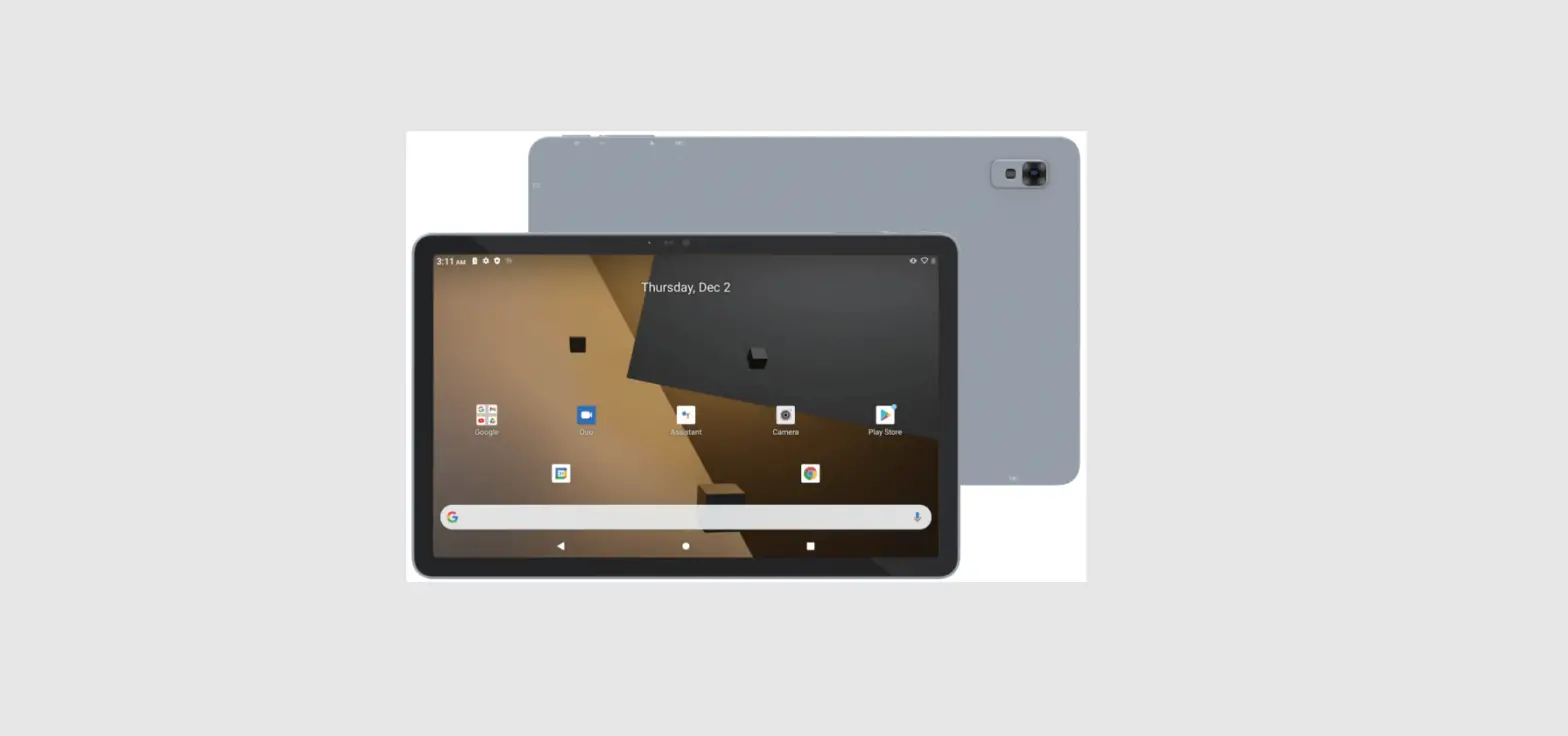
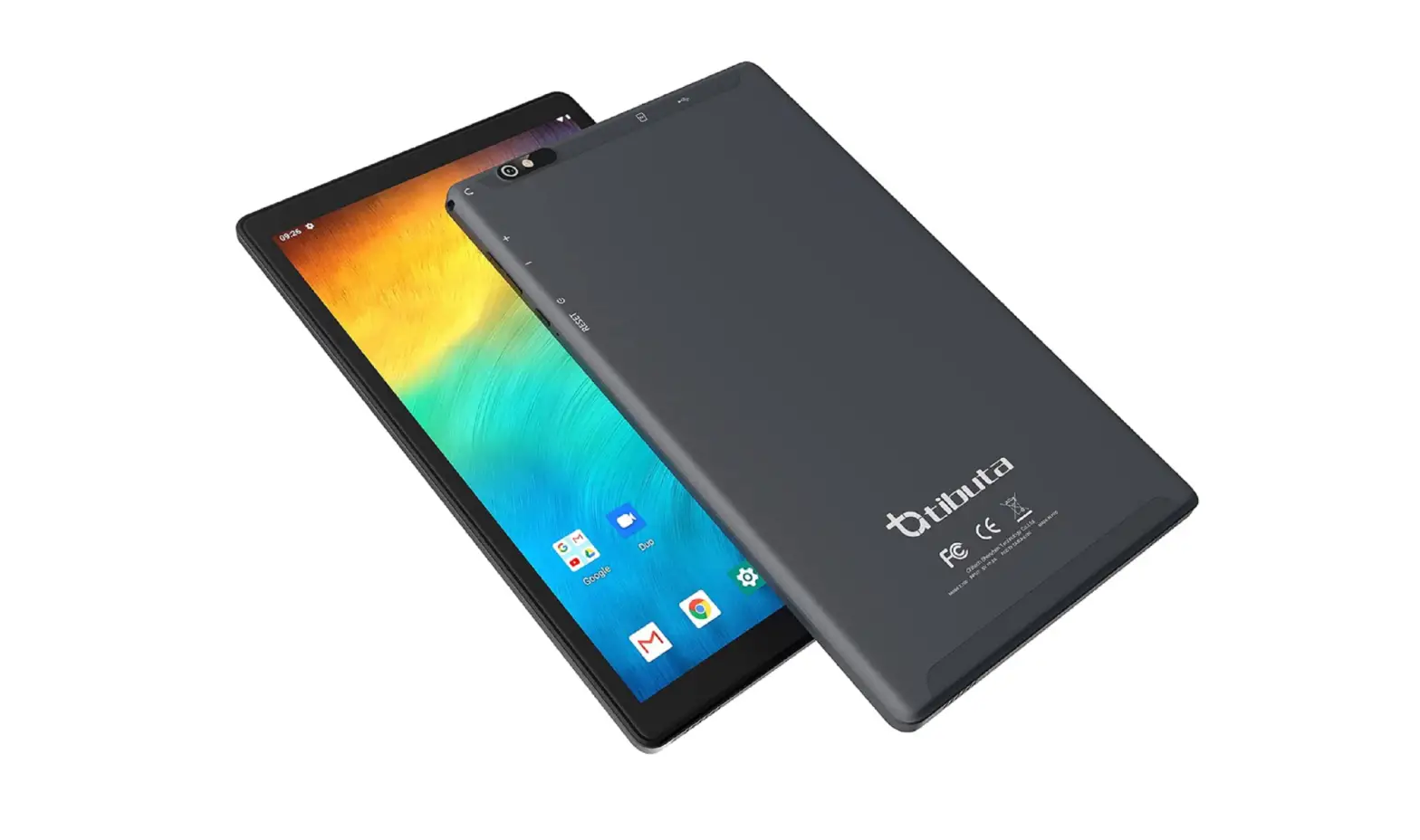
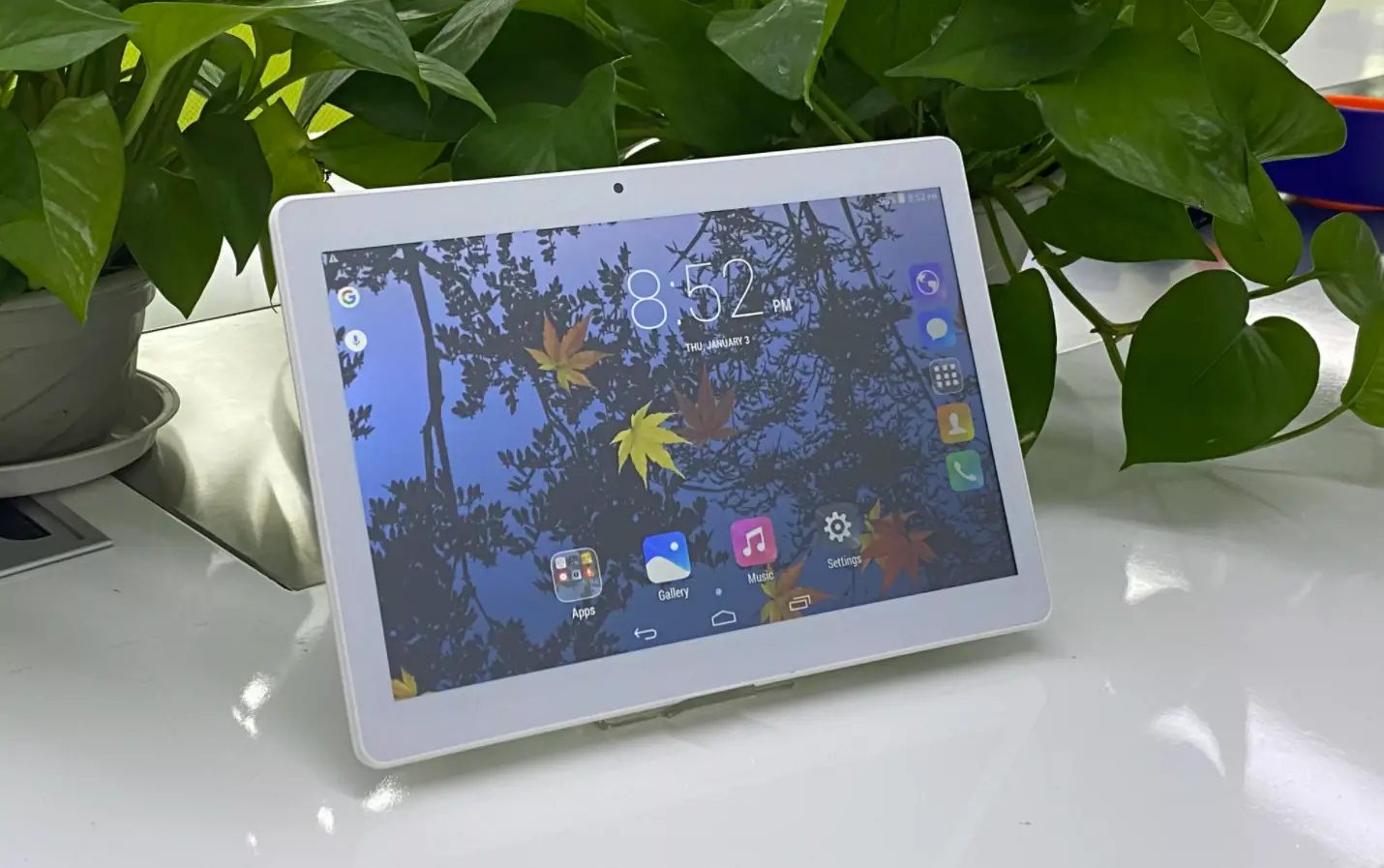
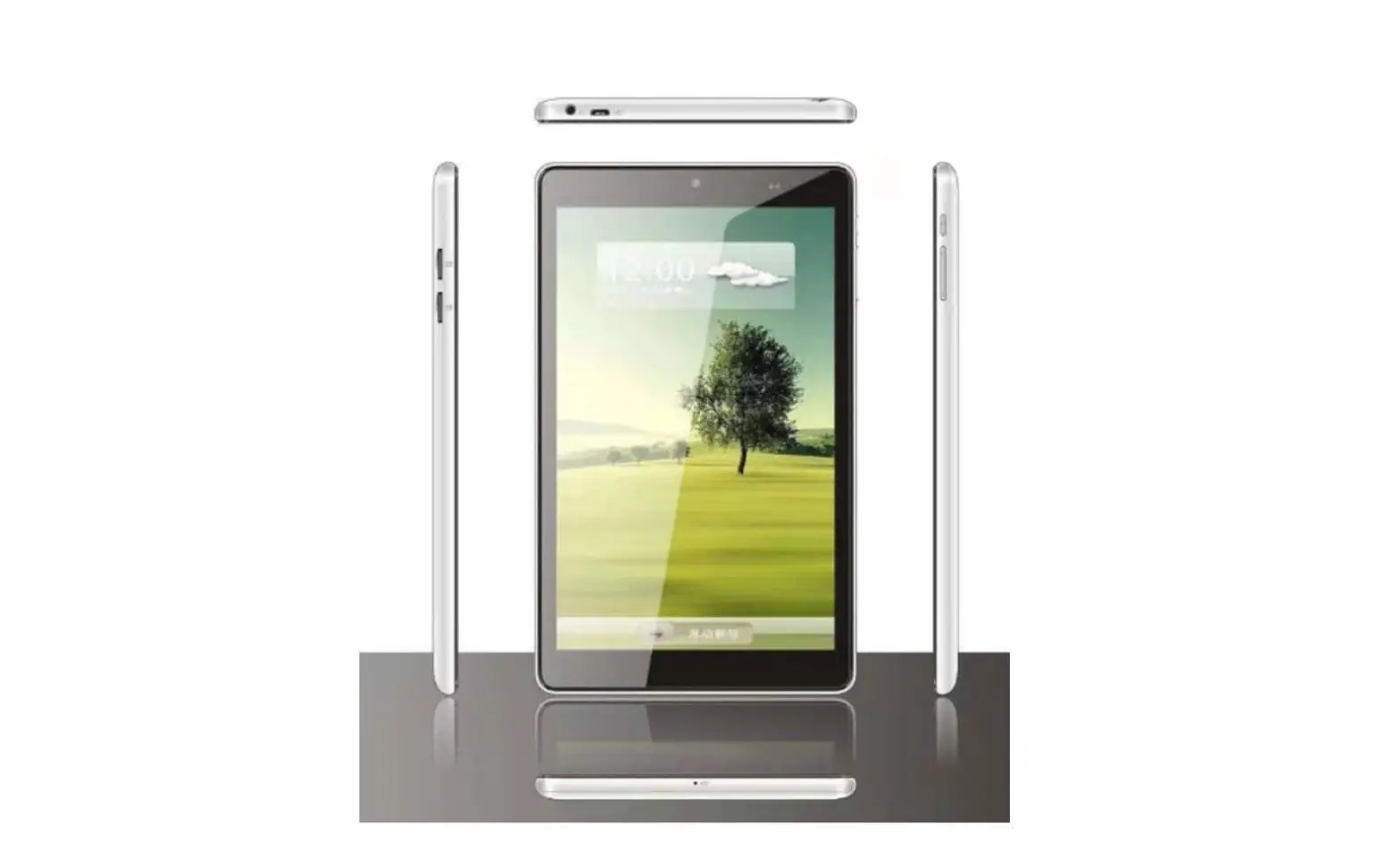
E200 Tablet
TIBUTA User Manual
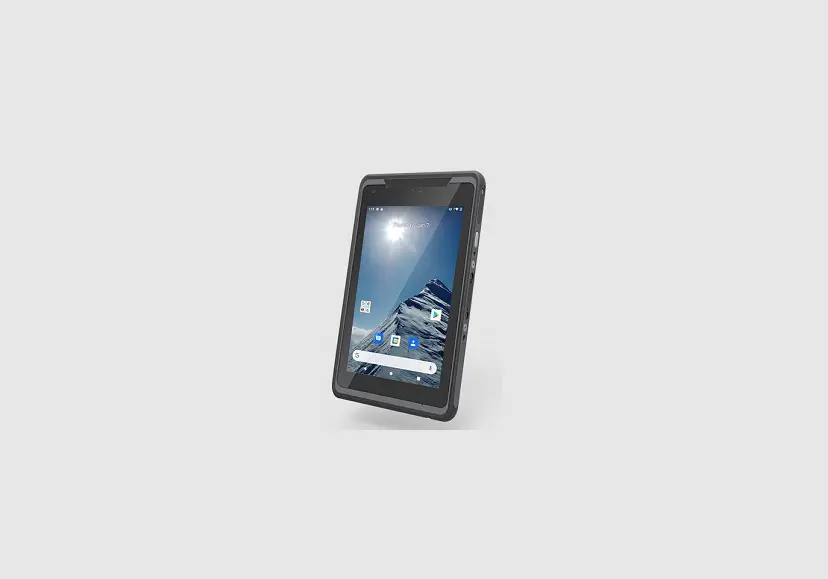
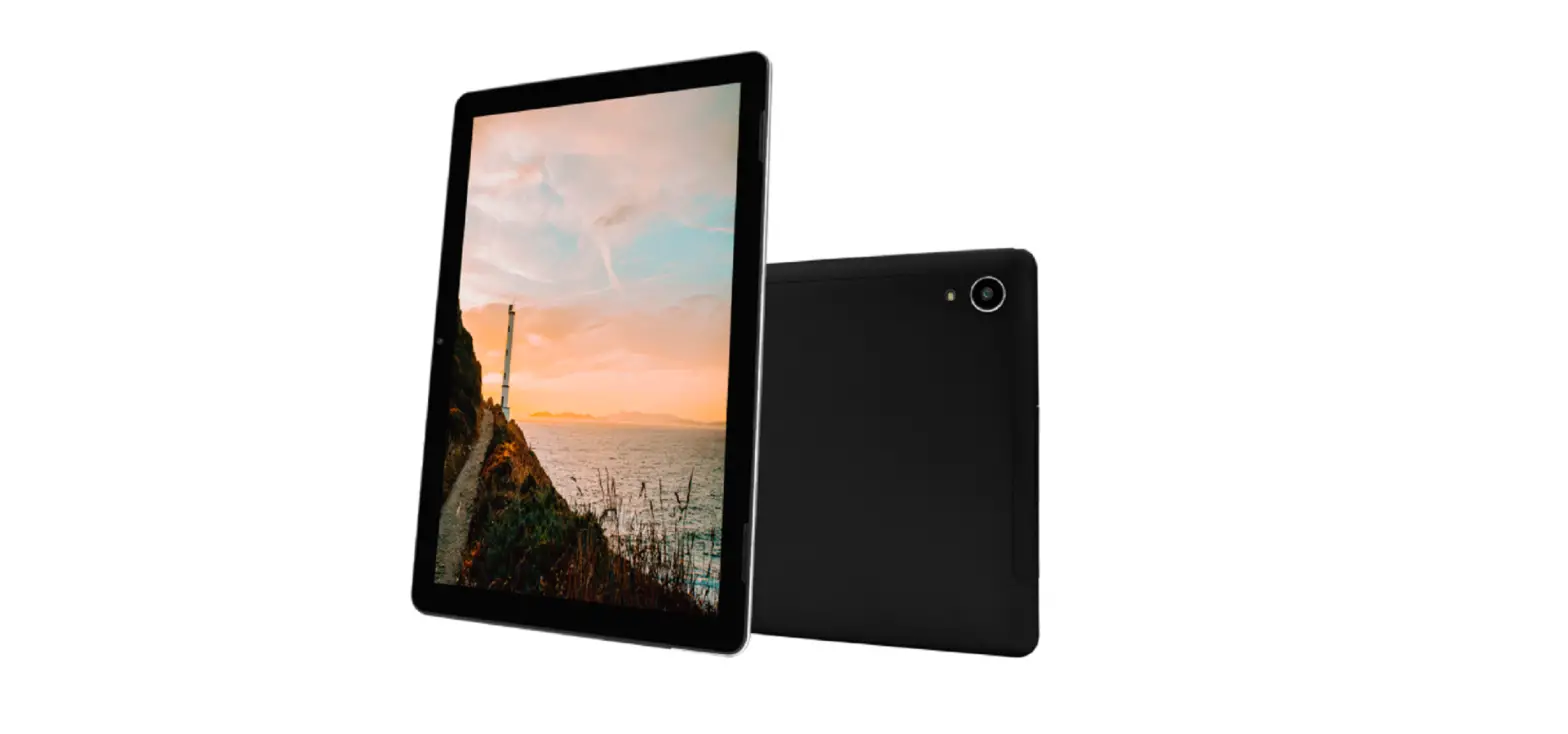
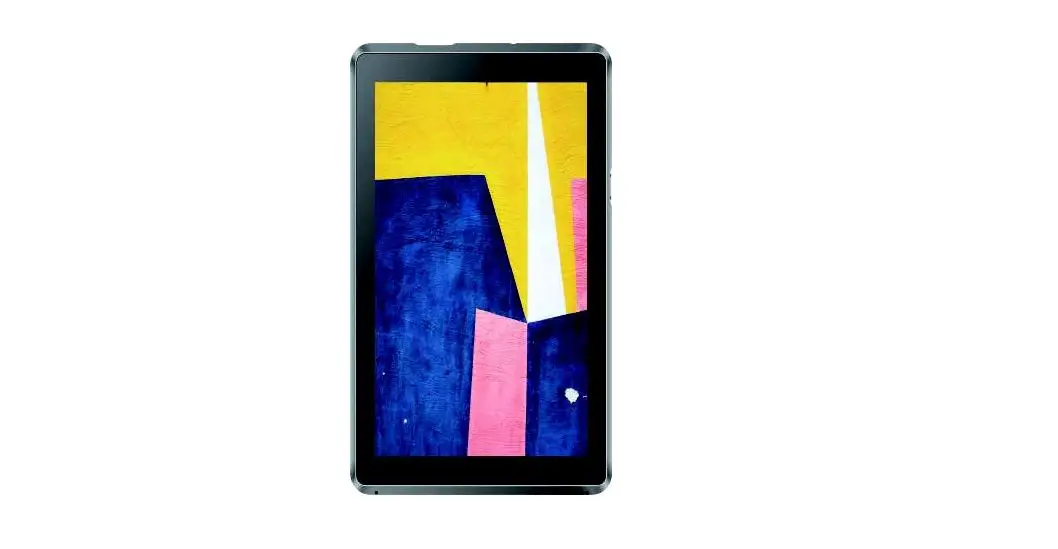
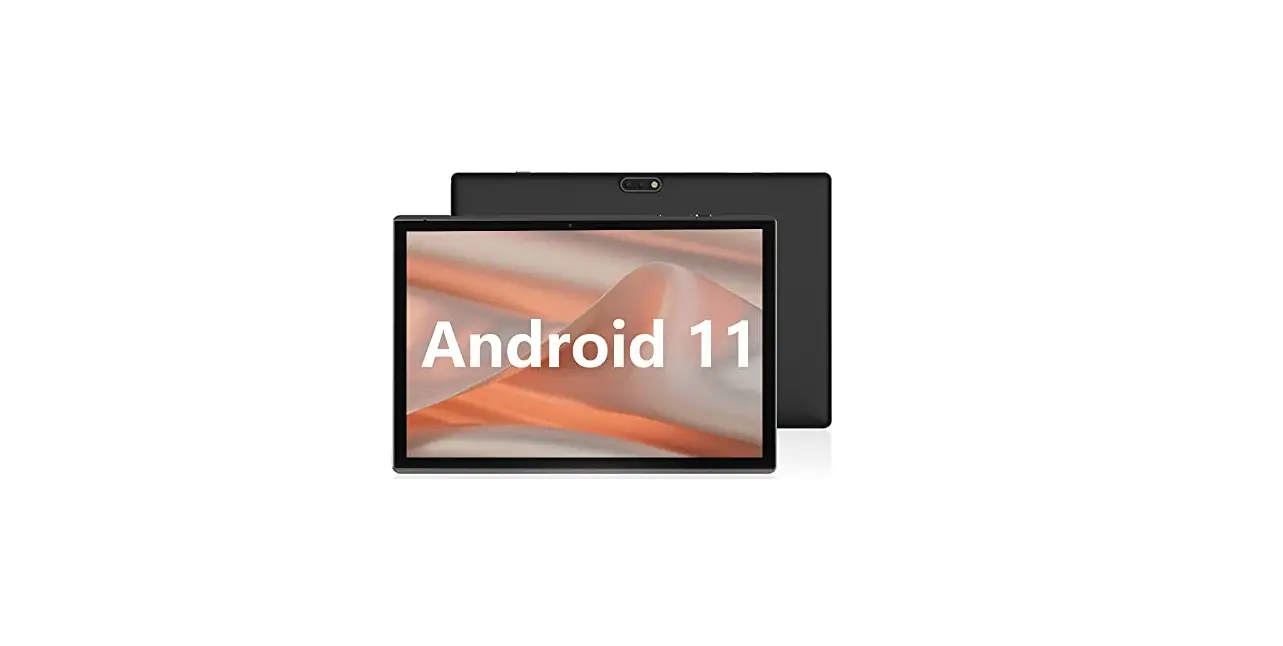
TIBUTA is a tablet device that runs on AndroidTM 12 operating
system. It comes with a 10.1-inch capacitive multi-touch IPS
display screen, dual cameras, Wi-Fi and Bluetooth connectivity, USB
2.0 port, micro SD card slot, and a rechargeable built-in type
polymer battery with a capacity of 3.85V/7000mAh. The device
supports various audio and video formats, recording function, and
external 3G USB-DONGLE wireless network.
- Power Button
- TYPE-C port
- Volume buttons
- Micro SD Card slot
- Rear Camera
- Reset Button
- Headphone jack
- Speakers
First Use
Before first use, charge the device’s battery to 100%. It is
recommended to charge the device for about 6 hours for the first
two times and then leave it charging for 4 hours or until fully
charged. Use the standard adaptor (power supply: DC 5V 2A, adaptor
technical data: input AC100-240V,50/60Hz, DC5V 2A) to charge the
device.
Connection with PC
To connect the device to a PC, turn on the device, connect it to
the PC using a USB cable, click the USB connection window on the
notification bar, and then turn on Transfer Files to connect to the
PC.
Equipment Operation Interface
The device has a main interface, status bar, and touch panel for
operation. The main interface provides access to various
applications and settings. The status bar displays the battery
power, network status, and other notifications. The touch panel
allows for easy navigation and control of the device.
Equipment Basic Set Setting
The device allows for basic settings such as sound volume,
application management, reset options, storage management, language
and keyboard settings, and data and time settings. These settings
can be accessed from the device’s main interface.
File Manager
The device comes with a file manager application that allows
users to manage files and folders on the device’s internal storage
and micro SD card.
Problem Solution
The user manual provides solutions to common problems such as
device startup issues, headset audio problems, and file management
errors. If the issue persists, contact the manufacturer for further
assistance.
TIBUTA
User Manual / Manuel De L’utilisateur /Nutzer handbuch / Manual De Usuario /
Manuale Utente
EN
Content
1 Attention
2 Main function
3 Appearance and button
4 First use
4.1 Battery management and Charge
4.2 Connection with PC
5 Equipment operation interface
5.1 Main interface describe
5.2 Status bar describe
5.3 Use touch panel
6 Equipment basic set setting
6.1 Sound Volume
6.2 Application
6.3 Reset Option
6.4 Storage
6.5 Language & Keyboard
6.6 Data & time setting
6.7 About Tablet
7 File Manager
8 Problem Solution
8.1 Device can’t open
8.2 Device shut down after start up
8.3 Headset can’t hear the voice
8.4 Can’t copy file or play music and so on
1.Attention:
Please don’t be in high temperature, moisture or very dust place Avoid fall or Violent collision of the device, don’t make the display screen were violent tremor, this could cause display screen abnormal or damage. please charge in the following condition,
A. The battery power icons show have no power B. The system automatically shut off, startup after power off soon C. Operation buttons no response D. The device on the top right corner show red icons When the device in the
format or ongoing upload and download file, please don’t suddenly disconnect, this could cause application error. Don’t disassemble the product, don’t use alcoholaThinner or benzene to scrubbing products
2. Main function
Operation systems: AndroidTM 12
Processor: MTK
CPU processor speed:
EMMC: GB
RAM: GB
WI-FI Function:802.11b/g/n/ac Bluetooth
Micro SD card: up to 512GB
Display screen: 10.1inch Capacitive multi-touch
Resolution:
IPS
Dual camera: Front:5.0M Pixels Rear: .0M Pixels
Battery and capacity: rechargeable Built-in type polymer battery, 3.85V/7000mAh
USB: 2.0
G-sensor 3D
Support Speaker
Record: built-in microphone MIC phoneinput
Video:DIVX4/DIVX5/DIVX6/DIVX HD/XVID/MPEG-4 SP/ASP/MPEG2/HEVC/Sorenson
H.263/H.263/VP9/H.264
Audio:WAV, MP3, MP2, AAC, AMRNB, AMR-WB, MIDI, Vorbis, APE, AAC-plus v1,
AAC-plus v2, FLAC, WMA, ADPCM
Pictures: JPG, JPEG, BMP, and PNG
Recording function:Format supported: 3ga Format
3G function: Support external 3G USB-DONGLE wireless network
E-book Function:Format Supported: TXT,EPUB,PDF,WORD,EXCEL,PPT
Languages:ChineseaEnglish, JapaneseaFrenchaGermanaSpanishaRussian, etc. The company reserves the right to improve product, products specification and design have any change, and the information is subject to changes without prior notice.
3. Appearance and button:
5 8 4 2
6 31 7
1 Power Button 2 TYPE-C 3 Volume buttons 4 Micro SD Card
5 Rear Camera 6 Reset Button 7 Headphone jack 8 Speakers
4. First use
4.1 Battery management and charge
Before first use, please charge the device’s battery to 100%. The first two times charging please keep it charging for about 6 hours, after that you just need leave it charging 4 hours or until fully charged.
Attention: This tablet uses Built-in type polymer battery, Charge must be to choose
standard adaptorcAdaptor: power supply: DC 5V 2A, adaptor technical data: input AC100-240V,50/60Hz, DC5V 2A)
4.2 Connection with PC
Use USB cable to connect the PC. First turn on the device; next, click USB connection window on the notification bar; lastly, turn on Transfer Files to connect to PC
Into the load mode, you can copy; delete the file on the device and the file on the memory card.
5. Equipment operation interface
5.1 Main interface describe
After startup will enter the main interface, In the main interface, you can Management the main interface software icons by: a) long press the icons for 3 seconds; after the icon will get bigger, allowing you to drag it anywhere in the interface. b) Delete icons: long press the icon for 3 seconds; after, drag the icons to the Recycle Bin icon. Once it becomes red, Let go of the icon and app will be deleted. c) To change wallpaper,Please enter “Settings” > “Display” > “Wallpapers ”
5.2 status bar describe
Top right displays the battery, battery charge icons, current time, Settings Menu
5.3 Use touch panel
No matter which interface you are in, you can go back to main screen by pressing
the soft key
on the bottom middle corner of the main screen.
In different applications, by tapping the back soft key
on the bottom middle
corner on the touch screen, you can return to its previous interface
6. Equipment Basic Setting:
Click setting icons
to enter the setting Interfaces.
6.1 Sound Volume
6.2 Application
Manage applications
AaEnter “Settings” > “Apps & Notifications” And then there will be App list BaSelect the one you want to uninstall, it will enter the following interface CaClick Uninstall, then you can delete the application
6.3 Reset Options
Please enter “Settings” > “System” > “Reset Options”> “Erase all data (factory reset)”> “Erase all data”
6.4 Storage
Remove SD card to view of the available storage space
}Remark~: please touch option” delete SD card”, so that can safety to remove SD card
6.5 Language & keyboard
Setting: (Language), text input and automatic error correction options;
Select Language: 54 kind of national languages are available
6.6 Date & time setting
Set date, set time, select time zone and select date format
6.7 About Tablet
Please enter “Setting” > “System”>”About Tablet”
7. File Manager
This Tablet can support Android APP in market by third party, most Apps can install in the network, can copy to NAND FLASH or SD card. Click “Files Go” APP to open, then you can check Apps, Images, Videos, Audio and Documents.
8. Problem solution
8.1 Device can’t open
AaCheck the battery power BaConnect adaptor first, then check again CaPress the “reset” key first, the press “power” key DaAfter charging then can’t to open, please contact with the supplier
8.2 Device shut down after start up
After startup the screen or the Power On Image appears, the device appear shutdown: Power is not enough, please charge
8.3 Headset can’t hear the voice
Aa Please check the volume whether set to 0 Ba Check if the music file is damaged. Try playing another audio file. C aIf the file has been damaged it may lead to serious noise or popping sounds.
8.4 Can’t copy file or play music, etc….
AaPlease check if the computer and device are correct connected Bacheck if the memory storage space is full Cacheck if the USB cable is good or not DaUSB connection is disconnected
8.5 Forget the password!
AaHold down the POWER and Volume “-” keys simultaneously for 5-8 seconds. BaRelease the volume key when the machine appears in factory mode, then continue to use the volume reduction key to select “Clear eMMC”, and use the on key to confirm. CaWait about one minute for the welcome screen to appear, and then re-enter the Android system.
.
Designed by Tibuta,Assembled in PRC
UK AR
$PNQBOZ6,$3044#03%&3-*.*5&% “EESFTT#FMM:BSE-POEPO8$”+3
6, .BJMVLDSPTTCPSEFS!PVUMPPLDPN
CONTACT INFORMATION [email protected] www.tibutapad.com
Warning
Any changes or modifications not expressly approved by the party responsible for compliance could void the user’s authority to operate the equipment. This device complies with part 15 of the FCC Rules. Operation is subject to the following two conditions: This device may not cause interference. This device must accept any interference, including interference that may cause undesired operation of the device. Note: This equipment has been tested and found to comply with the limits for a Class B digital device, pursuant to part 15 of the FCC rules. These limits are designed to provide reasonable protection against harmful interference in a residential installation. This equipment generates, uses and can radiate radio frequency energy and, if not installed and used in accordance with the instructions, may cause harmful interference to radio communications. However, there is no guarantee that interference will not occur in a particular installation. If this equipment does cause harmful interference to radio or television reception, which can be determined by turning the equipment off and on, the user is encouraged to try to correct the interference by one or more of the following measures:
-Reorient or relocate the receiving antenna. -Increase the separation between the equipment and receiver. -Connect the equipment into an outlet on a circuit different from that to which the receiver is connected. -Consult the dealer or an experienced radio/TV technician for help. The device has been evaluated to meet general RF exposure requirement. The device can be used in portable exposure condition without restriction. FCC ID:2AXUI-E200
Warning:
1.Use careful with the earphone maybe possible excessive sound pressure from earphones and headphones can cause hearing loss.
2.CAUTION: RISK OF EXPLOSION IF BATTERY IS REPLACED BYAN INCORRECT TYPE. DISPOSE OF USED BATTERIES ACCORDINGTO THE INSTRUCTIONS.
3.The product shall only be connected to a USB interface of version USB2.0. 4.Adapter shall be installed near the equipment and shall be easily accessible.
6.The plug considered as disconnect device of adapter. 7.The device complies with RF specifications when the device used at 5mm from your body,
The device is in compliance with the requirements.
This information has to be presented in such a way that the user can readily understand it. Typically, this will necessitate translation into every local language (required by national consumer laws) of the markets where the equipment is intended to be sold. Illustrations, pictograms and using international abbreviations for country names may help reduce the need for translation. Restrictions in the 5 GHz band: According to Directive SI 2017/1206, the packaging showsthat this radio equipment will be subject to some restrictions when placed on the market in Belgium (BE), Bulgaria (BG), the Czech Republic (CZ),Denmark (DK), Germany (DE), Estonia (EE), Ireland (IE), Greece (EL), Spain(ES), France (FR), Croatia (HR), Italy (IT), Cyprus (CY), Latvia (LV), Lithuania(LT), Luxembourg (LU), Hungary (HU), Malta (MT), Netherlands (NL), Austria(AT),Poland (PL), Portugal (PT), Romania (RO), Slovenia (SI), Slovakia (SK),Finland (FI), Sweden (SE), the Turkey (TR), Norway(NO), Switzerland (CH), Iceland (IS), and Liechtenstein (LI). The WLAN function for this device is restricted to indoor use only when operating in the 5150 to 5350 MHz frequency range.
UK Declaration of Conformity We, CHITECH SHENZHEN TECHNOLOGY CO.,LTD (101, NO.48, Xiashijia Road, Gongming Town, Guangming Dist., Shenzhen, China) hereby declares that this Tablet PC is in compliance with the essential requirements and other relevant provisions of Directive SI 2017/1206.
According to Directive SI 2017/1206, the Tablet PC can be used in Great Britain (England, Wales and Scotland) but with restriction.
Es
Contenido
1 Atención
2 Función principal
3 Apariencia y botón
4 Primer uso
4.1 Gestión de la batería y Carga
4.2 Conexión con PC
5 Interfaces de operación del equipo
5.1 Interfaz principal describe
5.2 La barra de estado describe
5.3 Usar panel táctil
6 Configuración básica del equipo
6.1 Volumen de sonido
6.2 Aplicación
6.3 Opción de reinicio
6.4 Almacenamiento
6.5 Idioma y teclado
6.6 Configuración de datos y tiempo
6.7 Acerca de la tableta
7 Administrador de archivos
8 Problema Solución
8.1 El dispositivo no se puede abrir
8.2 El dispositivo se apaga después de iniciarse
8.3 El auricular puede ‘ t escuchar la voz
8.4 No se puede copiar el archivo ni reproducir música, etc
1. Atención:
Por favor, no estar en altas temperaturas, humedad o lugar con mucho polvo Evite la caída o la colisión violenta del dispositivo, no haga que la pantalla tenga un temblor violento, esto podría causar que la pantalla no sea dañada. cargue en la siguiente condición. A. Los iconos de energía de la batería no tienen energía. B. El sistema se apaga automáticamente, se enciende y apaga pronto. Los C. botones de operación no responden. D. El dispositivo en la esquina superior derecha muestra iconos rojos Cuando el dispositivo en el formato o carga continua descargue el archivo, por favor, no lo desconecte de repente, esto podría causar un error de aplicación. No desarme el producto, no use alcohol a Adelgazante o benceno para fregar productos
2. Función principal
Sistemas operativos: AndroidTM12 Procesador:MTK Velocidad del procesador de la CPU: EMMC: GB RAM: GB WI-FI Función:802.11b / g / n /ac Bluetooth Tarjeta Micro SD: hasta 512GB Pantalla: 10.1 pulgadas Capacitiva multitoque Resolución: *1 IPS Cámara doble: Delantero: 5.0M Píxeles Trasero: .0 M Píxeles Batería y capacidad: recargable Batería de polímero de tipo incorporado, 3.85V/7000 mAh USB: 2.0 G-sensor3D Soporte de altavoz Soporte micrófono incorporado Teléfono MIC: entrada Video:DIVX4/DIVX5/DIVX6/DIVX HD/XVID/MPEG-4 SP/ASP/MPEG2/HEVC/ Soren-son H.263/H.263/VP9/H.264 Audio:WAV, MP3, MP2, AAC, AMRNB, AMR-WB, MIDI, Vorbis, APE, AAC-plus v1, AAC-plus v2, FLAC, WMA, ADPCM Imágenes: JPG, JPEG, BMP y PNG Función de grabación: Formato compatible: Formato 3ga Función 3G: Compatible con red inalámbrica USB-DONGLE 3G externa Función de libro electrónicoFunción:TXT,EPUB,PDF,WORD,EXCEL,PPT,
Idiomas: Chino, Inglés, japonés, francés, alemán, español, ruso, etc. La empresa se reserva el derecho de mejorar los productos, productos de especifi cación y diseño tienen ningún cambio, y la información está sujeta a cambios sin previo aviso.
3. Apariencia y botón:
5 8 4 2
6 31 7
1 Botón de encendido 2 Tipo C 3 Botones de volumen 4 Tarjeta micro SD
5 Cámara trasera 6 Botón de inicio 7 Jack de los auriculares 8 Oradores
4. Primer uso
4.1 Gestión de la batería y Carga
Antes del primer uso, cargue la batería del dispositivo al 100%. La primera vez que se cargue, manténgalo cargando durante aproximadamente 6 horas, Luego solo tendrá que dejarlo cargando durante 4 horas o hasta que esté completamente cargada. Atención: Esta tableta utiliza batería de polímero de tipo incorporado. La carga debe ser elegir un adaptador estándar cAdaptador: fuente de alimentación: DC 5V 2A, datos técnicos del adaptador: entrada AC100-240V, 50 / 60Hz, DC5V 2A)
4.2 Conexión con PC
Use el cable USB para conectar la PC. Primero enciende el dispositivo; a continuación, haga clic en la ventana de conexión USB en la barra de notificaciones; por último, active Transferir archivos para conectarse a la PC
En el modo de carga, puede copiar; borre el archivo en el dispositivo y el archivo en la tarjeta de memoria.
5. Interfaz de operación del equipo
5.1 Interfaz principal describe
Después de que el inicio ingresará a la interfaz principal, en la interfaz principal, puede Administrar los iconos del software de la interfaz principal: a) mantenga presionados los iconos durante 3 segundos; después de que el icono se haga más grande, le permite arrastrarlo a cualquier lugar de la interfaz. b) Eliminar iconos: mantenga pulsado el icono durante 3 segundos; después, arrastre los íconos al ícono de la Papelera de reciclaje. Una vez que se vuelva rojo, se eliminará el icono y la aplicación. c) Para cambiar el fondo de pantalla,Entrez “réglage “–” affichage “–” papier peint”
5.2 La barra de estado describe
Superior derecha se muestran la batería, los iconos de carga de la batería, la hora actual, el menú de configuración
5.3 Usar panel táctil
Sin importar qué interfaz está dentro, puede volver a la pantalla principal
presionando la tecla suave
en la esquina inferior central de la pantalla
principal.
En diferentes aplicaciones, pulsando la tecla de función Atrás
en la esquina
inferior central de la pantalla táctil, puede volver a su interfaz anterior
6. Configuración básica del equipo:
Haga clic en los iconos de configuración
para ingresar a la interfaz de configuración.
6.1 Volumen de sonido
6.2 Aplicación
Gestionar aplicaciones
Aa Ingrese “Configuración”>”Aplicaciones y notificaciones” y luego aparecerá la lista de aplicaciones Ba Seleccione la que desea desinstalar, ingresará a la siguiente interfaz Ca Haga clic en Desinstalar, luego puede eliminar la aplicación
6.3 Opción de reinicio
Ingrese “Configuración”> “Sistema”> “Opciones de restablecimiento”> “Volver al estado de fábrica (borrar todo)”> “Borrar todos los datos”
6.4 Almacenamiento
Retire la tarjeta SD, para ver el espacio de almacenamiento disponible
}Observación~: toque la opción “eliminar tarjeta SD”, para que pueda retirar la tarjeta SD con
seguridad
6.5 Idioma y teclado
Configuración del: (Idioma), entrada de texto y opciones de corrección automática de errores;
Seleccione el idioma: 54 tipos de idiomas nacionales están disponibles
6.6 Configuración de datos y tiempo
Configuración de fecha Configurar fecha, configurar hora, seleccionar zona horaria y seleccionar formato de fecha
6.7 Acerca de la tableta
Introduzca “Configuración”> “Sistema”> “Acerca de la tableta”
7. Administrador de archivos
Esta tableta puede Es compatible con la aplicación de Android en el mercado por parte de terceros, la mayoría de las aplicaciones se pueden instalar en la red, se pueden copiar a NAND FLASH o tarjeta SD. Haga clic en la APLICACIÓN “Files Go” para abrir, luego puede verificar Aplicaciones, Imágenes, Videos, Audio y Documentos.
8. Problema Solución
8.1 El dispositivo no se puede abrir
AaVerifique la energía de la batería Ba Primero conecte el adaptador, luego vuelva a verificar Ca Presione primero la tecla “reiniciar”, presione la tecla “poder” Da Después de cargar, no puede abierto, póngase en contacto con el proveedor
8.2 El dispositivo se apaga después de iniciarse
Después del inicio, aparece la pantalla o Aparece la imagen de encendido, el dispositivo parece apagarse: No hay suficiente energía, cargue
8.3 El auricular no puede escuchar la voz
Aa Por favor verifique el volumen si está configurado en 0 Ba Compruebe si el archivo de música está dañado. Intenta reproducir otro archivo de audio. Ca Si el archivo se ha dañado, puede producirse un ruido grave o estallidos.
8.4 No se puede copiar el archivo o reproducir música, etc….
A a Verifique si la computadora y el dispositivo están conectados correctamente B a verifique si el espacio de almacenamiento de la memoria está lleno C a verifique si el cable USB es bueno o no D a Conexión USB esta desconectado
8.5 iOlvídese de la contraseña!
Aamantenga presionel poder y volumen “-” teclas simultáneamente para 5-8 Segundos. Basuelte la tecla de volumen cuando la máquina aparece en modo fábrica, A continuación, siga utilizando la tecla de reducción de volumen para seleccionar “Borrar eMMC”, y utilice la tecla on para confirmar. Caespera aproximadamente un minuto para que aparezca la pantalla de bienvenida, y A continuación, volver a entrar en el sistema Android.
Advertencia:
1. Utilice con cuidado con el auricular tal vez la presión acústica excesiva posible de auriculares y Los audífonos pueden causar pérdida auditiva. 2. Precaución: riesgo de explosión si la batería se sustituye BYAN incorrecto Tipo. Deseche las pilas usadas de acuerdo con las instrucciones. 3. El producto sólo podrá conectarse a una interfaz USB de la versión USB2.0. 4. El adaptador deberá instalarse cerca del equipo y ser de fácil acceso.
6. El enchufe considerado como el dispositivo de la desconexión del adaptador. 7. El dispositivo cumple con las especificaciones de RF cuando el dispositivo se utiliza a 5mm de su cuerpo El dispositivo cumple con los requisitos.
Esta información debe presentarse de tal manera que el usuario pueda comprenderla fácilmente. Por lo general, esto requerirá traducción a cada idioma local (requerido por el nacional Las legislaciones de los consumidores) de los mercados en los que el equipo está destinado a venderse. Ilustraciones, Los pictogramas y el uso de abreviaturas internacionales para los nombres de los países pueden ayudar a reducir la necesidad Para traducción.
Restricciones en la banda de 5 GHz: De acuerdo con la directiva SI 2017/1206, el envase muestra que este equipo de radio será En Bélgica (BE), Bulgaria (BG), la República checa (CZ), Dinamarca (DK), Alemania (DE), Estonia (EE), Irlanda (IE), Grecia (EL), España (ES), Francia (FR), Croacia (HR), Italia (IT), Chipre (CY), Letonia (LV), Lituania (LT), Luxemburgo (LU), Hungría (HU), Malta (MT), países bajos (NL), Austria(AT),(SE), la Turquía (TR), Noruega (NO), Suiza (CH), Islandia (IS) y Liechtenstein (LI).
La función WLAN para este dispositivo está restringida al uso en interiores sólo cuando se opera en el 5150 A 5350 MHz rango de frecuencia.
Declaración de conformidad de la UE Nosotros, CHITECH SHENZHEN TECHNOLOGY CO.,LTD (101, NO.48, Xiashijia Road, Gongming Ciudad, guangdist., Shenzhen, China) por la presente declara que esta Tablet PC está en Cumplimiento de los requisitos esenciales y otras disposiciones pertinentes de la directiva 2014/53/EU. Según el artículo 10, apartado 2, de la directiva 2014/53/ UE, el Tablet PC puede utilizarse en Europa con Restricción.
DE
Inhalt
1 Achtung
2 Hauptfunktion
3 Aussehen und Schaltfläche
4 Erste Verwendung
4.1 Batteriemanagement und Ladung
4.2 Verbindung mit PC
5 Bedienoberfläche der Ausrüstung
5.1 Hauptschnittstelle beschreiben
5.2 Statusleiste beschreiben
5.3 Touchpanel verwenden
6 Ausstattung Grundeinstellung
6.1 Lautstärke
6.2 Anwendung
6.3 Reset-Option
6.4 Lagerung
6.5 Sprache & Tastatur
6.6 Daten- und Zeiteinstellung
6.7 Über Tablet
7 Dateimanager
8 Problemlösung
8.1 Gerät kann nicht geöffnet werden
8.2 Herunterfahren des Geräts nach dem Start
8.3 Das Headset kann die Stimme nicht hören
8.4 Datei kann nicht kopiert oder Musik abgespielt werden usw.
1. Achtung:
Bitte befinden Sie sich nicht an einem Ort mit hoher Temperatur, Feuchtigkeit oder sehr staubigem Staub Vermeiden Sie einen Sturz oder eine heftige Kollision des Geräts, machen Sie den Bildschirm nicht zu heftigem Zittern, dies könnte dazu führen, dass der Bildschirm abnormal oder beschädigt wird. Bitte berechnen Sie in der folgenden Bedingung A.Die Batterieleistungssymbole zeigen an, dass sie keinen Strom haben B.Das System schaltet sich automatisch aus, der Start nach dem Ausschalten bald aus C.Bedientasten keine Reaktion D.Das Gerät in der oberen rechten Ecke zeigt rote Symbole an, wenn das Gerät imFormat oder laufende Upload und Download Datei, bitte nicht plötzlich Trennen Sie die Verbindung, dies könnte zu einem Anwendungsfehler führen. Zerlegen Sie das Produkt nicht, verwenden Sie keinen Alkohol, Verdünner oder Benzol, um Scheuerprodukte
2. Hauptfunktion
Betriebssysteme: AndroidTM12 Prozessor:MTK CPU-Prozessorgeschwindigkeit: EMMC: GB RAM:GB WI-FI-Funktion: 802.11b / g / n /ac Bluetooth: Micro-SD-Karte: bis zu 512GB Bildschirm: 10.1 Zoll kapazitiver Multi-Touch Auflösung: * IPS Dual-Kamera: Vorderseite: 5,0 Mio. Pixel; Rückseite: ,0 Mio. Pixel Batterie und Kapazität: wiederaufladbare eingebaute Polymerbatterie, 3,85 V / 7000 mAh USB-Anschluss: 2.0 G-Sensor 3D Support-Lautsprecher Aufnahme: eingebautes Mikrofon MIC-Telefon:Eingabe Video:DIVX4/DIVX5/DIVX6/DIVX HD/XVID/MPEG-4 SP/ASP/MPEG2/HEVC/ Soren-son H.263/H.263/VP9/H.264 Audio:WAV, MP3, MP2, AAC, AMRNB, AMR-WB, MIDI, Vorbis, APE, AAC-plus v1, AAC-plus v2, FLAC, WMA, ADPCM Bilder: JPG, JPEG, BMP und PNG Aufnahmefunktion: Unterstütztes Format: 3ga-Format 3G-Funktion: Unterstützt externes 3G-USB-DONGLE-Wireless-Netzwerk E-Book-Funktion: Unterstütztes Format: TXT, EPUB, PDF, WORD, EXCEL, PPT Arbeitstemperatur: -5 ~ 40 °C Sprachen: Chinesisch, Englisch, Japanisch, Französisch, Deutsch, Spanisch, Russisch usw. Das Unternehmen behält sich das Recht vor, Produkte, Produktspezifikationen und Das Design kann sich ändern, und die Informationen können ohne vorherige Ankündigung geändert werden.
3. Aussehen und Schaltfläche:
5 8 4 2
6 31 7
1 Strom knopf 2 Aufgebaut wird 3 Lautstärke knopf 4 Von sd card
5 In kamerase 6 Setzt knopf 7 Kopfhörer wichsen 8 Redner
4. Erstmalige Verwendung
4.1Batteriemanagement und Ladung
Bitte laden Sie vor dem ersten Gebrauch den Akku des Gerätes zu 100% auf. Die ersten beiden Ladezeiten bitte für ca. 6 Stunden aufladen, Danach müssen Sie es nur 4 Stunden oder bis zum vollständigen Aufladen aufladen lassen. Aufmerksamkeit: Dieses Tablet verwendet eingebaute Polymerbatterie, Ladung muss zu wählen sein Standardadapter (Adapter: Stromversorgung: DC 5V 2A, Adapter Technische Daten: Eingang AC100-240V, 50/60Hz, DC5V 2A)
4.2 Verbindung mit PC
Verwenden Sie ein USB-Kabel, um den PC anzuschließen Schalten Sie zuerst das Gerät ein; nächster Klicken Sie in der Benachrichtigungsleiste auf USB-Verbindungsfenster. Aktivieren Sie abschließend Dateien übertragen auf An PC anschließen
11/03/2020 16:00
5. Betriebsschnittstelle der Ausrüstung
5.1 Hauptschnittstelle beschreiben
Nach dem Start wird die Hauptschnittstelle aufgerufen, In der Hauptschnittstelle können Sie Verwalten Sie die Symbole der Hauptschnittstellensoftware durch: a) Drücken Sie die Symbole lange für 3 Sekunden; Danach wird das Symbol größer, so dass Sie ziehen es an eine beliebige Stelle in der Benutzeroberfläche. b) Symbole löschen: Drücken Sie das Symbol 3 Sekunden lang; Ziehen Sie anschließend die Symbole auf die Schaltfläche Papierkorb-Symbol. Sobald es rot wird, Lassen Sie das Symbol los und die App wird gelöscht. c) Um das Hintergrundbild zu ändern, Bitte geben Sie”Setting”–Display”–“Wallpaper”ein.
5.2 Statusleiste beschreiben
Oben rechts werden der Akku, die Symbole für die Akkuladung, die aktuelle
Uhrzeit und das Einstellungsmenü angezeigt
5.3 Touchpanel verwenden
Unabhängig davon, in welcher Benutzeroberfläche Sie sich befinden, können Sie
zum Hauptbildschirm zurückkehren, indem Sie auf die Soft key
in der
unteren mittleren Ecke des Hauptbildschirms.
In verschiedenen Anwendungen durch Tippen auf die hintere Soft key
en
la esquina inferior central de la pantalla táctil, puede volver a su interfaz anterior
in der unteren Mitte auf dem Touchscreen können Sie zur vorherigen Benutzer-
oberfläche zurückkehren.
6. Ausstattung Grundeinstellung:
Klicken Sie auf die Einstellungssymbole
um die Einstellung Schnittstellen einzugeben
6.1 Lautstärke
6.2 Anwendung
Verwalten von Anwendungen
AaGeben Sie “Einstellungen” > “Apps & Benachrichtigungen” ein. Und dann gibt es eine App-Liste BaWählen Sie diejenige aus, die Sie deinstallieren möchten, es wird die folgende Schnittstelle aufgerufen CaKlicken Sie auf Deinstallieren, dann können Sie die Anwendung löschen
6.3 Optionen zum Zurücksetzen
Bitte geben Sie “Einstellungen” > “System” > “Optionen zurücksetzen” > “Alle Daten löschen(auf Werkseinstellungen zurücksetzen)” > “Alle Daten löschen” ein
6.4 Lagerung
Entfernen Sie die SD-Karte, um den verfügbaren Speicherplatz anzuzeigen
}#FNFSLVOH~ #JUUF CFSISFO 4JF EJF 0QUJPO 4%,BSUF MöTDIFO
EBNJU EJF 4%,BSUF TJDIFS
FOUGFSOUXFSEFOLBOO
6.5 Sprache & Tastatur
Einstellung: (Sprache), Texteingabe und automatische Fehlerkorrekturoptionen;
Sprache wählen: 54 Arten von Landessprachen sind verfügbar
6.6 Datums- und Uhrzeiteinstellung
Legen Sie das Datum fest, legen Sie die Uhrzeit fest, wählen Sie die Zeitzone und wählen Sie das Datumsformat
6.7 Über Tablet
Bitte geben Sie “Einstellung” > “System”>”Über Tablet” ein
7. Dateimanager
Dieses Tablet kann Android APP im Markt von Drittanbietern unterstützen, die meisten Apps können im Netzwerk installieren, kann auf NAND FLASH oder SD-Karte kopiert werden. Klicken Sie auf “Files Go” APP, um zu öffnen, dann können Sie Apps, Bilder, Videos, Audio und Dokumente.
8. Problemlösung
8.1 Gerät kann nicht geöffnet werden
A aÜberprüfen Sie die Batterieleistung Ba Adapter zuerst anschließen und dann erneut überprüfen Ca Drücken Sie zuerst die “Reset” -Taste, die Taste “Power” Da Nach dem Aufladen kann dann nicht geöffnet werden, wenden Sie sich bitte an den Lieferanten
8.2 Gerät nach dem Start heruntergefahren
Nach dem Start wird der Bildschirm oder das Einschaltbild angezeigt, das Gerät wird angezeigt Herunterfahren: Strom ist nicht genug, bitte aufladen
8.3 Das Headset kann die Stimme nicht hören
A Bitte überprüfen Sie die Lautstärke, ob auf 0 eingestellt B Überprüfen Sie, ob die Musikdatei beschädigt ist. Versuchen Sie, eine andere Audiodatei abzuspielen. C Wenn die Datei beschädigt wurde, kann dies zu ernsthaften Geräuschen oder Knallgeräuschen führen.
8.4 Kann keine Datei kopieren oder Musik abspielen usw.
AaBitte überprüfen Sie, ob der Computer und das Gerät korrekt angeschlossen sind BaÜberprüfen Sie, ob der Speicherplatz voll ist CaÜberprüfen Sie, ob das USB-Kabel gut ist oder nicht DaUSB-Verbindung ist getrennt
8,5 das passwort vergessen!
A.Gedrückt, um strom und lautstärke “(“. Für 5! Sekunden. B.Freilassung lautstärke. Als die maschinen in fabrik der Und weiterhin groß verringern. “EMMC”, mit entscheidender. C.Eine minute warten begrüßt auf, und Und in betriebssystem Android.
Modellname Produktseriennr Kaufdatum
GARANTIEKARTE
Kundendaten
Name Adresse vollständig
Telefonnummer Name und Adresse des Händlers
Unterschrift und Datum des Kunden
Unterschrift des Händlers mit Gummistempel
Designed by Tibuta,Assembled in PRC
KONTAKTINFORMATION [email protected] www.tibutapad.com
EU REP
$PNQBOZ4LZMJNJU4FSWJDF(NC) “EESFTT3PFEJOHTNBSLU
)BNCVSH .BJMJOGP!TLZMJNJUTFSWJDFDPN
Warnung:
1. Verwenden Sie vorsichtig mit dem Kopfhörer möglicherweise übermäßigen Schalldruck von Kopfhörern und Kopfhörer können zu Hörverlust führen. 2.ACHTUNG: EXPLOSIONSGEFAHR BEI BATTERIEWECHSEL DURCH EINE FALSCHE ART. ENTSORGEN SIE GEBRAUCHTE BATTERIEN GEMÄSS DEN ANWEISUNGEN. 3.Das Produkt darf nur an eine USB-Schnittstelle der Version USB2.0 angeschlossen werden. 4.Der Adapter muss in der Nähe des Geräts installiert und leicht zugänglich sein. 5. Betriebstemperatur: -10 ~ 40 °C 6.Der Stecker gilt als Trennvorrichtung des Adapters. 7.Das Gerät entspricht den HF-Spezifikationen, wenn das Gerät 5 mm von Ihrem Körper entfernt verwendet wird .Das Gerät entspricht den Anforderungen
Diese Informationen müssen so dargestellt werden, dass der Benutzer sie leicht verstehen kann. In der Regel erfordert dies eine Übersetzung in alle Landessprachen (von den nationalen B. Verbrauchergesetze) der Märkte, auf denen die Geräte verkauft werden sollen. Illustrationen Piktogramme und die Verwendung internationaler Abkürzungen für Ländernamen können dazu beitragen, den Bedarf zu verringern für die Übersetzung.
Einschränkungen im 5-GHz-Band: Gemäß der Richtlinie SI 2017/1206 zeigt die Verpackung, dass diese Funkanlage Vorbehaltlich einiger Beschränkungen beim Inverkehrbringen in Belgien (BE), Bulgarien (BG), Tschechische Republik (CZ), Dänemark (DK), Deutschland (DE), Estland (EE), Irland (IE), Griechenland (EL), Spanien (ES), Frankreich (FR), Kroatien (HR), Italien (IT), Zypern (CY), Lettland (LV), Litauen (LT), Luxemburg (LU), Ungarn (HU), Malta (MT), Niederlande (NL), Österreich (AT), (SE), die Türkei (TR), Norwegen (NO), Schweiz (CH), Island (IS) und Liechtenstein (LI). Die WLAN-Funktion für dieses Gerät ist nur im Betrieb im 5150 auf den Innenbereich beschränkt bis 5350 MHz Frequenzbereich.
EU-Konformitätserklärung Wir CHITECH SHENZHEN TECHNOLOGY CO., LTD (101, NO.48, Xiashijia Road, Gongming Town, Guangming Dist., Shenzhen, China) erklärt hiermit, dass dieser Tablet PC in Einhaltung der grundlegenden Anforderungen und anderer einschlägiger Bestimmungen der Richtlinie 2014/53/EU. Gemäß Artikel 10 Absatz 2 der Richtlinie 2014/53/EU kann der Tablet PC in Europa mit Einschränkung.
FR
Contenu du site
1 Attention
2 Fonction principale
3 Apparence et bouton
4 Première utilisation
4.1 Gestion et Charge de la batterie
4.2 Connexion avec le PC
5 Interface d’opération d’équipement
5.1 l’interface principale décrivent
5.2 Barre d’état décrire
5.3 Utilisez le panneau tactile
6 équipement réglage de base
6.1 Volume sonore
6.2 Application
6.3 Option de réinitialisation
6.4 Stockage
6.5 Langue et clavier
6.6 Réglage des données et du temps
6.7 Acerca de la tableta
7 Gestionnaire de fichiers
8 Solution de problème
8.1 l’appareil ne peut pas s’ouvrir
8.2 Dispositif arrêté après démarrage
8.3 Le casque ne peut pas entendre la voix
8.4 Ne peut pas copier le dossier ou jouer la musique et ainsi de suite
1. Attention:
Veuillez ne pas être dans l’endroit de haute température, d’humidité ou très de poussière Évitez la chute ou la collision violente du dispositif, ne faites pas l’écran d’affichage Étaient tremblement violent, cela pourrait causer l’écran d’affichage anormal ou des dommages. Veuillez charger dans la condition suivante A. Les icônes de puissance de la batterie montrent n’ont aucune puissance. B. Le système s’éteint automatiquement, démarrage après mise hors tension bientôt C. Boutons d’opération aucune réponse D. L’appareil dans le coin supérieur droit montrent des icônes rouges lorsque l’appareil dans le Format ou téléchargement en cours et télécharger le fichier, s’il vous plaît ne pas soudainement.Déconnectez-vous, cela pourrait causer une erreur d’application. Ne démontez pas le produit, n’employez pas l’alcool, le diluant ou le benzène pour Produits de lavage
2. Fonction principale
Systèmes d’exploitation: AndroidTM 12 Processeur: MTK Vitesse du processeur CPU: EMMC: GB RAM: GB Fonction WI-FI :802.11b/g/n/ac Bluetooth: Carte Micro SD: jusqu’à 512GB Écran d’affichage: 10.1inch multi-touch capacitif Résolution: *1 IPS Double caméra: avant :5.0M Pixels; arrière: .0M Pixels Batterie et capacité: batterie de polymère intégrée rechargeable, 3.85V/7000mAh USB: 2,0 G-capteur 3D Haut-parleur de soutien Enregistrement: microphone intégré Téléphone MIC: entrée Vidéo :DIVX4/DIVX5/DIVX6/DIVX HD/XVID/MPEG-4 SP/ASP/MPEG2/HEVC/ Soren-son H.263/H.263/VP9/H.264 Audio:WAV, MP3, MP2, AAC, AMRNB, AMR-WB, MIDI, Vorbis, APE, AAC-plus v1, AAC-plus v2, FLAC, WMA, ADPCM Photos: JPG, JPEG, BMP et PNG Fonction d’enregistrement :Format soutenu :Format 3ga Fonction 3G: Support externe 3G USB-DONGLE réseau sans fil Fonction E-book :Format soutenu: TXT,EPUB,PDF,WORD,EXCEL,PPT
Langues: chinois, anglais, japonais, français, allemand, espagnol, russe, Etc. La société se réserve le droit d’améliorer le produit, les spécifications de produits et La conception ont n’importe quel changement, et l’information est sujette à des changements sans préalable Avis.
3. Aparence et bouton:
5 8 4 2
6 31 7
1 Bouton d’alimentation 5 Caméra arrière
2 TYPE – C
6 Bouton de réinitialisation
3 Boutons de VOLUME 7 Casque jack
4 Carte MICRO SD
8 Les intervenants
4. Première utilisation
4.1 gestion et charge de la batterie
Avant la première utilisation, veuillez charger la batterie de l’appareil à 100%. Les deux premières fois chargeant SVP gardez-le chargeant pendant environ 6 heures, Après cela, vous avez juste besoin de le laisser charger 4 heures ou jusqu’à ce que complètement chargé. Attention: cette tablette utilise une batterie polymère de type intégré, la Charge doit être au choix Adaptateur standard (adaptateur: alimentation: DC 5V 2A, adaptateur données techniques: entrée AC100-240V,50/60Hz, DC5V 2A)
4.2 connexion avec le PC
Utilisez le câble USB pour connecter le PC. D’abord allumer l’appareil; Ensuite, cliquez sur USB Fenêtre de connexion sur la barre de notification; Enfin, activez les fichiers de transfert pour vous connecter à Le PC
Dans le mode de chargement, vous pouvez copier; Supprimez le fichier sur le périphérique et le fichier sur la carte mémoire.
5. Interface d’opération d’équipement
5.1 l’interface principale décrivent
Après le démarrage entrera dans l’interface principale, dans l’interface principale, vous pouvez Gestion des icônes principales du logiciel d’interface par: a) appuyez longtemps sur les icônes pendant 3 secondes; Après que l’icône deviendra plus grand, permettant Vous le faire glisser n’importe où dans l’interface. b) supprimer les icônes: appuyez longtemps sur l’icône pendant 3 secondes; Ensuite, faites glisser les icônes vers le Icône de la corbeille. Une fois qu’il devient rouge, lâchez l’icône et l’application sera Supprimé. c) pour changer le fond d’écran, s’il vous plaît entrer “paramètres” > “affichage” > “fonds d’écran”
5.2 barre d’état décrire
En haut à droite affiche la batterie, les icônes de charge de la batterie, l’heure
actuelle, le Menu des paramètres
5.3 utilisez le panneau tactile
Quelle que soit l’interface dans laquelle vous vous trouvez, vous pouvez revenir à
l’écran principal en appuyant sur La touche douce
dans le coin inférieur
central de l’écran principal.
Dans différentes applications, en tapant la touche douce arrière
sur le milieu
inférieur Coin sur l’écran tactile, vous pouvez revenir à son interface précédente
6. Réglage de base de l’équipement:
Cliquez sur les
cônes de réglage pour entrer dans les Interfaces de réglage.
6.1 Volume sonore
6.2 Application
Gérer les applications
A, entrez “paramètres” > “applications et Notifications” et puis il y aura la liste des applications B, sélectionnez celui que vous souhaitez désinstaller, il entrera dans l’interface suivante C, cliquez sur désinstaller, puis vous pouvez supprimer l’application
6.3 Options de réinitialisation
Veuillez entrer “paramètres” > “système” > “Options de réinitialisation”> “Effacer toutes les données (rétablir la configurationd’usine)”> “Effacer toutes les données”.
6.4 stockage
Retirer la carte SD, pour voir l’espace de stockage disponible
} SFNBSRVF ~ WFVJMMF[ UPVDIFS MnPQUJPO «TVQQSJNFS MB DBSUF 4%»
EF TPSUF RVF MB TDVSJU
QVJTTFFOMFWFSMBDBSUF4%
6.5 langue et clavier
Arrangement: (langue), entrée de texte et options automatiques de correction d’erreur;
Choisir la langue: 54 types de langues nationales sont disponibles
6.6 Date et heure de réglage
Définissez la date, définissez l’heure, sélectionnez le fuseau horaire et sélectionnez le format de la date
6.7 a propos de la tablette
Veuillez entrer “paramètres” > “système” > “à propos de la tablette”
7. Gestionnaire de fichiers
Cette tablette peut soutenir l’application Android sur le marché par le tiers, la plupart des applications peuvent Installez dans le réseau, pouvez copier au FLASH NAND ou à la carte SD. Cliquez sur “Files Go” APP pour ouvrir, puis vous pouvez vérifier les applications, Images, vidéos, Audio et Documents.
8. Solution de problème
8.1 l’appareil ne peut pas s’ouvrir
AaVérifient la puissance de batterie BaRelient l’adaptateur d’abord, vérifient alors encore CaAppuyez sur la touche «reset» d’abord, la touche «power» de presse DaAprès avoir chargé alors ne peut pas s’ouvrir, entrent en contact SVP avec le fournisseur
8.2 Dispositif arrêté après démarrage
Après le démarrage l’écran ou la puissance sur l’image apparaît, le dispositif apparaissent Arrêt: la puissance ne suffit pas, chargez SVP
8.3 Le casque ne peut pas entendre la voix
AaS’il vous plaît vérifier le volume si défini à 0 BaVérifiez si le fichier de musique est endommagé. Essayez de lire un autre fichier audio. CaSi le fichier a été endommagé, il peut entraîner des bruits graves ou des sons éclatants.
8.4 Lmpossible de copier le fichier ou de jouer de la musique, etc…
Aavérifient SVP si l’ordinateur et le dispositif sont connectés corrects Bavérifiez si l’espace de stockage de mémoire est plein Cavérifiez si le câble USB est bon ou non Dala connexion USB est déconnectée
8.5 oubliez le mot de passe!
Aamaintenez les touches “-” de puissance et de Volume simultanément pour 5-8 Secondes. Balibèrent la clé de volume quand la machine apparaît en mode usine, Continuez ensuite à utiliser la touche de réduction de volume pour sélectionner “Clear eMMC”, et utilisez la touche on pour confirmer. Caattendez environ une minute pour l’écran d’accueil à apparaître, et Puis réentrez dans le système Android.
Modellname Produktseriennr Kaufdatum
GARANTIEKARTE
Kundendaten
Name Adresse vollständig
Telefonnummer Name und Adresse des Händlers
Unterschrift und Datum des Kunden
Unterschrift des Händlers mit Gummistempel
Designed by Tibuta,Assembled in PRC
KONTAKTINFORMATION [email protected] www.tibutapad.com
EU REP
$PNQBOZ4LZMJNJU4FSWJDF(NC) “EESFTT3PFEJOHTNBSLU
)BNCVSH .BJMJOGP!TLZMJNJUTFSWJDFDPN
Attention:
1. Utilisez prudent avec l’écouteur peut-être pression sonore excessive possible des écouteurs et Les écouteurs peuvent causer une perte auditive. 2. Attention: risque d’explosion si la batterie est remplacée par une erreur Tapez. Jetez les piles usagées conformément aux INSTRUCTIONS. 3. Le produit ne doit être connecté qu’à une interface USB de la version USB2.0. 4. L’adaptateur doit être installé près de l’équipement et doit être facilement accessible.
6. La prise considérée comme dispositif de déconnexion de l’adaptateur. 7. L’appareil est conforme aux spécifications de RF lorsque l’appareil utilisé à 5mm de votre corps, L’appareil est conforme aux exigences.
Ces informations doivent être présentées de manière à ce que l’utilisateur puisse les comprendre facilement. En règle générale, cela nécessitera une traduction dans chaque langue locale (requise par les autorités nationales). Le droit de la consommation) des marchés où l’équipement est destiné à être vendu. Les Illustrations, les graphiques et les abréviations internationales pour les noms de pays peuvent aider à réduire le besoin de Traduction.
Restrictions dans la bande 5 GHz: Selon la Directive SI 2017/1206, l’emballage indique que cet équipement radio sera Sous réserve de certaines restrictions lors de sa mise sur le marché en Belgique (BE), en Bulgarie (BG), en République Tchèque (CZ), Danemark (DK), allemagne (DE), Estonie (EE), Irlande (IE), Espagne (ES), France (FR), Croatie (HR), Italie (IT), Chypre (CY), Lettonie (LV), Lituanie (LT), Luxembourg (LU), Hongrie (HU), Malte (MT), Pays-Bas (NL), Autriche (AT), Pologne (PL), Portugal (PT), Roumanie (RO), Slovénie (SI), slovaquie (SK), Finlande (FI), Suède (SE), Turquie (TR), Norvège (NO), Suisse (CH), Islande (IS) et Liechtenstein (LI). La fonction WLAN de cet appareil est limitée à une utilisation à l’intérieur uniquement lorsque vous utilisez le 5150 À la gamme de fréquence 5350 MHz.
Déclaration de conformité ue Nous, Technologie Cie.,LTD de CHITECH SHENZHEN (101, NO.48, route de Xiashijia, Gongming Ville, Guangming Dist., Shenzhen, Chine) déclare par la présente que ce PC de tablette est dedans Respect des exigences essentielles et des autres dispositions pertinentes de la Directive 2014/53/EU. Selon l’article 10(2) de la Directive 2014/53/ ue, le Tablet PC peut être utilisé en Europe avec Restriction
Contenuto
1 Attenzione 2 Funzione principale 3 Aspetto e pulsante 4 Primo utilizzo
4.1 Gestione e carica della batteria 4.2 Connessione con PC 5 Interfaccia operativa dell’apparecchiatura 5.1 Descrizione dell’interfaccia principale 5.2 Descrizione della barra di stato 5.3 Utilizzare il pannello a sfioramento 6 Attrezzatura impostazione set di base 6.1 Volume audio 6.2 Applicazione 6.3 Opzione di ripristino 6.4 Stoccaggio 6.5 Lingua e tastiera 6.6 Impostazione data e ora 6.7 Informazioni sul tablet 7 Gestore file 8 Problema Soluzione 8.1 Impossibile aprire il dispositivo 8.2 Spegnimento del dispositivo dopo l’avvio 8.3 L’auricolare non sente la vocee 8.4 Impossibile copiare file o riprodurre musica e così via
IT
1.Attenzione:
Si prega di non trovarsi in luoghi ad alta temperatura, umidità o molto polverosi Evitare la caduta o la collisione violenta del dispositivo, non fare in modo che lo schermo del display subisca un tremito violento, ciò potrebbe causare anomalie o danni allo schermo del display. si prega di caricare nelle seguenti condizioni,, A. Le icone di carica della batteria mostrano che non c’è alimentazione B. Il sistema si spegne automaticamente, avvio dopo lo spegnimento presto C. Pulsanti operativi nessuna risposta D. Il dispositivo nell’angolo in alto a destra mostra icone rosse Quando il
dispositivo è nel formato o il caricamento e il download del file in corso, non disconnettersi improvvisamente, ciò potrebbe causare un errore dell’applicazione. Non smontare il prodotto, non usare alcoolaDiluente o benzene per prodotti abrasivi
2. Funzione principale
Sistemi operativi: AndroidTM12 Processore: MTK Velocità processore CPU: EMMC: GB RAM: GB Funzione WI-FI: 802.11b/g/n/ac Bluetooth 4.2 Scheda Micro SD: fino a 512 GB Schermo: 10,1 pollici Risoluzione: * IPS Doppia fotocamera: anteriore: 5,0 milioni di pixelPosteriore: ,0 milioni di pixel Batteria e capacità: ricaricabile Batteria integrata ai polimeri, 3,85 V/7000 mAh USB: 2.0 Sensore G 3D Assistente assistente Registrazione: microfono incorporato Telefono MIC :input Video:DIVX4/DIVX5/DIVX6/DIVX HD/XVID/MPEG-4 SP/ASP/MPEG2/HEVC/Sorenson H.263/H.263/VP9/H.264 Audio:WAV, MP3, MP2, AAC, AMRNB, AMR-WB, MIDI, Vorbis, APE, AAC-plus v1, AAC-plus v2, FLAC, WMA, ADPCM Immagini: JPG, JPEG, BMP e PNG Funzione di registrazione: formato supportato: 3ga Format Funzione 3G: supporto alla rete senza fili esterna 3G USB-DONGLE Funzione E-book: formato supportato: TXT,EPUB,PDF,WORD,EXCEL,PPT Temperatura di lavoro :-5-40 gradi Lingue: cinese, inglese, giapponese, francese, tedesco, spagnolo, russo, Ecc. La società si riserva il diritto di migliorare il prodotto, le specifiche dei prodotti e Il progetto subisce modifiche e le informazioni sono soggette a modifiche senza precedenti Nota.
3. Aspetto e pulsante:
5 8 4 2
6 31 7
1 Pulsante potenza 2 Tipo-c 3 Pulsanti volume 4 Scheda Micro SD
5 Telecamera posteriore 6 Reimposta pulsante 7 Fante auricolari 8 Oratori
4. Primo utilizzo
4.1 Gestione e carica della batteria
Prima del primo utilizzo, caricare la batteria del dispositivo al 100%. Le prime due volte in carica, tienilo in carica per circa 6 ore, dopodiché devi solo lasciarlo in carica per 4 ore o fino a quando non è completamente carico.
Attenzione: Questo tablet utilizza una batteria ai polimeri di tipo incorporata, la
carica deve essere quella di scegliere un adattatore standardcAdattatore: alimentazione: DC 5V 2A, dati tecnici adattatore: ingresso AC100-240V, 50/60Hz, DC5V 2A)
4.2 Collegamento con PC
Utilizzare il cavo USB per collegare il PC. Prima accendi il dispositivo; quindi, fare clic sulla finestra di connessione USB sulla barra delle notifiche; infine, attiva Trasferisci file per connetterti al PC
Nella modalità di caricamento, puoi copiare; eliminare il file sul dispositivo e il file sulla scheda di memoria.
5. Interfaccia operativa dell’apparecchiatura
5.1 Descrizione dell’interfaccia principale
Dopo l’avvio entrerà nell’interfaccia principale, nell’interfaccia principale, è possibile gestire le icone del software dell’interfaccia principale tramite: a) premere a lungo le icone per 3 secondi; dopo l’icona diventerà più grande, permettendoti di trascinarla ovunque nell’interfaccia. b) Elimina icone: premere a lungo l’icona per 3 secondi; dopo, trascina le icone sull’icona del Cestino. Una volta che diventa rosso, rilascia l’icona e l’app verrà eliminata. c) Per cambiare lo sfondo, inserisci “Impostazioni”> “Display”> “Sfondi”
5.2 descrizione della barra di stato
In alto a destra vengono visualizzate la batteria, le icone di carica della batteria, l’ora corrente, il menu Impostazioni
5.3 Utilizzare il pannello a sfioramento
Indipendentemente dall’interfaccia in cui ti trovi, puoi tornare alla schermata
principale premendo il tasto funzione
nell’angolo inferiore centrale della
schermata principale.In diverse applicazioni, toccando il tasto funzione Indietro
in basso a metà nell’angolo del touch screen, è possibile tornare alla sua
interfaccia precedente .
6. Impostazione di base dell’attrezzatura:
Fare clic sulle icone delle impostazioni Interfacce.
per accedere all’impostazione
6.2 Applicazione
Gestire applicazioni
AaInserisci “impostazioni” > “applicazioni e notifiche” e poi ci sarà una lista di applicazioni BaSeleziona quello che vuoi disinstallare, inserirà la seguente interfaccia CaFai clic su disinstalla, quindi puoi eliminare l’ applicazione
6.3 Reimposta opzioni
Inserisci ‘impostazioni’ > “Sistema” > “Reimposta opzioni”>”Cancella tutti i dati (ripristino dei dati di fabbrica)”> “Cancella tutti i dati”
6.4 Stoccaggio
Rimuovere la scheda SDper visualizzare lo spazio di archiviazione disponibile
}/PUB~TJQSFHBEJUPDDBSFMPQ[JPOFFMJNJOBTDIFEB4%
JONPEPDIFTJBQPTTJCJMF SJNVPWFSFMBTDIFEB4%JOTJDVSF[[B
6.5 Lingua e tastiera
Impostazione: (Lingua), immissione testo e opzioni di correzione automatica degli errori;
Seleziona lingua: sono disponibili 54 tipi di lingue nazionali
6.6 Impostazione data e ora
Imposta la data, imposta l’ora, seleziona il fuso orario e seleziona il formato della data
6.7 Informazioni sul tablet
Inserisci “Impostazioni”> “Sistema”>”Informazioni sul tablet”
7. Gestore file
Questo tablet può supportare l’APP Android sul mercato di terze parti, la maggior parte delle app può essere installata nella rete, può essere copiata su NAND FLASH o scheda SD. Fare clic sull’APP “Files Go” per aprire, quindi è possibile controllare app, immagini, video, audio e documenti.
8. Soluzione del problema
8.1 Il dispositivo non riesce ad aprirsi
AaControllare la carica della batteria BaCollegare prima l’adattatore, quindi ricontrollare CaPremere prima il tasto “reset”, quindi premere il tasto “power”. DaDopo la ricarica non è possibile aprire, contattare il fornitore
8.2 Spegnimento del dispositivo dopo l’avvio
Dopo l’avvio viene visualizzata la schermata o l’immagine di accensione, il dispositivo appare spento: l’alimentazione non è sufficiente, caricare
8.3 L’auricolare non sente la voce
AaSi prega di verificare se il volume è impostato su 0 BaControlla se il file musicale è danneggiato. Prova a riprodurre un altro file audio. CaSe la lima è stata danneggiata, potrebbe causare forti rumori o scoppiettii suoni.
8.4 Impossibile copiare file o riprodurre musica, ecc…
AaVerificare che il computer e il dispositivo siano collegati correttamente Bacontrollare se lo spazio di archiviazione della memoria è pieno Cacontrolla se il cavo USB è buono o meno DaLa connessione USB è disconnessa
8.5 Dimentica la password!
AaTieni premuti contemporaneamente i tasti POWER e Volume “-” per 5-8 secondi. BaRilascia il tasto del volume quando la macchina appare in modalità di fabbrica, quindi continuare a utilizzare il tasto di riduzione del volume per selezionare “Cancella eMMC” e utilizzare il tasto di accensione per confermare CaAttendere circa un minuto per la visualizzazione della schermata di benvenuto e quindi rientrare nel sistema Android
Carta di garanzia
Nome modello Numero d’ordine del prodotto Data di acquisto
Dettagli del cliente Nome Indirizzo completo
Numero di telef.ono Nome armaiolo Firma del cliente e data
Firma del rivenditore con timbro in gomma
Prodotto da
, assemblato nella RPC
Designed by Tibuta,Assembled in PRC
EUUK REAPR $P$NPNQBQOBZOZ4L6ZM,JN$JU340FS4W4JD#F0(3N%C&)3-*.*5&% “E”EESEFTSTFT3TPF#EFJOMMH:TNBSBESL-UPOE
PO8$)”BN+C3V
S6H , ..BJMBJJMOGVPL!DTSLPZTMTJNCPJUSTEFFSSW!JDPFVDUPMPNPLDPN
Informazioni contatto CONTACT INFORMATION
[email protected] www.tibutapad.com
Attenzione:
1. Usare cautela con la cuffia forse eccessiva pressione acustica da auricolari e Le cuffie possono causare perdita dell’udito 2. Attenzione: rischio di esplosione se la batteria è sostituita da un errore Tipo.Smaltire le batterie usate secondo le istruzioni. 3. Il prodotto deve essere collegato unicamente a un’interfaccia USB della versione USB2.0. 4. L’adattatore deve essere installato vicino all’apparecchiatura e deve essere facilmente accessibile. 5. Temperatura di funzionamento :-10~40 gradi 6. Il tappo è considerato un dispositivo di disconnessione dell’adattatore. 7. Il dispositivo è conforme alle specifiche RF quando è utilizzato a 5mm dal corpo, Il dispositivo è conforme ai requisiti.
Queste informazioni devono essere presentate in modo che l’utente possa comprenderle facilmente. Di norma, ciò richiede la traduzione in ogni lingua locale (richiesta dalla lingua nazionale Diritto dei consumatori) dei mercati in cui le apparecchiature sono destinate alla vendita. L’uso di illustrazioni, pittogrammi e abbreviazioni internazionali per i nomi dei paesi può contribuire a ridurne la necessità Traduzione.
Restrizioni nella banda di frequenze 5 GHz: Conformemente alla direttiva SI 2017/1206, l’imballaggio indica che SI tratta di apparecchiature radio Fatte salve alcune restrizioni all’immissione sul mercato in belgio (BE), Bulgaria (BG), la Repubblica ceca (CZ), danimarca (DK), germania (DE), Estonia (EE), irlanda (IE), grecia (EL) Spagna (ES), francia (FR), croazia (HR), italia (IT), cipro (CY), lettonia (LV), lituania (LT) Lussemburgo (LU), ungheria (HU), Malta (MT), paesi bassi (NL), Austria(AT), polonia (PL) Portogallo (PT), Romania (RO), Slovenia (SI), slovacchia (SK), finlandia (FI), svezia (SE), la Turchia (TR), norvegia (NO), svizzera (CH), islanda (IS) e Liechtenstein (LI). La funzione WLAN per questo dispositivo è limitata all’uso in interni solo quando funziona nel 5150 A 5350 MHz di frequenza.
Dichiarazione di conformità ue Noi, CHITECH SHENZHEN TECHNOLOGY CO.,LTD. (101, n.48, Xiashijia Road, Gongming Città, Guangming Dist., Shenzhen, cina) dichiara con la presente che il Tablet PC è presente Conformità ai requisiti essenziali e alle altre disposizioni pertinenti della direttiva 2014/53/ ue.
A norma dell’articolo 10, paragrafo 2, della direttiva 2014/53/ ue, le compresse PC possono essere utilizzate in europa (con) Restrizione.
ManufacturerCHITECH SHENZHEN TECHNOLOGY CO.,LTD
Address:101,NO.48,Xiashijia Road,Gongming Town,Guangming Dist.,Shenzhen,China