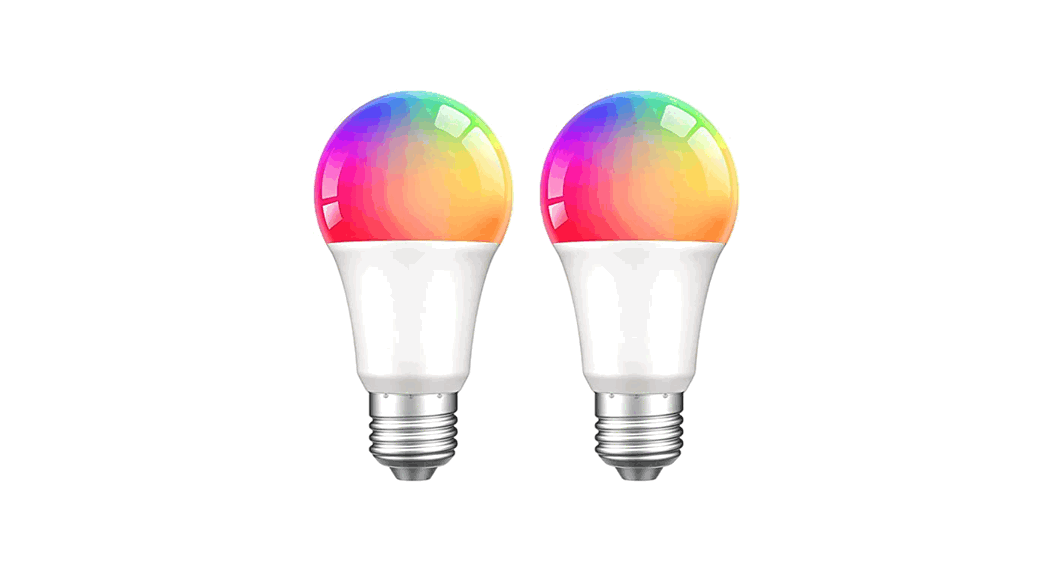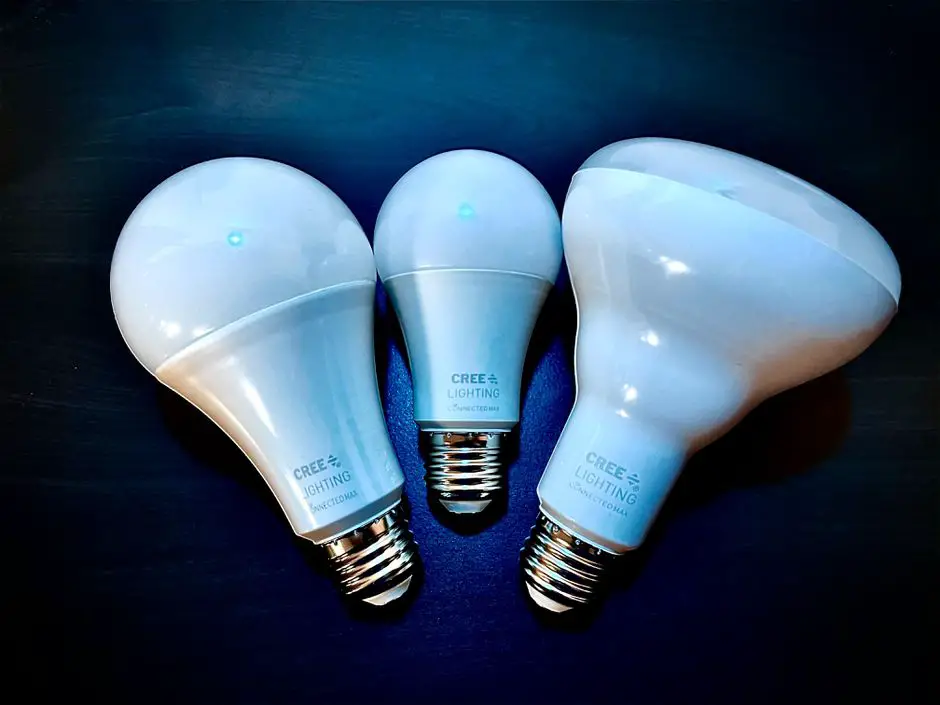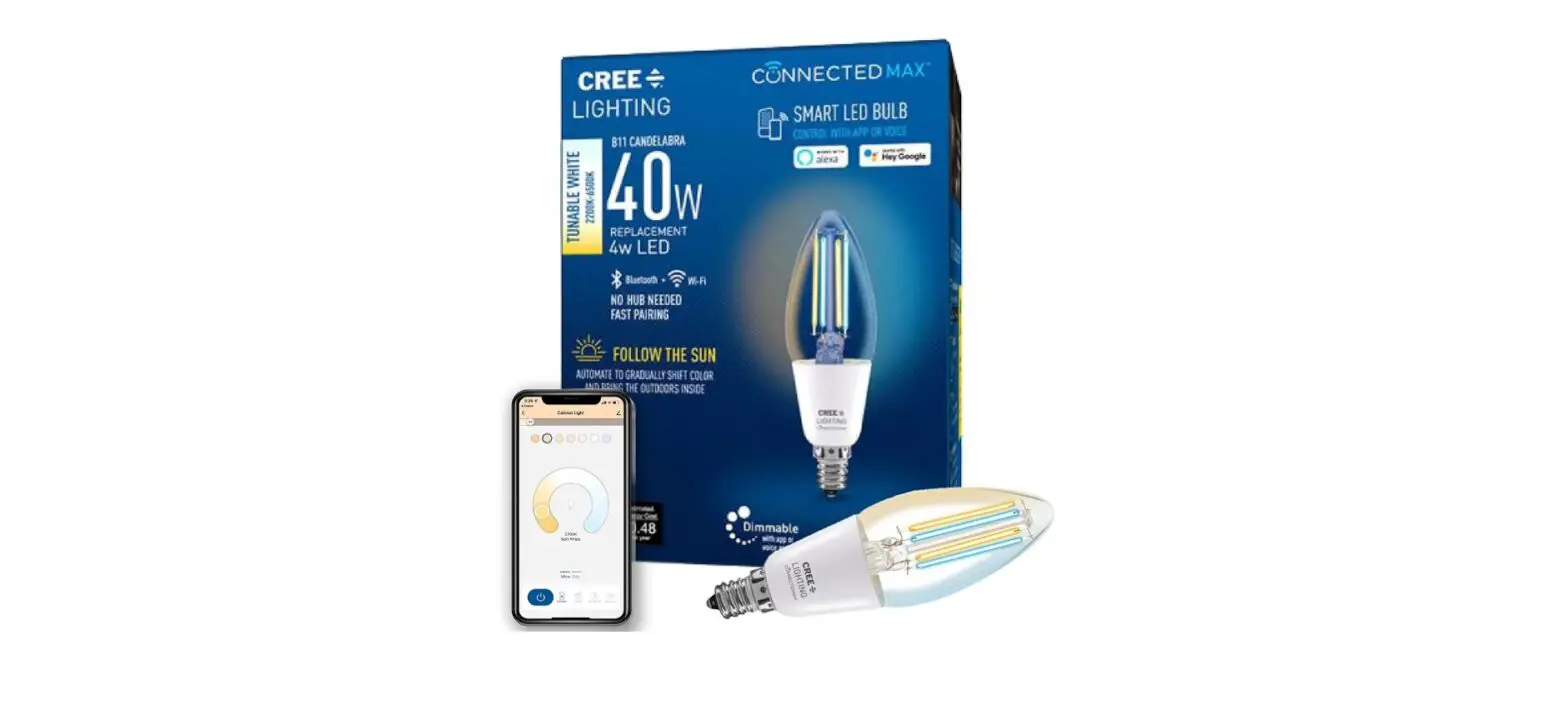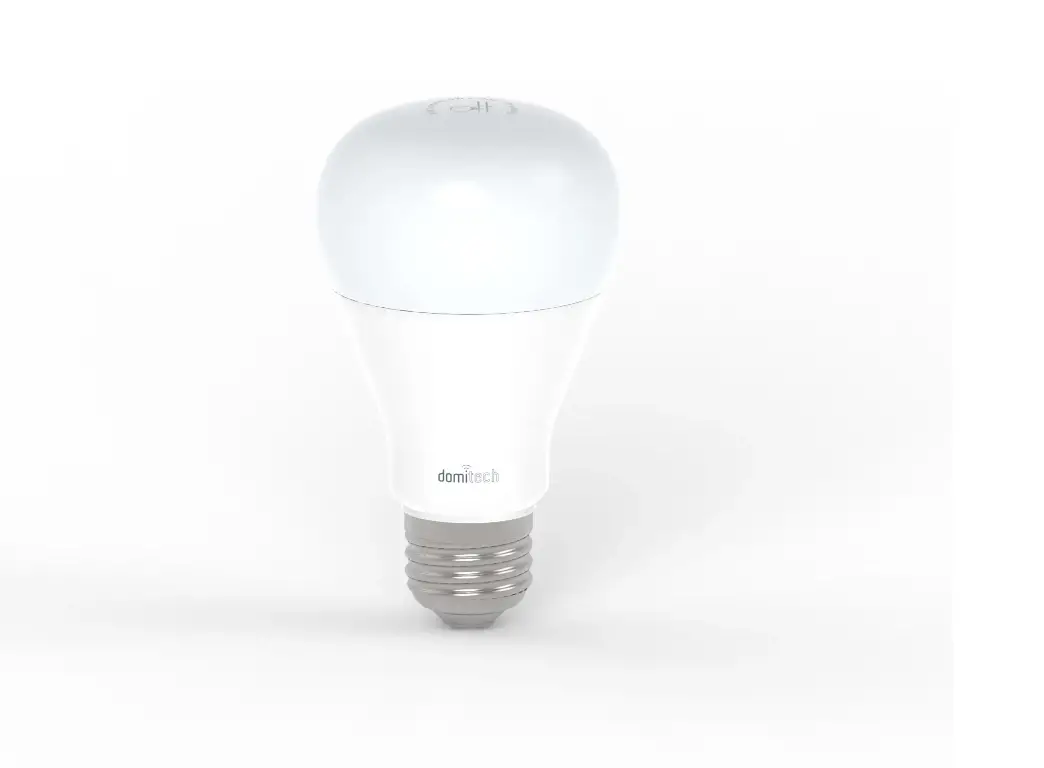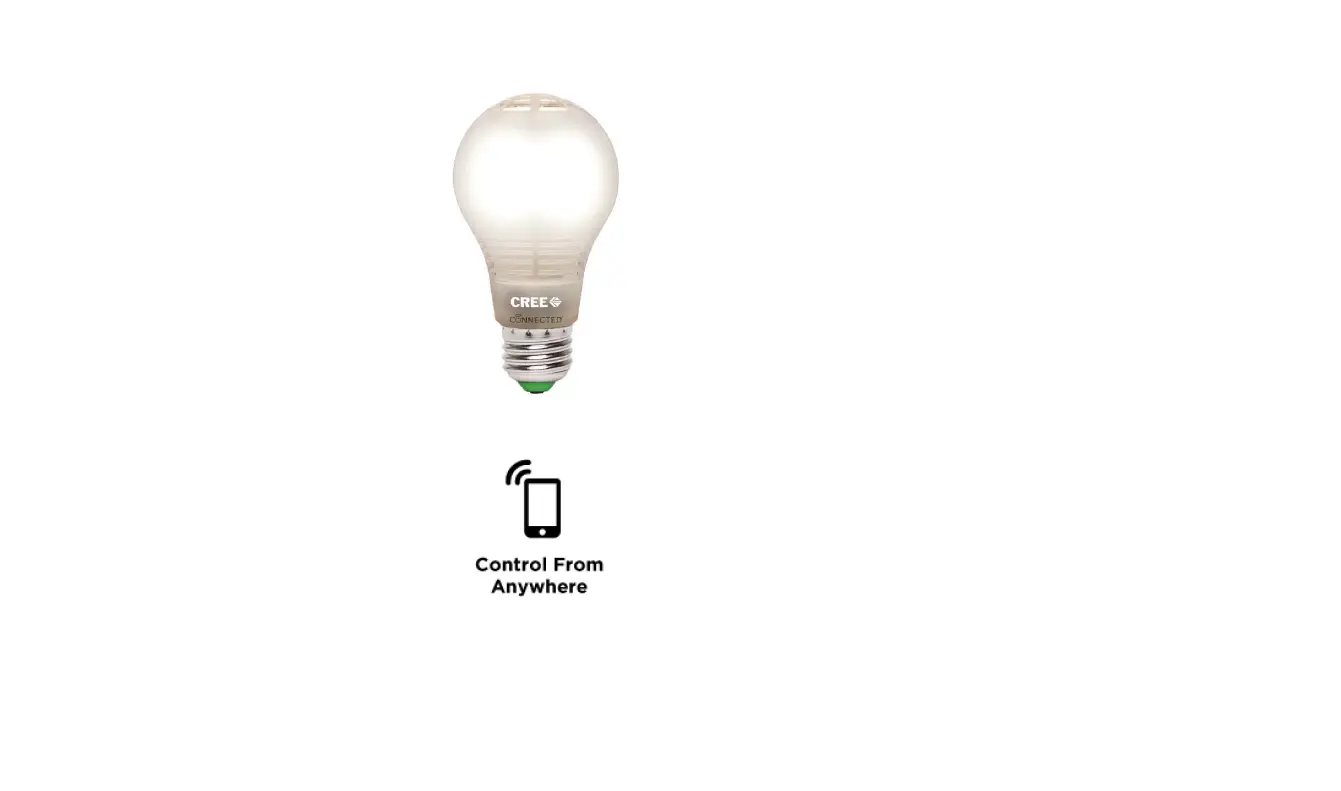

Cree Lighting BA19 08027OMF 12CE26 1C100 LED Smart Bulb
Specification
- BRAND: Cree Lighting
- LIGHT TYPE: LED
- SPECIAL FEATURE: Dimmable
- WATTAGE: 11
- BULB SHAPE SIZE: A19
- BULB BASE: E26
- INCANDESCENT EQUIVALENT WATTAGE: 60 Watts
- USAGE: Indoor use only
- LIGHT COLOR: Soft White
- VOLTAGE: 120 Volts
- COLOR TEMPERATURE: 2700 Kelvin
- LUMINOUS FLUX: 815
- MATERIAL: Glass
- CONNECTIVITY TECHNOLOGY: ZigBee
- INDOOR/OUTDOOR USAGE: Indoor
- CONTROLLER TYPE: Wink, Amazon Alexa, SmartThings
Introduction
The Cree linked LED bulb can be operated from anywhere and has an even more realistic appearance and lighting. It is a simple, affordable method of personalizing the lighting in your home. Install your lights and hub, connect them to the appropriate app, and start adjusting your lighting settings on your iOS or Android device. The Cree connected LED bulb works with either a wink or a ZigBee certified hub and is compatible with a variety of home automation systems. Once installed, you may control lighting from the palm of your hand and effortlessly dim or brighten to the ideal setting, schedule lights to turn on automatically in the morning, or switch on lights for extra security when you are away from home.
WHAT YOU WILL NEED
- Connected Cree® LED bulb
- Connected Cree® LED Bulb Compatible Hub
- Wink Hub
- SmartThings® Hub
- WeMo Link
- Another ZigBee® certified hub
- Mobile device using the compatible Android®, iOS®, or Windows Phone® App
- The latest version of the compatible App downloaded on your mobile device (Wink App, SmartThings App, WeMo App or compatible App for your ZigBee® certified hub).
WINK INSTALLATION INSTRUCTIONS

INSTALLING THE WINK HUB
NOTE: Wink Hub Installation requires a Wi-Fi network connected with a router using WPA-PSK, WPA2-PSK or open security
- Plug the Wink Hub into an outlet. The Hub will turn on and when it is ready to connect, the light on the Hub will begin flashing purple.
- On your mobile device, open the Wink App and tap Add a Product.
- Select Wink Hub from the product list.
- Several steps follow in the App, including a short video in step 1 about connecting the Wink Hub. After viewing video or when ready for the next step, tap Next.
- Step 2 instructs you to plug in the Wink Hub. Tap Next.
- Step 3 is how to share your Wi-Fi with the Wink Hub. Ensure Bluetooth and Wi-Fi is enabled on your mobile device. Enter the Wi-Fi network name and password and tap Share Wi-Fi. Wink Hub light will flash yellow, indicating it is connecting to your Wi-Fi network.
- When Wink Hub is connected, App will display “Success” and the light on the Wink Hub will change to solid blue.
- Name your Wink Hub or Tap Done to exit setup.
PAIRING THE CONNECTED CREE® LED BULB IN THE WINK APP:
Connected Cree® LED bulbs are installed and paired one at a time with Wink.
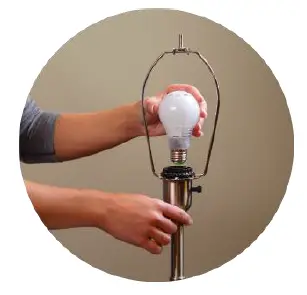
- Install a single Connected Cree® LED bulb in a lamp or light fixture. The switch to the lamp or fixture should remain OFF at this time.
- Open the Wink App in your mobile device and tap Add a Product or the Plus sign.
- Select Lights from Product list.
- On the Lights list, select Cree Light Bulb.
- The Wink App then guides you through a series of steps; the first step is installing the Connected Cree® LED bulb in a lamp or light fixture, if needed.
- Step 2 instructs you to ensure Wink Hub is plugged in (bulb should remain OFF). Tap Next.
- Step 3 indicates the Wink Hub is ready to add the Cree® bulb. The light on the Wink Hub will flash blue when ready to add your Connected Cree® LED bulb.
- Turn ON the Connected Cree® LED bulb at the wall or lamp switch.
- When the Connected Cree® LED bulb is connected, the Wink App will display “Success” and the light on the Wink Hub will quickly show solid green, and then stop flashing. After a light is successfully connected, tap Name Light to give your Cree bulb a name, or tap Done. The App will walk the user through a short tutorial session on how to control your Connected Cree® LED bulb in the Wink App.
- Repeat these steps to install each Connected Cree® LED bulb on your network.
CONTROLLING CONNECTED CREE® LED BULBS WITH THE WINK APP
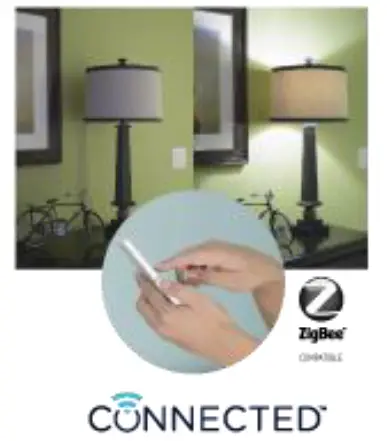
- Open the Wink App and tap the Lights Icon.
- Tap On to turn light on. Tap Off to turn light off. Adjust slider around light icon to dim and brighten.
- Tap Groups to create groups of lights to control together with one tap.
- Tap the 3 dots in the top right corner to customize the settings for your lights and set Schedules. You can also access Help from this menu and view Activity.
- From the main Wink page, you can customize Shortcuts and Robots and also access Activity.
Shortcuts let you control multiple products with one tap in the Wink app. For example, you can turn off all lights on the first floor of your home with one tap. You can create special shortcuts like Movie Night, Romantic Dinner or Welcome Home to control multiple Wink products at the same time.
Robots are a simple way to automate your lighting based on your interaction with other Wink products, location or activity. For example, a robot can be programmed to automatically turn on specific lights and open shades when you unlock the door.
Activity displays a log of all connected light activity and also includes the section for setting schedules.
Schedules allow you to create single or recurring events that turn on, off, or dim your bulbs at a certain time of day. For example, you can schedule a recurring event for security, where a selected light will turn on at 8:00pm every night. Events can be displayed daily or weekly and are listed on a separate tab so they can easily be edited.
Help displays a Tutorial for using the Wink App and information on contacting Wink Support.
SMARTTHINGS INSTALLATION INSTRUCTIONS
INSTALLING THE SMARTTHINGS® HUB:
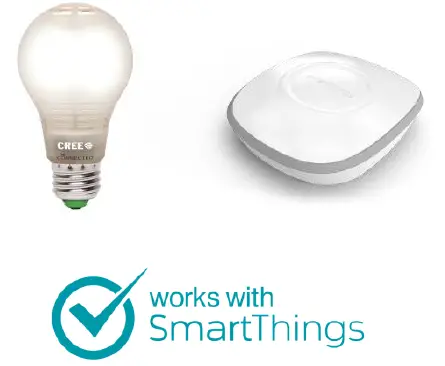
- Plug the SmartThings® Hub into the power adapter and an Ethernet cable connected to your internet router. A solid green light on the back indicates that it’s connected.
- On your mobile device, download and install the SmartThings Mobile app.
- Fill in information related to your location, including providing a name and selecting a location image.
- During the account creation process you’ll be prompted to enter your 6-digit Welcome Code. This will connect your SmartThings® Hub to your SmartThings account.
PAIRING THE CONNECTED CREE® LED BULB IN THE SMARTTHINGS MOBILE APP:
Connected Cree® LED bulbs are installed and paired one at a time with SmartThings® App.
- Install a single Connected Cree® LED bulb in a lamp or light fixture. The switch to the lamp or fixture should remain OFF at this time.
- Open the SmartThings App and click the plus icon on the bottom of the Dashboard.
- Select Light Bulbs from the list of supported devices.
- On the Lights list, select the Connected Cree® LED Bulb.
- Select “Connect Now”.
- Turn ON the Connected Cree® LED bulb at the wall or lamp switch.
- When the Connected Cree® LED bulb is connected, the SmartThings App will list the device as available to configure. Click on the device to name it as well as configure Top Alerts and Actions.
- Repeat these steps to install each Connected Cree® LED bulb on your network.
CONTROLLING CONNECTED CREE® LED BULBS WITH THE SMARTTHINGS MOBILE APP:
- Open the SmartThings Mobile App and click on the Things section.
- Tap on the light icon to toggle the bulb, or click the gear next to the icon to dim the bulb.
- You can also add shortcuts for lights or groups of lights straight to the Dashboard. Click on the plus button at the bottom of the Dashboard, scroll to Actions and select Lighting. Choose the option to create a shortcut and walk through the setup process.
- You can schedule automations for your devices by clicking the plus on the bottom of the Dashboard, scrolling to Actions selecting Lighting.
WEMO INSTALLATION INSTRUCTIONS
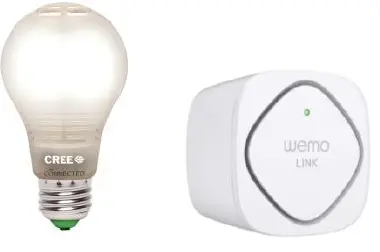
- Plug the WeMo Link into an outlet.
Note: Using your smart device, be sure you have two (2) bars of signal strength from your router at that location.
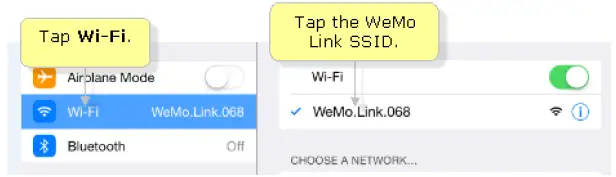
- Find and tap on your Settings icon and select Wi-Fi from the settings menu. Choose the WeMo Wi-Fi from your network list.
NOTE: The default network name or SSID of the WeMo Link has this format, WeMo.Link.xxx. The xxx represents the last three (3) digits of the serial number of the WeMo Link.
- Exit Setting and open your WeMo App.
- It will try to scan nearby networks. If prompted, select your home wireless network. Once it shows you’re connected, it will enable Remote Access. Tap OK.
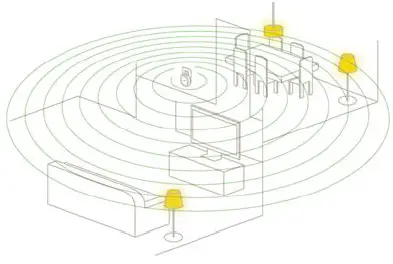
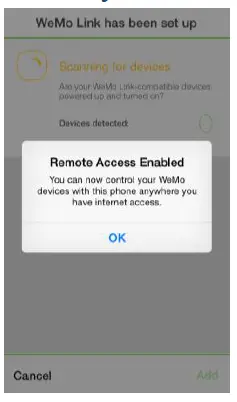
PAIRING ADDITIONAL CONNECTED CREE® LED BULBS IN THE WEMO APP:
Connected Cree® LED bulbs can be installed and paired up to 8 at a time with the WeMo app.
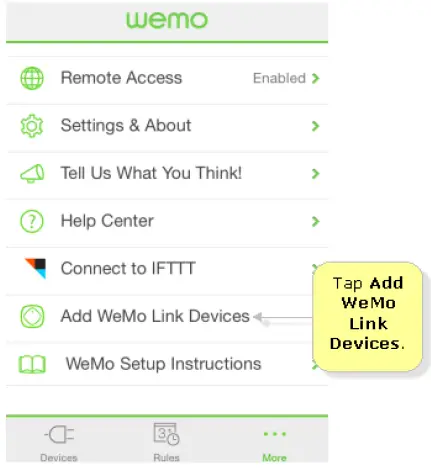
- Launch the WeMo App and tap More, then Add WeMo Link Devices
- Install or screw in the Cree LED bulb(s) and turn the light switch ON.
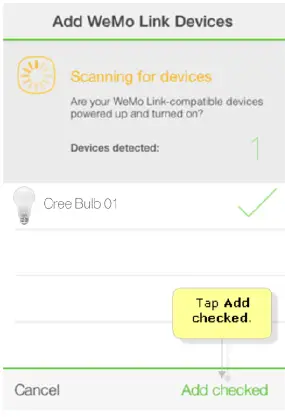
- Once the new light bulb(s) is detected tap on Add Checked. Note: If no bulb is found, power cycle the bulb for more than 2 seconds.

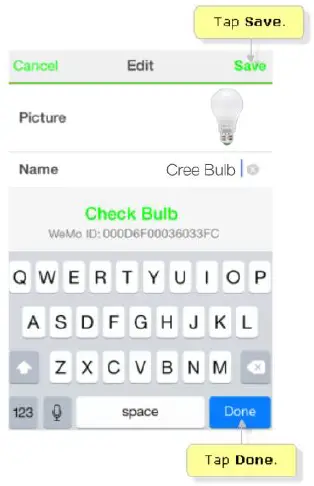
- You will be prompted to rename your new light bulb(s) and edit its picture or icon. Tap Done once completed.
CONTROLLING CONNECTED CREE® LED BULBS WITH THE WEMO APP:
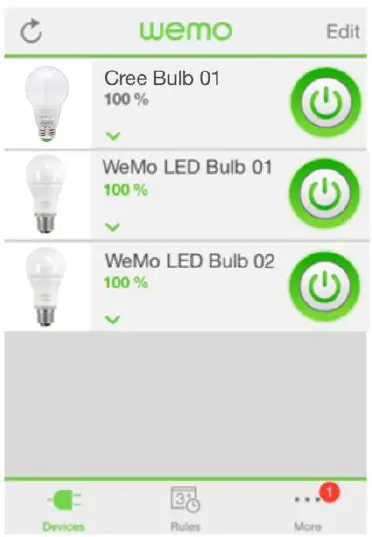
- Open the WeMo App.
- Tap on the power icon to toggle the light or click the tile to reveal the dimmer.
- You can also group lights. Drag and drop a tile onto another to create a group.
- You can schedule automations for your devices by tapping the rules icon at the bottom.
FAQs
Always wondered that myself. You do only get 6 bulbs.
So, it does need a hub, and will work with stuff like the Hue, however it’s a pain to set up. https://huetips.com/lamp-finder/ use this to connect them if you do get one.
It is a 6pk the math must be incorrect per bulb, if you buy a single bulb the price is $14.97 so buying 6 you save about $4. The bulbs are very good and offer a dimmable feature on any light, also controlling mine with Amazon echo through a wink hub, works great.
As of May 28 2017, they do not work with hue. I emailed hue with no response why. The code to manually search for bulbs is not working or not being accepted.
Soft, or warm white is defined by the color temperature, and as such this bulb is rated as having a color temperature of 2700k. I use these bulbs in my own home and find them indistinguishable from traditional incandescent.
I think not. They are rated for US voltage (120). If they were rated for 220, they would indicate on the box or the bulb. The box mine came in clearly says 120V with no mention of 220V.
It functions as a normal bulb if you use the light switch. The light switch should always be in the on position if used with the app or A.I. assistant device.
I found them at Home Depot at that same price.
Yes, it is soft white as defined by the color temp rating which is 2700K. This should give off a yellowish light similar to an incandescent bulb.
I don’t know the answer for sure but when I look on Time Warner’s website at http://www.timewarnercable.com/en/intelligenthome/equipment.html, it shows several compatible products. This particular item is not listed but other ZigBee protocol devices are listed. That seems to me like Time Warner Intelligent Home product supports the ZigBee protocol, and by extension this light bulb. Amazon has a great return policy so I’d give it a try if you are willing. Another option may be to ask Time Warner.
This bulb needs a wink or other compatible ZigBee hub.
Yes 1 bulb. And yes, this is the same bulb you can get at Home Depot for $15.00. After shipping and Amazon fee, it’s hard to complete with the brick & mortar.
Yes, they are compatible.
Never used the sengled hub. these bulbs are great with smartthings and echo plus.
Not sure but I have an Echo, several mini’s, Google Max, and several nest mini’s, and a Hue hub! The Cree bulbs are always problematic, connectivity issues, as are Belkin WeMo mini plugs. You will need a hub , at some point !