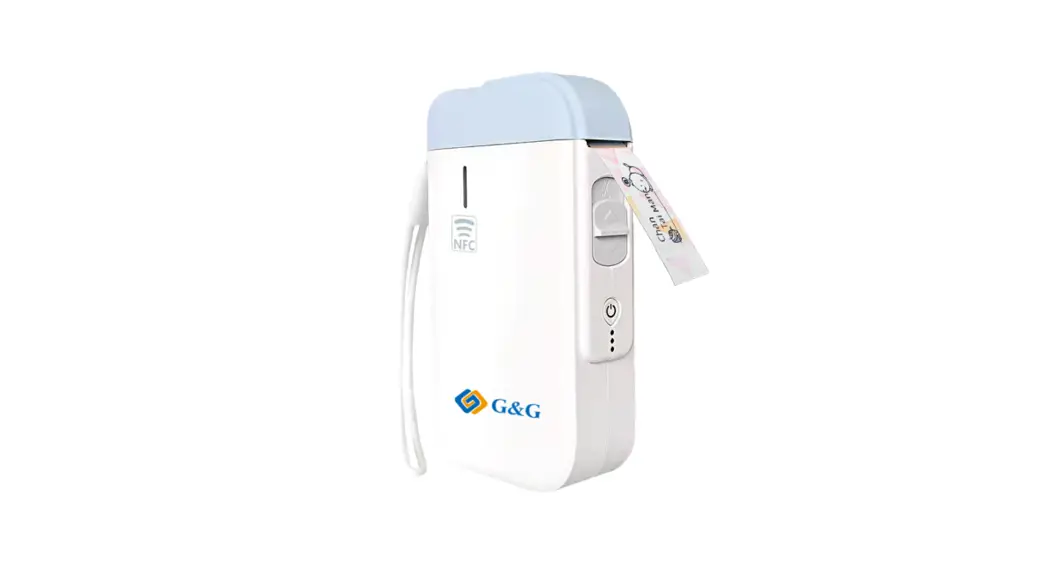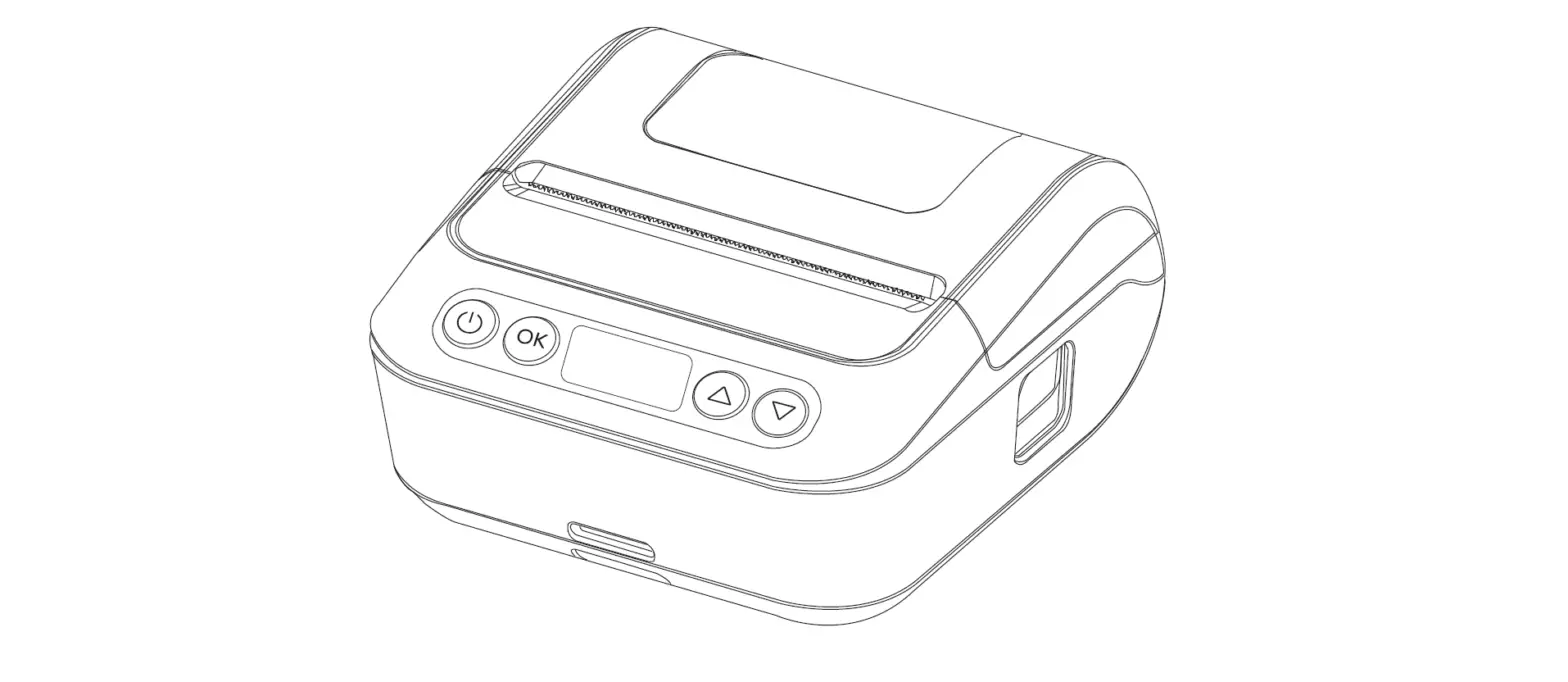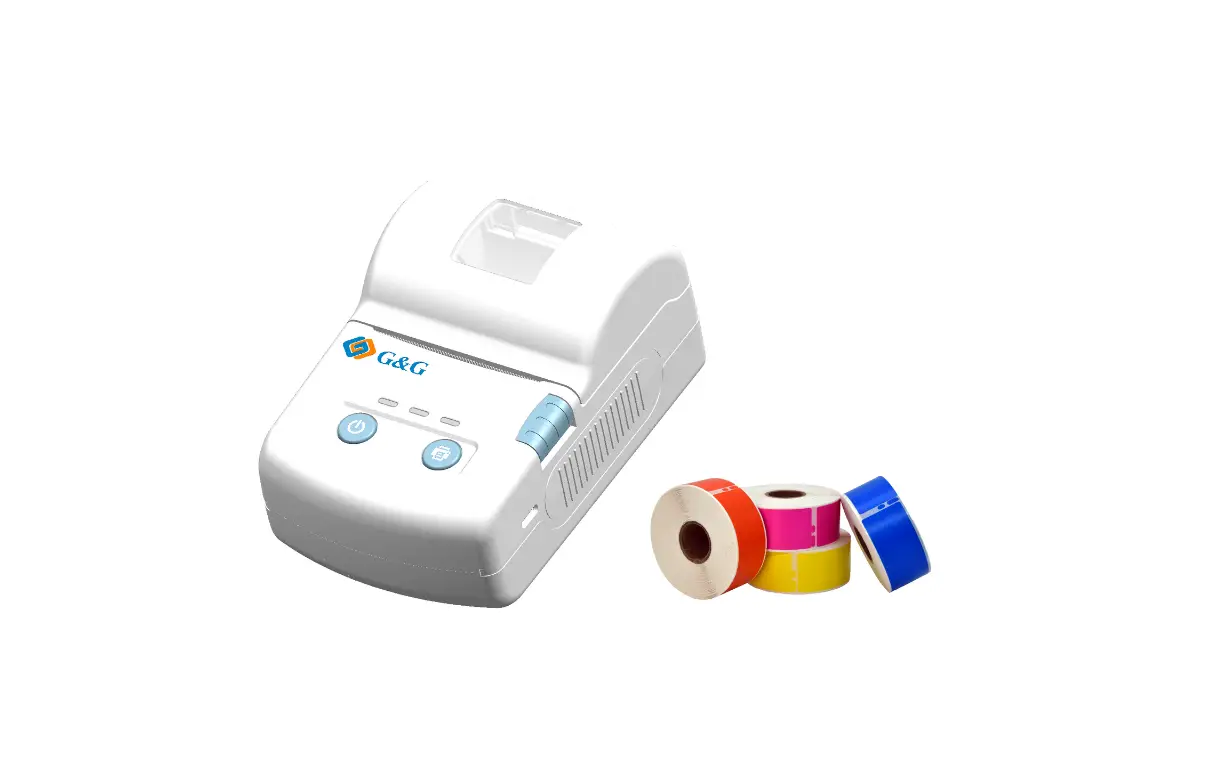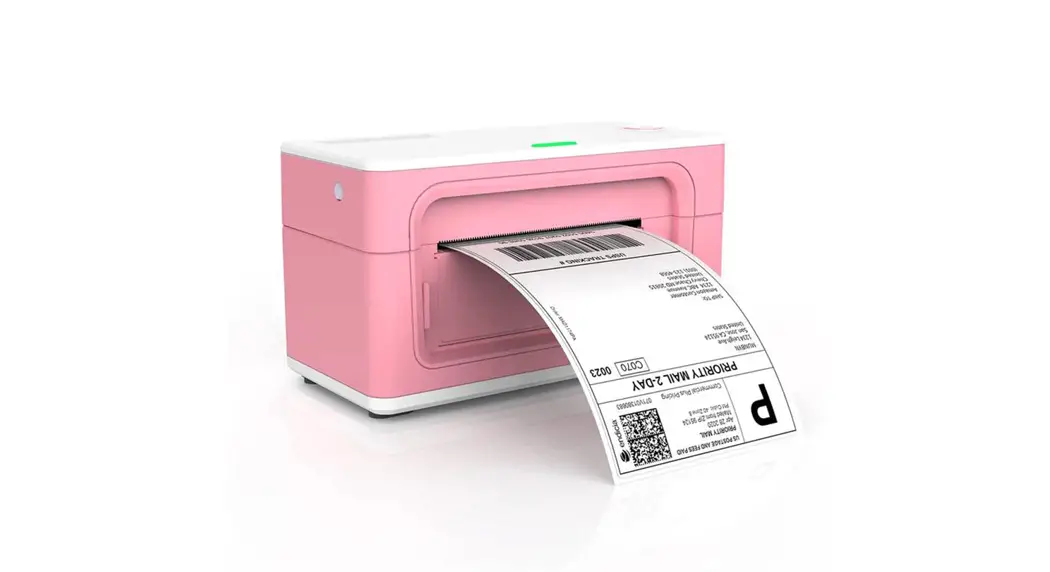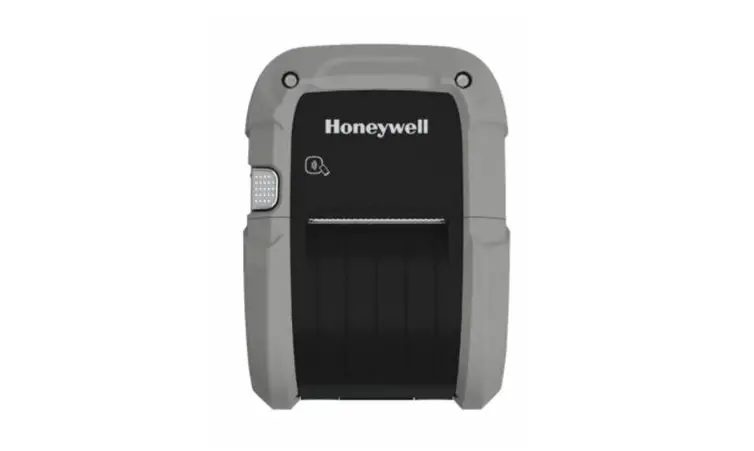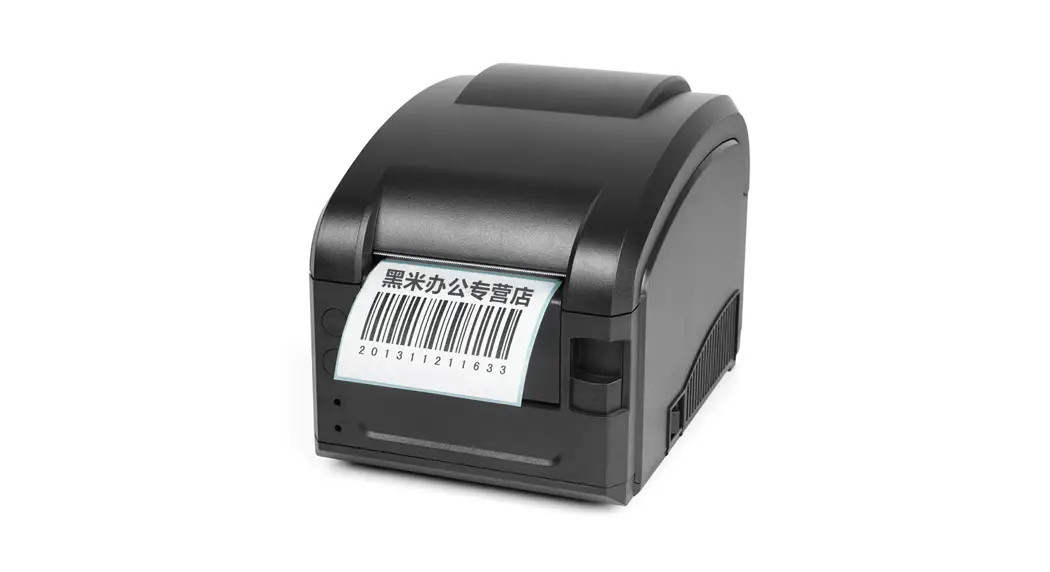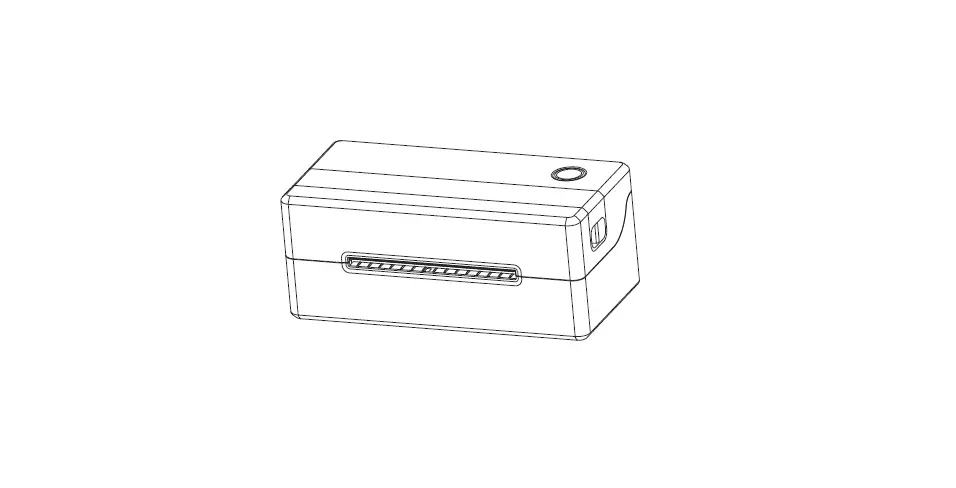

Green Project GL-2NB Wippy Label Printer
This product is only suitable for safe use in non-tropical climate
- Manual (includes warranty card and certificate)
- 1 printer body
- 1 communication charging cable
- 1 roll of label paper
Install the Paper Roll
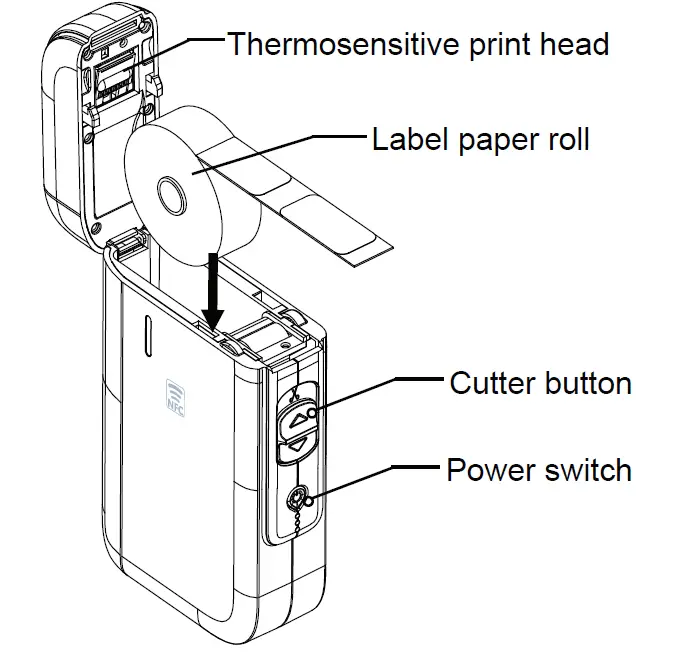
- Push the switch on the printer cover to open the printer cover..
- Install the paper roll in the direction shown by the arrow. Pay attention to the direction of the paper roll.
- Pull out a piece of paper to the outside of the goods according to the direction shown in the.
Connect to Printer Bluetooth
Method 1:
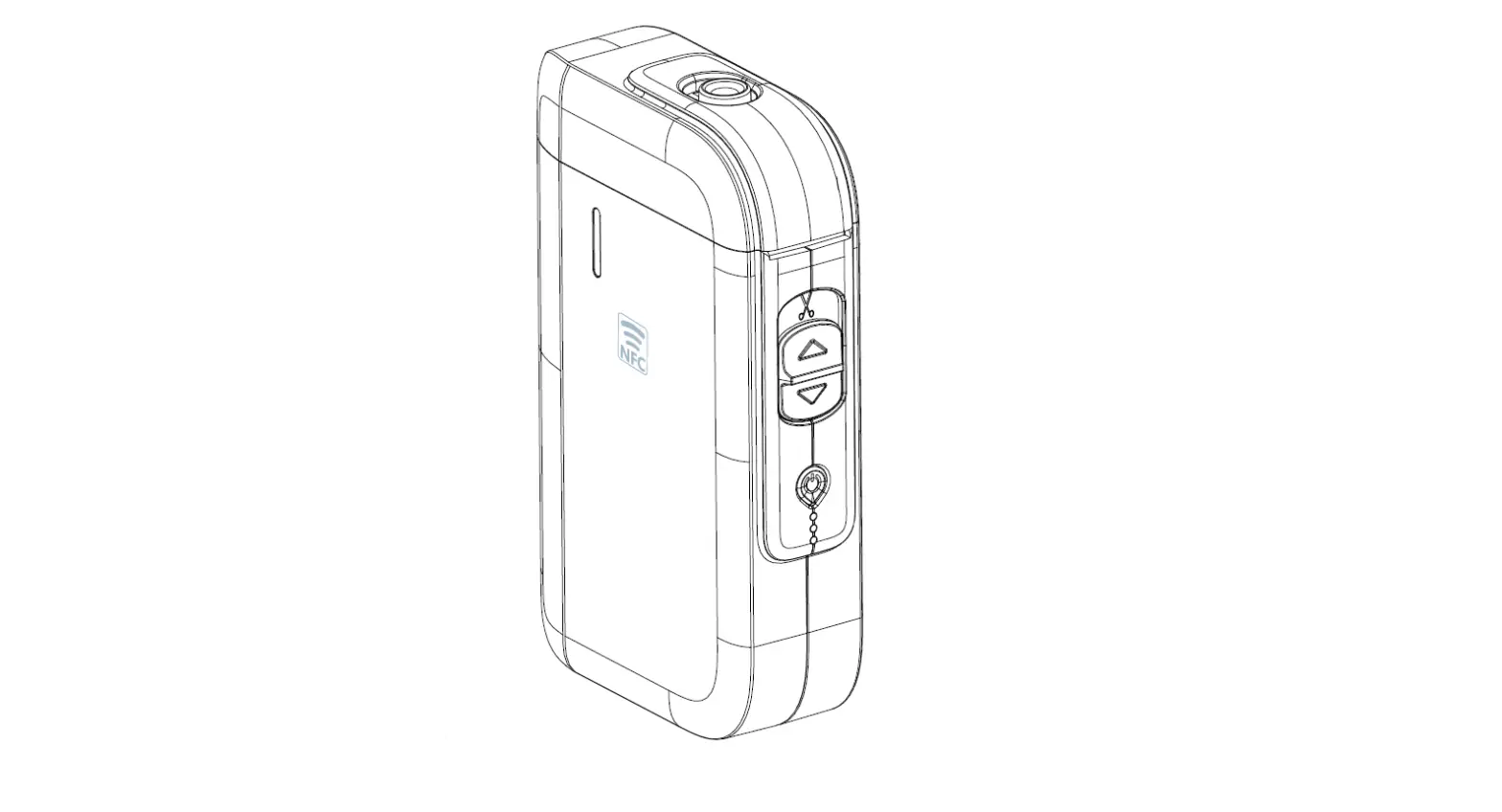
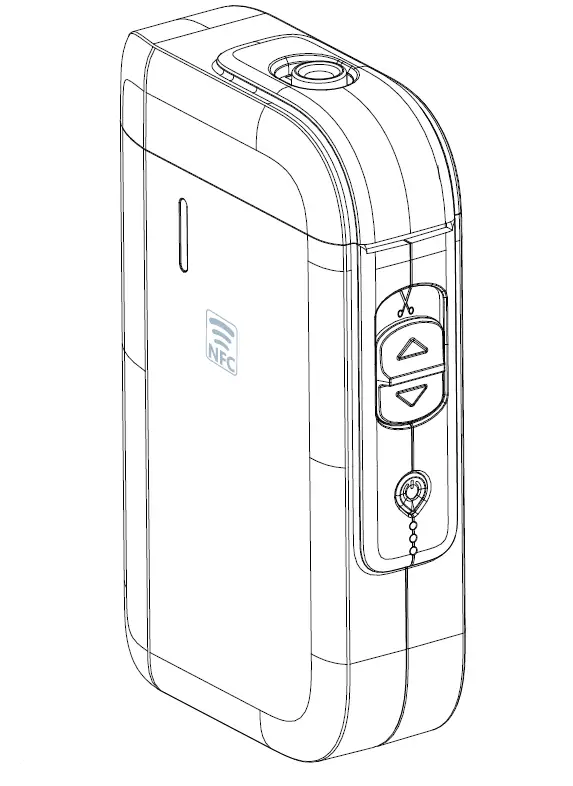
If the phone has NFC function, after installing the Print APP, open the Print APP, put the NFC sensor area of the phone close to the NFC icon found on the side cover of the printer. It can be connected once they touch.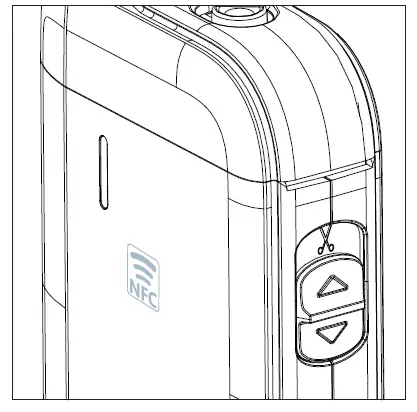
Method 2:
Press the power button for 1 second to print the Bluetooth information page. Users can open the Print APP, search for the Bluetooth name on the information page and connect. You can also use the Print APP to scan the QR code on the information page and connect to Bluetooth.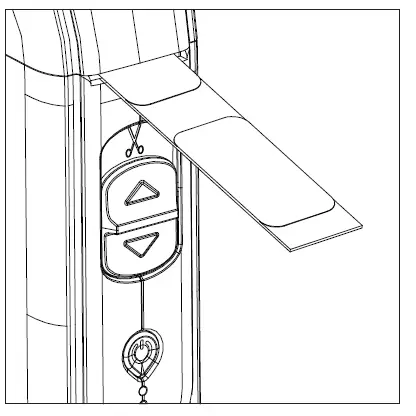
Key and Indicator Light
| Power On | Press the power button for 2 seconds to turn on printer, and it will beep 1 time. |
| Power Off | Press the power button for 2 seconds to turn off printer, and it will beep 2 times. |
| Paper In | Under the power-on state, press feed button, and the paper will be taken in. |
| Print the Bluetooth Information Page | When the printer is on, press the feed button for 1 second, and a Bluetooth information page will be printed out. |
| Low Power Warning | When the battery power is less than 10%, the third light and buzzer will flash ring. After 10 seconds, it will automatically shut down.. |
| Open Cover/Missing Paper Warning | The first light flashes twice, and the cycle is paused for 1 second. The buzzer will ring 2 times and pause for 1 second. |
| Print Overheating Warning | The first light blinked 3 times and paused for 1 second. The buzzer will sound 3 times, and the printing will resume after the temperature decreases. |
| Clearance Detection Warning | The first light blinked 3 times and paused for 1 second. Press the paper button to check the gap, and it will return to normal. |
| Bluetooth Initialization Failed | The three indicator lights are flashing all the time. |
| USB Charging | When connected to the USB cable and charging, the 3 lights will flash one by one. |
| Full Charging | When connected to the USB and fully charged, those 3 lights are fully lit. |
Attention
- Avoid dropping or shaking the label printer.
- Avoid high temperatures and humidity.
- The printer should be charged with a power supply of appropriate voltage.
- Avoid water from entering the printer. Turn off the power immediately, if water enters the printer.
- Attempting to print without labels with seriously damage the printer and thermosensitive print heads. Doing so will void warranty.
- If you do not use the printer for a long time, disconnect the printer power.
- Users are not allowed to dismantle the printer for maintenance or modification.
- In order to ensure print quality and product life, it is recommended to use quality printing paper.
- When unplugging the connector, make sure there is no dust in the connector plug.
Features
- Small and light design
- Built-in battery
- Smart USB charging
- NFC function is supported and phones can be connected at touch
- IOS and Android TAB editing software
- Simple, convenient, and informative tag editing
Note:
This printer is sold without power adapter. The input parameters of the printer are: DC 5V, lA; Please use with CCC certificate and comply with the relevant standards of the power adapter.
Technical Parameters:
|
| Printing | Direct line thermal sensitivity |
| Resolution | 203DPI | |
| Print Speed | 90mm/s{max) | |
| Interface | USB+Bluetooth+NFC | |
| Print Width | 12mm | |
| Editing Software | Supports barcode, QR code, text | |
| Number of Connections | Support 7 Android devices and 1 Apple device to connect with Bluetooth at the same time. | |
| Paper | Paper Type | Thermal paper |
| Paper Width | 15mm | |
| Paper Cutting | Manual paper cutting | |
| Power | Input Voltage | 5V, 1A |
| Charging | USB charging, computer or USB charger {lithium battery only supports charging) | |
| Environment | Work Environment | Temperature: 5~40°C Humidity: 90%RH{no condensation) |
| Storage Environment | Temperature: 5~40°C Humidity: 90%RH{no condensation) | |
| Physical properties | Dimensions | 131x82x31mm |
| Weight | 210g | |
| Life time | Life Time | 50Km, Lettering rate 12.5% |
Warning:
The contents of this manual shall not be changed without permission. We reserve the right to change the products in terms of technology, components, software, and hardware. Users may contact the reseller for further information regarding the product. This manual may not be reproduced or transmitted in any form or by any means without permission.
Remark:
This product is grade A and can only be used safely in non-tropical areas. The product may cause radio interference, in which may require the user to take
effective measures against interference.
Troubleshooting
| Problem | Solution method |
| Cut Continuously | It may be that the glue of the label sticks to the cutting knife. Clean the cutting knife. |
| Report Gap Detection Errors When Printing a Few Papers | It may be that the user sets the gap paper with the APP, but printer installs continuous paper. Error of gap detection when printing. Set the paper type to be the same as the actual paper roll. |
| Print Blank | Please check whether thermosensitive printing paper reels are used and check whether the reels are reversed. |
| Detect Paper and Paper Deficiency | If the printer does not detect a paper shortage, no paper detected, or reported missing paper error then users need to set the test value of missing paper in the APP according to the instructions. |
| Print Blurring | Please check whether there is dirt on the heat-sensitive film. If there is dirt, please wipe it clean with a cotton swab dipped in hydrated alcohol. Please replace the heat-sensitive paper with guaranteed quality to avoid printing inaccuracy caused by paper. . |
Warranty clause
Scope and Duration of Warranty
- Warranty is limited to product failure caused by poor materials or manufacturing process.
- The warranty period shall be calculated from the date of purchase (subject to the purchase invoice).
- Warranty period:
A. One year or 30,000 meters of printing length, whichever is comes first.
Principles of Warranty Service
- Free repair for products within the warranty period and scope.
- The warranty card shall be presented for the warranty.
- There will be a fee for maintenance services out of the warranty period.
- If the products are disassembled or repaired without our company’s certification, the warranty is not valid
Non-Warranty Clause
- The printer was not maintained according to the manual, resulting in damage to the printer.
- The printer is damaged by water or foreign matter.
- The print head is damaged, due to non Green Project Label Tape.
- Use the printer for other purposes beyond the scope of use.
- Damage caused by tampering or opening of the device.
Certificate of approval

Warranty Card Items
| Product Model: | |
| Customer Name: | |
| Customer Address: | |
| Purchase Date: | |
| Customer Phone Number: | |
| Dealer Name: | |
| Dealer Address: | |
| Cause of Machine Malfunction: | |
FCC statement
This device complies with Part 15 of the FCC Rules. Operation is subject to the following two conditions:
- This device may not cause harmful interference,
- this device must accept any interference received, including interference that may cause undesired operation.
Caution: Changes or modifications not expressly approved by the party responsible for compliance could void the user’s authority to operate the equipment.
NOTE: This equipment has been tested and found to comply with the limits for a Class B digital device, pursuant to part 15 of the FCC Rules. These limits are designed to provide reasonable protection against harmful interference in a residential installation. This equipment generates, uses and can radiate radio frequency energy and, if not installed and used in accordance with the instructions, may cause harmful interference to radio communications. However, there is no guarantee that interference will not occur in a particular installation. If this equipment does cause harmful interference to radio or television reception, which can be determined by turning the equipment off and on, the user is encouraged to try to correct the interference by one or more of the following measures:
- Reorient or relocate the receiving antenna.
- Increase the separation between the equipment and receiver.
- Connect the equipment into an outlet on a circuit different from that to which the receiver is connected.
- Consult the dealer or an experienced radio/TV technician for help.
Radiation Exposure Statement
The device has been evaluated to meet general RF exposure requirement. The device can be used in portable exposure condition without restriction.