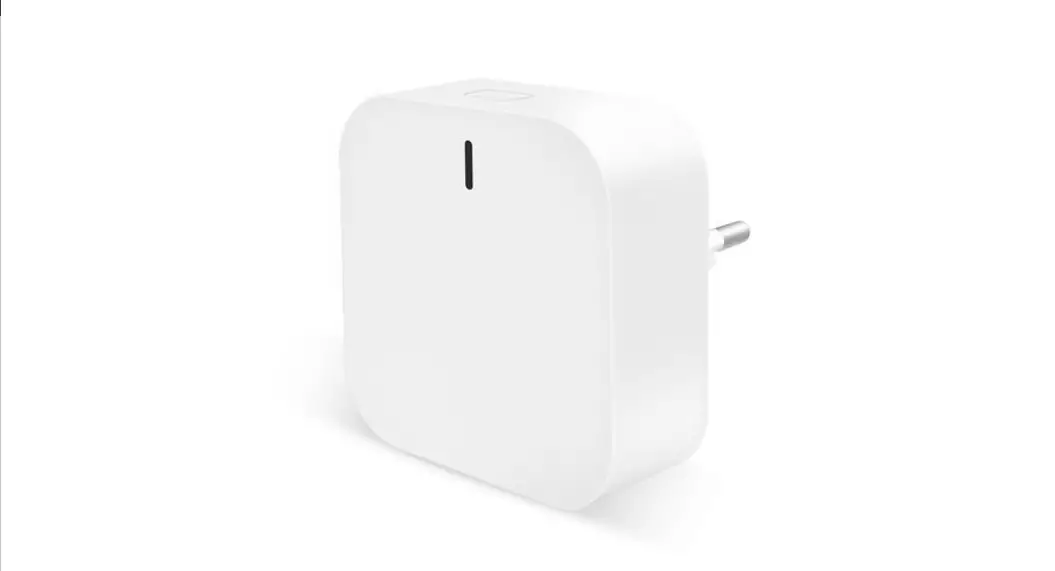
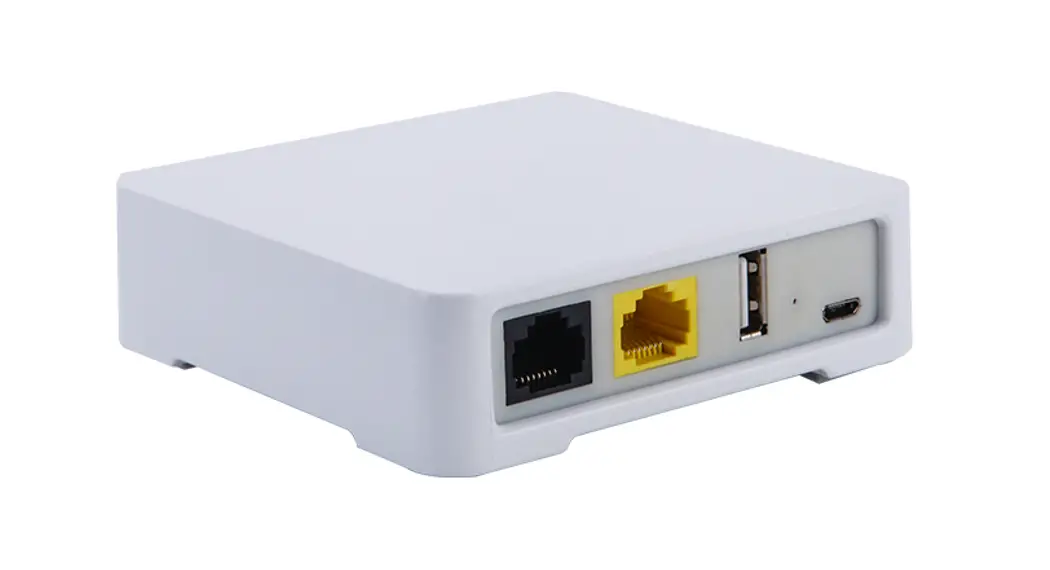
BG03 Smart Fittings Gateway
BG03 smartfittings gateway guide
For load display on smartphone, see App Instructions, and for sensor guides see
smartlink guide or smarttune guide.
Product Description
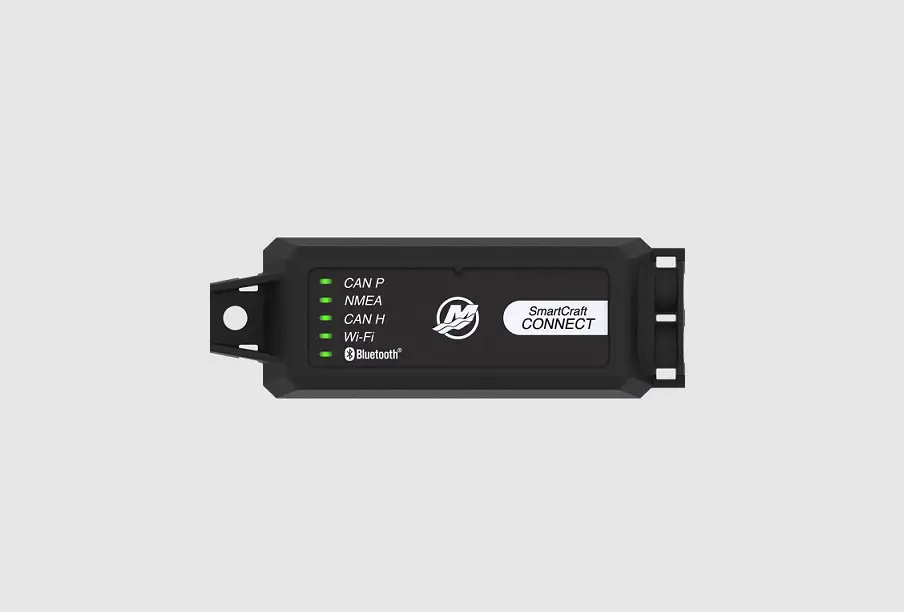
With the addition of a smartfittings gateway, data from our
sensors can be outputted to most modern marine electronics,
allowing data to be viewed from anywhere on your boat via existing
on-board displays. It is designed to plug directly into displays or
electronics configuration and is splash resistant to IP54, for
mounting below deck. Up to 50 sensors can be connected, data can be
logged and downloaded for analysis, and exported for use with
sailing analytics software.
How it works…
Simply plug the gateway into existing marine electronics
network. Add new sensors to the gateway using WiFi web interface
and configure displays to show live loads.
Gateway Installation
What you need:
- smarttune or smartlink
- smartfittings gateway
- [email protected]
NMEA2000 electronics:
- Find NMEA2000 CANbus/backbone closest to load sensors. For
example, for a forestay smarttune, the backbone closest to the
forward bulkhead is optimal. It is important to find the right
location to allow for the strongest, uninterrupted signal from the
sensors. If necessary, a NMEA2000 drop cable can be added in to
reach this position (not supplied). Typical locations for backbones
include:- Behind displays
- Mast base
- Near speed & depth sensors
- Connect supplied T-connector + drop cable to gateway M12
connector (larger of the two) and backbone. - Power on marine electronics.
NMEA0183 electronics (includes NKE
products):
- Find nearest installed marine electronics device to wireless
load sensors with NMEA0183 input. Consult manufacturer
documentation for more information. - Connected supplied cable to gateway M8 Connector (smaller of
two) and to NMEA0183 input using below wiring arrangement: - Power on marine electronics.
Gateway Web Interface:
The web interface can be used to view live load data, add,
modify or remove sensors, download log files and change general
settings. Viewing the web interface requires connection to gateway
WiFi, or to an existing WiFi network that the gateway has been
programmed to connect to.
Connect to Gateway WiFi Network:
- After installation, ensure marine electronics (including
gateway) are powered on. - Using smartphone/tablet/laptop, connect to gateway WiFi, as
shown on label (left).
App Instructions:
Refer to the separate instructions provided for load display on
smartphone.
smartlink Guide:
Refer to the separate smartlink guide for detailed instructions
on sensor usage.
smarttune Guide:
Refer to the separate smarttune guide for detailed instructions
on sensor usage.
Contact Information:
Email: [email protected]
BG03 smartfittings gateway guide
For load display on smartphone, see `App Instructions’, and for sensor guides see `smartlink guide’ or `smarttune guide’.
Product Description
With the addition of a smartfittings gateway, data from our sensors can be outputted to most modern marine electronics, allowing data to be viewed from anywhere on your boat via existing on-board displays. It is designed to plug directly into displays or electronics configuration and is splash resistant to IP54, for mounting below deck. Up to 50 sensors can be connected, data can be logged and downloaded for analysis, and exported for use with sailing analytics software.
How it works…
Simply plug the gateway into existing marine electronics network. Add new sensors to the gateway using WiFi web interface and configure displays to show live loads.
Gateway Installation
What you need:
smarttune
or
smartlink
smartfittings gateway
Before installation, ensure: · If boat hull/deck is constructed of carbon fibre, it is highly recommended to purchase optional dome antenna with 1m cable, so that there is a direct line of sight between the sensor and antenna. This requires having the antenna mounted on deck, with the gateway below deck, so that there is no carbon fibre in the line of sight. For boats with a mainly fibreglass construction, this shouldn’t be necessary. · smarttune/smartlink batteries are installed and sensor is powered on. · Antenna is screwed onto gateway. · Marine electronics are switched off at switch panel.
1
smartfittings gateway guide issue 1 EN
NMEA2000 electronics
1. Find NMEA2000 CANbus/backbone closest to load sensors. For example, for a forestay smarttune, the backbone closest to the forward bulkhead is optimal. It is important to find the right location to allow for the strongest, uninterrupted signal from the sensors. If necessary, a NMEA2000 drop cable can be added in to reach this position (not supplied). Typical locations for backbones include: a. Behind displays b. Mast base c. Near speed & depth sensors
2. Connect supplied T-connector + drop cable to gateway M12 connector (larger of the two) and backbone.
3. Power on marine electronics.
NMEA0183 electronics (includes NKE products)
1. Find nearest installed marine electronics device to wireless load sensors with NMEA0183 input. Consult manufacturer documentation for more information.
2. Connected supplied cable to gateway M8 Connector (smaller of two) and to NMEA0183 input using below wiring arrangement:
3. Power on marine electronics.
2
smartfittings gateway guide issue 1 EN
Gateway Web Interface
The web interface can be used to view live load data, add, modify or remove sensors, download log files and change general settings. Viewing the web interface requires connection to gateway WiFi, or to an existing WiFi network that the gateway has been programmed to connect to.
Connect to Gateway WiFi Network
1. After installation, ensure marine electronics (including gateway) are powered on. 2. Using smartphone/tablet/laptop, connect to gateway WiFi, as shown on label (left).
SMART FITTINGS GATEWAY
Serial number: BG03-12345 WiFi Network: cyclops12345 WiFi Password: sadgnlnr Web interface URL: 192.168.4.1
NMEA2000 COMPATIBLE
IMPORTANT: While connected to Gateway Wi-Fi, the below message (or similar) may appear. Always select `Keep trying Wi-Fi’, otherwise connection to web interface will not work.
cyclopsmarine.com
Access web interface
The web interface can be accessed using a web browser such as Chrome or Safari, at 192.168.4.1
PLEASE NOTE: Your retailer may have pre-configured your gateway to listen for your load sensor.
3
smartfittings gateway guide issue 1 EN
smartfittings gateway guide issue 1 EN
4
Sensor list Select ‘New Sensor’ to add a sensor
`Units’ changes what units the load is output to the displays in.
`Precision’ changes the number of significant figures the load is shown in. e.g. `0.00X’ counts in multiples of 0.001
Only change this if using wired load sensor connected to gateway
Enter data key provided with sensor here
Change designation of sensor for B&G and Sailmon, e.g. Forestay, Backstay etc (list of 64 names)
If using NMEA0183 output, choose type of output message.
Select from 8 Garmin channels. Sensor name (above) will show on display (first 10 characters only)
Don’t forget to select `Add’/’Change’ when finished!
Sensors page explained
Sensors page Configuring for NMEA0183
NKE electronics
If NKE is selected as the message type, a drop-down menu will show to choose a dynamic channel. Each sensor will require its own channel. The name displayed will be the first 10 characters of the sensor name.
PLEASE NOTE: This functionality has only been verified using the NKE Multigraphic display. Consult your local marine electrician for assistance if unsure.
Standard NMEA0183 (extra for experts only)
If standard NMEA0183 is selected, it is possible to send a message with the load data mimicking a variety of different `talkers’ (device types) and as using the format of different variables i.e. Air Temperature, Transducer. Only one sensor can be broadcast via standard NMEA0183. Consult your local marine electrician for assistance in setting this up with your instruments.
5
smartfittings gateway guide issue 1 EN
Loads Page explained
All sensors added on the `Sensors’ page will appear here. If a sensor is not powered on or in range, the last detected load value will show in grey.
Log Page explained
Name of selected log file a new file is created each time gateway is powered on A preview of the time stamped data will appear here. The size of the file will appear here.
6
smartfittings gateway guide issue 1 EN
Settings page explained
Alters function of M8 connector can also output for legacy NMEA2000 converter lead, and function as wired sensor input NMEA0183 speed
Select visible WiFi network from list or enter name here to connect Enter WiFi network password here NOTE: once the gateway is connected to a WiFi network, its own network will be disabled.
Reset the gateway internal clock here (battery powered)
Reset the gateway to Factory Settings (all configurations and data will be lost)
Safety
Please read all instructions before installing smartfittings gateway. Consult a professional before undertaking installation if at all unsure.
Technical Data
Wireless
2.4 GHz and 5.0 GHz IEEE 802.11ac wireless, IEEE802.15.1
Dimensions
114 x 63 x 28mm
Mass
118g
Housing Material Flame Retardant ABS (Black) IP54 rated
Clock Battery
life 10 years
7
smartfittings gateway guide issue 1 EN
 Home - Cyclops Marine