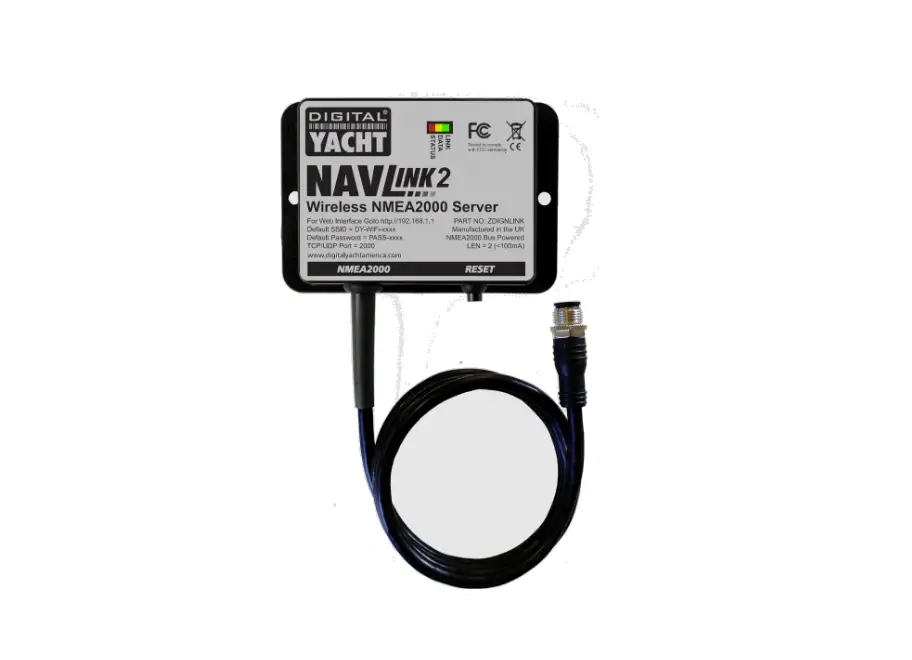
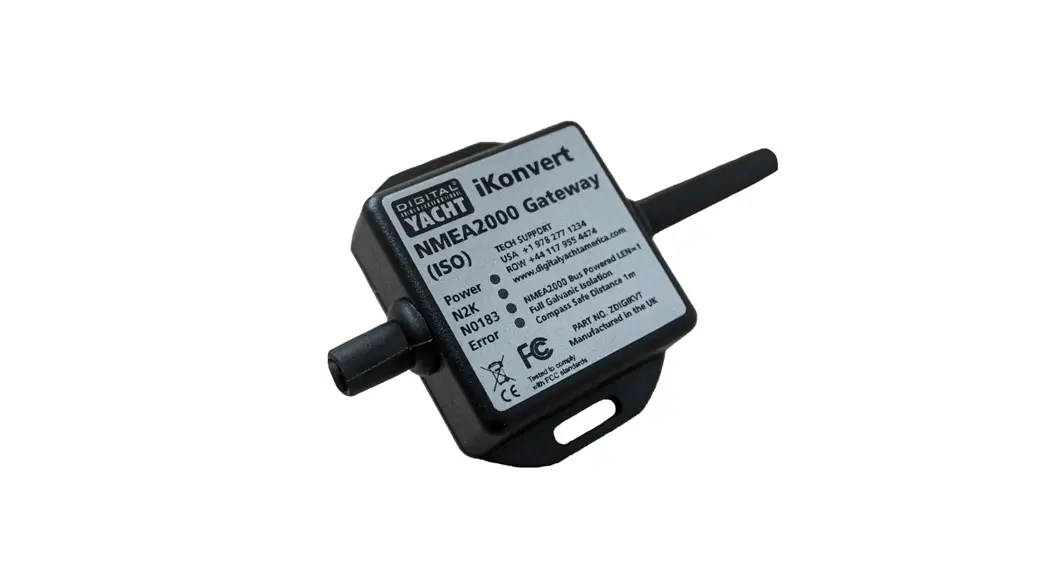
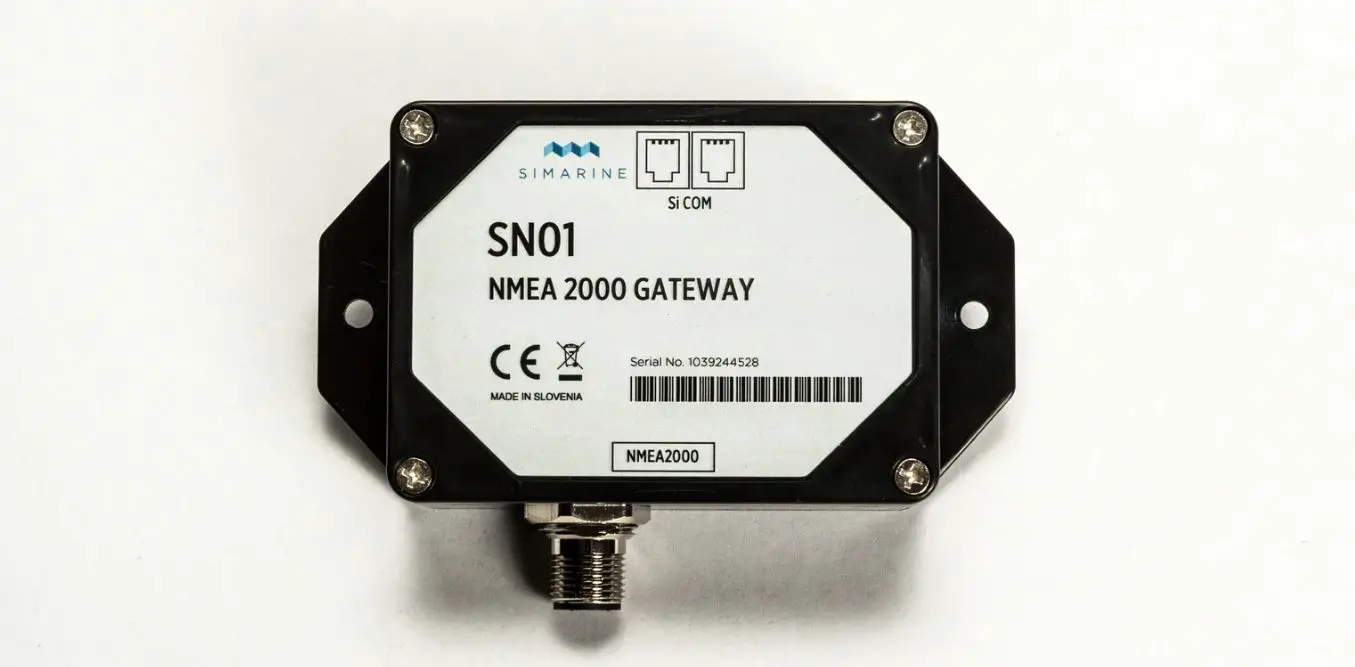
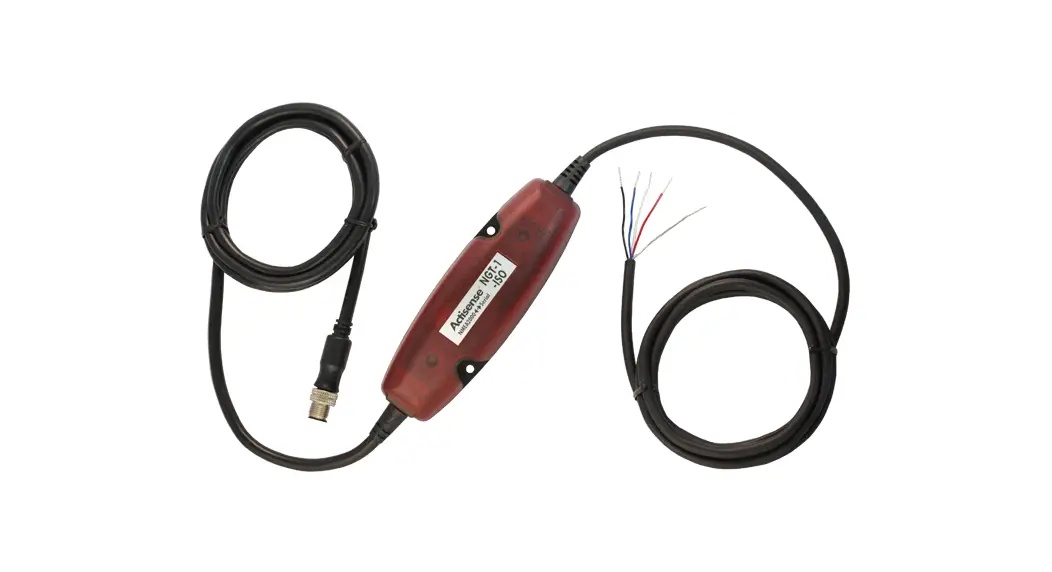
The NavLink2 Wireless NMEA2000 Server is a product that replaces
the original NavLink2 and comes with a new smart web interface for
configuration through a web browser on your mobile device. It is
designed to connect with navigation equipment and transmit wireless
NMEA data in both TCP and UDP modes.
Key Features:
- Wireless NMEA2000 server
- New smart web interface for configuration
- Compatible with mobile devices
- Supports SeaTalkNG and Simnet interfaces
- LED indicators for status, data, and errors
- Access Point mode and Station mode for wireless network
connection - Simultaneous support for TCP and UDP connections
Product Usage Instructions
Before You Start
Prior to installing and operating the NavLink2 Wireless NMEA2000
Server, please consult the user manual of the navigation equipment
that you plan to connect it to. It is also recommended to have a
professional installer assist you, especially when interfacing with
other equipment.
Installation
The installation process involves connecting the NavLink2 Server
to the navigation equipment using compatible interfaces like
SeaTalkNG (Raymarine) or Simnet (Simrad). Ensure that the condition
LED is solid ON (green) before proceeding with the
installation.
LED Indicators
The NavLink2 Server has several LED indicators that provide
status information:
- STATUS LED: Green LED that indicates the Wi-Fi
STA Mode status. It can be connected (solid), disconnected
(flashing), or in AP mode (active). - DATA IN LED: Yellow LED that indicates data
reception. It can be for system error, received data, or data
error. - DATA OUT LED: Yellow LED that indicates data
transmission. It can be for web connection, data transmitted, or no
data to N2K. - ERROR LED: Red LED that indicates a system
error. - LINK LED: Green LED that indicates the web
connection status. It can be for data transmitted or no web
connection.
Refer to Table 1 and Figure 1 for a summary of LED statuses.
Access Point and Station Modes
The NavLink2 Server offers two modes for wireless network
connection:
- Access Point Mode (default): Creates its own
wireless network for other devices to connect to. - Station Mode: Joins the boat’s existing
wireless network.
Refer to Figure 4 for a visual representation of the modes.
Configuration via Web Interface
To configure the NavLink2 Server, follow these steps:
- By default, the Access Point tab is selected on the web
interface. - In this tab, you can change the SSID (wireless network name),
wireless password, wireless channel, and static IP settings of the
NavLink2 Server. It is recommended to only modify these settings if
you have experience in computer networking. Digital Yacht cannot
provide support for specific networking issues. - If you want the NavLink2 Server to join an existing wireless
network on the boat, set the WiFi Mode to STA. This will display
the settings shown in Figure 5. - Select the desired network from the list and enter the
password. - The Status LED will initially flash and then stay ON if the
NavLink2 Server successfully joins the network. - If the NavLink2 Server cannot find the selected network or if
the wrong password is entered, the Status LED will stay OFF with a
short flash every two seconds to indicate connection attempts are
failing. After 3 attempts (30 seconds), the NavLink2 Server will
temporarily return to AP mode, allowing you to connect and change
the settings. - If needed, you can reset the NavLink2 Server to factory
defaults by pressing and holding the Reset button for 10 seconds or
more.
Refer to Figure 5 for a visual representation of the settings
when joining an existing wireless network.
TCP and UDP Modes
The NavLink2 Server supports simultaneous transmission of
wireless NMEA data in both TCP and UDP modes. Here’s a brief
overview of each mode:
- TCP: Device-to-device protocol with error
checking and handshaking for reliable bi-directional data transfer.
Requires entering the IP address of the NavLink2 Server into the
receiving app. Supports up to three simultaneous TCP
connections. - UDP: Broadcast protocol where NavLink2 sends
out a continuous stream of NMEA data. It does not have error
checking or handshaking and can be received by any number of
devices. If your app supports both UDP and TCP, it is recommended
to use TCP for better reliability.
Ensure that your mobile apps support TCP or UDP for receiving
the wireless NMEA data.
By following these instructions, you can effectively install and
use the NavLink2 Wireless NMEA2000 Server for wireless NMEA data
transmission and configuration.
NAVLINK2 WIRELESS NMEA2000 SERVER
Version 3.10
1. Introduction
Congratulations on the purchase of your NavLink2 Wireless NMEA 2000 Server. This product replaces our original NavLink2 product and features a new smart web interface for configuration via a web browser on your mobile device.
It is recommended that your product is installed by a professional installer, particularly when it comes to interfacing with other equipment.
Before installing and operating this unit, please consult the user manual of the navigation equipment that you are connecting this unit to.
2. Before you start
You will need the following items and tools to complete the installation: · The Wireless NMEA 2000 Server (supplied) · Spare/suitable connection to the NMEA2000 network · M3 or M4 screws or other appropriate fixings (not supplied).
To receive/display wireless data from the NavLink2 you will need: · Suitable navigation software running on a PC, iPhone/iPad, Mac or other
wireless device. · A fully working and powered NMEA 2000 network.
3. Installation
The NavLink2 is IP54 rated (water resistant) and should be installed below deck in a dry location. When locating the unit you should consider: · Routing of the NMEA 2000 cable to the network. · Sufficient space around the unit for cable connections. · Maintaining the compass safe distance of 0.5m. · Best location for Wi-Fi reception i.e. not inside a metal enclosure
3.1 Connecting to NMEA 2000 Network
· Connect the NavLink2 cable, to a spare connector on the NMEA2000 network. · NavLink2 takes its power (LEN=2) from the NMEA2000 network so no additional
connections are necessary. · If you are creating a new NMEA2000 network, then you may wish to consider
Digital Yacht’s NMEA2000 Starter Kit, that provides all of the cables, connectors and terminators required for a basic NMEA2000 network. · If you are connecting NavLink2 to a non-standard NMEA2000 network, then a suitable adaptor cable will need to be sourced from the relevant manufacturer;
> SeaTalkNG (Raymarine P/No A06045) > Simnet (Simrad P/No 24006199)
3.2 Mounting
· Using suitable fixings, attach the NavLink2 unit to a flat surface. · Unit may be installed in any orientation.
3.3 Powering NavLink2
· Apply power to the NMEA 2000 network and the NavLink2 the LEDs should start to illuminate or flash, as per Table 1…
Condition ON (Solid)
STATUS LED
(Green)
Wi-Fi STA Mode Connected
Flashing OFF
Wi-Fi AP-Mode
Active
Wi-Fi STA Mode Disconnected*
DATA IN LED
(Yellow)
ERROR LED (Red)
System Error
Data Received
Data Error
No Data From N2K
All OK
Table 1
DATA OUT LED
(Yellow)
LINK LED (Green)
Web Connection
Data Transmitted
No Data To N2K
No Web Connection
* Note Short flash every 2 seconds indicates NavLink2 cannot connect in STA Mode, check wireless network is visible and password is correct.
3.4 Setting up the Wireless Network
· By default, NavLink2′ creates a wireless Access Point (hotspot) on-board your boat. The Name (SSID) of the Access Point will be “NavLink2-xxxx” where xxxx is the unique four digit code of your device.
· To connect to the NavLink2 you will need to scan for wireless networks, find and select it in the network list and then when prompted, enter the default WPA2 password, which is “PASS-xxxx”, where xxxx is the same, unique four digit code that is in the hotspot name.
· As soon as a wireless connections is established, the Status LED will stop flashing and stay permanently ON, whilst a wireless device is connected.
3.5 Accessing the Web Interface
· The NavLink2 has a built-in web interface that can be used to configure the unit and display the data that it is sending to apps.
· Any device, connected to NavLink2, can access its web interface by typing http://192.168.1.1 or http://navlink2.local into its browser’s address bar.
· This will display the Home page shown in Figure 1, from which you can go to the Data Modes setup, Network Info and Settings pages.
Figure 1
3.6 NMEA Modes Configuration · The Data Modes page (see Figure 2) allows you to configure the NavLink2 for
different NMEA data conversions. For each data mode, the NMEA 0183 Sentences that NavLink2 will convert data to/from, are listed. · By default the NavLink2 will be in Mode 1 Gateway + AIS Mode, where all Instrument, GPS, Navigation and AIS data is converted from NMEA 2000 to wireless NMEA 0183 that the majority of apps support. · To change mode, simply click on the Mode’s Button and NavLink2 will immediately switch to the selected mode and store this new mode setting in its permanent memory. · You can view what data NavLink2 is outputting over its wireless interface by scrolling to the bottom of the page (see Figure 3).
Figure 2 Figure 3
· If your app does not support particular sentences or it is receiving the same data from another device, you can filter certain sentences by clicking the “NMEA Data Filter” button and clicking the check box next to the sentences you do not want to receive.
· From this page you can also log the data to a text file by clicking the “Start Log” button, waiting a suitable logging period and then clicking the “Stop Log” button. At this point the “Save Log” button becomes active and you can download the log file to your device.
3.7 Wireless Network Configuration NavLink2 has two wireless network modes, selectable on the Settings page.
1. Access Point mode (default) where it creates its own wireless network that other devices can connect to.
2. Station mode, where NavLink2 will join the boat’s existing wireless network.
Figure 4
By default, the Access Point tab is selected. From here you can change the SSID (wireless network name), wireless password, wireless channel and static IP settings
used by your NavLink2. We recommend only changing these settings if you are experienced in computer networking. Digital Yacht cannot provide support on specific networking issues. If you wish to make NavLink2 join an existing wireless network on the boat, set the WiFi Mode to STA and you will see the settings shown in Figure 5.
Figure 5
From here you can scan for and select the wireless network you want NavLink2 to connect to and enter the wireless password of this network click the “Eye” icon to view the hidden password. By default, NavLink2 will automatically get an IP address from the wireless network it connects to (this will be displayed “greyed out” in the IP box). If you want to control the IP address NavLink2 has on the network, turn off “Auto IP” and enter fixed IP address settings Once you have made all the changes, click the “Update Settings” button to apply the changes and reboot the NavLink2. After about 20 seconds, NavLink2 will reboot
and join the selected network. It’s “Status” LED will initially flash but then stay ON if it has successfully joined the network.
If NavLink2 cannot find the selected network or you have entered the wrong password, the “Status” LED will stay OFF, with just a short flash every two seconds to indicate that it is trying to connect but failing. If after 3 attempts (30 seconds) it cannot connect to the selected network, NavLink2 will temporarily return to AP mode, so that you can connect and change the settings.
Alternatively, you can press and hold the Reset button for 10 secs or more, to reset the NavLink2 to factory defaults.
3.8 Configuring Other Settings
NavLink2 simultaneously transmits wireless NMEA data in both TCP and UDP modes, the two network protocols, that the majority of mobile Apps support.
TCP is a device to device protocol, with error checking and hand shaking which ensures data is always received correctly. It is best for reliable bi-directional data transfer, but does require that you know the IP address of the NavLink2 and enter this in to the App you wish to receive the data. NavLink2 can support three simultaneous TCP connections.
UDP is a broadcast protocol, where NavLink2 just sends out a continuous stream of NMEA data that any number of devices can receive. It does not know if any devices are receiving the data and there is no error checking or hand shaking. If your App supports both UDP and TCP, we recommend using TCP.
On earlier NavLink2 units, it was necessary to select TCP or UDP mode, but now you only need to select this on the App as the latest NavLink2 supports 3x TCP connections and a multi-cast UDP connection at the same time.
By default the TCP and UDP connections are on Port 2000, but this can be changed on the Settings page (see Figure 6). It is important that the NavLink2 and the App are both set to the same Port and if in doubt just use the default Port 2000.
As a device/app connects to the NavLink2 via TCP, its IP address appears on this page (192.168.1.63 in the example).
Also on the Settings page, you can check the firmware version of your NavLink2 and the version of its internal NMEA 2000 Gateway processor. The NavLink2 can be easily updated on this page via the Web Interface, but a gateway update requires the unit to be returned to Digital Yacht.
Figure 6
4. Normal Operation
The NavLink2 is powered from the NMEA2000 network, so as soon as the network is turned on, the NavLink2 will boot up. If it is in the default AP Mode, then within a few seconds you should see its wireless network appear on your mobile device. If your device is set to automatically join this network, then it will wirelessly connect to the NavLink2. This association is indicated by the green Status LED, which initially flashes when first powered up, but then stays ON, all of the time that a wireless device is connected to the NavLink2 network.
IMPORTANT NOTES
1. Some devices show a “No Internet” warning when connecting to NavLink2. This is not a problem, just a warning that NavLink2 has no internet connection like a wireless router would normally have.
2. Some devices will show NavLink2’s network as having “Weak Security” this is because we do not currently support the latest WPA3 security protocol but WPA2 is still very secure and the most common wireless security.
If the NavLink2 is in STA mode, and the wireless network that you configured it to connect to is available, then NavLink2 will associate with it and the green Status LED will stop flashing and remain permanently ON. If it loses wireless connection with that network, it will turn off and briefly flash every couple of seconds.
Every time NMEA2000 data is received, the “DATA IN” LED will flash. On some large networks, it is not unusual for the yellow LED to be constantly flickering. If the navigation App sends out some data, the “DATA OUT” LED will flash.
In the event of wireless connection problems, press and hold the Reset button for 4-5 seconds which reboots the interface. In busy marinas with high levels of wireless activity, reliable connection to the NavLink2 in Access Point mode may be difficult, but once underway (at sea) a strong and reliable connection will be achieved.
If you experience wireless connection issues in Access Point mode, try setting NavLink2 to use another wireless channel. More information on this can be found at https://digitalyacht.net and then search for “Wi-Fi Congestion”.
You should never see the red “ERROR” LED turn on, except briefly at power up. If you see the “ERROR” LED flashing, this indicates that an NMEA conversion error has been detected and the data rejected. NavLink2 is designed to safely carry on working in this situation, but it will have recorded details of the error in its memory. Please contact Digital Yacht when convenient and we will investigate what has happened.
In the unlikely event that the red “ERROR” LED is permanently ON, please contact Digital Yacht immediately as this indicates a more serious problem has occurred that is stopping normal and safe operation.
4.1 – Interfacing with Mobile Apps
NavLink2 is compatible with any app that can receive wireless NMEA data and we have created an online guide on how to connect to the most popular ones…
The default IP address and port that the NavLink2 transmits data on are;
IP Address
–
192.168.1.1
Port
–
2000
If you have connected the NavLink2 to another network in STA mode, and you wish to use TCP mode, you will need to find the IP address of the NavLink2, which you can find in the Settings page of the web interface. You will need to access the web interface using http://navlink2.local
Some apps will let you enter the hostname navlink2.local instead of an IP address when setting up a TCP connection.
Most apps that support UDP connections do not ask you to enter the IP address just the port number, however if they do, try setting an IP address of 0.0.0.0
Please note that on both iOS and Android devices, it is best to always completely close an app, as highlighted in this article.
Some apps, only support a limited number of NMEA sentences and do not like receiving lots of data. Use the NMEA Mode selection in the web interface to change the amount and type of data transmitted e.g. for the Navionics Boating App we have found that Mode 5 “AIS and GPS only” is the best mode to use.
 Welcome to Digital Yacht’s Latest Newsblog
 NMEA2000 Cabling Kit - Digital Yacht