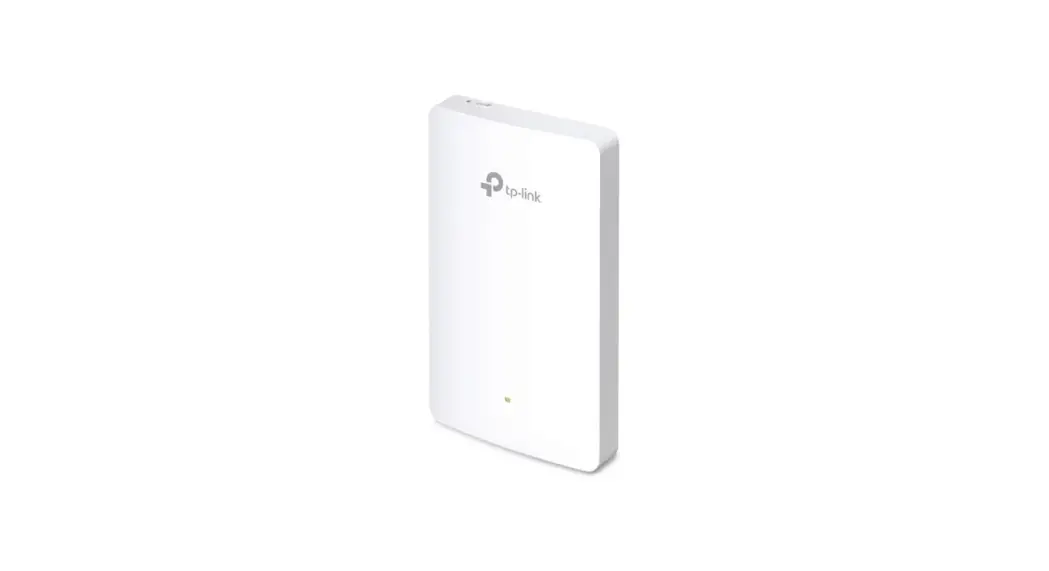
EAP650-Wall Wireless Wall Plate Access Point
Product Information:
Quick Installation Guide
Wireless Wall Plate Access Point
Setup with videos
Scan QR code or visit https://www.tp-link.com/support/setup-video/
Note: The image may differ from the actual product.
Hardware Overview
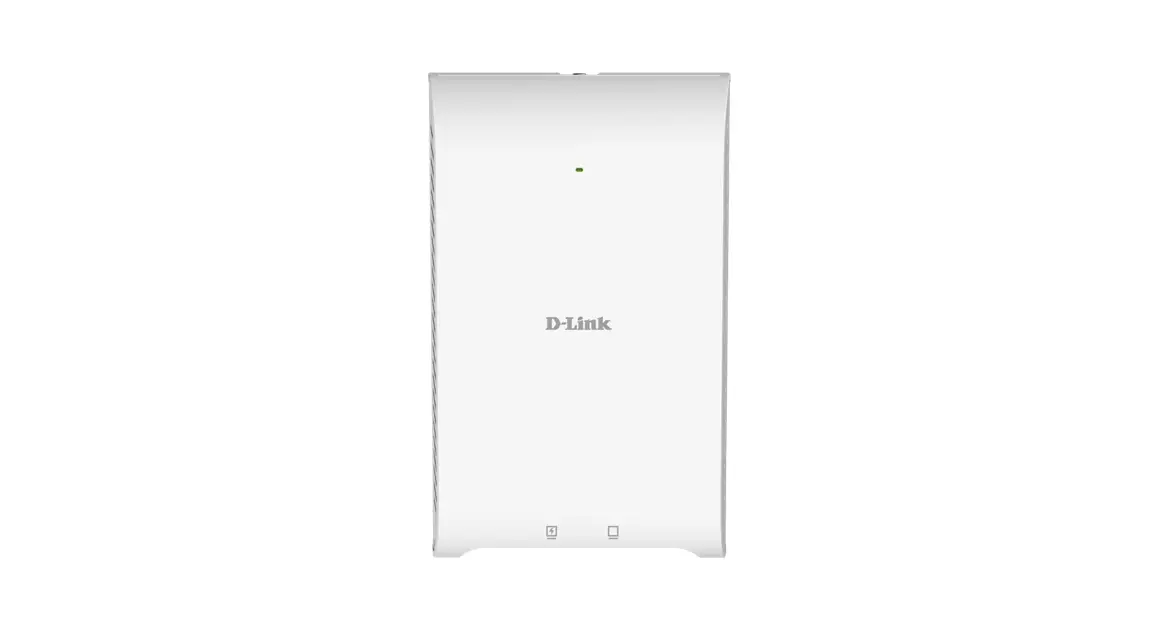
Front Panel
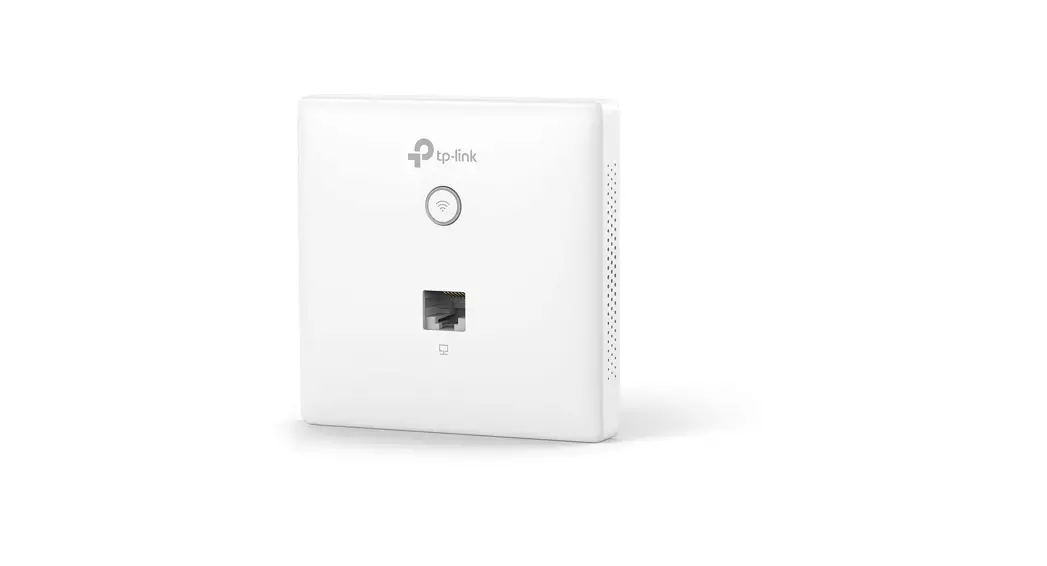
- LED/Wi-Fi Button: When the EAP is working in Standalone Mode
and enabled with Wi-Fi Control, press the button to turn on/off
both the Wi-Fi and LED. In other cases, press the button to turn
on/off the LED only. - LAN Port: A wired device can be connected to the LAN port via
an Ethernet cable and access the network. - RESET: With the EAP powered on, press and hold the button for
about 5 seconds until the LED flashes, then release the button. The
EAP will restore to factory default settings. - LED Indicator:
- On: Working normally/Initializing.
- Off: Working abnormally/Power off/LED is turned off.
- Flashing:
- Initialization: The LED flashes twice after initialization is
completed. - Upgrade: The LED flashes once per second while upgrading.
- Reset: The LED flashes quickly during the reset. The EAP will
then reboot. - Locate: When the Locate feature is activated in the Omada
controller, the LED flashes quickly to locate and identify the
device. The LED will flash for 10 minutes, or you can disable the
feature manually to stop it flashing.
- Initialization: The LED flashes twice after initialization is
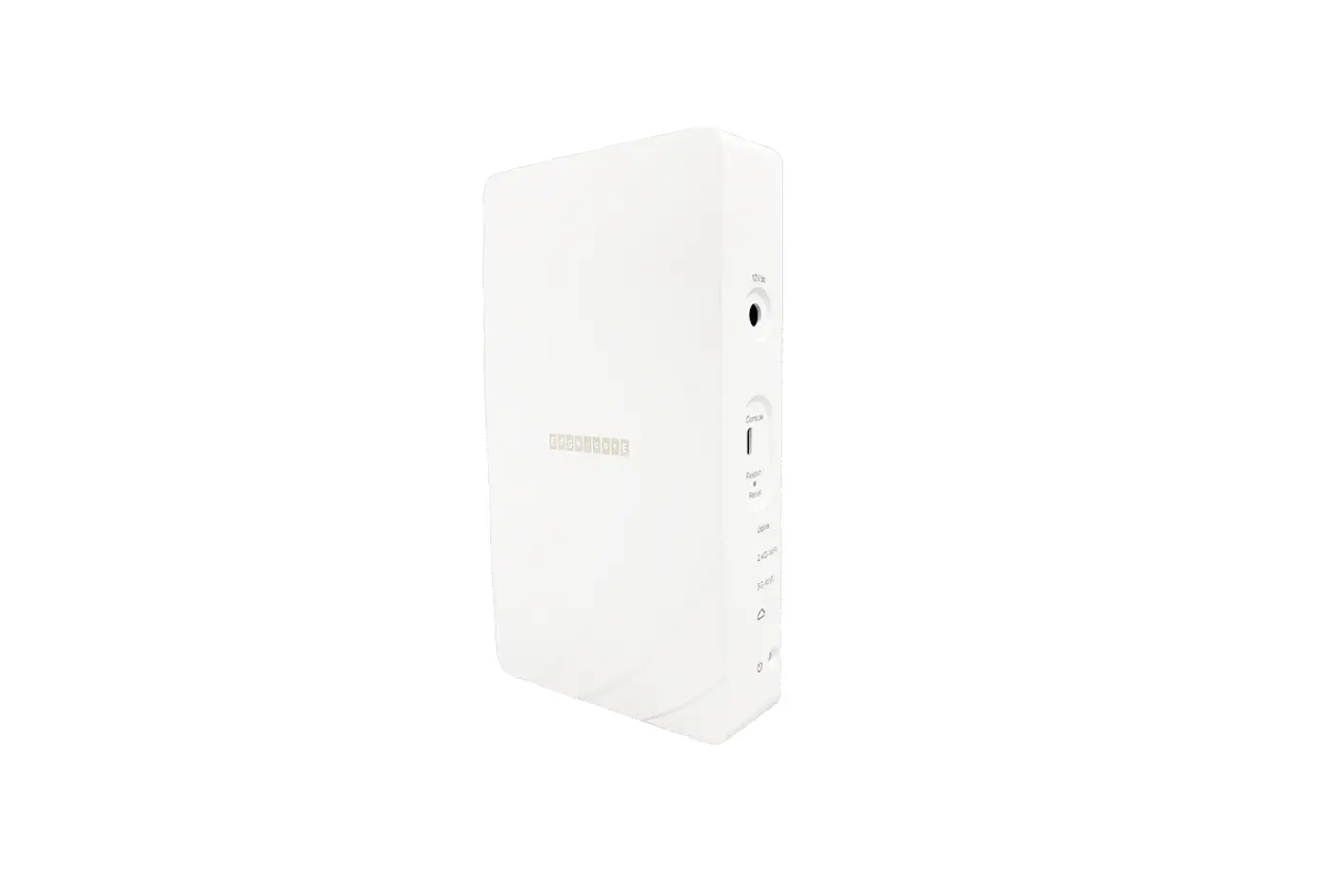
Rear Panel
UPLINK+PoE Port: Connected to a PSE (Power Sourcing Equipment),
such as a PoE switch, for both data transmission and power. The PSE
supports 802.3af/at inputs and complies with PS2(IEC/EN 62368-1) or
Limited Power Source(LPS) (IEC/EN 60950-1).
Pre-Installation Checklist
Before installation, be sure that you have the following
items:
- A pre-installed wall junction box
- A Phillips screwdriver
- An RJ45 plug
- A PoE switch
- A triangular screwdriver
Installation Steps
Note: For simplicity, we will take EAP230-Wall for example
throughout the Guide.
The EAP can be mounted into a wall junction box. The junction
box should be pre-installed with a running-in-wall Ethernet cable
connected to a PoE switch.
- Detach the faceplate of the junction box with a Phillips
screwdriver (demonstrated with an 86 mm wall junction box). - Detach the faceplate of the EAP with a screwdriver.
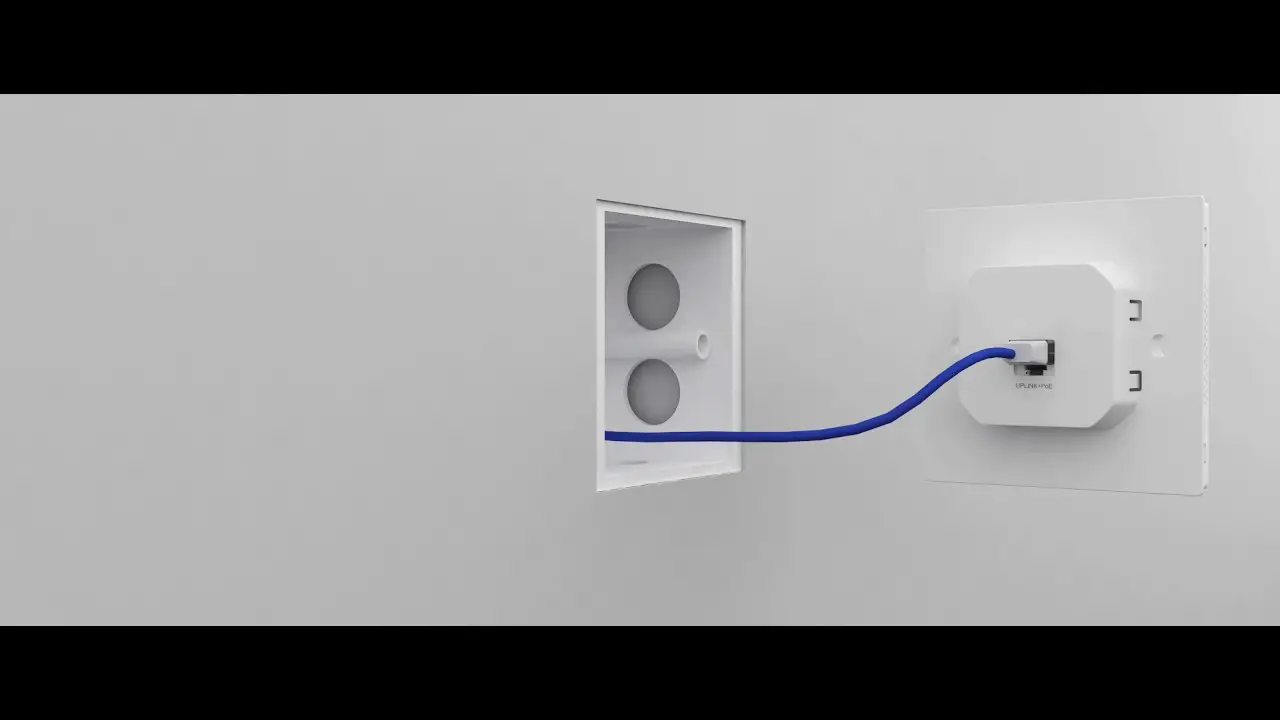
- Connect the Ethernet cable inside the junction box to an RJ45
plug. Then connect the cable to the UPLINK+PoE port. Position the
Ethernet cable to ensure it is not strained.
Software Configuration
Choose from the following methods to set up your EAPs:
- Method 1: Standalone Mode – To configure and manage EAPs
separately (Convenient for a small network with only a few
devices) - Method 2: Controller Mode – To configure and manage EAPs in
batches on a central platform, namely Omada Controller
Quick Installation Guide
Wireless Wall Plate Access Point
Setup with videos
Scan QR code or visit https://www.tp-link.com/support/setup-video/
Note: The image may differ from the actual product.
1 Hardware Overview
Front Panel
Some common front panels:
LED LED/Wi-Fi Button
LAN Port RESET
LED/Wi-Fi Button RESET
LED
LAN Port RESET LED/Wi-Fi Button
LED LAN Ports
LED/Wi-Fi Button When the EAP is working in Standalone Mode and enabled with Wi-Fi Control, press the button to turn on/off both the Wi-Fi and LED. In the other cases, press the button to turn on/off the LED only.
LAN Port A wired device can be connected to the LAN port via an Ethernet cable and access the network.
RESET With the EAP powered on, press and hold the button for about 5 seconds until the LED flashes, then release the button. The EAP will restore to factory default settings.
LED Indicator On: Working normally/Initializing. Off: Working abnormally/Power off/LED is turned off. Flashing:
Initialization: The LED flashes twice after initialization is completed. Upgrade: The LED flashes once per second while upgrading. Reset: The LED flashes quickly during the reset. The EAP will then reboot. Locate: When the Locate feature is activated in the Omada controller, the LED flashes quickly to locate and identify the device. The LED will flash for 10 minutes, or you can disable the feature manually to stop it flashing.
Rear Panel
1. Detach the faceplate of the junction box with a Phillips screwdriver (demonstrated with an 86 mm wall junction box).
2. Detach the faceplate of the EAP with a screwdriver.
3. Connect the Ethernet cable inside the junction box to an RJ45 plug. Then connect the cable to the UPLINK+PoE port. Position the Ethernet cable to ensure it is not strained.
UPLINK+PoE Port
Connected to a PSE (Power Sourcing Equipment), such as a PoE switch, for both data transmission and Power. The PSE supports 802.3af/at inputs and complies with PS2(IEC/EN 62368-1) or Limited Power Source(LPS) (IEC/EN 60950-1).
2 Pre-Installation Checklist
Before installation, be sure that you have the following items:
A pre-installed wall junction box
A Phillips screwdriver
An RJ45 plug
A PoE switch
A triangular screwdriver
3 Installation Steps
Note: For simplicity, we will take EAP230-Wall for example throughout the Guide.
The EAP can be mounted into a wall junction box. The junction box should be pre-installed with a running-in-wall Ethernet cable connected to a PoE switch.
Some common wall junction boxes:
4. Insert the enclosed screws and tighten them with a triangular screwdriver to secure the mounting bracket.
Note: Do not over tighten the screws. If the enclosed screws do not fit the junction box, use the screws attached to the junction box instead.
5. Press the faceplate of the EAP back into position.
86 mm wall junction box
Standard EU wall junction box
Standard US wall junction box
4 Software Configuration
Choose from the following methods to set up your EAPs: Method 1: Standalone Mode To configure and manage EAPs separately (Convenient for a small network with only a few devices)
Method 2: Controller Mode To configure and manage EAPs in batches on a central platform, namely Omada Controller
Method 1: Standalone Mode
Internet EAP
Router
EAP
Clients
Note: Before you start, be sure to power up and connect your devices according to the topology figure.
A DHCP server (typically a router with DHCP function enabled) is required to assign IP addresses to the EAPs and clients in your local network.
Via Omada App
1. Download the TP-Link Omada App on your mobile device. It can be downloaded from App Store or Google Play:
or
Scan for Omada App Download Omada App 2. Connect your mobile device to the EAP by using the default SSID
(format: TP-Link_2.4GHz/5GHz_XXXXXX) printed on the label at the bottom of the product.
3. Open the Omada App, and wait for the EAP to appear on the Standalone APs page. Tap on the EAP you want to configure.
Via Web Browser
1. Connect wirelessly by using the default SSID (format: TP-Link_2.4GHz/5GHz_XXXXXX) printed on the label at the bottom of the product.
2. Launch a web browser and enter http://tplinkeap.net in the address bar. Use admin for both Username and Password to log in.
3. Set up a new Username and Password for secure management purpose. Modify the wireless parameters and reconnect your wireless devices to the new wireless network.
Method 2: Controller Mode
Choose from the following two types of Omada Controller: Type 1: Omada Software Controller On a PC with Windows OS or Linux OS, download the Omada Software Controller from https://www.tp-link.com/support/download/omada-software-controller/. Then run the file and follow the wizard to install and launch the Omada Software Controller. To manage your devices, Omada Software Controller needs to keep running on your computer.
©2022 TP-Link 7106509678 REV2.5.2
Controller
Omada Software Controller running on the Host PC
Router Switch
EAP
EAP
EAP
Clients
Type 2: Omada Hardware Controller (OC200/OC300) Omada Hardware Controller (OC200/OC300) is a good alternative if you have no spare PC to keep running Omada Software Controller in the network. It needs to be purchased additionally. For more details, refer to the Installation Guide of OC200/OC300.
Router Switch
Omada Hardware Controller
(OC200/OC300)
EAP
EAP
EAP
Clients
Note: Before you start, be sure to power up and connect your devices according to the topology figure. A DHCP server (typically a router with DHCP function enabled) is required to assign IP addresses to the EAPs and clients in your local network. Omada Controller must have network access to your Omada devices (the router, switch, and EAPs) in order to find, adopt, and manage them.
Via Omada App
1. Download the TP-Link Omada App on your mobile device. It can be downloaded from App Store or Google Play:
or
Scan for Omada App Download Omada App
2. Launch your Omada App and configure the controller at a local site or remote site. Local Management a. Connect your mobile device to the EAP by using the default SSID (format: TP-Link_2.4GHz/5GHz_XXXXXX) printed on the label at the bottom of the product. b. Launch Omada App and go to Local Access, tap the + button on the upper-right corner to add the controller. Then you can further configure the controller.
Remote Management Note: Before you start, make sure that both your controller and mobile device can access the internet.
For Omada Software Controller a. Make sure that Cloud Access is enabled on your controller and
your controller has been bound with your TP-Link ID.
b. Launch Omada App and log in with your TP-Link ID. Then go to Cloud Access. A list of controllers that have been bound with your TP-Link ID will appear. Then you can further configure the controller.
For Omada Hardware Controller
a. Make sure that Cloud Access is enabled on your controller. By default, Cloud Access is enabled. Make sure that the Cloud LED is flashing slowly.
b. Launch Omada App and log in with your TP-Link ID. Then go to Cloud Access. Tap the + button on the upper-right to add your controller. Then you can further configure the controller.
Via Web Browser
1. Open the Omada Controller’s web page.
For Omada Software Controller Launch the Omada Software Controller on your PC. After the initiation process, the controller automatically opens its web page. If not, click Launch a Browser to Manage the Network.
For Omada Hardware Controller As Omada Hardware Controller gets its IP address from the DHCP server of the router, we don’t know its IP address explicitly. However, we can find it out on the router’s DHCP client list.
a. You need first find the IP address of the router. Open the command line on your PC and enter ipconfig. In the result list, find the Default Gateway, which is also the IP address of the router.
b. Launch a web browser and enter the IP address of the router. Log into the router’s web page, and both the username and password are admin by default. Then go to Network > LAN > DHCP Client List to find the IP address of your controller according to its MAC address.
c. Enter the IP address of your controller in the address bar to open its web page.
2. On the Omada Controller’s web page, follow the wizard to complete the quick setup.
3. After the quick setup, the login page appears. Enter the username and password you have created and click Log in. Then you can further configure the controller.
4. (For Remote Management) You can remotely access and manage your controller via Omada Cloud Service. Note: Before you start, make sure that both your controller and your PC can access the internet.
For Omada Software Controller: refer to its User Guide
For Omada Hardware Controller
a. Make sure that Cloud Access is enabled on your controller. By default, Cloud Access is enabled. Make sure that the Cloud LED is flashing slowly.
b. Launch a web browser and enter https://omada.tplinkcloud.com in the address bar. Enter your TP-Link ID and password to log in. Click + Add Controller and choose Hardware Controller to add your controller. Then you can further configure the controller.
For the detailed configurations, refer to the User Guide of the controller and EAPs. The guides can be found on the download center of our official website: https://www.tp-link.com/support/download/.
To ask questions, find answers, and communicate with TP-Link users or engineers, please visit https://community.tp-link.com to join TP-Link Community.
For technical support, the user guide and other information, please visit https://www.tp-link.com/support, or simply scan the QR code.
If you have any suggestions or needs on the product guides, welcome to email [email protected].
Safety Information Keep the device away from water, fire, humidity or hot environments. Do not attempt to disassemble, repair, or modify the device. If you need service, please contact us. Do not use the device where wireless devices are not allowed.
 域名售卖
域名售卖 TP-Link Community
 Omada Cloud
 TP-Link Product Support - Wireless Networking Equipment Support