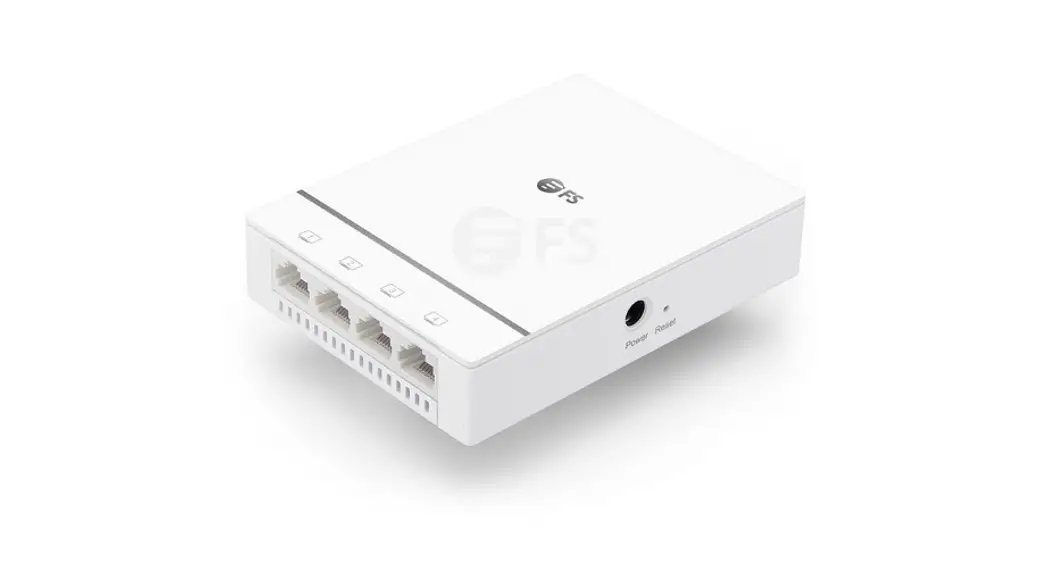
WI-AP416 In-Wall Wireless Access Point
Product Information: Quick Installation Guide – Cloud Managed
In-wall Wireless Access Point WI-AP416
The WI-AP416 is a cloud-managed in-wall wireless access point
designed to provide Wi-Fi connectivity in commercial and
residential buildings. The device comes with LED indicators, LAN
and WAN/PoE ports, and a reset button. It also supports multiple
operation modes and can be configured through a web-based
management interface or cloud management platform.
Package Contents:
- 1 x WI-AP416
Interface and Indicators:
The device features the following interface and indicators:
| Interface/Indicator | Description |
|---|---|
| System LED Light | Indicates the status of the device. |
| LAN Port | Connects to a LAN device. |
| WAN/PoE Port | Connects to a PoE switch for data transmission and power supply. |
| Reset Button | Resets the device to factory default settings. |
Action Description:
The following are the descriptions of the actions related to the
device:
| Action | Description |
|---|---|
| LAN | Connects the LAN device to the device. |
| WAN/PoE | Connects the device to a PoE switch for data transmission and power supply. |
| Reset | Resets the device to factory default settings. |
Typical Connection:
The device can be connected to the internet gateway, PoE switch,
laptops, mobile phones, and monitors, as shown in the following
diagram:

Device Installation:
The device can be installed on a wall plate as follows:
- Detach the faceplate of the device with a screwdriver.
- Connect the Ethernet cable inside the junction box to an RJ45
plug. - Insert the enclosed screws and tighten them with a screwdriver
to secure the mounting bracket. - Press the faceplate of the device back into position.
Configuration Method:
The device can be configured through a web-based management
interface or cloud management platform as follows:
Method 1: Web-based Management Interface
- Connect the computer to the wireless signal of the device using
the default SSID and password. - Launch a web browser and type 192.168.1.88 into the address bar
to access the login page of the device. - Enter the default login password and click Login.
- Select the appropriate operation mode and follow the
instruction of the wizard to finish the settings.
Method 2: Cloud Management Platform
- Launch your web browser and enter
http://cloud2.wireless-tek.com in the address bar. - Register an account password by user name or email.
- Log in to the cloud account with the account password after
registration. - Set the static IP of the computer under the same subnet with
the device, i.e., 192.168.1.xx. - Get into the management page, go to Wizard in the left-side
menu, and set up the access point. - Bind the device to the cloud account by clicking ADD NETWORK,
filling in the group name and location, entering the serial number,
and clicking ADD to create and FINISH to complete the
configuration.
Cloud Management Settings:
The device can be managed through the cloud management platform
as follows:
- Launch your web browser and enter
http://cloud2.wireless-tek.com in the address bar. - Register an account password by user name or email.
- Log in to the cloud account with the account password after
registration. - Bind the device to the cloud account by clicking ADD NETWORK,
filling in the group name and location, entering the serial number,
and clicking ADD to create and FINISH to complete the
configuration.
Warranty Card:
Fill in the username, address, telephone number, purchase shop,
purchase address, product model number, purchase time, serial
number, and dealer signature in the warranty card.
Quick Installation Guide
Cloud Managed In-wall Wireless Access Point
WI-AP416
www.wireless-tek.com
Package Contents
1 x WI-AP416
Interface and Indicators
·LED Indicator Instructions
LED
WA N
Name System LED Light
Front
Back
Status LED light blinking
Description System is starting
LED light is always on System started successfully
LED lights Off
Working abnormally/Power off/LED is turned off.
·Ports Instructions
Reset Button LAN Port
WAN/PoE Port
2×Screw
Quick Installation Guide
Cloud Managed In-wall Wireless Access Point WI-AP416
www.wireless-tek.com
1×Quick Installation Guide
Action LAN WAN
Reset
Description
LAN port which can connect LAN device.
The port is used to connect to the PoE switch, for both data transmission and Power over Ethernet (PoE) through an Ethernet cable.
With the device powered on, press and hold the reset button for about 8 seconds, then release the button. The device will restore to factory default settings.
Typical Connection
AP1
Internet
Gateway (with AP Controller)
PoE Switch
AP2
AP3
Laptop
Mobile phone
Monitor
Device Installation
Wall Plate Installation
Detach the faceplate of the AP with a screwdriver.
Connect the Ethernet cable inside the junction box to an RJ45 plug.
Configuration Method
Method 1. Connect computer to the wireless signal of AP, the default SSID is “WI-TEK xxxx”. Password is 88888888
WAN/PoE
Step 2. Please launch a browser such as Google Chrome or Firefox, type 192.168.1.88 into address bar and click on enter to get in the login page of wireless access point. The default login password is “admin”.
PoE Switch
AP
Method 2. Connect computer to the AP by Ethernet cable.
WAN/PoE
Laptop
Step 4. Select the appropriate operation mode and follow the instruction of wizard to finish the settings. If already exist a Router in your network, please choose, Fit AP mode; if not, you can choose Wireless Router mode Notice: if you do a reset, AP will recovery to Fit AP mode.
·Fit AP Mode Default Login IP:192.168.1.88 admin/admin
Internet
Gateway
Laptops Phones
AP
·Wireless Router Mode Default Login IP:192.168.11.1 admin/admin
Internet
PoE Injector
Laptops Phones
AP
Cloud Management Settings
Step 1. Launch your web browser then enter http://cloud2.wireless-tek.com in the address bar. Step 2. Register an account password by user name or email. Step 3. log in to the cloud account with the account password after registration.
Insert the enclosed screws and tighten them with a screwdriver to secure the mounting bracket.
Press the faceplate of the AP back into position.
PoE Switch
AP
PC
Step 1. On the computer, please set the static IP under the same subnet with AP, 192.168.1.xx.
Step3. After get in the management page,On the left side menu, please go to [Wizard] to setup the access point.
After the login is successful, the steps to bind the device on the cloud account are as follows:
(1) Click ADD NETWORK
(2) Fill in the group name and location, click save.
(5) In the relevant device options, you can see the bound device information.
3) And click next.
6) Click Tunnel, Select binding device type, click EWEB to log in to the device.
(4) Enter serial number, click ADD to create and click FINISH,the configuration is complete.
Note:The 17-digit SN code of the Add device is shown on the sticker on the back of the device.
Warranty Card
Username Address Telephone No. Purchase Shop Purchase Address Product Model No. Purchase Time Serial No. Dealer Signature
If the product defects within three months after purchase, we will provide you a new product of the same model. If the product defects within the three-year warranty period, we will provide the professional maintenance service. Proof of purchase and a complete product serial number are required to receive any services guaranteed as part of the limited warranty. Any other defects that are not caused by workmanship or product quality, such as natural disaster, water damage, extreme thermal or environmental conditions. sticker damaged, warranty card losing will disqualify the product from limited warranty.
Technical Support
Cloud Management
Company Website
Wireless-Tek Technology Limited Address: Biaofang Technology Building 402, Bao’an street, Baoan District,Shenzhen City, Guangdong, China Website:www.wireless-tek.com Tel:86-0755-32811290 Email:[email protected] Technical Support:[email protected]
Google play
APP Store
RoHS
 Wi-Tek Cloud
 Test and Measurement Equipment | Tektronix
 Wireless-Tek Technology Limited.