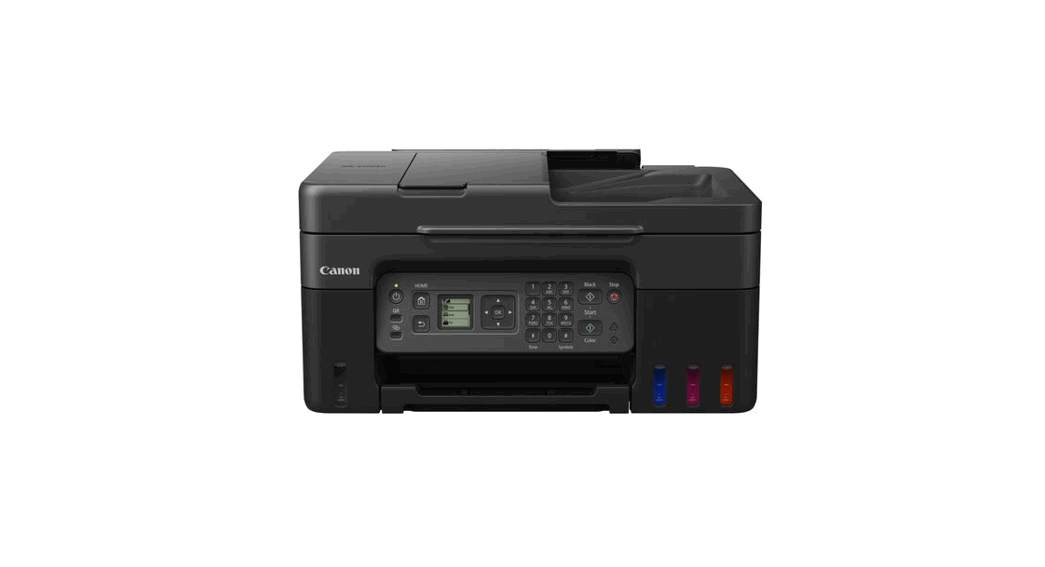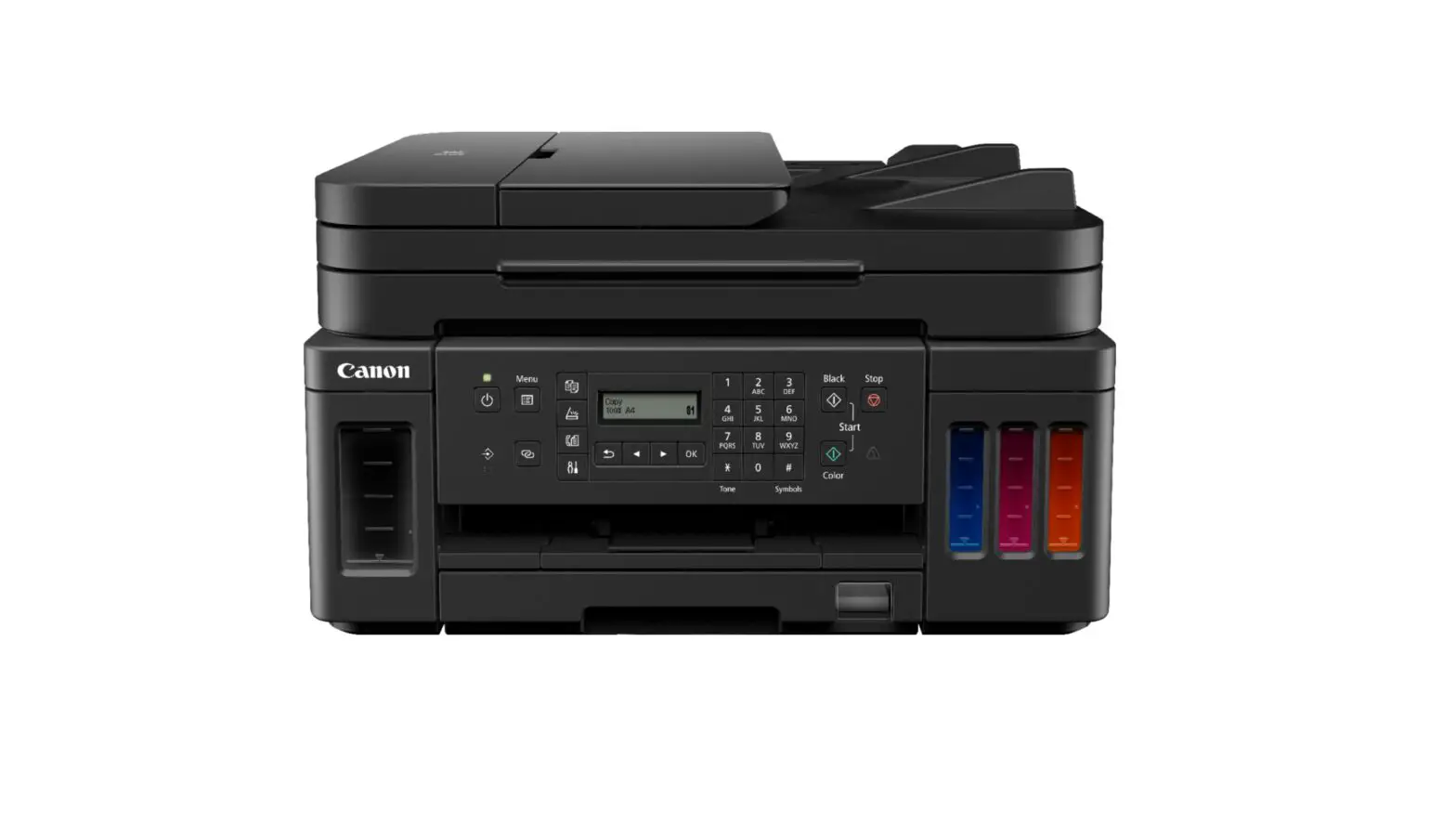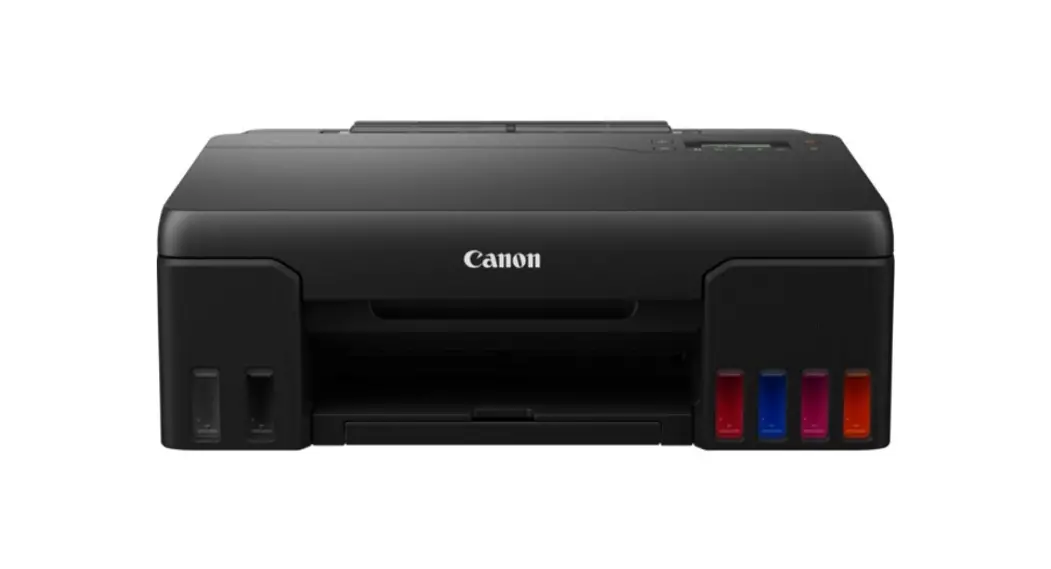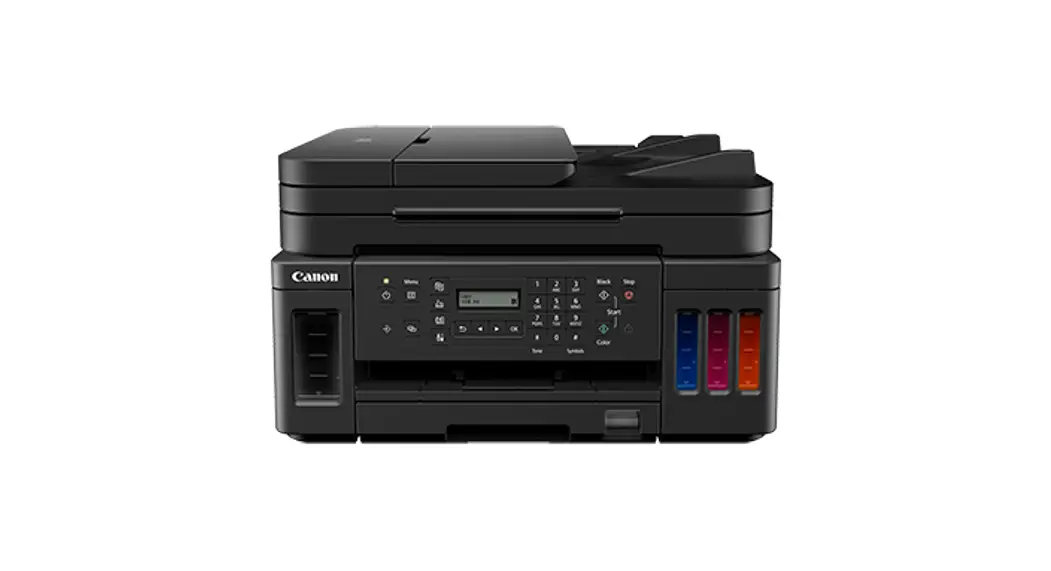
 G7000 Series Inkjet Printer
User Guide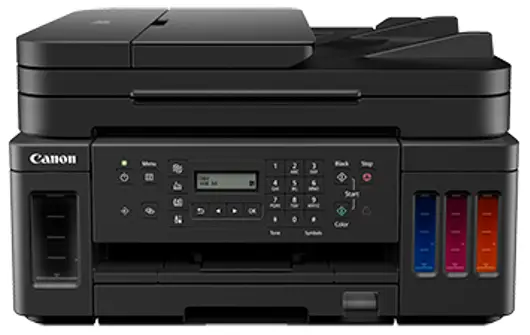
Cleaning the Print Head
Clean the print head if lines are missing or if horizontal white streaks are present in the printed nozzle check pattern. Cleaning unclogs the nozzles and restores the print head condition. Cleaning the print head consumes ink, so clean the print head only when necessary.
- Check that printer is turned on.
- Press the Setup button, use the
 button to select Maintenance, and press the OK button.
 LCD and Operation Panel
 - Use the button to select Cleaning and then press the OK button.
 The printer starts cleaning the print head.
Do not perform any other operations until the printer completes the cleaning of the print head. This takes about 2 minutes. - Check the print head condition.
To check the print head condition, .
.
 button to select Maintenance, and press the OK button.
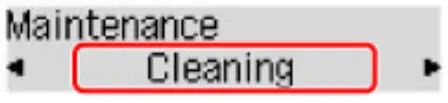 The printer starts cleaning the print head.
 Note
Note
- If the problem is not resolved after cleaning the print head twice, clean the print head deeply.
© CANON INC. 2019
https://ij.manual.canon/ij/webmanual/Manual/All/G7000series/EN/UG/ug-135.html
References
 Canon : Inkjet Manuals : Page Not Found
-
Canon : Inkjet Manuals : G7000 series : Printing the Nozzle Check Pattern
-
Canon : Inkjet Manuals : G7000 series : Deep Print Head Cleaning
-
Canon : Inkjet Manuals : G7000 series : Checking that Power Is On
-
Canon : Inkjet Manuals : G7000 series : LCD and Operation Panel
 Canon : Inkjet Manuals : Page Not Found