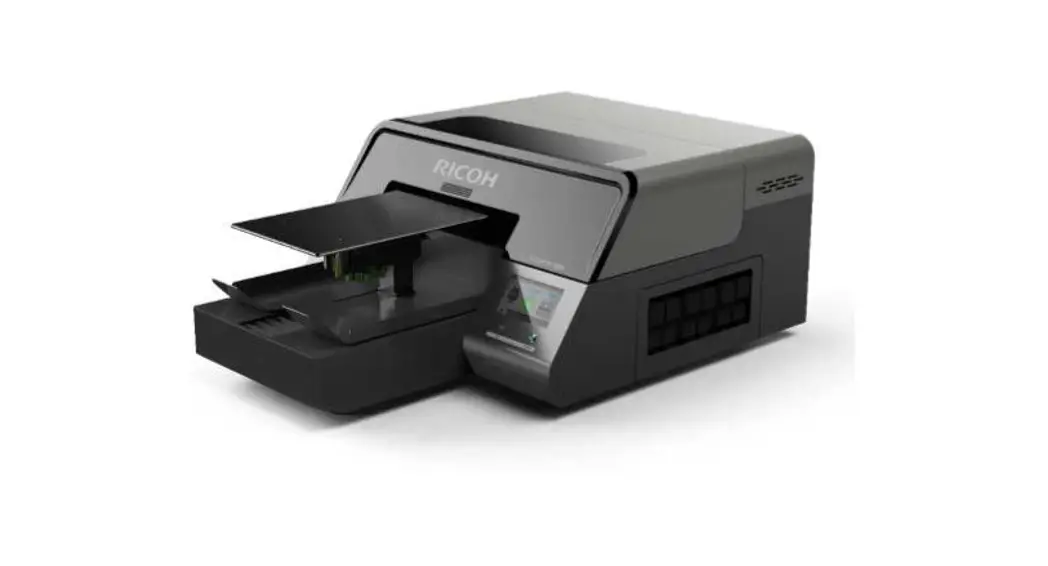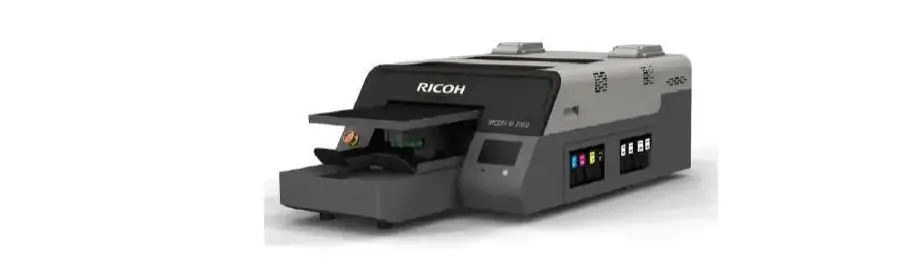
RICOH Ri 2000 Commercial Garment Printer User Guide
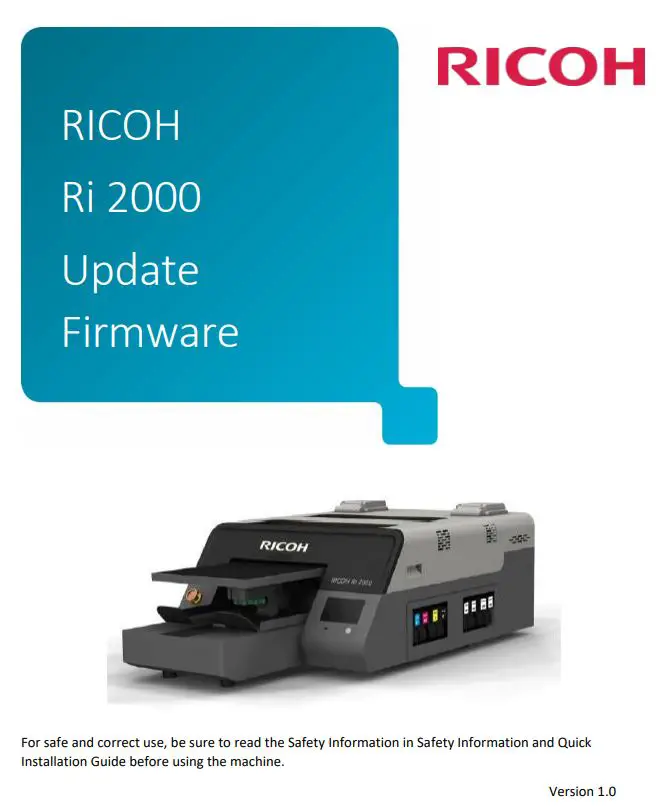
Updating Firmware
WARNING: Do not perform a firmware update unless the printer is in Ready Status
6.1 Updating Firmware
- Download the application from www.ricohdtg.com/downloads – the zip package will include the GManger executable file which is the installer, GIB folder for the GIB firmware, CTL folder for the CTL firmware and SCB folder for the SCB firmware.
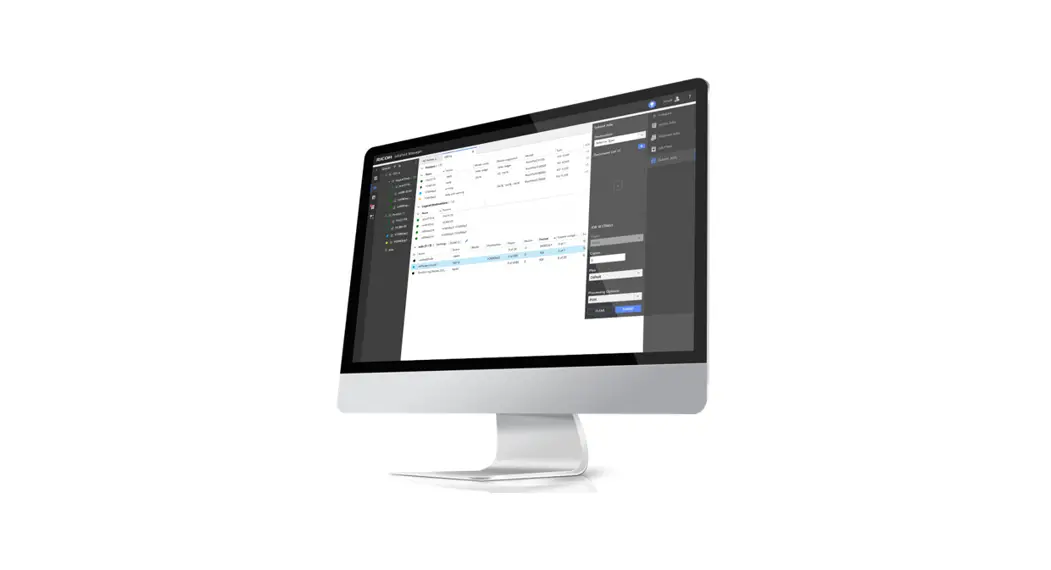
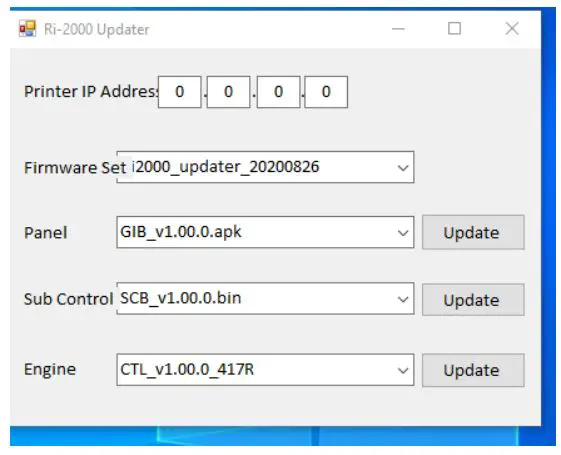
- Open the Printer Manager Application
- Enter the printer IP address for the printer needing to be updated

- Select the version to use for the update
- Click the GIB F/W Update button
*Note: always update GIB or control panel firmware first prior to any firmware updates. After the GIB then update the CTL. After the CTL then update the SCB*
- Wait for the printer to react to the update
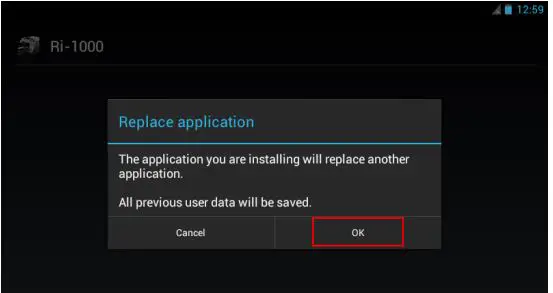
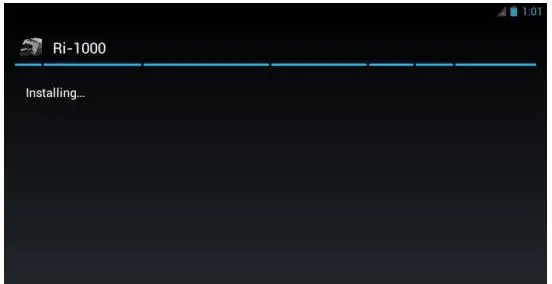
- Click OK – the select the START UPDATE button for the GIB. The screen on the printer will then show the image below

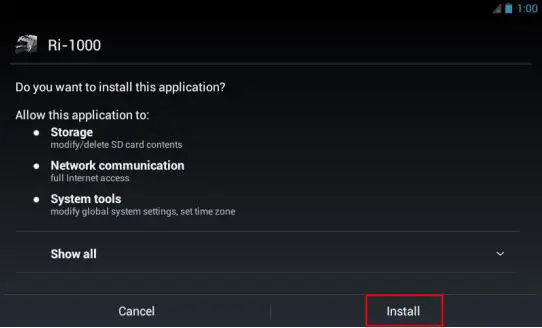
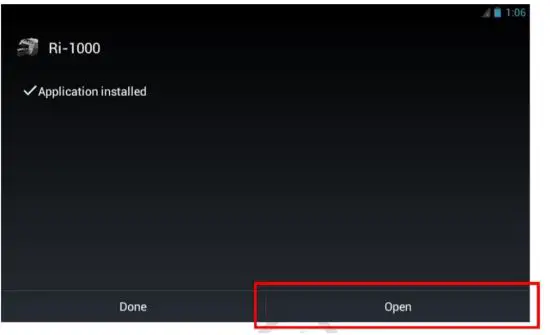
- Click the install option on the screen to continue


- Then select open

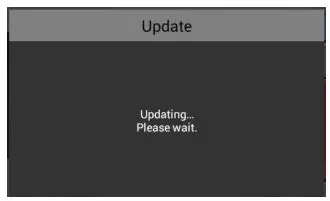
- Then update the CTL firmware in the same manner. 1st press the CTL F/W Update button on the GManager. After the update complete message shows up select OK then START UPDATE and the screen below will show up while the printer is updating. Wait for the message to disappear before proceeding.

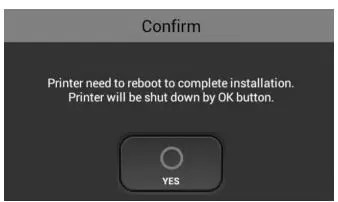
- Then update the SCB firmware in the same manner. 1st press the SCB F/W Update button on the GManager. After the update complete message shows up select OK then START UPDATE and the screen below will show up.

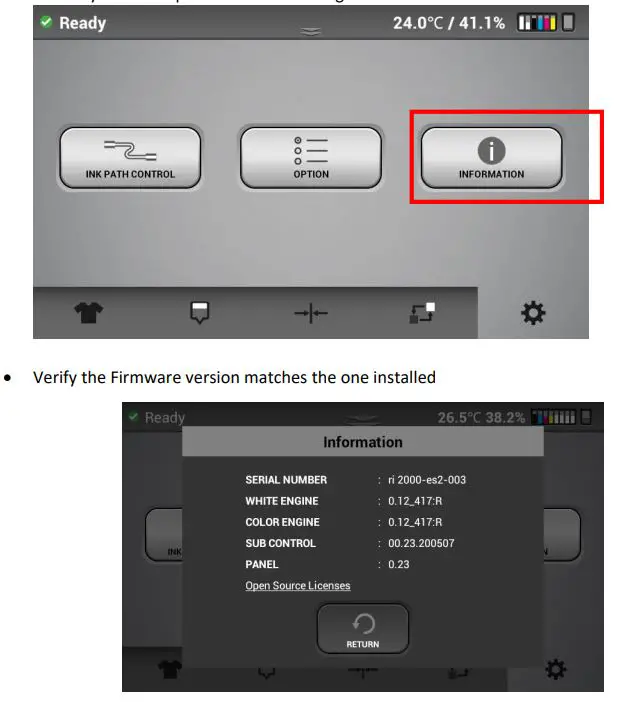
- Select Yes and the printer will restart to complete the update. · To verify that the update was successful go to the information section in the settings tab

 Downloads - Ricoh DTG