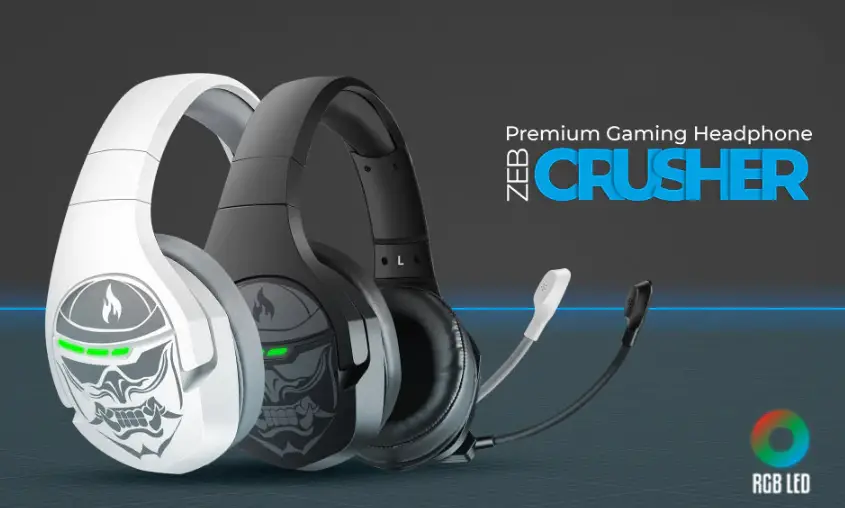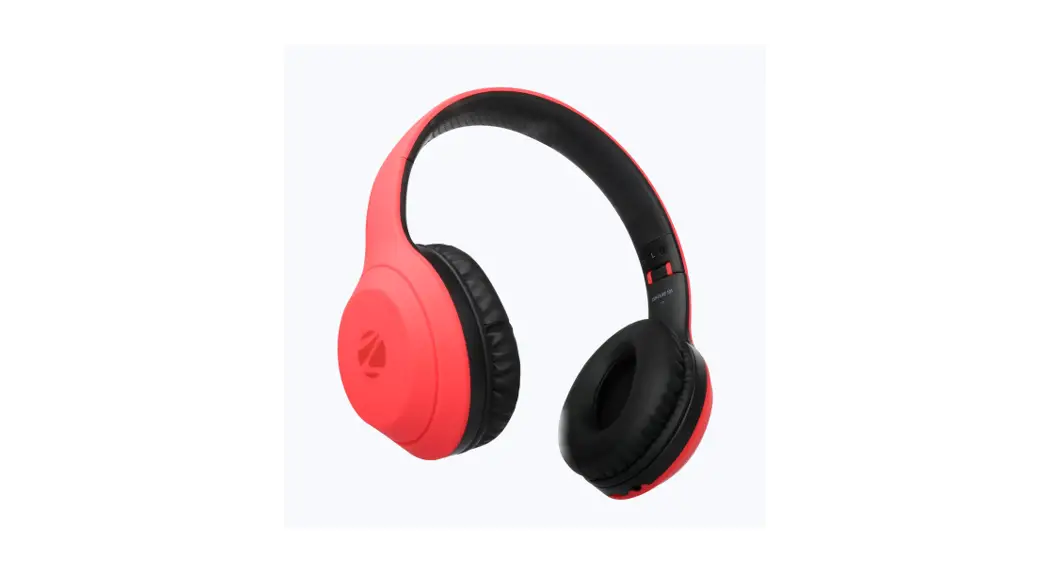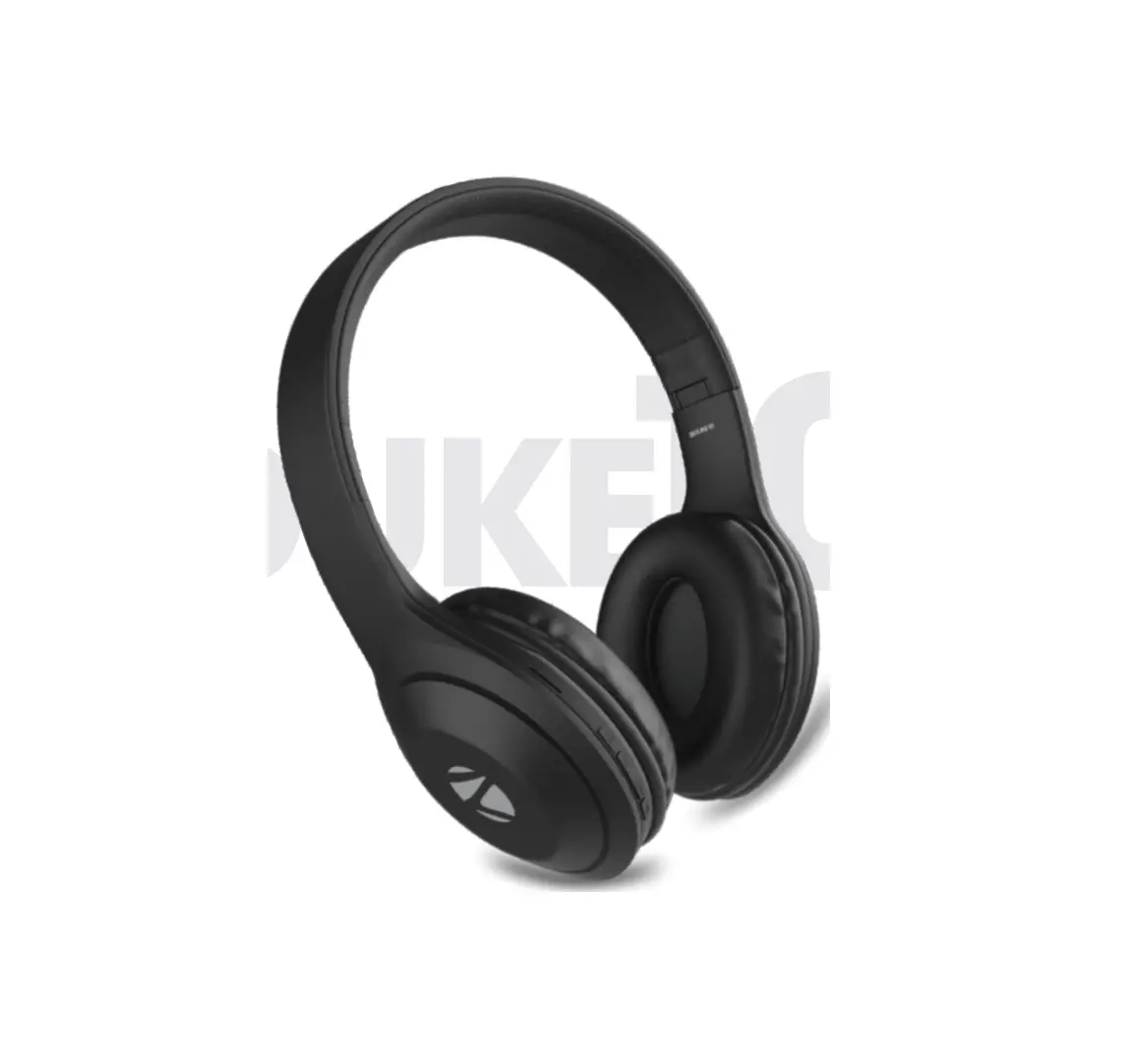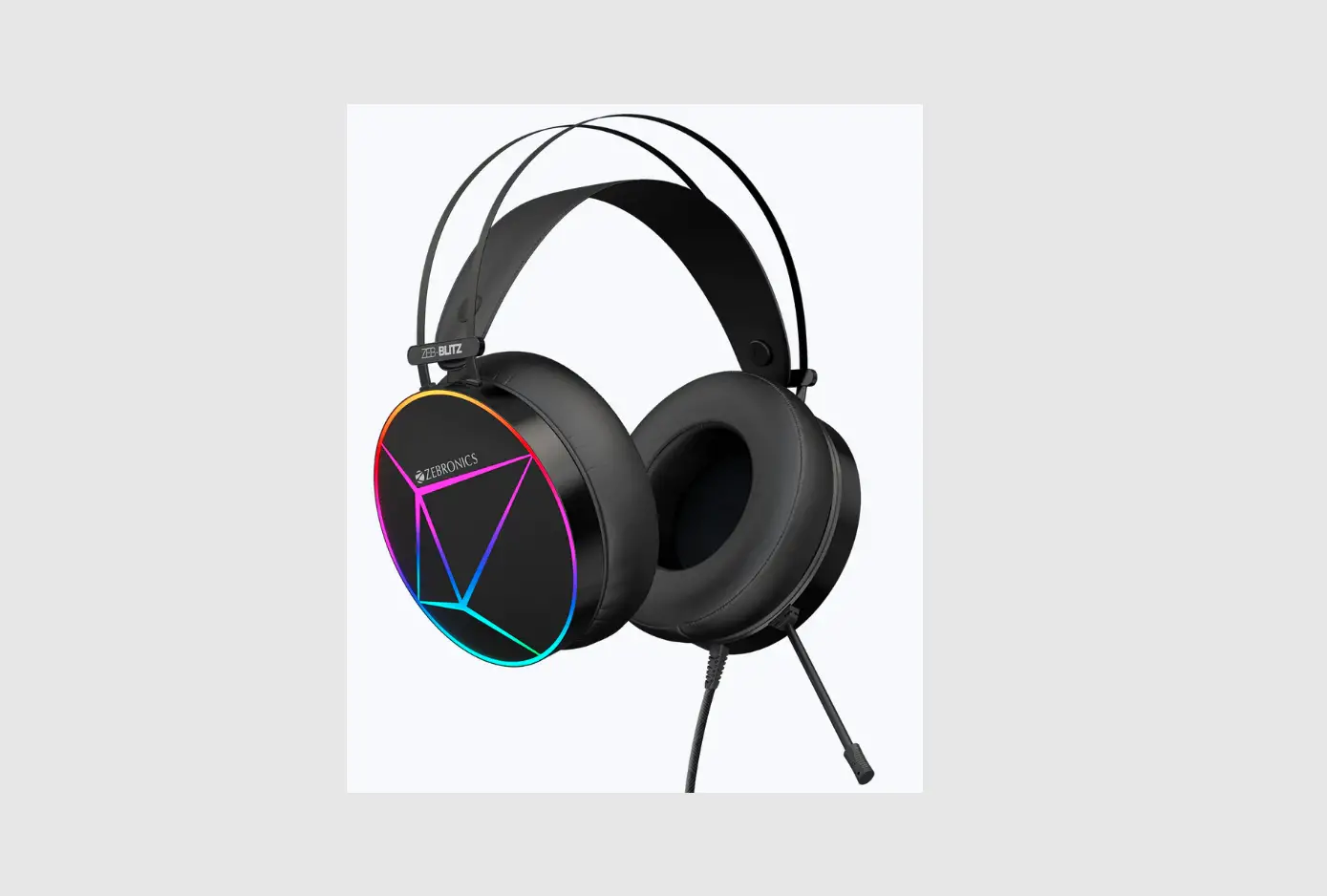
 ZEBRONICS Zeb-Blitz Premium Gaming Headphone
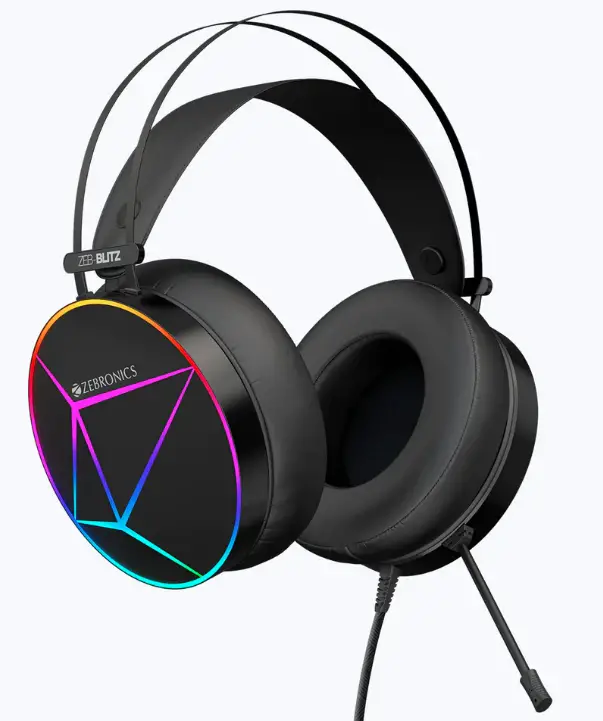
Dear customer,
Thank you for purchasing the ZEB-BLITZ Premium Gaming Headphone. Please read the user manual carefully before usage & save it for future reference.
NOTE
- Avoid the usage of this product at the high temperature and high humidity environment.
- Avoid the self-disassembly of the product as it results in the failure of Warranty.
CUATION
Listening at high volume can cause hearing impairment. Please limit your usage time at high volume.
FEATURE
- Compatible for PC
- Padded Headband
- Comfortable Ear Cushions
- RGB lights
- Flexible Mic
- Simulated 7.1 Surround Sound
- Multi Function Control Pod
- Volume control
SPECIFICATION
- Driver Size : 50mm
- Speaker Impedance: 240
- Frequency Response: 20Hz – 20kHz
- Sensitivity
- Microphone Impedance
- Microphone Sensitivity
- Connector type
- Cable length
- Net. Weight
Package Contents
- ZEB-BLITZ Headphone
- QR Code Guide
System Requirements
- Operating Systems Windows XP/7/8/10
- USB 2.0/3.0 Port
Quick Start
- Plug your headset into Computer’s USB Slot
- Adjust the Volume before Listening
- Adjust the Microphone Direction.
Volume Controller
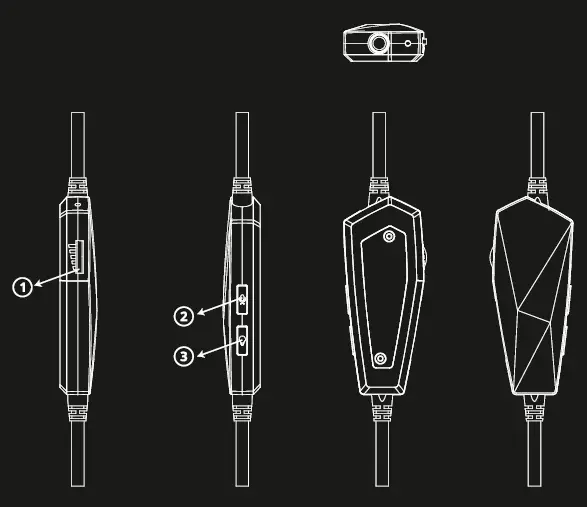
- Volume Control
- Mic Mute ON/OFF
- LED ON/OFF
Dolby Atmos Introduction
Dolby Atmos immerses you in the latest gaming audio with three-dimensional precision, surroundingyou with crisp sound.
Dolby Atmos” Minimum Requirements
- Windows Operating System: Windows 10
- Architecture: x64
- 1x Microsoft Store Account
Dolby Atmos” Activation
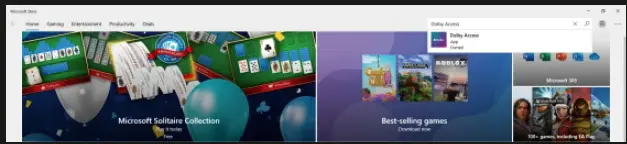
Download Dolby Access app for free from the Microsoft Store
- Click on Start, Search “Microsoft Store” and Click on Microsoft Store lcon.
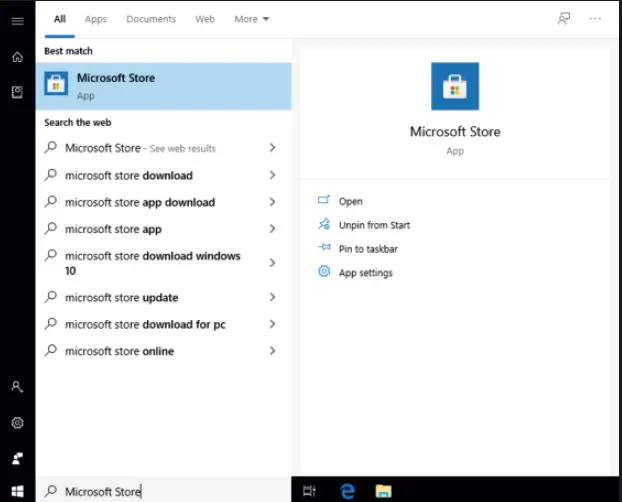
- Login to the Microsoft Store using your Account.
- Once you are Logged In – Search Dolby Access.

- Click on “Get” or “Install”

- Once the Download is Completed, Click on “Launch”
- Plug in your ZEB-BLITZ Premium Gaming Headphone.
- Skip the Demo Content (if Any).
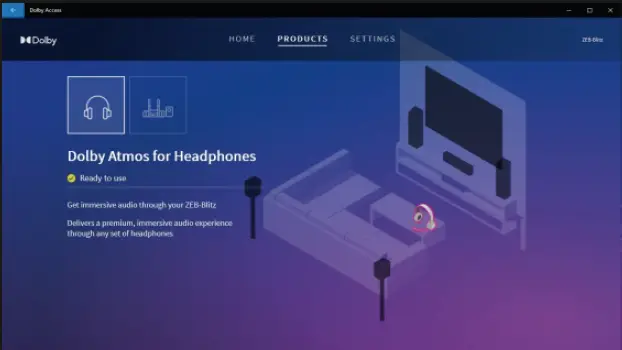
- Once the headphone is connected, the Dolby Atmos would be enabled and the headphone would be Ready to use (as Shown in the Dolby Access app).
- Click on “Settings” Tab.
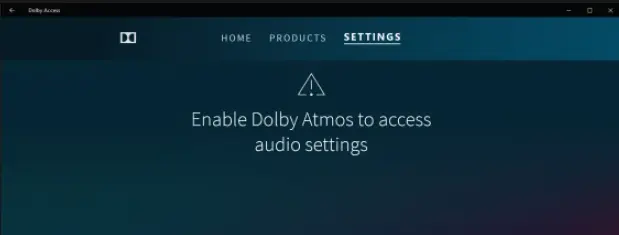
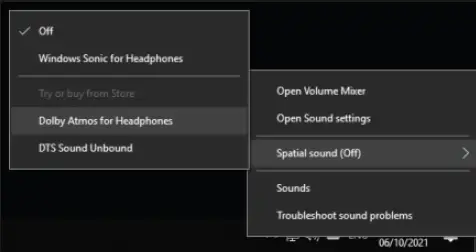
ifyou see this screen, follow Step 10. - Right Click on your Speaker lcon on your Desktop Tray Select Spatial Sound Dolby Atmos for Headphones.
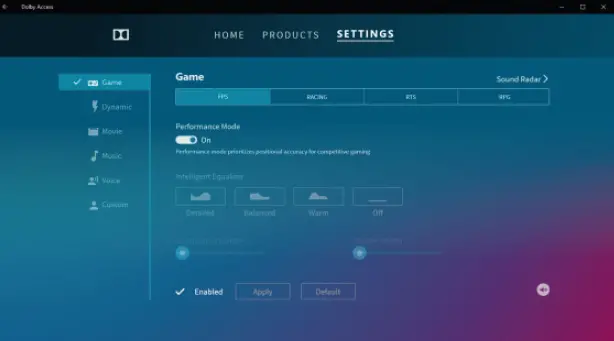
- Once Done – Go to Dolby Access “Settings” Tab and Personalise Required Configuration.
ZEBSoundMX
ZEB-Blitz Premium Gaming Headphone comes with “ZEB SoundMX” Software.
You can download the driver from the below link, https://zebronics.com/pages/drivers
You can use ZEB SoundMX Software to create 7.1 Virtual Surround Sound for your Game.
Installation
Note : Keep the headset plugged into computer’s USB Slot while installing.
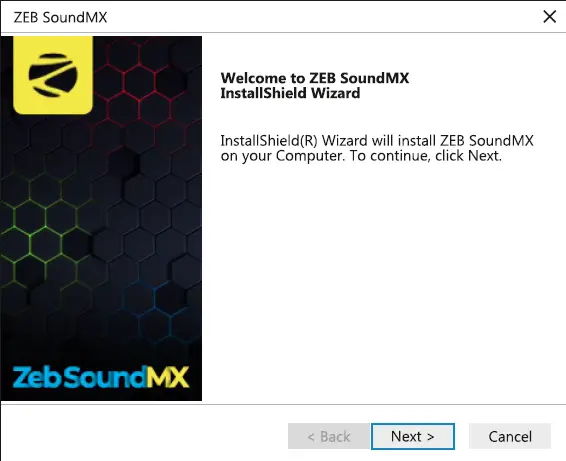
- Step 1 : Click “Next” and Follow instructions to Start Installation.
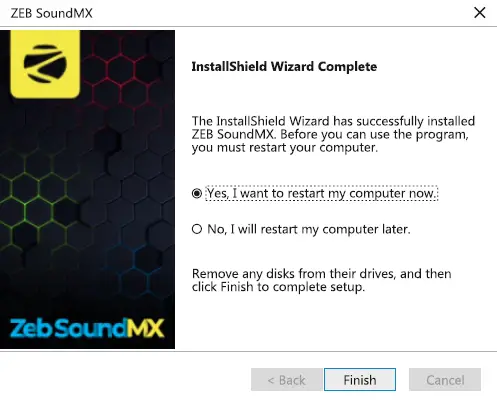
- Step 2 : Click “Finish” to Restart the System before you Start using the Software.
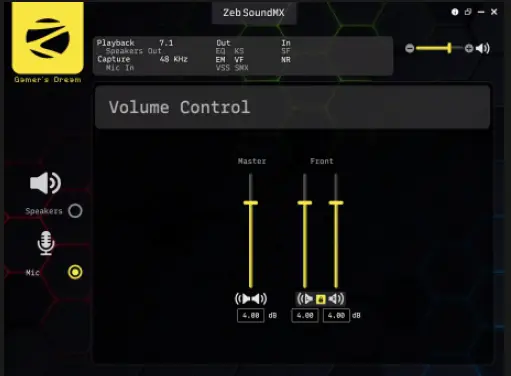
Speaker Customization
Note: ZEB-SoundMX and Dolby Access will not function together at the same time. lf you need to Use Dolby Access in windows 10 and above then make sure that ZEB-SoundMX is not installed. Ifyou install ZEB-SoundMX then Dolby Access will be disabled. You can use the ZEB-SoundMX software in windows 7 and above.
ISO 9001:2015 Certified Company
www.zebronics.com
www.zebclan.com