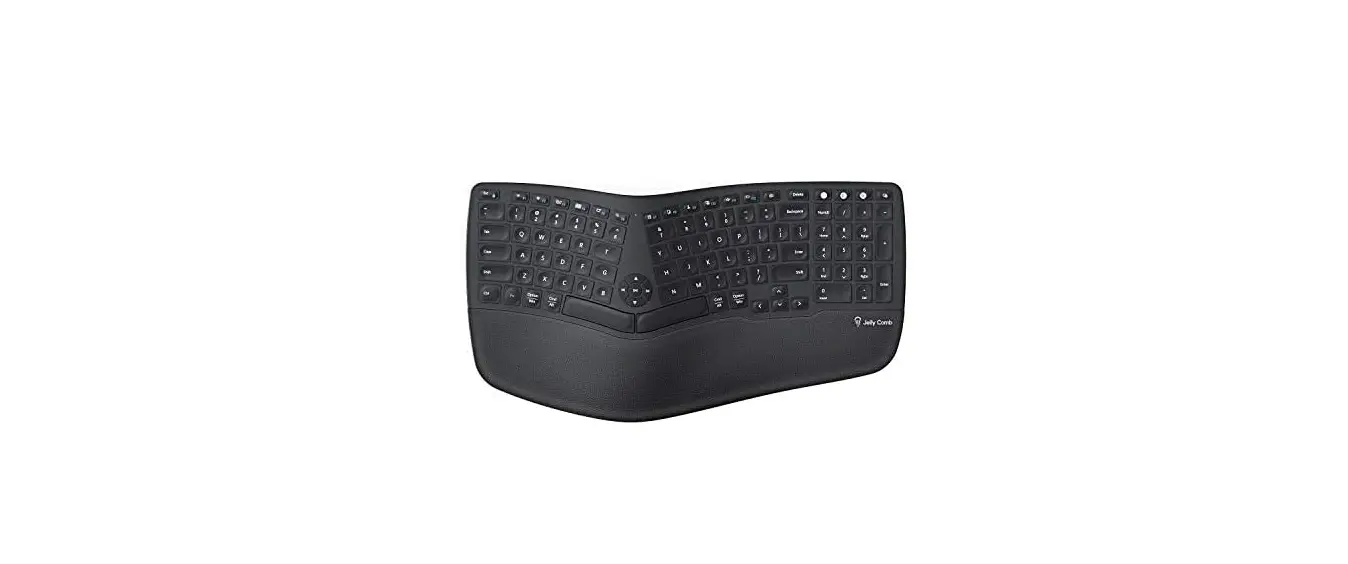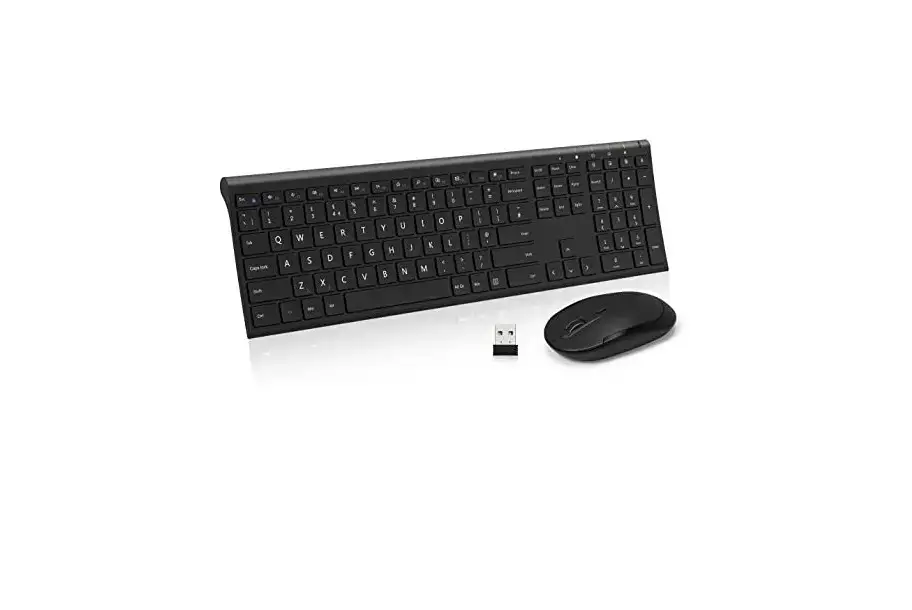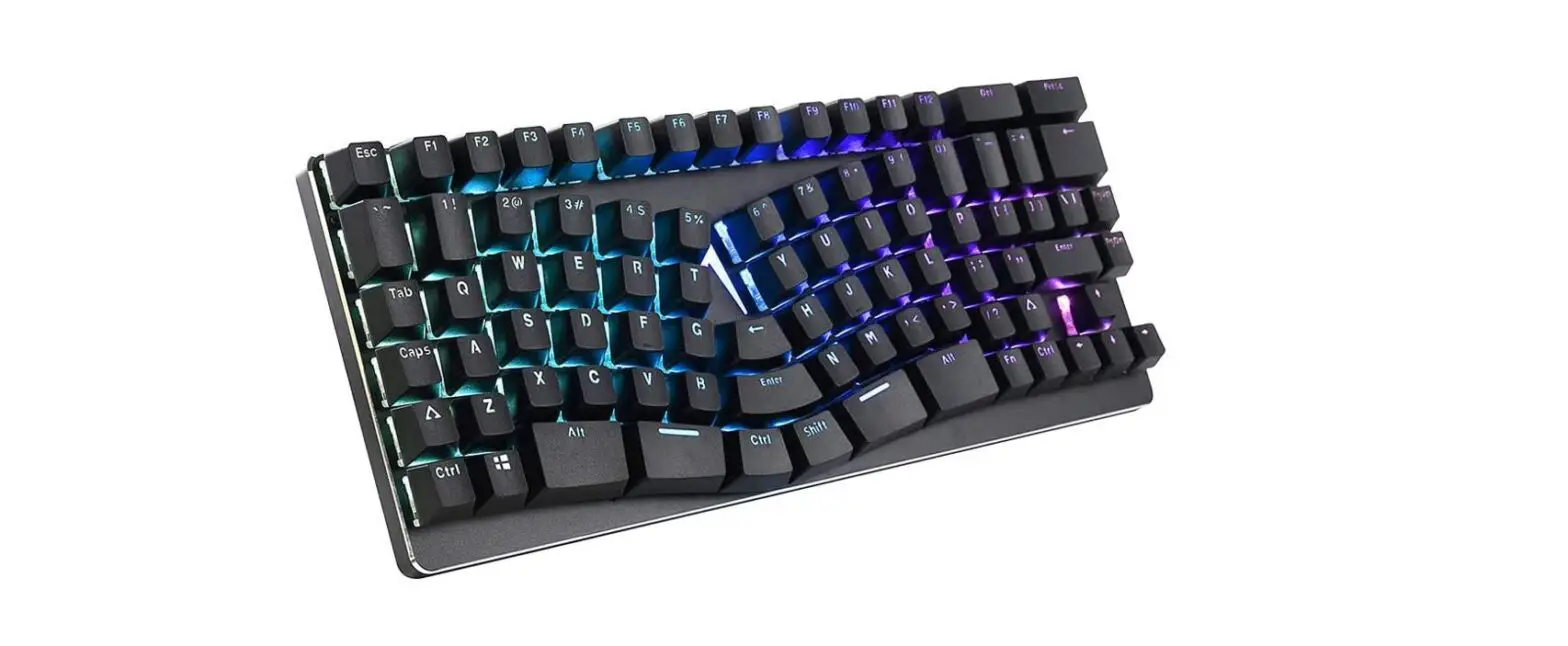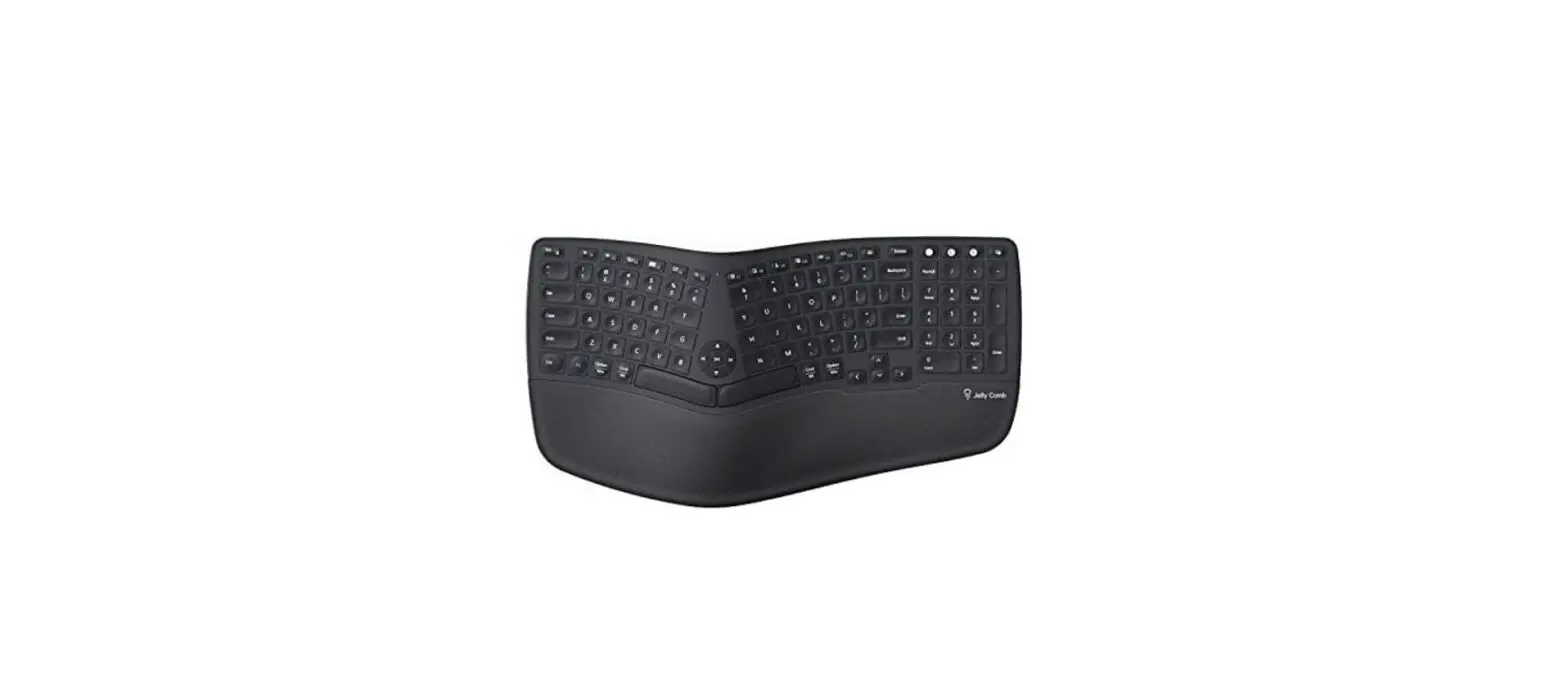
 Jelly Comb KE68 Ergonomic Rechargeable Keyboard
 Jelly Comb KE68 Ergonomic Rechargeable Keyboard
Product Features
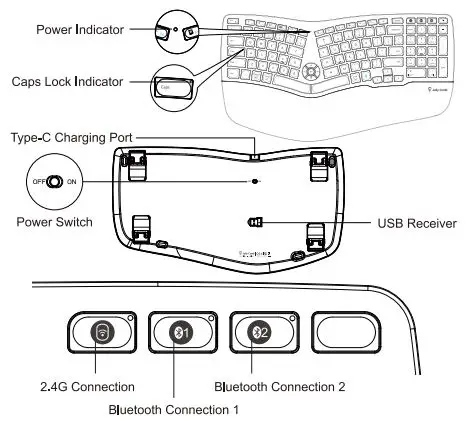
2.4G Connection
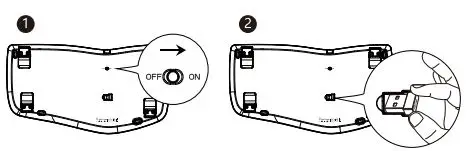
- Push Power Switch to ON.
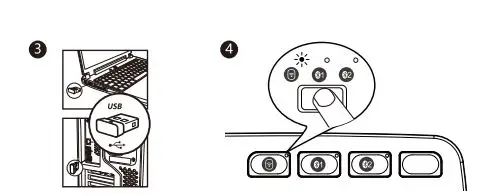
- Take out the USB receiver.

- Plug the receiver into tablet or computer.
- Single press the button to switch to 2.4G Connection. When white indicator light flashing slowly, it enters 2.4G Mode.
Bluetooth Connection
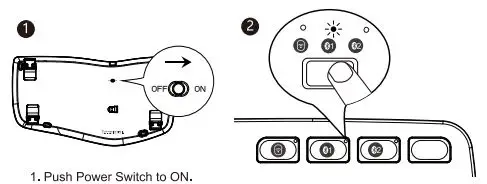
- Push Power Switch to ON.
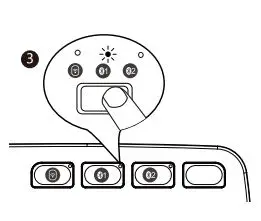
- Choose any Bluetooth Connection, single press the button to choose. The white indicator light flashes once to enter the Bluetooth mode.

- Long press for 3-Ss again. When the white indicator light flashing quickly, it enters the Bluetooth Pairing Mode.
Windows 10 System
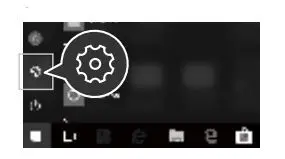
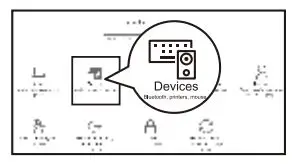
- Click the “Bluetooth Devices” of the computer.

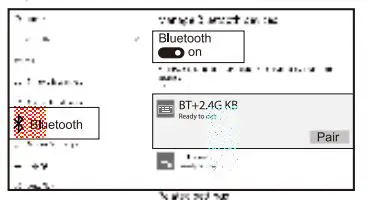
- Click “Add or Remove Bluetooth Devices”.

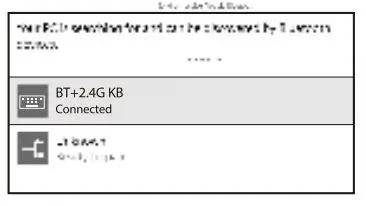
- Bluetooth Search to “BT +2.4G KB” and Click “Pair”.

- “BT +2.4G KB” is onnE!cred and it can be used normally.
Mac OS System
Please operate the Bluetooth mode connection steps(j)@@before pairing.
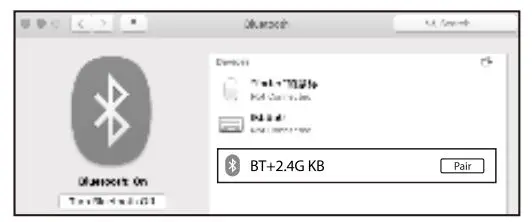
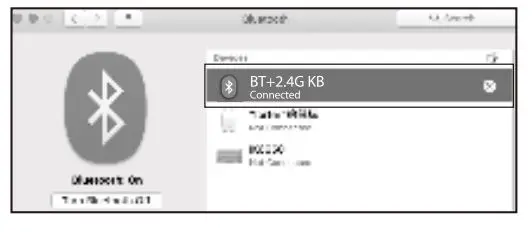
- Click “System Preferences” on Mac.

- “System Preferences” click “Bluetooth”.

- Bluetooth Search to “BT +2.4G KB” and Click “Pair”. After the installation is complete, it can be used normally.
iOS System
Please operate the Bluetooth mode connection steps(j)@@before pairing.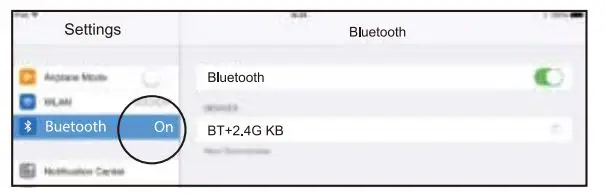
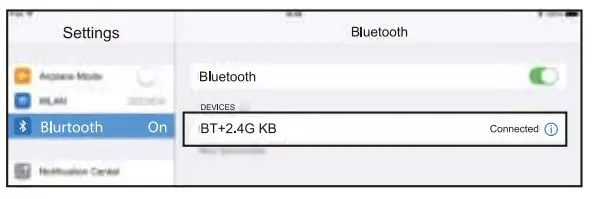
- Click “Setting” on the device and then Turn ON the Bluetooth.

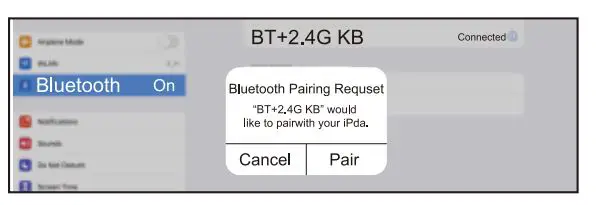
- Bluetooth Search to “BT +2.4G KB” and Click “Pair”. Complete the pairing.

- “BT +2.4G KB” is connected and it can be used normally. Settings Bluetooth
Andriod System
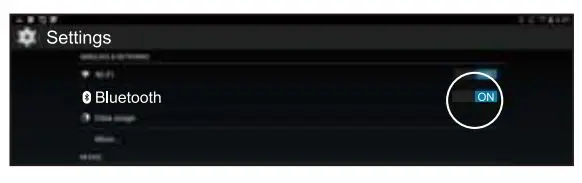
- Please operate the Bluetooth mode connection steps(j)@@before pairing. 0 Click “Setting” on the device and then Turn ON the Bluetooth.

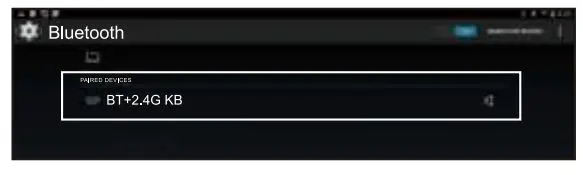
- Bluetooth Search to “BT +2.4G KB” and Click “Pair”. Complete the pairing.

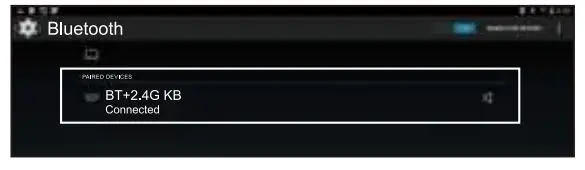
- “BT +2.4G KB” is connected and it can be used normally.
Mode Switching Method
8 I 8 I (I After connecting, short press the keyboard connection button to easily switch between multiple mode devices.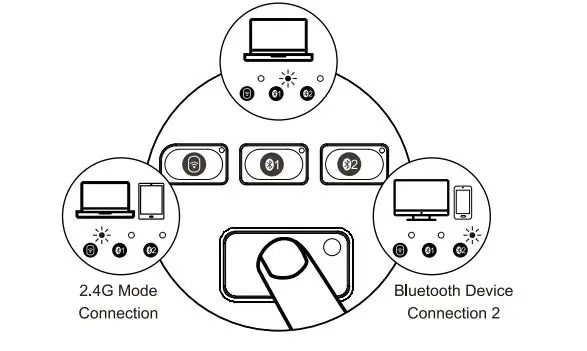
- Bluetooth Device Connection 1
Keyboard Charging 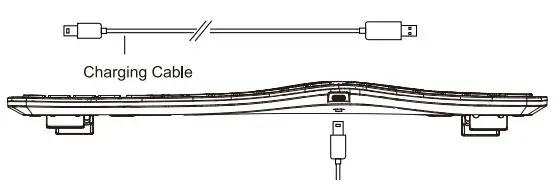 When the power is too low, the white status button of one of connections in use will flicker until shut down. Please connect the power supply to charge in time to ensure that the keyboard has enough battery power to meet normal work. If the keyboard power is too low, there will be some delays, freezes and other phenomena in typing, which will affect normal use.
(Power indicator turns red while charging then turns to green afte 2-3 hours fully charge.)
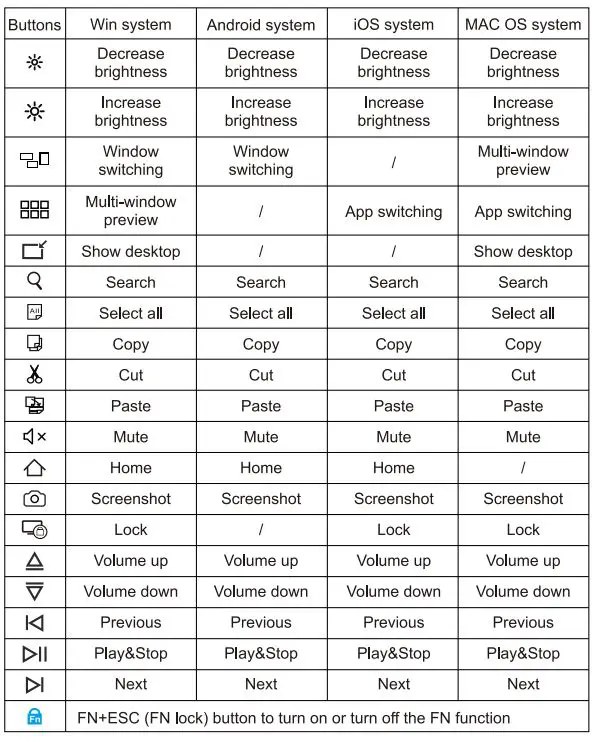
Multimedia Function Button
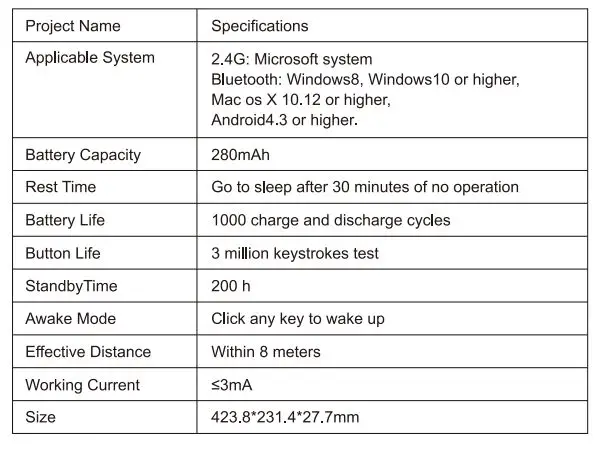
Specification 
Tips
- If it fails to connect normally, it is recommended to turn off the keyboard power, restart the Bluetooth of the device and connect again. Or delete the extra Bluetooth option name in the connection list of the device and then reconnect again.
- To switch to a onnection that has been successfully connected. First press the connection button to switch, and wait for 3 seconds to keep working.
- The keyboard has a memory function. When a connection is normally connected, shut down again. After booting, the keyboard is here by default and the indicator is always on.
Sleep Mode
- When the keyboard is not in use for more than 30 minutes, ii will automatically enter the sleep mode and the indicator light will be off.
- When you use the keyboard again, you only need to click any key, the keyboard will wake up within 3 seconds, the indicator will light up again and start working.
Packing List
- 1 • Wireless Blutooth Keyboard
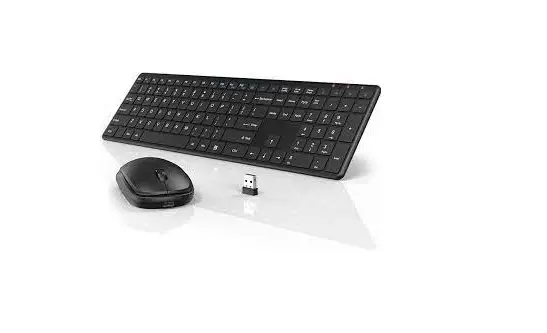
- 1 • USB Receiver
- 1 * Type-C Charging Cable
- 1 • Product Manual