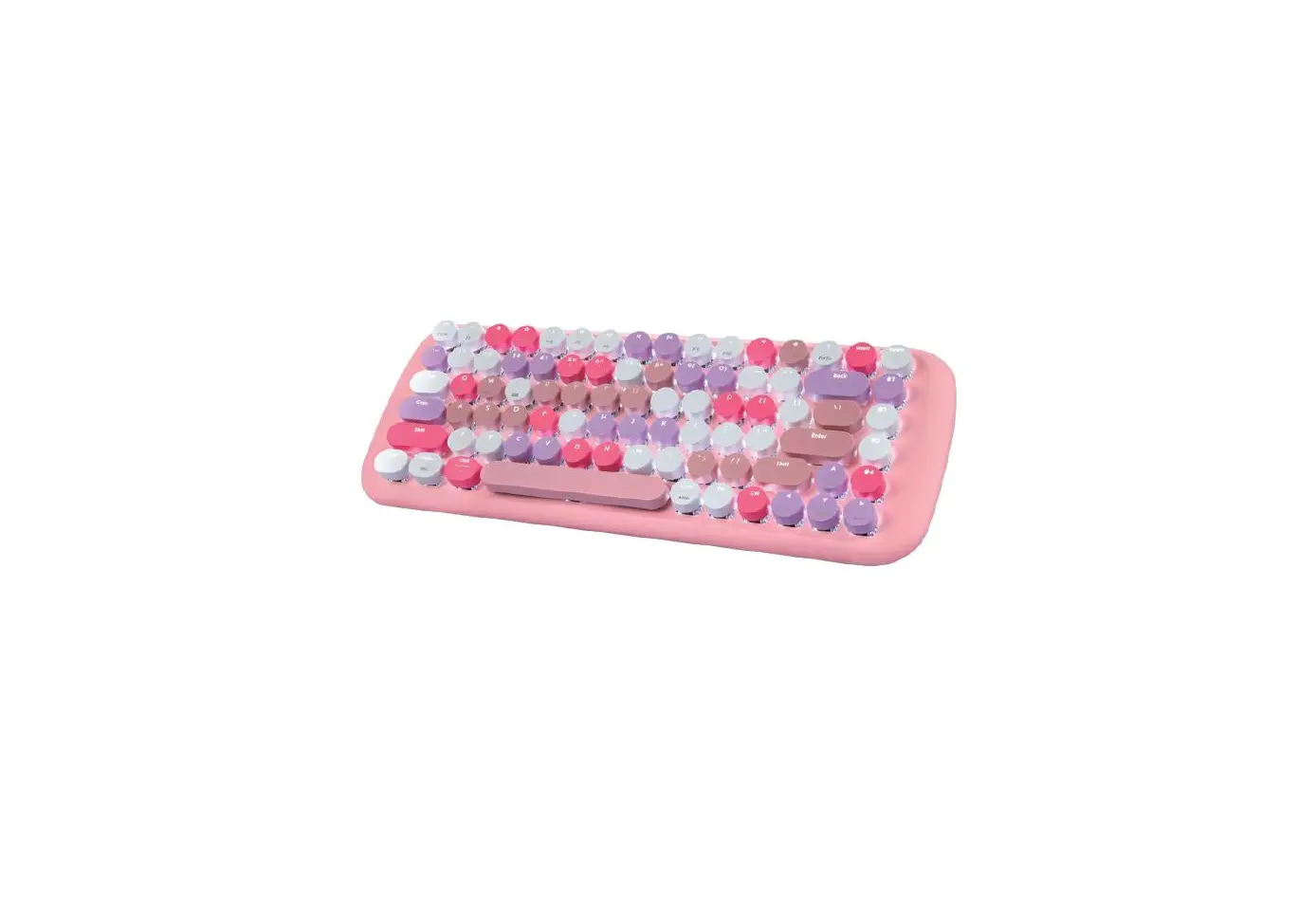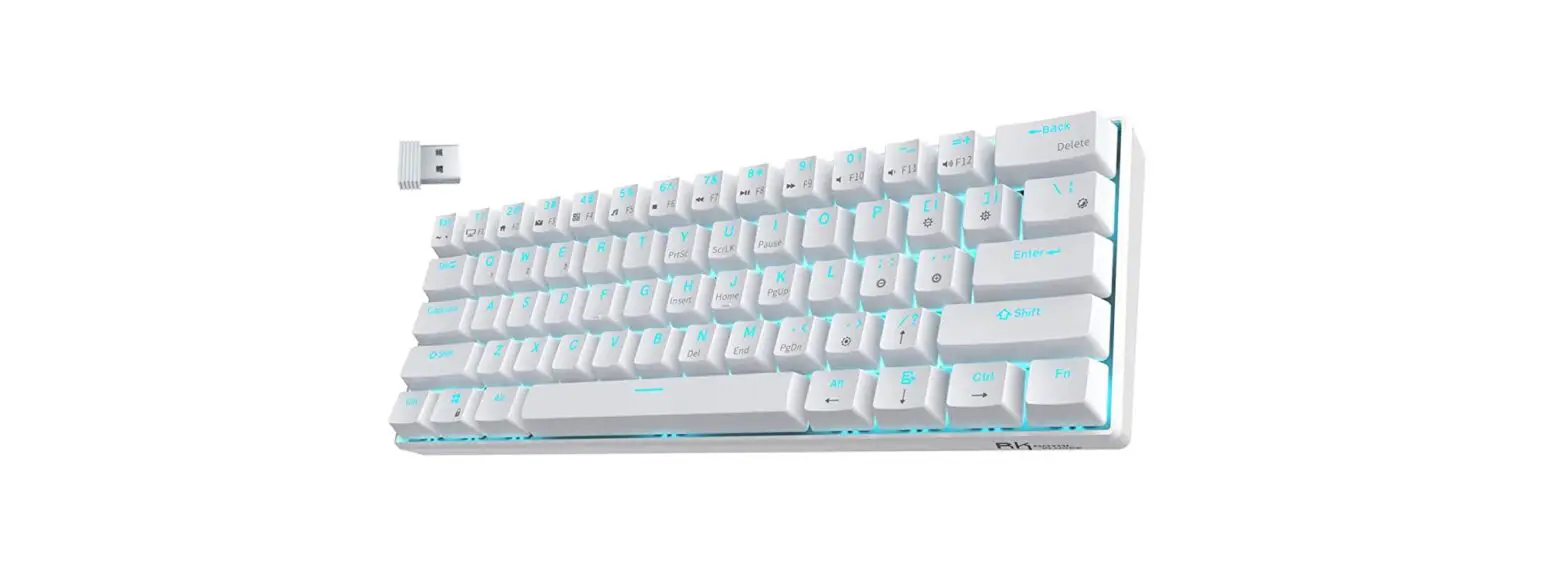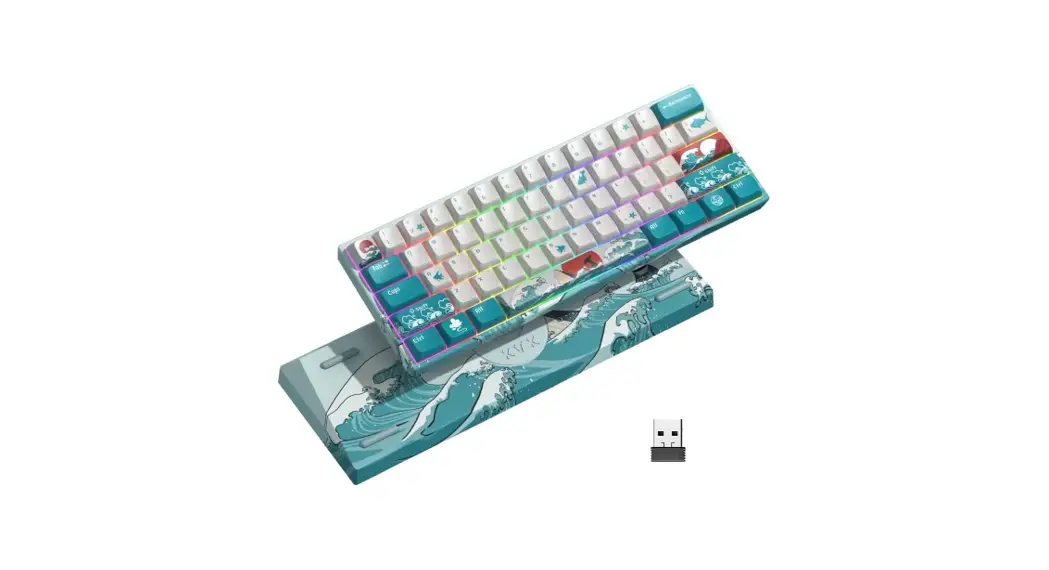
 Theme Series
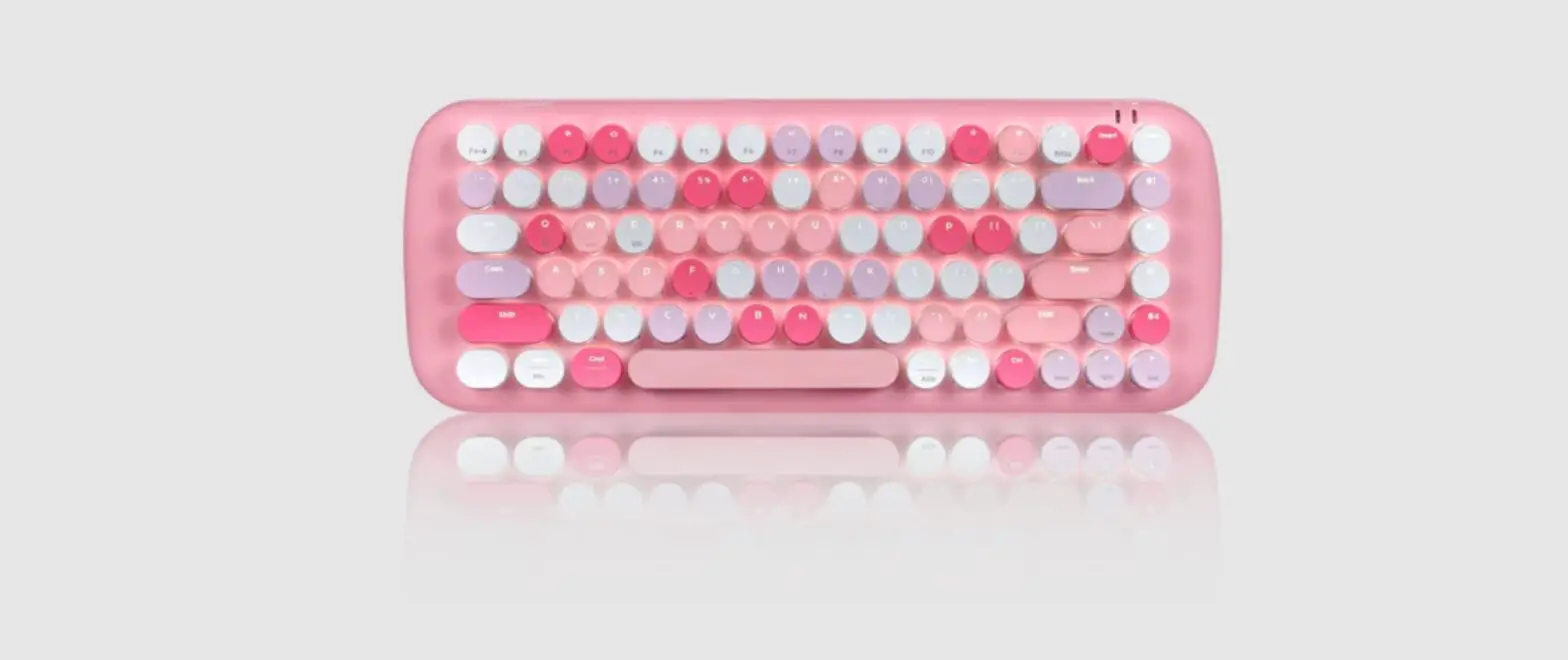
M61
User manual
Introduction:
Thank you for choosing Mechanical Rechargeable Keyboard. For the best results, please read the user manual carefully before using this product.
FN + : Adjust 19 LED backlit modes
FN + : Increase brightness
FN +  : Decrease brightness
FN +  : Decrease speed
FN +  : Increase speed
FN +  : Adjust lighting color, 9 levels
FN +  : Adjust lighting dynamic direction, 7 levels
FN +  : WIN lock/unlock
FN +  : 1 J K L change to up,left,down,right keys. press FN+[ I ] again to return to normal
FN + space : Hold for 3 seconds to restore factory settings
FN + ESC: ‘
FN + SHIFT + ESC:`~
FN +1-0: F1—F10
FN+-: F11
FN+=:12
F12 FN + BACK: Delete
Package Contents:
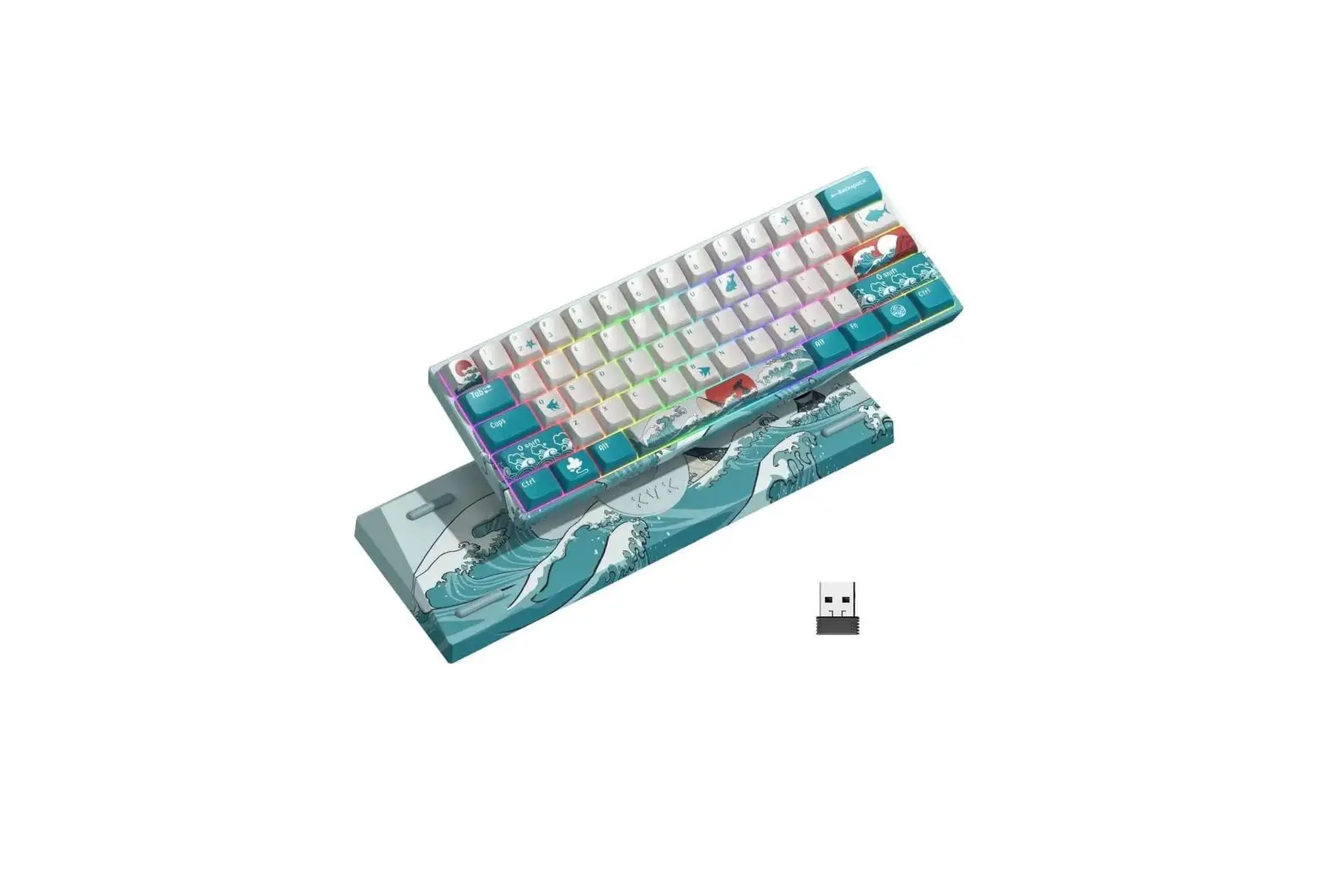
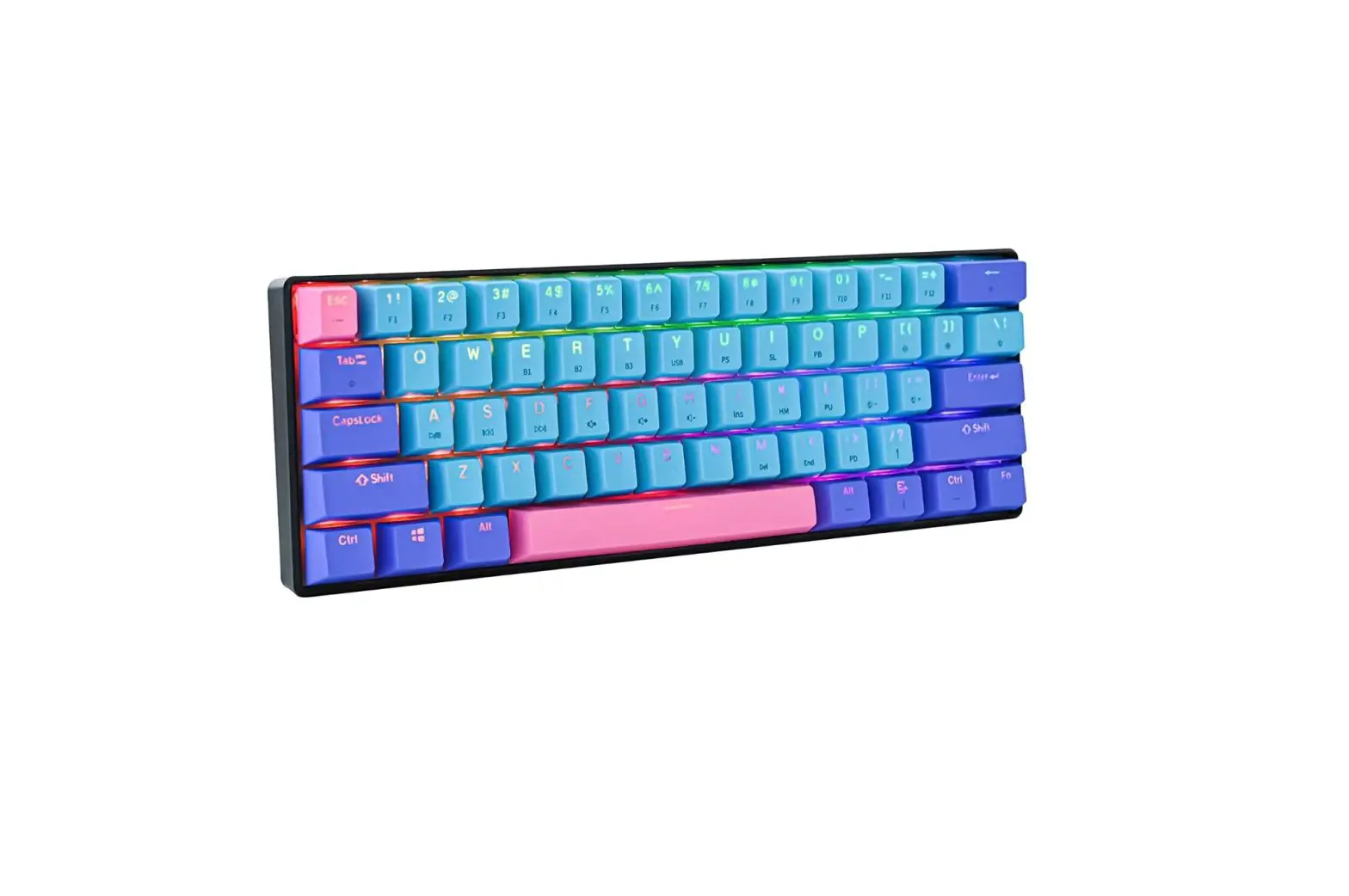
1 x Mechanical Rechargeable Keyboard
1 x USB Nano Receiver
1 x Type-C Cable
1 x User Manual
1 x Keycap Puller
Features:
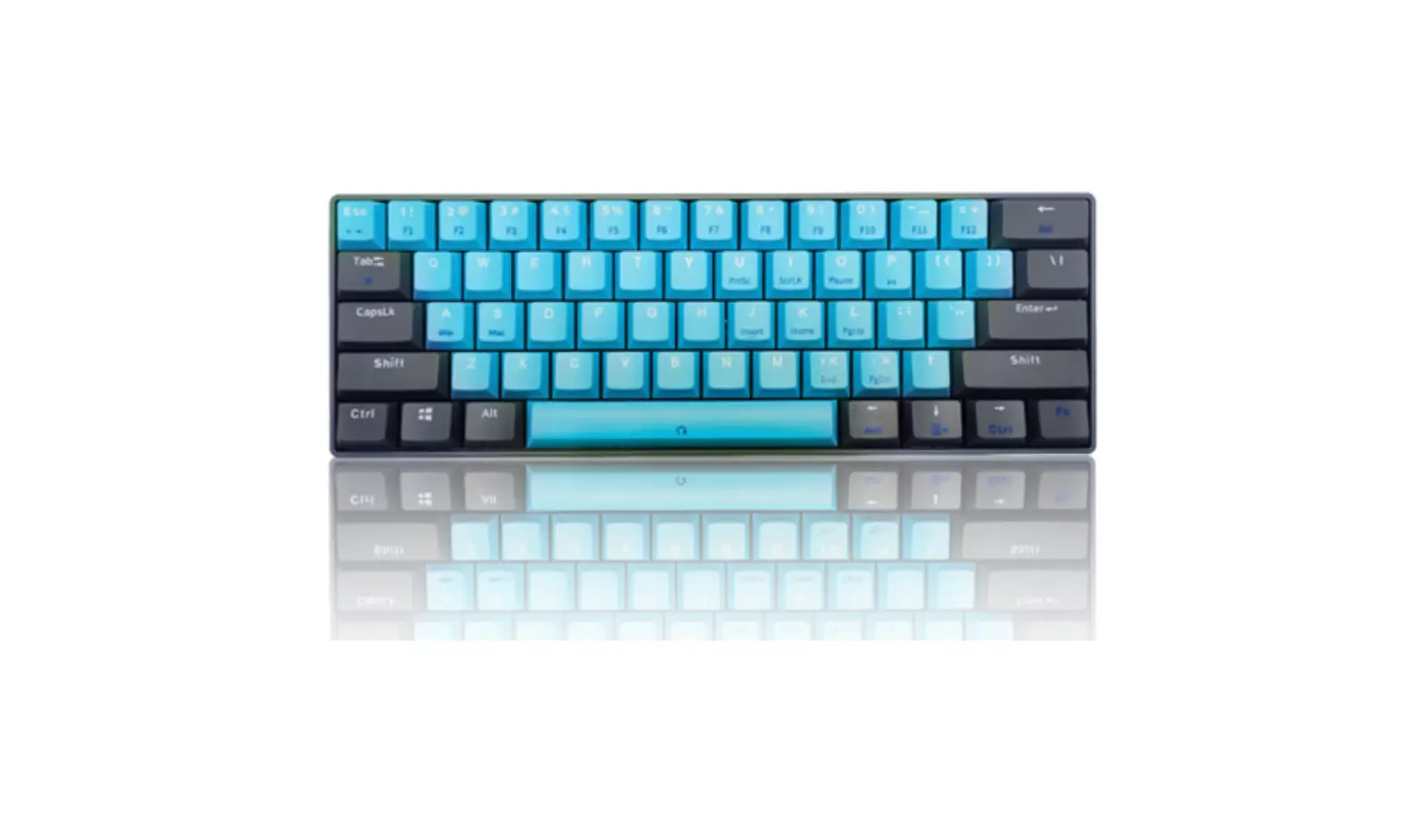
- Mechanical 61K keyboard
- 2.4G Wireless + Wired dual modes
- Rechargeable battery:1850mA
- RGB backlit, 19 kinds of lighting modes
- USB Full Speed 2.0 (12Mbps)
- N-key rollover
Installation, Connection and Use:
- Wired mode
Toggle the power switch in the OFF position(on/off switch located on bottom of keyboard). Connect the USB charging cable to your computer. Once the computer recognize the keyboarb, you’re ready to use. - 2.4G Wireless mode
Charge the battery. Toggle the power switch in the ON position(on/off switch located on bottom of keyboard). Plug the USB nano receiver into the USB port of your computer. Once the computer recognize the keyboard, you’re ready to use.
In 2.4G Wireless mode, If not use for more than 60 seconds, the RGB backlit will turn off automatically and keyboard enter power-saving mode.lt is better turn off the keyboard when not use for long time.
Build the connection between the USB receiver and keyboard
Toggle the power switch in the ON position, press the FN+ key”P” for 5 seconds now the key”P”is flashing. Plug the USB nano receiver into the USB port of your computer. Key”P”stop flashing after building connection successfully.
Charge the keyboard
The battery should be charged for at least 6-8 hours before being used for the first time. When the battery is low, the white light of the ESC key is flashing. Connect the USB Charging cable to your computer or adapter.The battery is charging when the LED light between F2 and F3 is on. The light goes off once the battery is fully charged. (charging time: around 6-8 hours).
NOTE: If you want to use the keyboard when charging, you should choose wired mode, the power switch must be toggled in the OFF position.
Troubleshooting Tips:
If you experience problems while using the keyboard, here are some helpful troubleshooting tips: Check the power switch is in the ON position Check the battery is charged Check the receiver is properly connected to the USB port Try reducing the distance between the keyboard and the computer Remove any large metal objects located between the keyboard and the computer that could interrupt the signal Product picture are for reference only.
Pro software download link:
https://www.xvxchannel.com
* Please note the macro software is only available for Windows PC at this time.
* The software can only be used in wire mode adjust the power switch to the OFF position.


https://www.xvxchannel.com instagram.com/xvx_keyboard
 facebook.com/xvxkeyboard
  www.XVXCHANNEL.COM