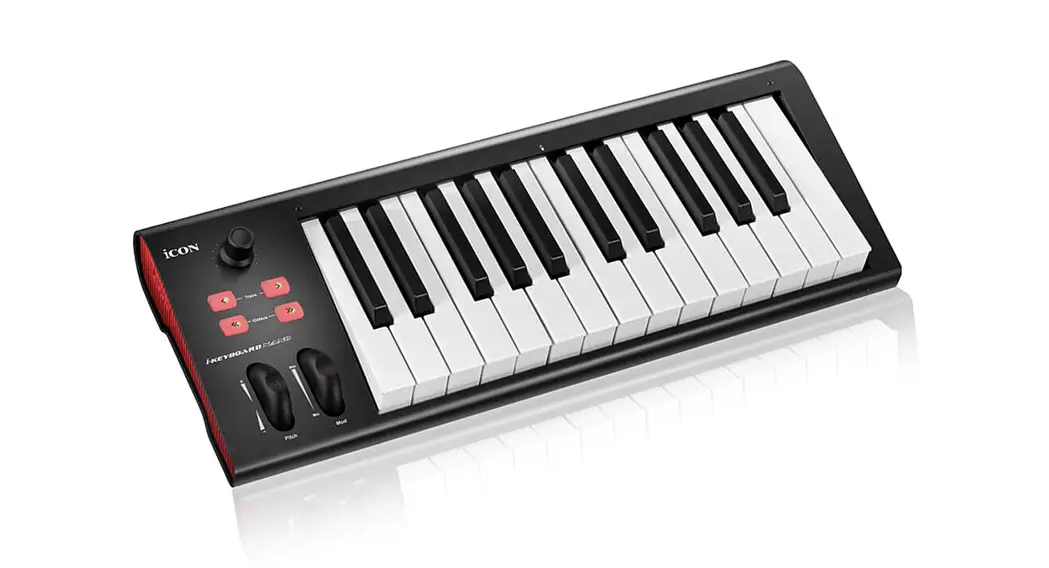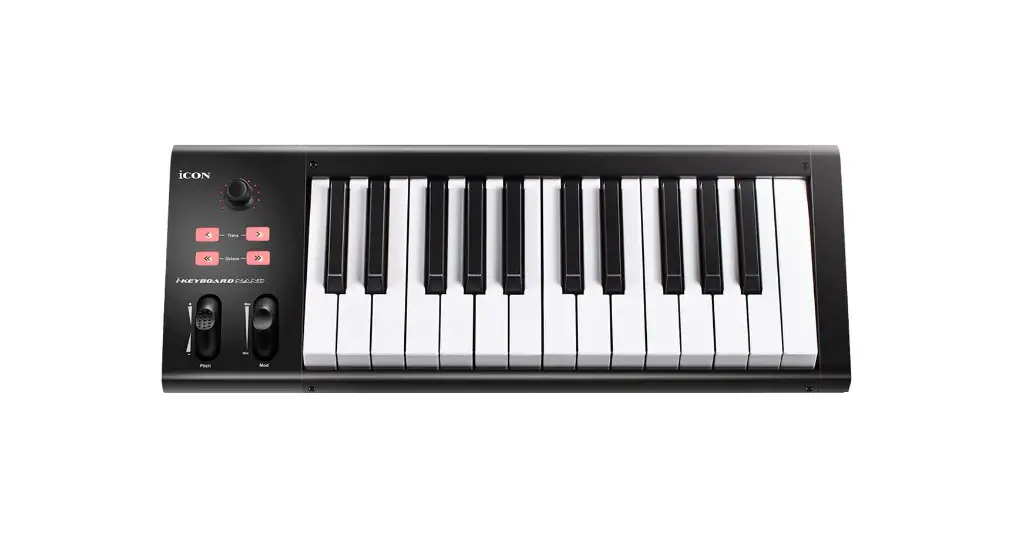
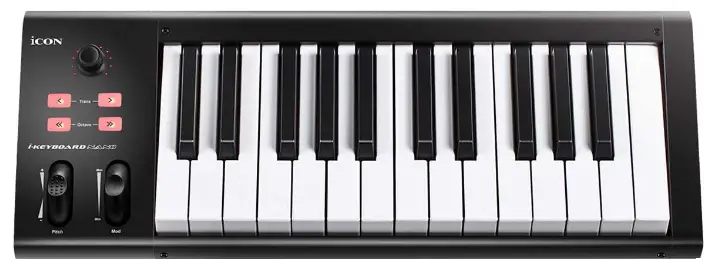
iCON KEYBOARD NANO Series Piano
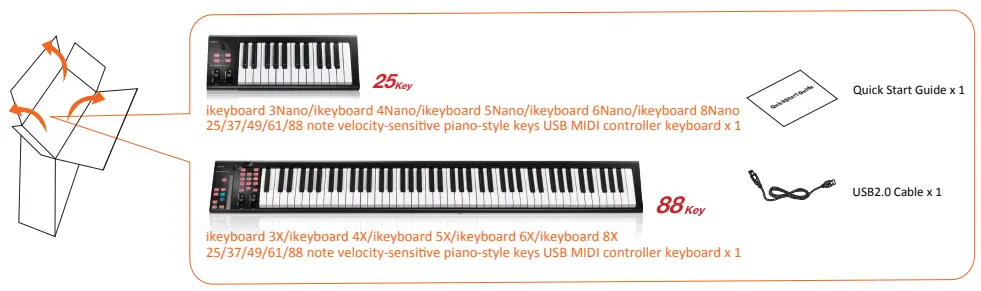
Unpack
Mac
Turn on your Mac.
PC
Turn on your computer.
Getting Started
Connecting your iKeyboard X / iKeyboard Nano controller.
Connect the iKeyboard X / iKeyboard Nano to your Mac via the USB port.
Choose a USB port on your Mac and insert the wide (flat) end of the USB cable. Connect the cable’s small jack end to the iKeyboard X / iKeyboard Nano. Your Mac should automatically “see” the new hardware and notify you that it is ready to use.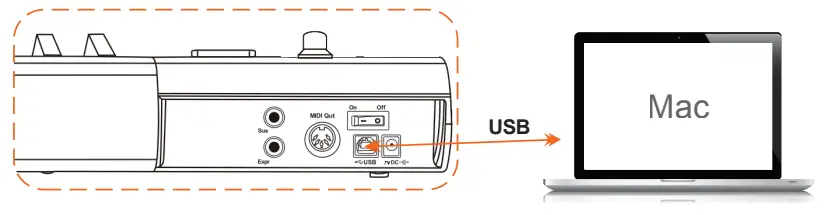
Connect the iKeyboard X / iKeyboard Nano to your PC via the USB port.
Choose a USB port on your PC and insert the wide (flat) end of the USB cable. Connect the cable’s small jack end to the iKeyboard X / iKeyboard Nano. Your PC should automatically “see” the new hardware and notify you that it is ready to use.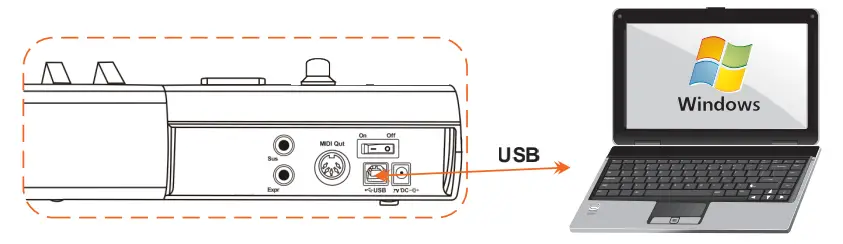
Mode select & assign the MIDI messages to iKeyboard X / iKeyboard Nano with iMap software.
Launch iMap software to adjust the settings. Click “MIDI Devices” button to select the ICON device and click “Send Data” button to upload all the settings to the device.
Note: If your connected ICON product model name does not appear on the pull-down menu, select “USB Audio” as the MIDI In and Out device.
Tip: You do not need to change any settings if the factory default setting suits your need.
(For iKeyboard3X/4X/5X/6X/8X only)
iKeyboard X: Note: Only “User defined mode” will allow you to assign your own midi mapping to your iKeyboard X’s controls. However, it is quite complicated and unless you are really familiar with your DAW’s MIDI message structure, we recommended that you use the Mackie Control or HUI mode which has already mapped the major functions, to save you the trouble of doing all the mapping.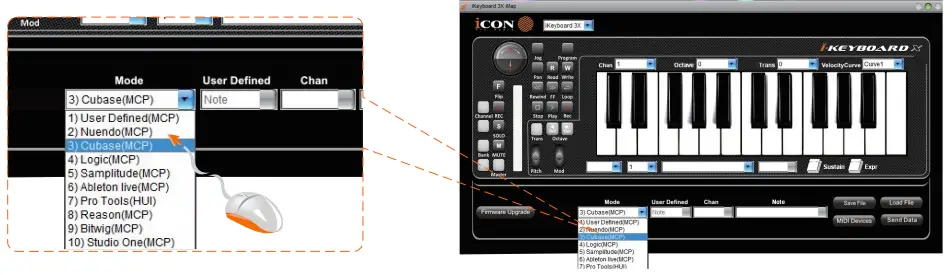
Setup your DAW
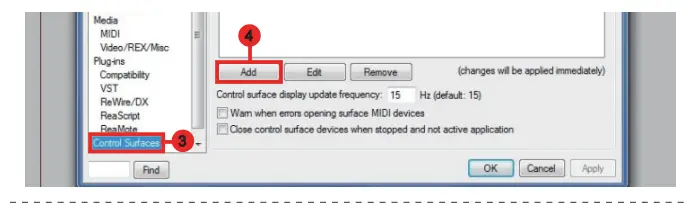
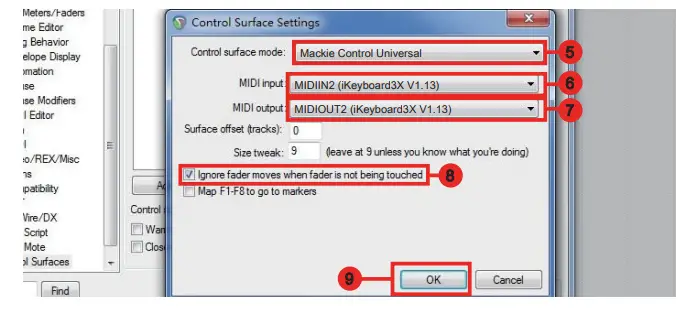
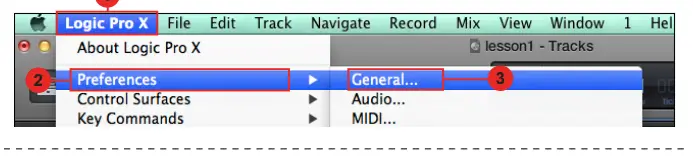
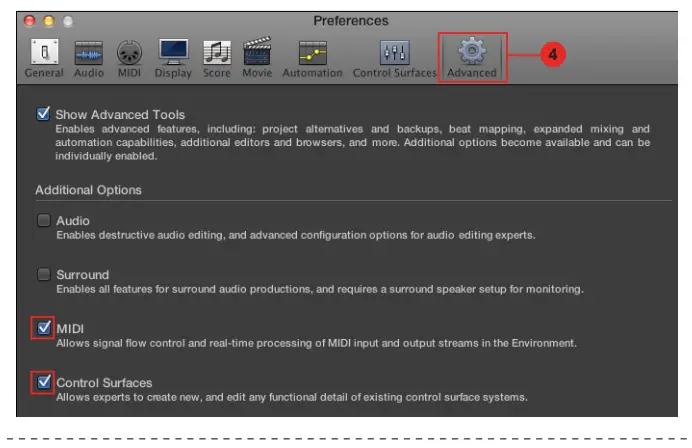
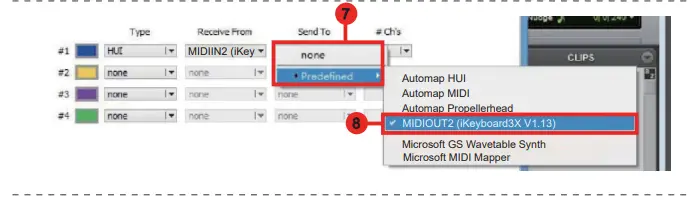
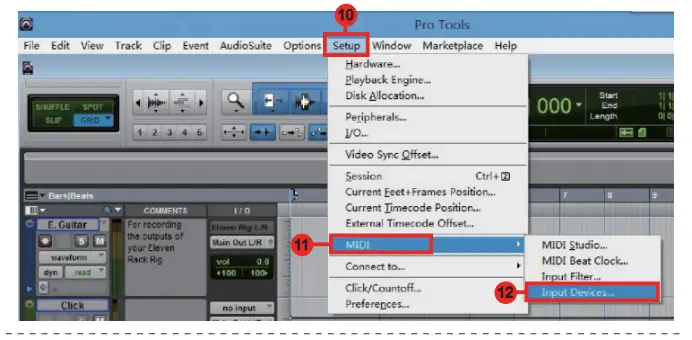
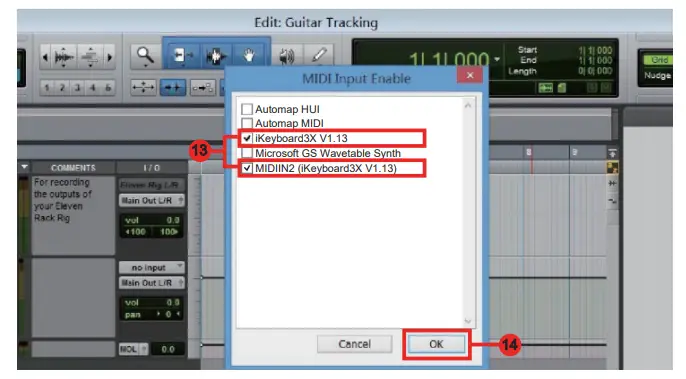
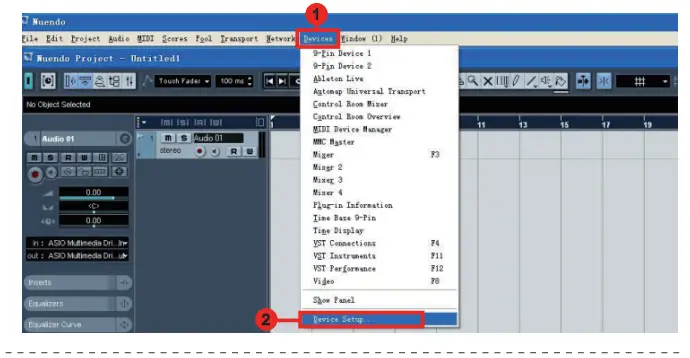
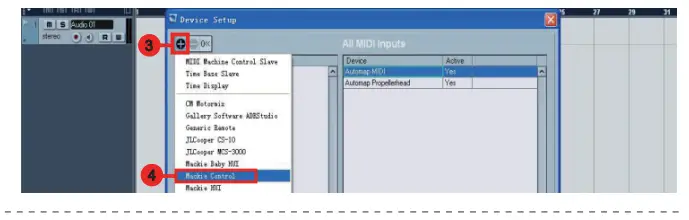
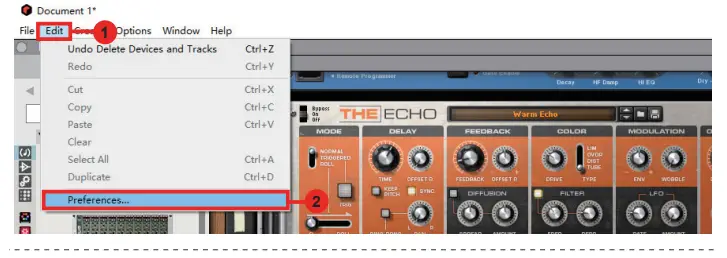
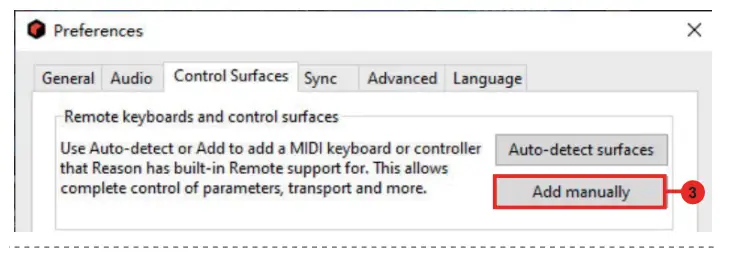
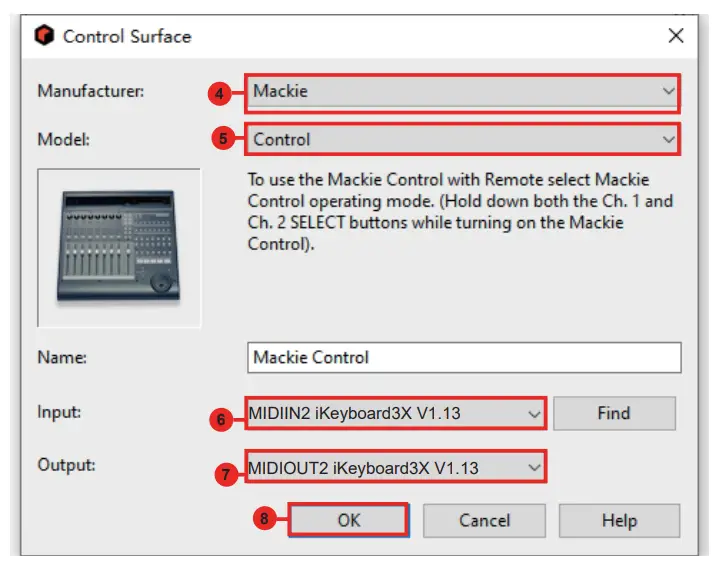
Activate the ICON iKeyboard X / iKeyboard Nano controller in your DAW or MIDI software using “MIDI Setup” or “MIDI Devices”. (Note: Every application does this a little different, so refer to your software user manual for the settings.)
For Mackie Control / HUI
Studio One
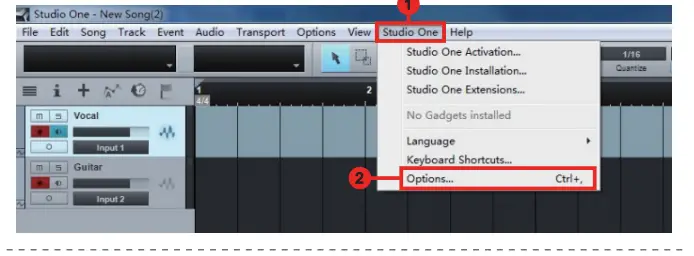
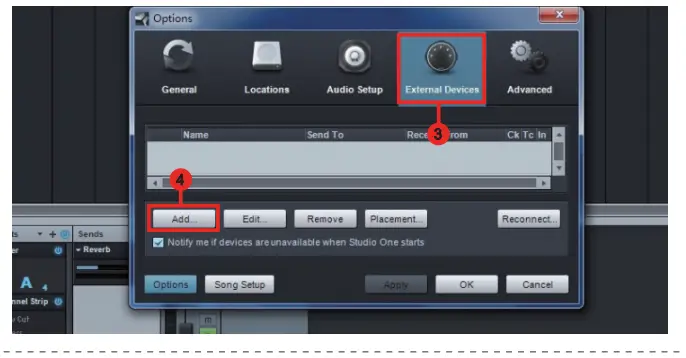
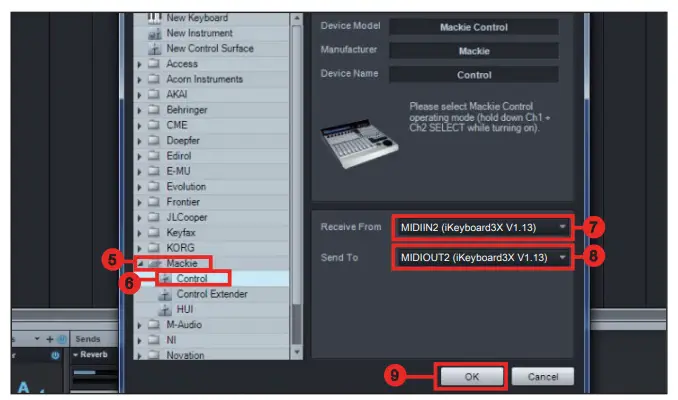
Reaper
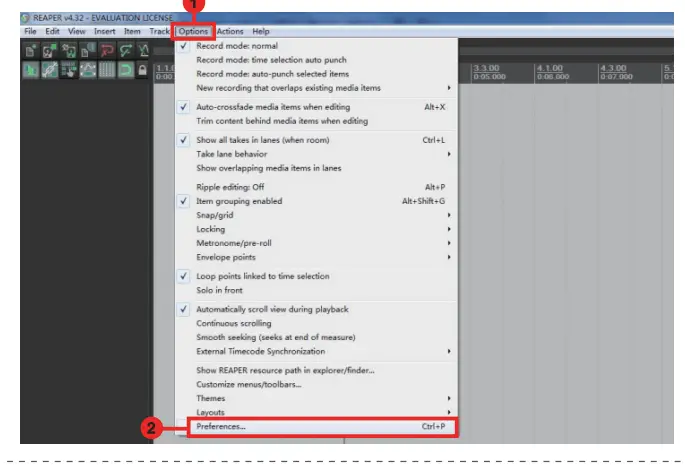
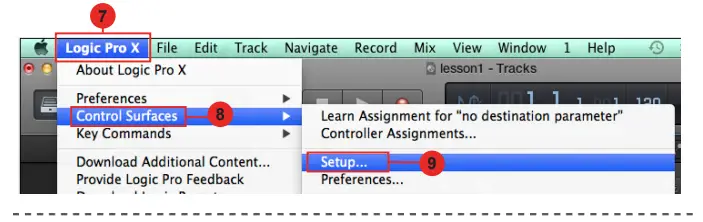
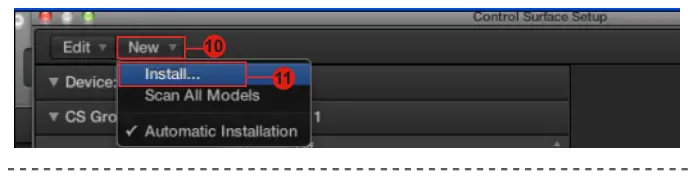
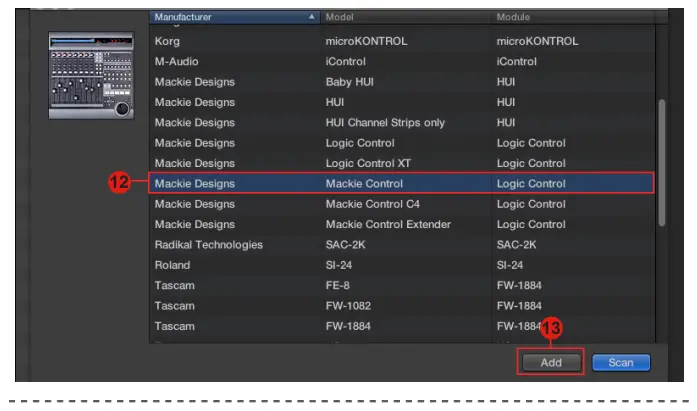
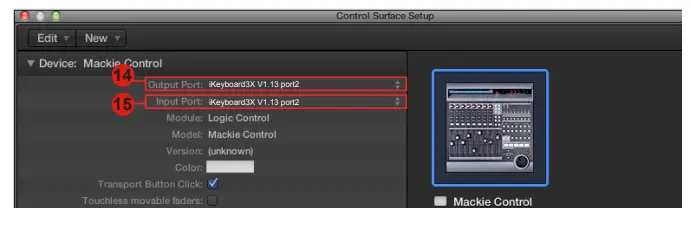
logic pro
Ableton Live
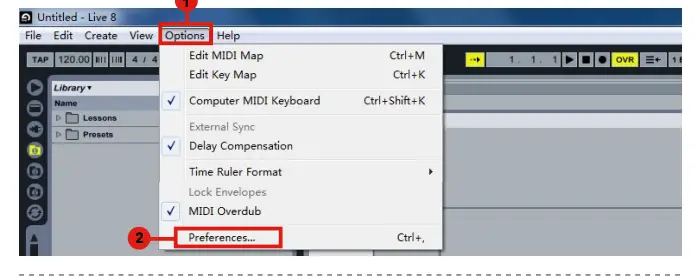
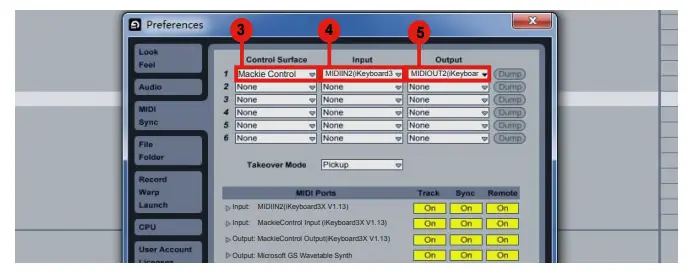
Pro Tools
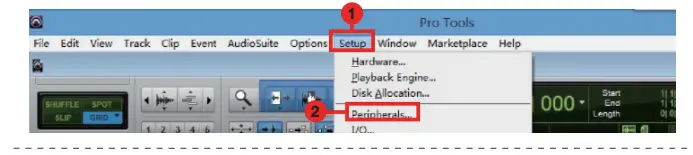
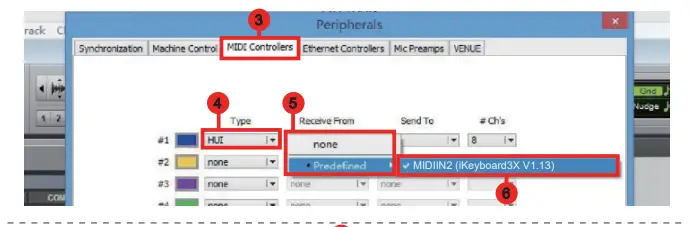

Cubase
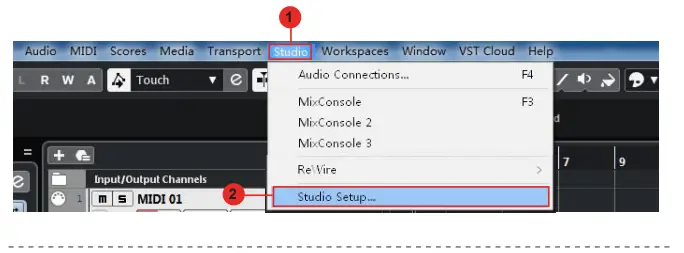
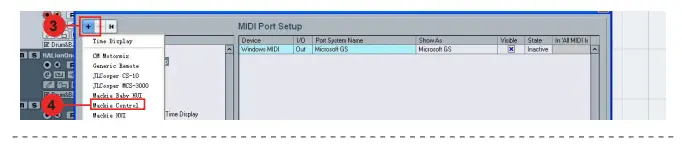
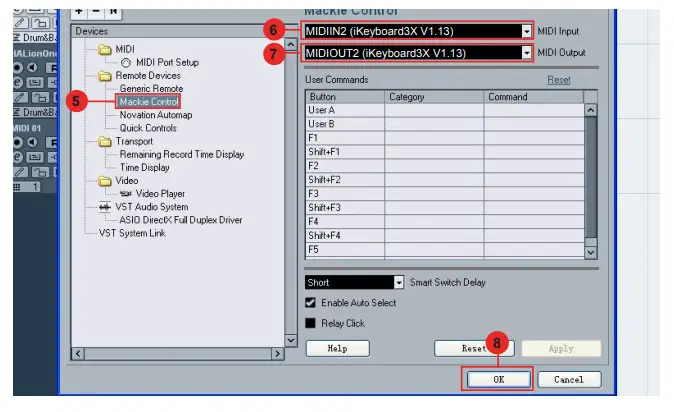
Nuendo
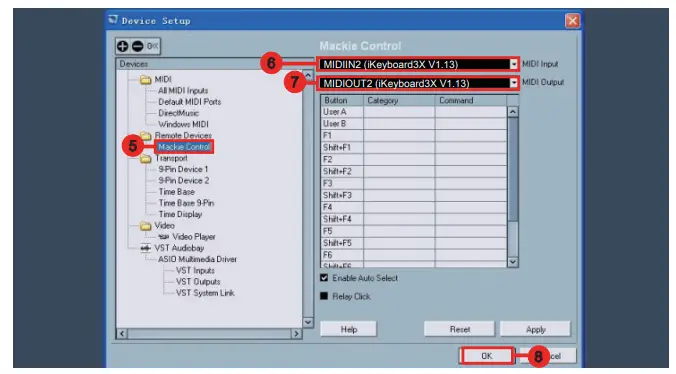
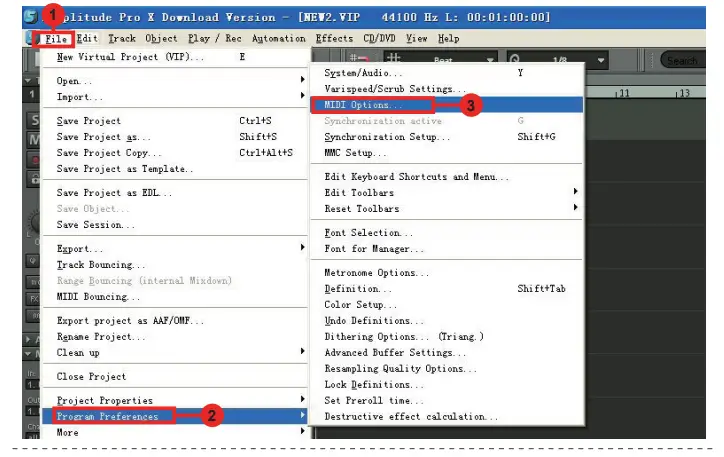
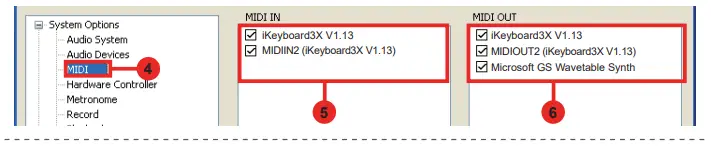
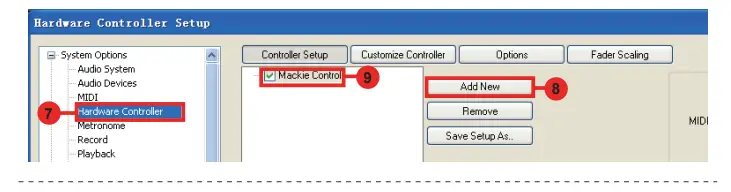
Samplitude
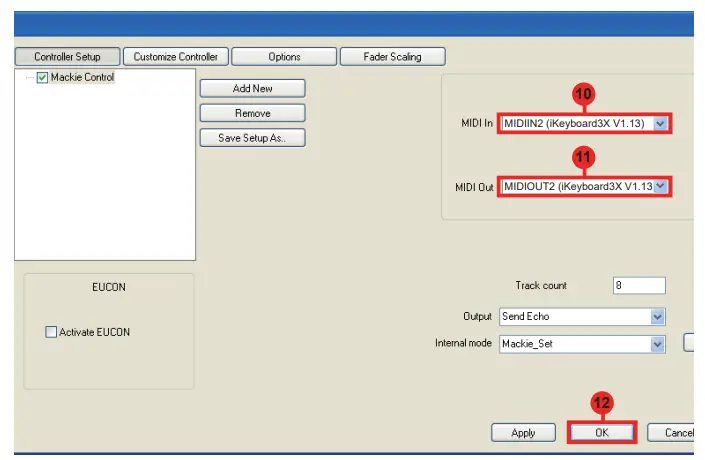
Reason
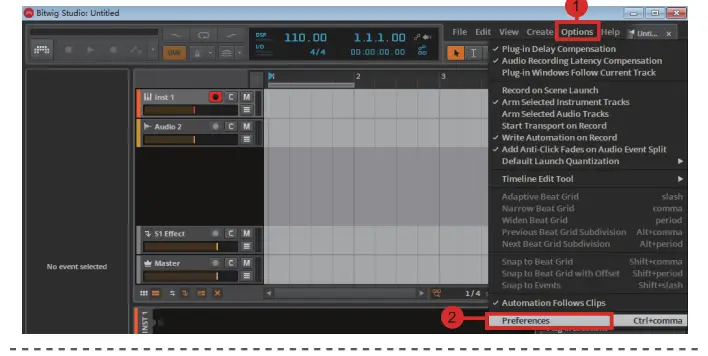
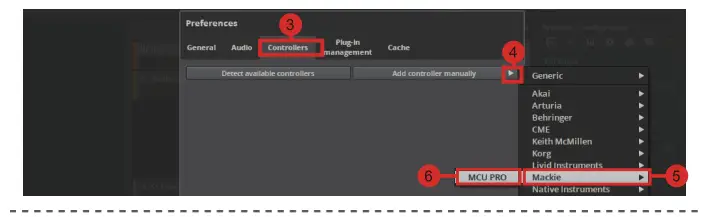
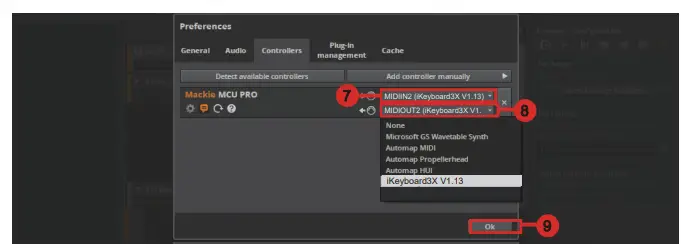
Bitwig

 Icon Pro Audio – Control Your Sound