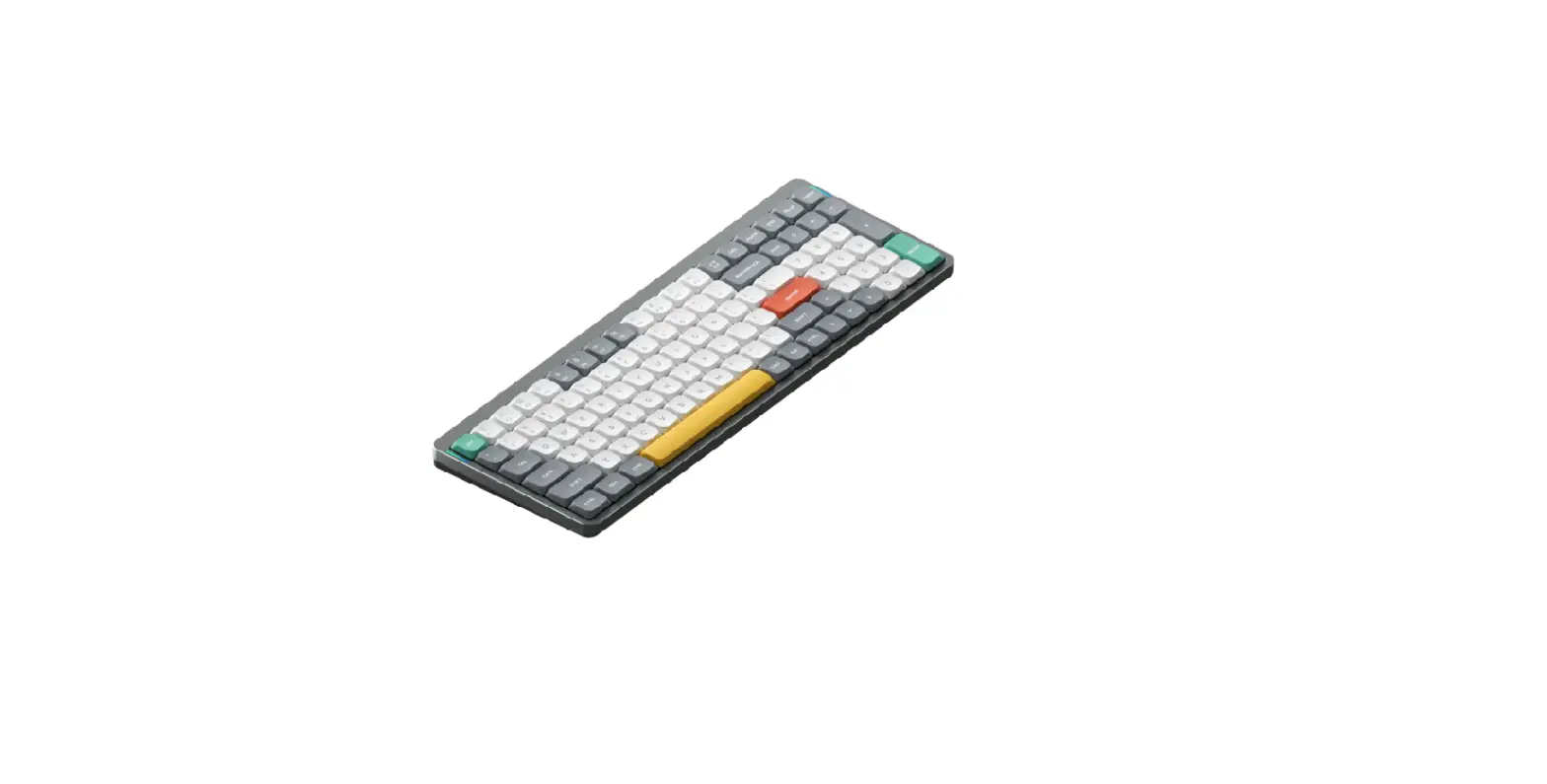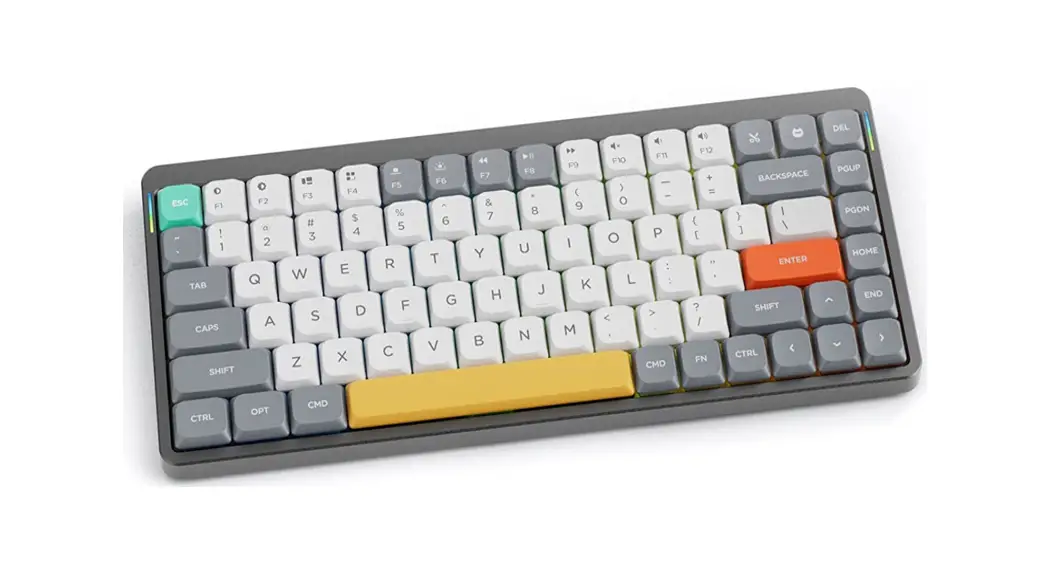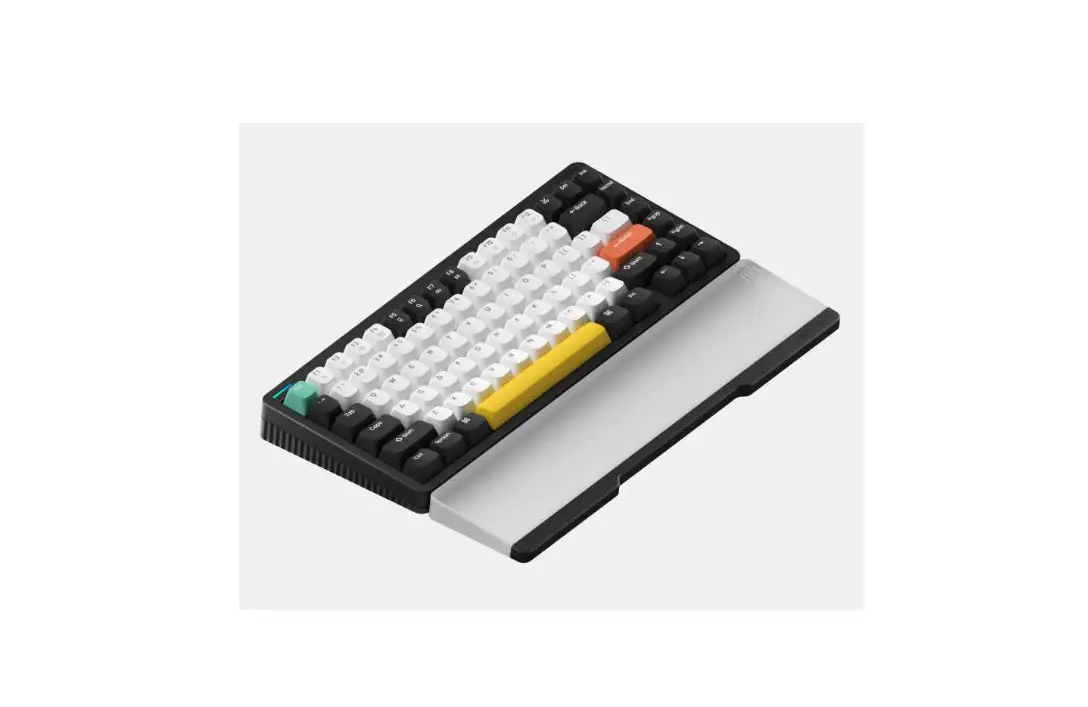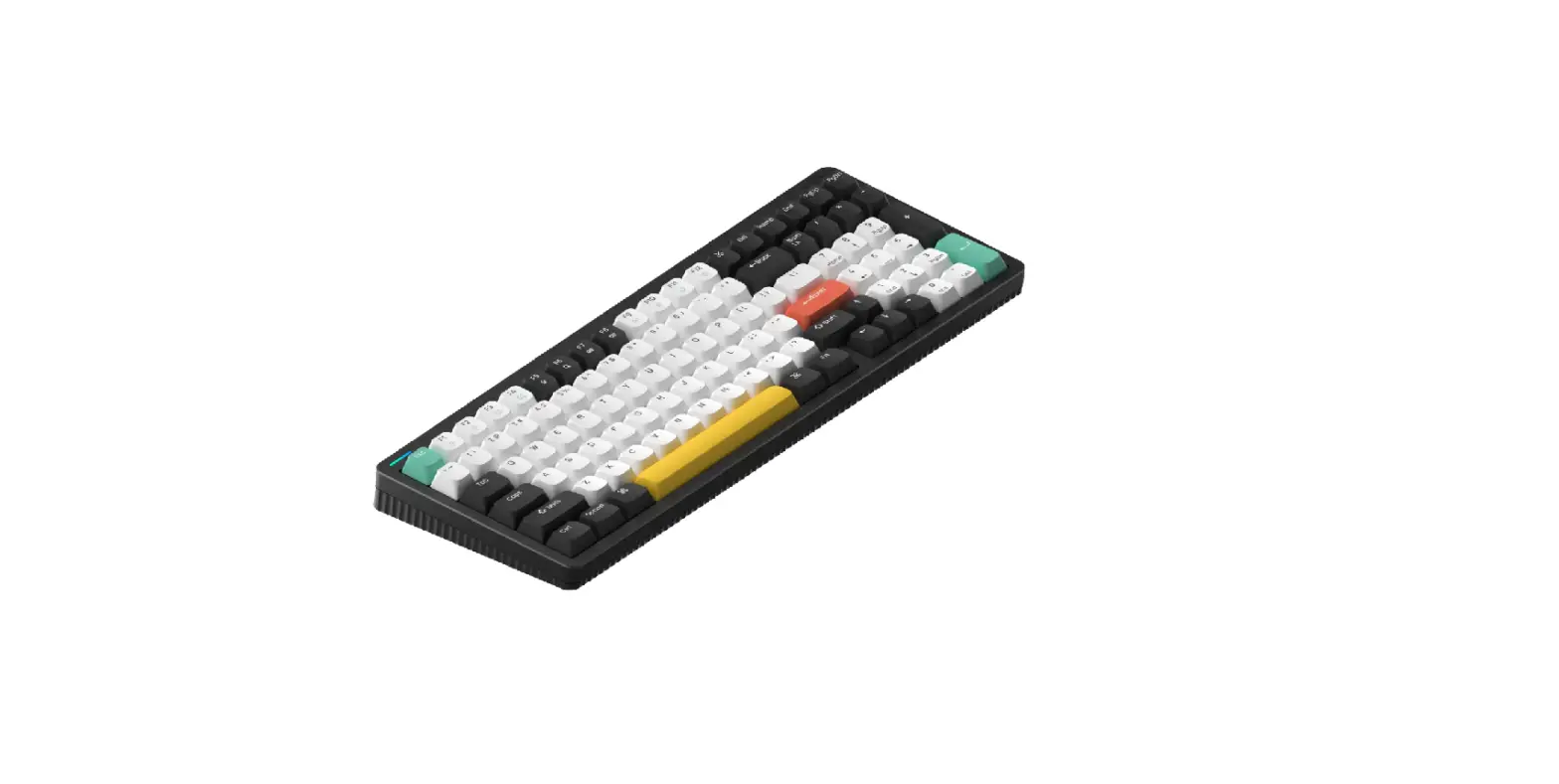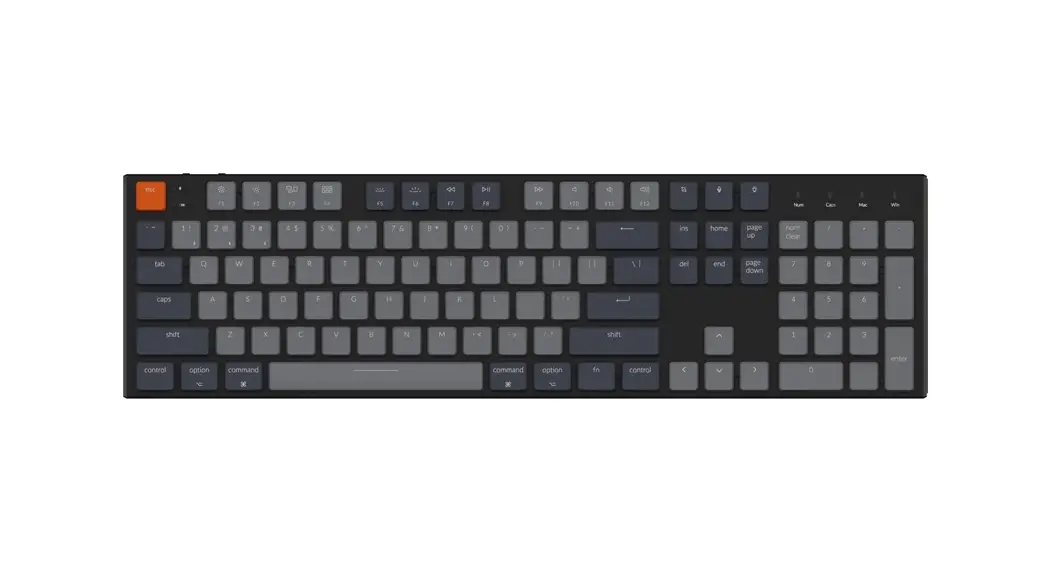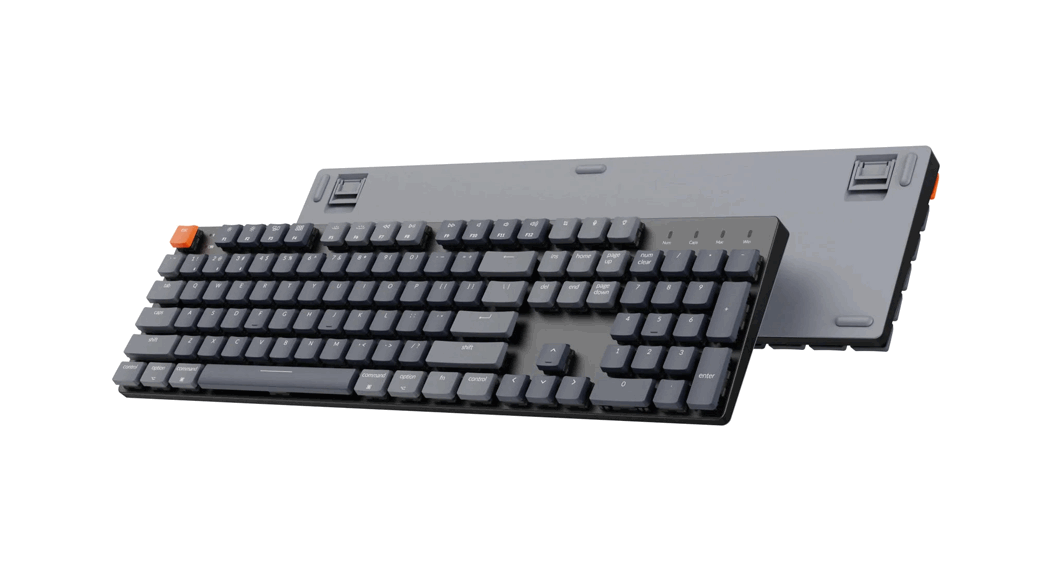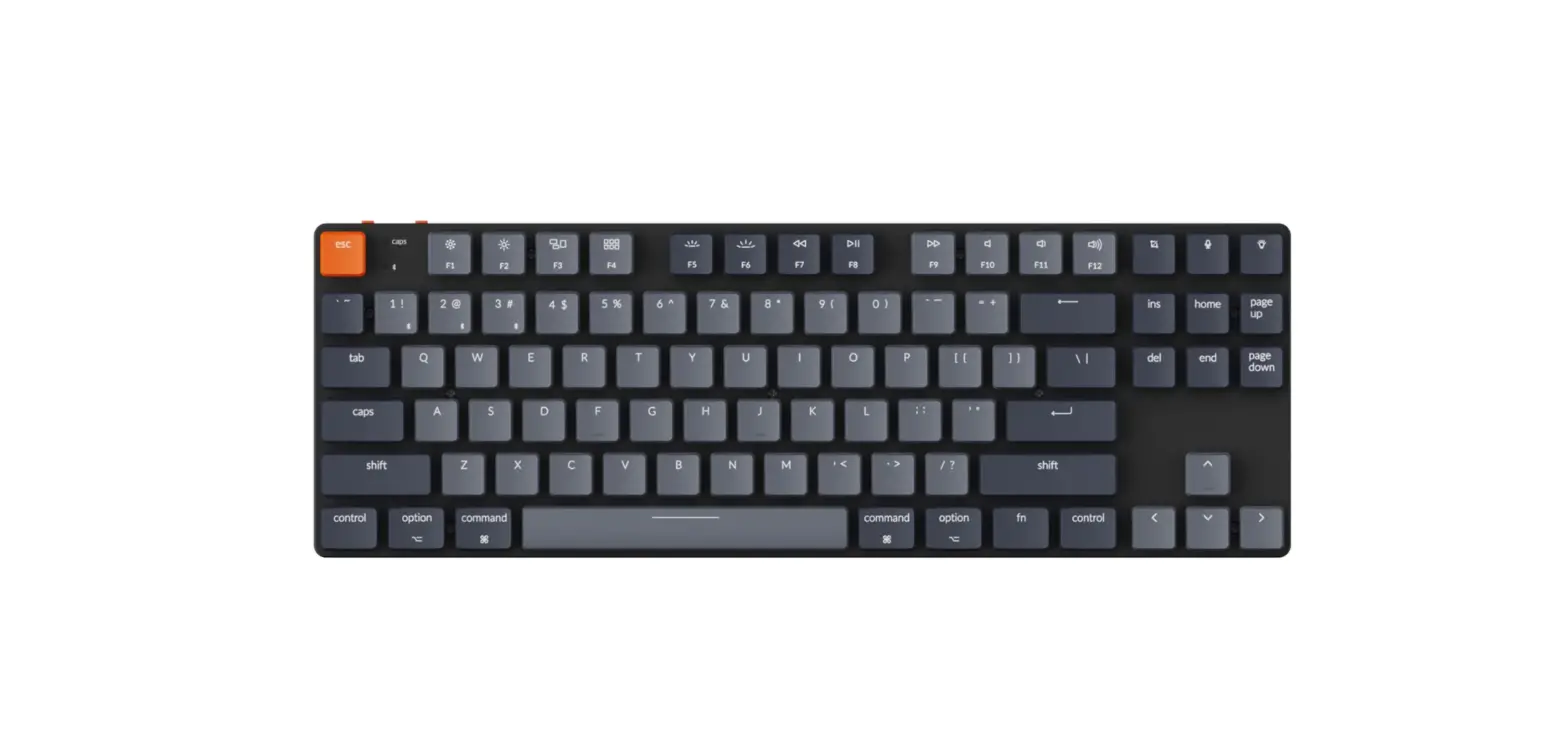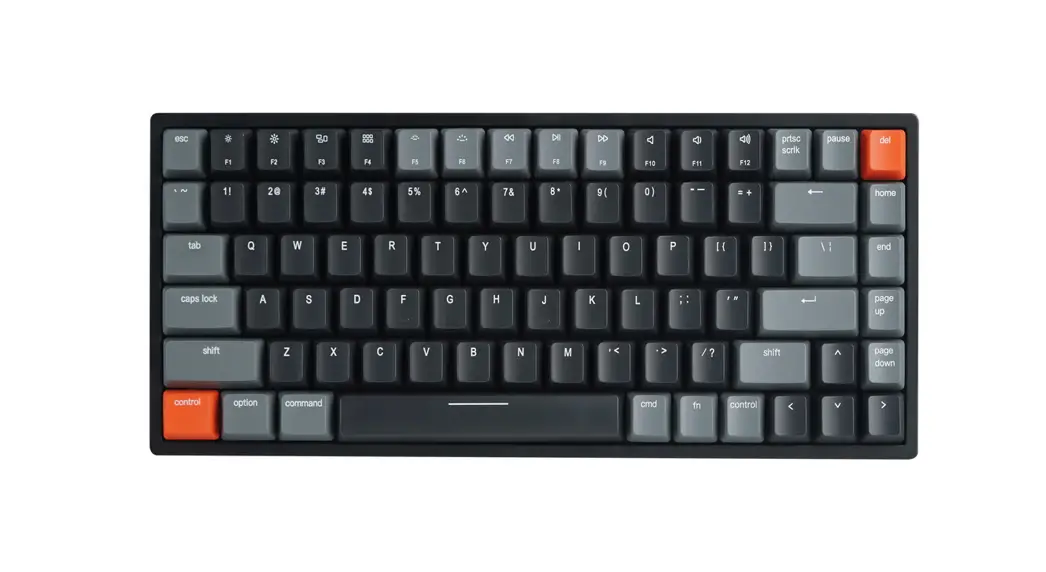
 NuPhy Air75 Wireless Mechanical Keyboard User Guide
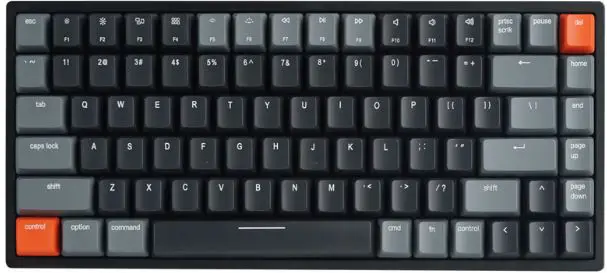
NuPhy Air75 Wireless Mechanical Keyboard User Guide
Quick Guide
NuPhy www.nuphy.com
[email protected]
1-System Selection Win mode
 Mac mode
2- Connection Mode selection Power off Wired mode Wireless mode
* In the wired mode It Is necessary to use a data cable to connect with the device.
Air75 Wireless Mechanical Keyboard
3 – Wireless Device Connection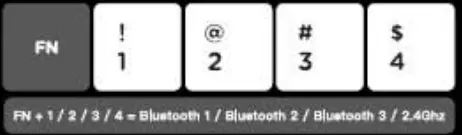 Short press to switch between device% long press 3 secomisto enter pairing mode. Plug the 2.40hz receiver Into your computer before pressing FN + 4.
* Air3.0 a Bluetooth 3.0. Air75 5.0 = Bluetooth 5.0 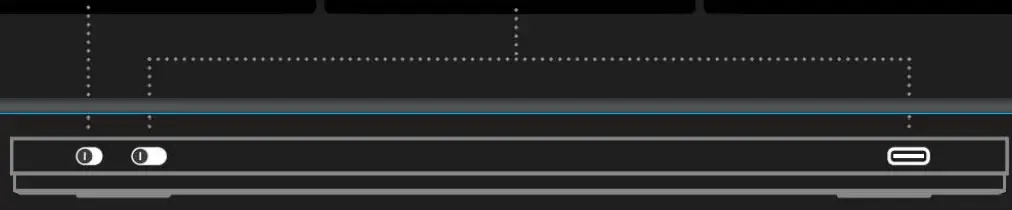
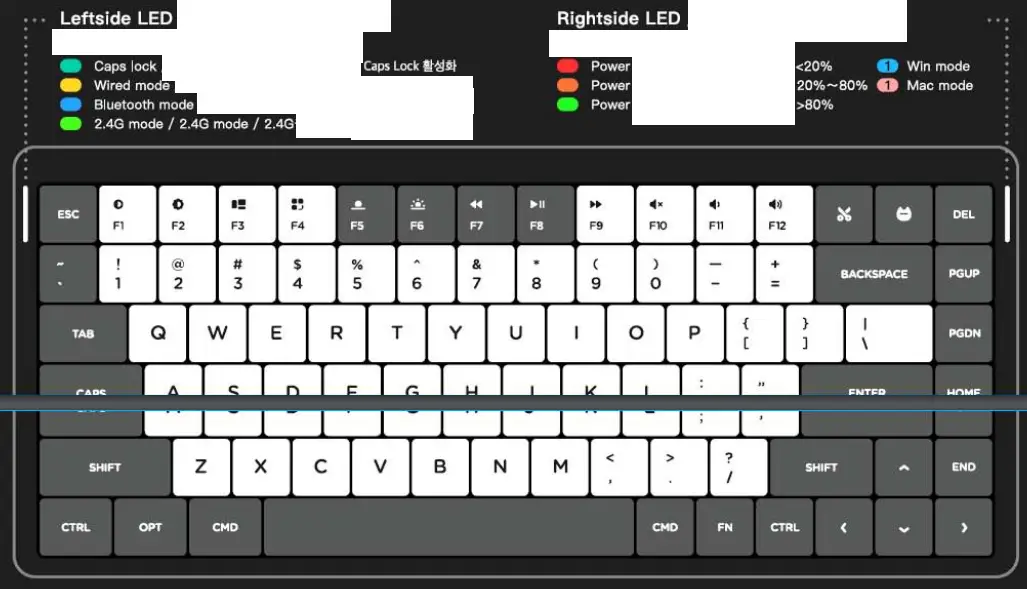
4 – Backlight Setting FN + < = Backlight effect switching
FN + > = Backlight color switching
FN + ∧∨=Brightness+-
5 – Sidelight Setting Fn+?+<=Sidelight effect Switching
Fn+?+>=Sidelight colour Switching
Fn+?+∧ ∨=Sidelight brightness
6 – Battery Indicator FN +? = Flashes the current battery level colour
FN +1 = Battery indicator always on enabled
FN +1 = Battery indicator always on disabled
7 – Other Key Combos X (mac) = Section screenshot
FN + X (mac) = Full screen screenshot
X(win) al Full screen screenshot
8 – Sleep Mode Setting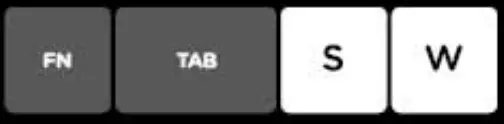 2 FN+ TAB + S = Sleep mode Off
2 FN + TAB + W = Sleep mode On
9 – Facto Reset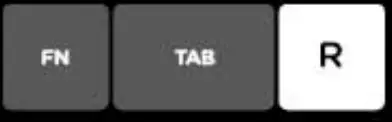 FN + TAB + R = Factory reset
0 = Access the virtual assistant (Siri / Cortana)
* To activate under MacOS (Sid): go to System Preferences > Siri> select “Press Fn(Function) Space” option.
To activate under Windows (Cortana) go to the start menu > Setting > Cortana and set the shortcut by pressing a + C.
FCC Warning
This device complies with part 15 of the FCC Rules. Operation is subject to the following two conditions: (1) This device may not cause harmful interference, and (2) this device must accept any interference received, including interference that may cause undesired operation.
Any changes or modifications not expressly approved by the party responsible for compliance could void the user’s authority to operate the equipment.
Note: This equipment has been tested and found to comply with the limits for a Class B digital device, pursuant to part 15 of the FCC Rules_ These limits are designed to provide reasonable protection against harmful interference in a residential installation. This equipment generates uses and can radiate radio frequency energy and, if not installed and used in accordance with the instructions, may cause harmful interference to radio communications. However, there is no guarantee that interference will not occur in a particular installation. If this equipment does cause harmful interference to radio or television reception. which can be determined by turning the equipment off and on, the user is encouraged to try to correct the interference by one or more of the following measures:
- Recent or relocate the receiving antenna.
- Increase the separation between the equipment and receiver.
- Connect the equipment into an outlet on a circuit different from that to which the receiver is connected.
- Consult the dealer or an experienced radio/TV technician for help.
FAQS
Suitcase needs to be purchased separately
Sorry, the FN key cannot be locked, all other keys can be locked.
Yes, compatible with your laptop
Yes, except for the FN key, the functions of the other keys can be changed via firmware.
GMK keycaps can be installed, but the keycaps will bottom out and affect the typing experienc
At present, the red and blue axes can be purchased normally
This may take several months
It is recommended not to use keycaps with high shafts, as this will bottom out.
It may take fifteen to twenty days
Currently the brown switch version has been shipped and will arrive soon
Plug in the USB C cable to the keyboard, it will automatically charge, and there is no indicator light to remind you that it is charging, but you can press and hold FN+| to check the power, our latest firmware, the DEL key will have a breathing light flashing when charging.
Suitcase needs to be purchased separately
already available for purchase
It is recommended not to use keycaps with high shafts. If you have a keycap you like, you can contact us to confirm it for you.
It doesn’t support wireless charging.
We do not recommend that you replace the battery, and disassembling the battery has certain risks.
We are already designing all black keycaps, which will take some time to come out, and the keycaps are made of ABS, allowing light to pass through.
We are in development and expect several products to come out in the second half of this year.
Bluetooth is 125Hz rate of return, 2.4G is 500Hz rate of return.
It is suitable, but there are too many versions of linux, and we cannot confirm them one by one.
The brown switch is currently in expedited production, which should take about two to three weeks.
Every keyboard has a little rattle, but I’ve definitely experienced worse. I’ve been lazy and haven’t fully modded my board yet, and I don’t really notice it. That being said, I will definitely mod it in the future to get the perfect sound profile.
The M1 is no problem to use, but if you want to put the keyboard on the computer, the Air75 does not support it, our upcoming keyboard is ok.
VIDEO