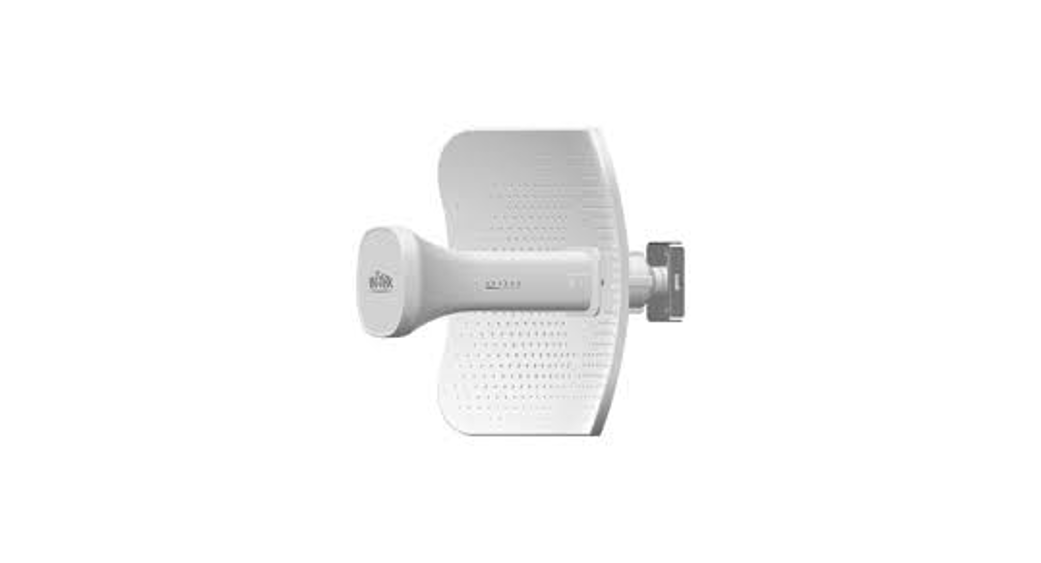
 5G Internet Gateway
Outdoor Mounting Kit Installation Guide (LV55IHP)
Version 1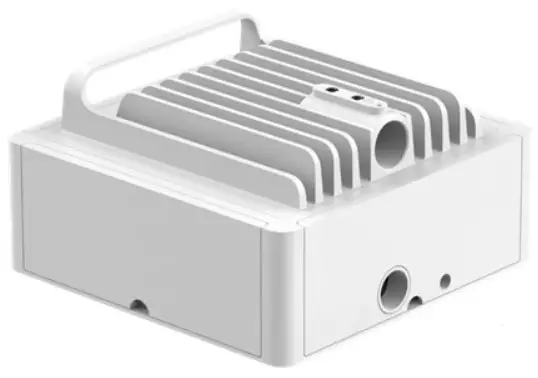
Federal Communication Commission Interference Statement
This equipment has been tested and found to comply with the limits for a Class B digital device, pursuant to part 15 of the FCC Rules. These limits are designed to provide reasonable protection against harmful interference in a residential installation. This equipment generates, uses, and can radiate radio frequency energy and, if not installed and used in accordance with the instructions, may cause harmful interference to radio communications. However, there is no guarantee that interference will not occur in a particular installation. Suppose this equipment does cause harmful interference to radio or television reception, which can be determined by turning the equipment off and on. In that case, the user is encouraged to try to correct the interference by one or more of the following measures:
- Reorient or relocate the receiving antenna.
- Increase the separation between the equipment and receiver.
- Connect the equipment into an outlet on a circuit different from that to which the receiver is connected.
- Consult the dealer or an experienced radio/ TV technician for help.
FCC Caution: Any changes or modifications not expressly approved by the grantee of this device could void the user’s authority to operate the equipment.
RF Exposure Statement
To comply with FCC RF exposure compliance requirements, the antenna used for this transmitter must be installed to provide a separation distance of at least 20cm from all persons (indoor), at least 54cm from all persons (outdoor), and must not be co-located or operating in conjunction with any other antenna or transmitter.
Safety Warnings
Adapter
Do not use any other power adapter except the one that accompanies this unit or a power adapter identified in the list below.
The use of another adapter could result in damage to the unit.
The following power adapter is qualified for use with this Verizon 5G Internet Gateway:
This unit must be powered by Delta Electronics, model ADH-90AR BCA or equivalent UL listed power adapter rated @ output 56Vdc, Maximum 1610mA.
Caution
Ensure to connect the power cord of the power adapter to a socket outlet with an earthing connection.
Chapter 1
Introduction
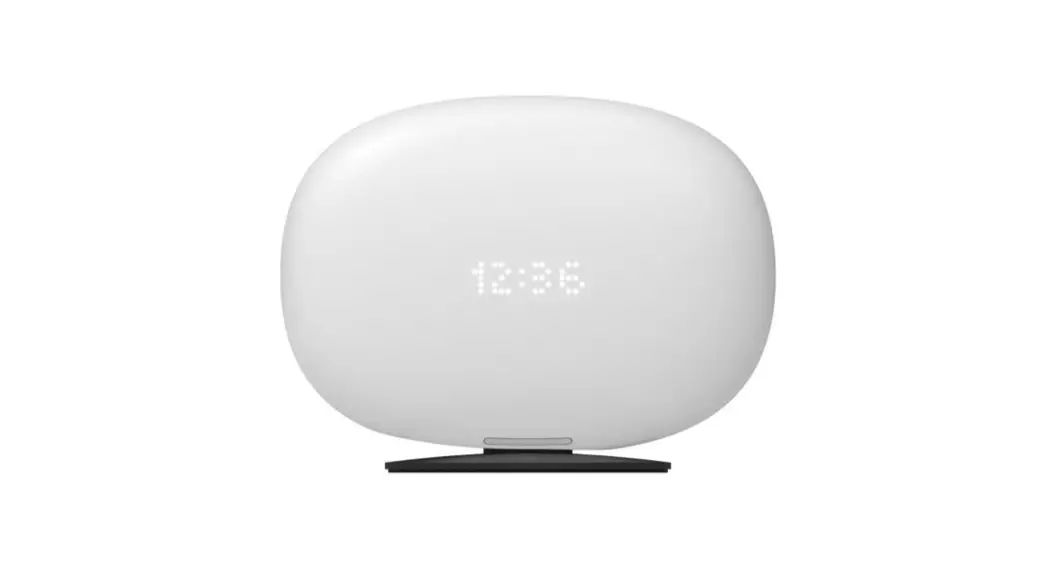
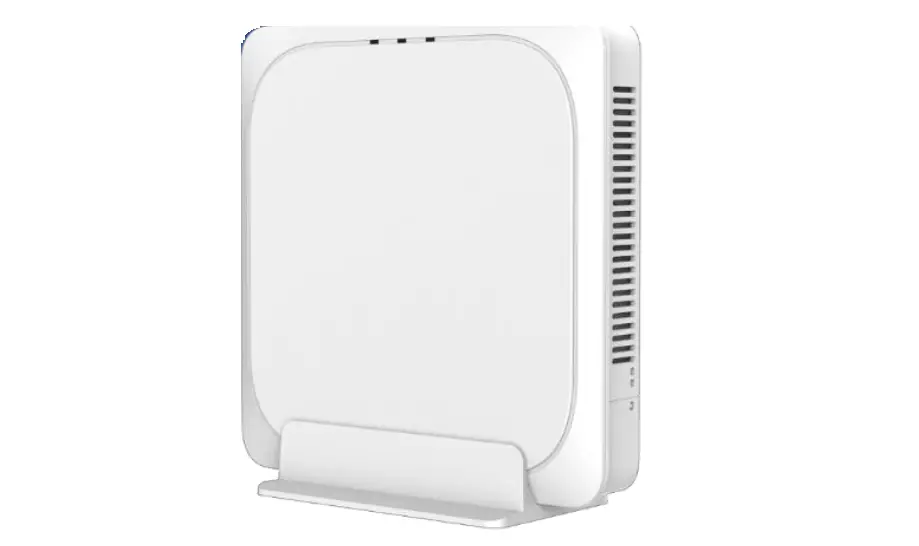
Verizon’s 5G Internet Gateway provides Verizon’s customers with a better solution for 5G home service. The innovative design of the 5G Internet Gateway allows customers to connect their favorite devices to Verizon’s 5G/LTE Network.
1.1 Unboxing Information
Inside the product package for the 5G Internet Gateway outdoor mounting kit, you should find the following items:
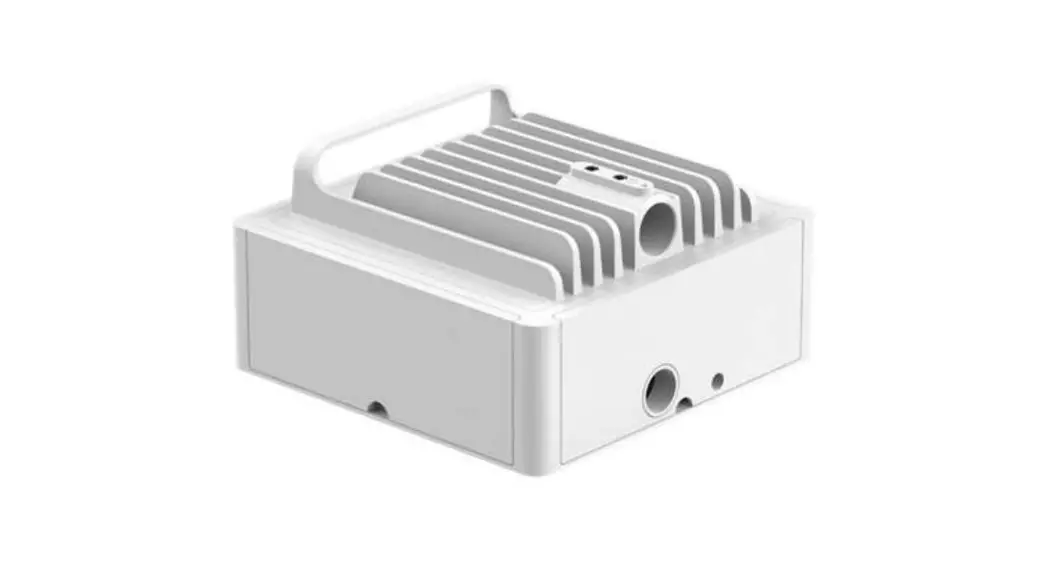
- Outdoor housing for 5G Internet Gateway × 1
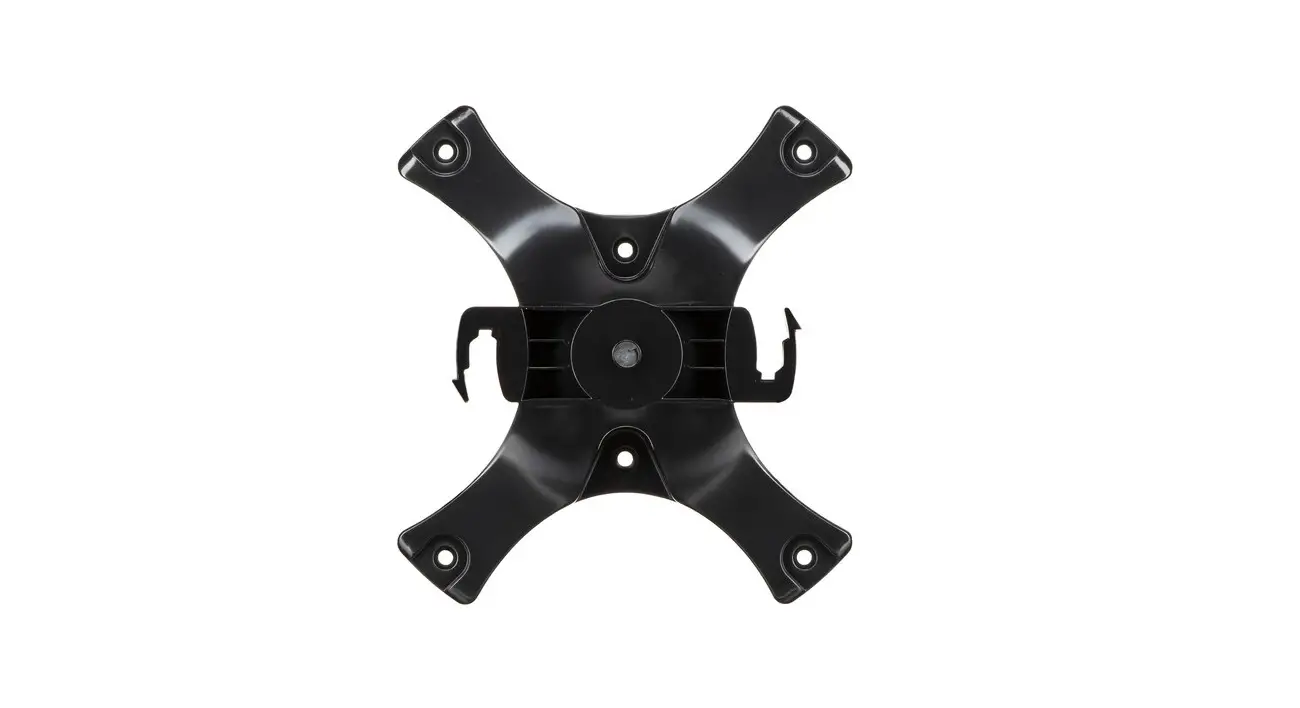
- Outdoor mounting bracket for 5G Internet Gateway × 1
- PoE power injector (PSE) × 1
- AC power cord × 1
- Surge protection device (SPU) × 1
- Screw bag × 2
- Cable gland × 1
1.2 Key Features
- Innovative and robust LTE/5G IHP/OHP CPE design provides significantly improved signal coverage and quality over the previous generation resulting in greater customer satisfaction and increased unit sales.
- Supports a full range of 4G bands B2/B5/B13/B66/B48 (CAT 16), 5G NR FR2, and 5G NR FR1 to ensure maximum coverage.
- Supports Wi-Fi 6 5GHz 4×4, 2.4GHz 2×2 coverage.
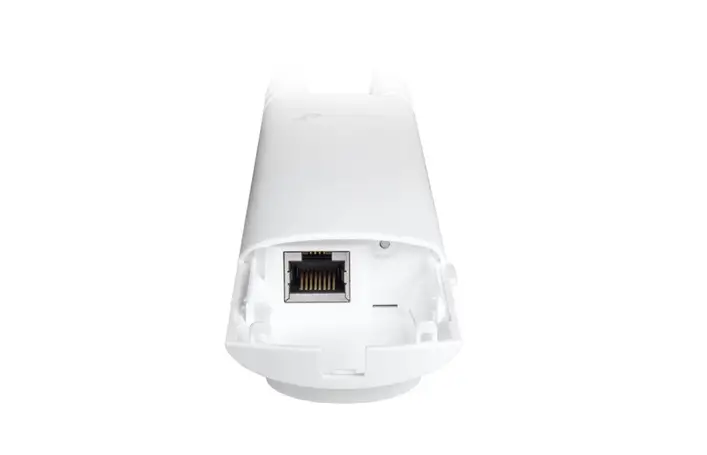
1.3 Bottom Panel (without Enclosure) 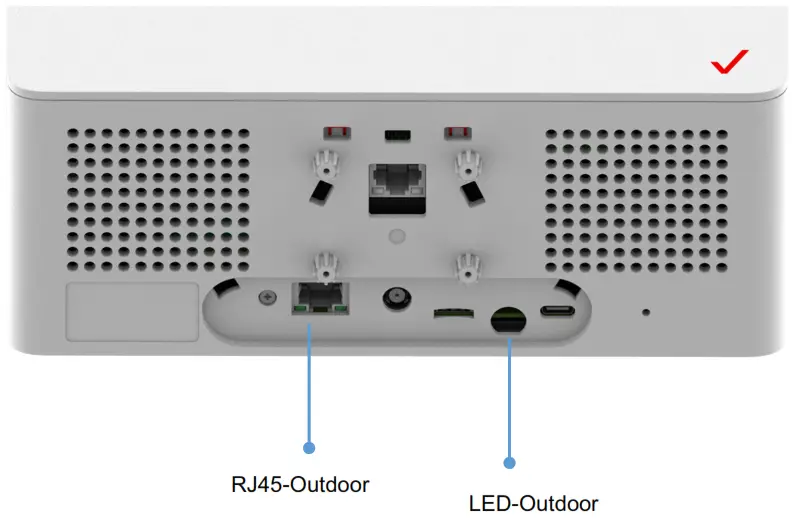
| Part | Description |
| RJ45-Outdoor | Connect the Gateway to the surge protection unit (SPU) via an Ethernet cable. |
| LED-Outdoor | The LED will light up in different ways to indicate the connectivity status of the 5G Internet Gateway. |
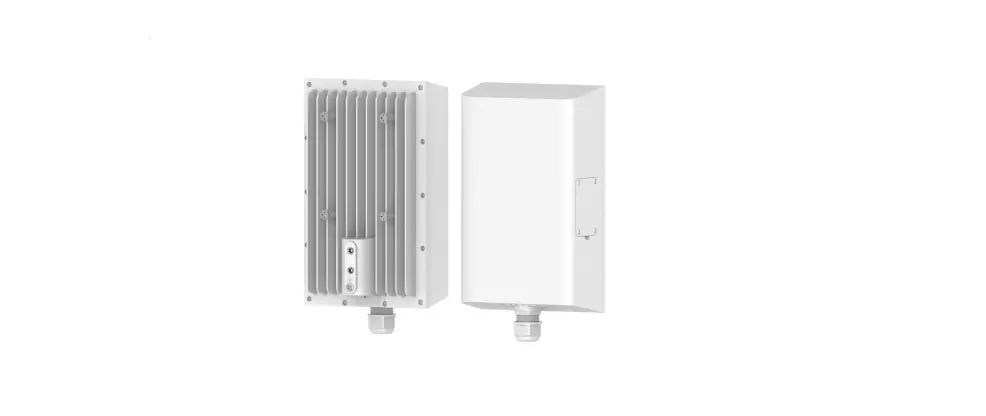
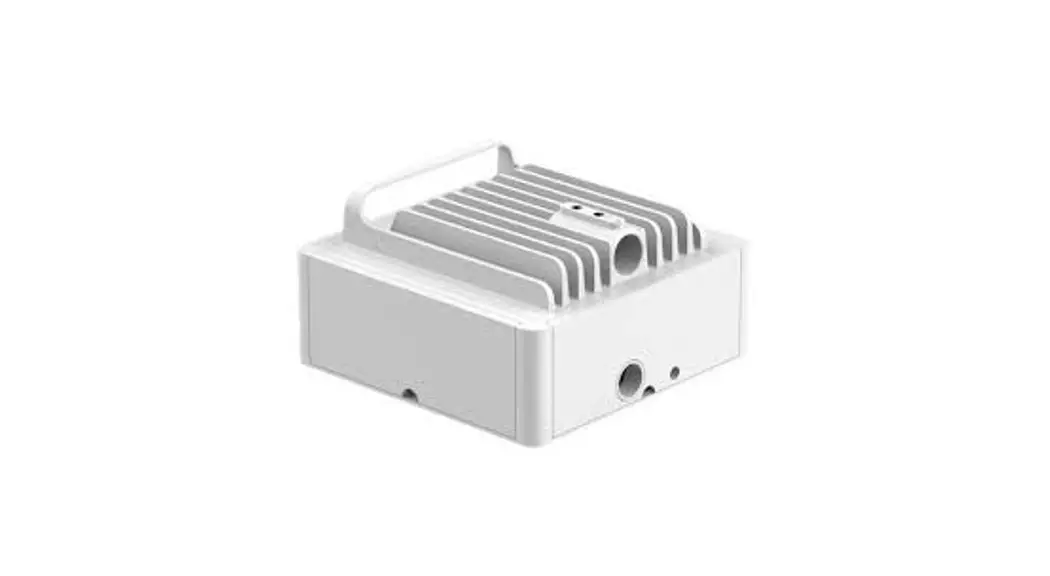
1.4 Bottom Panel (with Enclosure) 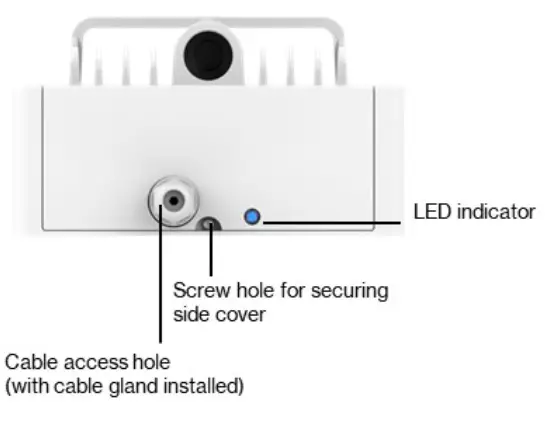 1.5 Waterproof Enclosure
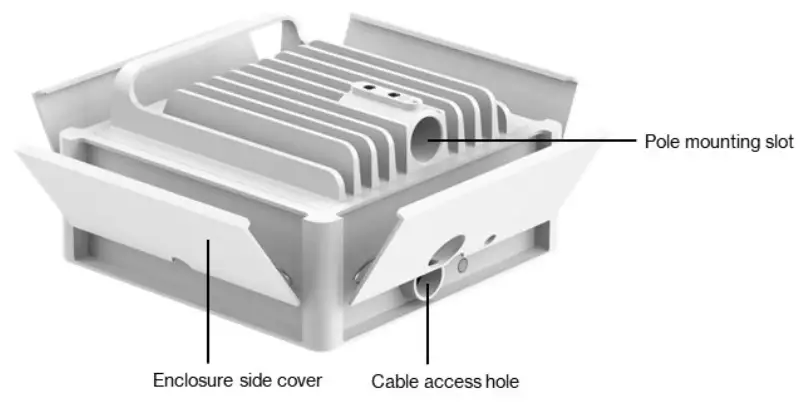 1.6 LED Notification Guide
| Status | Bottom LED |
| The device is powering up Soft fade in-out blue |  |
| Bluetooth® pairing mode (INSTALLATION MODE) Pairing starts automatically once the device is powered on. |  |
| Bluetooth® is paired LED stops blinking blue | |
| Activation complete (INSTALLATION MODE) The device has successfully activated and established an LTE connection and will start searching for a 5G signal. | |
| No 5G signal (INSTALLATION MODE) The Gateway did not immediately detect a 5G signal after activation. |  |
| Poor 5G signal (INSTALLATION MODE) A 5G signal is detected after activation, but the signal strength is inadequate. |  |
| Acceptable 5G signal (INSTALLATION MODE) The detected 5G signal is good enough for installation to continue. |  |
| Firmware update/factory reset in progress The device is in the process of updating/resetting software. |  |
| Error (Fault) A hardware/software issue has occurred Possible issues: •CPE is broken •Firmware is faulty •Internet connection has been lost |  |
| The device is operating normally (REGULAR USAGE MODE) The device setup is complete and an Internet connection has been established. The LED is solid blue. |  |
Chapter 2
Installing the 5G Internet Gateway
This section describes how to install the 5G Internet Gateway in an outdoor configuration, which is adopted when the indoor configuration is unable to detect a usable 5G signal. Outdoor installations must be carried out by professional, trained technicians.
2.1 Ground Installation
Step 1:
Pry off the I/O cap covering the bottom of the Gateway’s mounting collar.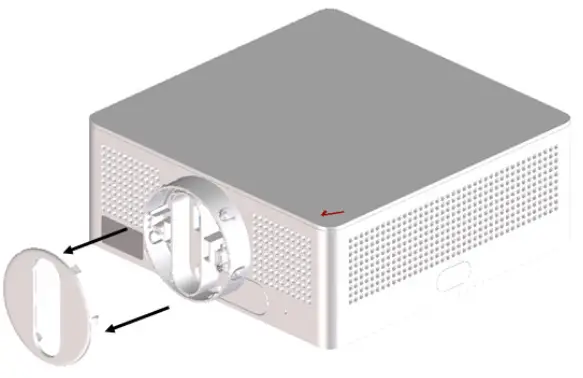 Step 2:
Unscrew the four M2 screws securing the mounting collar to the Gateway.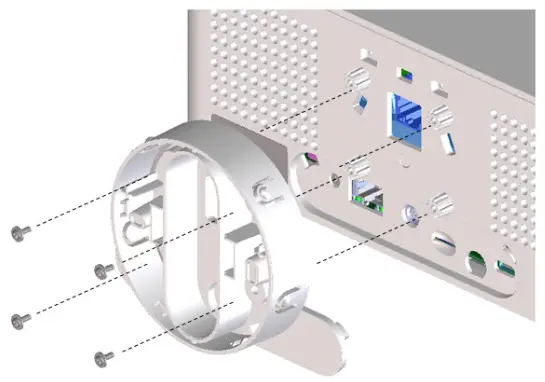 Step 3:
Grab the front end of the collar and pull it off the Gateway.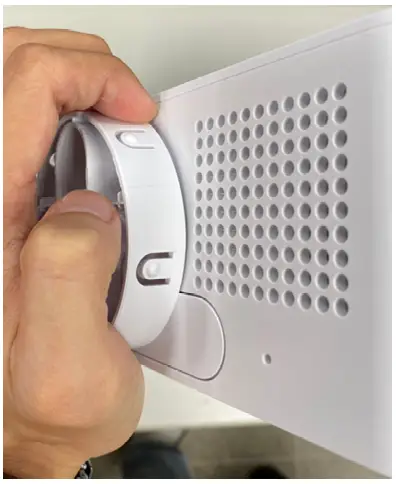 Step 4:
Use a screwdriver to press down on the two snap-fits pictured below to allow the front cover to be removed from the Gateway.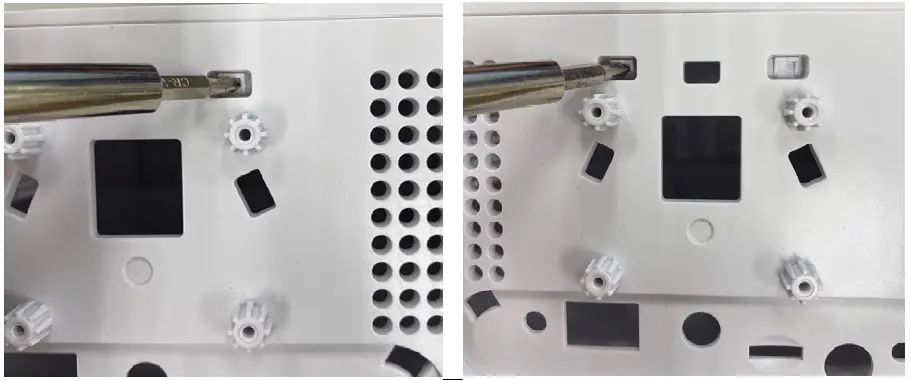 Step 5:
Pry off the front cover (the side with the logo) of the Gateway.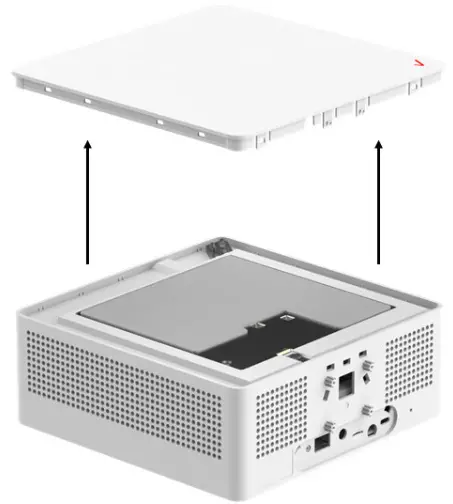 Step 6:
Place the Gateway into the waterproof enclosure. Make sure the side with the connectors is aligned with the side of the enclosure with the cable access hole.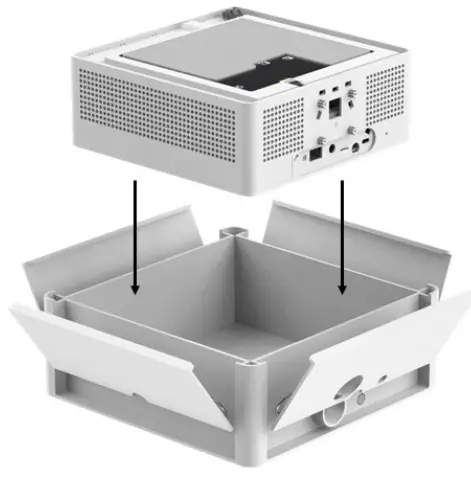
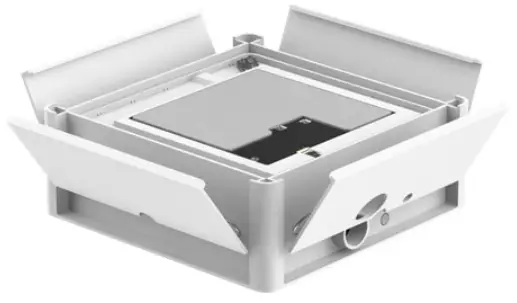 Step 7:
Install the rear cover of the waterproof enclosure. Make sure the pole slot on the rear cover is aligned with the side of the enclosure that has the cable access hole.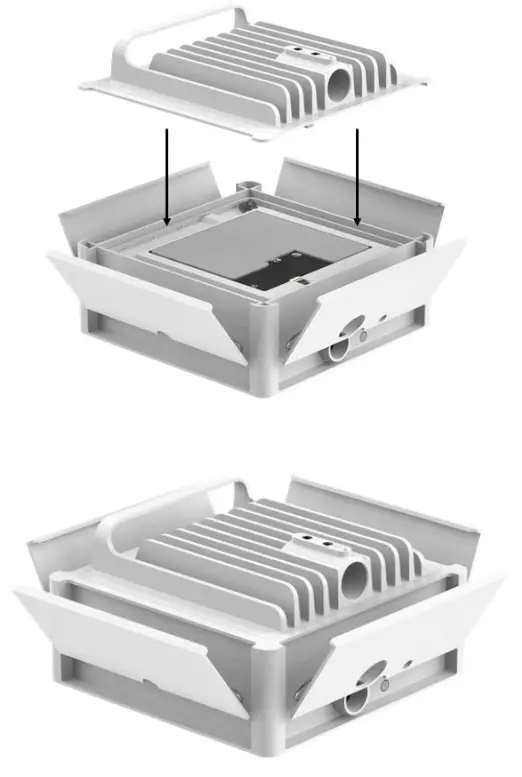 Step 8:
Latch the protruding side of the four side covers of the waterproof enclosure to the rear cover, then press downward on the side covers until a secure fit is achieved.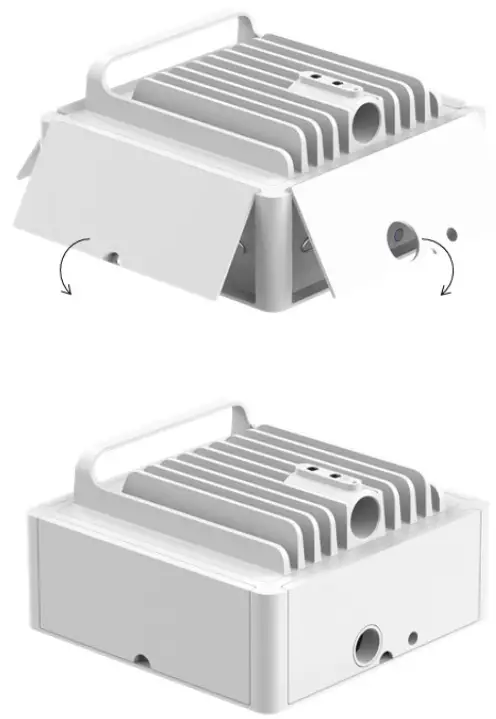 Step 9:
Use four screws to securely affix the side covers to the enclosure.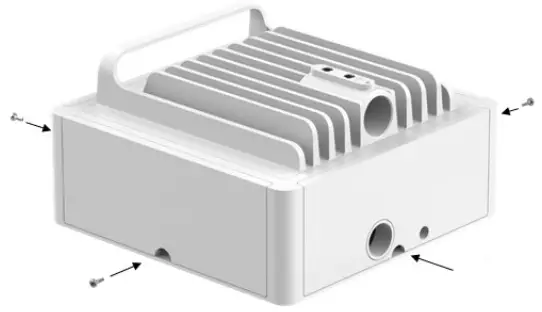 Step 10:
Take one end of an Ethernet cable and run it through the cable gland parts in accordance with the image below.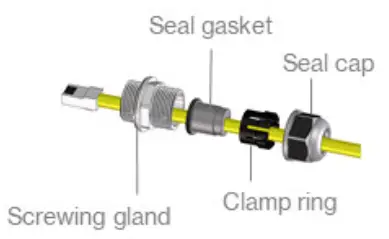 Step 11:
Plug the Ethernet cable mentioned in the previous step into the RJ45-Outdoor port of the Gateway.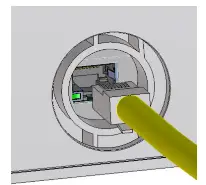 Step 12:
Use a wrench to secure the screwing gland to the cable access hold of the enclosure. Tighten the screwing gland to 25–27 kg-cm torque.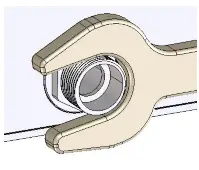 Step 13:
Wedge the seal gasket and clamp ring into the screwing gland.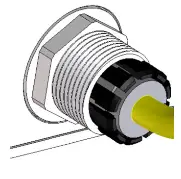 Step 14:
Place the seal cap over the clamp ring, then use a wrench to tighten the seal cap to 15 kgf-cm torque.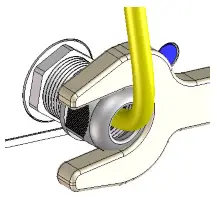
Step 15:
Place the enclosure in a suitable location on the ground.
2.2 Wall Installation
Step 1: Once you have completed steps 1 to 12 in section 2.1, find a suitable installation location on the wall.
Step 2:
After the aforementioned location has been found, use four screws to affix the wall mounting brackets the wall.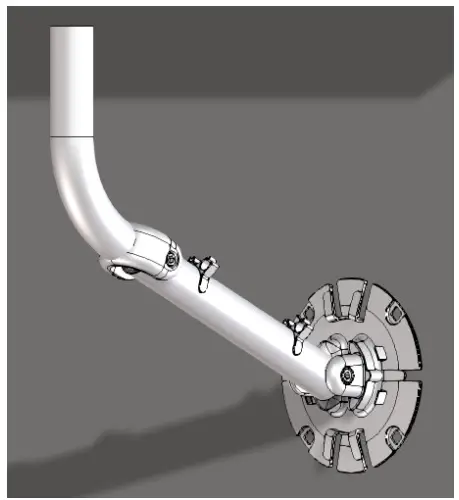 Step 3:
Adjust the mounting pole until the desired angle is achieved, then tighten the hinge screws on the pole to 100 ± 10 kgf-cm torque.
Note: Use a spirit level to ensure that the mounting pole is perpendicular to the ground.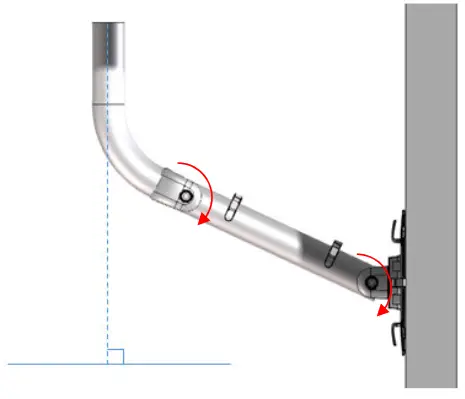
Step 4:
Align the mounting pole with the mounting slot on the rear cover of the Gateway’s waterproof enclosure, then slide the pole into the slot step 5:
Once the pole is in the slot, place two M10-1.5 screws into the screw holes shown in the image below, then tighten the screws to 60 ± 10 kgf-cm torque.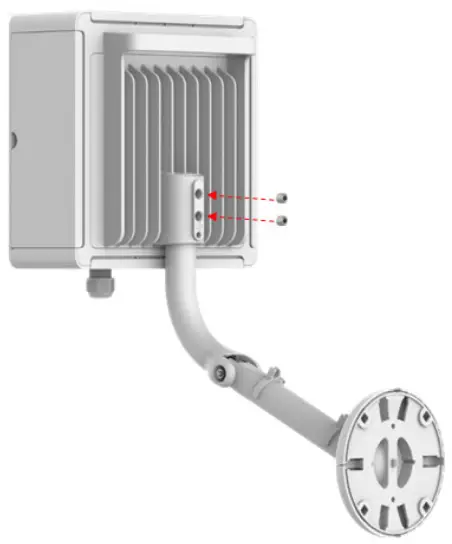 Step 6:
Use the cable management clips on the mounting pole and wall mounting bracket to route the Ethernet cable (refer to images below).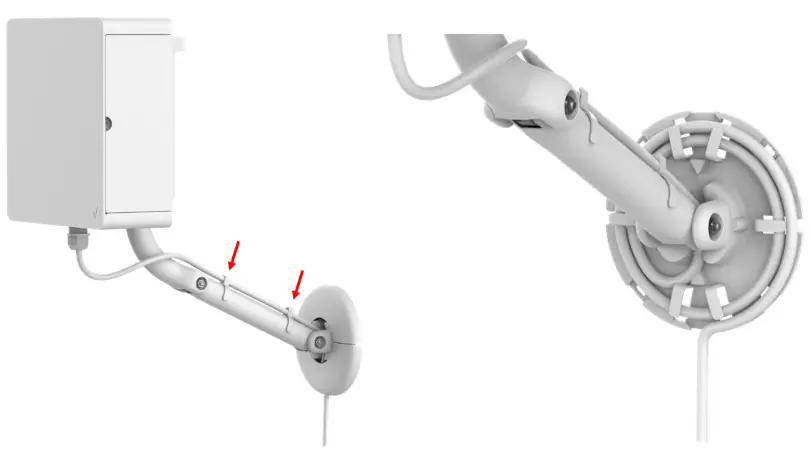 Step 7:
Use an M4-0.7 screw to attach the grounding cable to the rear cover of the enclosure. Tighten the screw to 10 kgf-cm torque.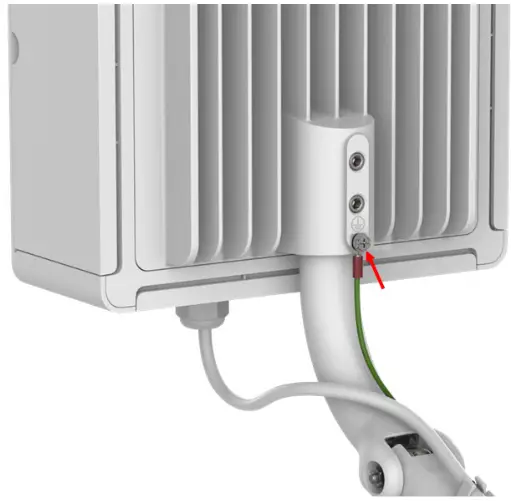 Step 8:
Route the grounding cable through the cable management clips on the pole (refer to the image below).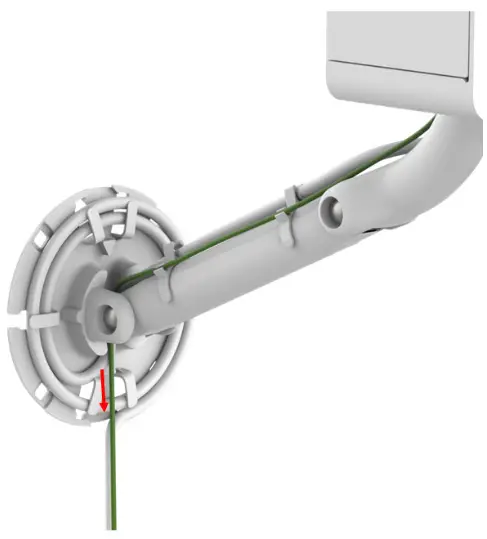 Step 9:
Place the plastic bracket cover over the wall mounting bracket (refer to the image below). Make sure the cables are going straight down.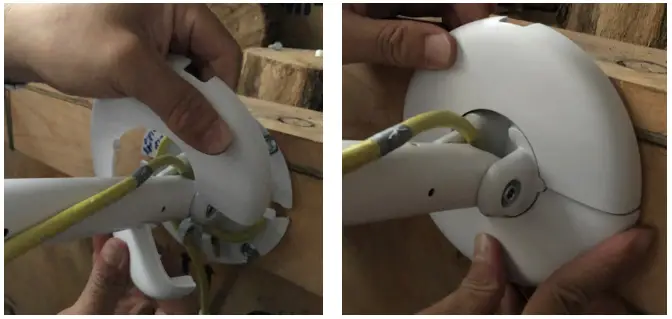 Step 10:
Check the LED indicator on the Gateway to make sure it is functioning normally.
Chapter 3
Connecting the 5G Internet Gateway
This section describes how to set up and configure your 5G Internet Gateway.
3.1 Setting up the 5G Internet Gateway
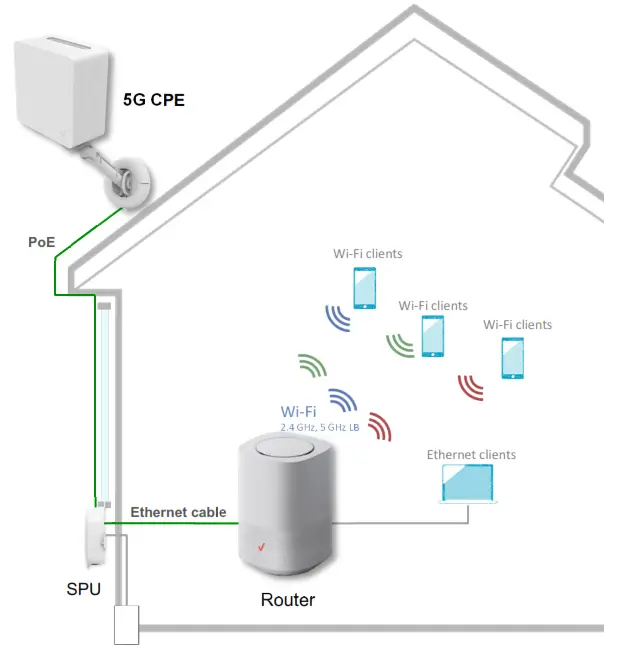
- Complete the steps in section 2.1 of chapter 2 (if installing the Gateway on the ground) or the
steps in section 2.2 of chapter 2 (if installing the Gateway on a wall). - Plug the Ethernet cable coming from the Gateway into the Ethernet port on the surge protection
unit (SPU). - Use an Ethernet cable to connect the SPU to a Router.
3.2 Connection Scenario for the 5G Internet Gateway
Chapter 4
Product Specifications
| 4G 5G |
|
| IoT |
|
| Memory |
|
| Storage |
|
| Dimensions |
|
| Weight |
|
| Connector |
|
| Operating Temperature |
|